
[vc_row][vc_column width=”1/4″][vc_widget_sidebar sidebar_id=”sidebar-1″][/vc_column][vc_column width=”3/4″][vc_column_text]
Display Your Branded App on Your Customer Portal
If your business has its own branded mobile app, you can promote it directly on your Customer Portal homepage. This displays Google Play and/or Apple App Store icons that link customers straight to your app listing(s), making it easy for them to download your app without searching the app stores.
You can also add a call-to-action message and an app promotional image to encourage more installs. You can show or hide this entire section anytime.
Your branded app can help increase visibility and retention by letting customers book services, manage bookings, and communicate with your team. Fieldworkers can also accept/reject jobs, manage availability, and communicate on the go. To learn more, click here.
Table of contents
- What this feature does
- Before you start
- How to set it up
- What customers see
- Best practices
- Related guides
What this feature does
- Displays a “Branded App” section at the bottom of your Customer Portal homepage.
- Shows download icons for Google Play and/or the App Store (depending on which links you add).
- Lets you add promotional content including a call-to-action message and an optional app image.
- Allows you to hide/show the entire section using a toggle.
Before you start
- Make sure your app is published on the relevant store(s).
- Have your Google Play Store URL (Android) and/or Apple App Store URL (iOS) ready.
- Optional: Prepare an app promotional image (maximum width 450px).
How to set it up
To display your branded app on your Customer Portal, navigate to:
Settings > Customer Portal > Homepage promotions
Scroll down to the Branded App section and configure the options below.
1) Show/Hide the Branded App section
Enable this toggle to display the branded app section at the bottom of your Customer Portal homepage. If you disable the toggle, the entire section will disappear from the homepage.

2) Add your Google Play link (Android)
Enter your Android app listing URL. This will be displayed to customers as a Google Play icon that opens your app listing so they can download it.

How it appears on the Customer Portal homepage:

3) Add your App Store link (iOS)
Enter your iOS app listing URL. This will be displayed to customers as an App Store icon that opens your app listing so they can download it.

How it appears on the Customer Portal homepage:

4) Upload your app image (optional)
Upload an app image to visually promote your app (for example, an app mockup or preview). This image will be displayed on the Customer Portal homepage inside the Branded App section.
Note: The image should have a maximum width of 450px.

5) Add your app promotional text (optional)
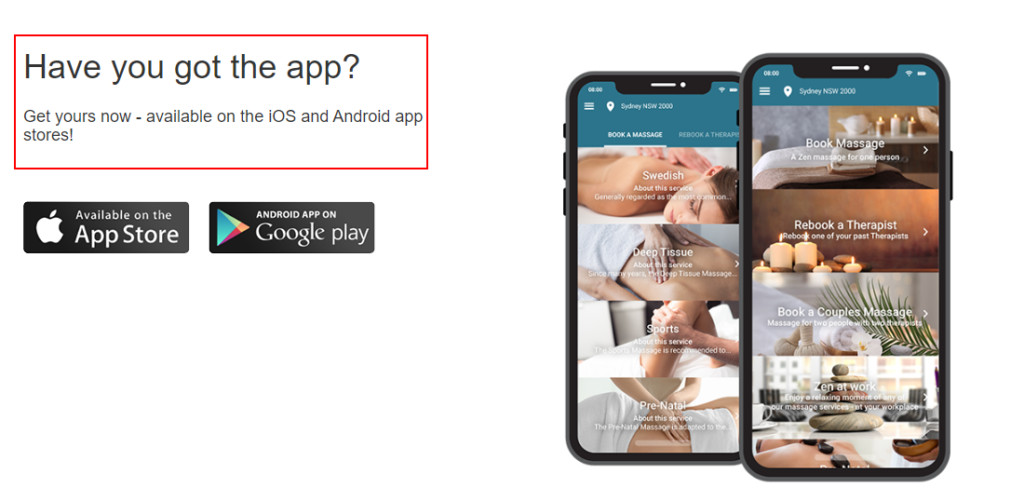
Add a call-to-action message that appears above the App Store and Google Play icons (for example: “Have you got the app? Get yours now – available on the iOS and Android app stores!”).
In the text editor, you can format your message using fonts, colours, alignment, bullet points, lists, tables, links, photos, and videos. You can also use full screen, code view, help, and preview options.
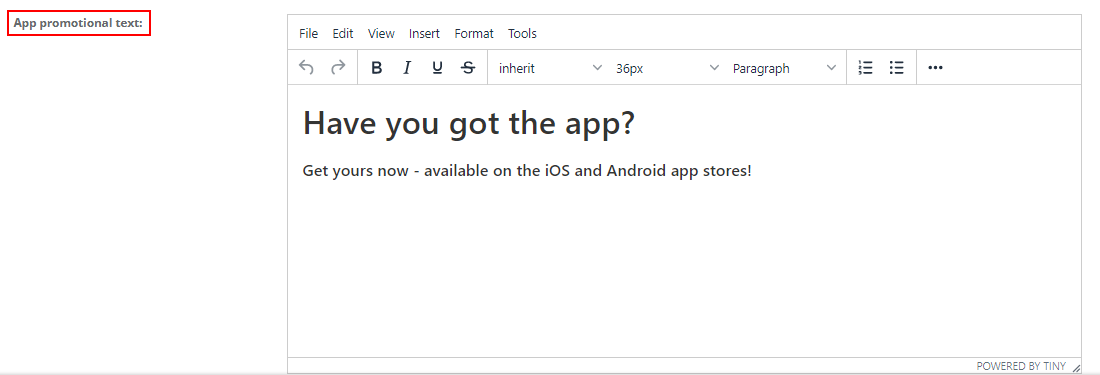
Example: How your text may appear on the Customer Portal homepage (based on your selected font size, style, and colours):
What customers see
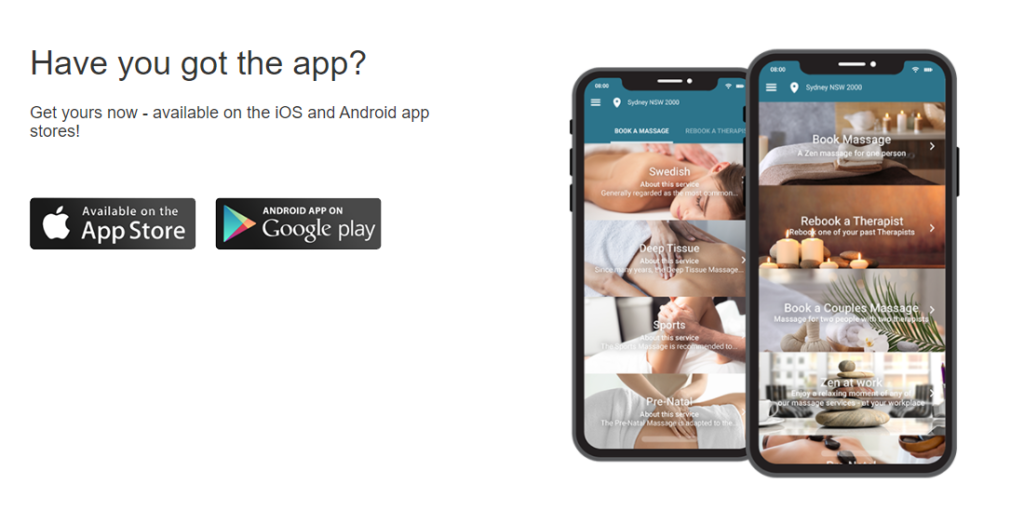
Once enabled, the Branded App section will appear at the bottom of your Customer Portal homepage, showing your promotional text (if added), app image (if uploaded), and the download icons for iOS/Android (depending on which store links you entered).
Best practices
- Use full store listing URLs: paste the official App Store / Google Play listing link for the best customer experience.
- Add both links if available: if you have iOS and Android apps, include both so all customers can download.
- Keep the call-to-action short: a clear, 1–2 line message usually performs best.
- Use a clean, branded image: a simple app mockup or screenshot collage helps build trust and increases installs.
Related guides
- Customer Portal Homepage Promotions & Incentives
- Customer Portal Branding & Style Customization
- Customer Portal Settings Guide (General Settings)
- OctopusPro User Guide
To stay updated, please subscribe to our YouTube channel.
[/vc_column_text][/vc_column][/vc_row]