
[vc_row][vc_column width=”1/4″][vc_widget_sidebar sidebar_id=”sidebar-1″][/vc_column][vc_column width=”3/4″][vc_column_text]
Duplicate Fieldworker Profiles (Clone Fieldworker Settings)
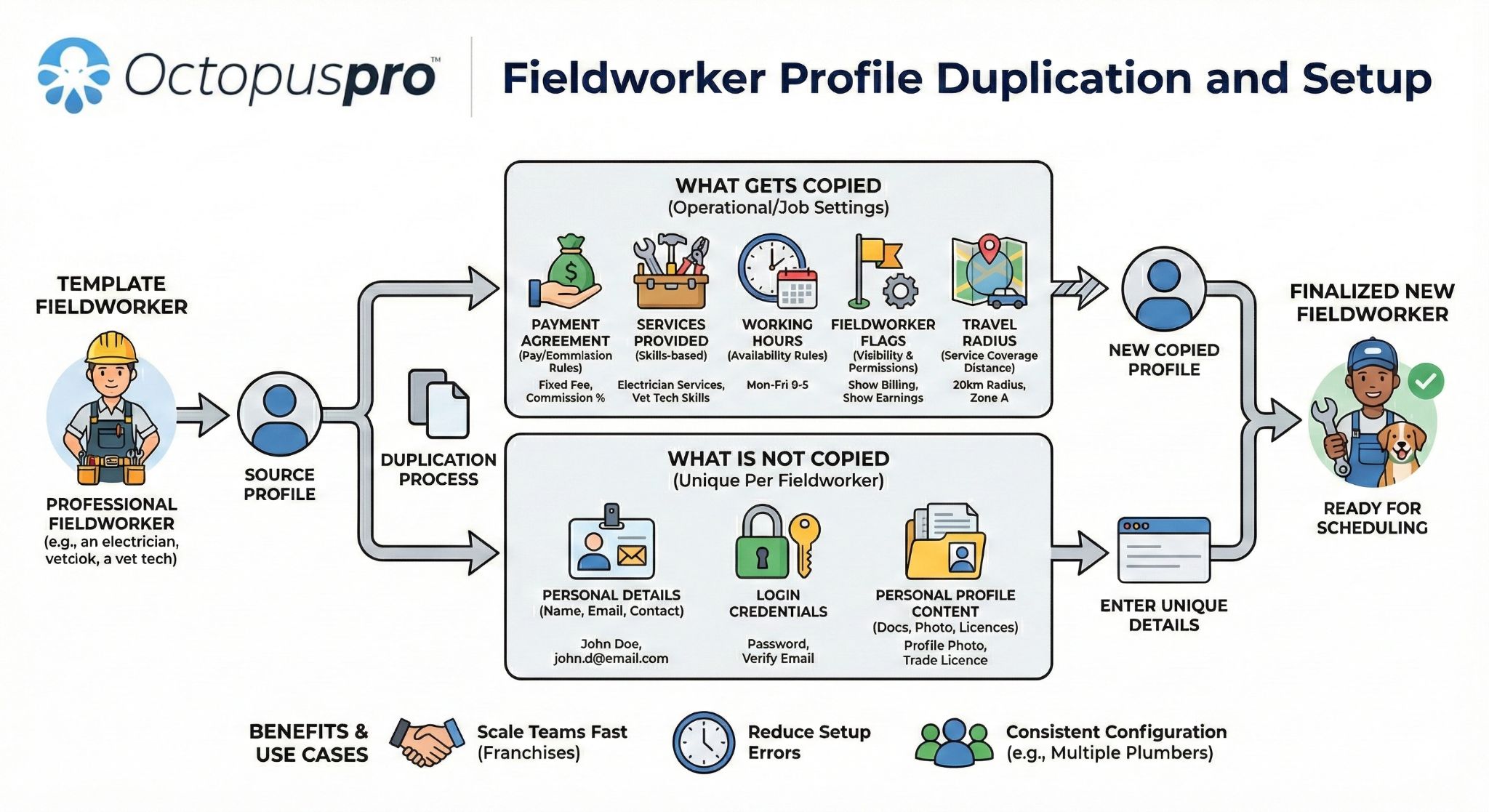
Duplicating a fieldworker profile lets you quickly create a new fieldworker using an existing profile as a template. This is ideal when you need another fieldworker who will deliver the same services, follow the same pay/commission rules, use the same working hours, and share the same travel radius—without reconfiguring everything from scratch.
Important: Only job-related settings are copied. You still need to enter unique personal details (such as name and email) for the new fieldworker.
Table of contents
- When to use fieldworker duplication
- Before you start
- How to duplicate an existing fieldworker
- What gets copied from the original profile
- What is not copied
- What to do after duplicating
- Troubleshooting
When to use fieldworker duplication
- Adding another fieldworker with the same role (e.g., another cleaner, therapist, electrician, inspector).
- Scaling teams fast while keeping configuration consistent across staff.
- Franchise / multi-area operations where multiple fieldworkers share the same service catalogue and travel settings.
- Reducing setup errors by cloning a “known-good” profile as your template.
Before you start
- Make sure you have permission to manage fieldworkers in the Admin Portal.
- Choose a “template” fieldworker profile that already has correct job settings (services, pay rates, working hours, flags, and travel radius).
- Prepare a unique email address for the new fieldworker (emails typically cannot be reused across accounts).
How to duplicate an existing fieldworker
To duplicate a fieldworker, open the fieldworker’s profile from the left-side menu, then use the Actions menu to create a copy.
- Go to Fieldworkers from the left sidebar.
- Select the fieldworker you want to duplicate (this will be your template).
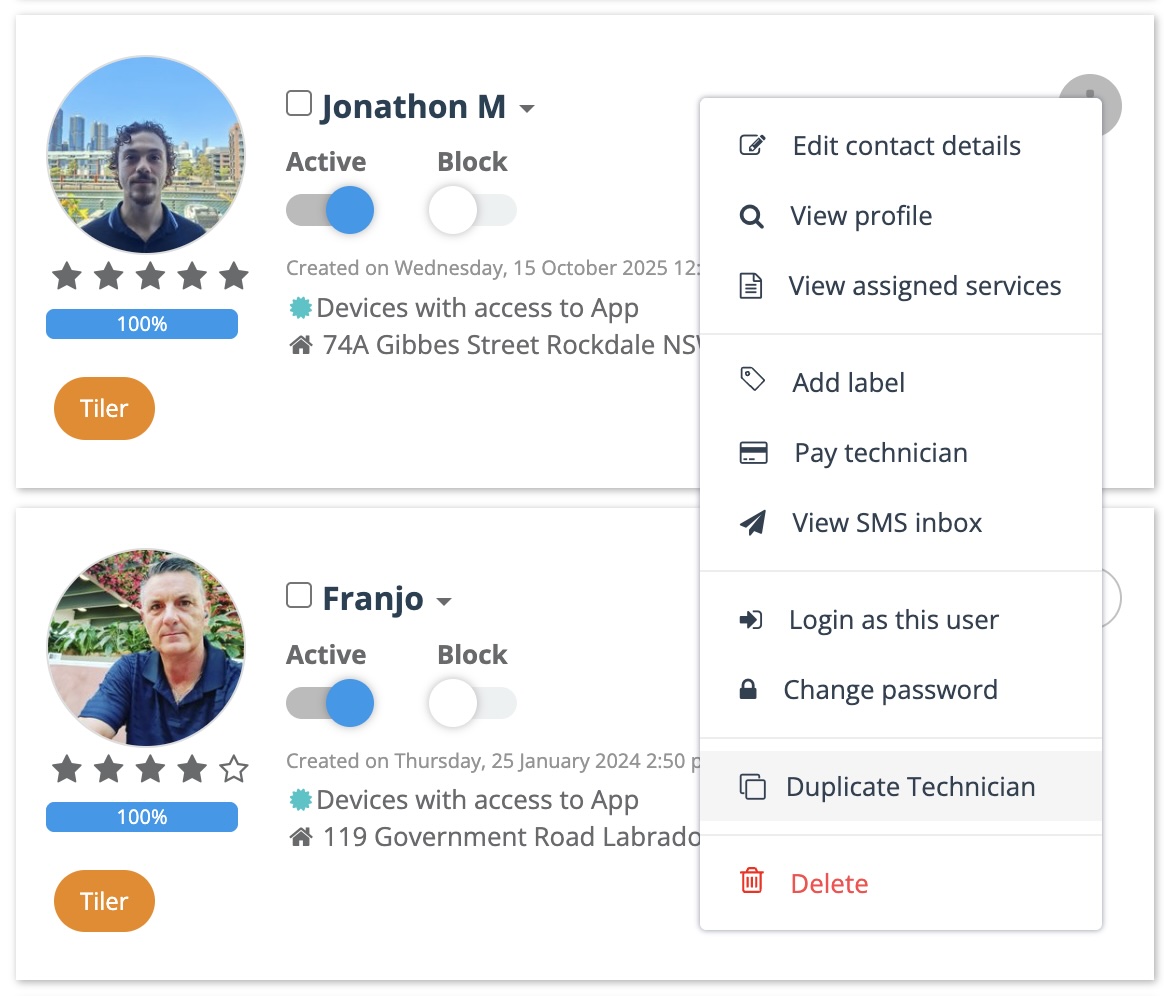
- Click the Actions menu, then select Duplicate fieldworker.
A pop-up window will appear. Enter the new fieldworker’s personal details (for example: name and email), then click Create fieldworker.
Once created, the new fieldworker will be saved with the updated personal details, while the selected job-related settings are copied from the original profile.
What gets copied from the original profile
Fieldworker duplication is designed to copy operational/job settings (not personal identity details). Below are the main sections that are duplicated.
1) Payment agreement (pay rates / commission rules)
The system copies the Payment Agreement (how the fieldworker is paid per service/booking). This saves time when multiple fieldworkers follow the same compensation structure.
- Supports different rates per service (e.g., fixed fee, percentage/commission, or custom rules—depending on your configuration).
- If you apply a custom fieldworker share on a specific booking, that booking-level override may replace the default rules.
Learn more: Managing fieldworker commission & pay rates
2) Services provided (skills-based eligibility)
The duplicated profile copies the Services provided list from Job settings. This is critical for smart scheduling and matching, because fieldworkers typically appear as eligible only when the service is assigned to their profile.
Learn more: Assign services to fieldworkers
3) Working hours (availability rules)
The duplicated profile copies the fieldworker’s Working hours configuration. Keeping working hours accurate helps prevent customers from booking unavailable times (depending on your availability rules and portal settings).
Learn more: Manage fieldworker working hours
4) Fieldworker flags (visibility & permissions)
The duplicated profile copies the Fieldworker flags used to control permissions and visibility. Examples may include:
- Display booking billing amount to fieldworker (visibility of job pricing/amounts).
- Display fieldworker profile on the customer portal (public profile visibility).
- Display fieldworker earnings for bookings (earnings visibility in the app).
- Display fieldworker date joined (shows tenure on the portal where enabled).
Learn more: View & edit fieldworker profiles (including flags)
5) Travel radius (service coverage distance)
The duplicated profile copies the Travel radius settings. This helps you control how far a mobile fieldworker is willing (or allowed) to travel, and can influence matching for bookings based on distance rules.
- If the travel radius is not set (or is set to 0), your system may fall back to the company-level default travel radius (depending on your configuration).
- If you use Service Areas (map-based zones) as well, those rules may work alongside or instead of radius-based matching.
Learn more: Fieldworker service areas vs travel radius
What is not copied
To prevent accidental identity duplication, the following items should be treated as unique per fieldworker and are typically entered/updated after duplication:
- Name, email address, and contact details (must be unique).
- Login credentials (the new fieldworker should complete verification / set up access as required).
- Personal profile content such as profile photo, notes, documents, licences, or attachments (if used in your account).
- Any role-specific identifiers you track (employee ID, contractor ID, payroll ID, etc.).
What to do after duplicating
- Review the copied job settings (services, pay rates, hours, flags, radius) to confirm they match your intended template.
- Update personal details (phone, address, profile photo, emergency contact, etc.) as required.
- Ensure the fieldworker can access the system (email verification/login) based on your onboarding flow.
- Run a quick booking eligibility test: create a test booking and confirm the new fieldworker appears in assignment/availability lists (where applicable).
Troubleshooting
“Email already exists” when creating the duplicated fieldworker
- Each fieldworker typically needs a unique email address. Use a different email, or an alias format if your email provider supports it.
New fieldworker doesn’t appear when assigning a booking
- Confirm the required service is included under Services provided.
- Confirm the job is within the travel radius/service area rules.
- Check working hours and calendar availability (if real-time availability filtering is enabled).
- Review any flags affecting visibility/eligibility.
The duplicated profile copied settings you didn’t want
- Edit the new fieldworker profile and adjust the copied sections (pay, services, hours, flags, radius) to match the intended role.
- Consider creating one “golden template” fieldworker profile for each role (e.g., Senior Fieldworker, Junior Fieldworker, Team Lead) to duplicate from.
Related guides
- Adding a new fieldworker
- Managing fieldworker profiles: add, edit & keep data accurate
- Assign services to fieldworkers
- Fieldworker working hours management
- Fieldworker commission & pay rates
- Service areas vs travel radius
To stay updated, please subscribe to our YouTube channel.
[/vc_column_text][/vc_column][/vc_row][vc_row][vc_column]