
Fieldworker Profile Management (View, Edit & Maintain Technician Profiles)
A fieldworker profile (also called a technician, contractor, service provider, or crew member) is the central record OctopusPro uses to power scheduling, dispatch, communications, payroll/pay rates, compliance documents, and what customers see on the Customer Portal (when enabled).

This guide covers: where to find a profile, what each tab shows, how to edit key details, and how to keep profiles accurate using admin tools and fieldworker self-service.
Table of contents
- Why profile accuracy matters
- Access & permissions (who can view/edit)
- How to open a fieldworker profile
- Profile header: Contact / Actions / Calendar
- Profile tabs overview (Activity / Map / Personal details / Job settings)
- Activity tab (booking summary, logs, audit trail)
- Map tab
- Personal details tab (bio, account, documents, owners, subworkers, etc.)
- Job settings tab (services, hours, assets, flags, travel radius, service areas)
- Self-service editing (fieldworker app & web)
- Best practices (maintenance & troubleshooting)
- FAQ
Why profile accuracy matters
A complete, up-to-date fieldworker profile drives downstream workflows across OctopusPro—especially Find Availability (smart scheduling), automated notifications, payroll exports, and compliance tracking.

- Smart scheduling: matching by services, locations/service areas, working hours, travel radius, and calendar availability.
- Operations visibility: audit trails for messages, calls, photos, comments, and login history.
- Payroll & pay rules: commission/pay rates, bank details, and agreements used for exports.
- Compliance: licenses/insurance documents + expiry tracking.
- Customer experience: accurate bios/photos/ratings can display on the Customer Portal (if enabled).
Access & permissions (who can view/edit)
- Admins (and custom roles with the relevant permissions) can view and edit fieldworker profiles.
- Fieldworkers can typically edit their own profile details via the app/web (except settings you restrict).
- Approval requests: If a worker can’t edit a field directly, they may be able to submit an update request for office review/approval (depending on your configuration).
- Audit trail: profile changes are time-stamped inside the Activity logs.


Learn more about permissions: Fieldworker permissions & access control and Role-based access control.
How to open a fieldworker profile
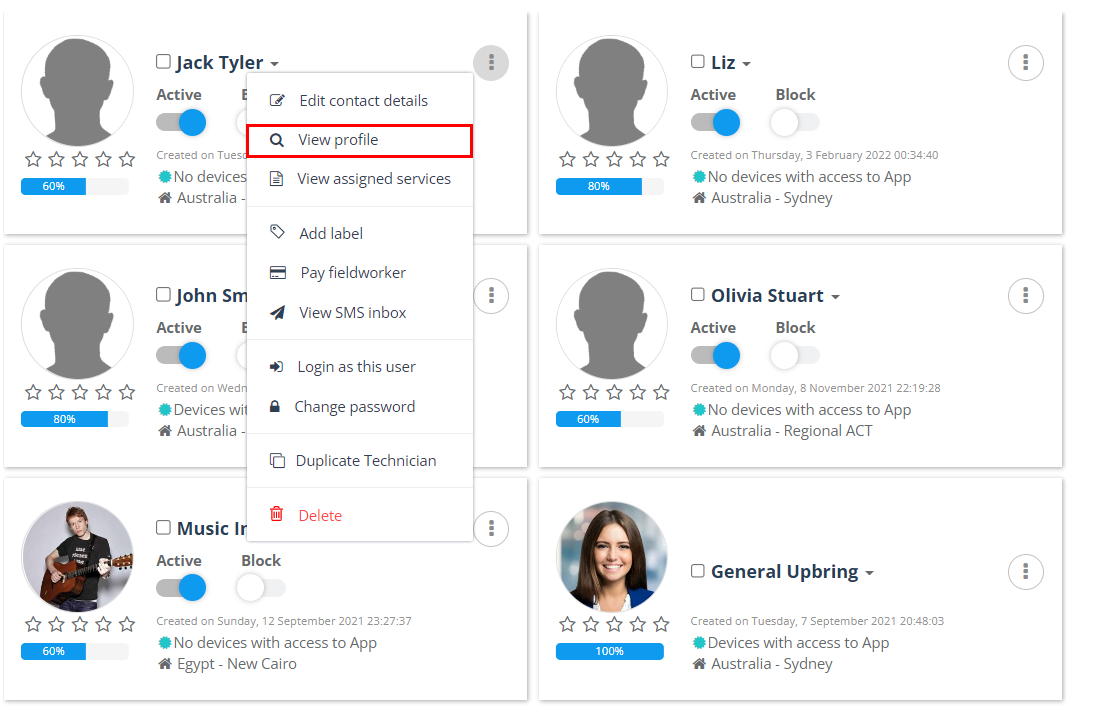
- Go to Fieldworkers from the left menu.
- Find the fieldworker you want.
- Open the Actions menu and click View profile.
Profile header: Contact / Actions / Calendar
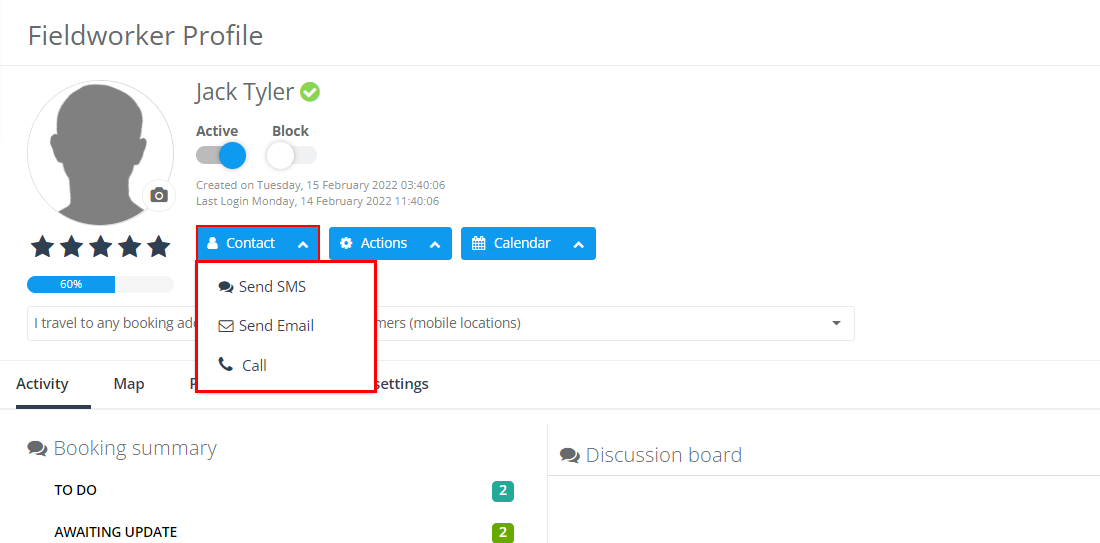
At the top of the profile, you’ll typically see the fieldworker photo, rating, profile completion %, status toggles (Active/Block), and quick action menus.
Contact menu
Use Contact to communicate directly with the fieldworker (e.g., send SMS, send email, call).
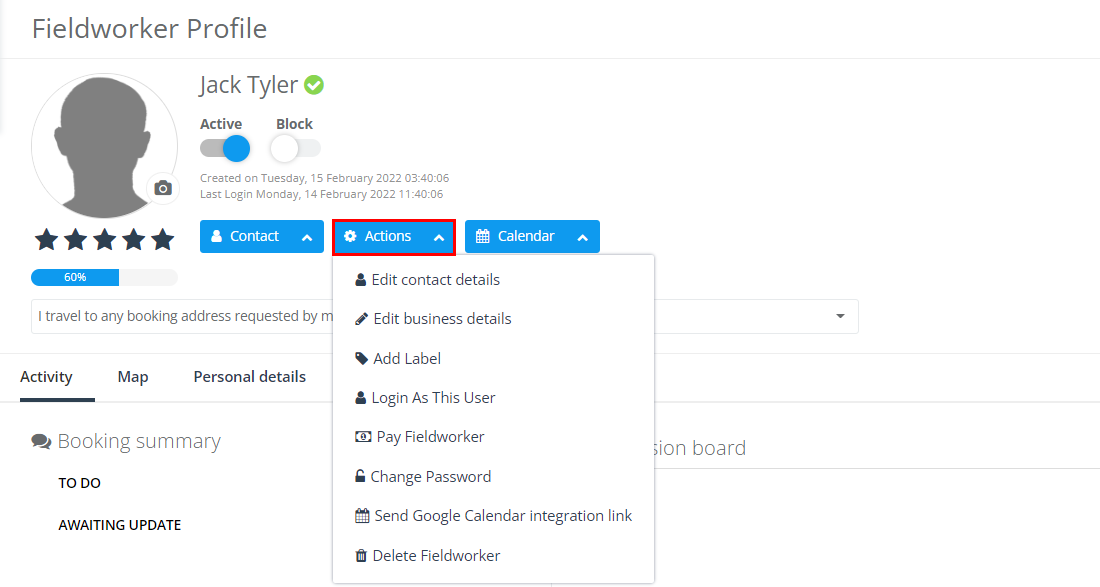
Actions menu
Use Actions for admin-level management tasks (examples may include):
- Edit contact details
- Edit business/profile details
- Add labels
- Log in as the user (impersonation for troubleshooting)
- Pay fieldworker / manage compensation
- Change/reset password
- Send Google Calendar integration link
- Delete fieldworker (when appropriate)


Helpful links: Log in as a fieldworker (impersonation), Commission & pay rates, Reset/change fieldworker password, Google Calendar integration, Delete users.
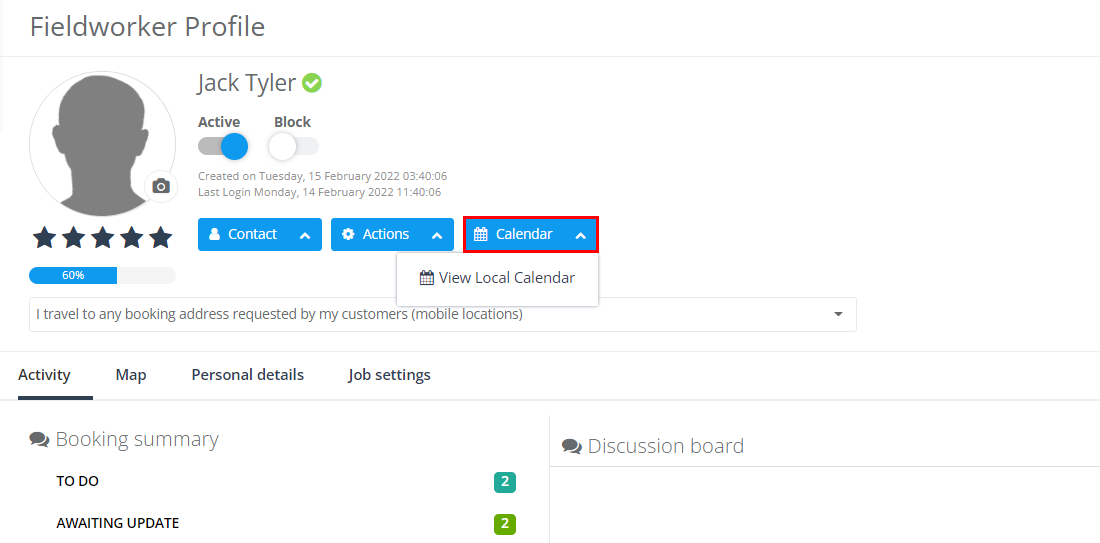
Calendar menu
Use Calendar to view the fieldworker’s local calendar and related scheduling context.
Profile tabs overview (Activity / Map / Personal details / Job settings)
Each fieldworker profile is organized into four key tabs:
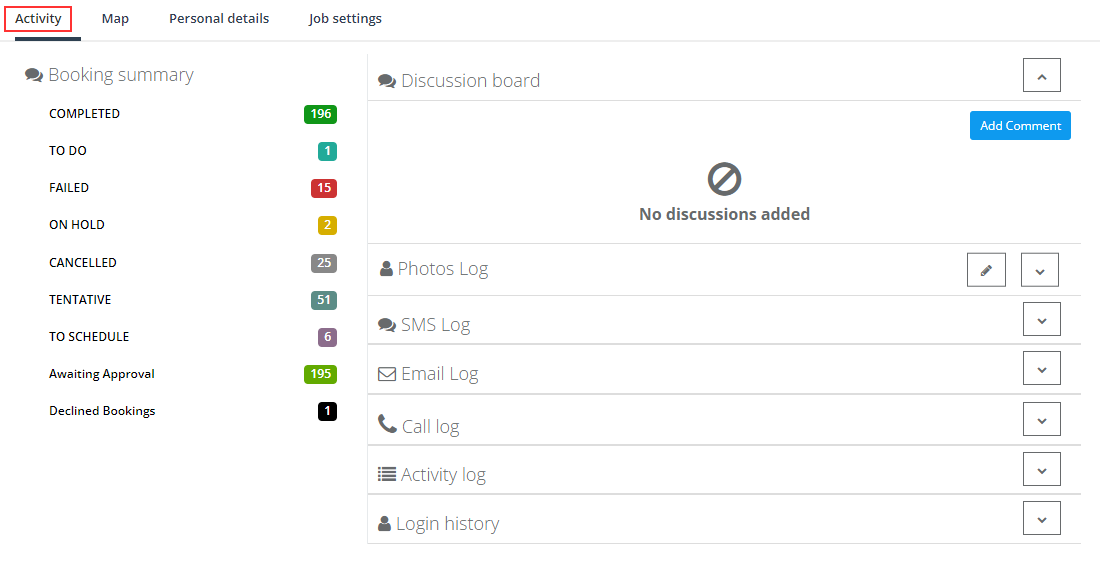
- Activity: booking summary by status + discussion board + logs (photos, SMS, email, calls) + audit trail + login history.
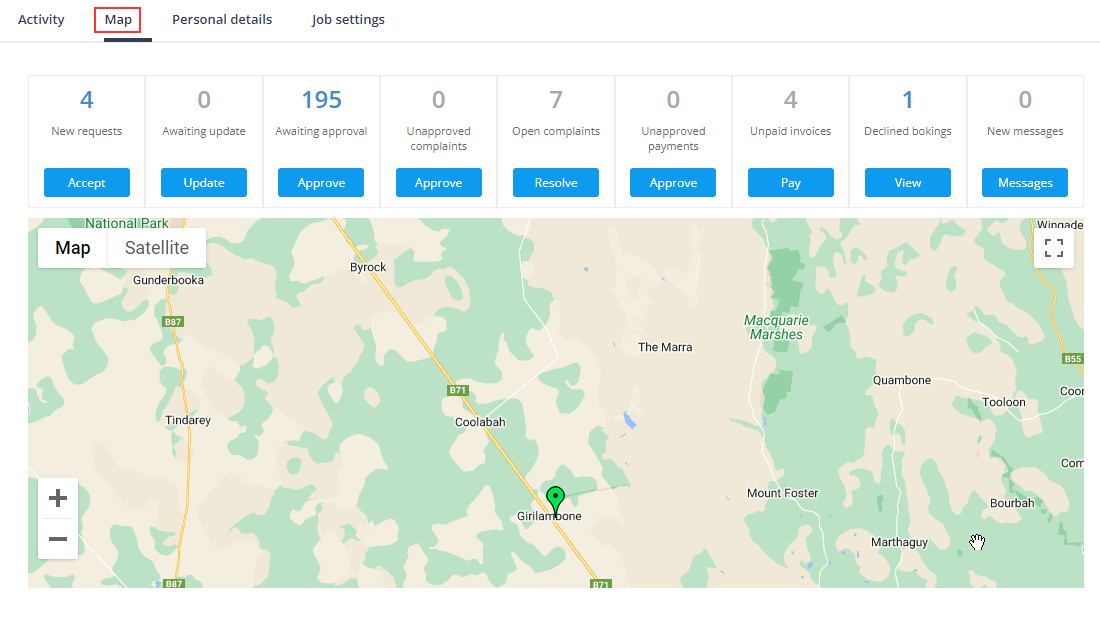
- Map: a map overview of booking/service activity and location context.
- Personal details: identity, bio, custom fields, business and payment details, bank details, signature, owners, subworkers, documents, video, social networks, devices.
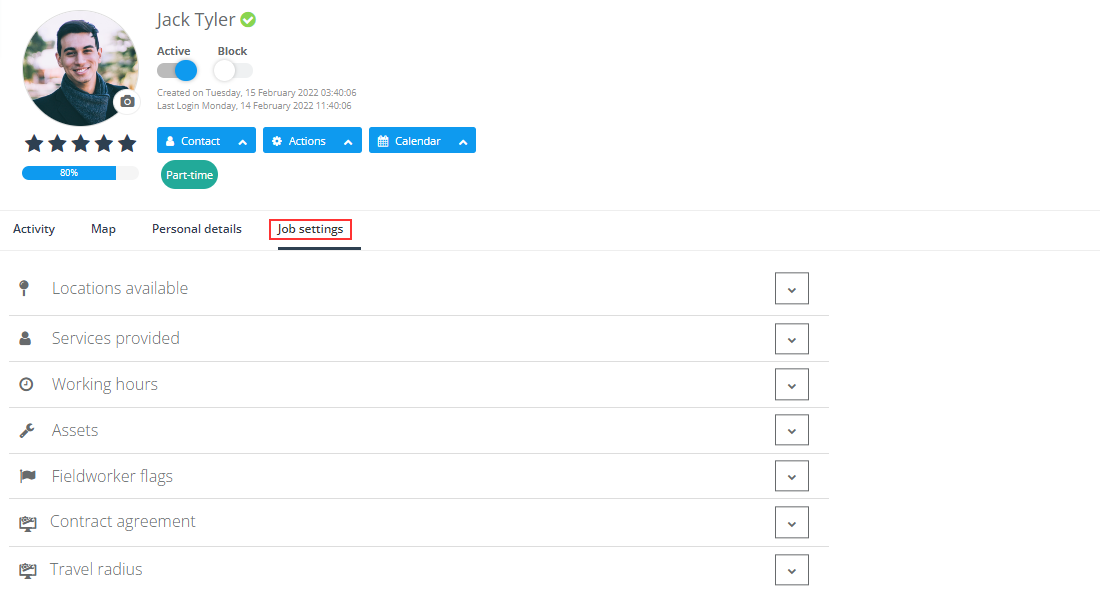
- Job settings: locations, service areas, services, working hours, assets, flags, contract agreements, travel radius.
Activity tab (booking summary, logs, audit trail)
From the fieldworker profile, select Activity to view booking status counts and detailed activity logs.
Booking summary
See the fieldworker’s bookings grouped by status (e.g., Completed, To Do, Failed, Cancelled, Awaiting Update, etc.).


Full guide: Viewing a fieldworker’s booking summary
Discussion board
View comments and add new comments to the discussion board. When adding a comment, you can attach files and control visibility (e.g., office-only vs shared visibility depending on your configuration).

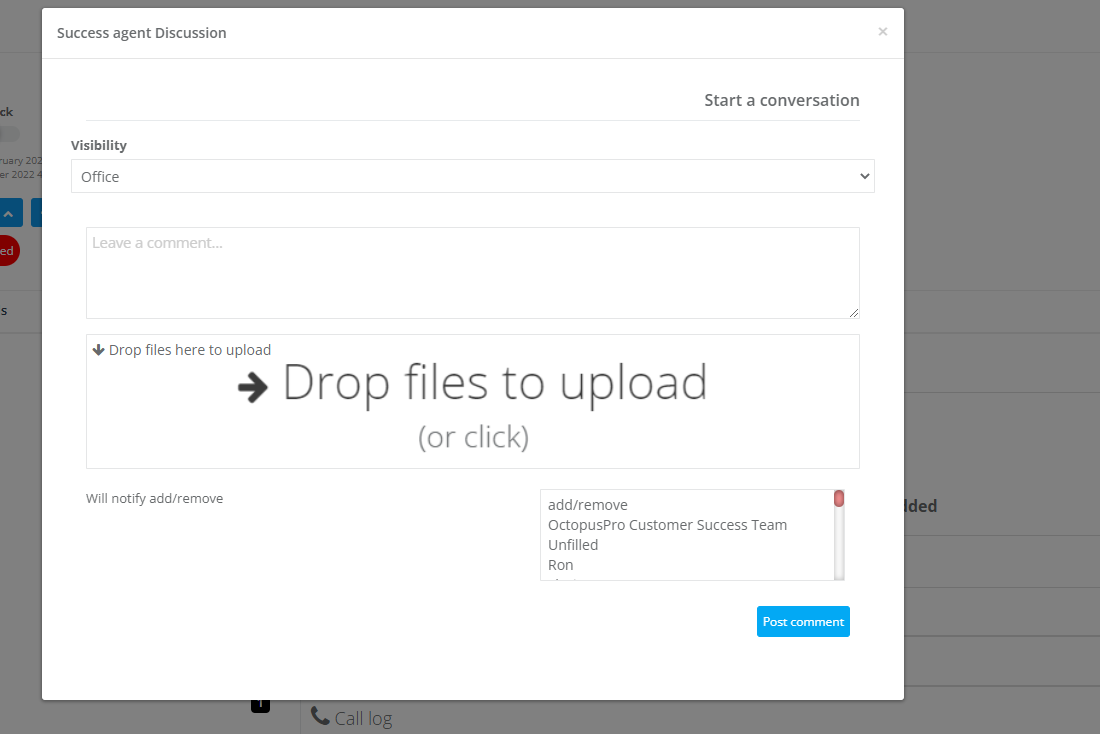

Full guide: Using the discussion board (comments, visibility, attachments)
Photos log
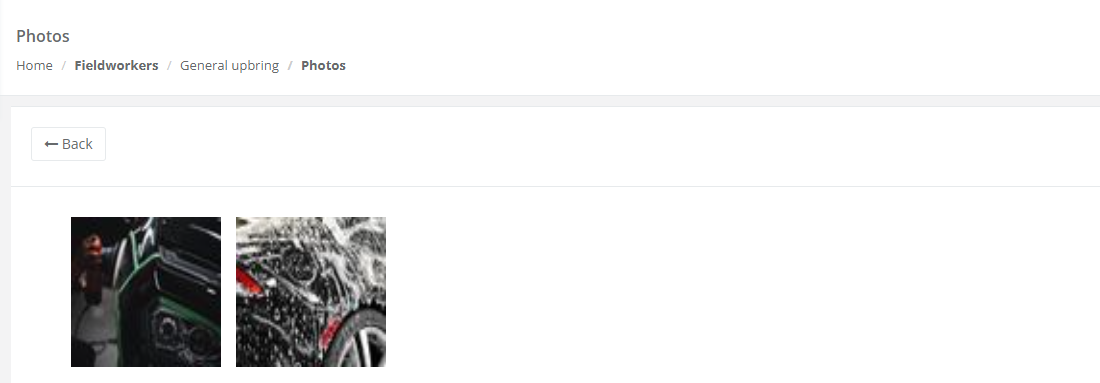
View photos uploaded by the fieldworker across bookings. You can also open the photos page to manage/edit items (depending on permissions).

SMS log
View all automated outgoing SMS, messages sent by fieldworkers, and messages received by fieldworkers.
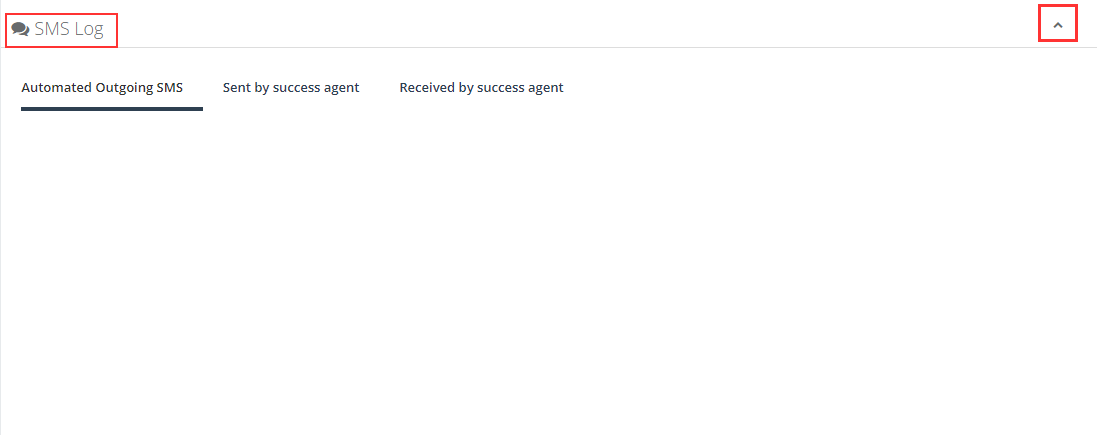
Full guide: Fieldworker SMS log
Email log
View sent/received emails, subject lines, attachments, and timestamps.
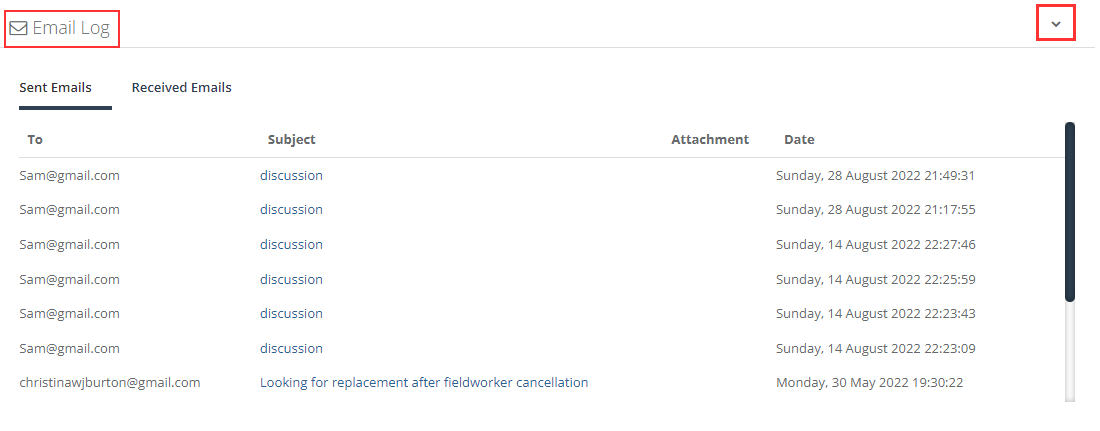
Full guide: Fieldworker email log
Call log
View calls, time/duration, and (if enabled) call recordings.
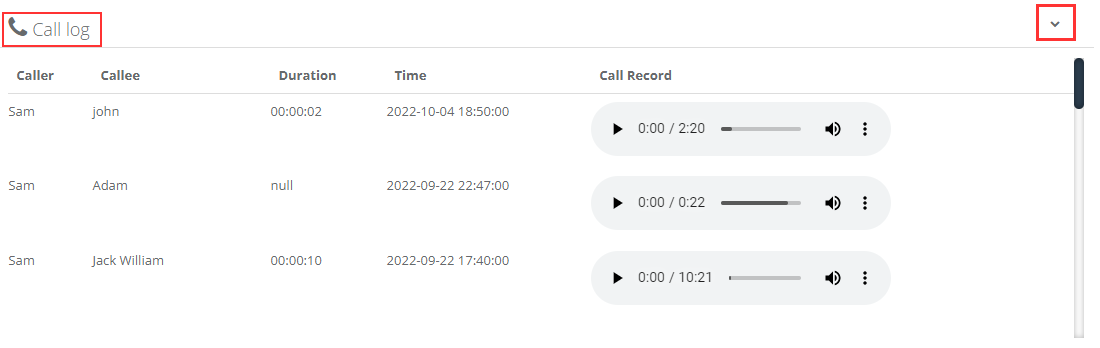

Full guide: Fieldworker call log
Activity log (audit trail)
Track system events and changes tied to the fieldworker for auditing and troubleshooting.
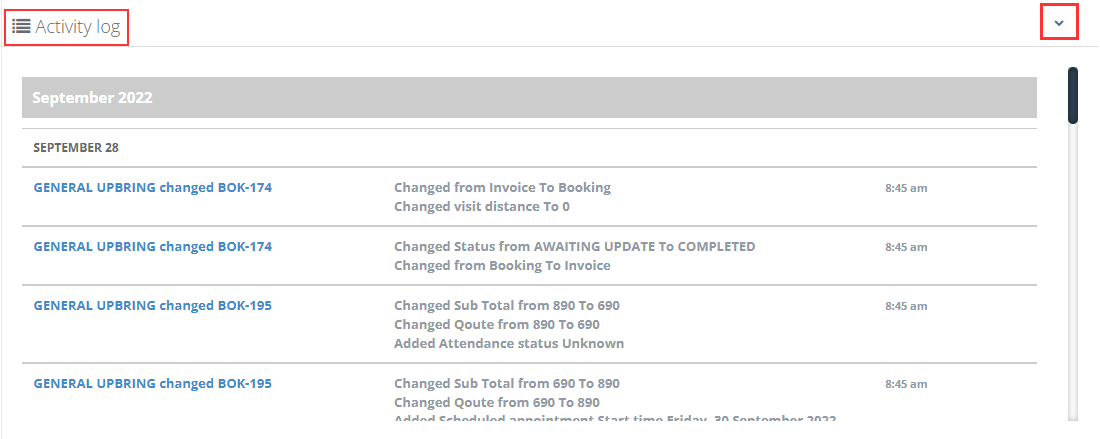

Full guide: Fieldworker activity log
Login history
See login history and device/app context (useful for support and security checks).

Map tab
Use the Map tab for a location-based overview (useful for dispatching, proximity planning, and identifying issues quickly).
Personal details tab (view & edit)
The Personal details tab contains identity and profile information, including bio, user/account details, custom fields, business and pay details, documents, social links, and devices.

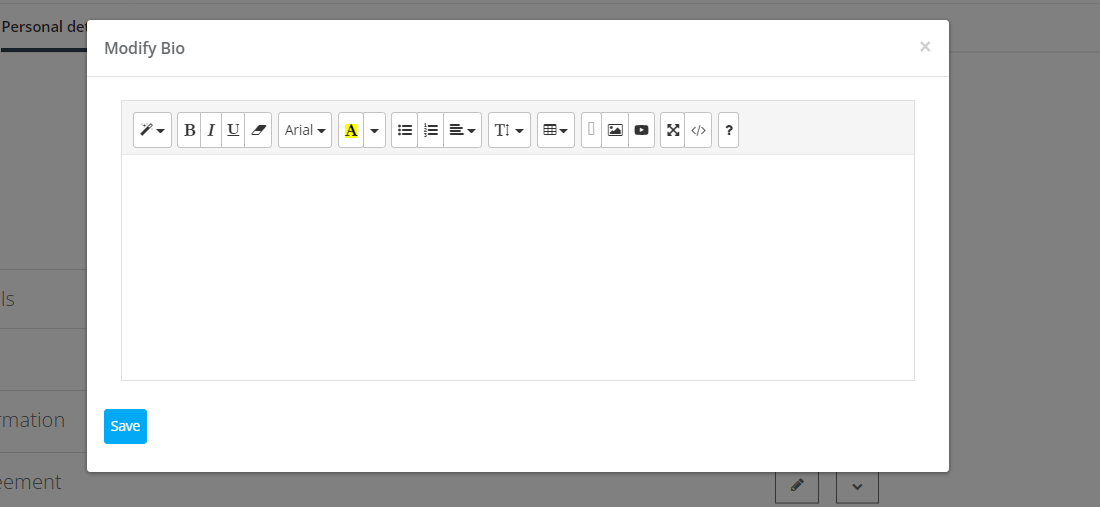
Bio
View and edit the bio (often used on the Customer Portal when profile visibility is enabled).

Account details
View and edit account-level details (role, display name, contact details, address, etc.).

Custom fields
Custom fields let you capture extra profile data (e.g., licenses, qualifications, identifiers, compliance fields). Admins can view/edit these values here.


Learn more: Fieldworker profile customization using custom fields
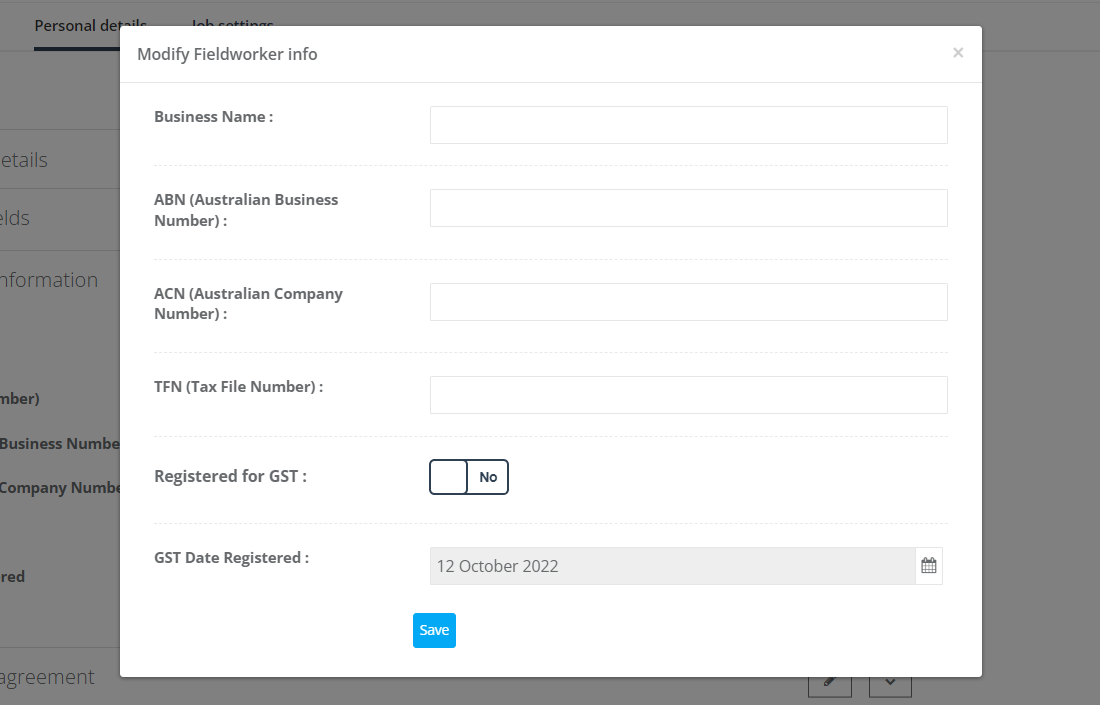
Business information
Store business identifiers such as trading name and tax/VAT/TIN/ABN values (depending on your region and configuration).

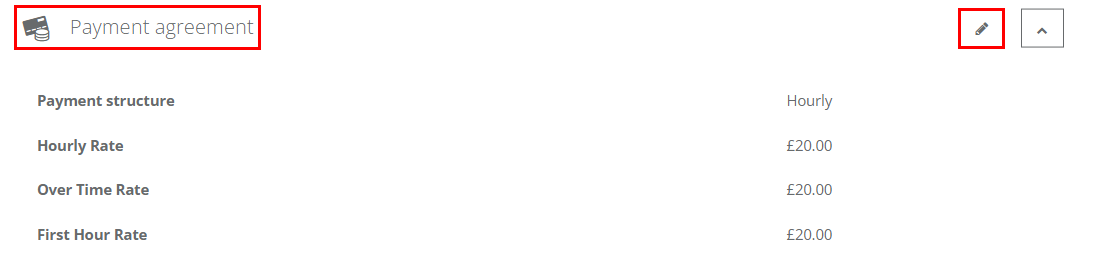
Payment agreement (pay structure)
Set how the fieldworker is compensated (hourly, flat rate, commission/percentage, or other supported structures). This can drive payroll and job cost calculations.
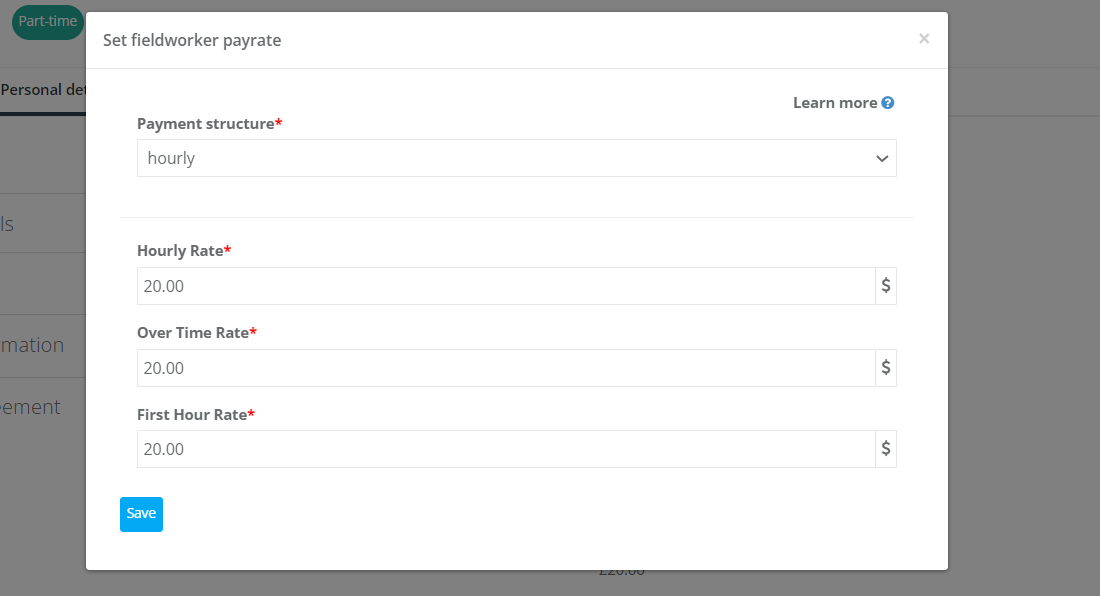

Full guide: Fieldworker commission & pay rates
Bank account
Store bank details (used for payroll exports and payments workflows).
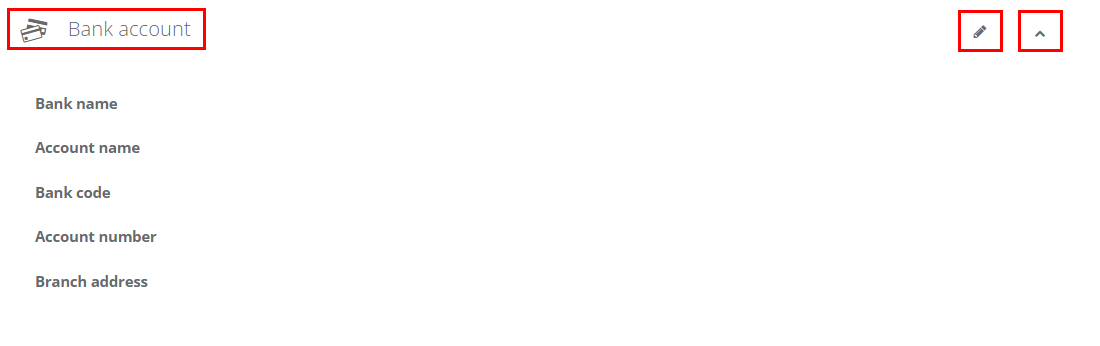

Full guide: Fieldworker bank details
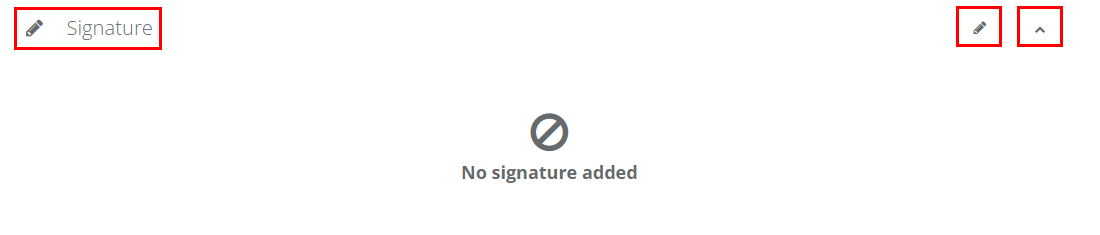
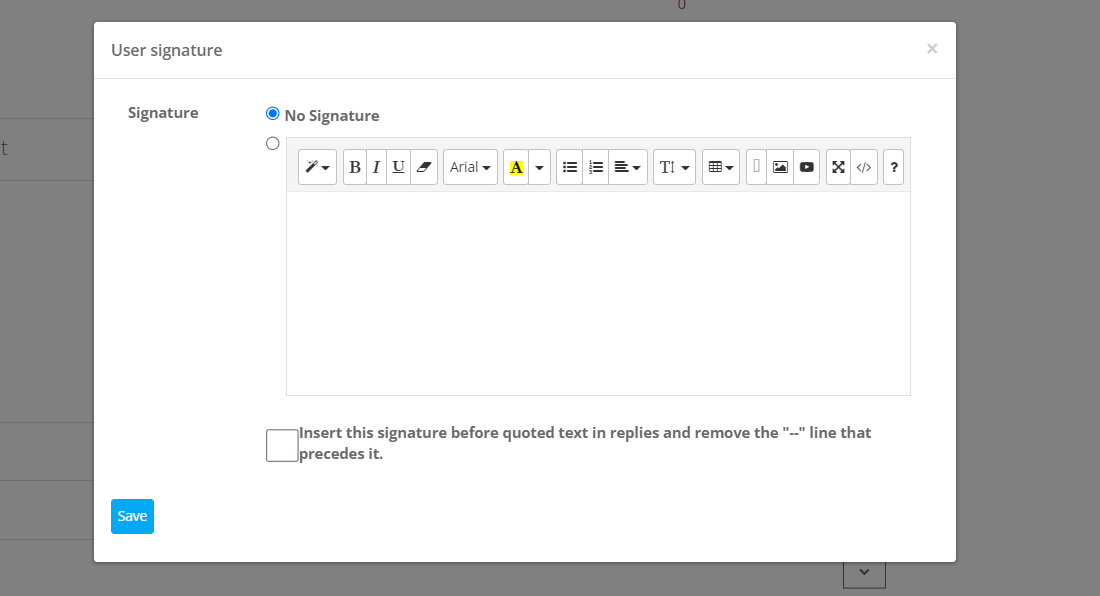
Signature
Store a fieldworker signature (often used on completion PDFs and customer-facing documents depending on your templates and settings).
Owners
Owners can be used to track who “owns” or manages the fieldworker record internally (useful for management, auditing, or assigned responsibility).


Subworkers
Subworkers are assistants working under a lead fieldworker (useful for crews, team jobs, and multi-person assignments).

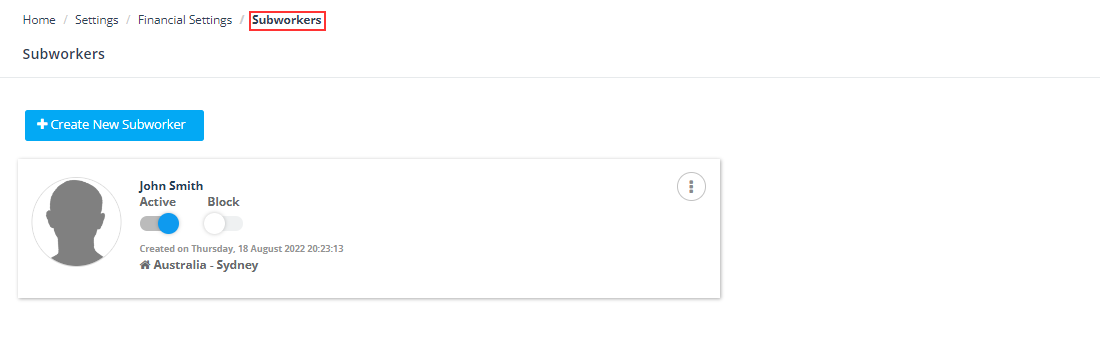


Full guide: Managing subworkers working under your fieldworkers
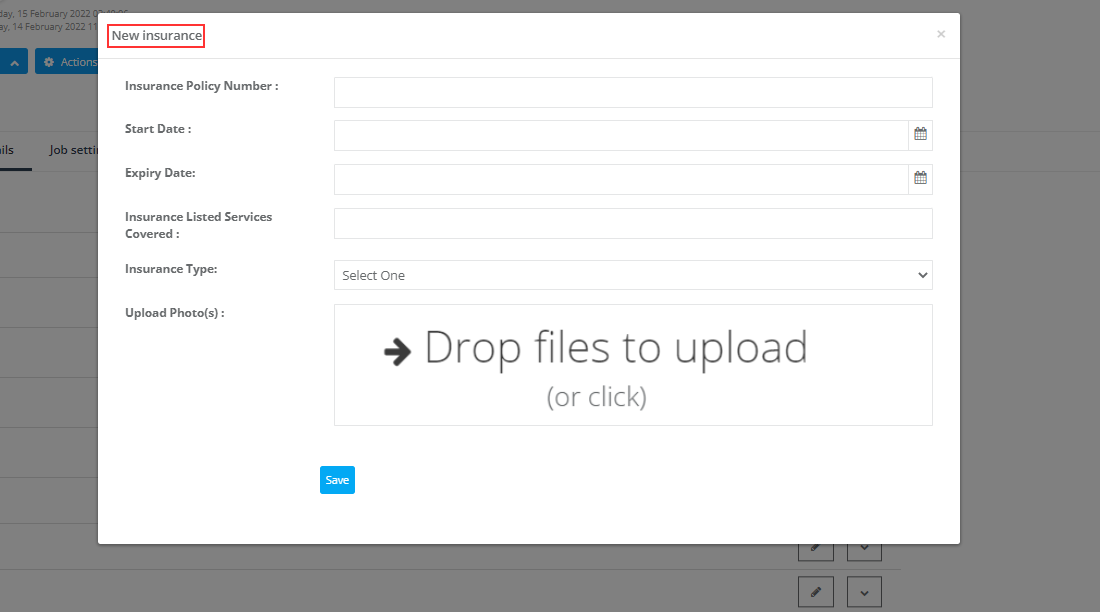
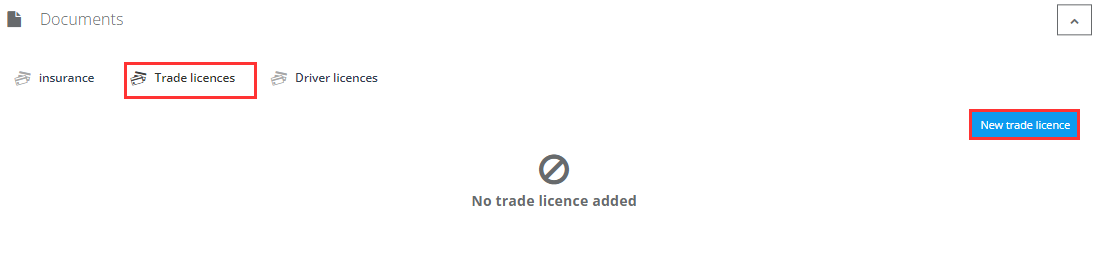
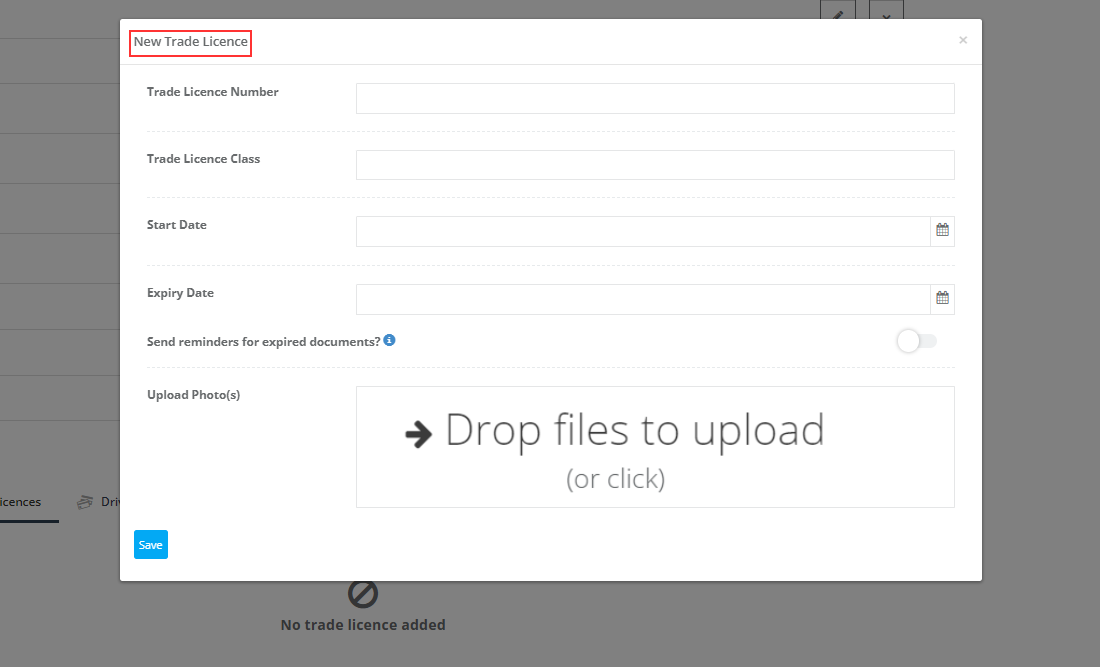
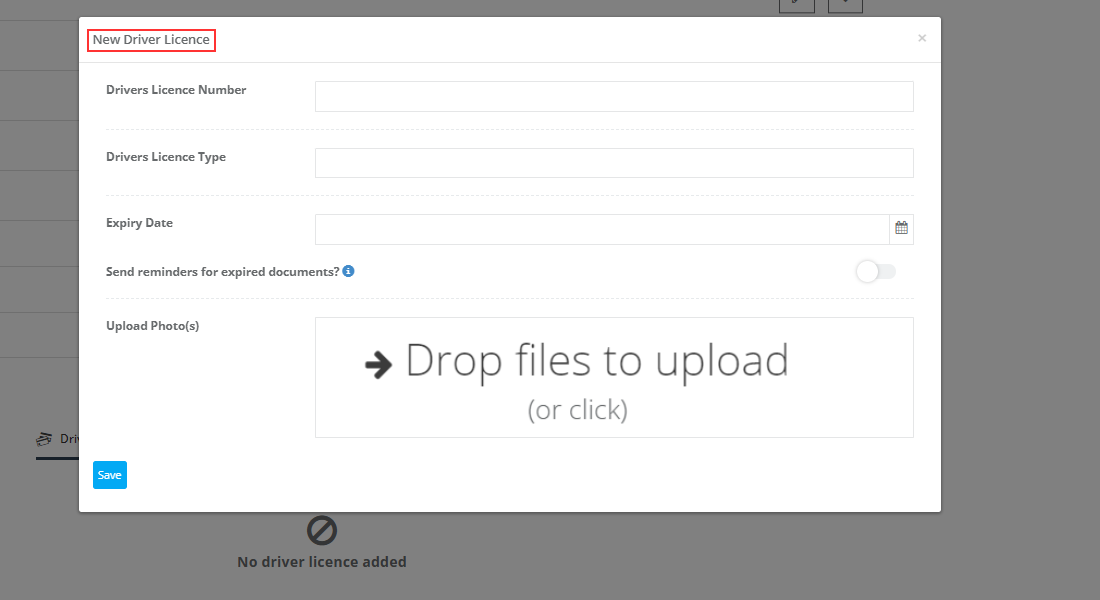
Documents (insurance, trade licences, driver licences)
Use the Documents section to store compliance documents. You can add numbers, classes, start/expiry dates, photos, and enable expiry reminders where available.


Video
Attach a video link (for example, a YouTube intro video) if your workflow uses fieldworker profile videos.

Social networks
Add social network links (useful when displaying profiles on the Customer Portal).

Full guide: Display fieldworker social links
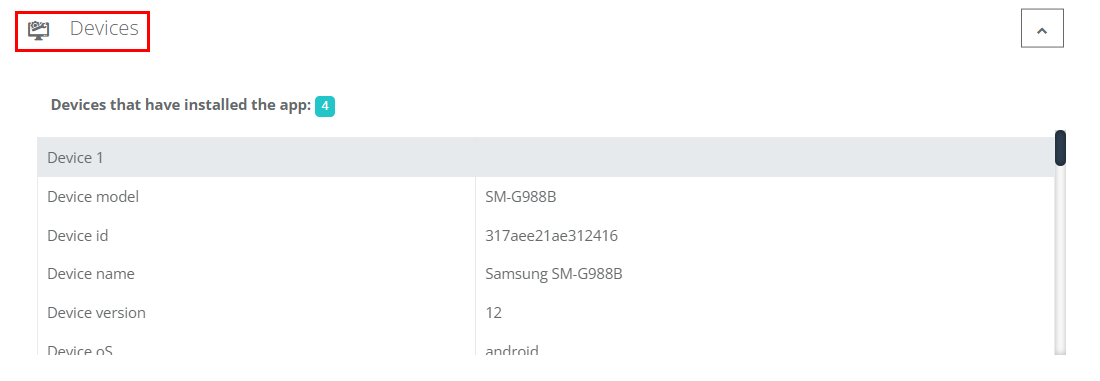
Devices
View the active device(s) used by the fieldworker in the app (model, ID, OS/app details depending on configuration).
Job settings tab (services, hours, assets, flags, travel radius, service areas)
The Job settings tab controls how OctopusPro assigns work to the fieldworker: services they can do, when they’re available, where they work, travel limits, and operational assets.
Service area & locations (where they can work)
Service areas define the geographic zones where a fieldworker is available for mobile bookings. This helps ensure they’re only matched to jobs within coverage.
- If a fieldworker doesn’t have a service area set, your Default Travel Radius (if enabled) may be used as a fallback.
- If no default is configured, distance-based matching may be ignored, and other assignment rules may be used instead.
- To update a service area: click Edit, draw/adjust boundaries on the map, then Save.
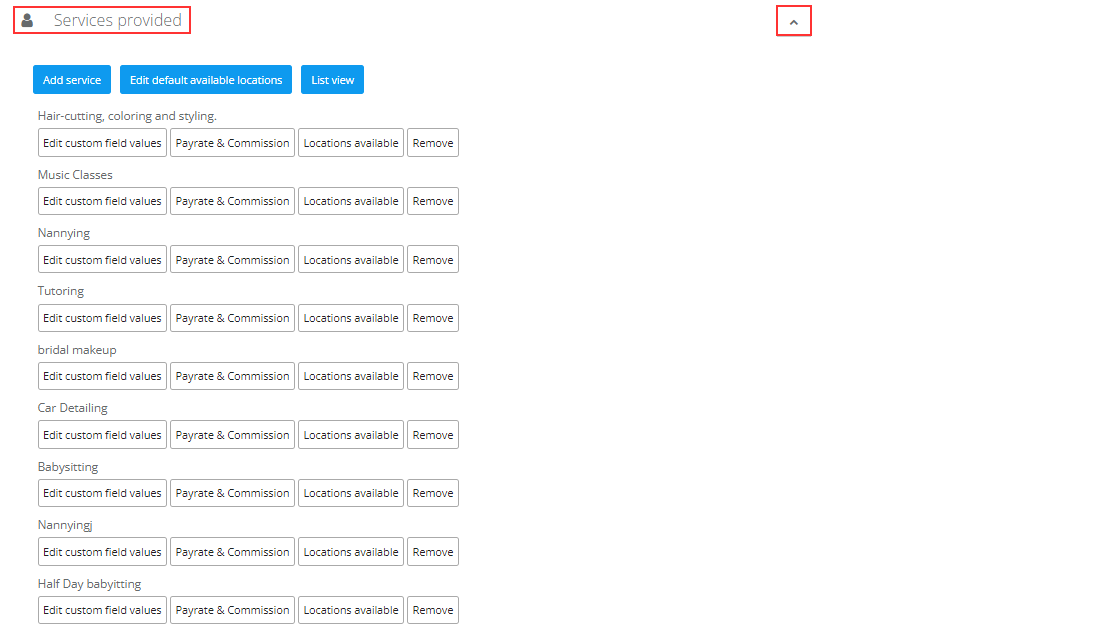
Services provided
Define which services the fieldworker can deliver. You can add services and manage service-specific settings (e.g., pay rates/commission per service where supported).

Working hours
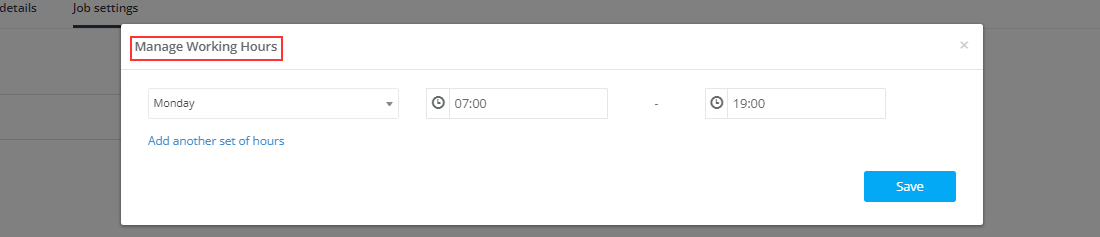
Accurate working hours are essential for availability and scheduling. They help prevent after-hours bookings and can support available time slots for online booking/portal requests (if enabled).
- Remove hours: click the trash/delete icon next to a time range, then confirm.
- Add hours: click Add more hours, then select day/time ranges and save.


Full guide: Fieldworker working hours management
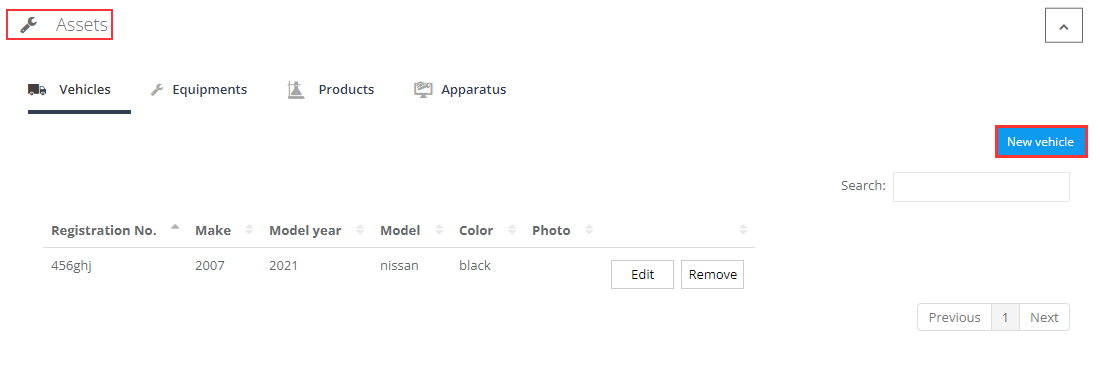
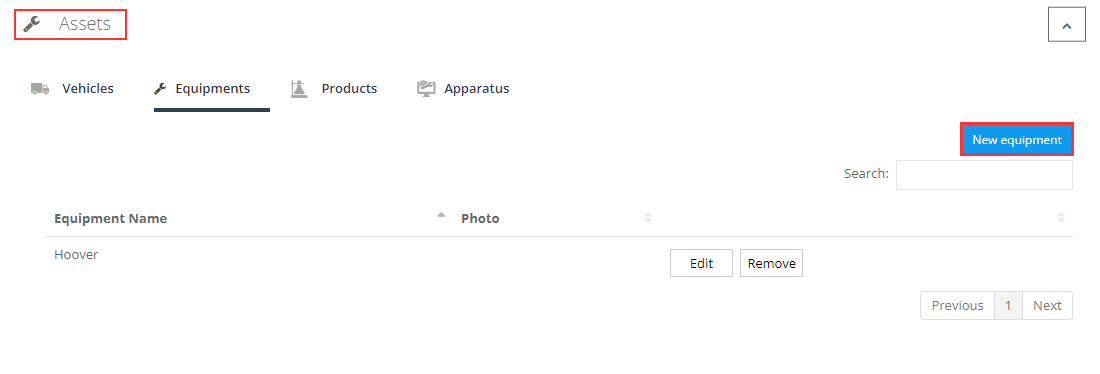
Assets (vehicles, equipment, products, apparatus)
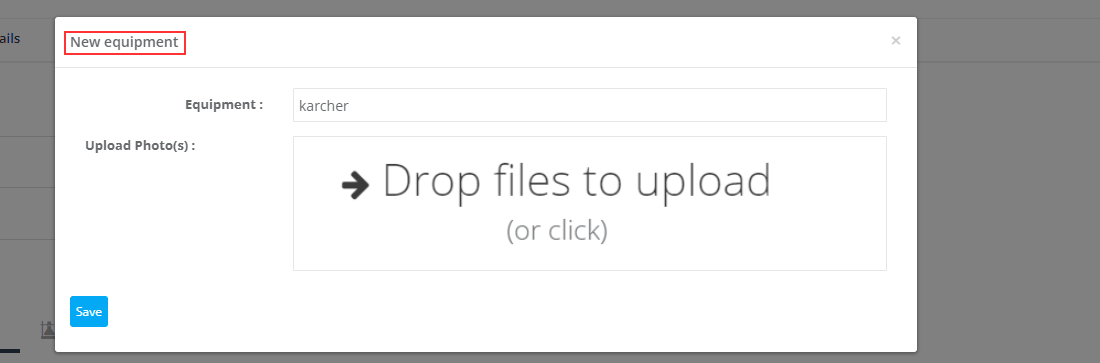
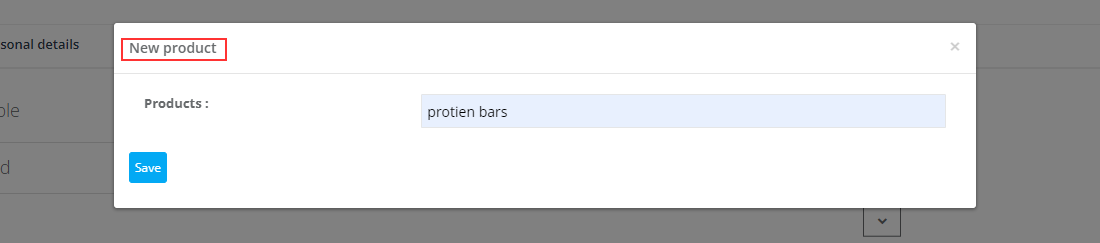
Store assets assigned to the fieldworker for operational tracking (vehicles, equipment, products, apparatus). You can add items and upload photos/metadata where supported.




Fieldworker flags
Flags control what the fieldworker sees and what customers can see (depending on your permissions and portal settings). Examples include:
- Display booking billing amount to fieldworker (show prices)
- Display fieldworker profile on the customer portal
- Display fieldworker earnings for bookings
- Display fieldworker date joined to customers
Enable/disable these options using the toggle switches.

Contract agreement
View contract agreements uploaded/linked to the fieldworker profile.

Travel radius
Travel radius can be used to calculate distance from the fieldworker’s start point to job locations and between consecutive jobs. This supports routing and more accurate ETA calculations (depending on your configuration).

Self-service editing (fieldworker app & web)
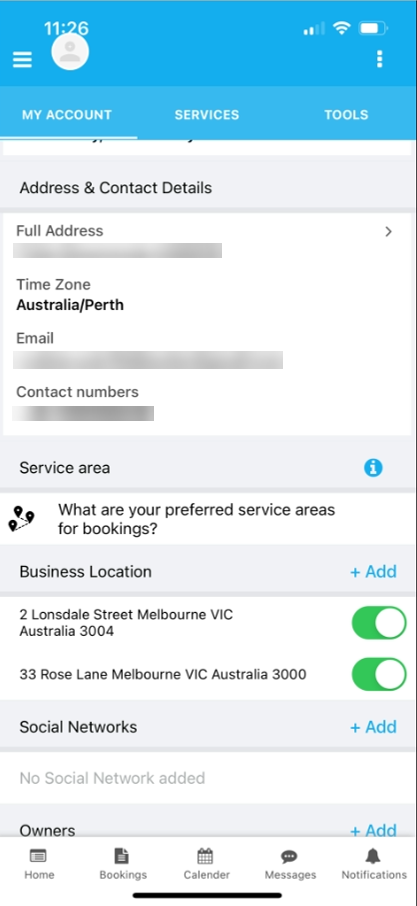
Fieldworkers can keep their own data fresh via the app or browser—ideal for changing phone numbers, updating service preferences, uploading licences/insurance, and maintaining profile photos.
- In the fieldworker app, open the profile area and navigate between tabs like My Account, Services, and Tools.
- Update relevant details and save changes (syncs back to the admin portal).
- If an item is restricted, the worker may submit an update request (if enabled) for office approval.


Best practices (maintenance & troubleshooting)
- Keep “services provided” current: If services aren’t assigned, the worker may not appear in Find Availability for those jobs.
- Keep working hours accurate: Prevent after-hours bookings and availability issues.
- Use service areas + travel radius: Improve routing and avoid assigning out-of-zone jobs.
- Audit communications: Use SMS/Email/Call logs to confirm what was sent and when.
- Use Activity Log: Track changes and diagnose “who changed what”.
- Security checks: Use login history and (if needed) admin impersonation to troubleshoot access.
- Activation vs blocking: Use deactivate/block when you need to stop dispatching or access without deleting history. (Activate/deactivate | Block/unblock)
- Bulk updates: Use Fieldworkers list export/import for large-scale profile changes. (See Fieldworker list management)
FAQ
- Will editing delete historical data?
No—historical bookings, messages, photos, invoices, and logs remain linked to the fieldworker (even if names/addresses change). - What if a worker doesn’t fill mandatory info?
Profile completion helps highlight missing fields. Scheduling and assignment rules may not match the worker until key requirements (services, hours, radius, etc.) are complete. - Can I keep both employees and contractors?
Yes—use role/permission controls and flags to tailor what each type of worker can view/edit.
To stay updated, please subscribe to our YouTube channel.