
Assign Services to Fieldworkers (Skills-Based Scheduling)

Use this feature to control which services each fieldworker (technician) is qualified to deliver. Once you assign services to a fieldworker’s profile, OctopusPro can automatically filter and match the right fieldworker when:
- Admin staff create or edit bookings in the Admin Portal
- Fieldworkers create bookings (if enabled) in the Fieldworker App
- Customers book online through the Customer Portal
- Your dispatch rules run (manual or automated assignment)
What this helps you achieve
- Faster scheduling: you only see eligible fieldworkers for the selected service.
- Fewer booking mistakes: prevents assigning someone to a job they don’t offer.
- Cleaner Customer Portal experience: customers only see services that the chosen fieldworker actually provides.
- Smarter dispatching: improves eligibility filtering before availability and assignment rules are applied.
How fieldworker “eligibility” is determined
When OctopusPro decides which fieldworkers can be selected (or shown) for a booking, it checks multiple factors—not just services:
- Services provided: the fieldworker must have the service enabled on their profile.
- Service options (custom field values): if the booking includes specific options, the fieldworker must have those values enabled for that service.
- Location coverage: eligibility can be filtered by service areas / service locations. If a fieldworker does not have service locations/service areas customized, your company-level Default Travel Radius (if enabled) may be used as the fallback. See Fieldworker Service Areas and Job Assignment & Dispatch.
- Availability: working hours, calendar conflicts, time-off, and booking time all affect whether the fieldworker is available. See Fieldworker Working Hours.
On this page
- Add or remove services on a fieldworker profile
- Enable/disable service option values (custom fields) per fieldworker
- Enable a service for all fieldworkers at once
- Enable custom field values for all fieldworkers at once
- Assign all services when creating a new fieldworker
- How this affects booking forms (Admin, Fieldworker App, Customer Portal)
- Troubleshooting
Add or remove services on a fieldworker profile
Assigning services to a fieldworker profile defines what that fieldworker can be booked for. You can assign one or many services per fieldworker.
Note: a “General fieldworker” profile may have all services, custom fields, and locations enabled by default (depending on your setup).
Method A: From the fieldworker profile
- Go to Fieldworkers from the left-side menu.
- Find the fieldworker, open the actions menu, then select View profile.
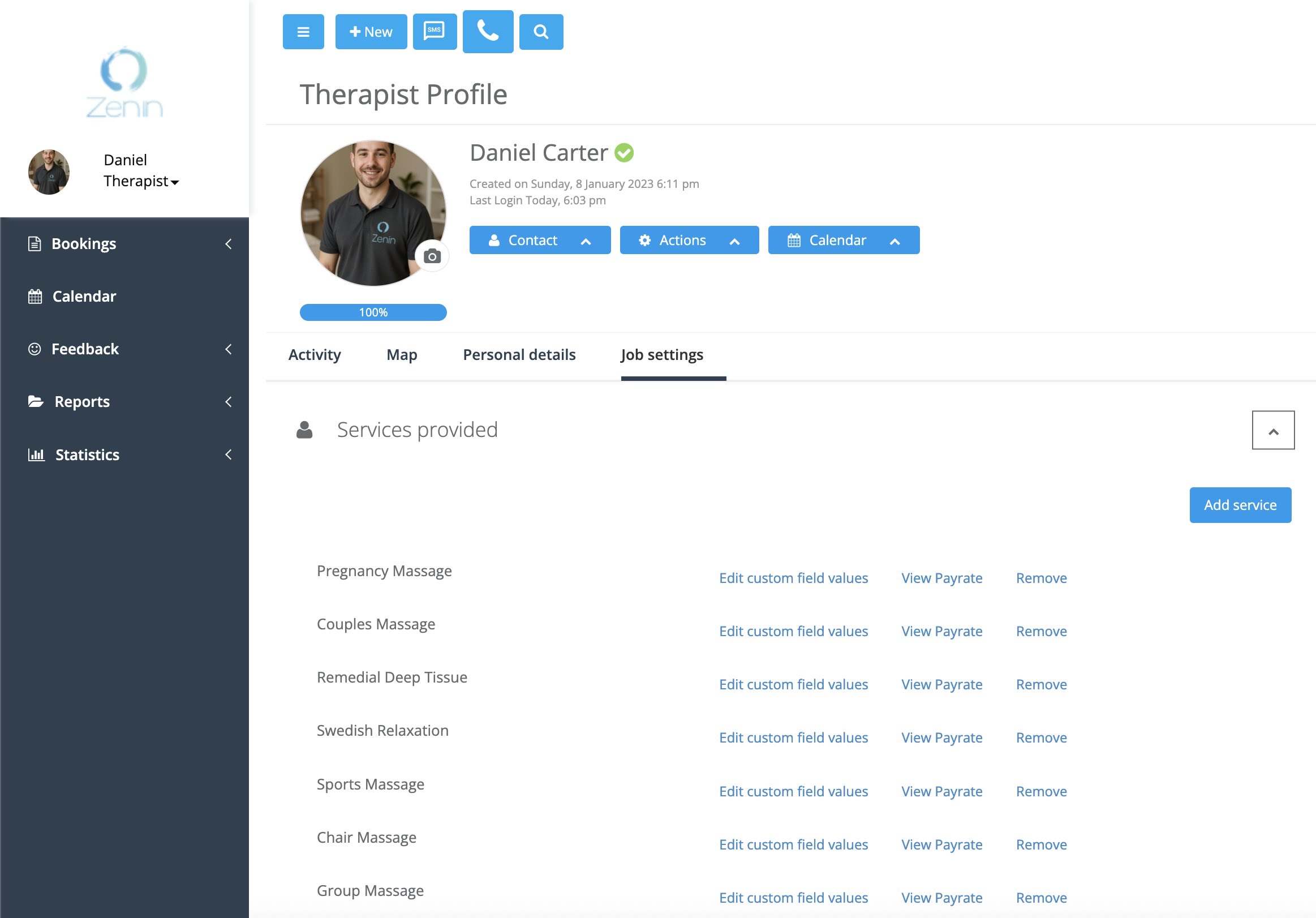
- Open Job settings, then expand Services provided.
- Click Add service to assign one or more services.


To remove a service:
- Go to Fieldworker profile > Job settings > Services provided.
- Click Remove next to the service.
- Confirm the removal when prompted.

Optional: Set service locations for this fieldworker
From the same Services provided section, you can also control where a fieldworker can deliver services:
- Edit default available locations: sets default service locations for the fieldworker (useful for multi-location / fixed-site operations).
- Locations available (per service): overrides locations for a specific service on that fieldworker.
If you do not customize service locations/service areas for a fieldworker, OctopusPro can fall back to your company-level Default Travel Radius (if enabled) and other assignment rules. For full location setup, see Fieldworker Service Areas.
Method B: From the Fieldworkers list (View assigned services)
- Go to Fieldworkers.
- Select the fieldworker, then open Actions.
- Click View assigned services.
- Click Add service to assign services, or select services and delete to remove.


Enable/disable service option values (custom fields) per fieldworker
If your services use custom fields (service options), you can control which values each fieldworker supports. This is useful when certain fieldworkers only offer specific variants of a service.
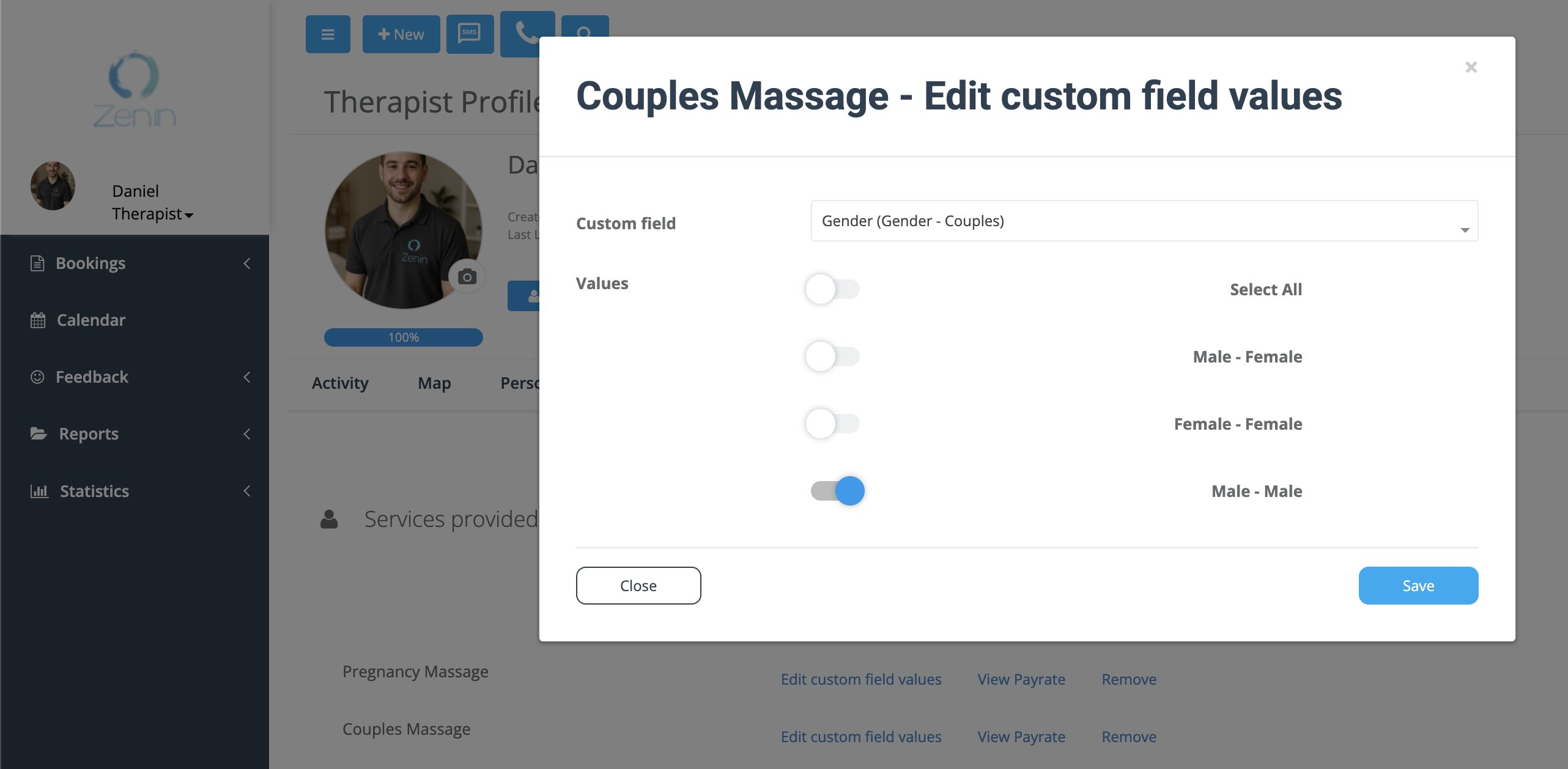
Example: If the booking includes a “Hairstyle” option and a customer selects “Curly”, any fieldworker who has “Curly” disabled for that service will not be matched for that booking.
Edit custom field values from the fieldworker profile
- Go to Fieldworkers and open the fieldworker View profile.
- Go to Job settings > Services provided.
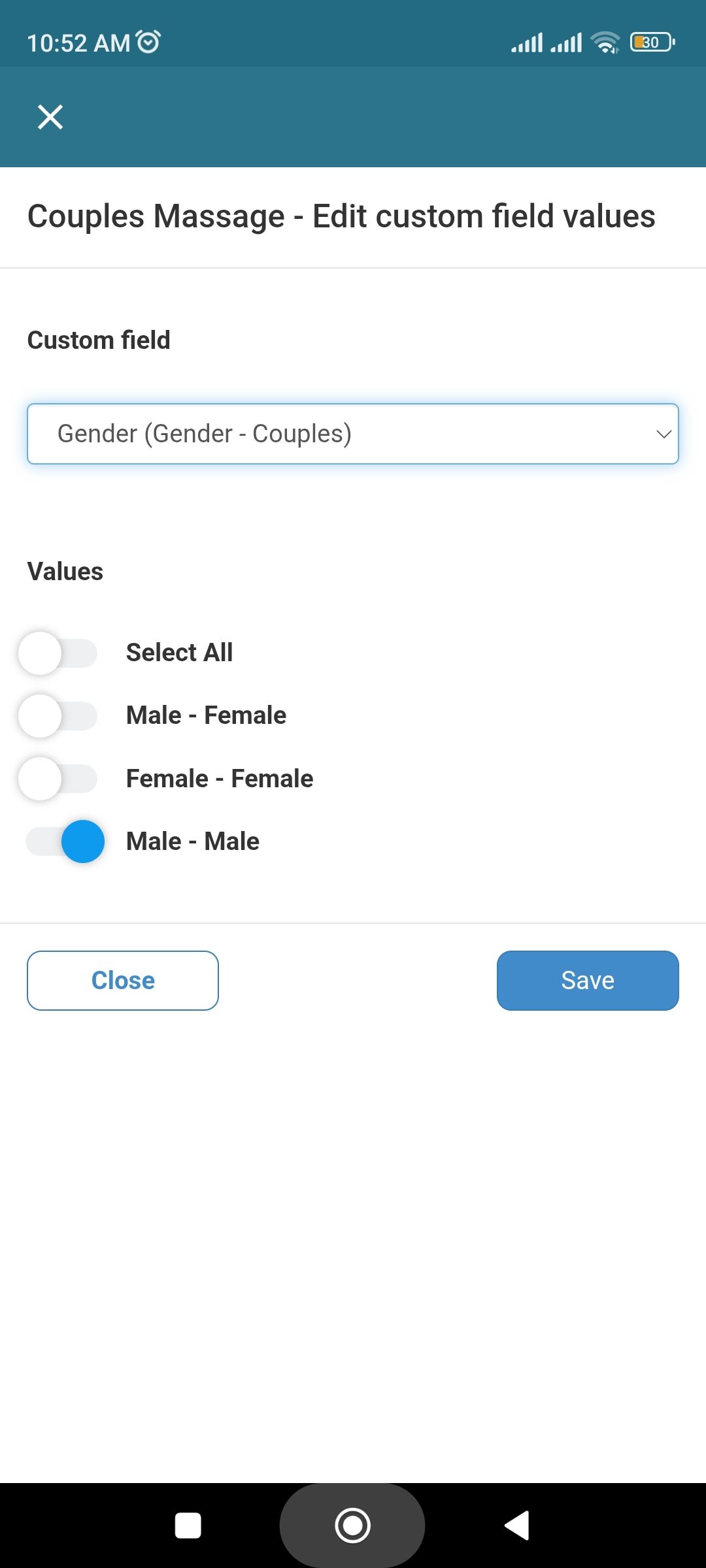
- Next to the service, click Edit custom field values.
- Select the custom field, enable/disable the values, then click Save.
Edit custom field values from “View assigned services”
- Go to Fieldworkers and open Actions > View assigned services.
- Find the service and click Edit custom field values.
- Enable/disable values and click Save.
Enable a service for all fieldworkers at once
You can add a service to all fieldworkers from Service Settings—either when creating a new service or when updating an existing one.
Option A: When creating a new service
- Go to Settings > Service Settings > Services.
- Create and save the service (see Create a New Service).
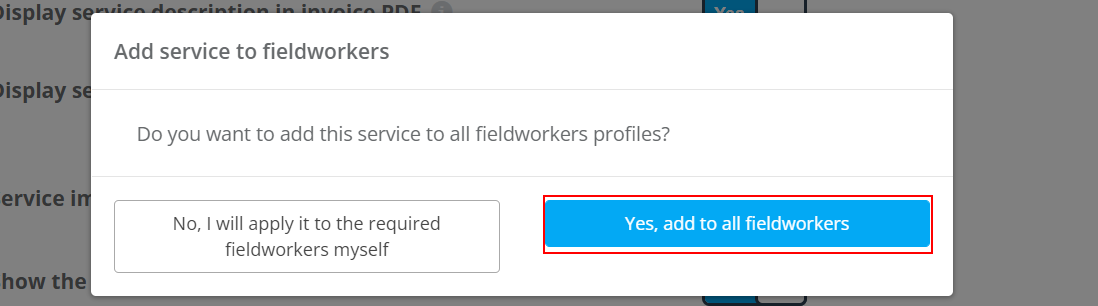
- When prompted, choose Yes, add to all fieldworkers.
Option B: From an existing service
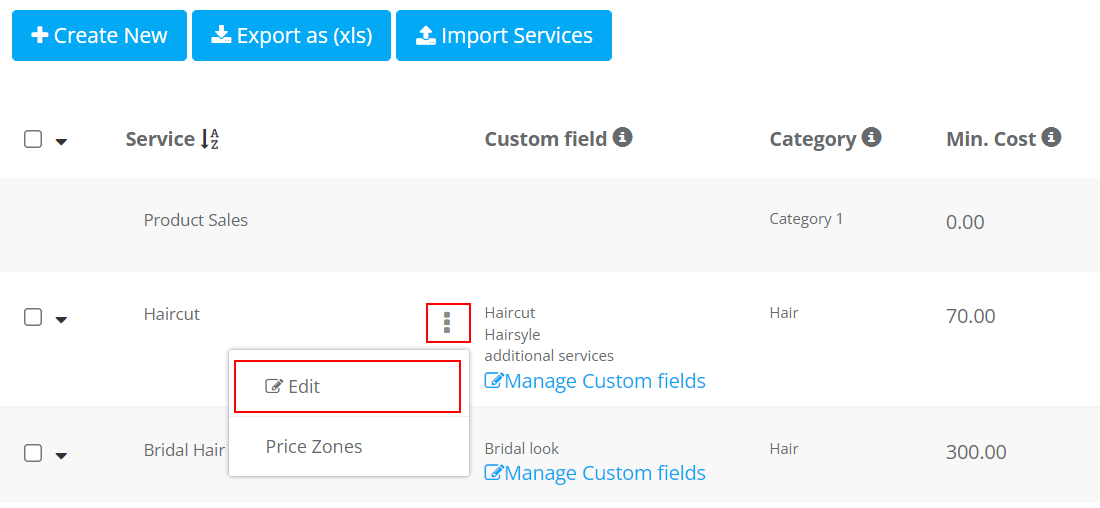
- Go to Settings > Service Settings > Services.
- Open the service Actions menu and select Edit.
- Continue to the final step and save.
- When prompted, choose Yes, add to all fieldworkers.
Enable custom field values for all fieldworkers at once
You can activate custom field values for all fieldworkers from Service Settings—either when creating a new custom field or when updating an existing one.
Option A: New custom field
- Go to Settings > Service Settings > Custom fields.
- Create the custom field and save (see Create Custom Fields).
- When prompted, enable the values you want active for fieldworkers, then click Save.
Option B: Existing custom field
- Go to Settings > Service Settings > Custom fields.
- Open the custom field Actions menu and select Edit.
- Save the custom field.
- When prompted, enable the values you want active for fieldworkers, then click Save.
Assign all services when creating a new fieldworker
When you create a new fieldworker, OctopusPro can assign all active services to that fieldworker in a single step.
- Go to Fieldworkers.
- Click + Add fieldworker.
- Fill in the fieldworker details and save (see Add Fieldworkers).
- When prompted, choose Yes, assign all services (or choose to assign specific services manually).

How this affects booking forms (Admin, Fieldworker App, Customer Portal)
Admin Portal and Fieldworker App booking forms
When creating or editing a booking, the list of selectable fieldworkers is filtered based on:
- the service selected
- any selected custom field options
- location coverage (service areas / service locations, or default company travel radius if applicable)
- availability (working hours and conflicts)
In the Fieldworker App, these service and option restrictions also help ensure fieldworkers only see and work with the services and supported options relevant to them.
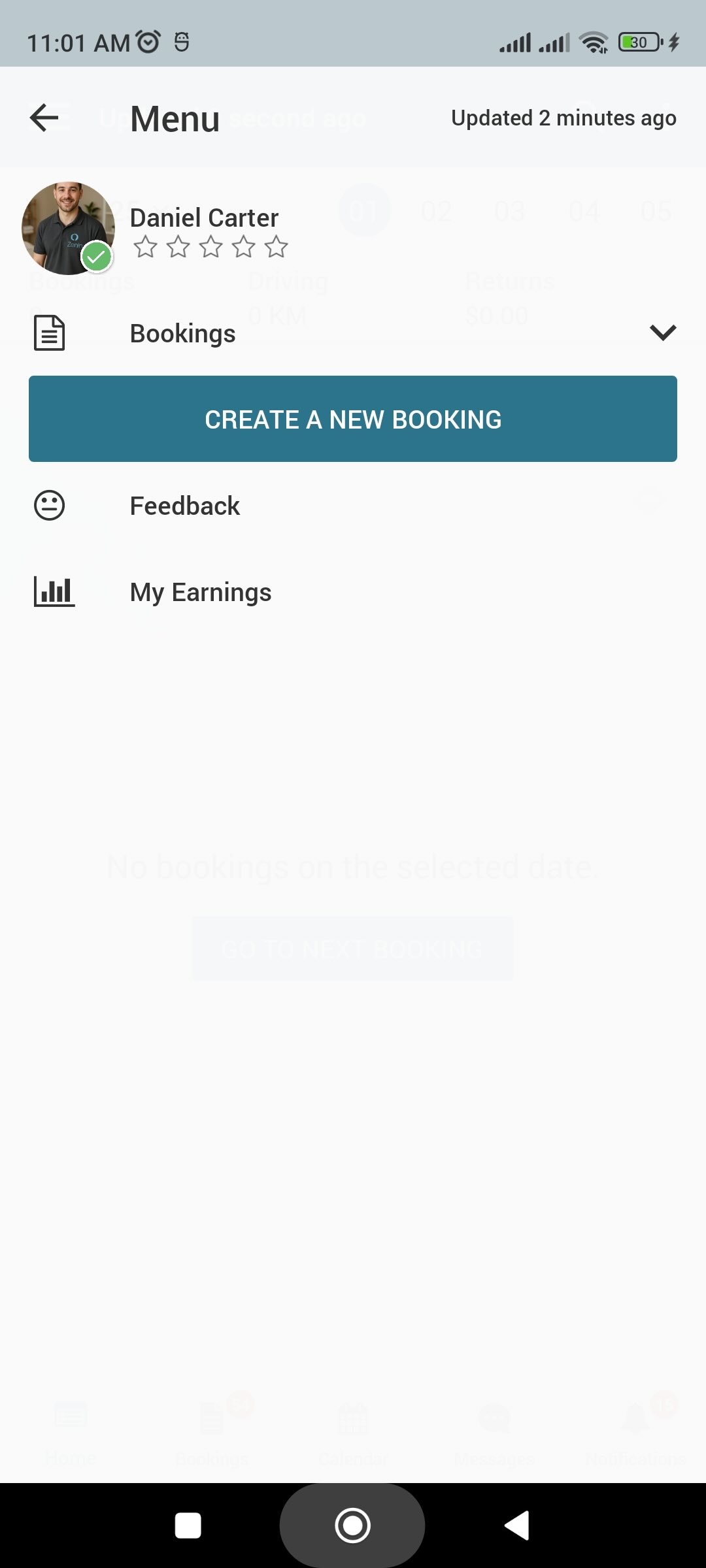
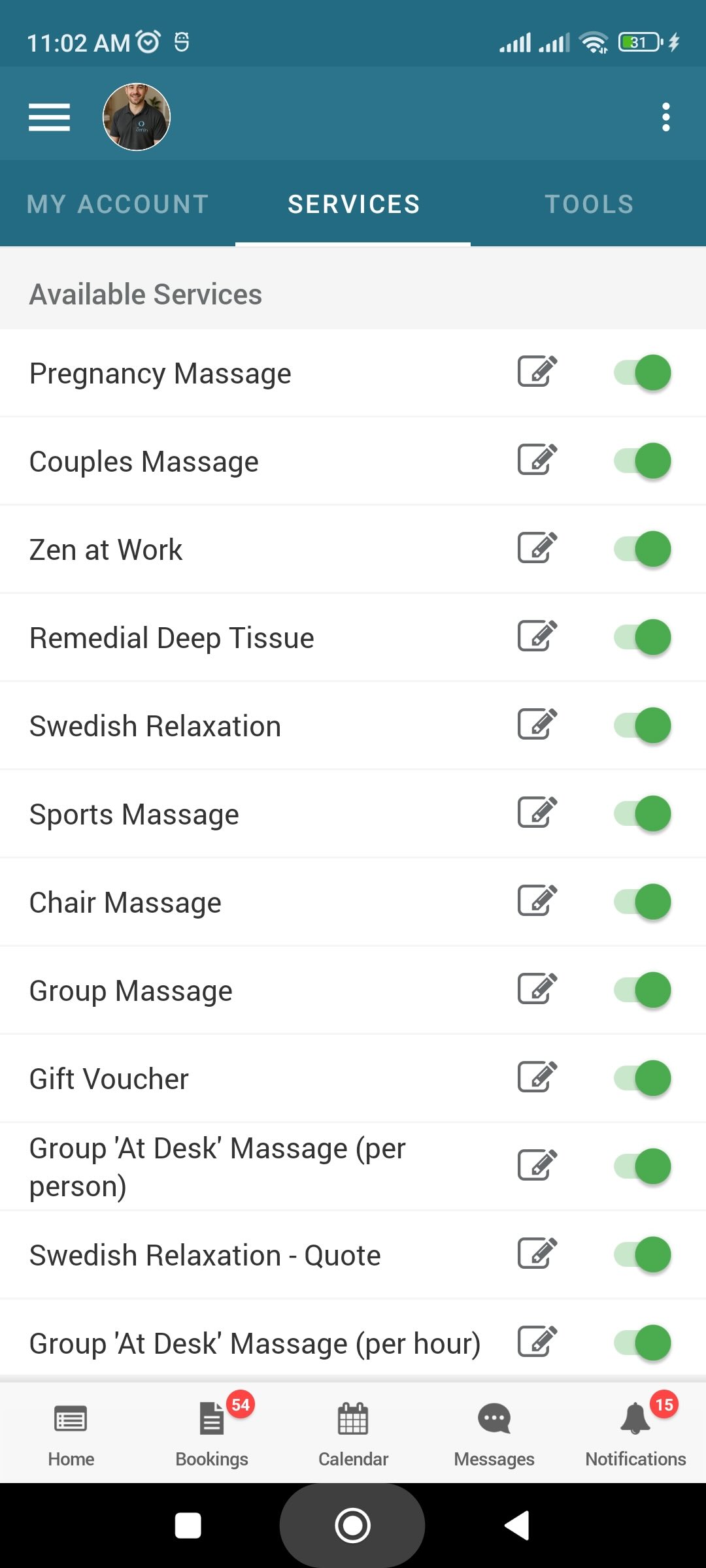
To learn more about the booking workflow, see Create & Edit Bookings.
Customer Portal experience
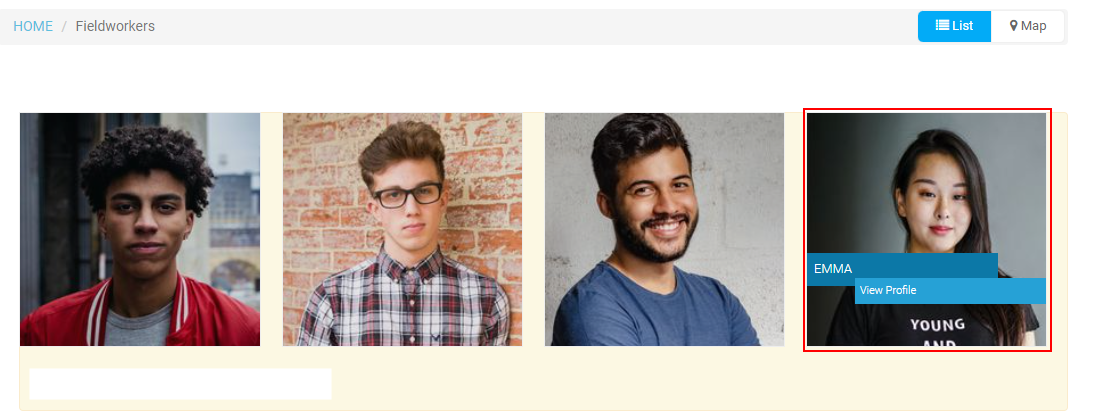
Customers can view a fieldworker profile (if enabled in your Customer Portal configuration) and only see the services that are assigned to that fieldworker. This helps customers book the right person without contacting your team.
- Go to Settings > Customer Portal and open your portal URL.
- Open the Fieldworkers section.
- Select a fieldworker to view their profile and available services.
- Click Book Fieldworker to continue with a booking using one of their assigned services.
If you haven’t set up online bookings yet, see Accept Online Bookings Through Your Website.
Troubleshooting
- A fieldworker isn’t showing for a service: confirm the service is assigned on the fieldworker profile (and the service is active).
- A fieldworker isn’t showing for a specific option: confirm the required custom field value is enabled for that fieldworker under Edit custom field values.
- A fieldworker isn’t showing due to location: check service areas / service locations for that fieldworker, and confirm your company-level Default Travel Radius settings if you rely on the fallback. See Fieldworker Service Areas.
- A fieldworker isn’t available at the chosen time: check working hours, calendar conflicts, time off, and current booking assignments. See Fieldworker Working Hours.
To stay updated, please subscribe to our YouTube channel.