
[vc_row][vc_column width=”1/4″][vc_widget_sidebar sidebar_id=”sidebar-1″][/vc_column][vc_column width=”3/4″][vc_row_inner][vc_column_inner][vc_column_text]
Mailing Lists & Marketing Campaigns (SMS, Email & WhatsApp)

Mailing lists (also known as segments or contact lists) help you group customers based on criteria such as location, customer type, service history, labels, and booking status—so you can send the right message to the right audience. In OctopusPro, you can create dynamic mailing lists, export them, sync them to Mailchimp for email marketing, and send bulk SMS or WhatsApp messages (when integrations are enabled).
Table of contents
- What you can do with mailing lists
- Before you start (requirements)
- Create a mailing list (segment)
- Manage, edit, export & sync mailing lists
- Send bulk SMS to a mailing list (OctopusPro + Twilio)
- Send email marketing campaigns (Mailchimp sync or export)
- Send WhatsApp messages (Meta integration)
- Best practices (compliance + results)
- Troubleshooting & FAQs
- Related guides

Create targeted segments using filters, then message them through the right channel.
What you can do with mailing lists
- Segment customers using filters (e.g., suburb, customer type, labels/tags, service name, booking status, date ranges).
- Create multiple lists for different audiences (e.g., “VIP Customers”, “Winter Promo – Eastern Suburbs”, “Lapsed Customers”).
- Export list contacts to use in any email marketing platform.
- Sync to Mailchimp to run newsletters, drip campaigns, and advanced email automation.
- Send bulk SMS directly from OctopusPro (requires a Twilio-connected digital phone number).
- Send WhatsApp messages directly from OctopusPro (requires WhatsApp Business connection via Meta).
Before you start (requirements)
1) Mailing list prerequisites
- Make sure your customer records include the data you want to filter by (e.g., suburb, labels, booking history, phone number, email address).
- For messaging campaigns, ensure customers have valid contact details and have opted-in where required by local regulations.
2) SMS prerequisites (Bulk SMS in OctopusPro)
- You need a digital phone number connected to OctopusPro (SMS-enabled via Twilio).
- Set it up here: Set Up Digital Phone System (Twilio)
3) Email marketing prerequisites
- For newsletters and marketing email campaigns, use a dedicated email marketing platform.
- You can either:
- Sync to Mailchimp (recommended for automation & reporting), or
- Export contacts and import into any other email marketing platform.
4) WhatsApp prerequisites (Meta integration)
- You need a WhatsApp Business account/number.
- WhatsApp is connected through Meta (Settings → Communications → WhatsApp Integration).
- WhatsApp templates may be required for certain business-initiated messages and for features like auto-response.
Create a mailing list (segment)
To create a new mailing list, go to Settings → Communications → Mailing Lists.
Step 1: Open the Mailing Lists page
Go to Settings → Communications → Mailing Lists. You’ll see your existing lists plus buttons such as New Mailing List and Send SMS.

Step 2: Click “New Mailing List”
Click New Mailing List to open the list builder. Give your list a clear name (and optional description, if available).
Step 3: Define your list criteria (filters)
Use filters to define exactly who should be included. Many fields support dropdown selections and may allow multi-select.
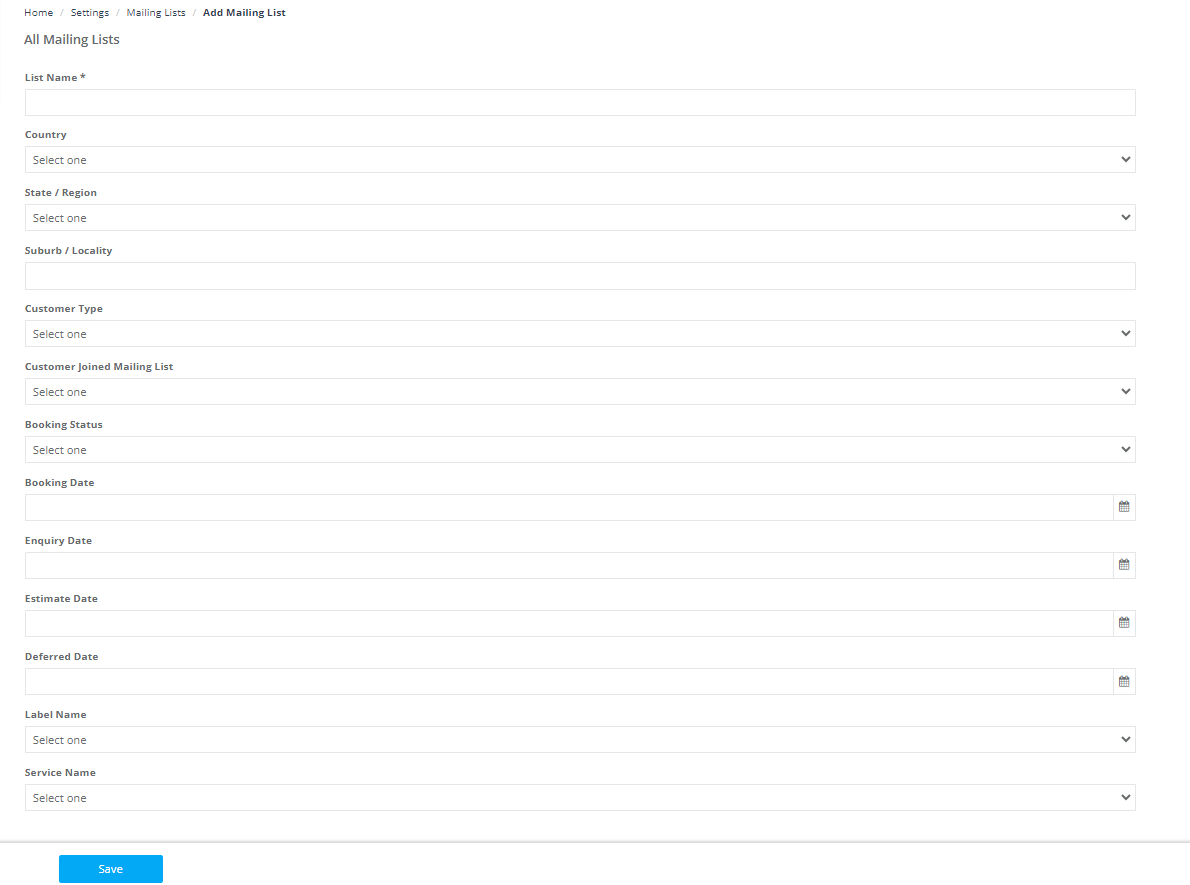
Common segmentation examples:
- Location-based campaigns: “Customers in Suburb X / State Y”
- Customer-type campaigns: “Residential customers only” or “Commercial customers only”
- Service-based campaigns: “Customers who booked ‘Tile Sealing’”
- Status-based campaigns: “Customers with completed bookings in the last 90 days”
- Label/Tag campaigns: “VIP”, “High-value”, “Needs Follow-up”

If your account uses a “customer joined mailing list” filter, it can help you target only customers who accepted marketing/communications opt-in (where applicable).

Step 4: Save your mailing list
Click Save. Your mailing list will be created and available to export, sync, or use for messaging.
Manage, edit, export & sync mailing lists
From the Mailing Lists page, you can typically:
- Edit list criteria (to refine the segment).
- Export / Download mailing data (for other platforms).
- Sync emails to Mailchimp (to keep your Mailchimp audience up-to-date).

Tip: Use consistent naming conventions so your team can quickly identify lists (e.g., [Region] – [Audience] – [Campaign]).
Send bulk SMS to a mailing list (OctopusPro + Twilio)
OctopusPro lets you send bulk SMS to customers on a mailing list directly from the platform. This is ideal for promotions, schedule reminders, seasonal offers, service alerts, and quick reactivation campaigns.
Step 1: Open Mailing Lists and click “Send SMS”
Go to Settings → Communications → Mailing Lists, then click Send SMS.
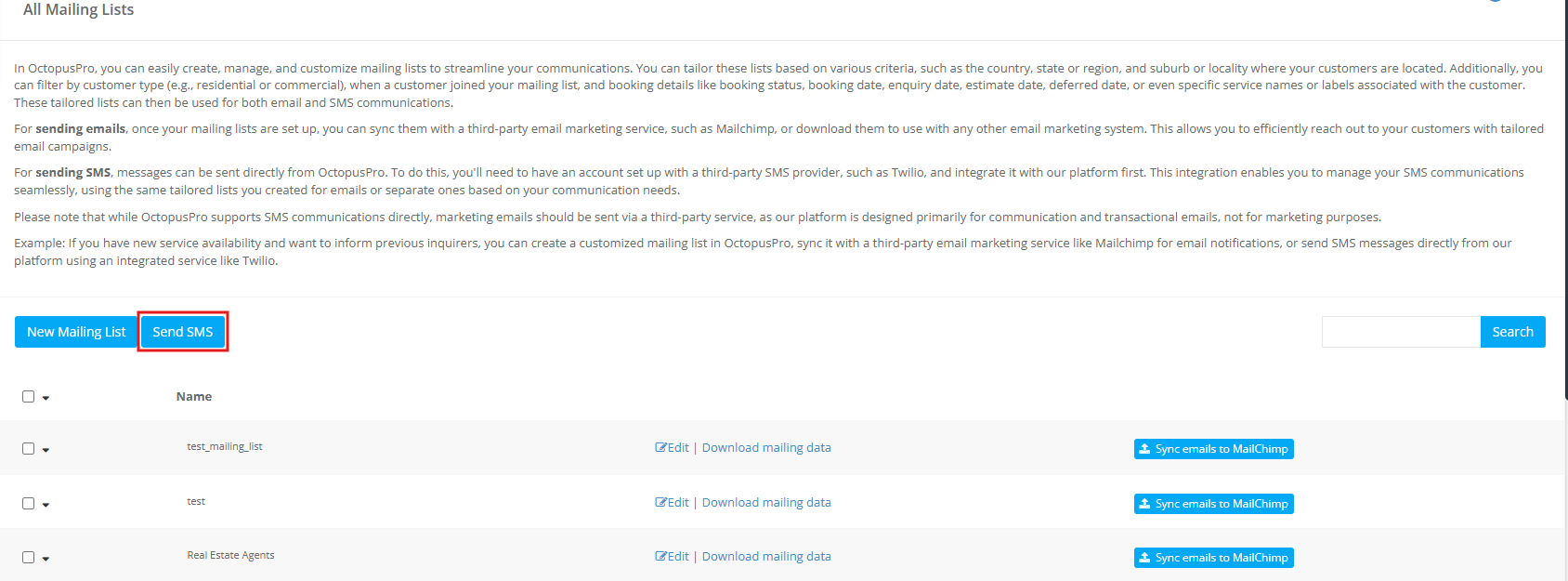
Step 2: Choose the mailing list and write your message
- Select the Mailing List from the dropdown.
- Select an SMS Template (recommended) or type your message.
- Review the SMS preview.
- Click Send.
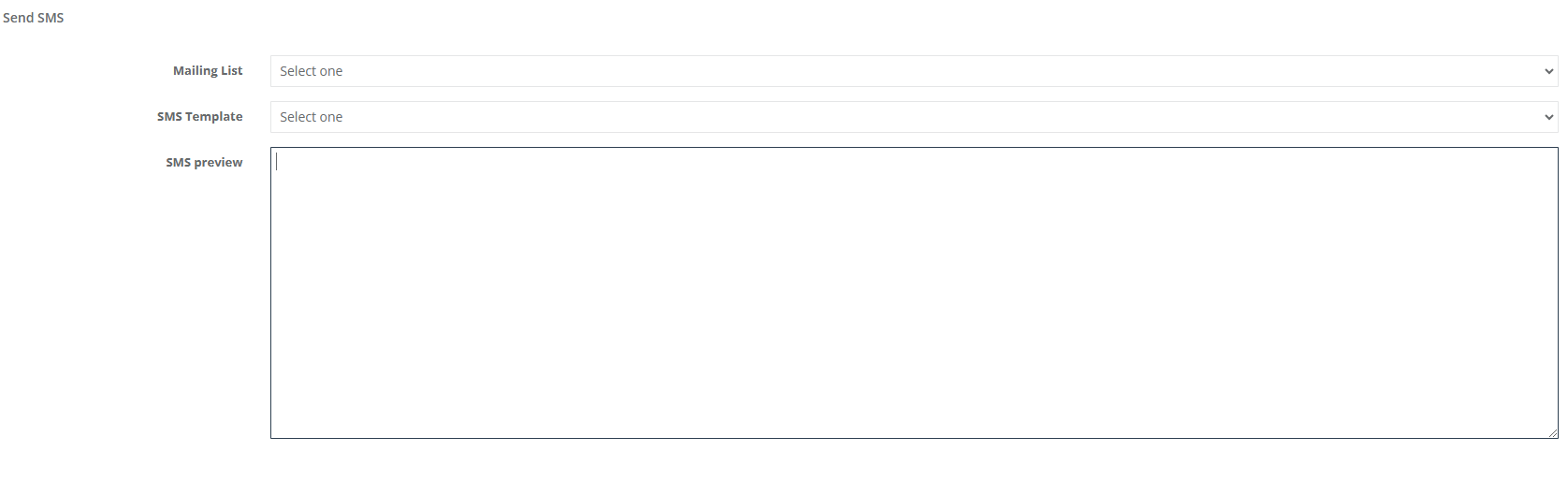
Use templates + placeholders (recommended)
For faster, more consistent messaging, use templates and placeholders (merge fields).
- Template Placeholders (Merge Fields) — personalize messages (e.g., customer name, booking details).
- Canned Responses & Templates — create reusable email/SMS content.
- SMS Templates — manage SMS templates via Templates & Canned Responses.
Send email marketing campaigns (Mailchimp sync or export)
For email newsletters and marketing campaigns, OctopusPro supports two recommended approaches:
Option A (recommended): Sync your mailing lists to Mailchimp
Syncing keeps your Mailchimp audience aligned with your OctopusPro customer database so you can run email campaigns, automation sequences, and reporting in Mailchimp.

How to connect Mailchimp:
- Create or log into your Mailchimp account (optional reference screen shown below).
- Generate a Mailchimp API Key.
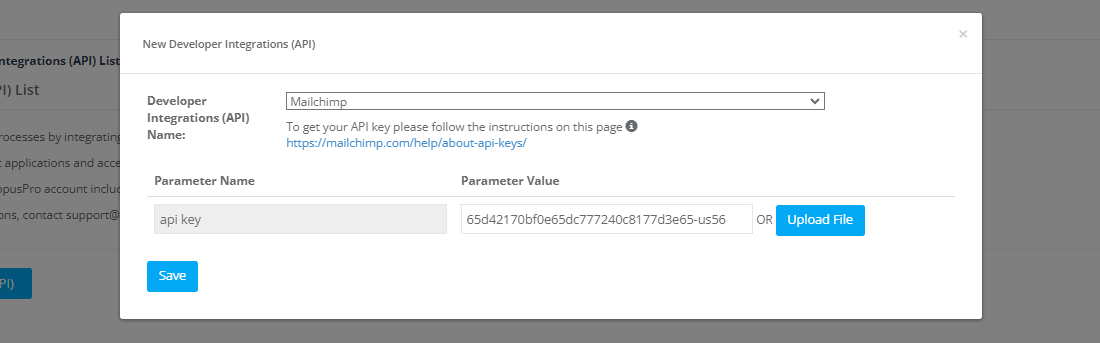
- In OctopusPro, go to Settings → Company Settings → Integrations.
- Click New Developer Integrations, select Mailchimp, paste your API key, then save.
- Go back to Settings → Communications → Mailing Lists and click Sync emails to Mailchimp for the list you want to sync.
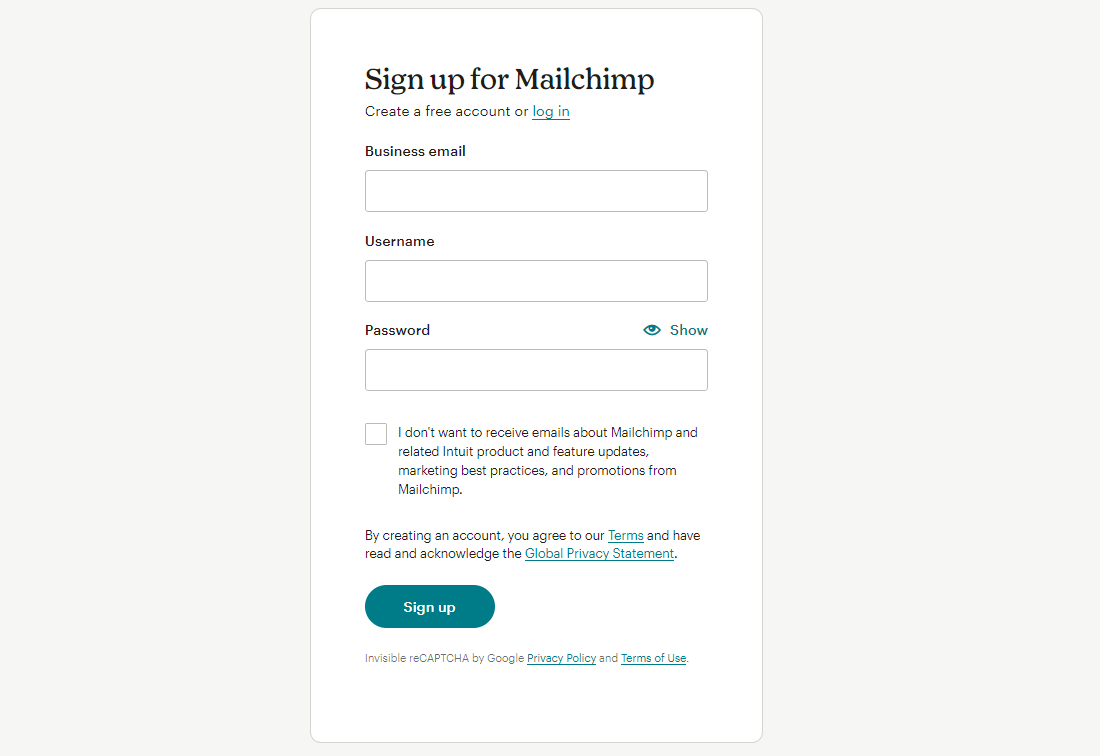

Once synced, build and send your campaigns from Mailchimp (e.g., newsletters, promotions, drip sequences, reactivation campaigns) using Mailchimp’s automation and analytics.
Need the dedicated integration guide? See: Mailchimp Mailing Lists Integration with OctopusPro.
Option B: Export mailing list contacts to any email marketing platform
If you use another email marketing tool, you can export list contacts from OctopusPro, then import them into your preferred platform.
- Go to Settings → Communications → Mailing Lists.
- Click Download mailing data next to the list.
- Import the exported file into your email marketing platform and map fields (e.g., First Name, Last Name, Email, Phone).
Send WhatsApp messages (Meta integration)
OctopusPro lets you connect your WhatsApp Business account via Meta so you can send and receive WhatsApp messages directly from your OctopusPro account. This is ideal for fast customer communication, support, and permitted outbound messaging.
Step 1: Open WhatsApp Integration
Go to Settings → Communications → WhatsApp Integration.
Step 2 (optional): Enter your Meta PIN code
If you have a Meta PIN code, click “Click to enter it” and enter the PIN (minimum 6 digits).
Step 3: Connect WhatsApp Business (Meta signup flow)
- Click Connect WhatsApp Business.
- Your status may change (e.g., “Launching WhatsApp signup flow…”).
- A Meta/Facebook login window opens. Follow the onboarding steps and click Continue when prompted.
Auto-response for first-time WhatsApp contacts
In the Settings section, you can enable: “Enable auto-response for first time contacting clients”. When enabled, OctopusPro sends an automatic response to customers who contact you for the first time via WhatsApp—helping you respond instantly and set expectations.
Messages statistics (delivery + performance visibility)
After connecting, the WhatsApp Integration page shows message statistics such as:
- Total sent messages
- Successful
- Failed
- Total received
- Delivered
- Read
Use the refresh icon on the statistics section to update the displayed results.
Templates
The Templates section displays WhatsApp templates available to your business account once synced. Templates are commonly required for certain outbound messages and for automated messaging features.
Best practices (compliance + results)
Compliance & consent
- Get opt-in before sending marketing messages (email/SMS/WhatsApp).
- Provide opt-out instructions where appropriate (especially for bulk SMS and email marketing).
- Follow platform rules (Mailchimp policies, WhatsApp/Meta messaging policies, and local regulations).
Segmentation that works
- Start with high-intent segments (recent customers, completed bookings, specific services).
- Create separate lists for regions, service lines, and customer types.
- Use labels/tags to build “VIP”, “High-value”, or “Needs follow-up” audiences.
Message quality
- Use templates + placeholders for speed and personalization: Template Placeholders.
- Keep SMS and WhatsApp messages short and action-oriented.
- Test on a small internal list before sending to a large audience.
Troubleshooting & FAQs
My mailing list looks empty
- Double-check your criteria (filters may be too strict).
- Confirm customer records have the data you’re filtering by (e.g., suburb/labels/service history).
- If using “joined mailing list” criteria, confirm customers have opted in.
I can’t send SMS to a mailing list
- Make sure you’ve connected a Twilio digital phone number: Set Up Digital Phone System.
- Confirm your number is SMS-capable and your account has SMS enabled.
“Sync emails to Mailchimp” isn’t working
- Confirm Mailchimp is connected under Settings → Company Settings → Integrations.
- Verify the API key is correct and active.
- Try syncing again after updating integration settings.
WhatsApp templates are missing / auto-response can’t be enabled
- Templates may need to be created/approved in Meta before they appear in OctopusPro.
- Refresh the WhatsApp Integration page and check the Templates section again.
- Make sure popups are allowed in your browser for the Meta onboarding flow.
Related guides
- Creating and Managing Mailing Lists
- Mailchimp Mailing Lists Integration with OctopusPro
- Set Up Digital Phone System (Twilio)
- Template Placeholders (Merge Fields)
- Canned Responses & Templates
- SMS Templates
- Email Templates
To stay updated, please subscribe to our YouTube channel.
[/vc_column_text][/vc_column_inner][/vc_row_inner][/vc_column][/vc_row]