
[vc_row][vc_column width=”1/4″][vc_widget_sidebar sidebar_id=”sidebar-1″][/vc_column][vc_column width=”3/4″][vc_column_text]
Fieldworker Sign-Up & Onboarding Guide
OctopusPro helps you recruit and onboard fieldworkers online by letting candidates register through a secure sign-up link (shared on your website, Customer Portal, social media, QR codes, or job ads). New sign-ups are captured as pending/inactive fieldworkers so your team can review and approve them before they gain access—keeping onboarding fast, consistent, and secure.
Best for: service businesses hiring technicians, subcontractors, cleaners, installers, delivery drivers, inspectors, carers, and other mobile or remote field teams.

Quick navigation
- How it works (end-to-end workflow)
- Before you start (recommended setup order)
- Step 1: Enable sign-up & get your link
- Step 2: Share/embed your sign-up link
- Step 3: Candidate sign-up & email verification
- Step 4: Admin review, approval & activation
- Step 5: Fieldworker onboarding checklist
- Step 6: Start dispatching jobs
- Best practices & troubleshooting
- FAQ
How it works (end-to-end workflow)
- You enable the Fieldworker Sign-Up promotion and copy your unique sign-up link (or direct-to-form link).
- Candidates complete the sign-up form on mobile or desktop.
- Candidates verify their email address via the automated verification email.
- Your admins review and approve applicants (licences, documents, skills, coverage, availability).
- Approved fieldworkers receive access to log in and complete onboarding (profile, hours, service areas, services, calendar sync if used).
- You dispatch jobs using your preferred assignment method (manual assignment, automated dispatch, broadcast/accept-decline workflows—based on your configuration).
Before you start (recommended setup order)
For a smooth onboarding experience, configure these first:
- Confirm your Customer Portal is enabled and your portal URL is ready (this is where the promotion banner can appear).
Related guides: Customer Portal General Settings | Customer Portal URL (white-label domain) - Set your job assignment / dispatch method (manual vs automated dispatch, broadcast rules, acceptance workflow).
Related guide: Job Assignment & Dispatch - Define fieldworker access & permissions (what fieldworkers can see/edit in the app and what actions they can perform).
Related guide: Fieldworker Permissions

- Prepare your fieldworker operating setup (service areas, working hours, service preferences, calendar availability rules).
Related guides: Fieldworker Service Areas | Fieldworker Calendar & Availability


Optional (recommended): If your team relies on Google Calendar availability syncing, ensure calendar integration is ready before onboarding new hires.
Related guide: Google Calendar Integration

Step 1: Enable sign-up & get your link
To turn on online fieldworker registration and generate your sign-up link:
- Go to Settings ▸ Customer Portal ▸ Homepage Promotions.
- Find Fieldworker Sign-Up Promotion and enable it.
- Customize the promotion (headline, short copy, banner image, and CTA label), then Save.
- Copy your unique sign-up URL (and keep it handy for website buttons, job ads, and QR codes).
For full promotion setup (including banner image recommendations and layout tips), see:
Fieldworker Sign-Up Promotion
Pro Tip: If you want candidates to skip the portal homepage and open the form directly, use the Direct Sign-Up URL shown in the Fieldworker Sign-Up Promotion settings. This link is ideal for QR codes and job ads.
Step 2: Share or embed your sign-up link
Once you have your sign-up URL, share it wherever candidates will see it:
- Website: Add a “Join Our Team” or “Apply Now” button in your header, footer, Careers page, or Contact page.
- Customer Portal banner: Display the Fieldworker Sign-Up Promotion box on your portal homepage.
- Social media: Place the link in your Instagram bio, Facebook page button, or LinkedIn job posts.
- Email & SMS: Add the link to hiring campaigns, newsletters, or an email signature.
- QR codes: Add a QR code to vehicles, flyers, invoices, or business cards (pointing to your direct sign-up URL).
Tip: Always test the link in an incognito/private browser window to confirm the form opens correctly and submissions are being captured.
Step 3: Candidate sign-up & email verification
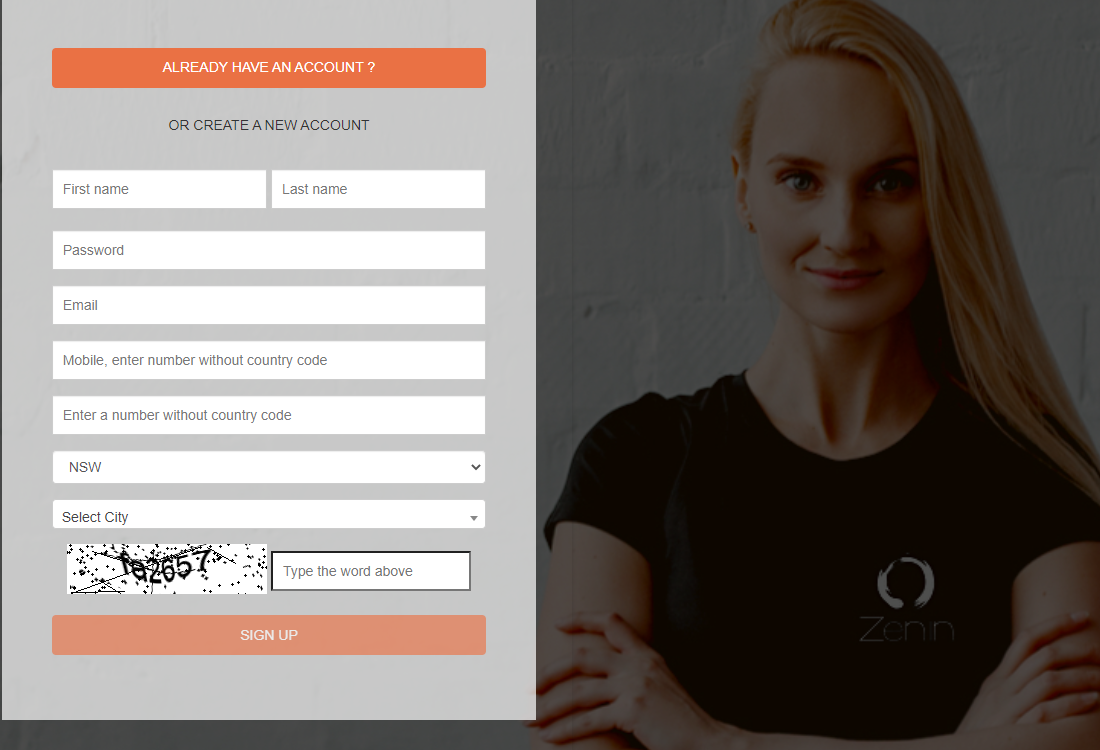
3.1 Candidate completes the sign-up form
When candidates click your link, they’ll land on a mobile-friendly registration form and submit their details (for example: name, email, mobile, location, and other onboarding requirements configured by your business).
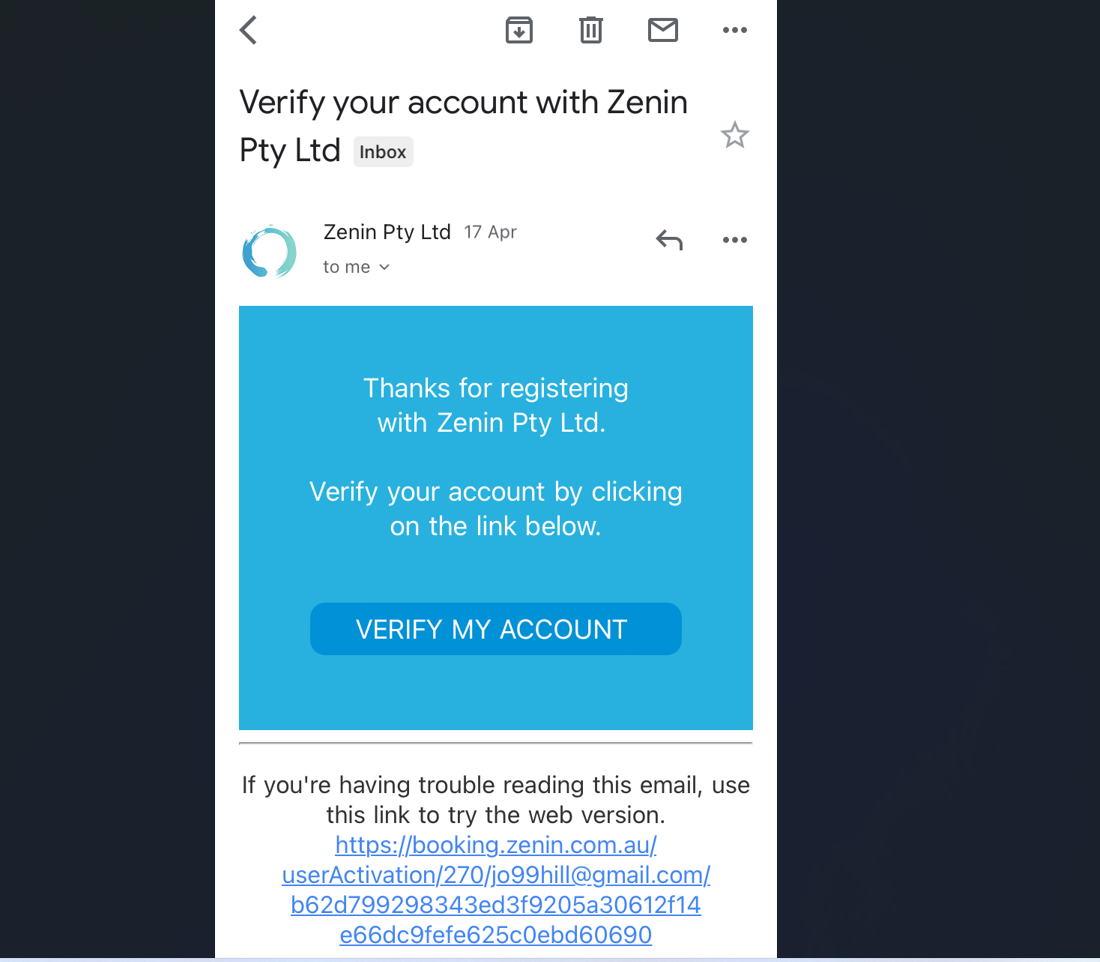
3.2 Candidate verifies their email address
After submitting the form, OctopusPro automatically sends a verification email. The candidate must click the verification link to confirm they own the email address.
Step 4: Admin review, approval & activation
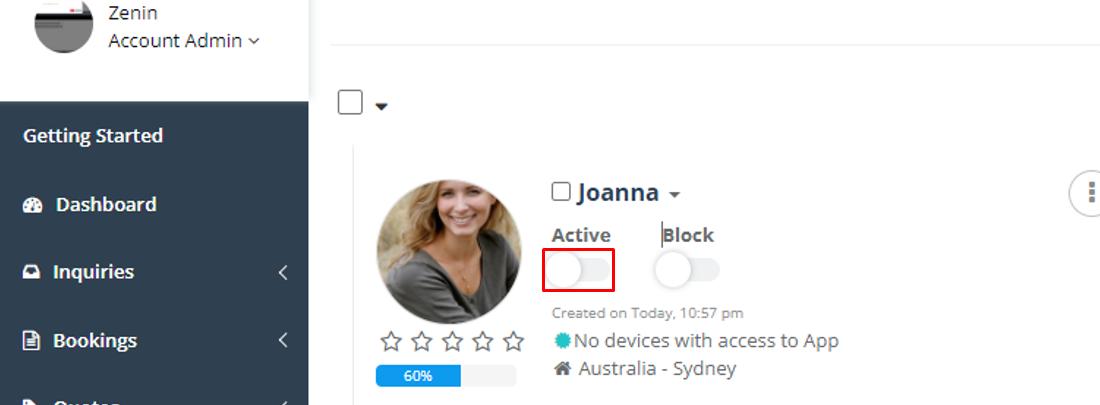
New registrations are created as pending/inactive fieldworkers until your team approves them. This protects your account and ensures only qualified workers gain access.
- Go to Fieldworkers and locate the newly registered profile (often listed under pending/inactive fieldworkers).
- Review the applicant’s details and verify any required documents (licences, insurance, certifications, etc.).
- Confirm they match your operational requirements (service areas, skills, availability, and service preferences).
- When ready, toggle the fieldworker to Active to grant access.
Helpful related guides:
Add, Invite, or Import Fieldworkers (alternative onboarding method) | Activate / Deactivate Fieldworkers
Step 5: Fieldworker onboarding checklist (first-login setup)
Once activated, the fieldworker can log in via the mobile app or web dashboard and complete onboarding. This ensures they’re job-ready and dispatchable.
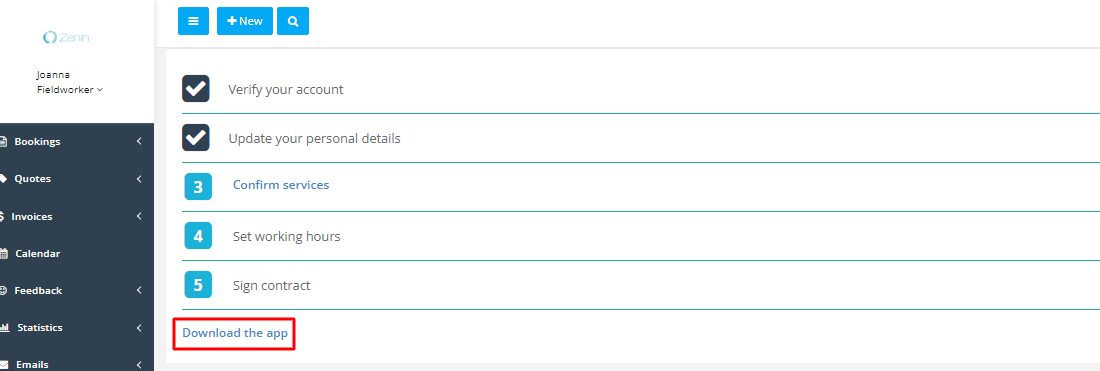
Typical onboarding items include:
- Profile details: contact info, profile photo, required documents.
- Working hours: availability, shifts, and time-off blocks.
- Service areas: where they’re willing/able to work (radius/areas based on your setup).
- Service preferences: services they can perform (and any skills/qualifications needed).
- App access & permissions: what they can edit, view, or action inside the app.
Helpful related guides:
Fieldworker Login | Fieldworker Profile Management | Fieldworker Service Areas | Fieldworker Permissions
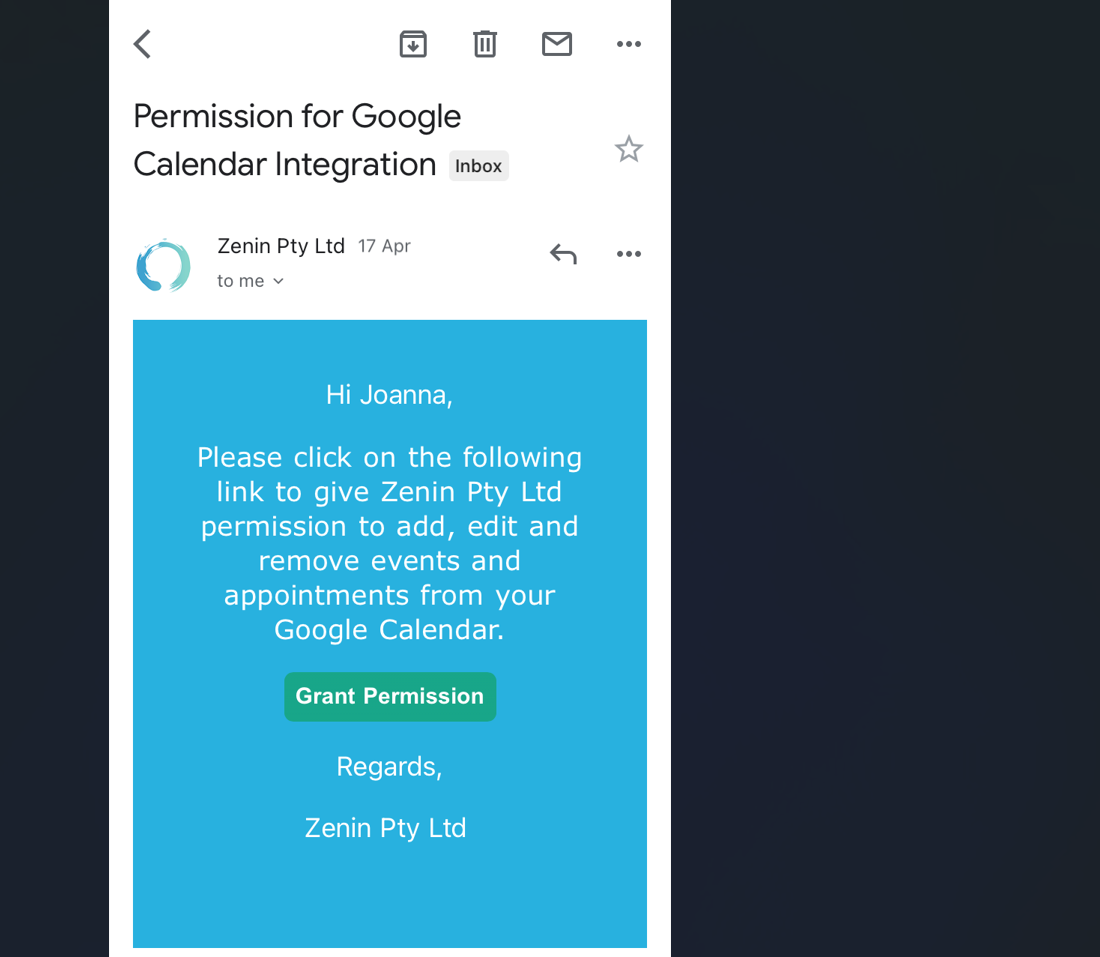
Optional: connect Google Calendar availability
If your business uses Google Calendar syncing, the fieldworker (or an admin, depending on your workflow) can connect their calendar to keep availability accurate and reduce scheduling conflicts.
Related guides:
Google Calendar Integration | Fieldworker Calendar & Availability

Step 6: Start dispatching jobs
After onboarding is complete, fieldworkers are ready to receive work based on your dispatch setup. OctopusPro supports multiple assignment models, including:
- Manual assignment: admins/dispatchers assign bookings directly to a chosen fieldworker.
- Automated dispatch: the system assigns jobs based on your rules (availability, service areas, skills, and other criteria).
- Broadcast / accept-decline: a job request can be sent to multiple eligible fieldworkers; the workflow can be configured to assign automatically (first-to-accept) or require admin confirmation.


Helpful related guides:
Job Assignment & Dispatch | Allow Fieldworkers to Accept / Decline Job Requests | Getting Started (Fieldworker App) | Fieldworker Start-to-Finish Job Workflow

Best practices & troubleshooting
- Use the Direct Sign-Up URL for job ads & QR codes: It takes candidates straight to the form without extra clicks.
- Always test end-to-end: submit a test application, verify the email, and confirm the profile appears as pending/inactive.
- Approval keeps you secure: applicants should remain inactive until you’ve checked documents and suitability.
- Not receiving verification emails? Ask candidates to check spam/junk folders and confirm the email address was typed correctly.
- Candidate can’t log in: confirm they are Active (and not blocked) and that email verification is complete.
- Prefer to invite specific workers only? You can onboard by invitation/import instead of public sign-up: Add, Invite, or Import Fieldworkers.
FAQ
Can I turn the sign-up link off when I’m not hiring?
Yes. Disable the Fieldworker Sign-Up Promotion toggle to stop new sign-ups.
Do new applicants get access immediately?
No. New sign-ups are captured as pending/inactive fieldworkers until an admin approves and activates them.
Can I send candidates directly to the form (not the portal homepage)?
Yes. Use the Direct Sign-Up URL shown in the Fieldworker Sign-Up Promotion settings (ideal for QR codes and job ads).
How do I control what fieldworkers can see or edit?
Use fieldworker permissions to manage access to pricing, customer details, job actions, invoices/payments, and more: Fieldworker Permissions.
How do I control how jobs are assigned?
Configure your dispatch rules and assignment workflow here: Job Assignment & Dispatch.
To stay updated, please subscribe to our YouTube channel.
[/vc_column_text][/vc_column][/vc_row]