
View Fieldworker Calendar, Availability, Notes & Time Off

OctopusPro’s calendar tools help you schedule jobs confidently by showing each fieldworker’s bookings, availability, notes, and time-off blocks in one place. This guide explains how admins and fieldworkers can view calendars, check availability, sync Google/Outlook calendars, add calendar notes, and block unavailable time to prevent scheduling conflicts.
How availability is calculated
A fieldworker’s availability in OctopusPro is typically based on:
- Working hours / shifts (when the fieldworker is scheduled to work)
- Existing bookings already assigned to that fieldworker
- Blocked time (unavailable time-off blocks)
- Synced external calendar events (Google/Outlook), if calendar sync is enabled
This helps reduce double-bookings and ensures customers only see bookable time slots when at least one matching fieldworker is actually available.
View a fieldworker’s calendar (Admin)
Method 1: From the fieldworker profile
- Go to Fieldworkers (left-side menu).
- Open the relevant fieldworker profile.
- Click Calendar → View local calendar.

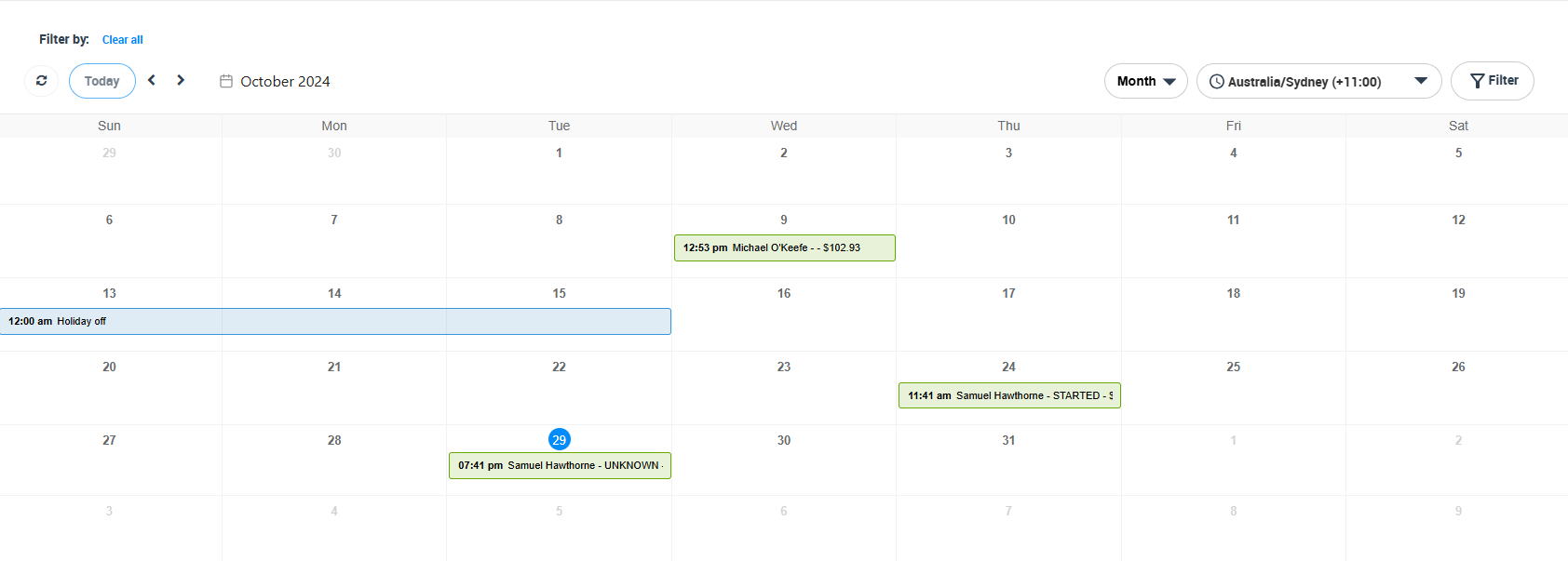
You’ll be redirected to the fieldworker’s calendar where you can switch between Month / Week / Day views and click any booking to open its details.
Method 2: From a booking (Available fieldworkers / Nearby bookings)
When you create or open a booking, you can jump into a fieldworker’s calendar from the booking screen.
- Open the Booking details page.
- In Available fieldworkers, open the Actions menu next to the fieldworker.
- Click the calendar icon.

This is ideal when comparing multiple fieldworkers before assigning the booking.
Method 3: “Find availability” (timeline view)
Use the availability timeline to quickly see who is free on a specific day/time.
- Click Find availability from the booking details page or the new booking page.
- A pop-up will display each available fieldworker’s timeline.

- Select a date to view bookings/availability for that day.
Calendar views (Month / Week / Day / List)
Use the calendar view that matches your workflow:
- Month view: planning and capacity overview
- Week/Day view: dispatching and slot-level scheduling
- List view: a clean, sortable view of upcoming bookings
Sync OctopusPro with Google Calendar / Outlook Calendar
Calendar sync helps fieldworkers and admins manage external commitments (personal events, medical appointments, subcontractor jobs) alongside OctopusPro bookings.
A) Sync the business calendar (Admin)
To sync your main business calendar, connect the general fieldworker profile (your default business calendar).
Option 1 (from Fieldworkers):
- Go to Fieldworkers.
- Open the general fieldworker profile.
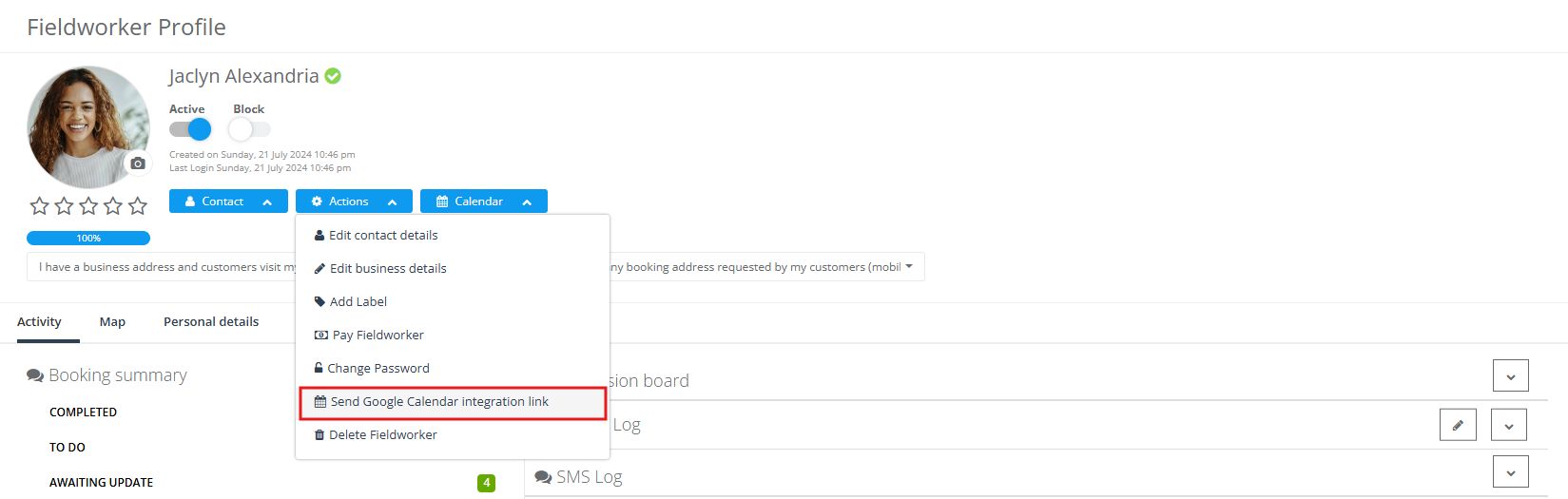
- Click Actions → Send Google Calendar integration link or Actions → Send Outlook Calendar integration link.
- In the email pop-up, click Send.
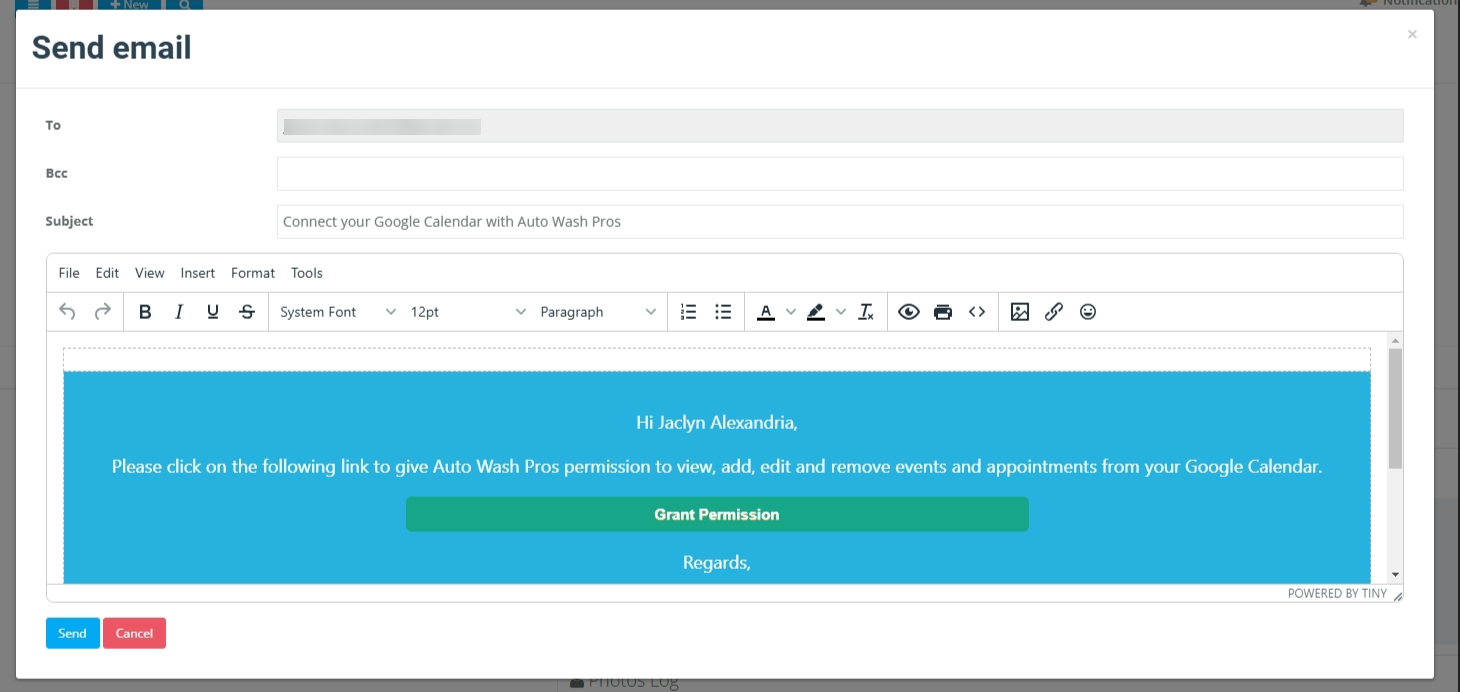
- Open the email and click Grant Permission to complete the connection.
After permission is granted, go to Calendar (left-side menu) to view and manage bookings alongside synced calendar events.
B) Sync a fieldworker’s calendar (Admin)
If you need to sync a specific fieldworker’s Google/Outlook calendar:
- Go to Fieldworkers.
- Open the fieldworker profile.
- Click Actions → Send Google/Outlook Calendar integration link.
- The fieldworker grants permission from their email inbox to complete the sync.
C) Sync from the Fieldworker App (Fieldworkers)
- Log in to the Fieldworker App.
- Open Profile (left-side menu).
- Tap Actions (top-right) → Sync calendar.
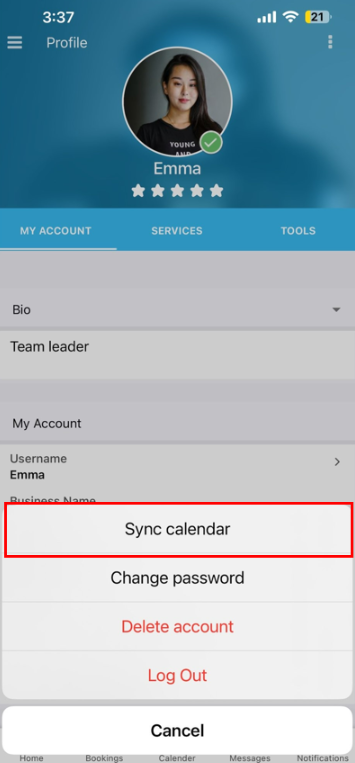
- Send the permission email, then grant access using the link in the email.
After syncing, the fieldworker can open Calendar in the app to view bookings alongside synced calendar events.
View the calendar as a fieldworker (Web + App)
Fieldworker web view
After signing in via a web browser, fieldworkers can view their calendar from their homepage and open upcoming or past bookings.
Fieldworker mobile app view
- Open the Fieldworker App.
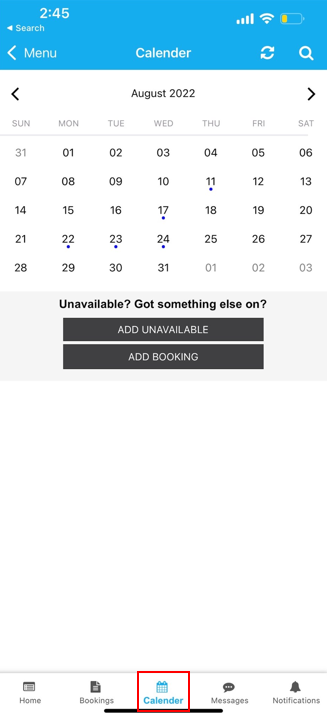
- Tap Calendar (bottom menu).
- Dates with bookings are indicated by blue dots.
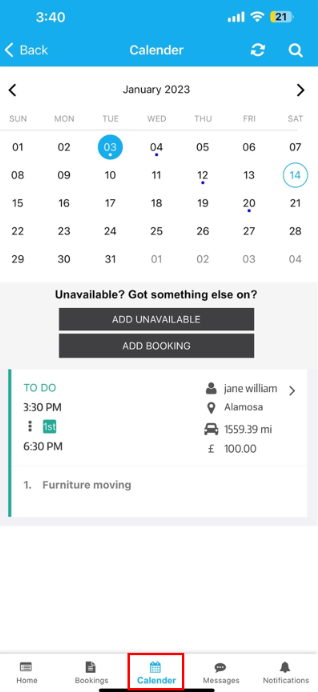
- Tap a date to view assigned bookings.
Add booking (if enabled): Fieldworkers can create a new booking from the calendar by tapping Add booking.
Block time off (Unavailable time)
 Unavailable time blocks prevent bookings from being scheduled during time off (vacation, sick leave, training, appointments).
Add unavailable time (Fieldworkers)
- Open Calendar.
- Click Add unavailable (or click a time slot and select Add unavailable time, depending on your view).
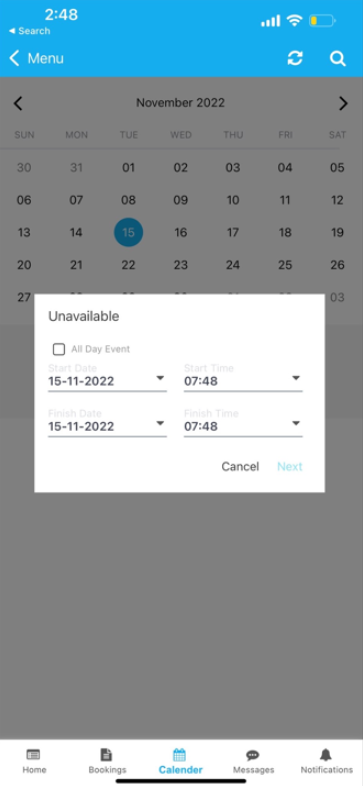
- Select the day(s) and time, then Save.
Tip: Unavailable time blocks availability. If you only need a reminder that does not block availability, use calendar notes instead.
Add notes on the calendar (Reminders & To-Dos)
Calendar notes are for reminders and internal annotations (e.g., “Team meeting”, “Public holiday”, “Call supplier”). Notes appear on the calendar but do not block availability.
Add a note (Admin)
- Go to Calendar.
- Click a time slot and select Add note.
- Choose who the note applies to:
- General fieldworker (admin-only note on the main calendar), or
- One or more fieldworkers (so it appears on their calendars too).
- Add a title and note details, pick date/time, then Save.
Add a note for a date range (Admin)
- Go to Calendar → click a date/time slot → Add note.
- Enable All day, then select a start and end date.
- Save.
View / edit / delete notes
- Click the note on the calendar to view details.
- Use the Actions menu to Edit note or Delete note.
Filter notes by fieldworker (Admin)
- Go to Calendar.
- Click Filters (top-right).
- Select a fieldworker → Filter to see that fieldworker’s bookings + notes.
Notes for fieldworkers
- Fieldworkers can add notes from their calendar, but can only assign notes to themselves.
- Notes assigned to a fieldworker by an admin appear on the fieldworker’s calendar, and the fieldworker can edit or delete notes assigned to them.
Related guides
- Find Fieldworker Availability
- Nearby Bookings (proximity-based scheduling)
- Set / Update Fieldworker Working Hours
- Block Unavailable Date & Time
- Calendar Overview (Month / Week / Day / List views)
- Sync Google / Outlook Calendar with OctopusPro
To stay updated, please subscribe to our YouTube channel.