
[vc_row][vc_column width=”1/4″][vc_widget_sidebar sidebar_id=”sidebar-1″][/vc_column][vc_column width=”3/4″][vc_column_text]
Job Assignment & Dispatch (Manual vs Automatic)
OctopusPro helps you assign jobs to the right fieldworkers and dispatch job requests using either:
- Manual Assignment (dispatcher/admin selects and assigns)
- Automated Dispatch (First-to-Accept) (system broadcasts to eligible fieldworkers and assigns the first one who accepts)
This gives you flexibility to run a fully dispatcher-controlled workflow, a self-serve automated workflow, or a hybrid of both—depending on your business model, SLA requirements, and workforce size.

On this page
- 1) What is job assignment & dispatch?
- 2) Manual vs automated dispatch: key differences
- 3) Eligibility rules: who appears as “Available Fieldworkers”
- 4) Manual assignment workflow
- 5) Automated dispatch (first-to-accept)
- 6) Sending job requests (manual actions)
- 7) Reassigning / transferring a job
- 8) Declines, cancellations & no-shows (with reason tracking)
- 9) Automated re-broadcasting & Fieldworker Reschedule Assist
- 10) Notifications & communication
- Related guides
1) What is job assignment & dispatch?
Job assignment is the process of allocating a booking (job) to a specific fieldworker.
Job dispatch is how OctopusPro sends job requests (invitations) to fieldworkers so they can Accept or Decline—via app notifications, email, and/or SMS (based on your settings).
Why it matters:
- Reduce admin time spent calling or messaging multiple workers
- Improve response times (especially for on-demand or urgent jobs)
- Increase job fill rates by broadcasting to eligible workers instantly
- Track decline reasons to optimize coverage rules (distance, availability, territories, etc.)
2) Manual vs automated dispatch: key differences
| Mode | How it works | Best for |
|---|---|---|
| Manual Assignment | Admins send job requests and manually assign the selected fieldworker (even if multiple accept). | High-control dispatch, VIP clients, complex jobs, strict routing rules |
| Automated Dispatch (First-to-Accept) | OctopusPro broadcasts to eligible fieldworkers and automatically assigns the first fieldworker who accepts. | Fast response, large contractor fleets, on-demand services, after-hours coverage |
3) Eligibility rules: who appears as “Available Fieldworkers”
The Available Fieldworkers list is a filtered shortlist of fieldworkers who are eligible for the booking based on your dispatch rules. OctopusPro only shows fieldworkers who meet all required criteria (for example: service eligibility + location rules + availability rules).
If a fieldworker isn’t appearing in the list, it’s usually because one (or more) of the following filters is excluding them:
- Distance / travel radius (company-level): The booking address is outside your configured Default Travel Radius (set at the company level in Settings > General Settings > Job Assignment). If the job is outside this radius, the fieldworker may not appear as eligible.
- Service eligibility / skills match: The fieldworker isn’t enabled for the booking’s service(s), or your business rules exclude them. Depending on your configuration, eligibility can be controlled by:
- Service assignments: which services the fieldworker is allowed to deliver
- Service requirements: required tags/skills, qualifications, licenses, equipment, or team type
- Custom fields & rules (optional): if you use custom field filters for dispatching (e.g., certification type, language, vehicle type, insurance status), the fieldworker must meet the required values to appear as eligible
- Service areas / territories (fieldworker-level, map-based) (if enabled): The booking location is outside the fieldworker’s defined coverage area. Fieldworkers can draw and manage their own service areas on a map from their profile, which is used to determine whether they cover a job location.
- Learn more: Fieldworker Service Areas (Map Territories)
- How it works with travel radius: if both are enabled, OctopusPro can apply territory coverage checks and distance rules together—so a job may need to be within the fieldworker’s service area and within the company travel radius (depending on your configuration).

- Availability rules: The fieldworker is outside working hours, marked unavailable, or has a scheduling conflict (especially when Real-Time Availability is enabled).
- Account status / permissions: The fieldworker is inactive, restricted, or not allowed to receive job requests based on your permissions/settings.
Quick checklist (best practice):
- Confirm the booking has the correct service(s), date/time, and job location.
- Check the fieldworker is enabled for the service and (if enabled) their service area/territory includes the booking location.
- Confirm the booking location is within the company Default Travel Radius (if you use proximity matching).
- Verify working hours and any calendar conflicts if availability checks are enabled.
Tip: If you rely heavily on territories or availability rules, keep each fieldworker’s service areas (map territories) and working hours/calendar availability up to date—these settings have the biggest impact on who appears as “Available.”
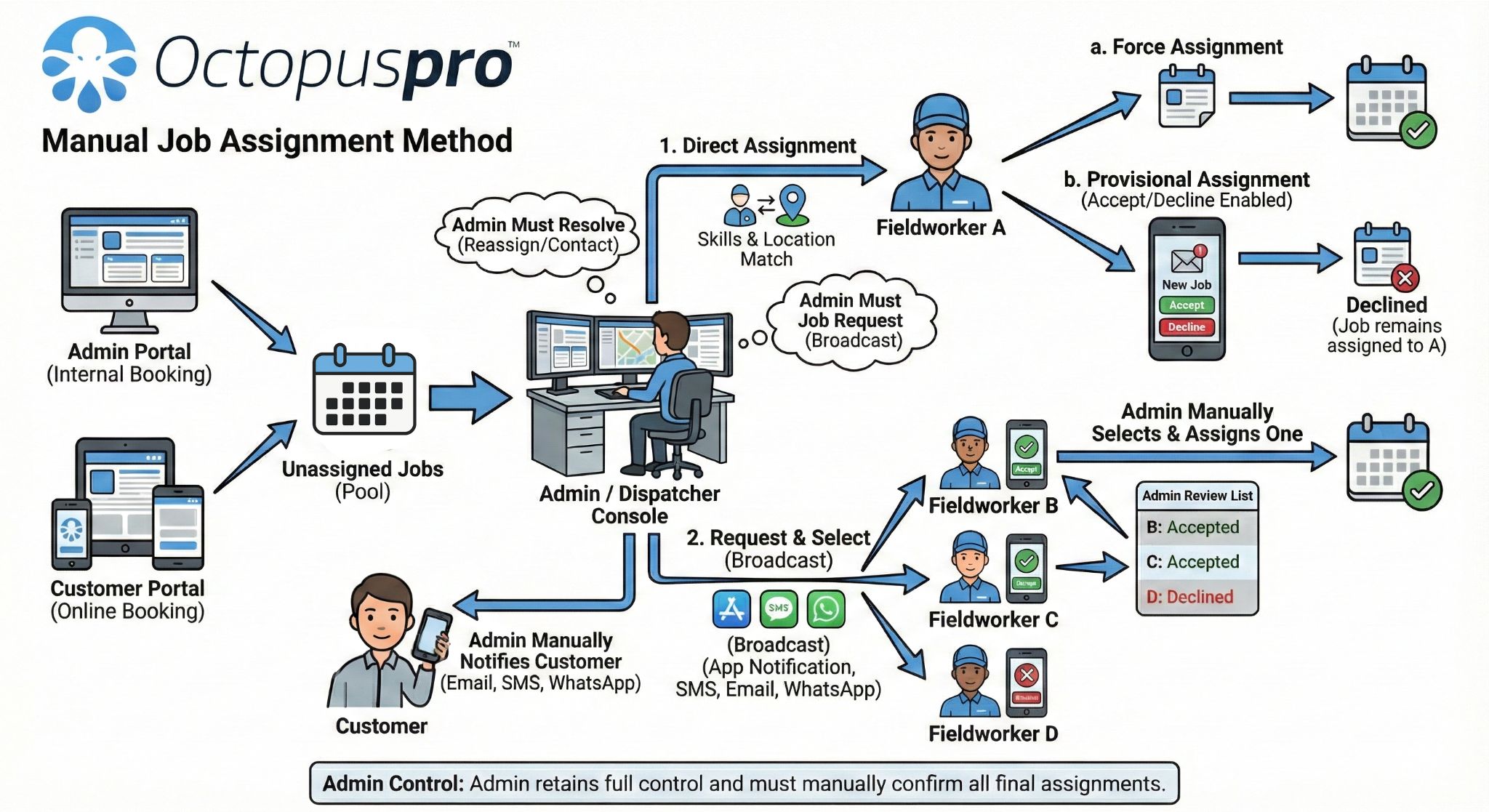
4) Manual assignment workflow
With manual assignment, you can still send job requests to one or more fieldworkers, but the booking is not assigned until an admin confirms the assignment.
Where manual assignment is used
- Customer Portal bookings (if configured for manual)
- Admin-created bookings (dispatcher selects fieldworker during booking creation or from Booking Details)
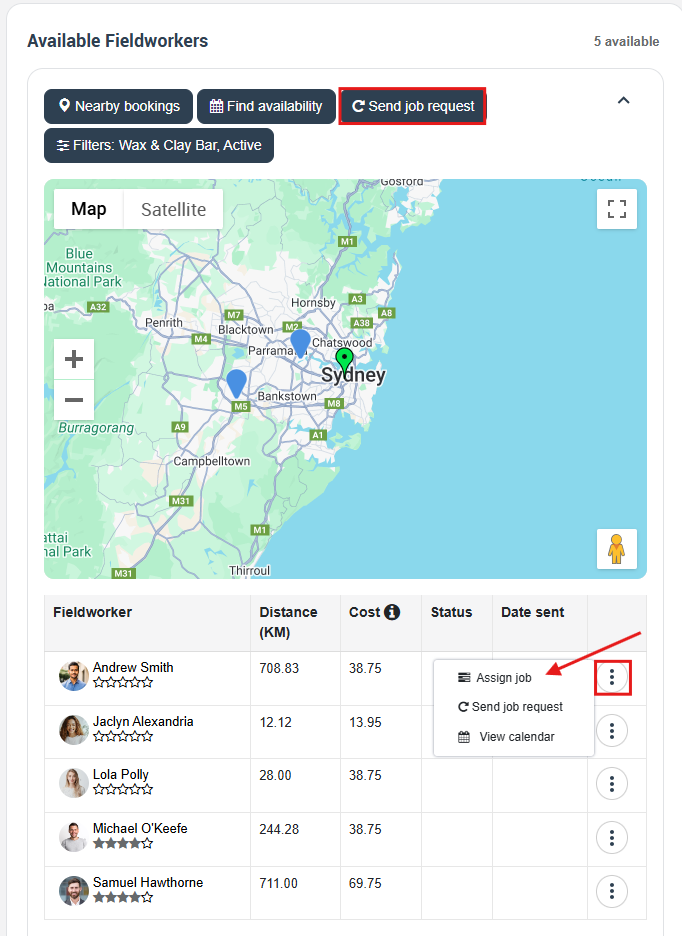
Manual assignment from Booking Details
Go to Booking Details → Available Fieldworkers. From here you can send job requests, view availability, and assign the job.
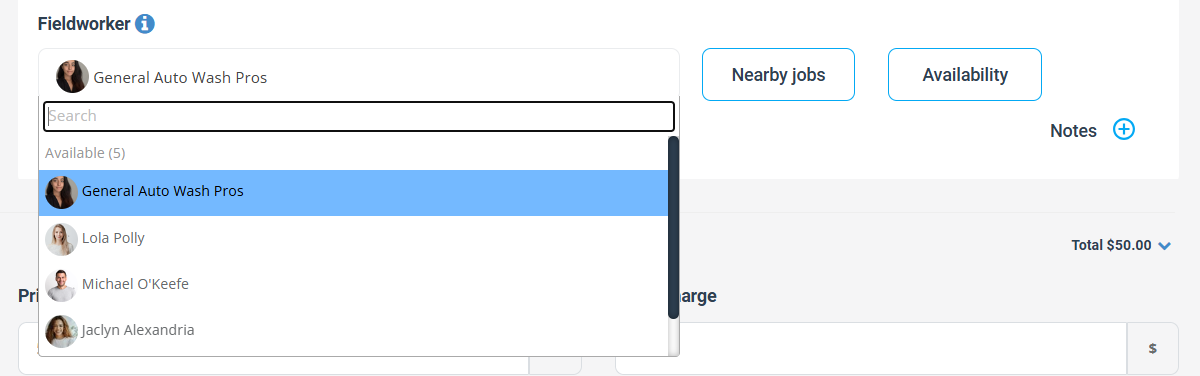
Assigning during booking creation
When creating a booking in the admin portal, you can select a fieldworker directly (if your workflow is configured for manual selection).
5) Automated dispatch (first-to-accept)
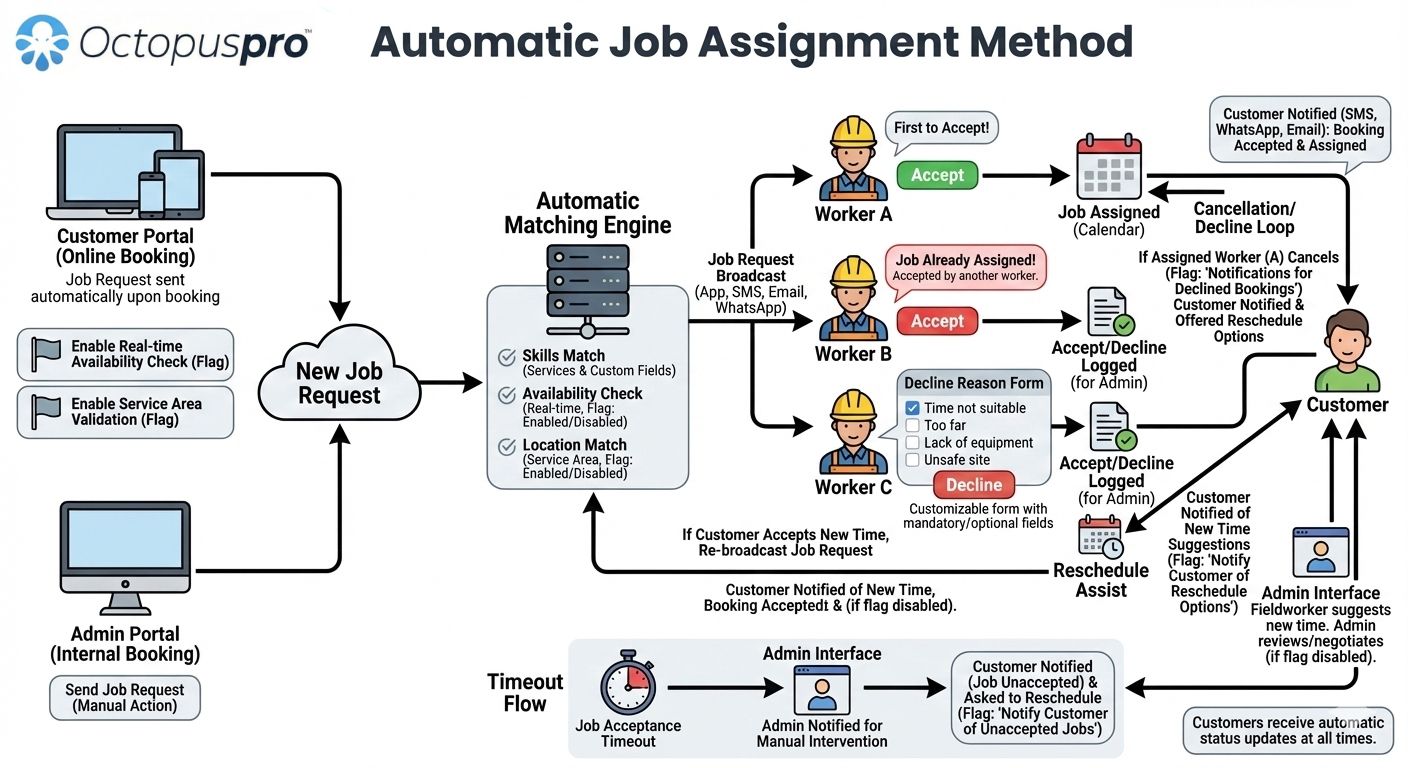
Automated dispatch is a rules-based workflow that helps you fill jobs faster with minimal admin effort. When enabled, OctopusPro automatically sends a job request to all eligible fieldworkers (based on your matching rules). The first eligible fieldworker to accept is instantly assigned to the booking.
Why businesses use it: it reduces manual follow-ups, speeds up assignment, and scales well for large contractor fleets or on-demand services.
How automated dispatch starts
- Customer Portal bookings: job requests can be triggered automatically as soon as the customer submits the booking (based on your dispatch settings).
- Admin-created bookings: admins can leave the booking unassigned so it routes through your unassigned workflow (for example, via your unassigned queue/rules) and gets auto-dispatched to matching fieldworkers.
How the auto-dispatch flow works
- Match: OctopusPro identifies eligible fieldworkers based on your criteria (services/skills, service areas/territories, availability rules, and travel radius).
- Broadcast: the job request is sent to the matching group.
- Assign: the first eligible fieldworker who accepts is automatically assigned.
- Lock: once assigned, the request closes so other fieldworkers can’t accept the same job.
What fieldworkers see
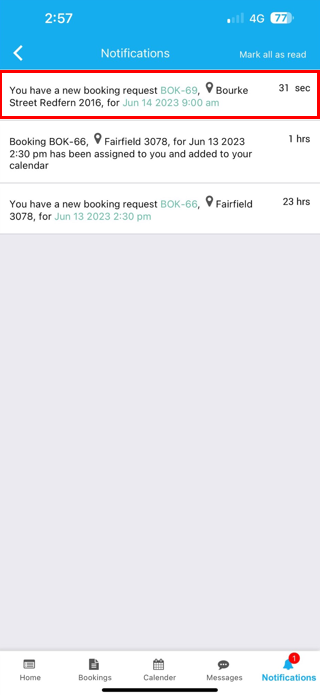
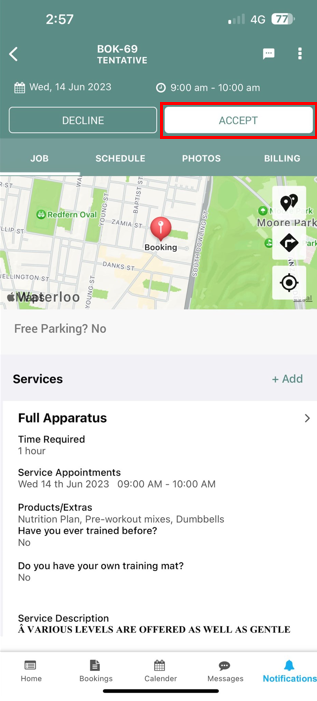
Fieldworkers receive a job request notification and can open it to review key details (service, time, location, notes) before responding.
To take the job, they tap Accept. If they can’t take it, they can decline (and may be prompted for a reason depending on your settings).
Optional SMS job request notifications
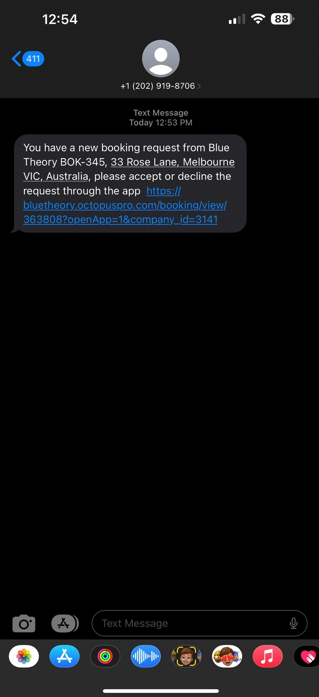
In addition to push notifications, you can optionally send job requests via SMS. This is useful as a backup channel when fieldworkers aren’t actively checking the app or when push notifications are missed.
Assignment timeout (when no one accepts)
To avoid bookings sitting unassigned, you can set an assignment timeout. If no fieldworker accepts within the defined timeframe, OctopusPro can alert admins so you can step in and resolve it.

- After timeout: admins can manually assign the job, adjust matching rules (radius/territories/availability), or re-broadcast the request.
- First-to-accept rule: automated dispatch is strictly first-come, first-served. Once a fieldworker accepts and is assigned, the request is closed and other fieldworkers can’t accept that same job.
6) Sending job requests (manual actions)
You can send job requests from Booking Details → Available Fieldworkers. This lets you invite one or more eligible fieldworkers to Accept or Decline before you assign the job (manual workflows) or before the system assigns it (automated workflows).
Why use job requests? They’re ideal when you want the fieldworker to confirm availability, when you need a quick “first available” response, or when you want to offer the job to a shortlist rather than assigning immediately.
Key terms (so the options make sense)
- Booking: the main job record (can include multiple services and/or multiple scheduled visits).
- Appointment: a single scheduled visit/time slot inside a booking (common in recurring bookings).
- Service: a line item within a booking (a booking can include multiple services with different skill requirements).
- Job Request: an invitation sent to a fieldworker to accept or decline a job (and optionally a specific appointment or service).
Before you send a job request
- Confirm the booking has the correct date/time, service(s), and job address.
- Review the Available Fieldworkers list—this is already filtered by your eligibility rules (services, territories/service areas, travel radius, availability rules, etc.).
A) Send a request for a specific appointment to one fieldworker
Use this when the booking includes multiple appointments (for example, a recurring booking) and you only want one visit offered to a specific fieldworker.
- Open Booking Details and scroll to Available Fieldworkers.
- Click Actions next to the fieldworker.
- Select Send Job Request.
- Select the appointment/date you want to offer, then click Send.
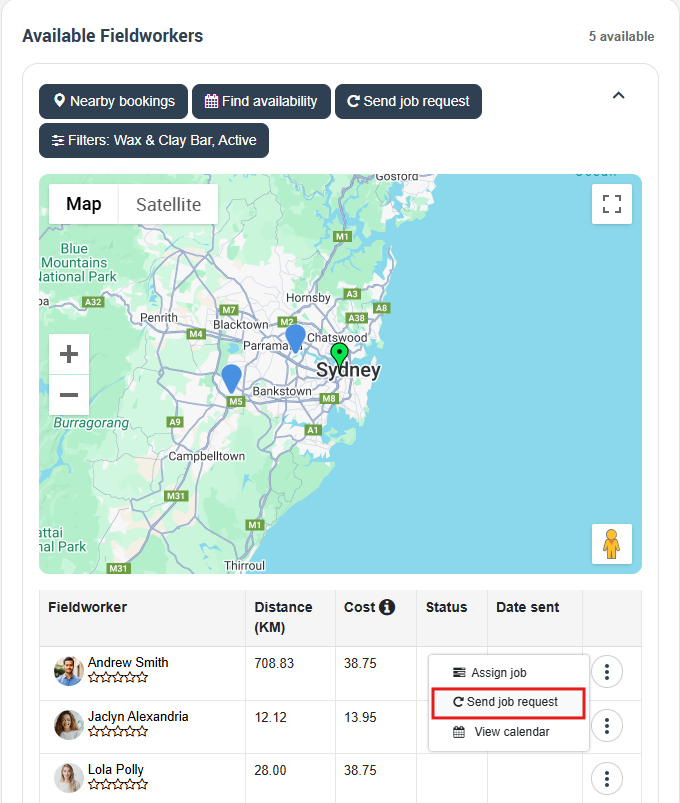
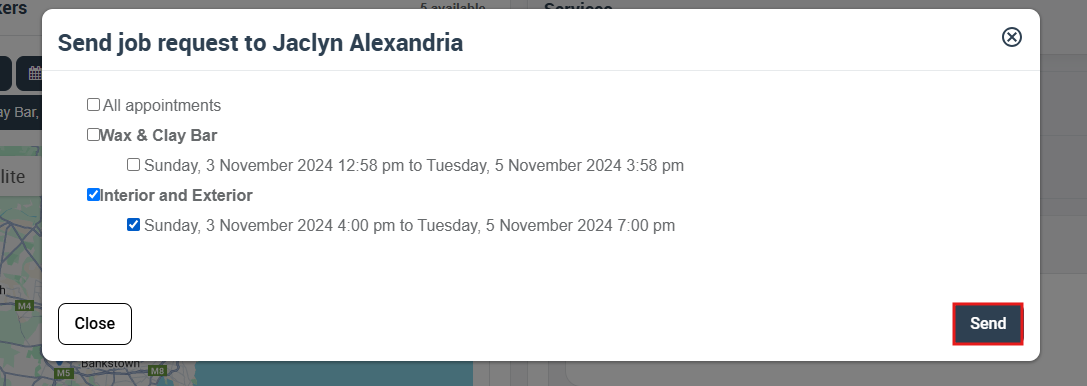
Result: The fieldworker receives the job request and can accept/decline that specific appointment.
B) Send requests to multiple fieldworkers for a specific service
Use this when the booking includes multiple services and you want to broadcast the job request to a group of eligible fieldworkers for one service (e.g., a specialist service line item).
- Open Booking Details and scroll to Available Fieldworkers.
- Click the main Send Job Request button above the fieldworker list.
- Select the service you want to request fieldworkers for.
- Select the fieldworkers to notify, then click Send.
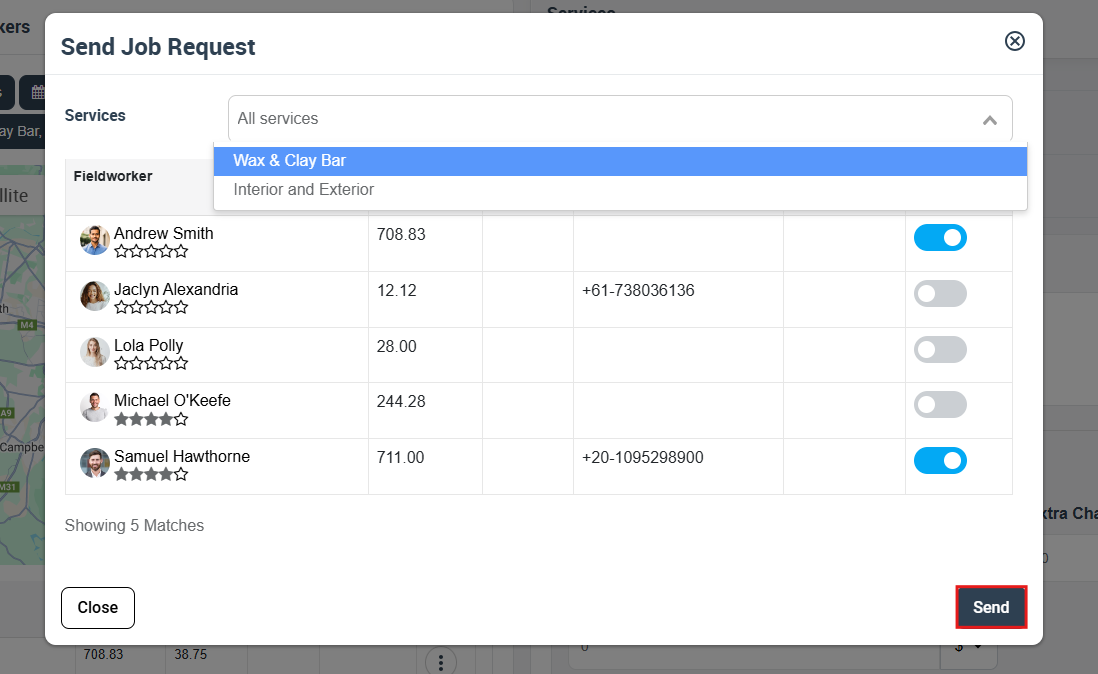
Result: Each selected fieldworker receives the job request and can accept/decline. In automated dispatch, the first eligible acceptance is assigned. In manual dispatch, acceptances are recorded for admin review.
Confirming assignment (manual workflows)
If you’re using Manual Dispatch, the booking typically remains unassigned until an admin finalizes who gets the job. After you review responses, assign the selected fieldworker and confirm.
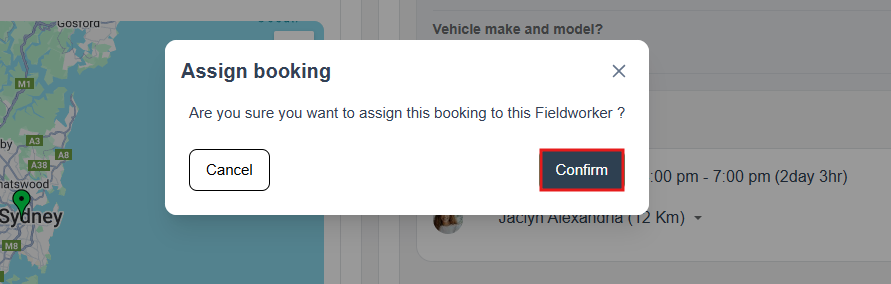
Tip: If you receive repeated declines, review eligibility rules (service assignments, service areas/territories, travel radius, and availability settings) to improve match quality.
7) Reassigning / transferring a job
If a booking is already assigned (either through manual assignment or automated dispatch), an admin can reassign it to another fieldworker at any time. This is commonly used when a fieldworker becomes unavailable, declines after accepting, calls in sick, or when you want to optimize routing and workload.
How to reassign a booking
- Open Booking Details.
- Scroll to the Available Fieldworkers section.
- Locate the replacement fieldworker and click Actions.
- Select Assign Job, then confirm the reassignment.
What happens after reassignment
- Immediate update: the booking is transferred to the new fieldworker straight away.
- Schedule update: the booking appears in the new fieldworker’s schedule, and is removed from the previous fieldworker.
- Notifications (optional): customers and/or fieldworkers can be notified automatically depending on your notification settings and templates.
- Audit trail: the reassignment is recorded in the booking’s activity/history log for accountability and reporting.
Tip: If the booking was reassigned because the original fieldworker declined or became unavailable, consider enabling decline reason tracking and using those insights to fine-tune service areas, availability rules, or travel radius settings to reduce future reassignments.
8) Declines, cancellations & no-shows (with reason tracking)
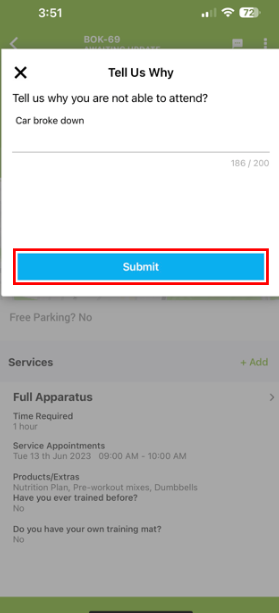
When a fieldworker declines a job request—or cancels an already-assigned job—OctopusPro can capture a mandatory decline reason. This helps you understand why jobs are rejected and improve dispatch rules (distance, availability, territories, service coverage, etc.).
Scenario 1: Fieldworker declines an unassigned job request
- Automated dispatch: the declining fieldworker is removed from the candidate pool for that job; the system continues waiting for other acceptances.
- Manual dispatch: the decline is shown next to that fieldworker; the job remains unassigned until an admin assigns someone.
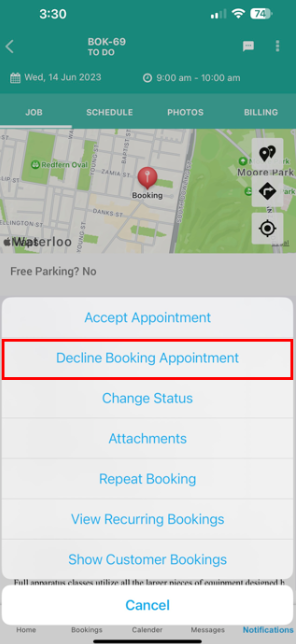
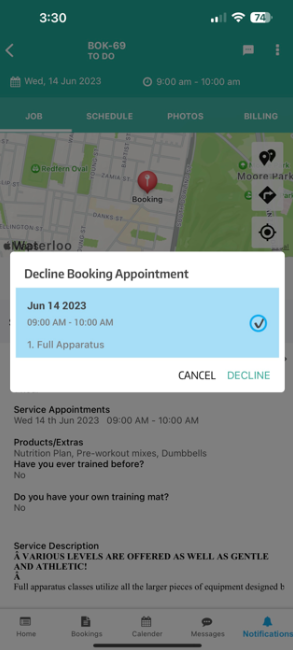
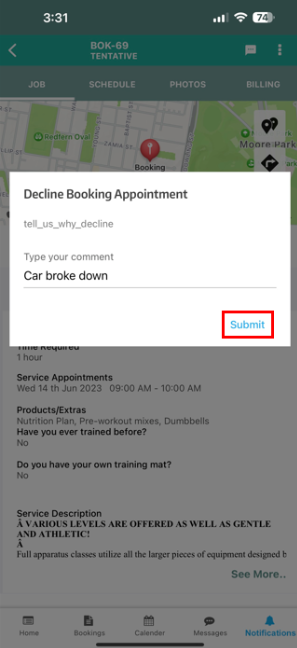
Scenario 2: Fieldworker declines/cancels an already-assigned job
- The booking can be flagged as missed/declined.
- Admins can be alerted to intervene quickly.
- Customers can be notified if “Notifications for Declined Bookings” is enabled (based on your settings).

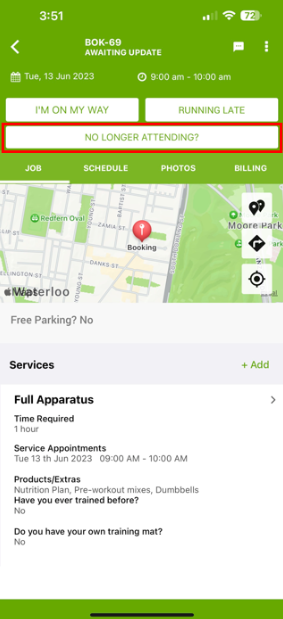
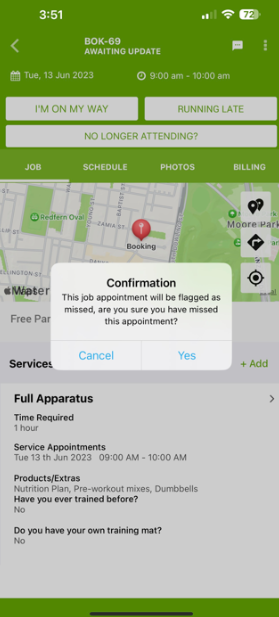
No-show handling (“No longer attending”)
Fieldworkers can flag that they are no longer attending, then submit a reason (if required).
9) Automated re-broadcasting & Fieldworker Reschedule Assist
Automated re-broadcasting loop (cancel & reschedule)
If an assigned fieldworker cancels/declines after accepting, and the customer reschedules to a new time, OctopusPro can restart dispatch automatically:
- Trigger: assigned fieldworker cancels/declines OR customer selects a new time after cancellation.
- Action: the booking is re-broadcast to the matching engine.
- Result: the first eligible fieldworker to accept becomes assigned—without manual admin work (unless nobody accepts).
Fieldworker Reschedule Assist (Automated Alternate Slot Suggestions)
If you want an even more streamlined rescheduling workflow, Fieldworker Reschedule Assist helps convert a decline into a fast rebooking flow by letting fieldworkers propose alternate time slots and guiding customers to select a new option.

View Fieldworker Reschedule Assist (Automated Alternate Slot Suggestions)
10) Notifications & communication
OctopusPro can send automated notifications to customers and fieldworkers during every stage of the dispatch workflow—so everyone stays informed without manual follow-ups. Notifications can be delivered via push (Fieldworker App), email, and/or SMS, depending on what your company has enabled and how your templates are configured.
Customer notifications (examples)
Customer notifications help set expectations, reduce “Where is my technician?” calls, and protect the customer experience—especially when a job is still waiting to be accepted.
- Booking assigned (confirmation): Send an immediate message when a fieldworker has been successfully allocated.
- No acceptance within a timeframe (optional): Notify the customer if the booking is still unassigned after a defined period, so they understand you’re still dispatching the job.
- Unassignment alert before appointment time (optional): Warn the customer if the booking remains unassigned as the appointment start time approaches.
- Assigned fieldworker cancels/declines (optional): Notify the customer if an already-assigned fieldworker can no longer attend—then you can immediately re-dispatch or reschedule.
Tip: Pair “no acceptance” and “unassignment alerts” with your dispatch timeout rules so customers receive timely updates without unnecessary messages.
Fieldworker notifications (job requests)
Fieldworkers can receive job requests through the Fieldworker App and optionally by SMS or email. Using SMS as a fallback is useful when fieldworkers aren’t actively checking the app or when push notifications are missed.
- Push notifications (recommended): Fastest way to alert fieldworkers about a new job request.
- SMS job request alerts (optional): Sends an SMS notification when a job request is broadcast—ideal as a backup channel.
- Email (optional): Useful for longer job details, links, or confirmations (depending on your workflow).
If SMS job request alerts are enabled, you can customize the message content from your communications templates area (including placeholders/merge fields such as customer name, service, date/time, and address).
Related guides
- Managing Unassigned Jobs & Business Availability (Unassigned Tasks Manager)
- Fieldworker Guide: Managing Job Requests in the App
- Fieldworker Availability Finder
- Define Service Areas for Fieldworkers (Territories)
- Nearby Bookings (Proximity-Based Scheduling)
- Customize & Track Job Decline Reasons (Decline Form)
- Fieldworker Reschedule Assist (Automated Alternate Slot Suggestions)
- SMS Templates
- Template Placeholders (Email/SMS/WhatsApp)
- Fieldworker Permissions
To stay updated, please subscribe to our YouTube channel.
[/vc_column_text][/vc_column][/vc_row]