
Fieldworker Login, Impersonation & Password-Reset

This guide explains every way a fieldworker can sign in to OctopusPro and how administrators can impersonate, assist, or troubleshoot those accounts. It covers desktop, mobile-web, and mobile-app log-ins, “login-as-user” overrides, forgotten-password flows, and the security prerequisites (verified email, active status, un-blocked account). You’ll also see why accurate contact and bank data matter: they feed smart-scheduling, payroll exports, and audit trails. Citations throughout reference OctopusPro help articles and best-practice security resources.
Sign-in paths for fieldworkers
| Device | Path | Key features | Typical use |
|---|---|---|---|
| Desktop browser | https://admin.octopuspro.com/login → enter email & password → choose Fieldworker profile if multiple roles exist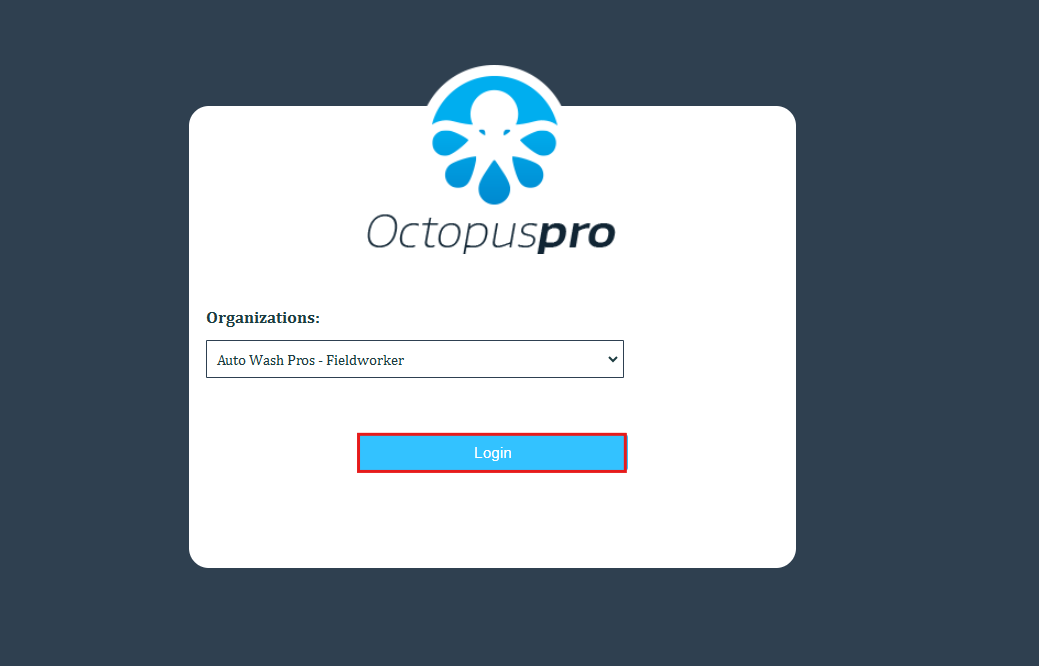 |
• “Remember me” checkbox keeps session active on trusted PCs • Verified-email requirement stops spoofing | Routine office-hour access, quoting work |
| Mobile web | Same URL in mobile browser | Responsive layout adapts to small screens | Occasional access when app isn’t installed |
| Fieldworker app (iOS/Android) | Open app → email & password → Login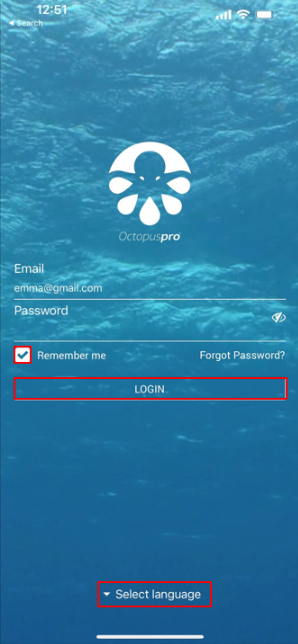 |
• “Remember me” option • Language selector on login screen • Push-notice on successful new device sign-in for extra security | On-the-go job management |
Admin “login as user”
Administrators and office staff can impersonate any active, un-blocked fieldworker for troubleshooting or data entry:
| Where | Steps |
|---|---|
| Fieldworkers list | Fieldworkers ▸ … Actions ▸ Login as this user.
|
| User registry | Settings ▸ Company Settings ▸ Users ▸ … Actions ▸ Login as this user.
|
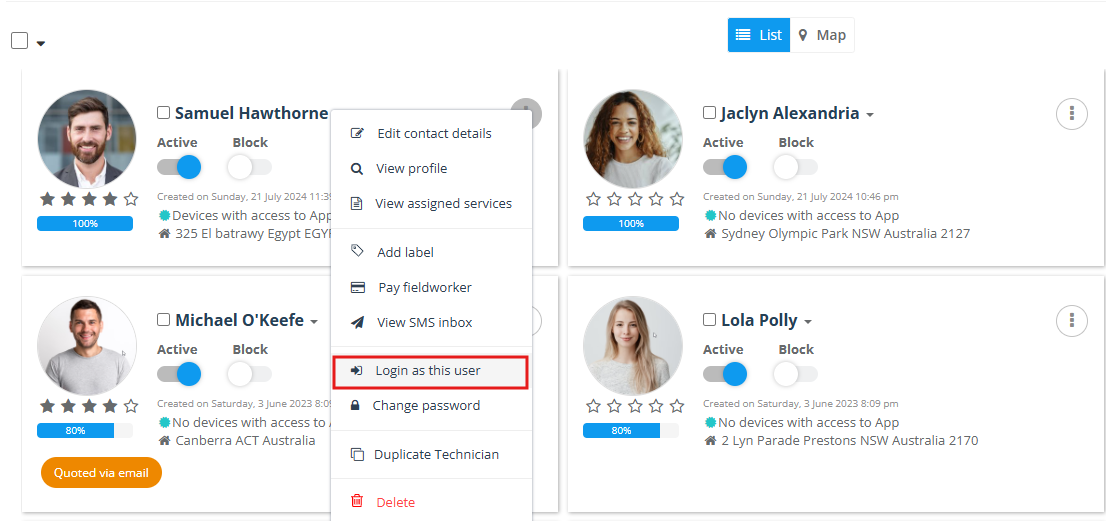
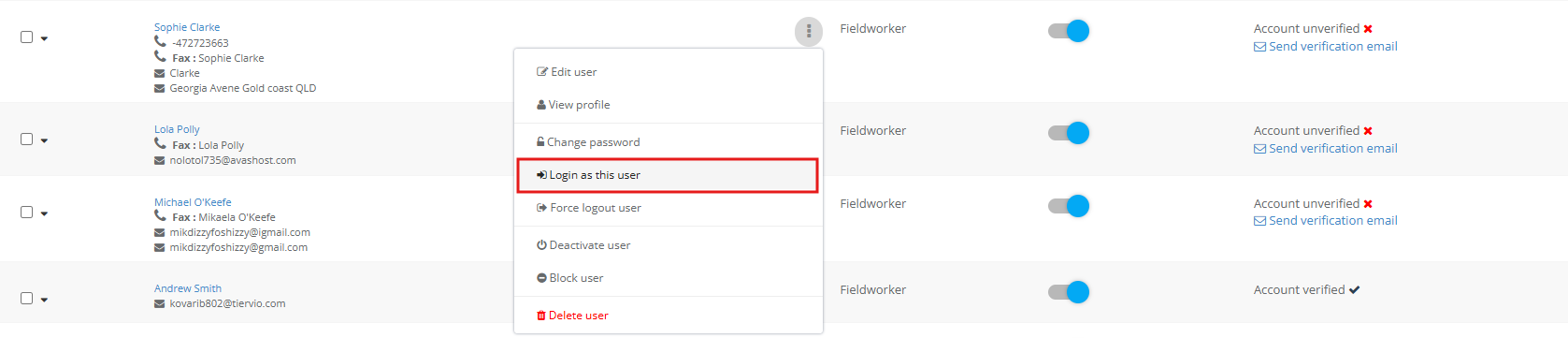
The system records the override in the Audit Log (who, when, which account) for compliance.
Tip: Always log out after impersonation to avoid editing the wrong account.
Activation, blocking & email verification prerequisites
- Active status – only active users can log in or receive jobs.
- Not blocked – blocked users see an “Account disabled” message and cannot access bookings.
- Verified email – admins (or the worker) must click Send email-verification link in Profile ▸ Personal Details ▸ Account details before the first login; otherwise reset-password links won’t arrive.
Forgotten-password flow
- Click Forgot your password? on the login page.

- Enter the verified email → Reset.
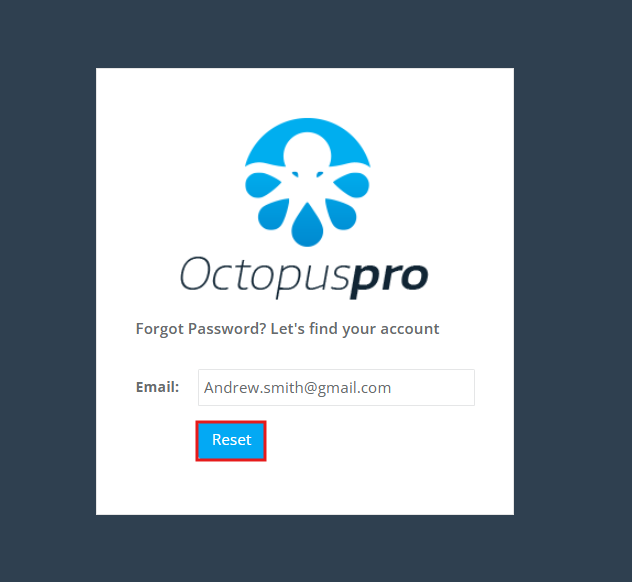
- The system emails a time-limited link; user chooses a new password that meets strength rules (8+ chars, mix of cases & digits).
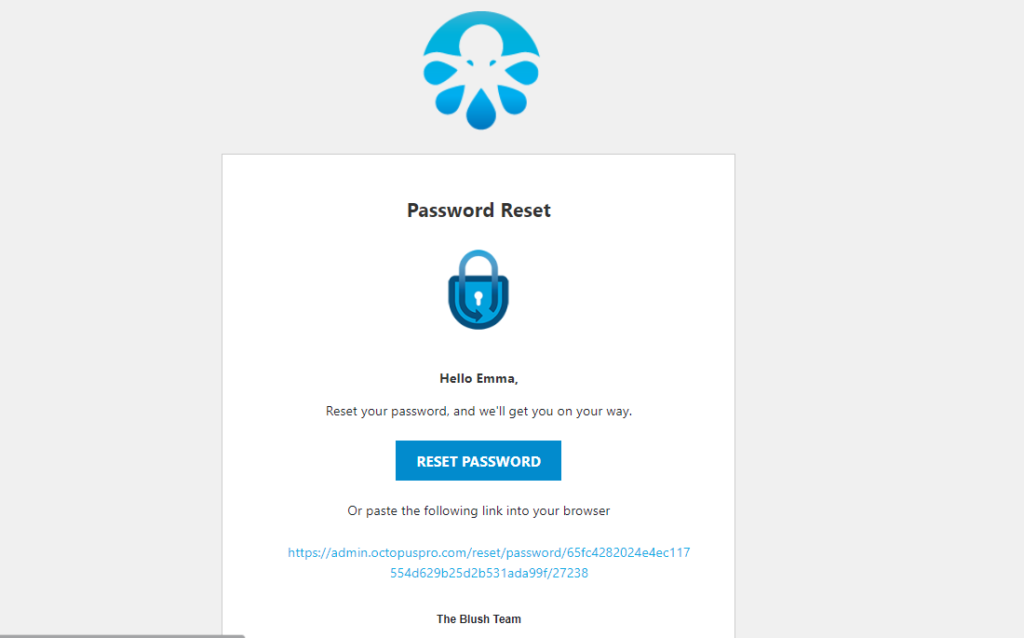

- Success banner appears; user can now sign in.
Security options & best practices
| Feature | Benefit |
|---|---|
| Remember me / Keep me signed in | Reduces repeated logins on trusted devices; token expires on browser logout or 30 days of inactivity. |
| Device-based push confirmation (optional) | Sends alert when a new device logs in, deterring credential stuffing. |
| Strong password policy | Aligns with NIST 800-63 guidelines referenced by Auth0 & Okta for SaaS impersonation security. |
Why profile accuracy matters
| Data element | Operational role | Up-side when up-to-date |
|---|---|---|
| Email & timezone | Activation + correct appointment timestamps | Fewer missed jobs & support calls |
| Address & radius | Distance engine in Find Availability | Accurate travel costs & arrival ETAs |
| Bank details | Populated into ABA/BACS/NACHA payroll exports | Faster, error-free payouts |
| Licences / insurance | Stored in Documents tab | Pass audits; reassure customers |
| Bio & photo | Shown on Customer Portal (if flag enabled) | Builds trust, boosts booking rate |
Troubleshooting checklist
| Symptom | Likely cause | Fix |
|---|---|---|
| “Account inactive” message | Worker deactivated | Toggle Active in profile |
| Password reset email not received | Email not verified | Resend verification link |
| No fieldworker option at login | Role not set | Edit Role = Fieldworker in contact details |
| Push notifications silent | Worker turned off OS-level notifications | Ask them to enable in phone settings |
FAQs
Can a fieldworker have multiple roles?
Yes, but only if you have created multiple users using the same email address and password. On login they select Admin, Customer, or Fieldworker from the drop-down. Each role opens its own dashboard, but the same credentials remain valid.
Does “Remember me” bypass two-factor authentication?
No. If 2-FA is enabled, the worker must complete the second step on every new device even when “Remember me” is checked.
What happens if an admin deletes (not deactivates) a user?
Historical bookings remain, but the login is permanently removed and payroll exports will exclude that worker. Use Deactivate if you may need to restore access later.
To stay updated, please subscribe to our YouTube channel.