
Fieldworker Check-In, Start & Finish Job Workflow (Time Tracking, Proof of Work & Completion)
This guide explains the complete start-to-finish workflow in the OctopusPro Fieldworker App—so your team can check in (start job), track time, upload before/after photos, report issues using Unable to Start, and finish jobs with consistent completion steps.

Each milestone is time-stamped (and can be GPS-tagged where enabled), keeping office staff and customers updated in real time (where enabled) and improving timesheet accuracy, job costing, and quality assurance.
Quick navigation
- Overview
- Prerequisites & recommended settings
- Fieldworker App: step-by-step workflow
- Where admins see updates
- Next steps: invoice, payment & feedback (optional)
- Benefits
- Industry examples
- Troubleshooting & FAQs
- Related guides
Overview
When a fieldworker reaches a booking address, they typically check in by tapping Start Job. The app can:
- Confirm attendance (Arrived/Started timestamps, and GPS context if enabled)
- Start a visit-level timer and feed worked time into timesheets (depending on your settings)
- Trigger mandatory forms/checklists (e.g., safety steps, “before” photo proof)
- Notify admins (and customers where enabled) so everyone stays aligned
If the job cannot begin (no access, unsafe site, customer not available), the fieldworker can tap Unable to Start to record the issue, add notes/photos, and alert the office to intervene.
Note: If your booking includes multiple service appointments/visits, the start/finish process can be repeated per visit to keep attendance and proof-of-work clean per stage.
Prerequisites & recommended settings
For the most accurate attendance data and the cleanest audit trail, review these common setup items:
| What to enable | Why it matters | Learn more |
|---|---|---|
| Location services / GPS tracking & geofencing (optional) | Restricts check-in to the job-site radius and reduces “pocket check-ins”. | GPS Tracking & Geofencing |
| Check-in / check-out tracking milestones (recommended) | Standardizes “On the way → Arrived → Started → Finished” timestamps and improves reporting. | Check-In/Out Tracking & GPS Time Logs |
| Forms & checklists at start/finish (optional but powerful) | Enforces QA/compliance steps (photos, notes, signatures, custom questions). | Forms & Checklists Overview Forms & Checklists Setup |
| Fieldworker permissions | Controls what fieldworkers can view/update (statuses, photos, billing actions, etc.). | Fieldworker Permissions |

Photo prompts (optional):
- Require “Before” Photos at Job Start
- Upload Photos at Job Completion (Mandatory/Optional)
- Job Photo Tags Setup (Before/After, Damage, Progress, etc.)


Fieldworker App: step-by-step workflow
1) Arrive & start the job (check-in)
- Open the booking in the Fieldworker App and tap Start Job.
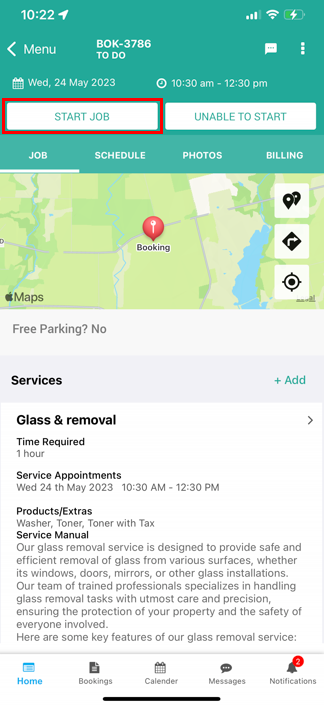
- Once started, time tracking begins for the visit (based on your configuration).
- If admin notifications are enabled, admins receive an alert when the job status changes.

- If prompted, enter the estimated time of completion (useful when a job may exceed its scheduled slot).
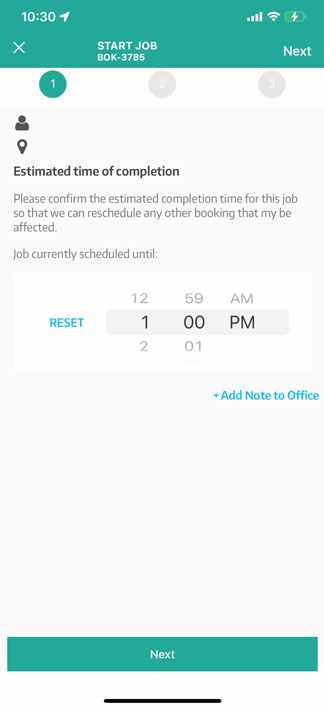
- Complete any start-checklist items (e.g., safety steps, “before” photos, notes, signature—based on your setup).

Once started, the visit indicator can switch to an “in progress” state and the timer runs while work continues.

Tip: Many businesses use an “On My Way” update to give customers a short heads-up before arrival. See: Navigate to Customer Locations: Directions, ETA & Auto Check-Out.


2) Unable to Start (report access/safety issues)
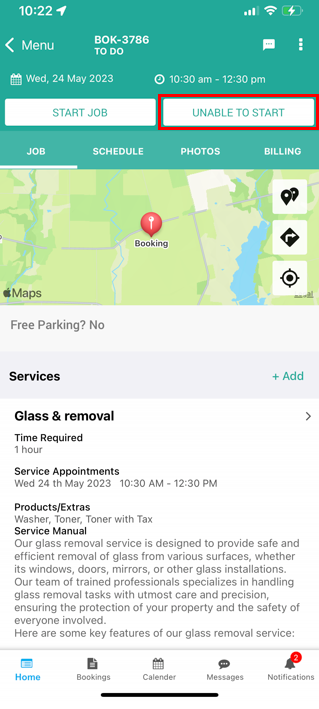
If work cannot begin (e.g., locked gate, customer not home, unsafe site), tap Unable to Start. You can then record the reason and add notes/photos to document the attempt and alert the office for next steps.
3) Pause / resume (optional)
For long visits, some businesses allow fieldworkers to pause the timer for breaks or parts runs, then resume when back on site. Each segment can be logged for clearer timesheets (depending on your workflow).
4) Finish the job (check-out / completion)
When work is complete, tap Finish Job to close the workflow and stop the timer (then complete any required finish steps).
Depending on your setup, the app may prompt for completion proof such as after photos, customer sign-off, parts used, or final notes.
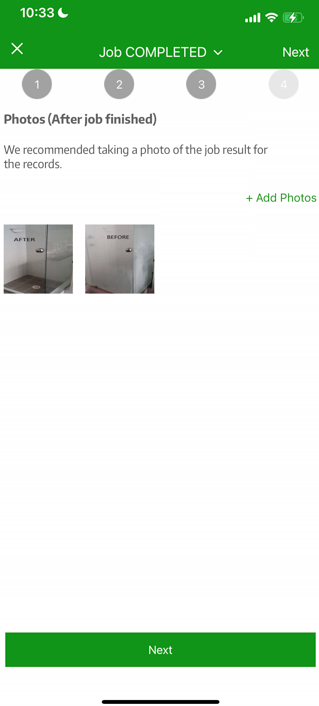
You may also be prompted to select the next booking/job status (your status list depends on your configuration).
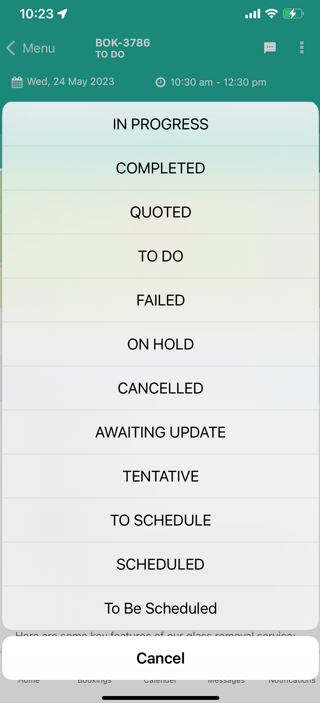
Status best practice: Keep statuses action-based and align them with automations and reporting. See: Managing Booking Statuses (Automate & Customize Your Workflow).

Where admins see updates
Admins and office staff typically see job progress updates in the booking record and reports (depending on configuration), including:
- Booking timeline/history (who updated what and when)
- Notifications for job milestone changes (if enabled)
- Timesheets / attended hours (where start/finish feeds payroll workflows)
- Customer Portal visibility (only if enabled and permitted)

For deeper tracking milestones and GPS context, see: Fieldworker Check-In/Out Tracking & GPS Time Logs.
Next steps: invoice, payment & feedback (optional)
After a job is finished, many businesses use the Fieldworker App to move straight into billing and customer feedback (based on permissions):
- Generate or review the invoice, confirm totals, and send it to the customer
- Collect or record payment (cash, card, bank transfer, etc., depending on enabled methods)
- Request ratings/reviews to track performance and improve service quality
- Fieldworker App: Invoicing, Payments, Deposits & Refunds
- Allow Fieldworkers to Create New Invoices
- Send Invoices to Customers via Email/SMS (Fieldworker App)
- Show Booking Charges to Fieldworkers (Billing Amount Permission)
- Ratings, Reviews & Rankings for Fieldworkers (App)
- Customer Feedback, Ratings & Reviews (Admin Setup)
Benefits
| Stakeholder | Benefit |
|---|---|
| Fieldworkers | One-tap start/finish, less paperwork, easy proof-of-work capture. |
| Dispatcher/Admin | Live visibility, ETA overruns surfaced early, fewer status-chasing calls. |
| Customers | More transparency with real-time updates (when enabled). |
| Finance | Accurate labour costing and clean audit trail for invoicing & payroll. |
| Compliance & QA | Mandatory checklists/photos/signatures reduce disputes and missed steps. |
Industry examples
- HVAC & plumbing: before/after photos validate warranty work and condition.
- Cleaning: checklists standardize service quality across teams.
- Home care: check-in/out supports EVV-style attendance requirements.
- Courier & delivery: “Unable to Start” documents failed attempts with notes/photos.
- Facilities maintenance: pause/resume tracks time spent on-site vs waiting on parts.
Troubleshooting & FAQs
Start Job is greyed out or missing
- Confirm location services are enabled on the device (especially if geofencing is enabled): GPS Tracking & Geofencing.
- Confirm the booking is assigned to the fieldworker and they have the required access: Fieldworker Permissions.
Actual (attended) hours show as 0
- This usually happens if the fieldworker didn’t complete Start Job and/or Finish Job, or if the visit was left incomplete. See: Check-In/Out Tracking & FAQs.
Timer didn’t stop or status didn’t update
- Poor connectivity can delay syncing. Reopen the booking once online and allow the app to sync.
Fieldworkers are not prompted for before/after photos
- Enable prompts and choose Mandatory/Optional in: Before photos at job start and/or Photos at job completion.
Related guides
- Fieldworker Check-In/Out Tracking & GPS Time Logs
- Update Jobs in Real Time (Fieldworker App Workflow)
- Navigate to Customer Locations: Directions, ETA & Auto Check-Out
- Managing Booking Statuses (Automations & Status Rules)
- Fieldworker App: Invoicing, Payments, Deposits & Refunds
- Customer Portal: Profile Management & Notifications
- Manage Fieldworkers, Sub-workers & Payroll
By following this workflow, your team gets consistent attendance records, stronger proof-of-work documentation, and clearer reporting—while reducing admin follow-ups.
To stay updated, please subscribe to our YouTube channel.