
Managing Email Templates & Canned Responses
OctopusPro includes built-in Email Templates for common scenarios (booking confirmations, reminders, invoice emails, password resets, and more). You can view and edit these templates to match your branding and messaging style, and you can also create custom reusable templates using Canned Responses.
Key terms
- Email Templates: system-provided templates that you can edit (subject + body + attachments).
- Canned Responses: your reusable “quick reply” templates (Email/SMS) that can be inserted when sending messages.
- Template Placeholders (merge fields): dynamic tags like {customer_first_name} that auto-fill with real data when sent.
- Automations: trigger-based messages sent automatically (confirmations, reminders, follow-ups).
Helpful related guides: Template Placeholders, Canned Responses & Templates, Automated Reminders & Confirmations, Business Email Authentication, SMS Templates.
On this page
- How to access email templates
- What “New Email Template” does (Canned Responses)
- Types of email templates
- How to edit/modify default email templates
- Controlling the design (HTML source code)
- Enable automated emails
- Manually send an email template
- Create a custom email template (Canned Response)
- Default email templates: types & examples
- Related user guide articles
How to access email templates
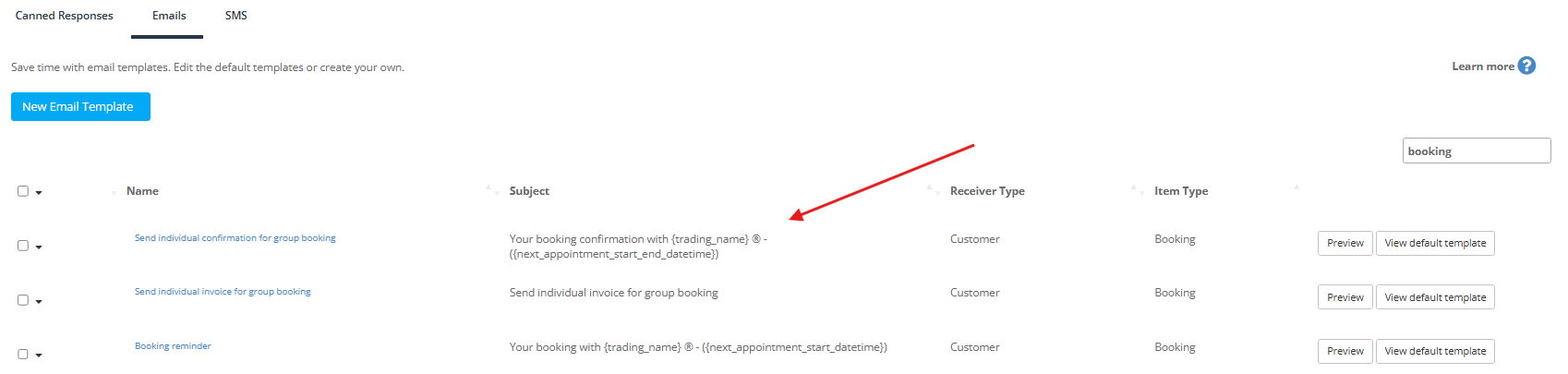
- Go to Settings → Communications → Templates & Canned Responses.
- Open the Emails tab.
- Click any template to view and edit it.
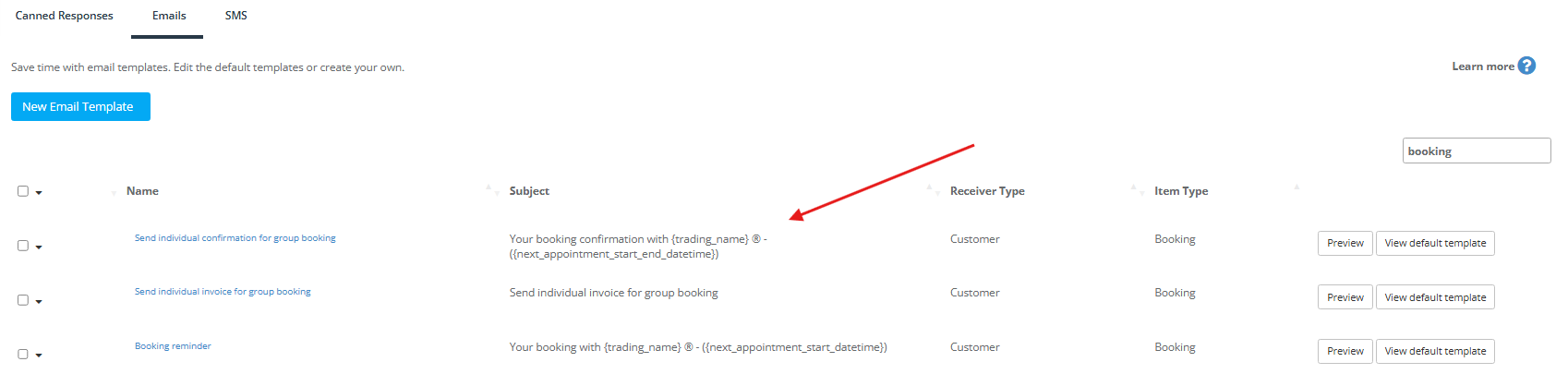
What happens when you click “New Email Template”?
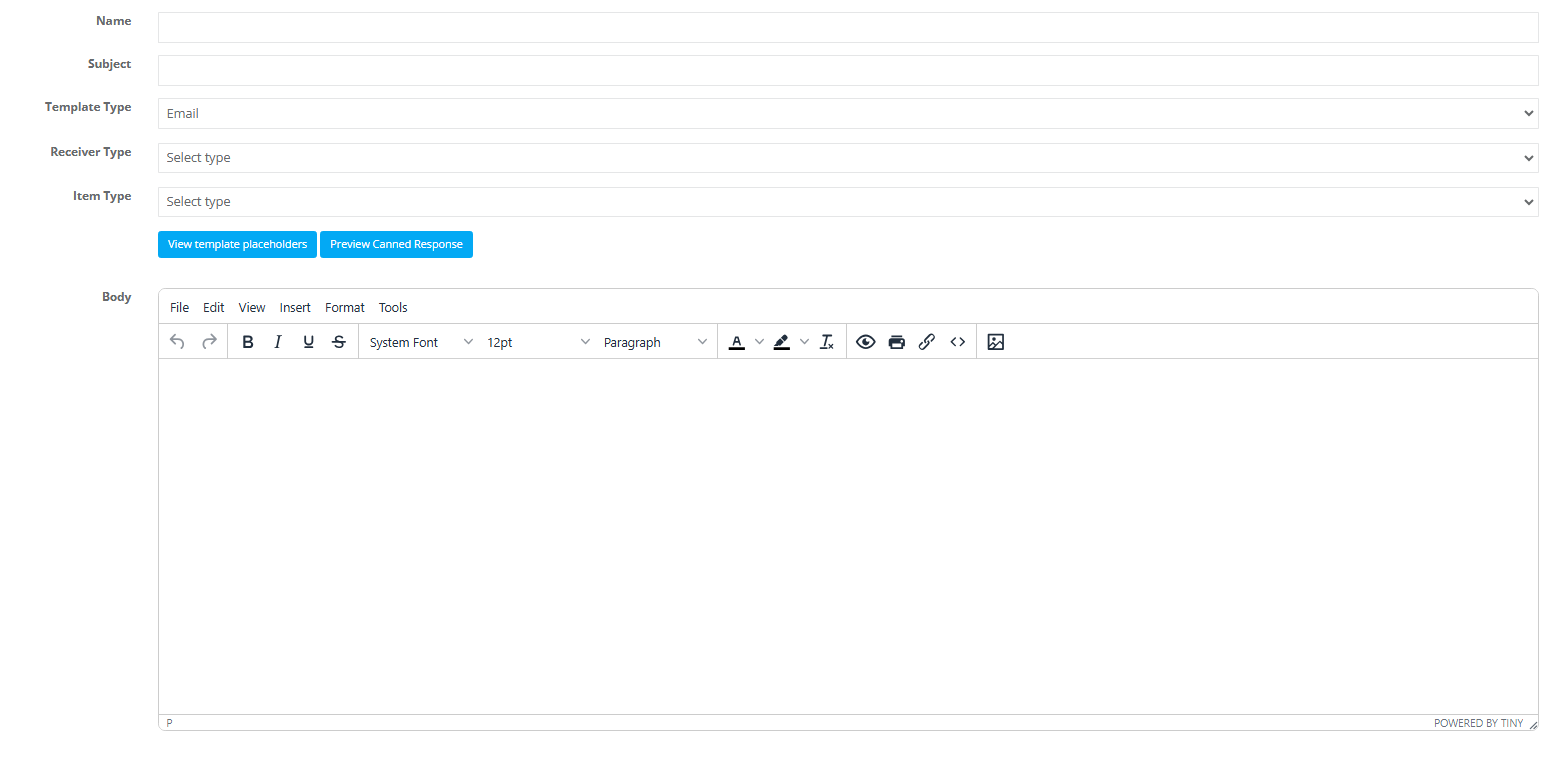
In OctopusPro, the built-in email templates are predefined (you can edit them, but you can’t create a brand-new system template from scratch). When you click New Email Template, OctopusPro will take you to the Add Canned Response page so you can create a reusable custom email snippet instead.
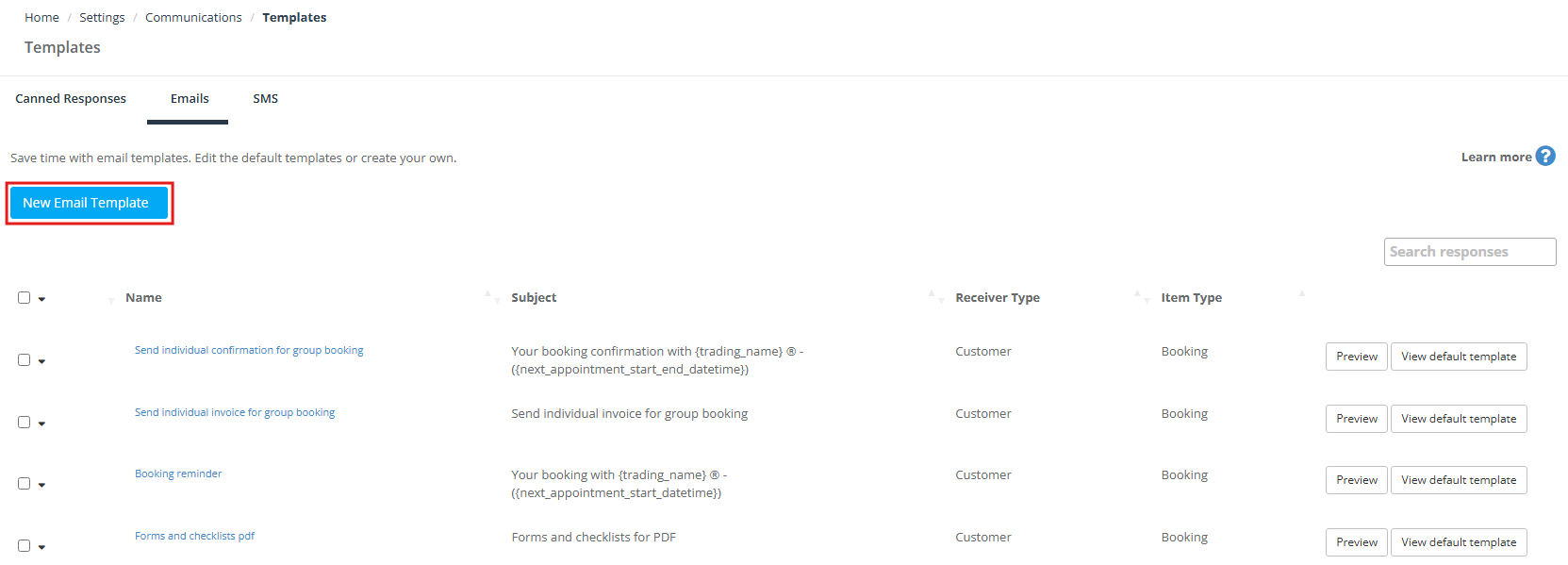
Learn more: Canned Responses & Templates.
Types of email templates
Email templates in OctopusPro can be grouped by two common dimensions:
- Receiver type: Customer, Fieldworker, or both (depending on the template).
- Sending method: Automated (trigger-based) or Manual (sent by a user when needed).
For example, password reset emails are sent automatically when a user clicks Forgot password, while many operational templates can be sent manually (or automated if you enable the relevant automation).
How to edit/modify default email templates
To edit a default email template:
- Go to Settings → Communications → Templates & Canned Responses.
- Open the Emails tab.
- Select the email template you want to edit.
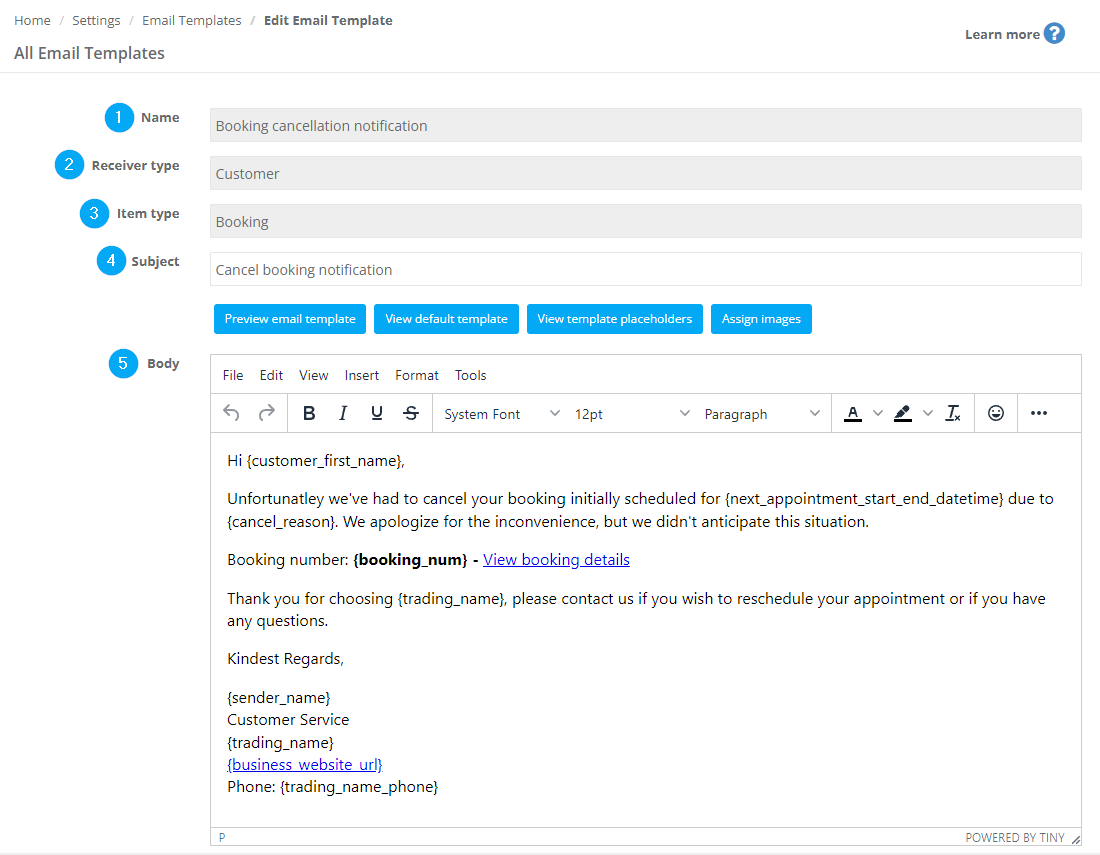
Fields you’ll see
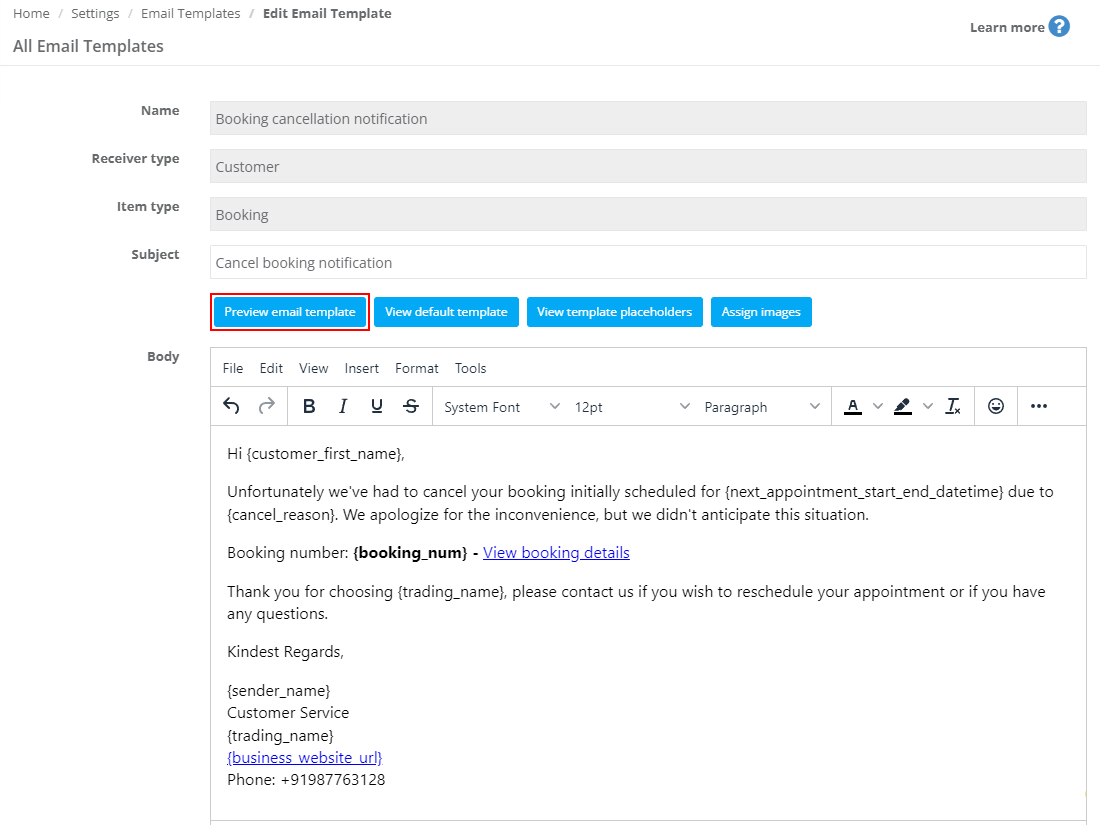
- Name: the system name of the template (usually not editable).
- Receiver Type: who receives the email (customer / fieldworker / user).
- Item Type: where the template is used (Booking, Quote/Estimate, Inquiry, Invoice, Customer Profile, Fieldworker Profile).
- Subject: editable email subject line.
- Body: editable message content (rich-text editor).
- Attachments: upload or drag-and-drop files to include with this template.
Use the correct placeholders (merge fields)
Placeholders are template variables that OctopusPro replaces with real data when the email is sent (for example: {customer_first_name}, {booking_num}). Only use placeholders that appear in the View available placeholders list for the specific template you’re editing.


Read more: Template Placeholders.
Preview, view default, and update to latest default
After you make changes, use:
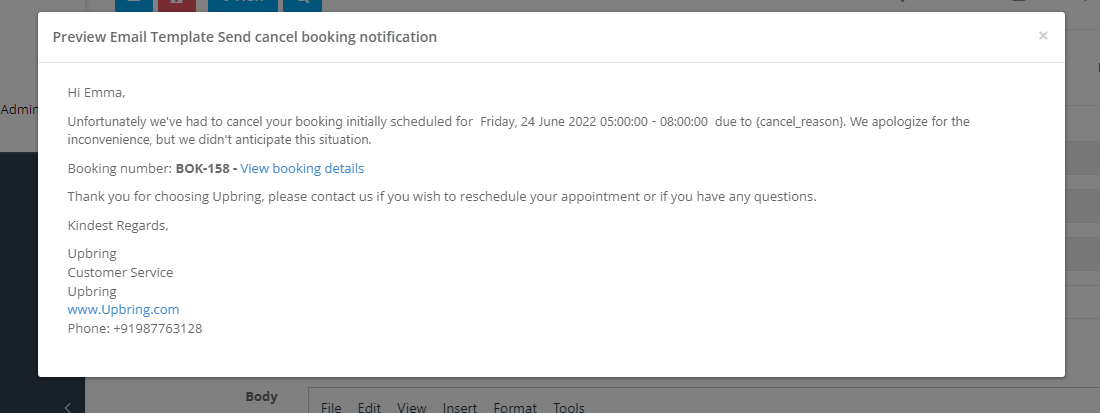
- Preview email template to see how it will render to recipients.
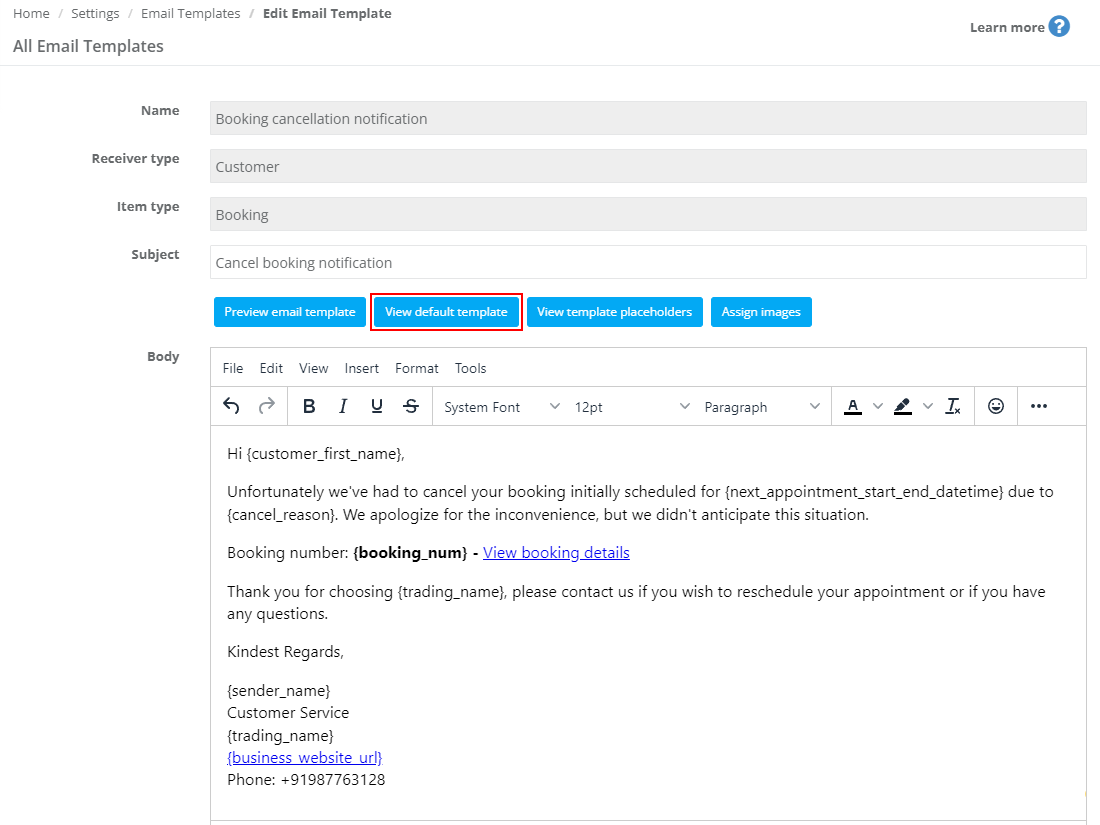
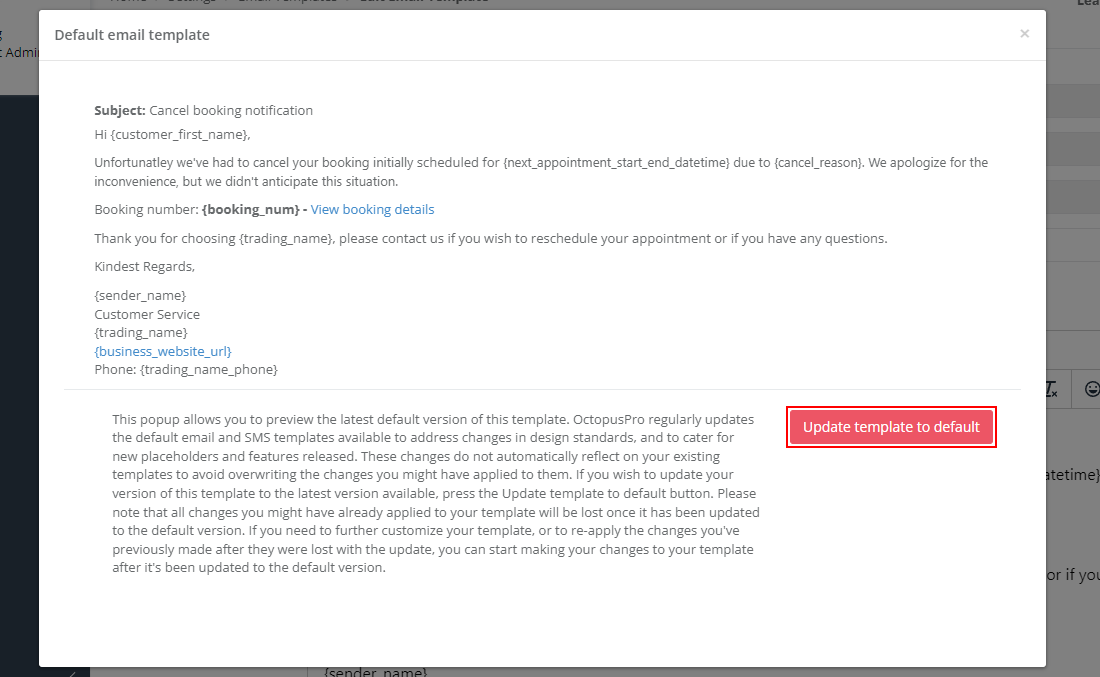
- View default template to compare with the latest system version.
- Update template to default if you want the latest default version (note: this overwrites your edits).
Attach files to templates
If your template should always include an attachment (e.g., a PDF guide, terms & conditions, or instructions), upload it in the Attachments section of the template editor.

Controlling the design of email templates (HTML source code)
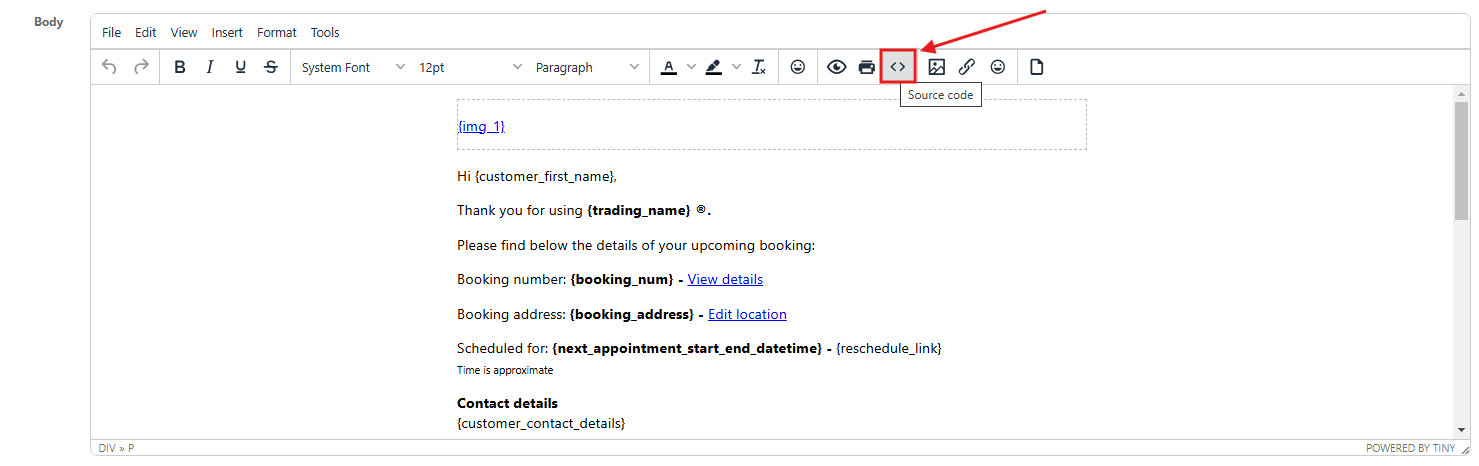
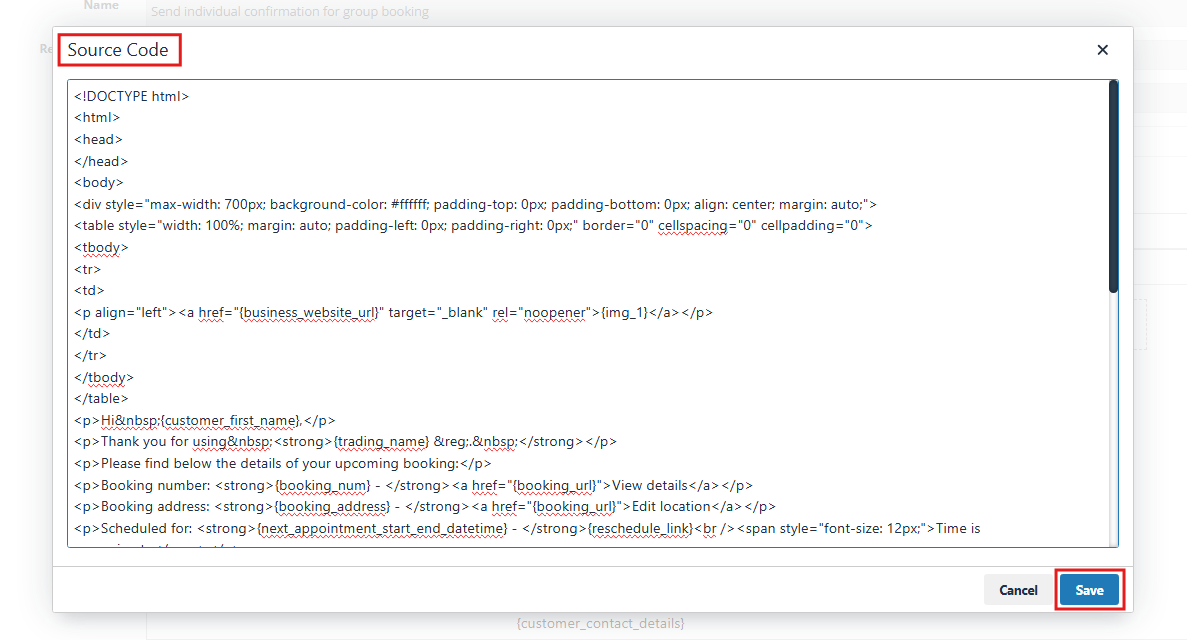
If you need advanced formatting (layout, spacing, buttons, branding blocks, etc.), you can edit the template’s HTML directly using the Source code editor inside the template body toolbar.
- Go to Settings → Communications → Templates & Canned Responses → Emails.
- Open the template you want to edit.
- In the body editor, click the Source code icon.
- Edit the HTML, then click Save.

HTML best practices (recommended)
- Use inline CSS for the best compatibility across email clients.
- Keep widths simple (most email layouts work best in a 600–700px container).
- Always preview your template after changes.
Enable automated emails
OctopusPro supports automated emails that can be turned on/off based on your workflow. Configure these under: Settings → Communications → Automations.
- Failed contact attempt notifications (leads/inquiries)
- Quote follow-up reminders
- Booking reminders (customers and/or fieldworkers)
- Next service due reminders
- Outstanding invoice reminders
- On-the-way / ETA notifications
- Running late notifications
- Arrival notifications
- Job acceptance and confirmation updates
Learn more: Automated Reminders & Confirmations.
How to manually use an email template when sending emails
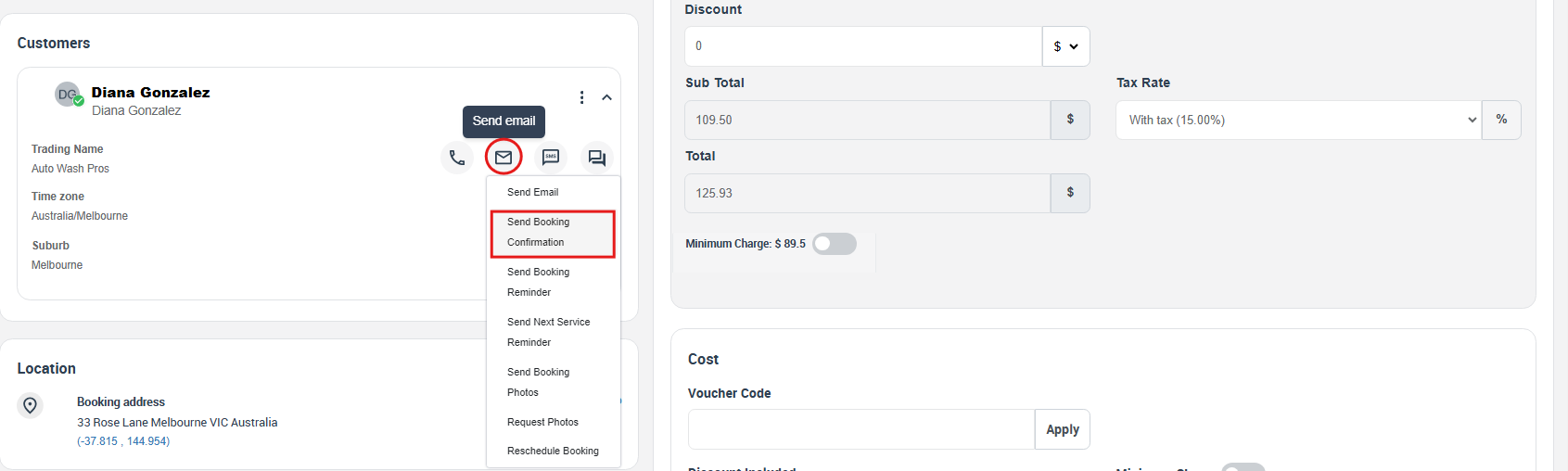
If an email isn’t automated (or you want to resend it manually), you can send it from the relevant item screen (Booking, Quote, Invoice, etc.). Example: sending a Booking Confirmation email manually.
- Go to Bookings → Upcoming (or Past).
- Open the booking you want.
- In the customer section, click the Email icon and choose Send Booking confirmation (or the relevant email action).
- Review the subject/body, add attachments if needed, then send.

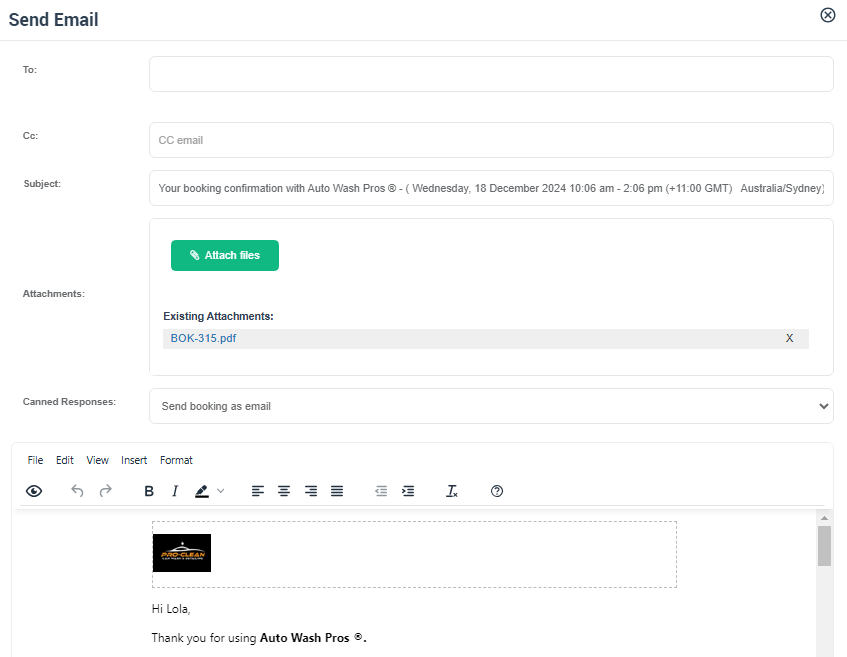
Note: Booking confirmation emails may be sent automatically when customers book via the Customer Portal (depending on your automation settings). Manual sending is commonly used when an admin creates a booking and wants to send (or resend) a confirmation on demand.
Creating a custom email template through Canned Responses
While you can’t create new system default email templates from scratch, you can create custom reusable templates using Canned Responses. These are ideal for frequently used messages (e.g., special instructions, onboarding emails, follow-ups, internal scripts).
- Go to Settings → Communications → Templates & Canned Responses.
- Open the Emails tab.
- Click New Email Template (this creates a canned response).
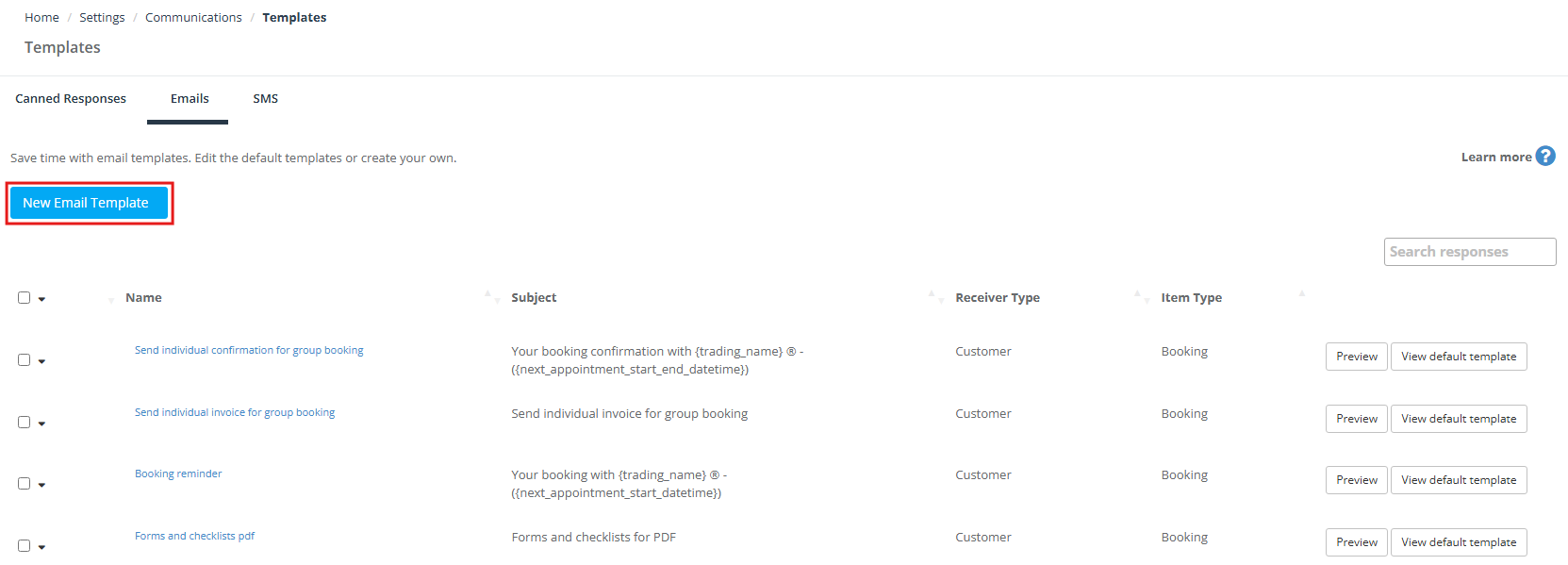
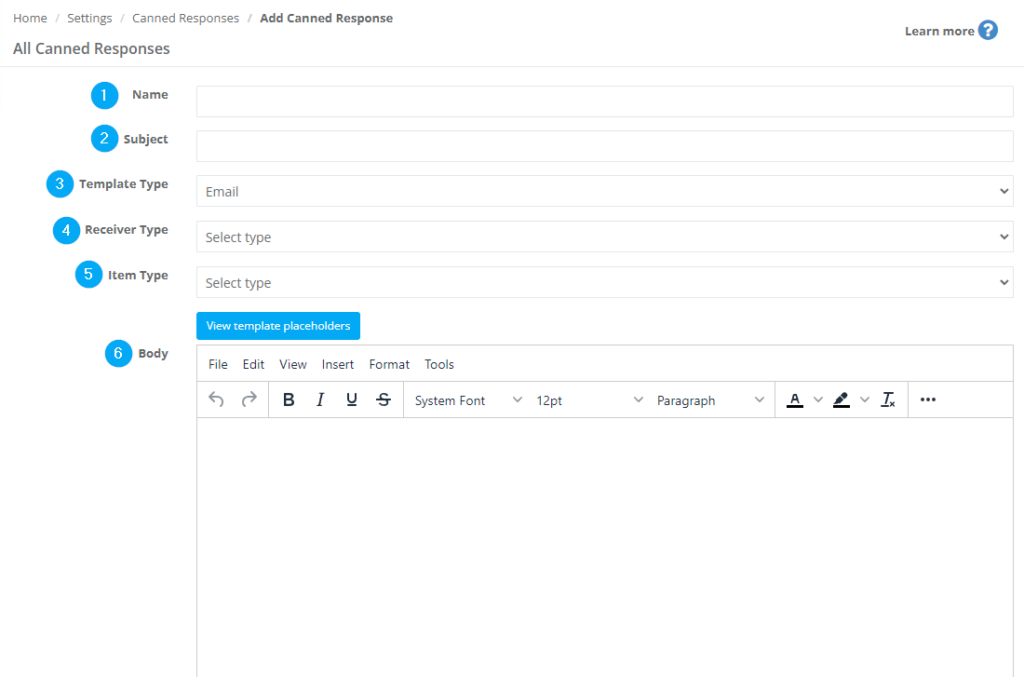
On the Add Canned Response page:
- Name: internal name to identify the template.
- Subject: email subject line (optional depending on how you use it).
- Template Type: choose Email.
- Receiver Type: Customer or Fieldworker.
- Item Type: where it can be used (Booking, Quote/Estimate, Inquiry, Invoice, Customer Profile, Fieldworker Profile).
- Body: write the message and insert placeholders using View template placeholders.
Learn more: Canned Responses & Templates.
Default email templates: types & examples
OctopusPro regularly improves default templates to cover common operational scenarios and keep messaging consistent. You can send these templates manually or use them in automations (where supported).
Email templates directed to customers
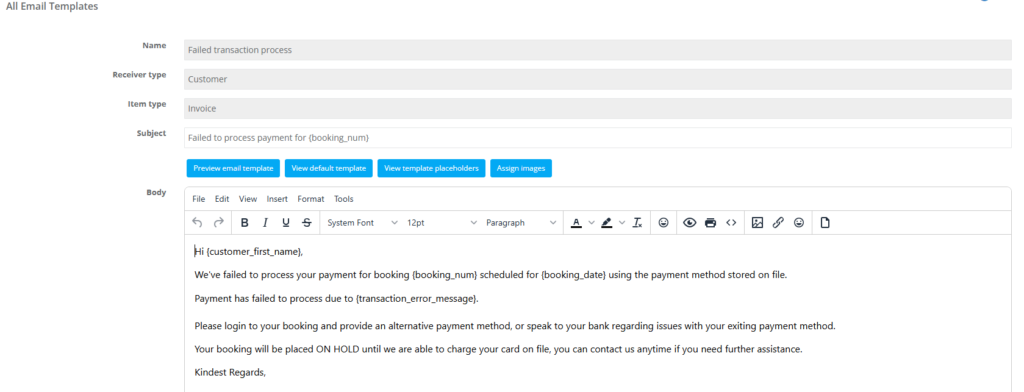
1) Failed transaction process
Notify customers when a payment fails and the booking cannot proceed until payment is resolved.
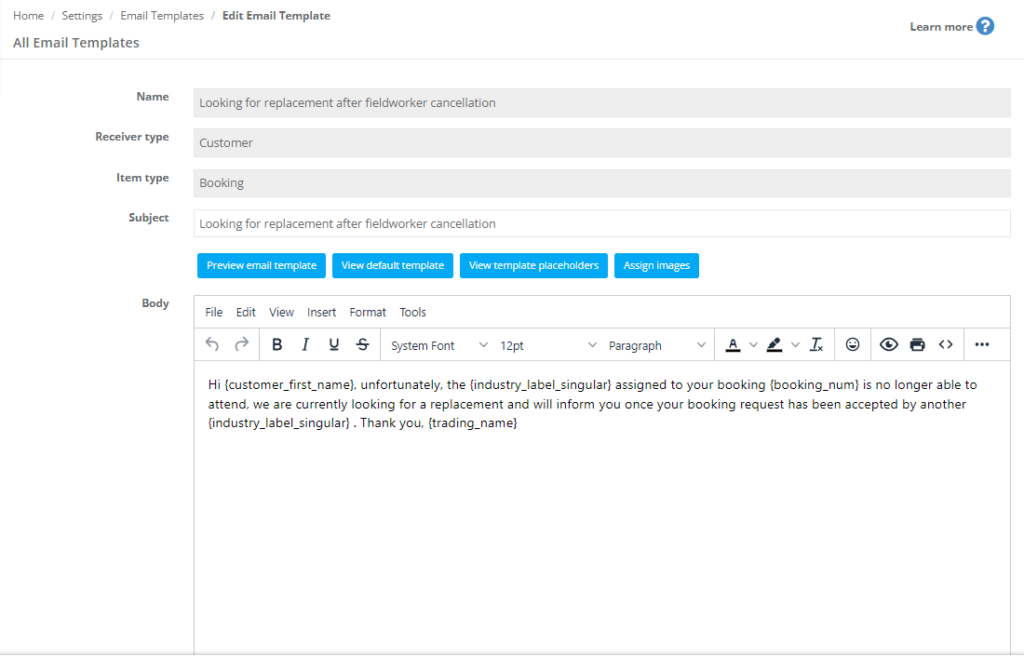
2) Looking for replacement after fieldworker cancellation
Inform customers that you’re finding a replacement when an assigned fieldworker cancels.
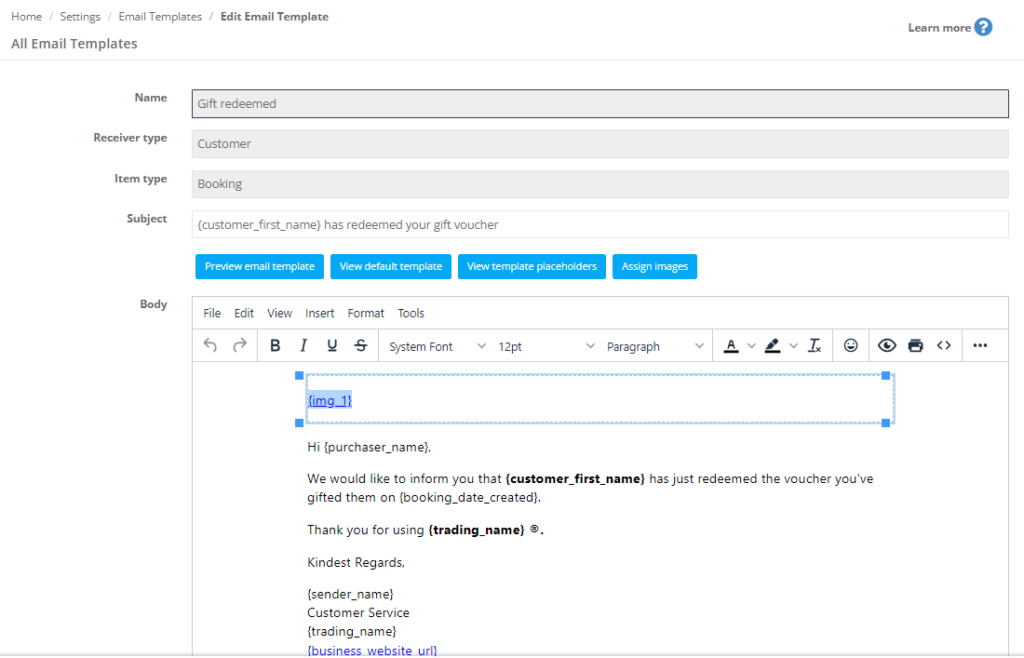
3) Gift redeemed
Confirm to the purchaser that their gift voucher/card was redeemed successfully.
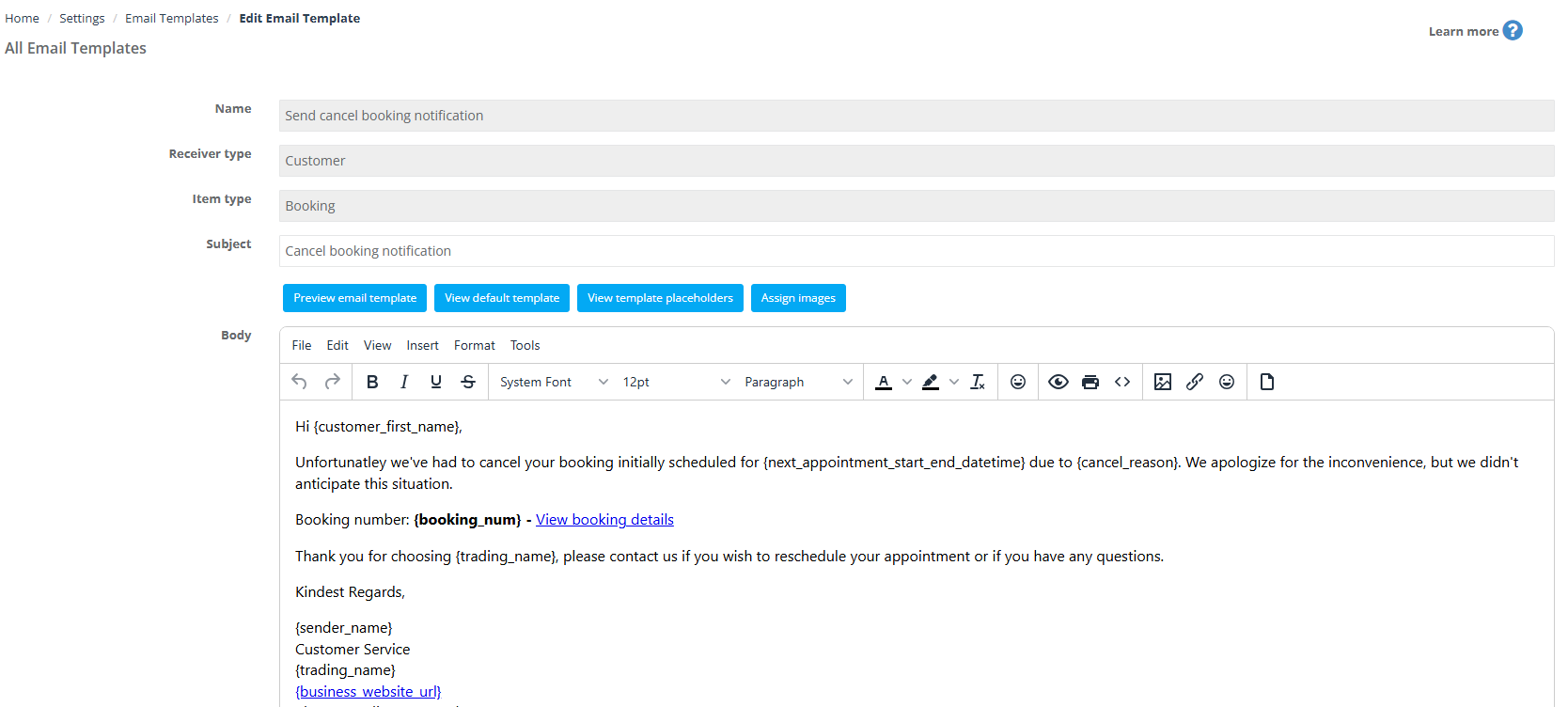
4) Send cancel booking notification
Notify customers when a booking is cancelled (often automated when cancellations occur).
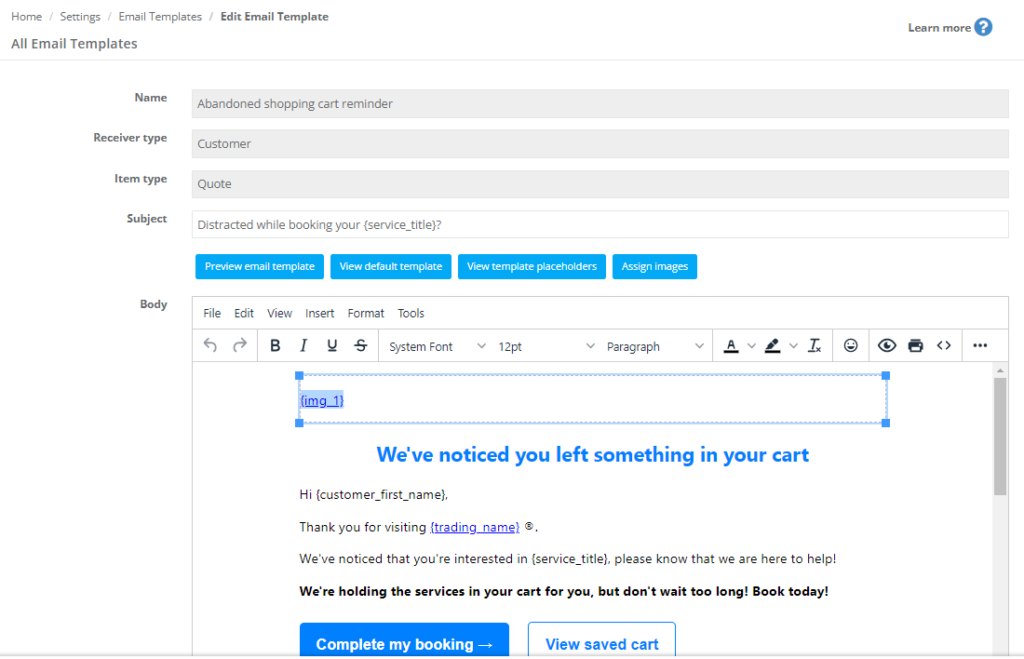
5) Abandoned shopping cart reminder
Bring customers back to complete booking/checkout when they abandon the portal flow.
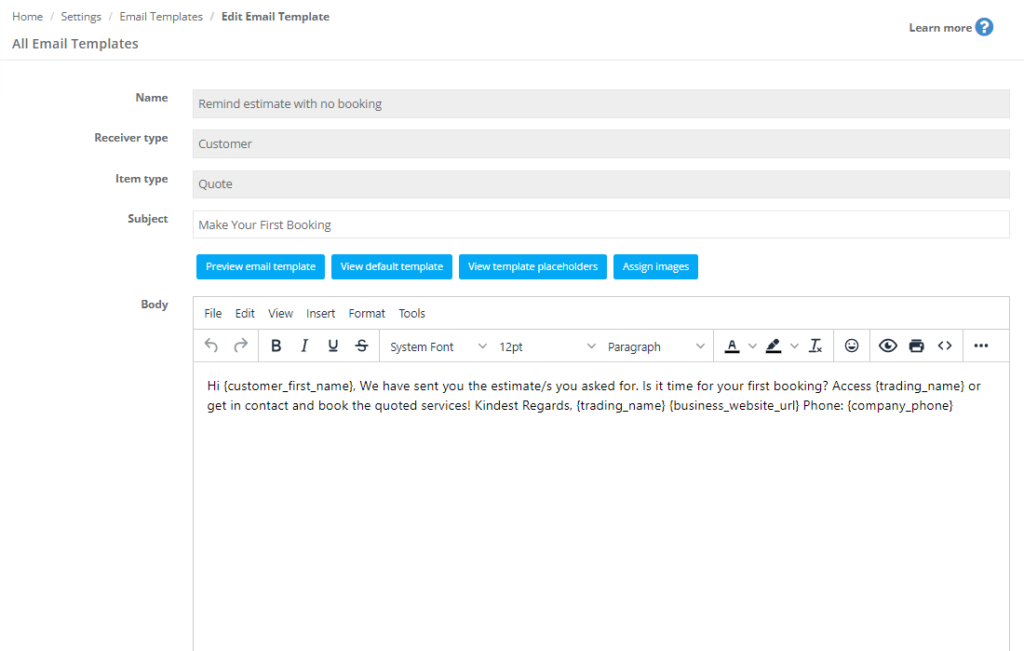
6) Remind estimate with no booking
Follow up on an estimate/quote that hasn’t been converted into a booking.
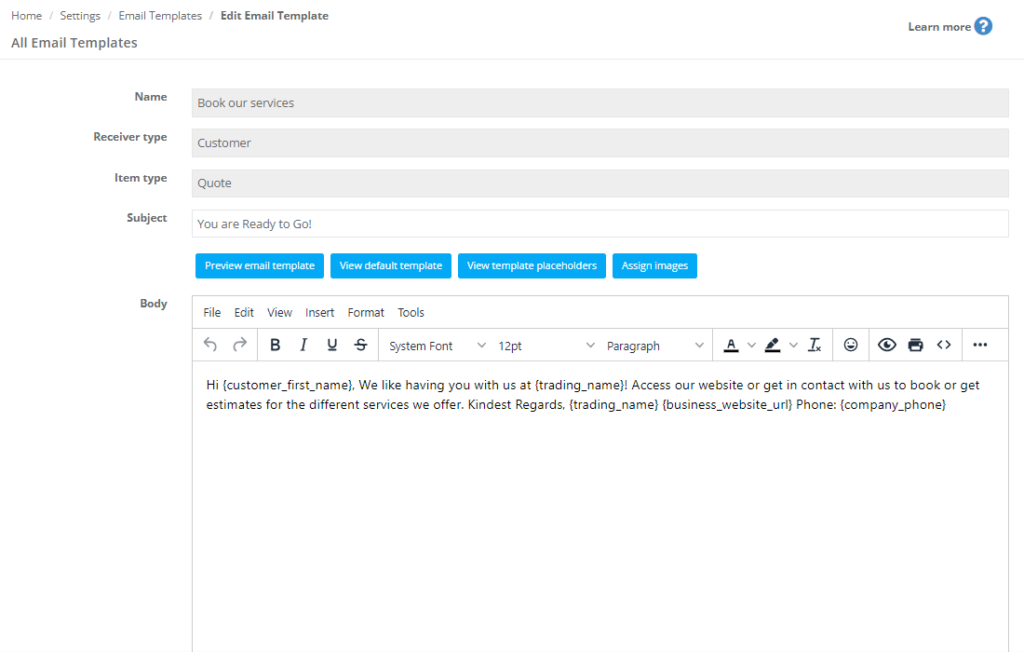
7) Book our services
Marketing-style reminder encouraging customers to book again or proceed with booking.
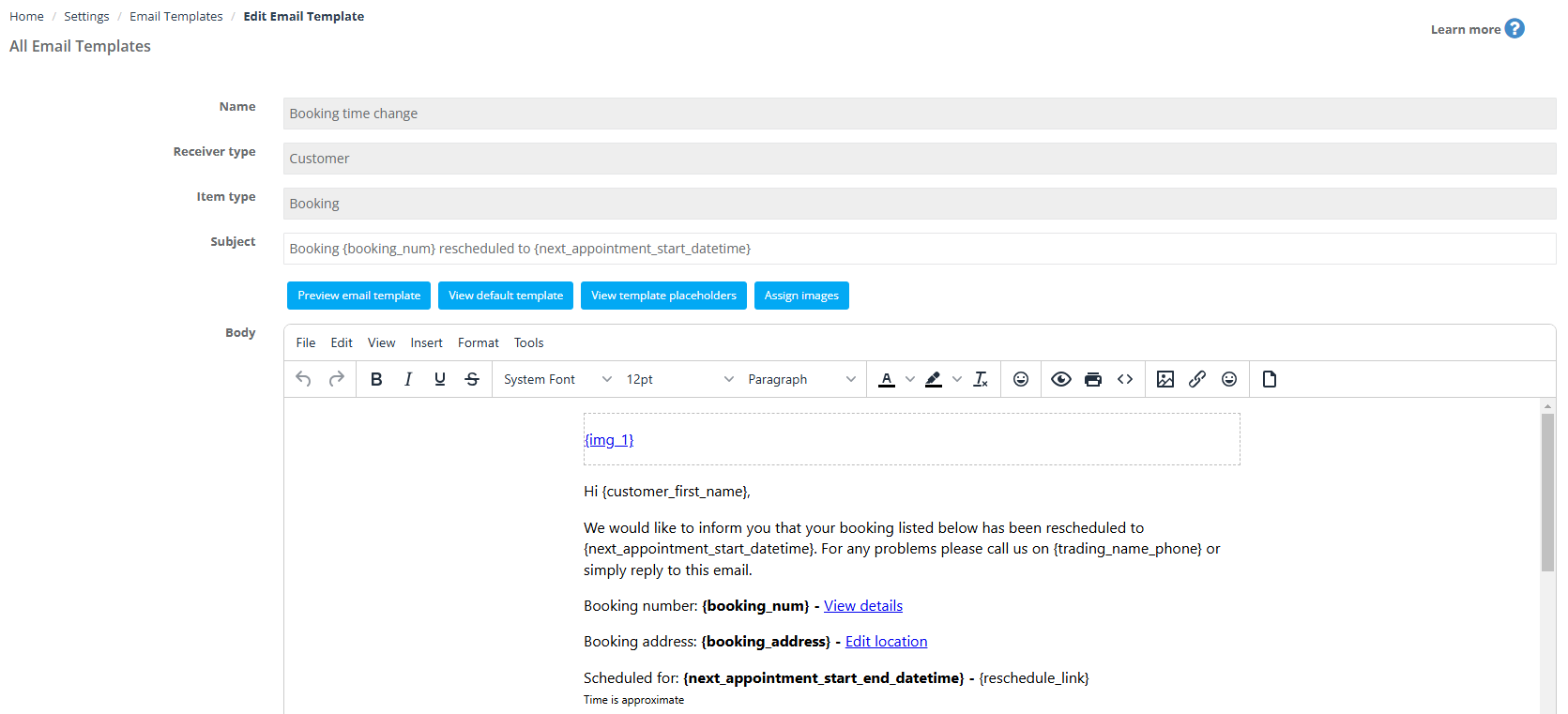
8) Booking time change
Confirm rescheduled booking date/time changes to customers.
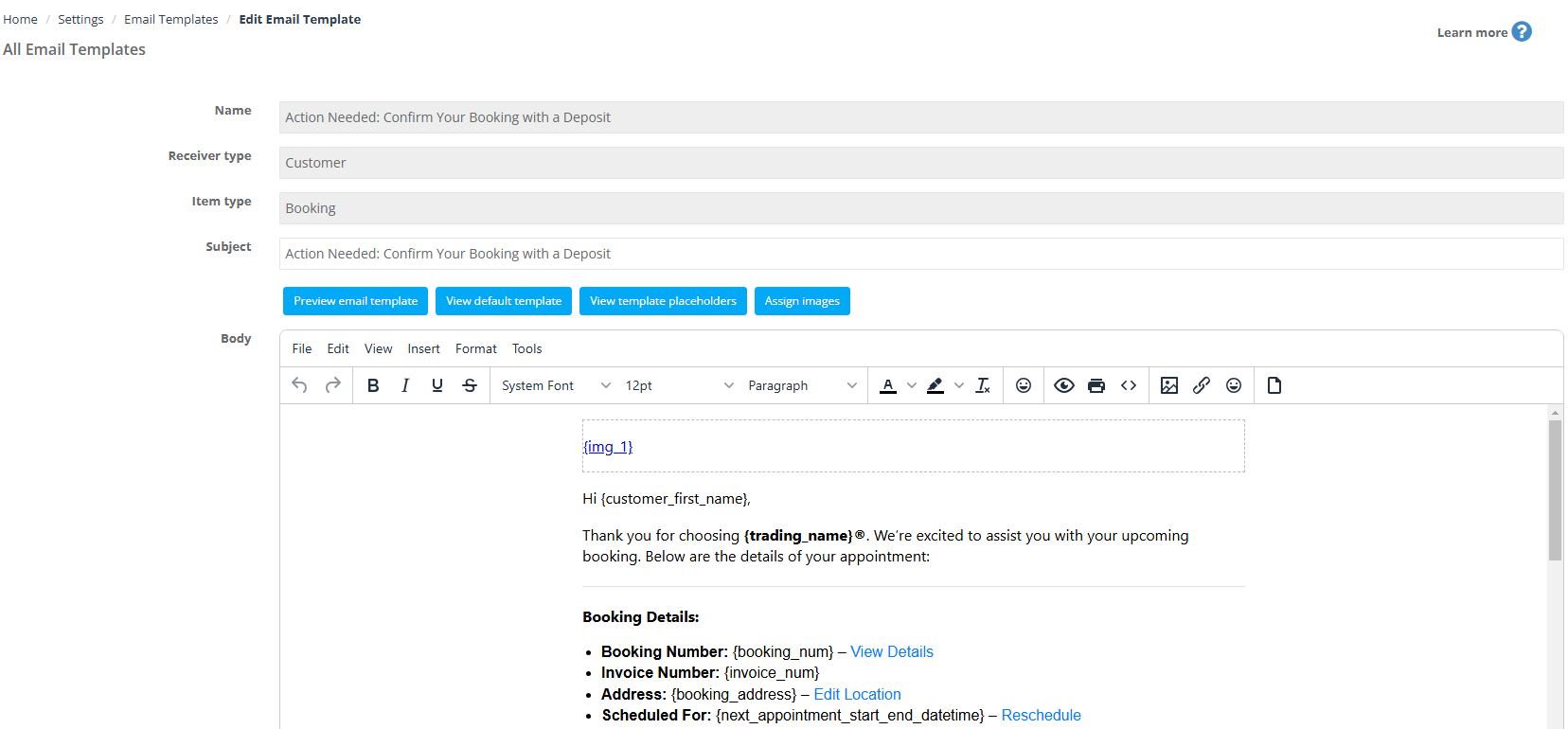
9) Confirm your booking with a deposit
Request a deposit to secure/confirm the booking (where deposit rules apply).
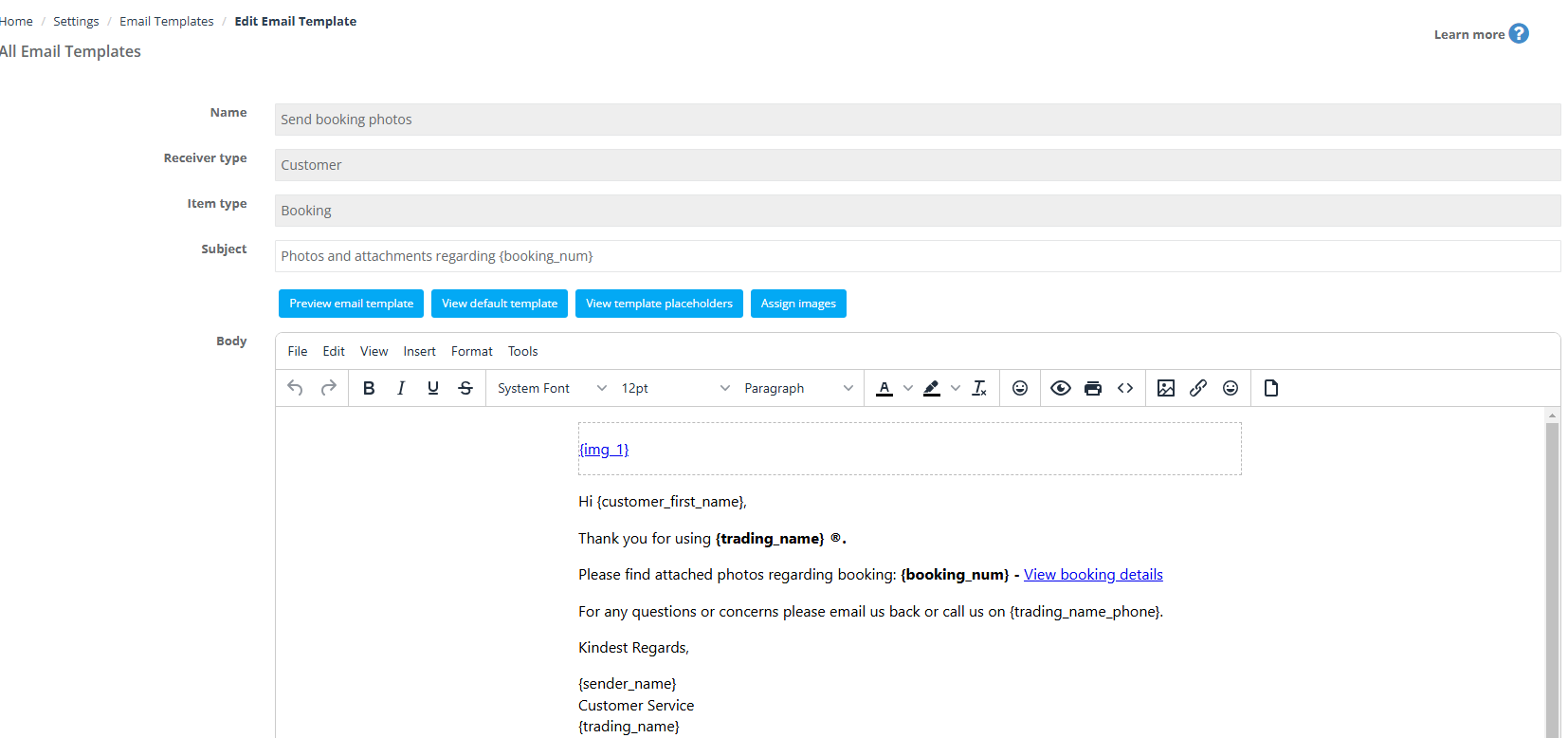
10) Send booking photos
Email photos/attachments linked to a booking (before/after, proof-of-work, site photos).
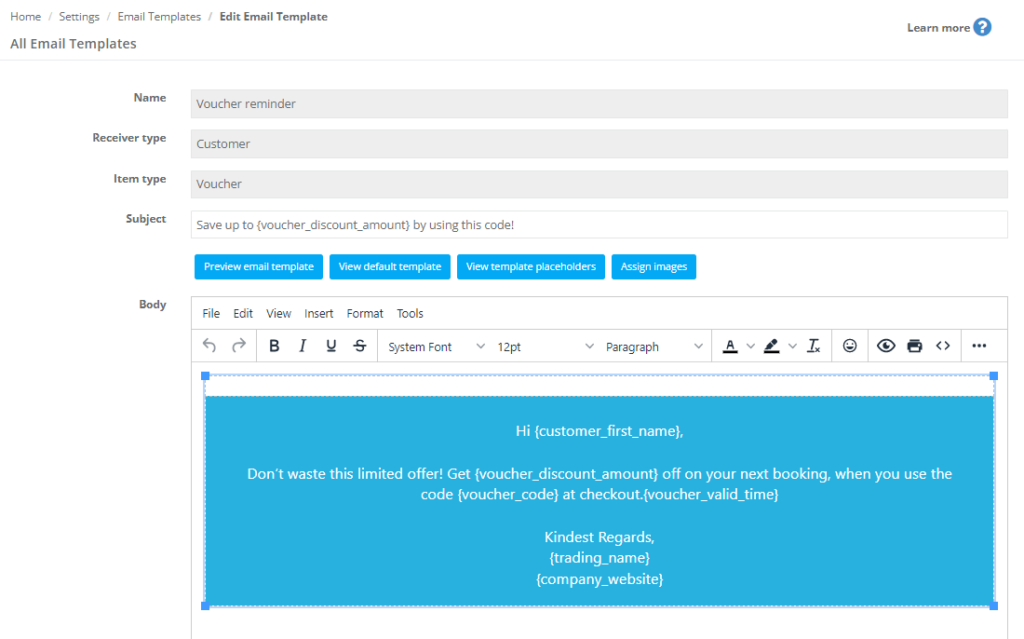
11) Voucher reminder
Remind customers about an available voucher code and encourage redemption.
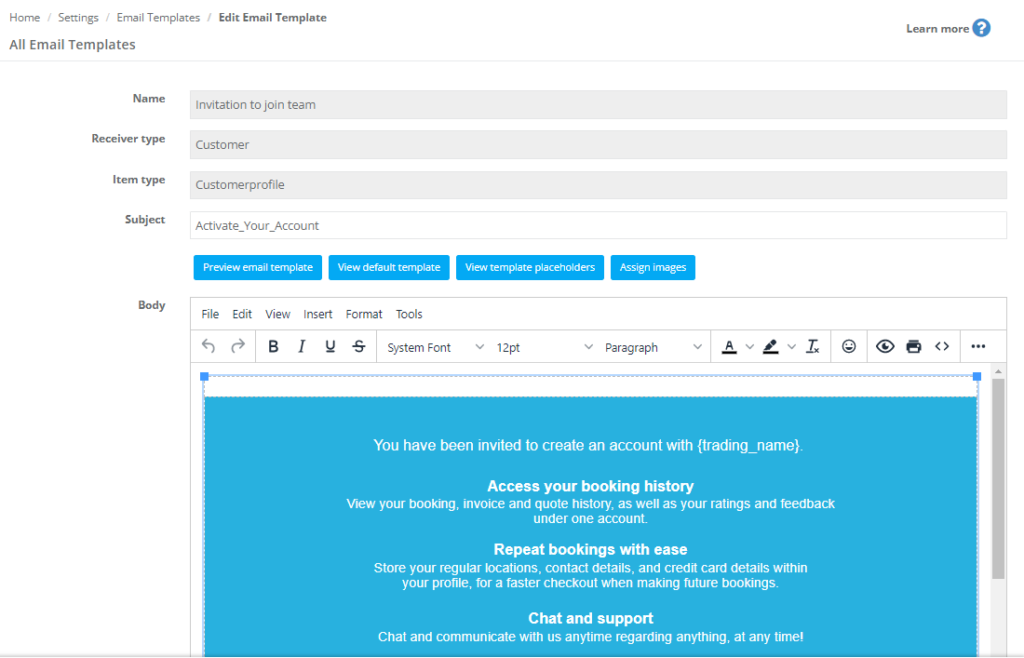
12) Invitation to join team
Invite customers to create/activate an account to access history, rebooking, and portal features.
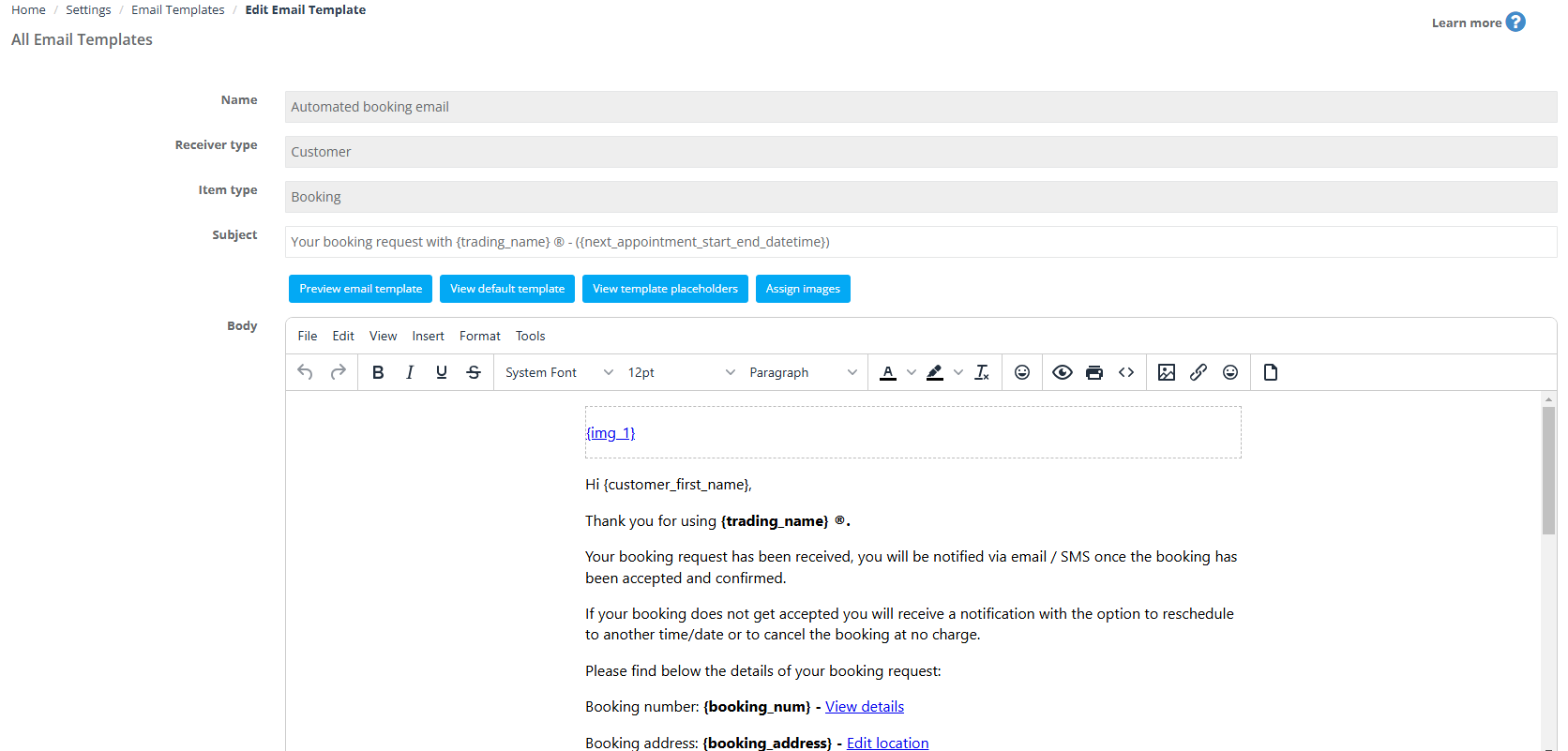
13) Automated booking email
Acknowledges a booking request and sets expectations for next updates (accept/confirm).
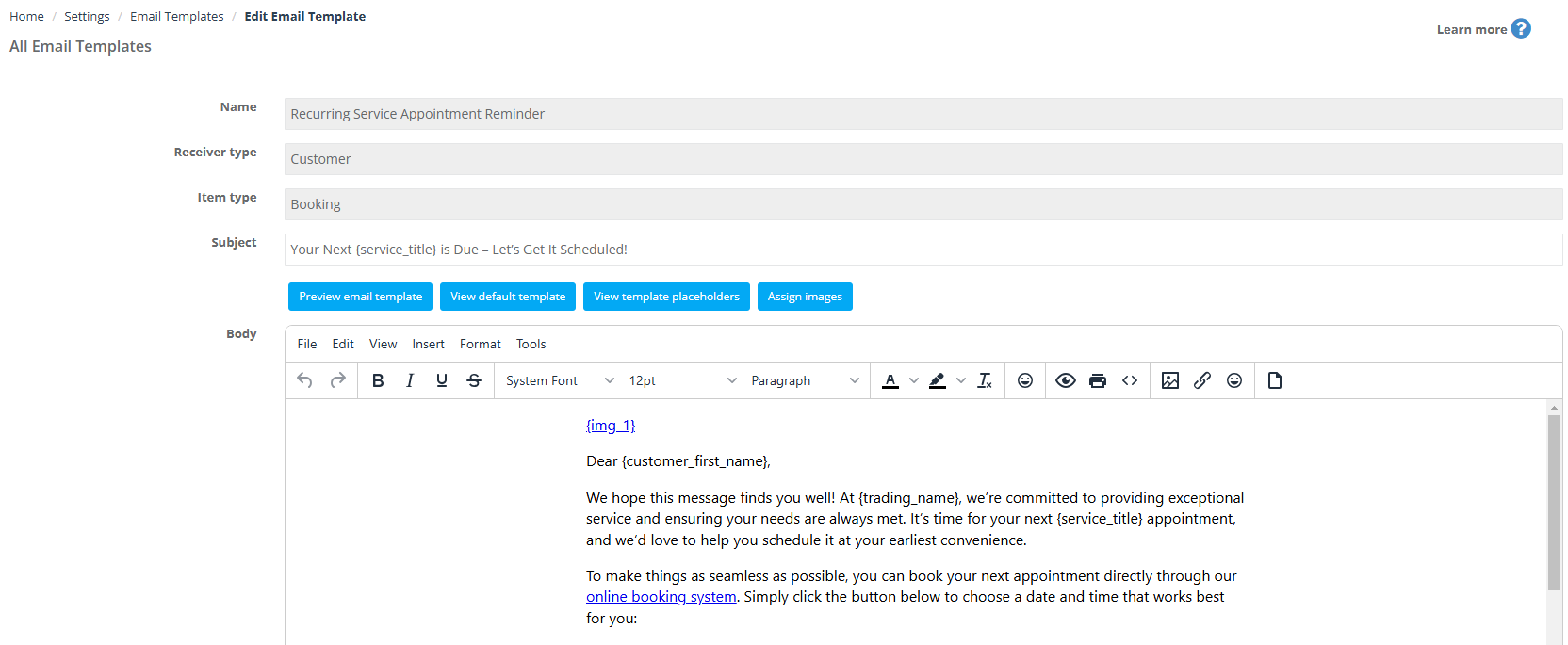
14) Recurring service appointment reminder
Re-engage customers when a next-service date is due.
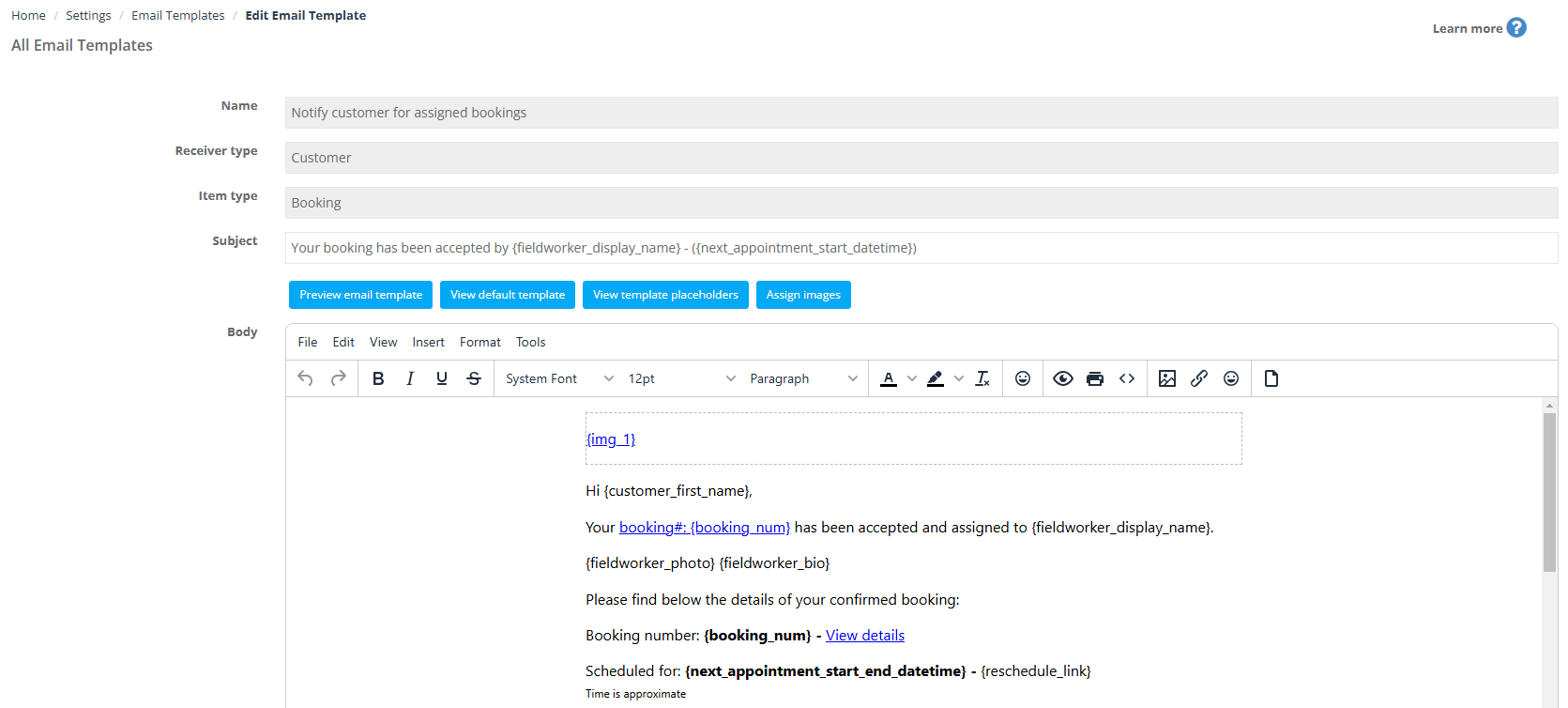
15) Notify customer for assigned bookings
Notify customers when a booking is accepted and assigned to a fieldworker.
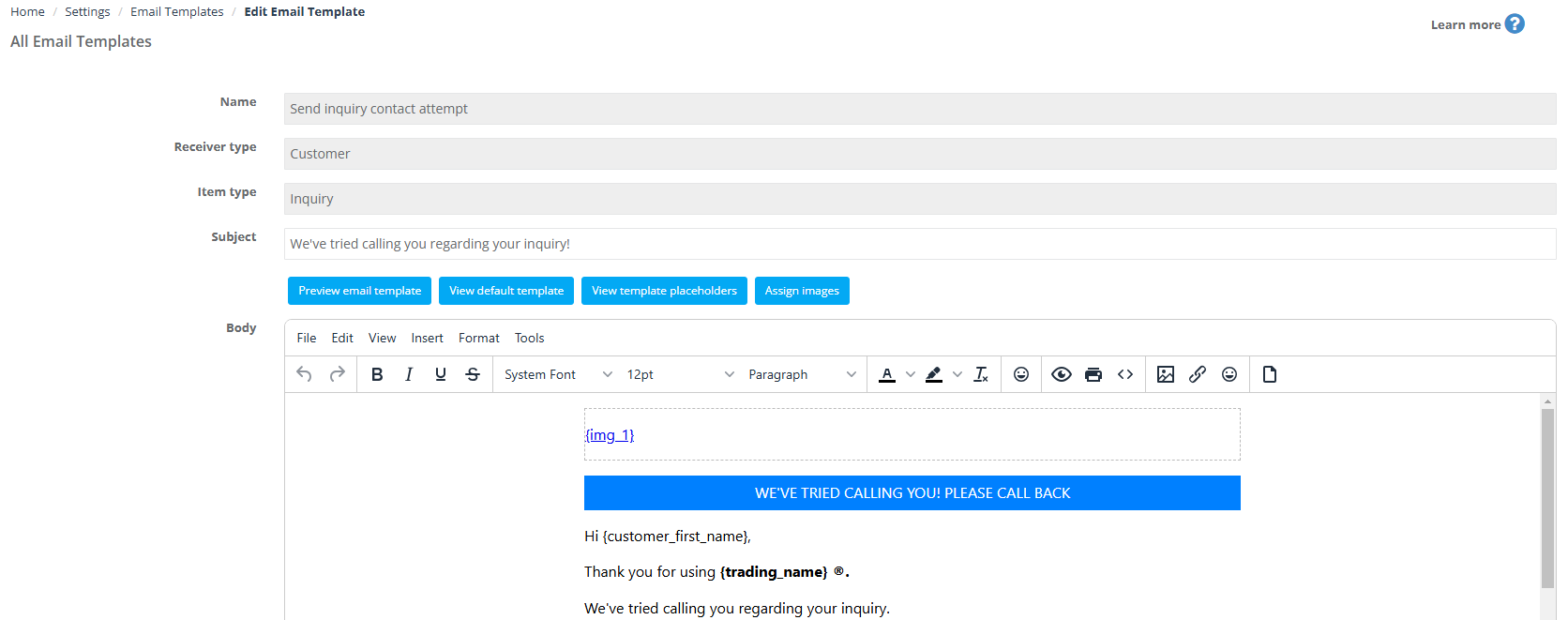
16) Send inquiry contact attempt
Let leads/customers know you tried contacting them regarding an inquiry.
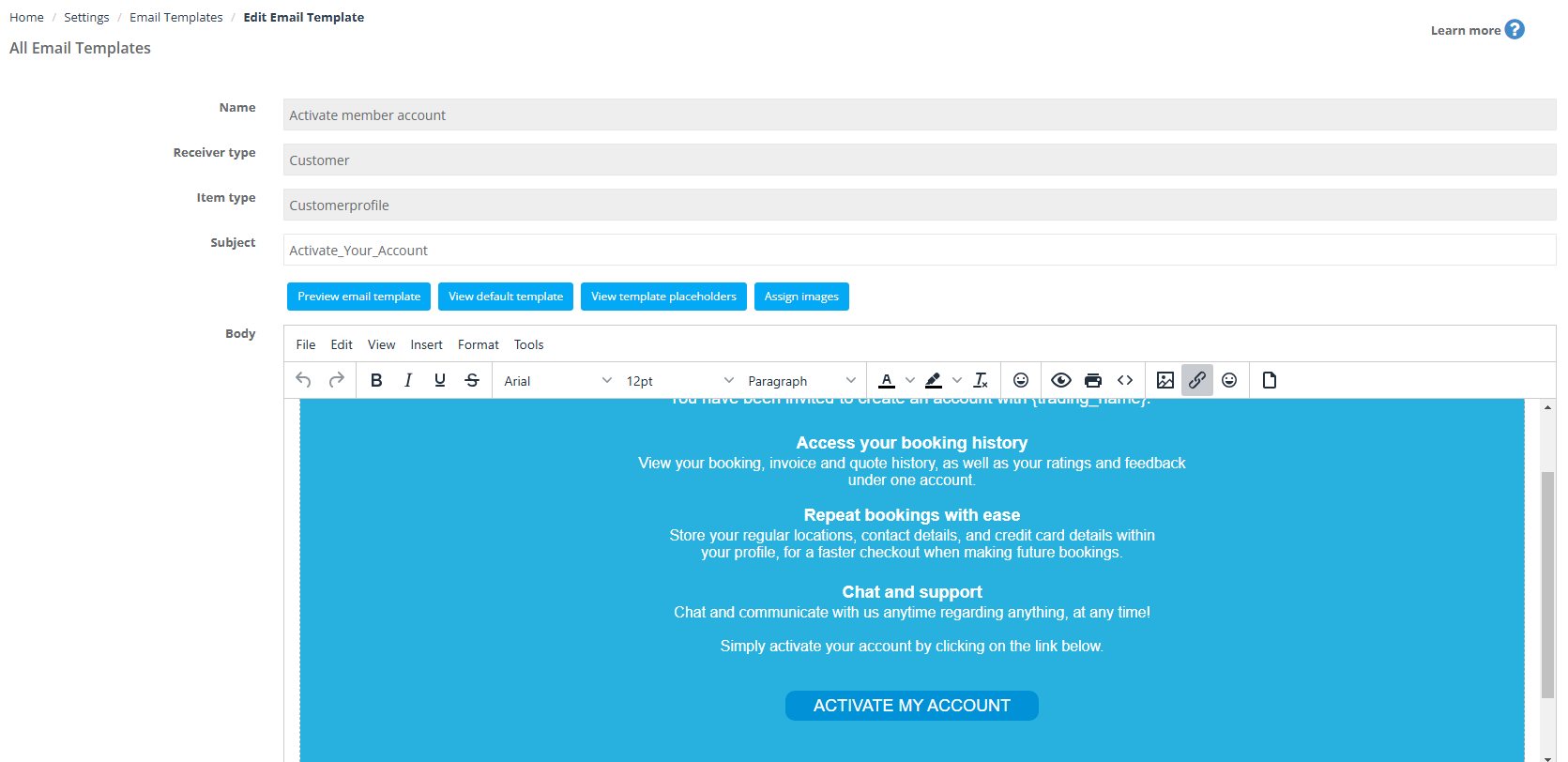
17) Activate member account
Send an activation link when an account exists but isn’t activated.
18) Complaint resolution
Final resolution email after a complaint is acknowledged and closed.
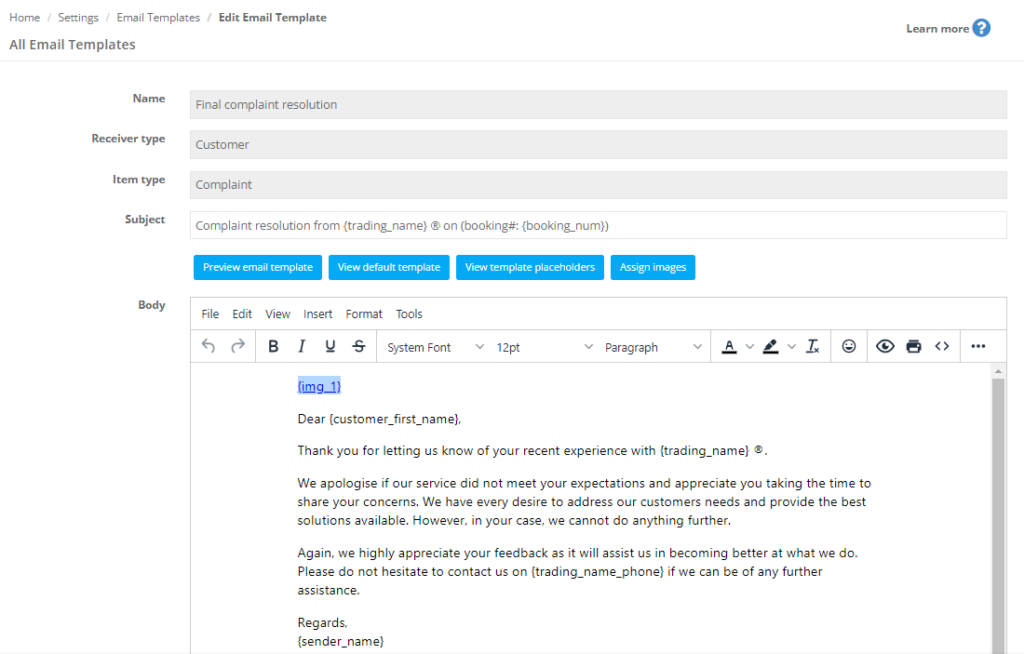
19) Send verification code to reset password
Automated email containing a reset/verification code for password recovery.
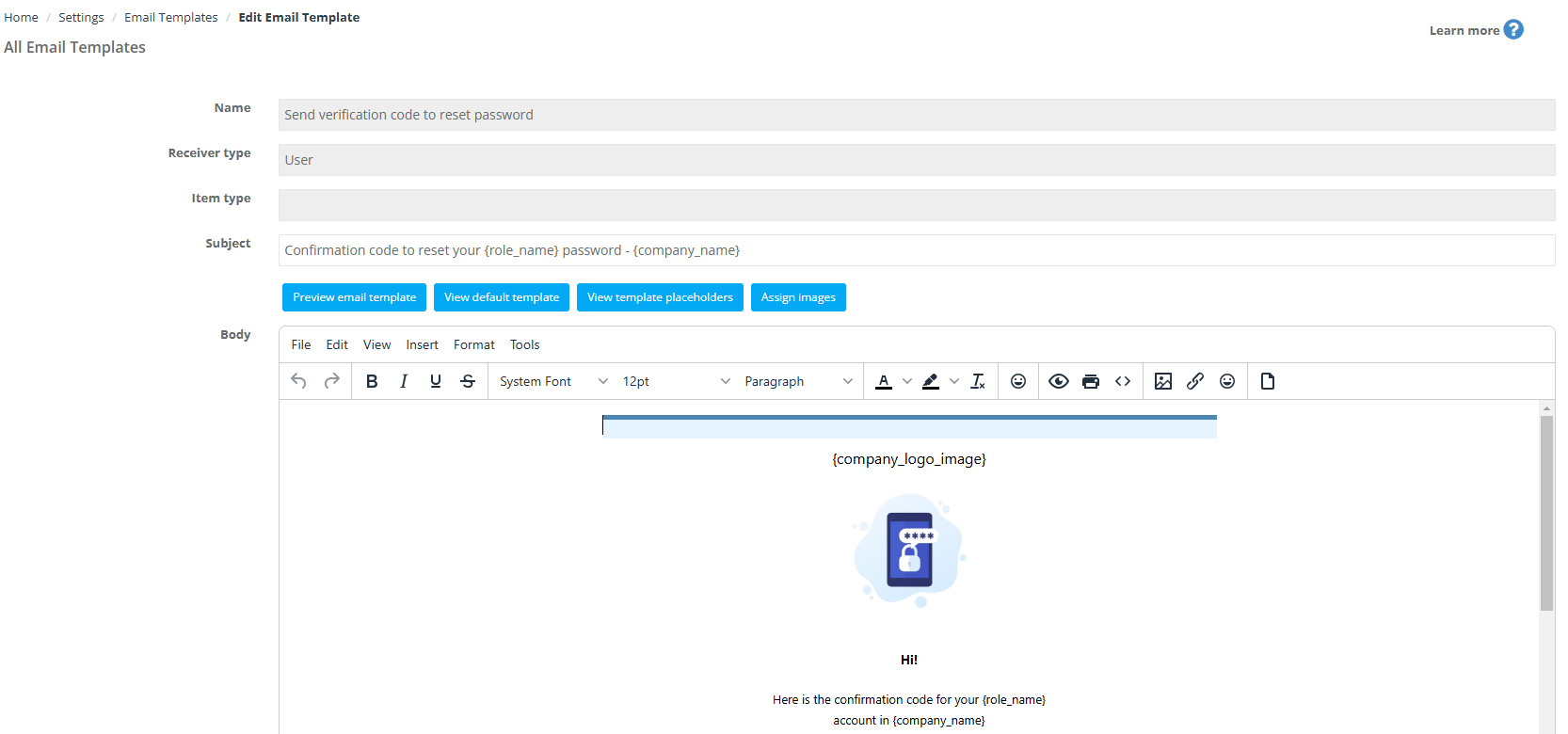
20) New comment notification
Notify customers when a visible discussion board comment is added to their booking.
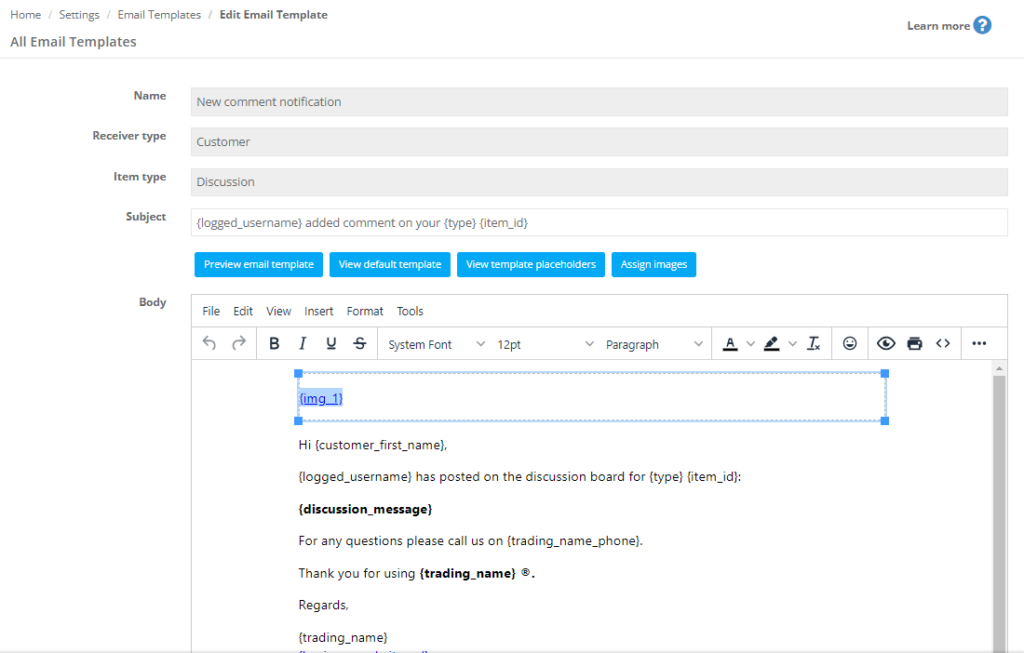
21) Photo confirmation email
Confirm that uploaded photos were received successfully.
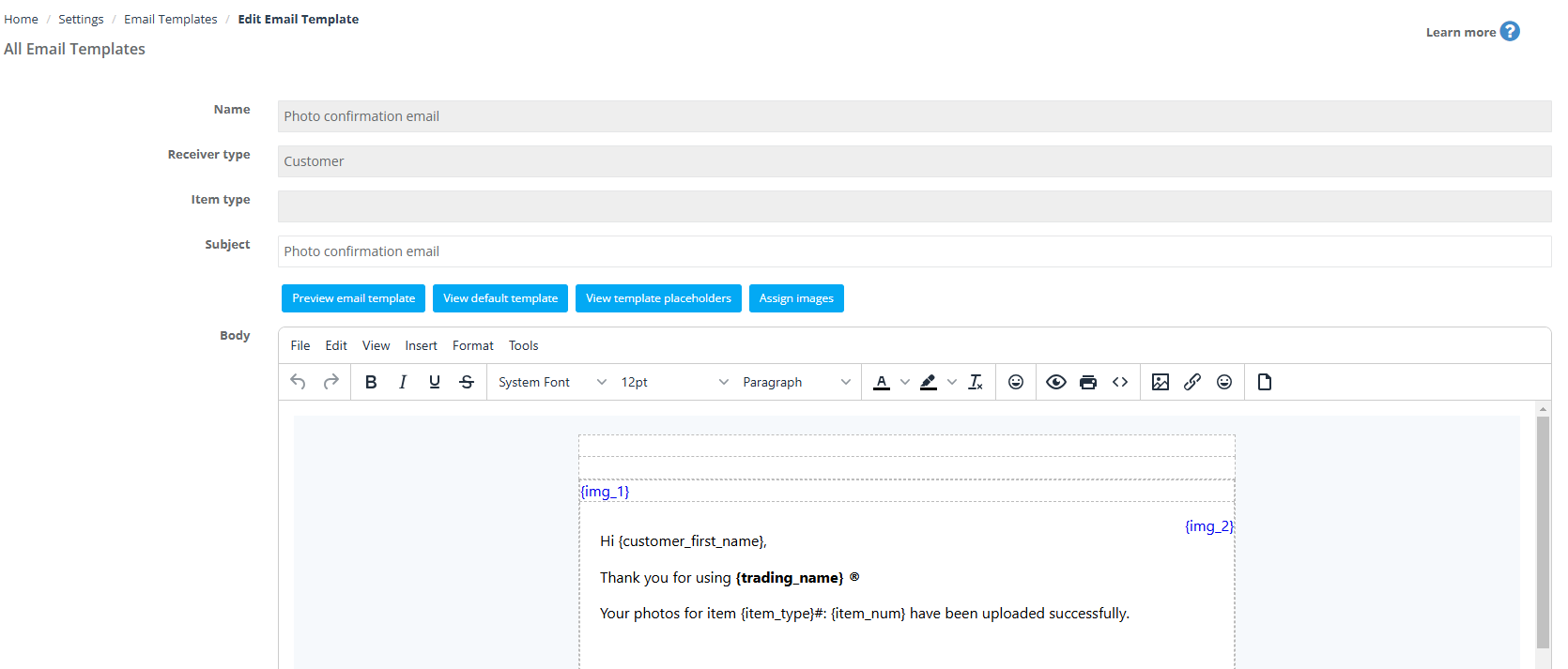
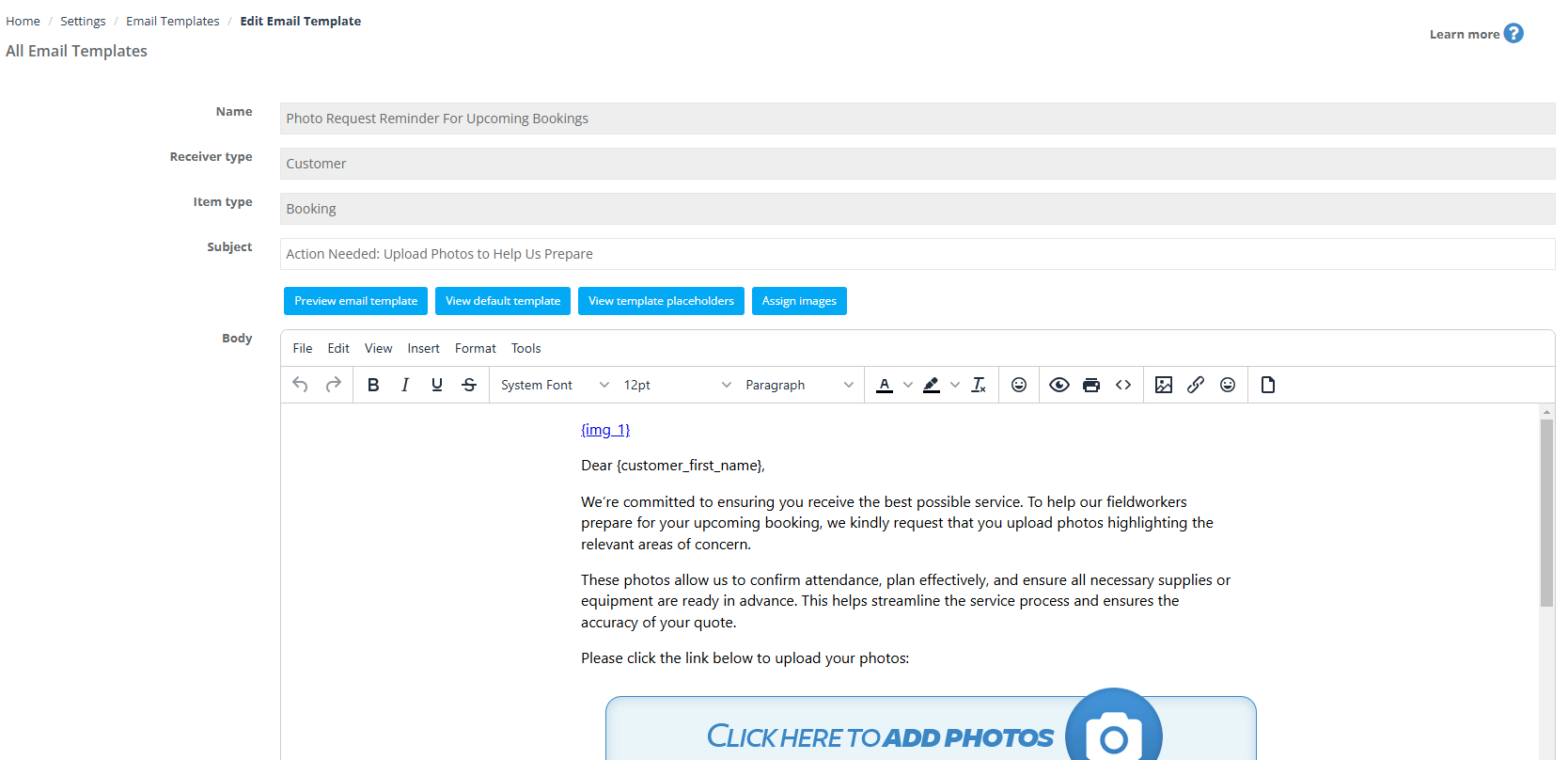
22) Photo request reminder for upcoming bookings
Ask customers to upload photos before an appointment (prep, access, measurements, evidence, etc.).
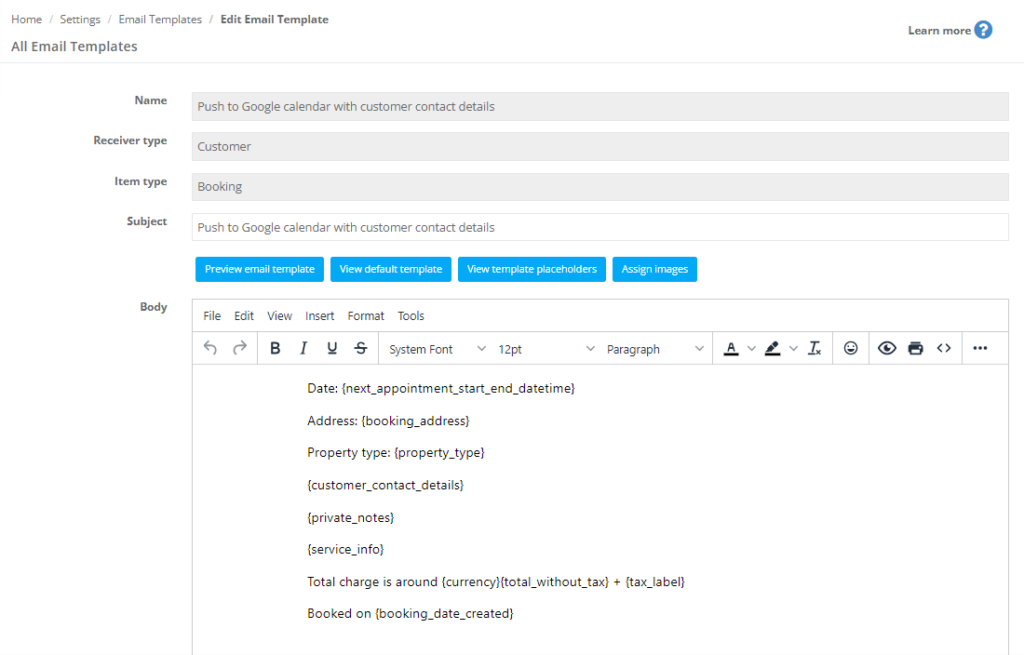
23) Push to Google calendar with customer contact details
Template used when pushing booking data (including contact details) to Google Calendar.
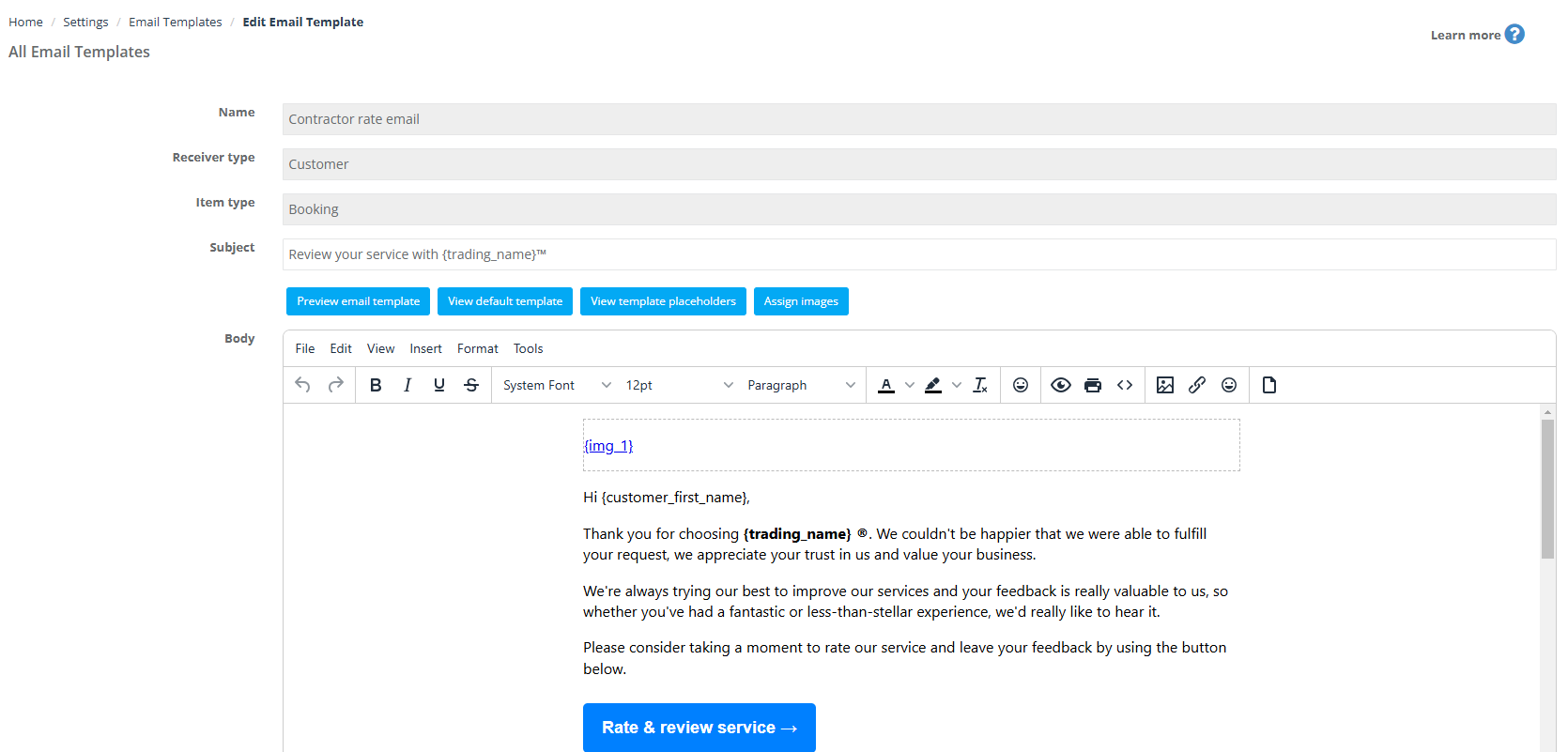
24) Contractor rate email
Post-service rating request to collect feedback and improve customer experience.
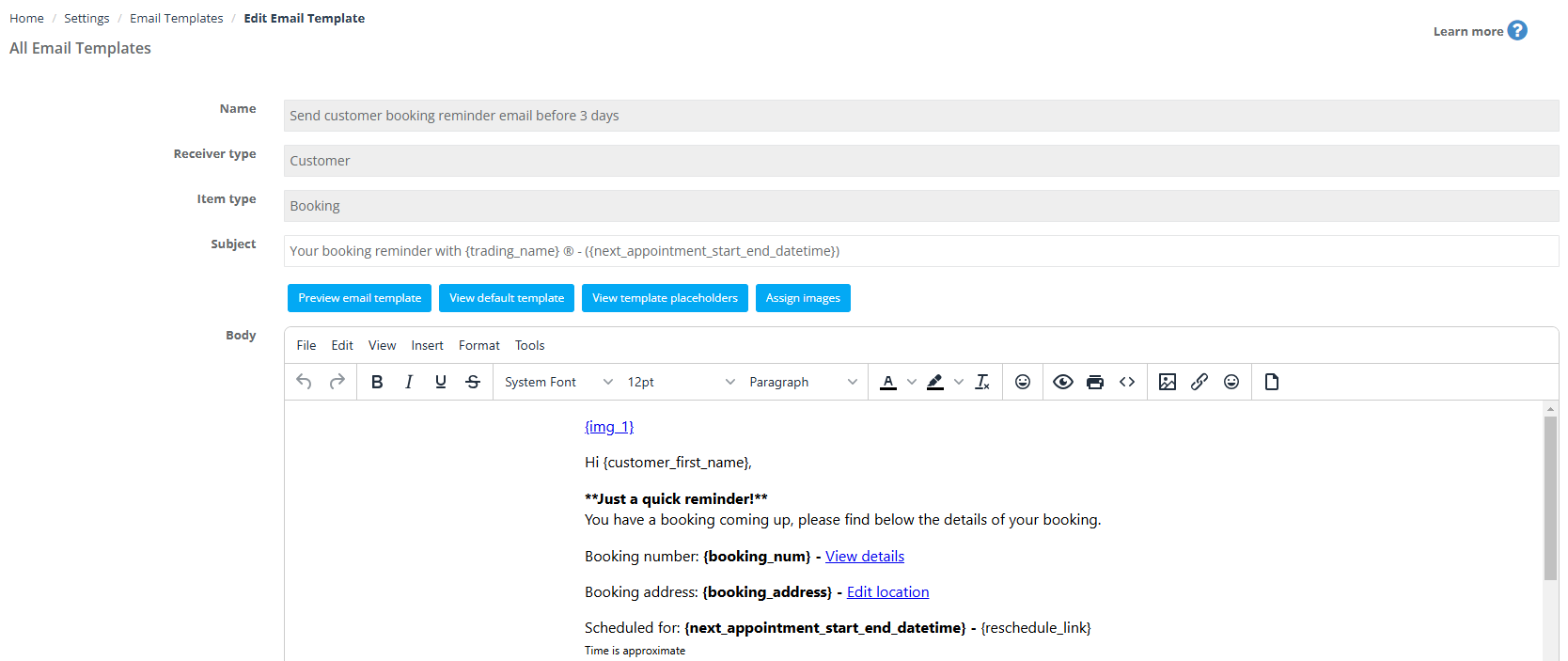
25) Send customer booking reminder email before 3 days
Reminder email three days before the booking start time.
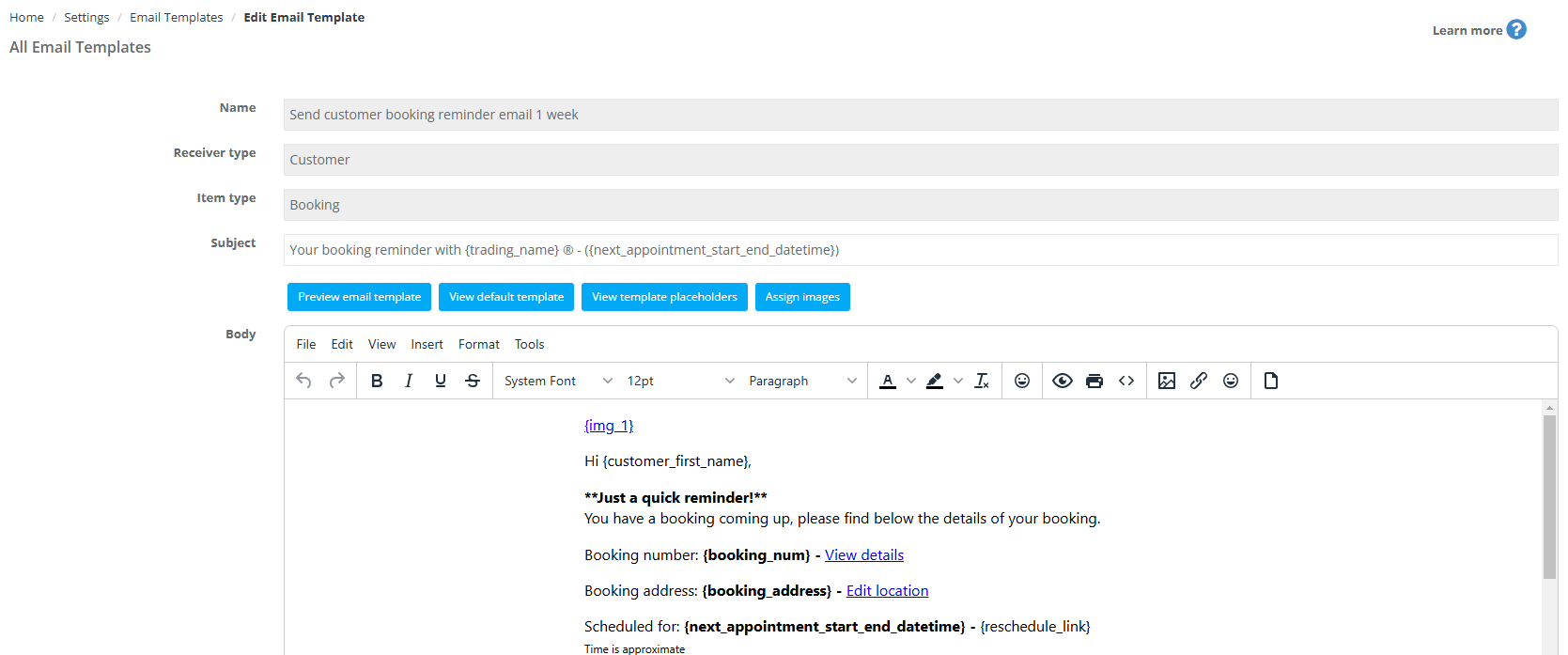
26) Send customer booking reminder email 1 week
Reminder email one week before the booking start time.
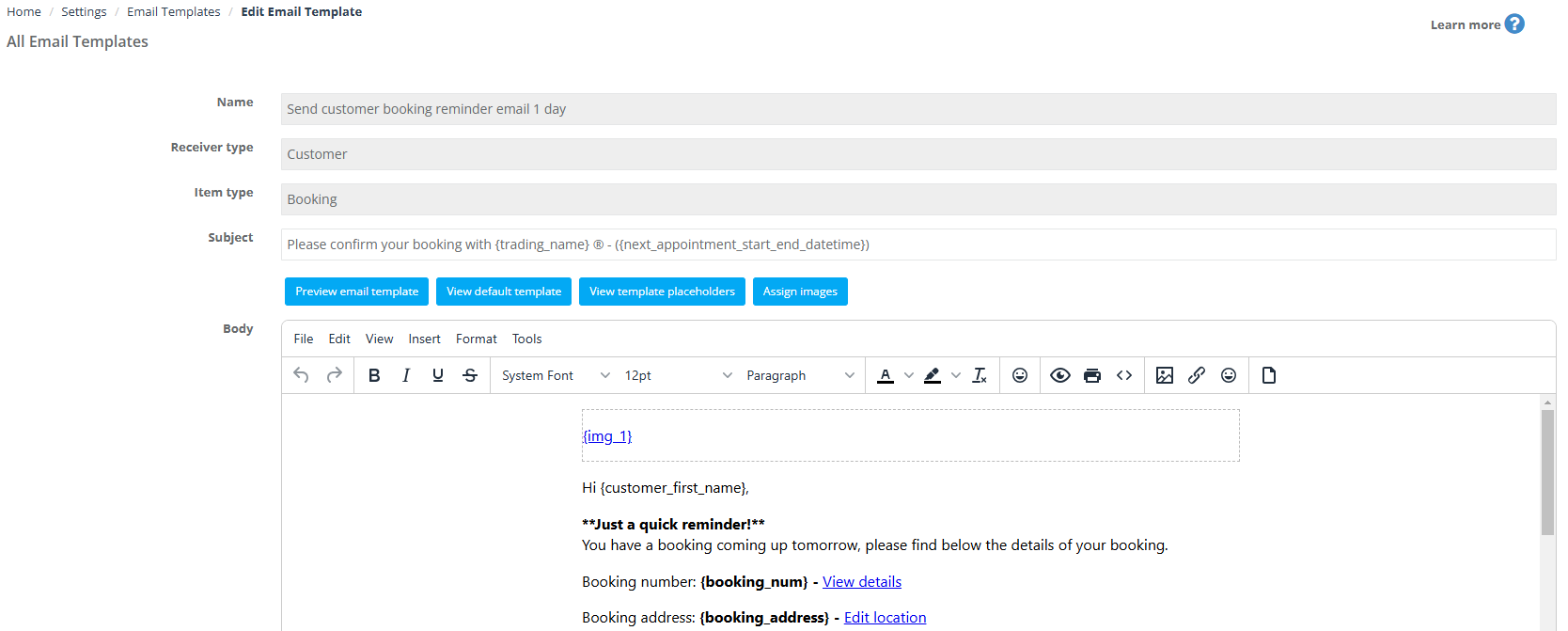
27) Send customer booking reminder email 1 day
Reminder email one day before the booking start time.
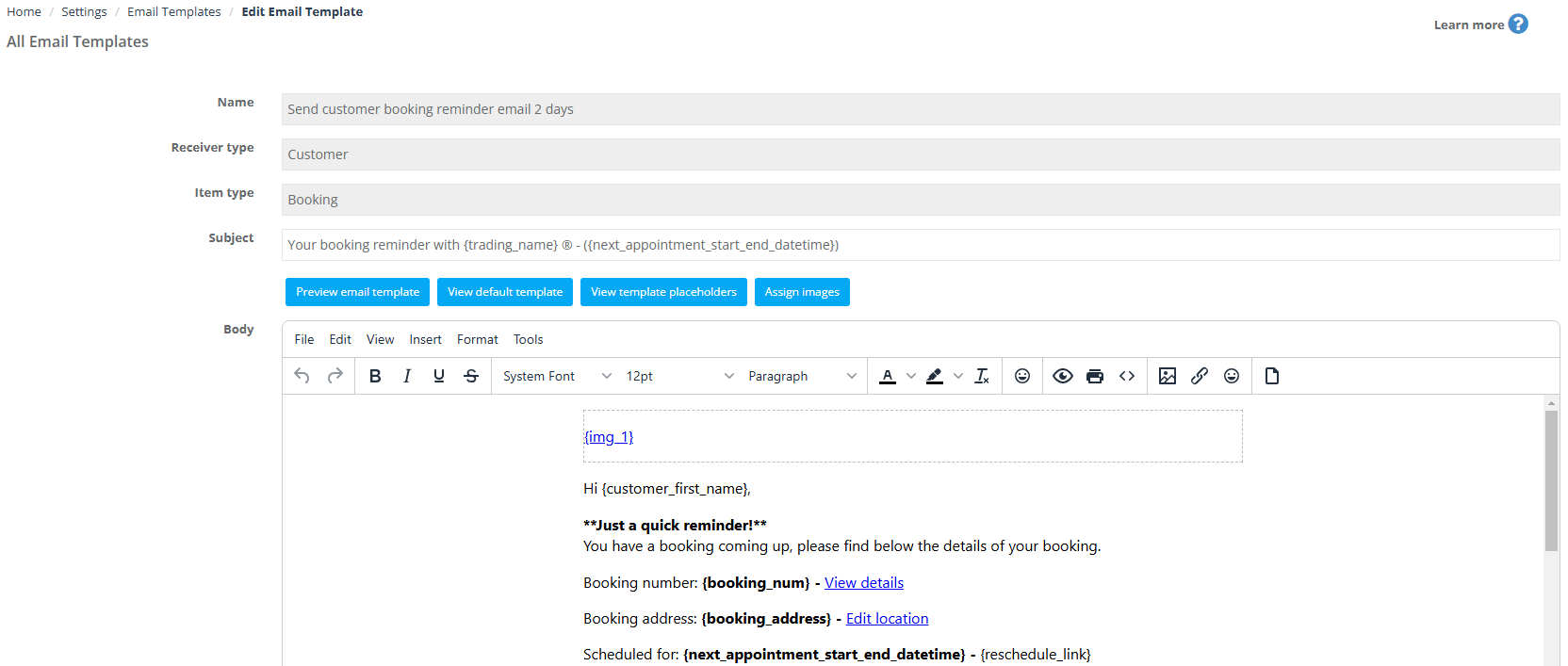
28) Booking reminder 2 days before
Reminder email two days before the booking start time.
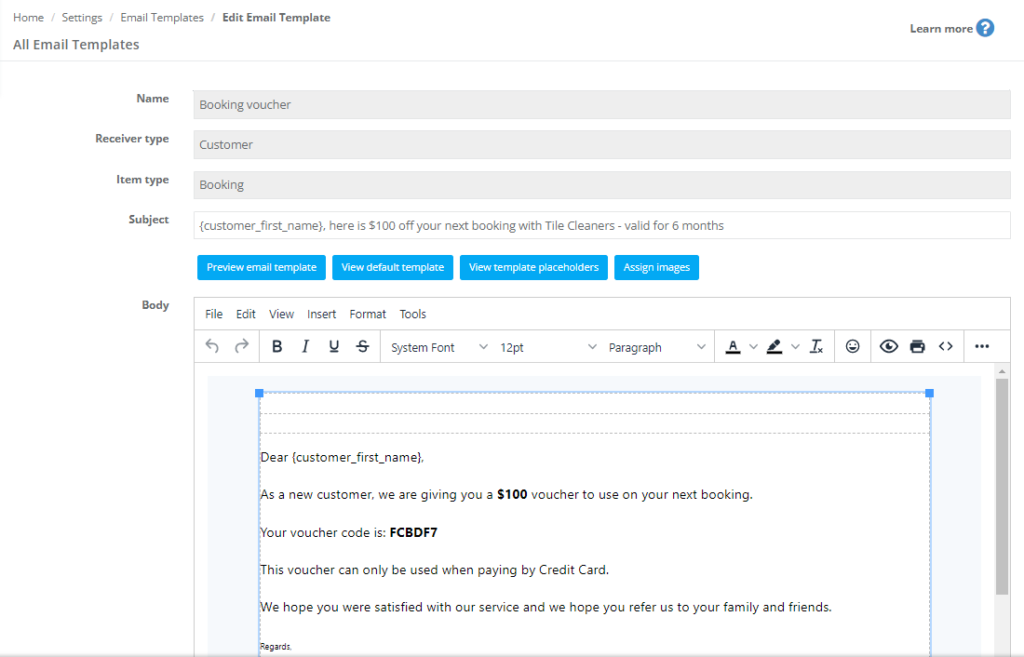
29) Booking voucher
Send a voucher code (discount) to encourage booking conversion or repeat business.
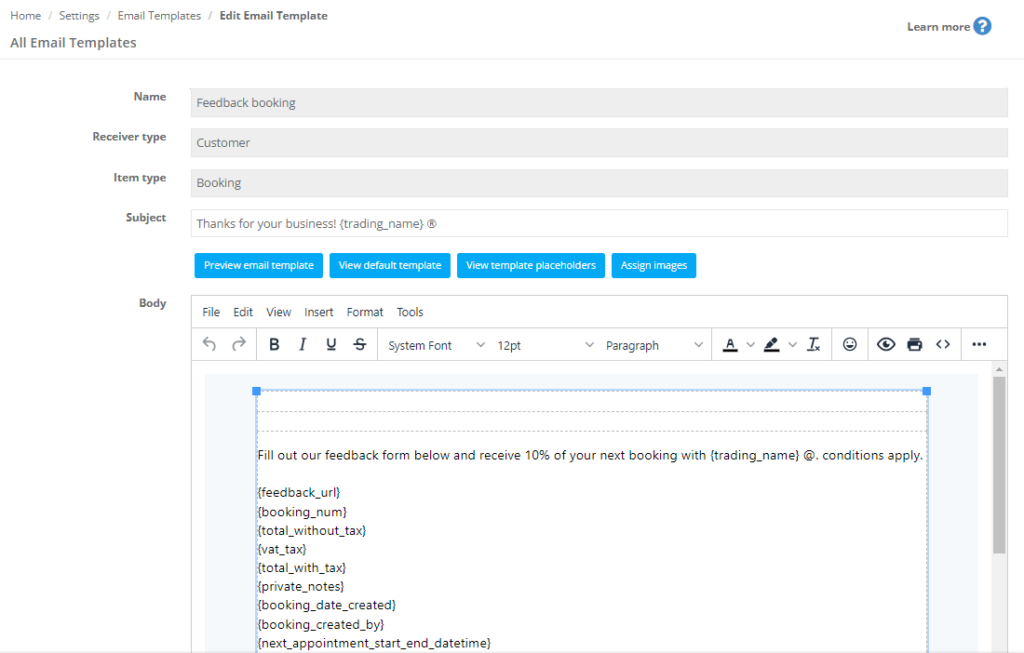
30) Feedback booking
Collect structured feedback after a booking (often includes a feedback link/form).
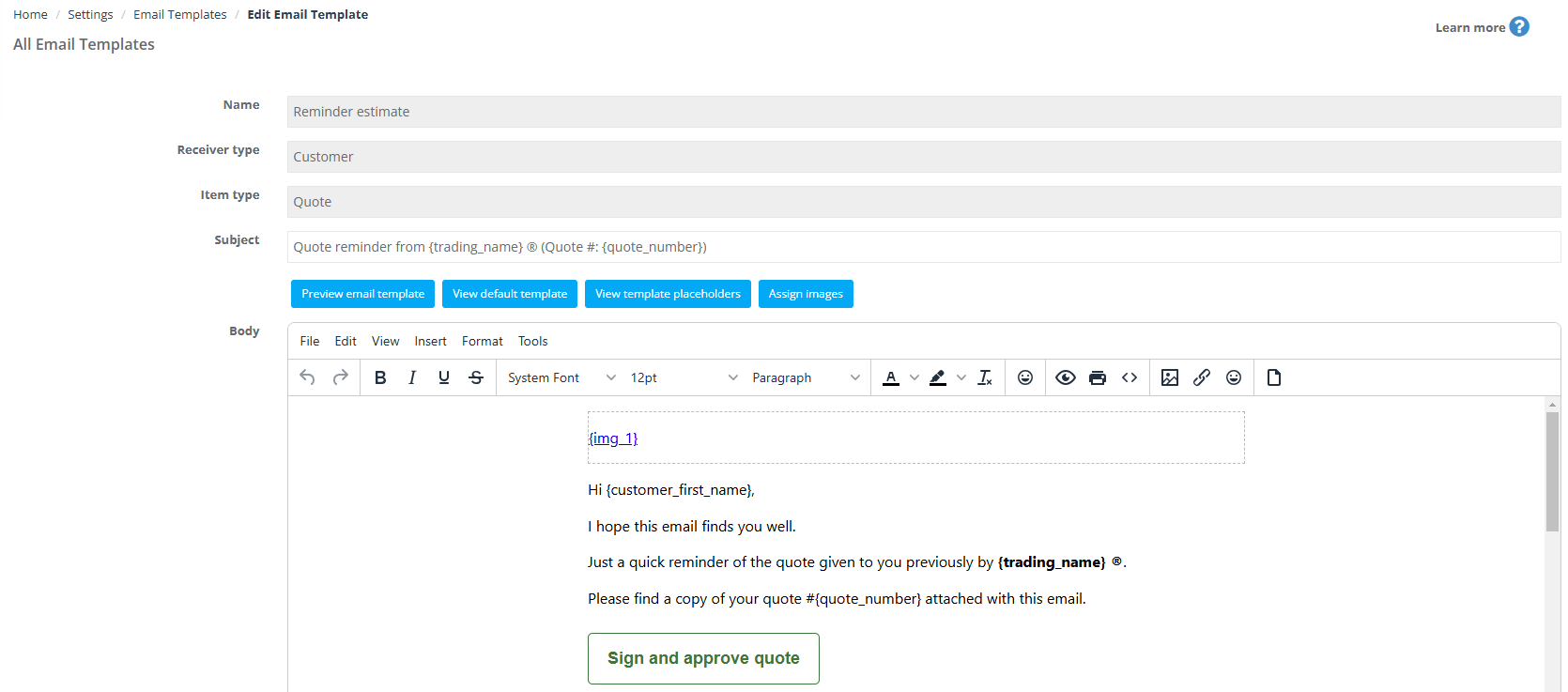
31) Reminder estimate
Reminder email for quotes/estimates to improve follow-up and conversions.
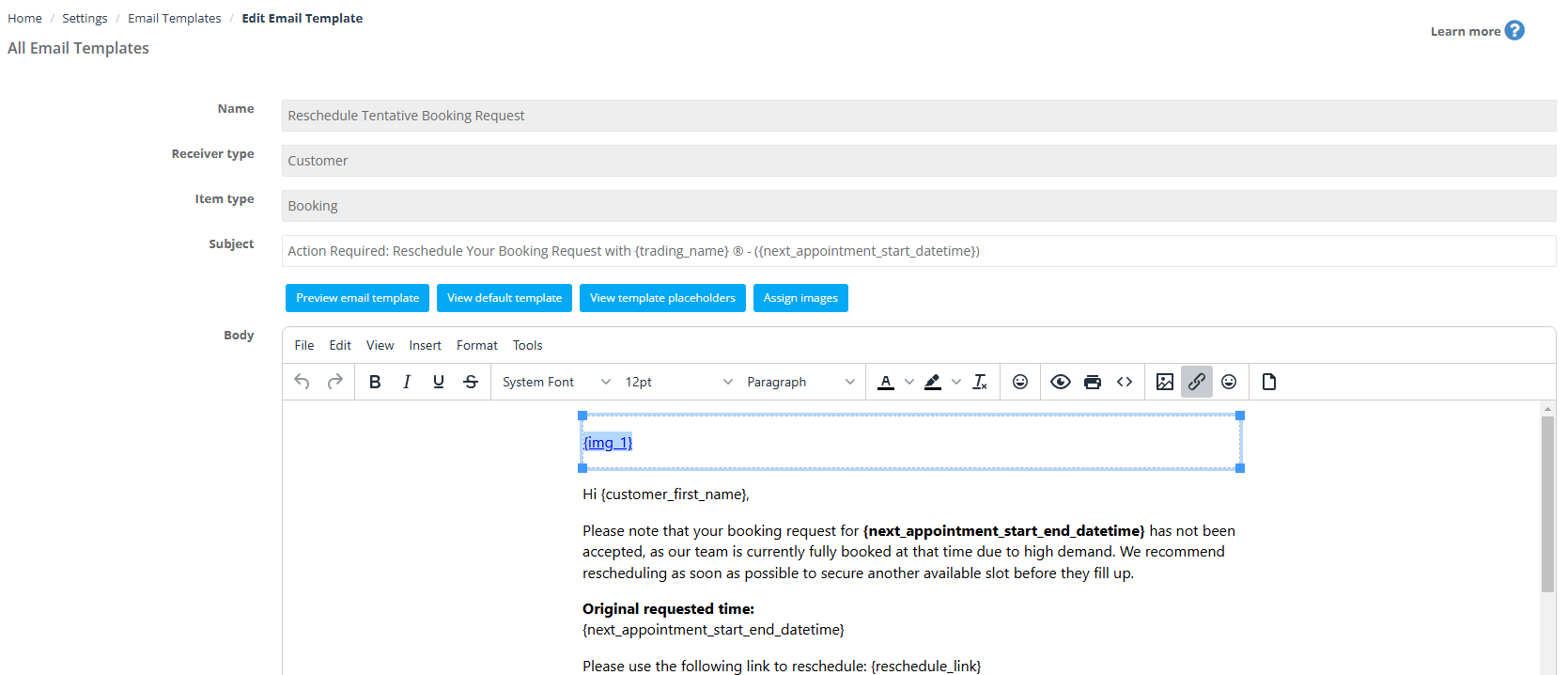
32) Reschedule tentative booking request
Automated email for tentative bookings when the start date arrives without confirmation.
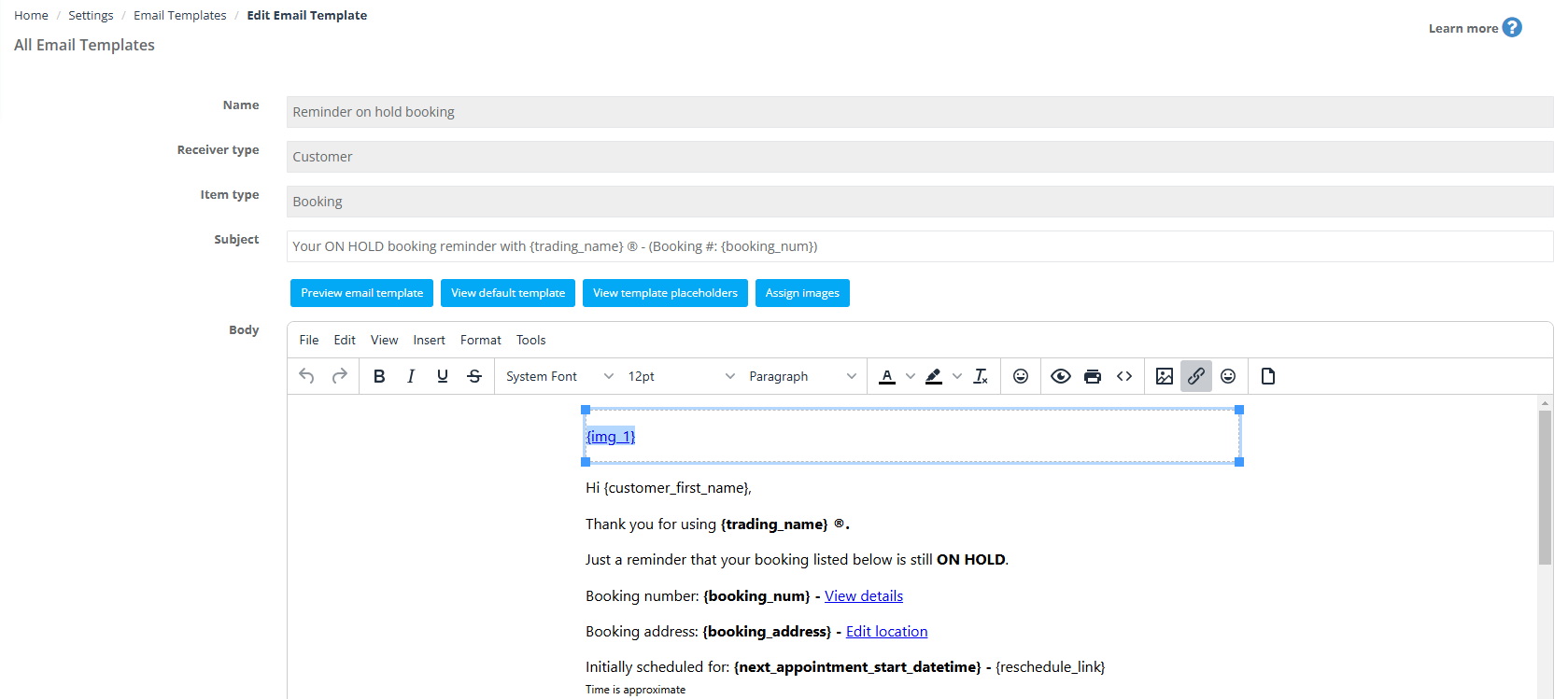
33) Reminder on hold booking
Automated email for bookings still on hold when their start date arrives (often payment/verification needed).
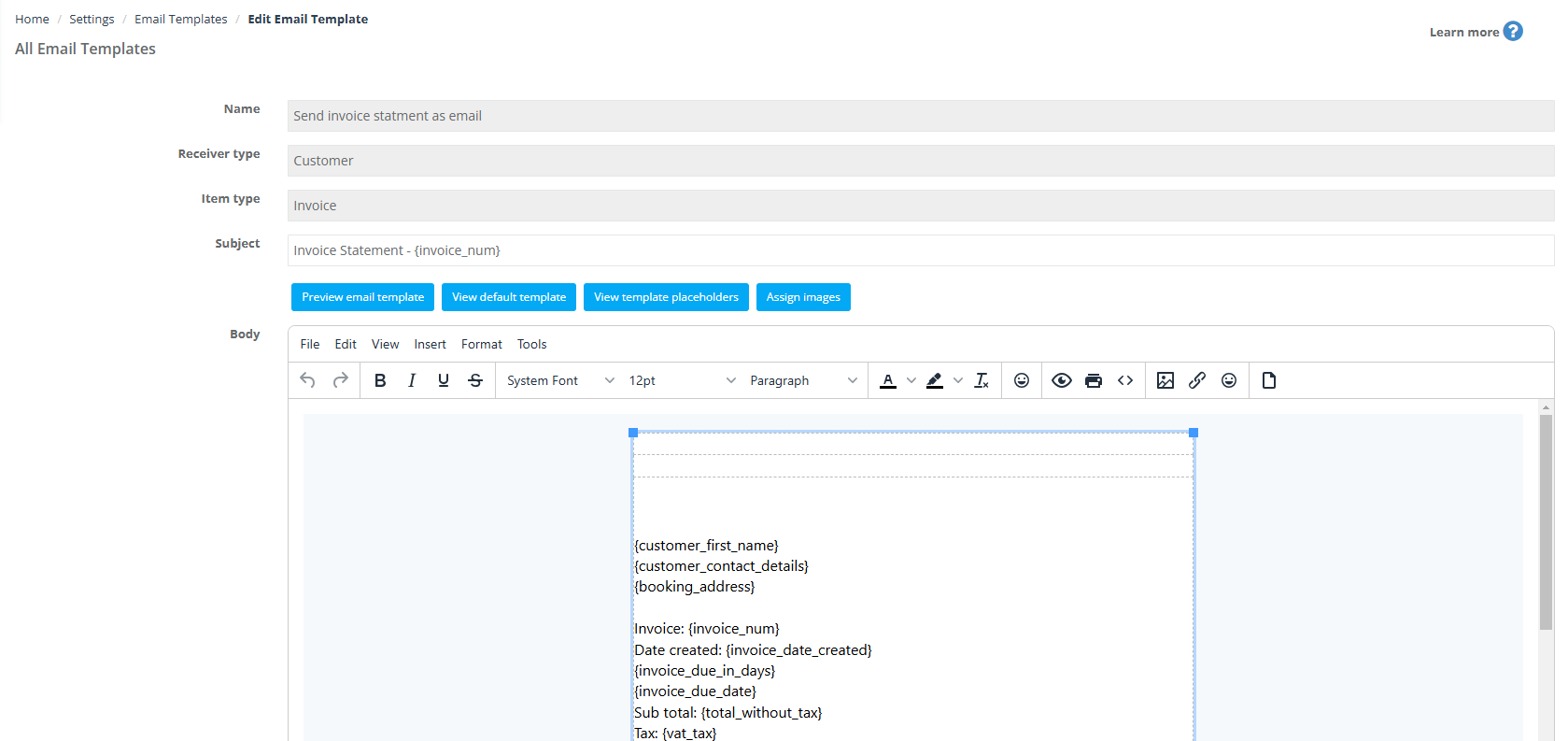
34) Send invoice statement as email
Send invoice statement details and due dates (often automated for statements/reminders).
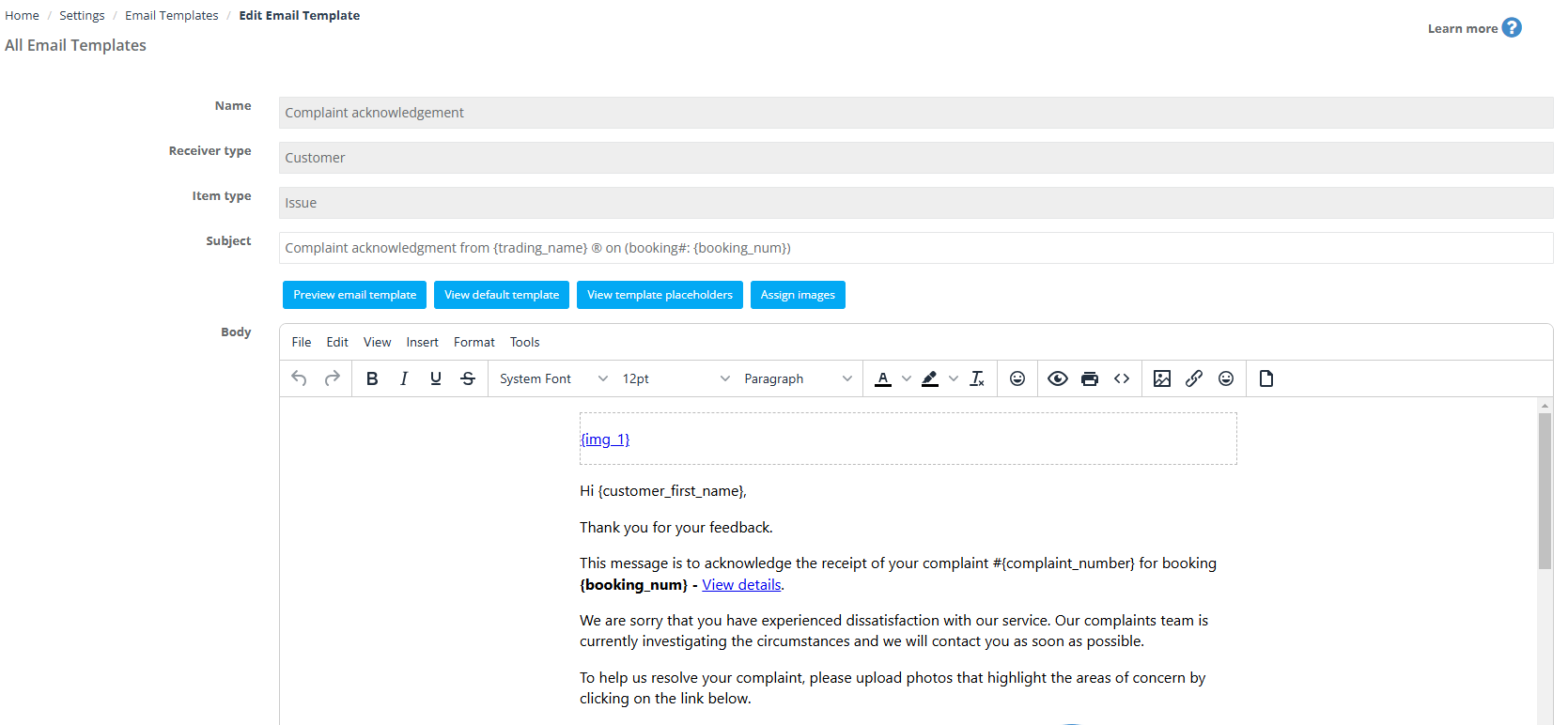
35) Complaint acknowledgement
Acknowledge that a complaint was received and confirm next steps (or request supporting evidence).
Voucher-related guide: Discount Voucher Code Management.
Email templates directed to fieldworkers
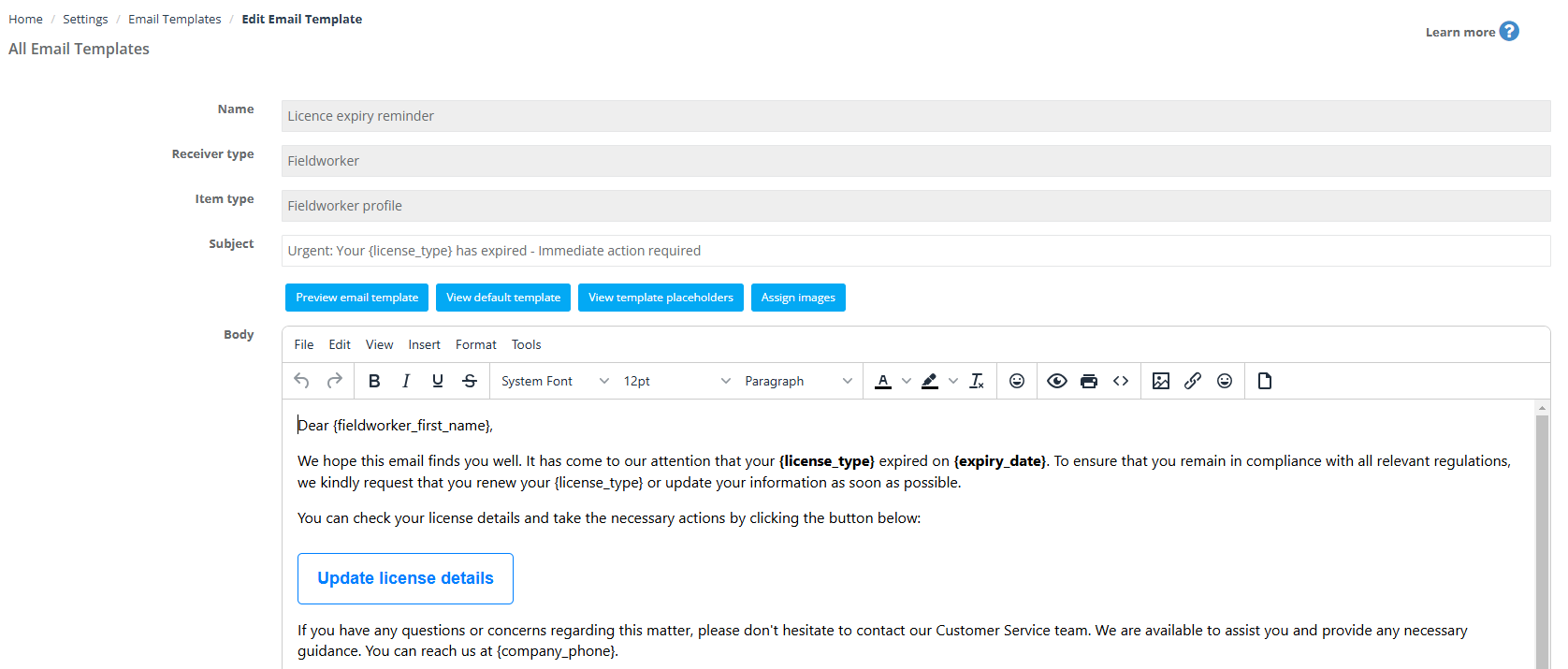
1) License expiry reminder
Prompt fieldworkers to renew/update license details before expiry.
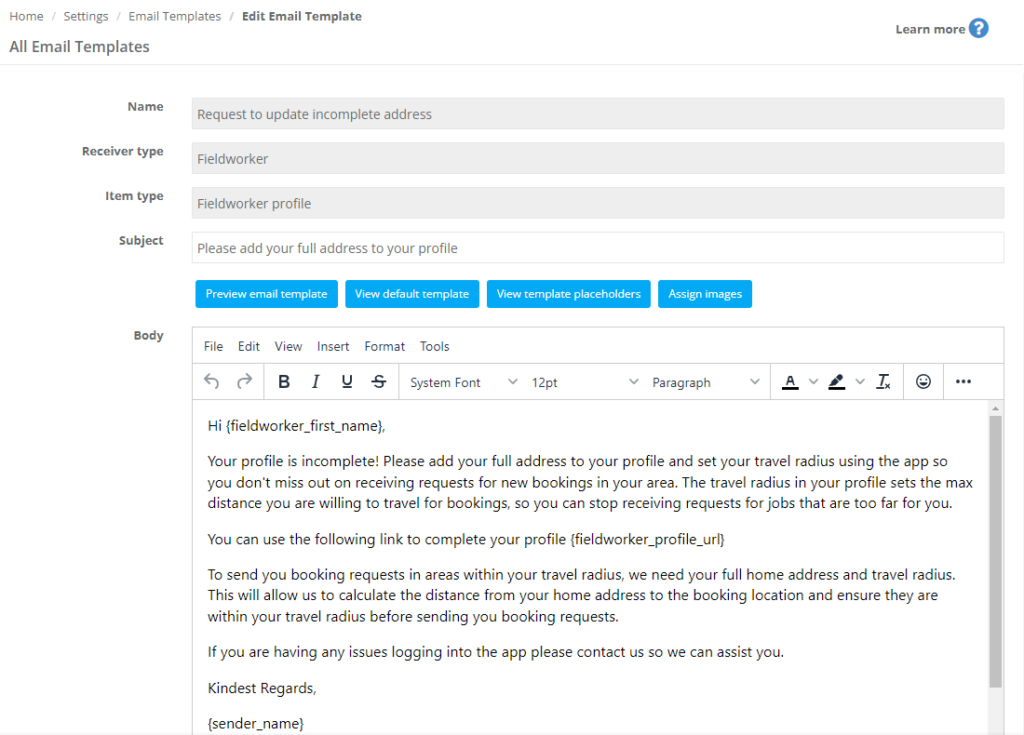
2) Request to update incomplete address
Request missing profile address details so job requests can be assigned accurately.
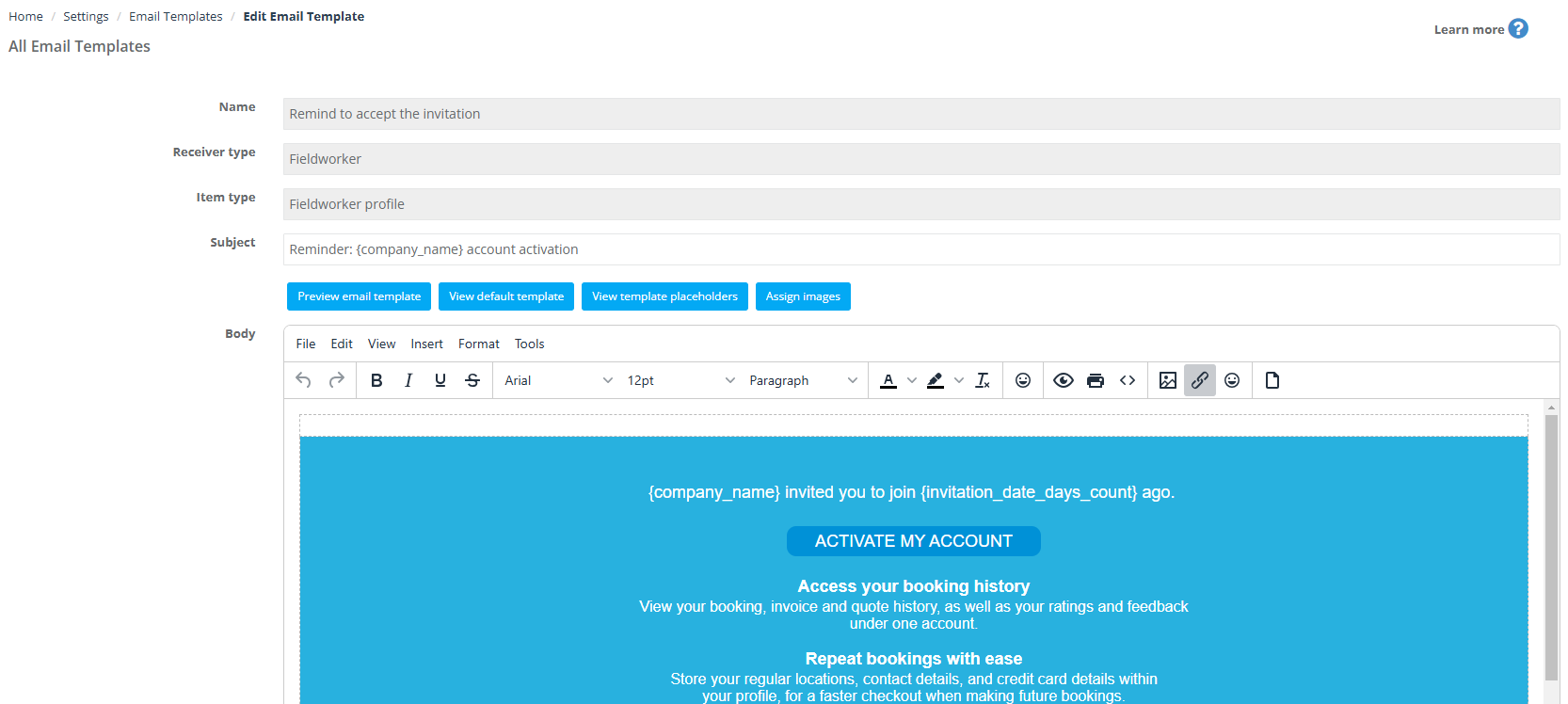
3) Reminder to accept the invitation
Remind newly added fieldworkers to activate their account and set a password.
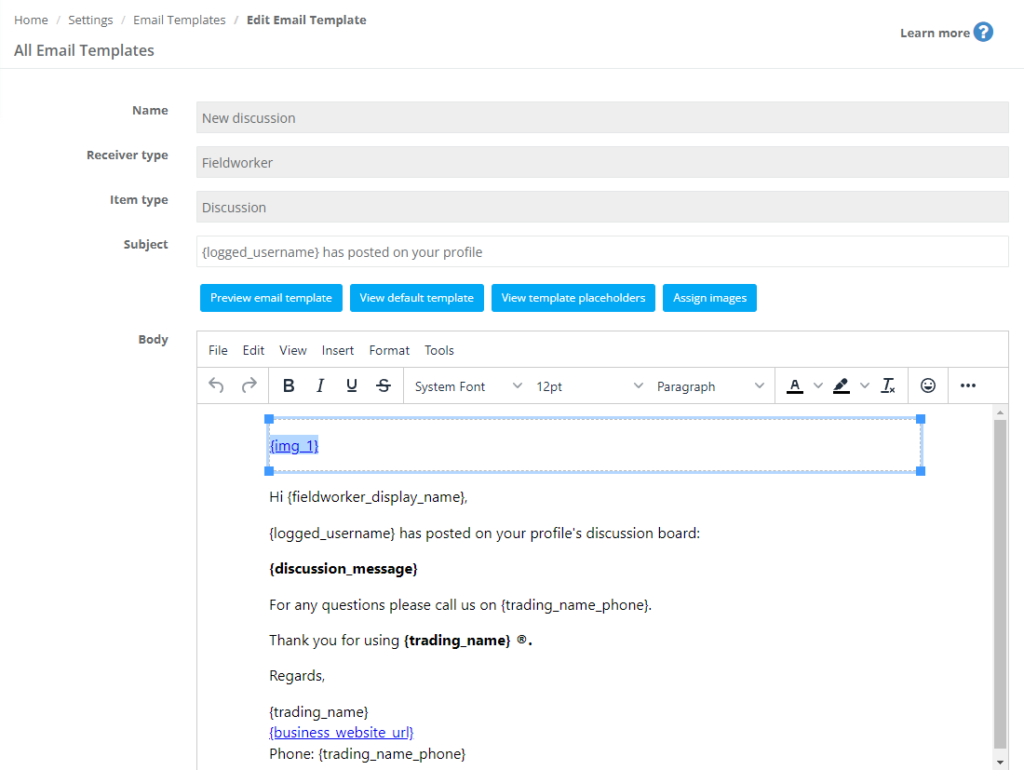
4) New discussion
Notify fieldworkers when a new comment is added to their profile discussion board.
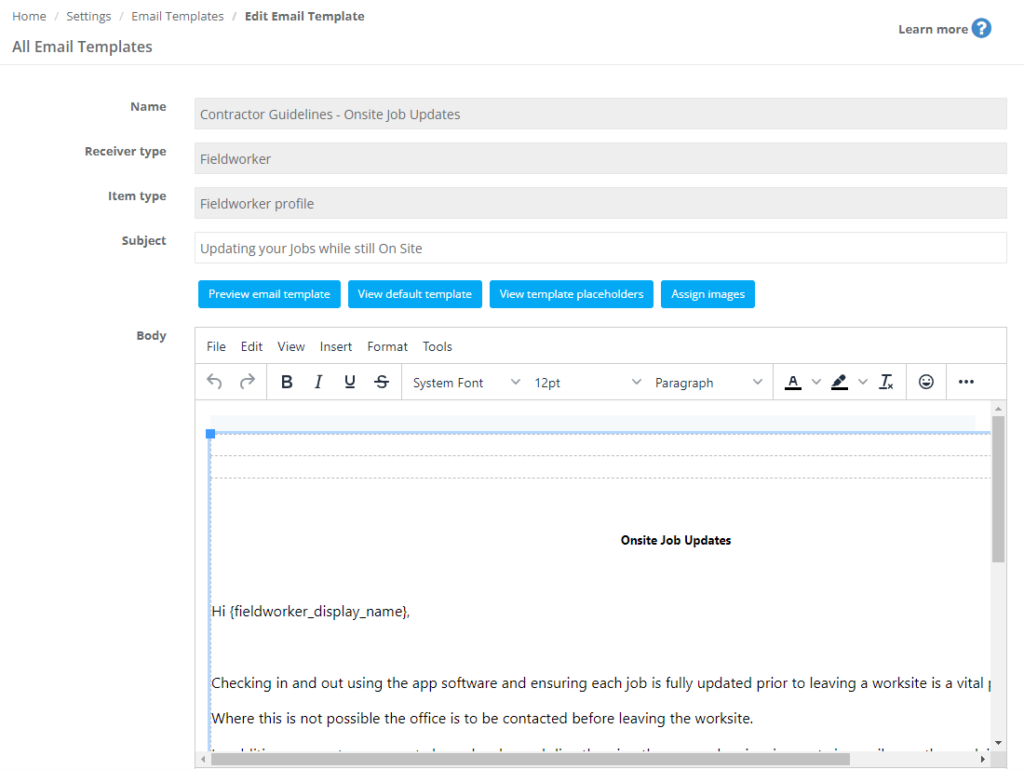
5) Contractor guidelines – onsite job updates
Share onsite job expectations and important update rules for field operations.
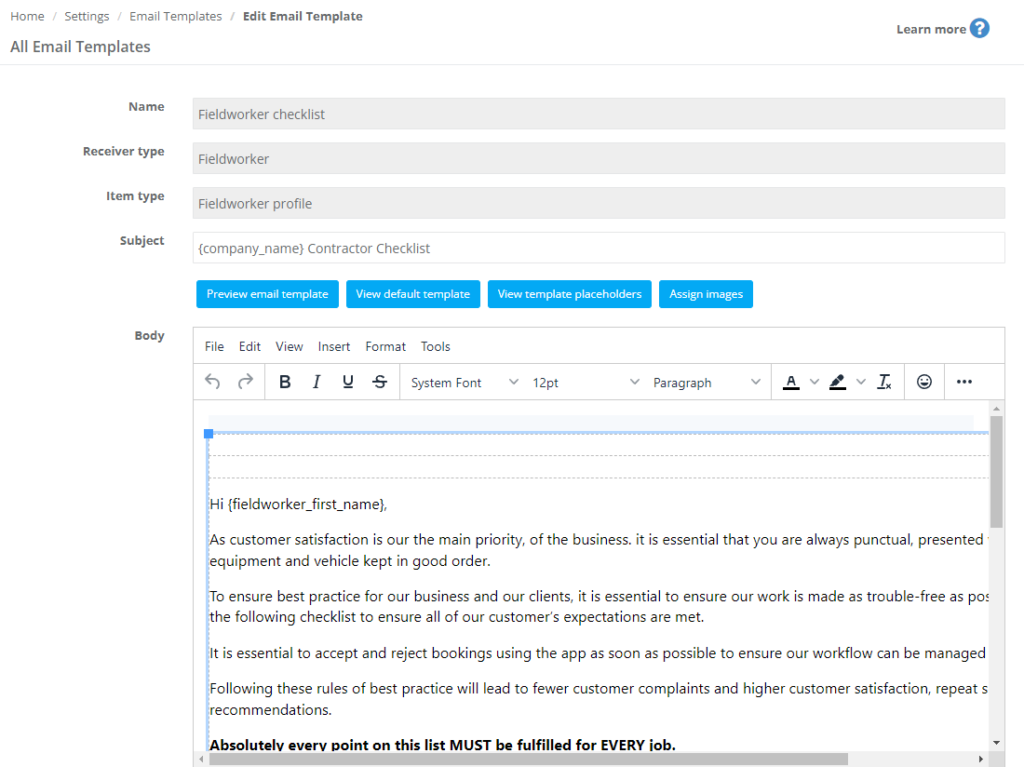
6) Contractor checklist
Provide a checklist to standardize job delivery and reduce quality issues.
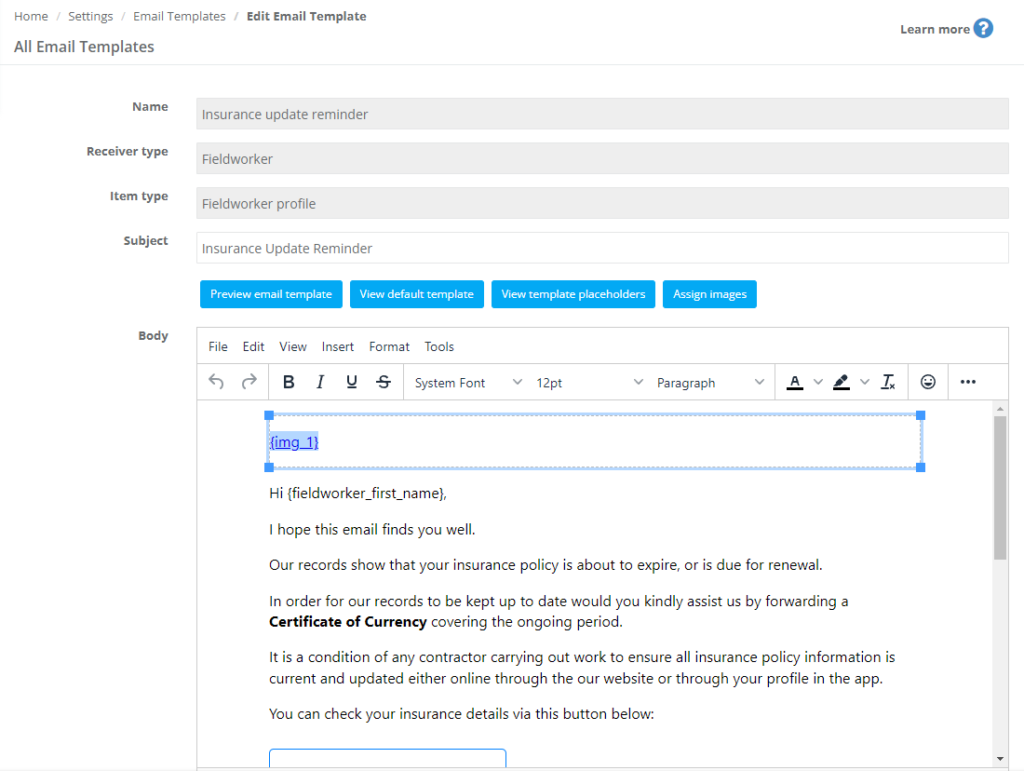
7) Insurance update reminder
Prompt renewal of insurance policies and keep compliance records current.
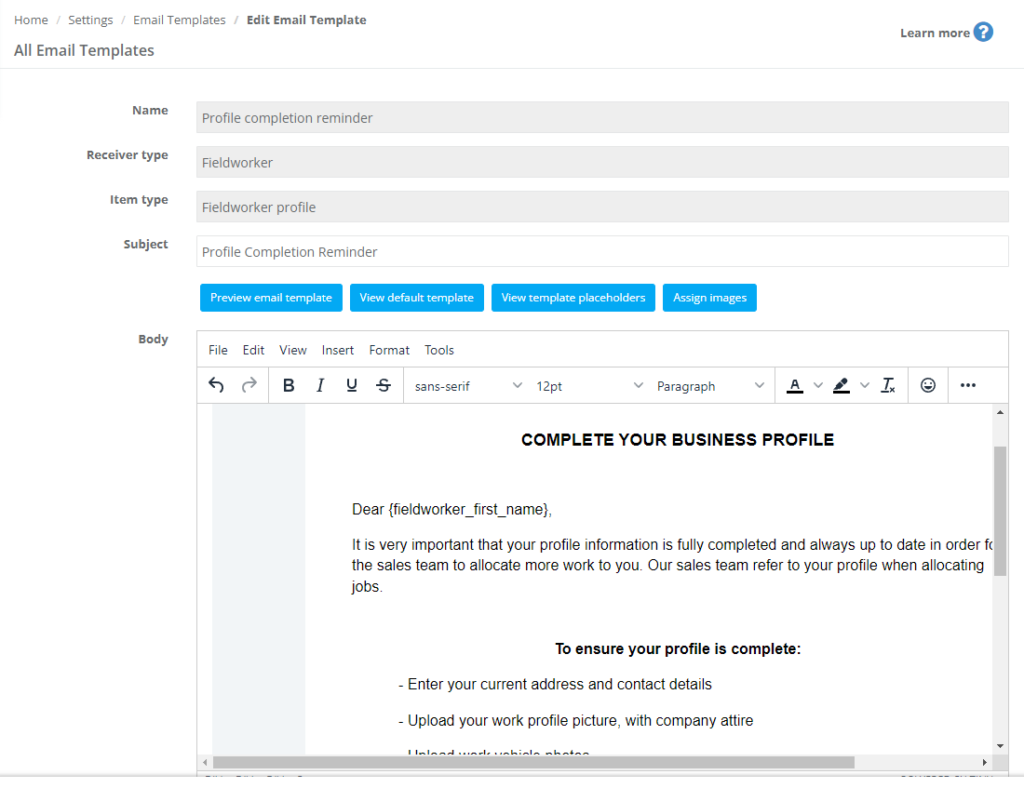
8) Profile completion reminder
Encourage fieldworkers to complete their profile to receive jobs and reduce admin friction.
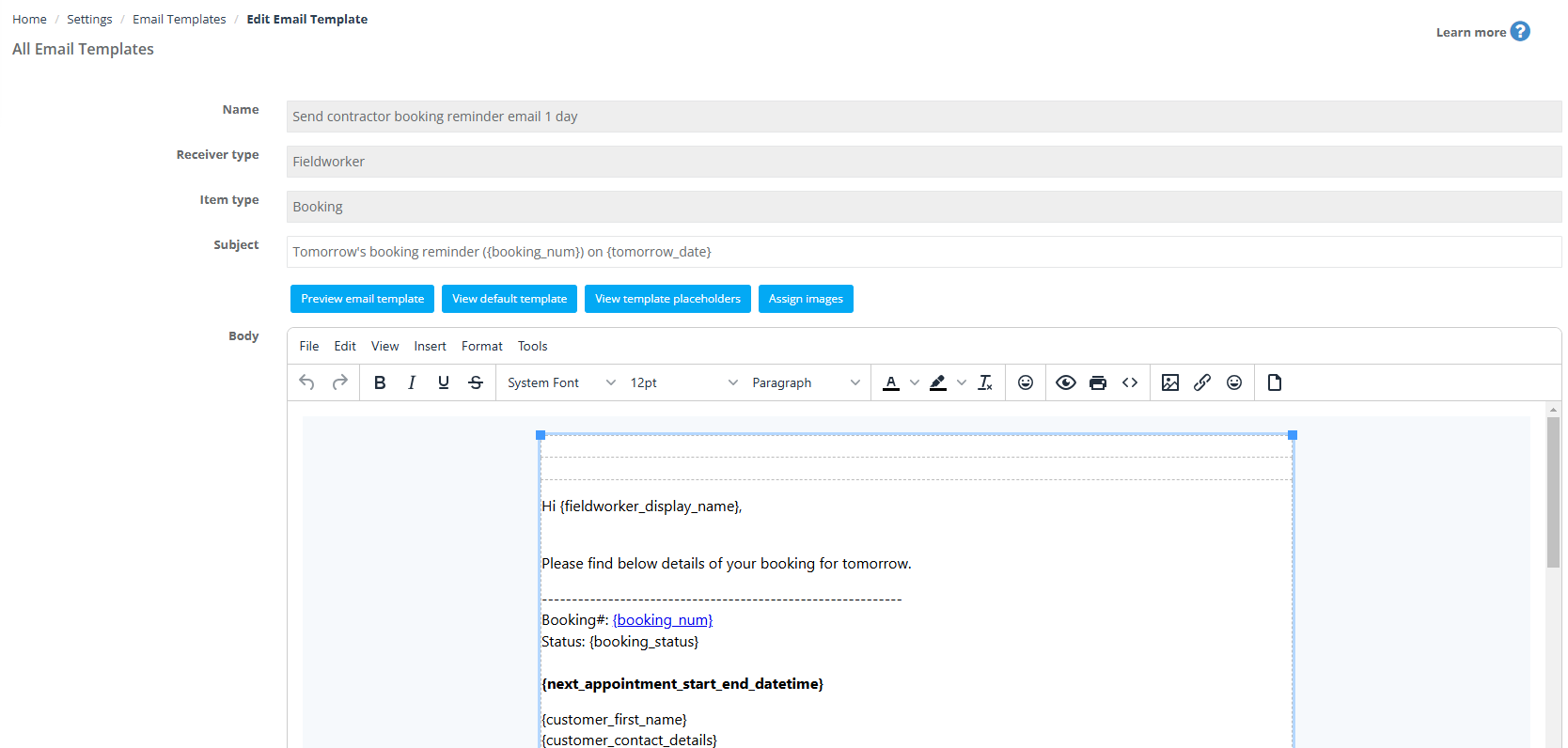
9) Send contractor booking reminder email 1 day
Automated reminder 1 day before the job.
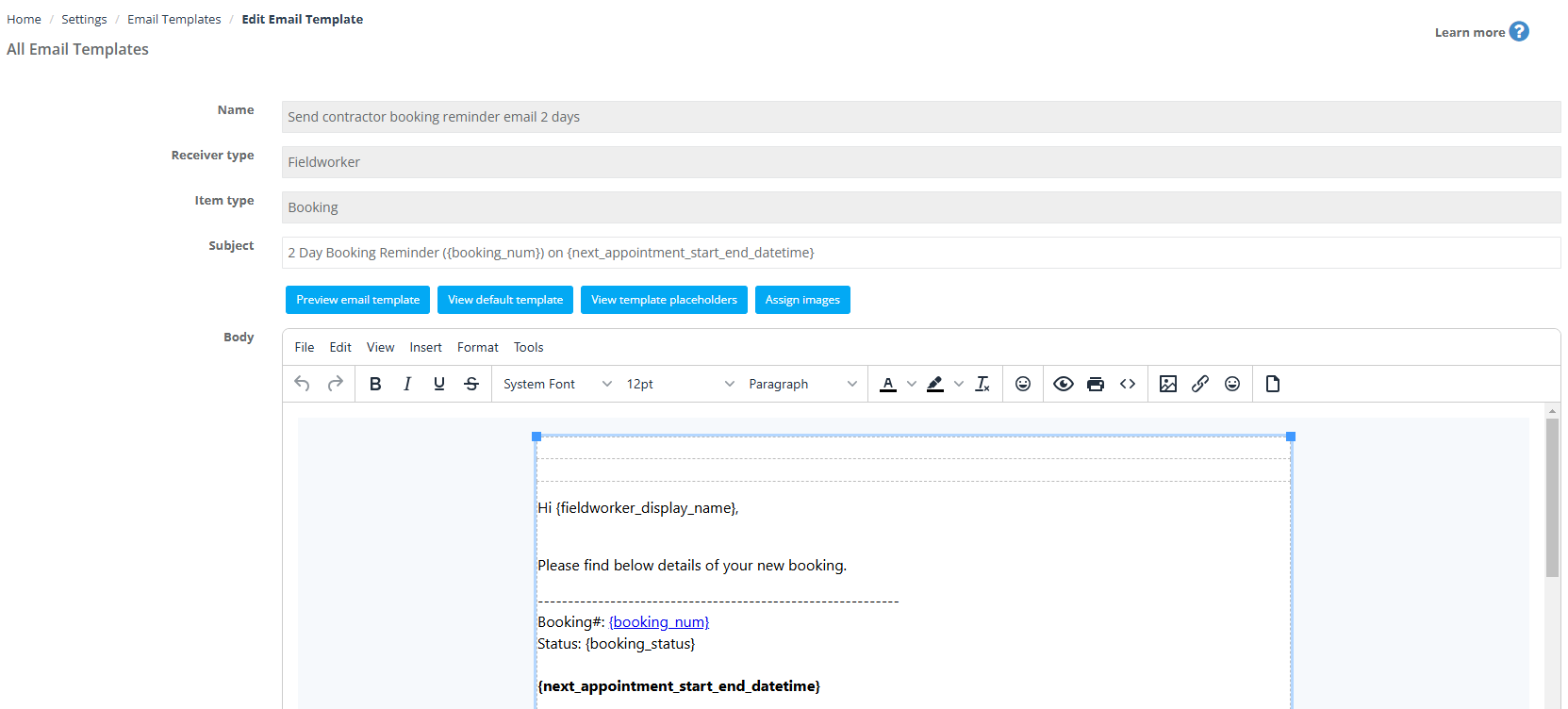
10) Send contractor booking reminder email 2 days
Automated reminder 2 days before the job.
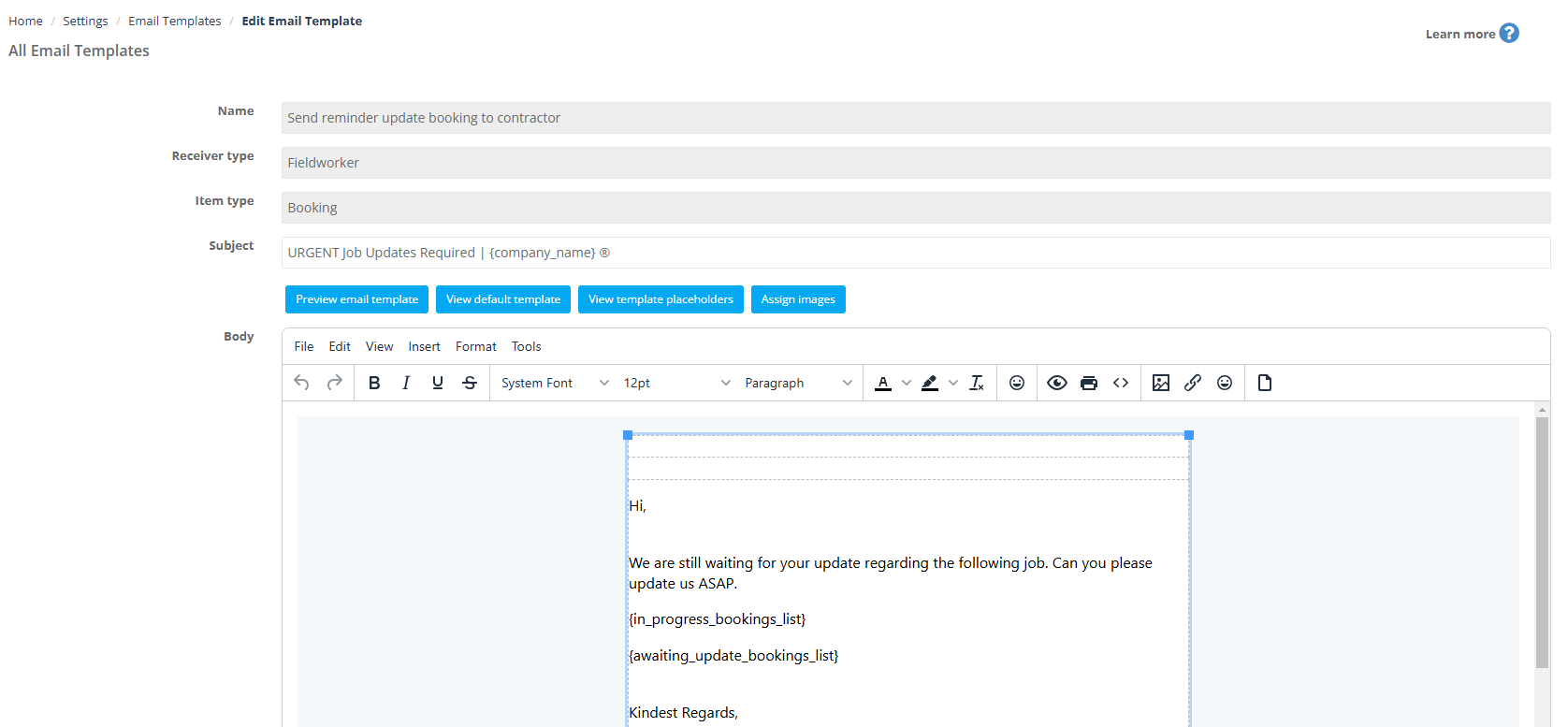
11) Send reminder update booking to contractor
Request immediate updates when bookings remain in-progress/awaiting update.
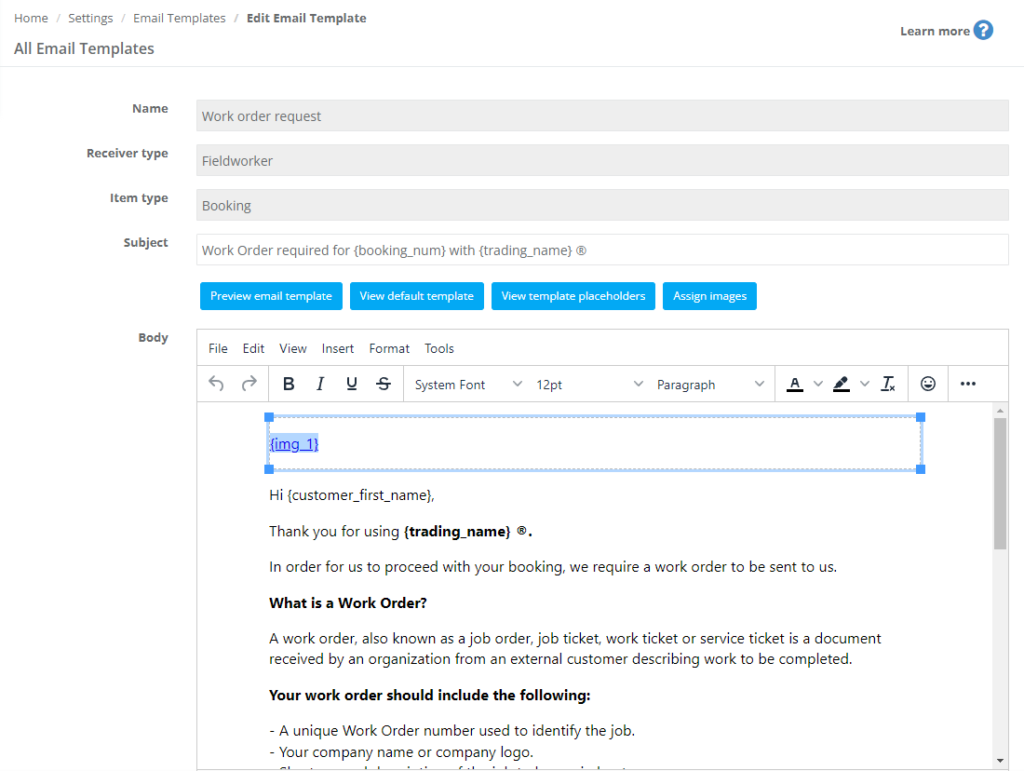
12) Work order request
Request a work order document from the customer via the assigned fieldworker workflow.
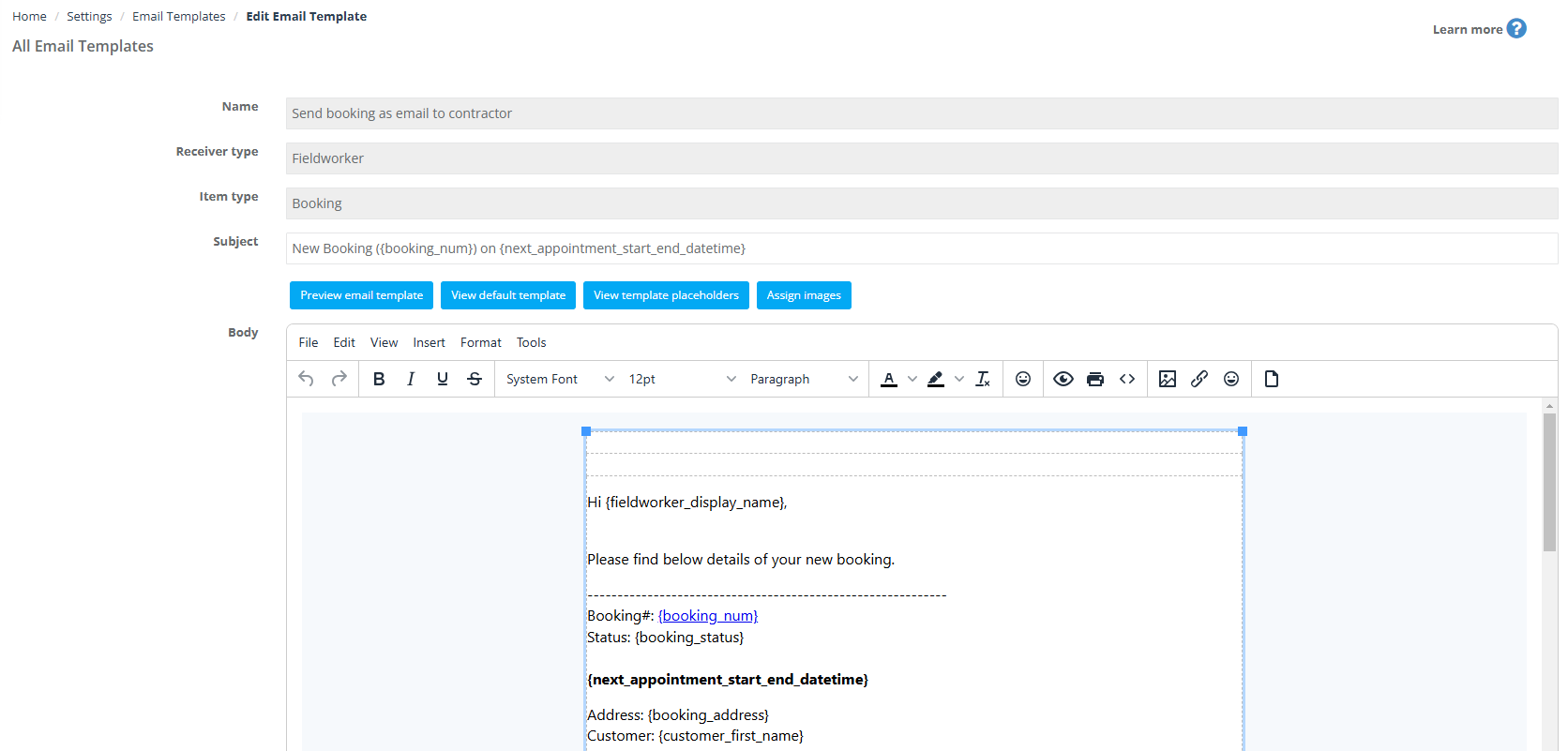
13) Send booking as email to contractor
Send booking details to the assigned fieldworker (work order-style booking summary).
Related user guide articles
- Template Placeholders
- Canned Responses & Templates
- Automated Reminders & Confirmations
- Send Booking Confirmations (Email, SMS & WhatsApp)
- SMS Templates
- Business Email Authentication
- Discount Voucher Code Management
- Booking Communication (Email, SMS, Calls & Chat)
To stay updated, please subscribe to our YouTube channel.