
Manually Push Booking to Google Calendar
OctopusPro can create a matching Google Calendar event for a booking in the assigned fieldworker’s Google Calendar. This guide explains the manual push option—used to resend a booking to Google Calendar from inside the booking record.
Use this when: a booking didn’t appear in Google Calendar, the fieldworker connected Google Calendar after the booking was assigned, or you want to re-send updated booking details to ensure the calendar event is current.
Jump to:
- Before you start
- Manual push vs automatic calendar sync
- When to use manual push
- How to manually push a booking to Google Calendar
- What information is sent to Google Calendar
- Audit trail & proof the push was sent
- Best practices
- Troubleshooting & FAQs
- Related guides
Before you start
- The fieldworker must connect Google Calendar to OctopusPro. Manual push can only create events for fieldworkers who have granted permission. See: Sync Google Calendar with OctopusPro.
- The booking must have an assigned fieldworker. Manual push sends the event to the selected/assigned fieldworker’s Google Calendar.
- Permissions: You must have access to view/manage bookings to see booking actions.

Tip: If you want to view a fieldworker’s Google Calendar busy blocks inside OctopusPro (to avoid double-booking), use: View Fieldworker Google Calendar.
Manual push vs automatic calendar sync
- Automatic sync (recommended): OctopusPro can push bookings to Google Calendar automatically based on your Booking Status rules (e.g., only push when a booking becomes Confirmed/Scheduled).
- Manual push (this guide): A one-off action you trigger from the booking to resend the booking to Google Calendar (helpful for missed events, onboarding catch-up, or confirming the latest details are synced).
To control automatic push/delete rules, review: Managing Booking Statuses.

When to use manual push
- Post-onboarding catch-up: A new fieldworker connects Google Calendar after bookings were already assigned—manual push sends those bookings to their calendar.
- Missed calendar event: The fieldworker says “I can’t see the job in Google Calendar.” Manual push resends it.
- After changes: You updated time/address/notes in OctopusPro and want to ensure the Google Calendar event reflects the latest details.
- Operational assurance: Dispatchers can re-send critical jobs to reduce “I never saw it” disputes.
How to manually push a booking to Google Calendar
- Open the booking
Go to Bookings → All Bookings, then locate the booking (Upcoming or Past). - View booking details
Click View Booking to open the booking record. - Push the booking to Google Calendar
Click Actions (top-right) → Push to Google Calendar. - Confirm and send
In the pop-up, confirm the time, address, and fieldworker(s), then click Accept.
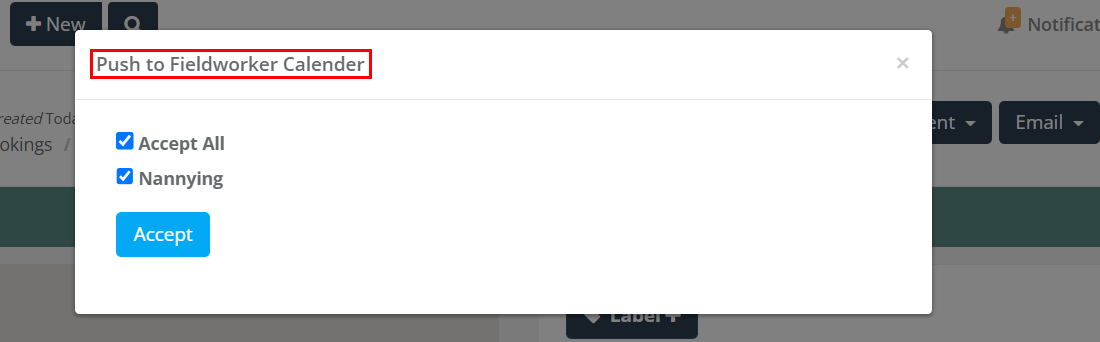
Confirm it worked: Ask the fieldworker to refresh Google Calendar (web/mobile) and confirm the new event appears on the correct Google account/calendar.
What information is sent to Google Calendar
When you manually push a booking, OctopusPro creates (or re-sends) a Google Calendar event that typically includes:
- Date & time: the booking start/end time.
- Event title: usually based on your booking/service details (your configuration may affect the naming).
- Customer & location: the service address (useful for tap-to-navigate on mobile).
- Notes/instructions: key booking notes added by the office.
Note: If the fieldworker uses multiple calendars (e.g., Personal / Work / Jobs), confirm which calendar is set as the default for new events in their Google account.
Audit trail & proof the push was sent
Manual pushes are recorded inside the booking timeline, so you can verify that the action was performed and when it happened:
- Booking Activity timeline: review booking events and actions in one place. See: Booking Activity (Timeline).
- Booking History & Audit Log: deeper change log visibility for accountability and dispute resolution. See: Booking History & Audit Log.
Best practices
- Use booking status rules for automatic syncing: Many businesses only push to Google Calendar after a booking is confirmed (e.g., Scheduled/Confirmed). Configure this via booking status flags: Managing Booking Statuses.
- Update in OctopusPro first: Make changes to time/address/notes in OctopusPro, then manually push again if needed.
- Avoid duplicates: Repeated pushes may create duplicate events depending on the situation. If duplicates appear, delete the extra event(s) in Google Calendar, then perform one final manual push if required.
- Check time zones: Ensure your OctopusPro account time zone and the fieldworker’s Google Calendar time zone are correct to prevent shifted appointment times.
Troubleshooting & FAQs
| Issue | How to fix it |
|---|---|
| I can’t see “Push to Google Calendar” | Confirm the booking has an assigned fieldworker, your role has booking permissions, and the fieldworker has connected Google Calendar (permission granted). |
| The event didn’t appear in Google Calendar | Ask the fieldworker to refresh Google Calendar (or close/reopen the app), confirm they’re viewing the correct Google account/calendar, then push again. |
| Wrong calendar (multiple calendars) | Confirm which calendar is receiving new events in the fieldworker’s Google settings. If needed, adjust their calendar preferences and re-push. |
| Event time is incorrect | Check OctopusPro and Google Calendar time zone settings, correct them, then push again. |
| Duplicate events | Delete extra event(s) from Google Calendar, then do one final manual push if required. Also review your automatic booking status rules to reduce repeated pushes. |
Does editing the Google Calendar event update the booking?
Not necessarily. For consistent operations and reporting, update the booking in OctopusPro first, then push again if you want Google Calendar to reflect the updated booking details.
Related guides
- Sync Google Calendar with OctopusPro
- View Fieldworker Google Calendar
- Managing Booking Statuses (Push/Delete rules)
- Booking Activity (Timeline)
- Booking History & Audit Log (Change Log)
To stay updated, please subscribe to our YouTube channel.