
Live Job Updates in the Fieldworker App (Status, Photos, Time & On-Site Changes)

OctopusPro’s Live Job Updates workflow helps your field team keep the office (and customers, if enabled) informed while work is happening. From the Fieldworker App, technicians can:
- Start a job (check-in) and capture arrival time/GPS (based on your settings)
- Update booking status (e.g., In Progress, Completed, Failed)
- Upload photo proof (before/after, damage, progress, compliance)
- Log estimated vs actual time for performance and job costing
- Add services, parts, materials, and extras while on site
- Apply discounts (if permitted)
This creates a clear audit trail, reduces admin follow-ups, and helps your team invoice faster and more accurately.
Jump to: Why live updates matter | Key features | Step-by-step workflow | Smart prompts after status updates | What the office sees | Admin setup checklist | Best-practice tips | Industry examples | FAQs | Related guides
Why live updates matter
- Fewer calls and messages: timestamps, notes, and photos reduce “Have you arrived?” and “What happened?” follow-ups.
- Faster billing and better cash flow: job completion details (including extras) can be captured immediately, reducing invoice rework.
- Proof of work: photos and status history support quality control, warranty claims, and dispute resolution.
- Cleaner scheduling: “In Progress” updates can drive the next-visit workflow so jobs don’t get stuck unfinished.
Key features
| Feature | What it does | Typical use case |
|---|---|---|
| Start Job (Check-In) | Captures arrival/start time (and optional GPS/checklists based on your setup). | Cleaner checks in on arrival and completes a pre-start checklist. |
| Status Updates | Updates the booking status (e.g., In Progress, Completed, Failed). | Technician marks In Progress to book a return visit once parts arrive. |
| Photo Upload | Captures multiple images with captions and stores them in the booking record. | Before/after photos for quality assurance and dispute prevention. |
| Add / Edit Services | Adds extra line items (labour, parts/materials, extras/upsells) to match what was delivered. | Plumber adds a replacement part and extra service approved by the customer. |
| Service Discounts | Applies a percentage or fixed discount (permissions-based). | Goodwill discount for a delayed start (with office approval). |
| Estimated vs Actual Time | Logs estimated finish time and actual completion time for reporting and job costing. | Compare planned vs actual time by technician, service, or customer type. |
Step-by-step workflow (Fieldworker App)
1) Start Job (Check-In)
When a fieldworker arrives on site, open the booking and tap Start Job. Depending on your setup, this can record start time/GPS and begin time tracking.
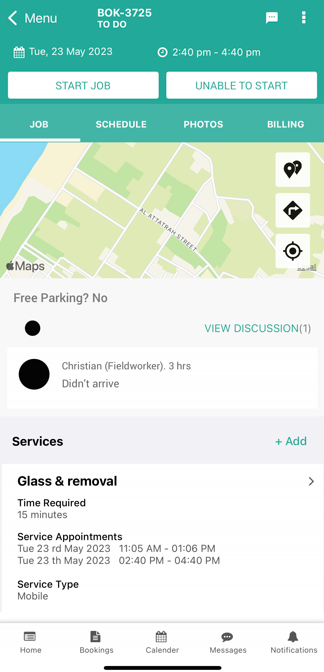
- Enter estimated finish time (if prompted) to help the office plan dispatch and follow-ups.
- Complete a pre-start checklist (optional, if your business uses checklists/forms).
- If the job cannot begin, use Unable to Start and add notes/photos where appropriate.
Tip: If you enable customer-facing updates, check-ins can help drive more accurate arrival visibility (e.g., portal updates and automated messages, depending on your configuration).
2) Finish Job and update booking status
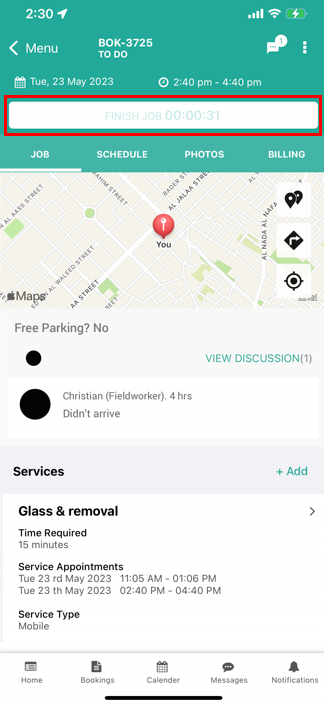
When work is complete (or cannot be completed), tap Finish Job and select the appropriate status. Your status list may vary depending on your business workflow and enabled statuses.
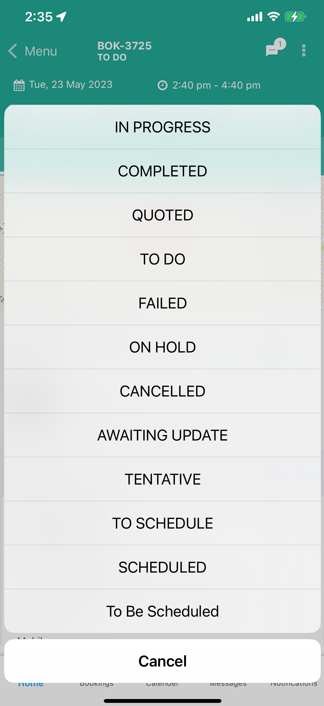
Smart prompts after status updates (what happens next)
After a status update, OctopusPro can guide fieldworkers through the next best step (based on your workflow). For example:
| Status | When to use it | Common next prompt |
|---|---|---|
| In Progress | Work started but needs another visit (parts on order, staged work, return inspection). | Pick next visit date/time and add notes for the office to prevent missed follow-ups. |
| Completed | All work finished and no further visit is required. | Option to create an invoice (draft) now or leave billing for the office to complete later (permissions/settings-based). |
| Failed | Job couldn’t be completed (no access, safety issue, customer no-show, missing equipment). | Capture a reason, add notes/photos, and trigger the correct follow-up (e.g., reschedule or admin review). |
Offline note: If a device temporarily loses connectivity, the Fieldworker App can queue changes and sync once the device reconnects.
3) Upload photos (proof of work)
Fieldworkers can capture and attach photos directly to the booking record (e.g., before/after, progress, serial numbers, damage evidence, compliance photos). Photos can be visible to office users and, if enabled, customers.
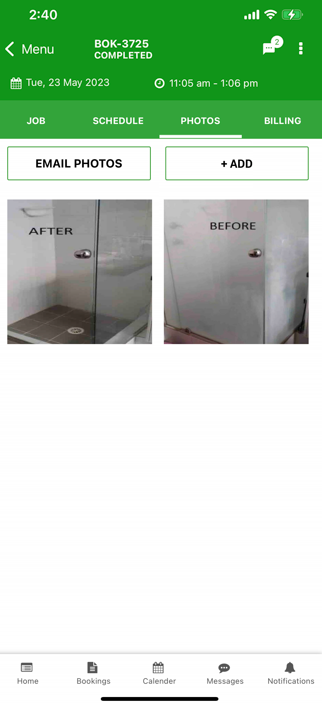
- Open the booking and go to the Photos tab.
- Tap + Add to take a new photo or select one from the device gallery.
- Add a caption where helpful (e.g., “Before repair”, “After cleanup”).
4) Add extra service lines (parts, materials, upsells)
If enabled by your admin, fieldworkers can add additional service line items on site—such as parts/materials, additional labour, or approved upsells—so invoices match the actual work delivered.
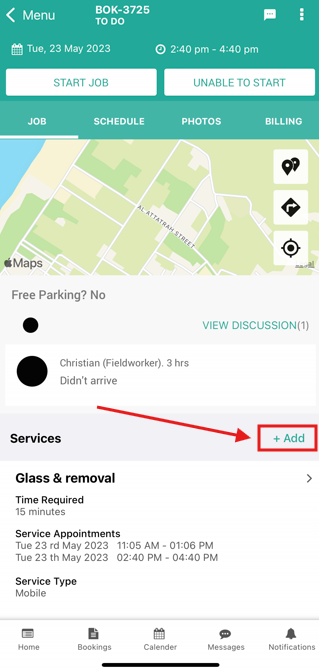
- Scroll to the Services section inside the booking.
- Tap + Add and select the service/item (or search).
- Adjust quantity and add relevant notes (and pricing if permitted).
- Save to update the booking total.
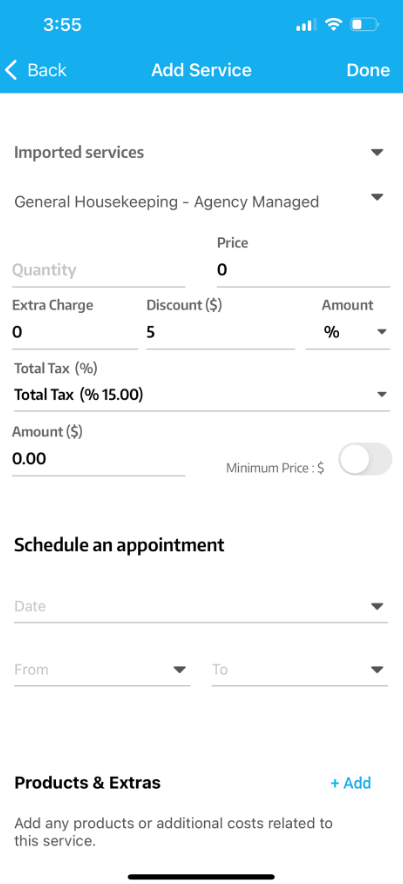
5) Apply a service discount (optional)
If your permissions allow, fieldworkers can apply a percentage or fixed amount discount for approved scenarios (e.g., bundle discount, goodwill discount, promotions).
What the office/admin sees
- Live status updates: Dispatch and admin teams can see job progress without calling the technician.
- Audit trail: status changes, notes, photos, and edits are stored in the booking record.
- More accurate billing: added line items and discounts reduce back-office corrections and missed charges.
- Better reporting: estimated vs actual time supports job costing, technician performance, and service profitability analysis.
Quick admin setup checklist
- Set fieldworker permissions: control who can edit services/pricing/discounts and what fieldworkers can access: Fieldworker Permissions & Access Control
- Review booking statuses: ensure your statuses are clear and match real outcomes (and add custom statuses where needed): Manage Booking Statuses
- Standardise job photo proof: if your team needs structured photo capture (e.g., Before/After, Damage, Progress), set up photo tags: Job Photo Tags Setup
- Use forms/checklists where needed: add pre-start and completion checklists for safety, QA, and handover: Forms & Checklists Overview
- Prompt missing updates: if fieldworkers forget to update jobs, send update requests/reminders: Request Booking Updates
Best-practice tips
- Make photos mandatory for high-risk jobs: before/after photos dramatically reduce disputes and QA issues.
- Use “Failed” with reason notes: consistent reason logging improves rescheduling speed and customer communication.
- Capture extras immediately: adding parts/materials/upsells on site prevents missed revenue and invoice delays.
- Train for consistency: ensure the team always uses Start Job / Finish Job to keep reporting accurate.
Industry examples
- HVAC / Electrical: technician marks the job In Progress, schedules a return visit, and adds parts used on the first visit.
- Cleaning: cleaner uploads before/after photos and marks Completed, helping the office invoice the same day.
- Facilities maintenance: fieldworker marks Failed due to no access, adds photos/notes, and the office reschedules with the site contact.
- Mobile services: technician adds an approved upsell line item on site, so billing matches what the customer agreed to.
FAQs
Can a fieldworker delete a mistaken photo?
This depends on permissions. If deletion is allowed, photos can be removed, and your system audit/history may still show that a change occurred.
What if a fieldworker forgets to press Start Job?
Admins can typically correct times later, but consistent Start/Finish usage ensures accurate time tracking and reporting.
Can fieldworkers add extras or discounts without approval?
You control this. Use Fieldworker Permissions to allow or restrict service edits, pricing, and discounts.
Will updates sync if the device has no signal?
In many cases, the Fieldworker App can queue actions and sync when connectivity returns (device/app conditions may apply).
Related guides
- Fieldworker Job Check-In & Check-Out Tracking (Time, GPS & Timesheets)
- Fieldworker Job Check-In/Out: Start & Finish Jobs
- Upload Images, PDFs & Docs to Bookings, Quotes & Inquiries
- Forms & Checklists Overview
- Request Booking Updates
- Manage Booking Statuses
- Job Photo Tags Setup
To stay updated, please subscribe to our YouTube channel.