
Contact Customers From Inquiries (Email, SMS & Calls)

OctopusPro helps you respond to new leads quickly and professionally by letting you contact customers directly from each inquiry. Send emails, SMS, and place calls (including VoIP where enabled), keep a complete communication trail, collaborate internally, and automate follow-ups to improve conversion and customer satisfaction.
What this feature is for
- Respond faster: Contact leads from the inquiry list or inquiry details page in a few clicks.
- Stay consistent: Use canned responses/templates with placeholders to reply professionally at scale.
- Keep a full audit trail: Outbound communications are logged so your team can see what was sent and when.
- Reduce missed opportunities: Track contact attempts and use automations and follow-up reminders to re-engage leads.
Before you start (recommended setup)
- Canned responses & templates: Build reusable email/SMS replies at Settings → Communications → Templates & Canned Responses.
- Digital phone system (SMS/VoIP): If you want two-way SMS and in-app/browser calling, connect Twilio. This enables voice calling, SMS, and optional WhatsApp (where available), and helps keep communications logged against the customer and related records.
- Automations: Configure scheduled reminders/notifications (Email/SMS/WhatsApp where available) to reduce manual follow-up.
Navigate to inquiries
- Go to Inquiries → All Inquiries.
- From the list, you can use quick contact options by hovering over the customer name, or open the inquiry for full actions and history. (See screenshots in this guide for the exact icons.)
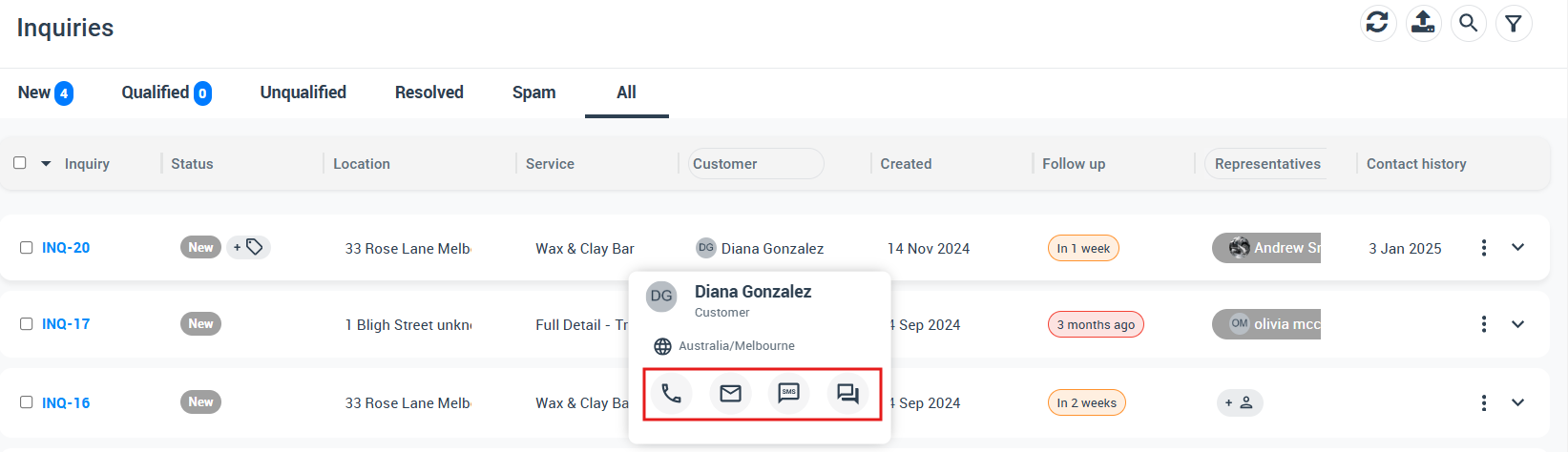
Send an email from an inquiry
Use email when you need a detailed response, attachments, or a written record of policies, pricing, and next steps.
- Open the inquiry, scroll to the Customer section, then click the Email icon.
- Choose Send Email, then:
- Select a canned response to respond quickly and consistently.
- Attach any required files (e.g., terms, brochures, product sheets, photos, or example reports).
- Personalize key lines (name, service details, time window, questions) while keeping the template structure.
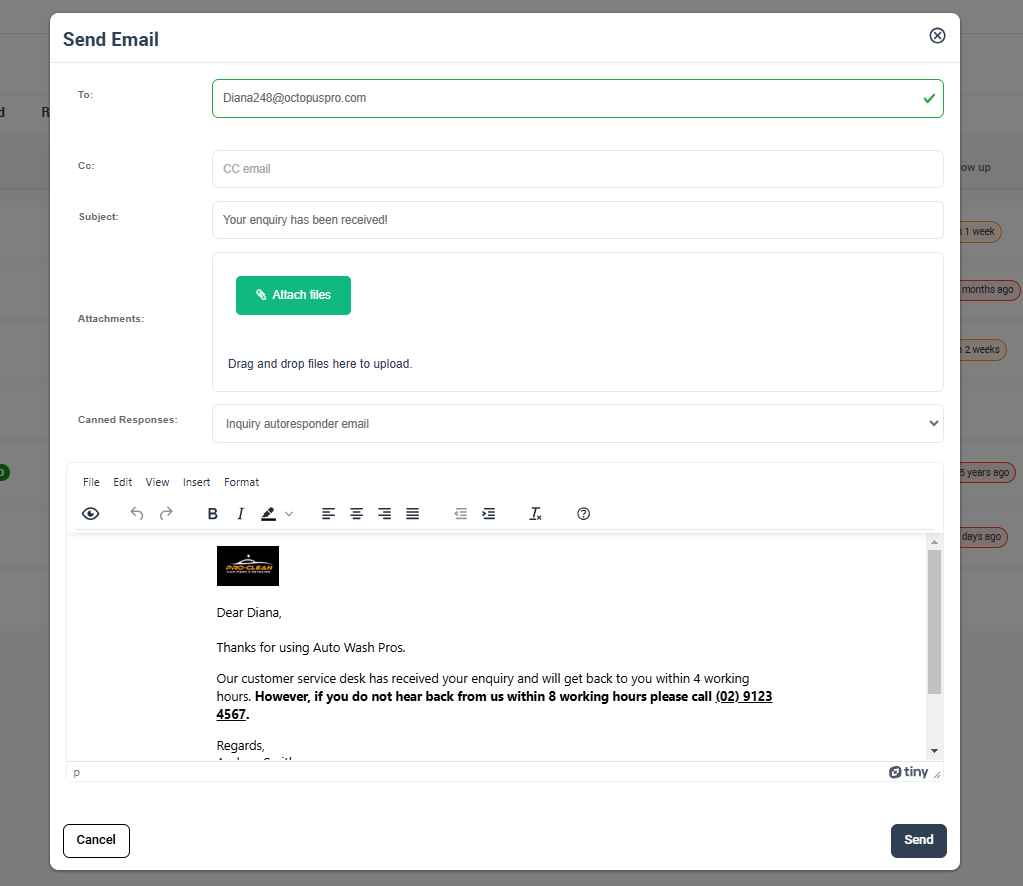
Tip: Canned responses are designed to streamline replies without losing personalization, using placeholders (merge fields) like {customer_first_name}.
Learn more: Canned Responses & Templates
Send an SMS (and pause automated SMS for a specific customer)
Use SMS for fast confirmations, short questions, and time-sensitive follow-ups.
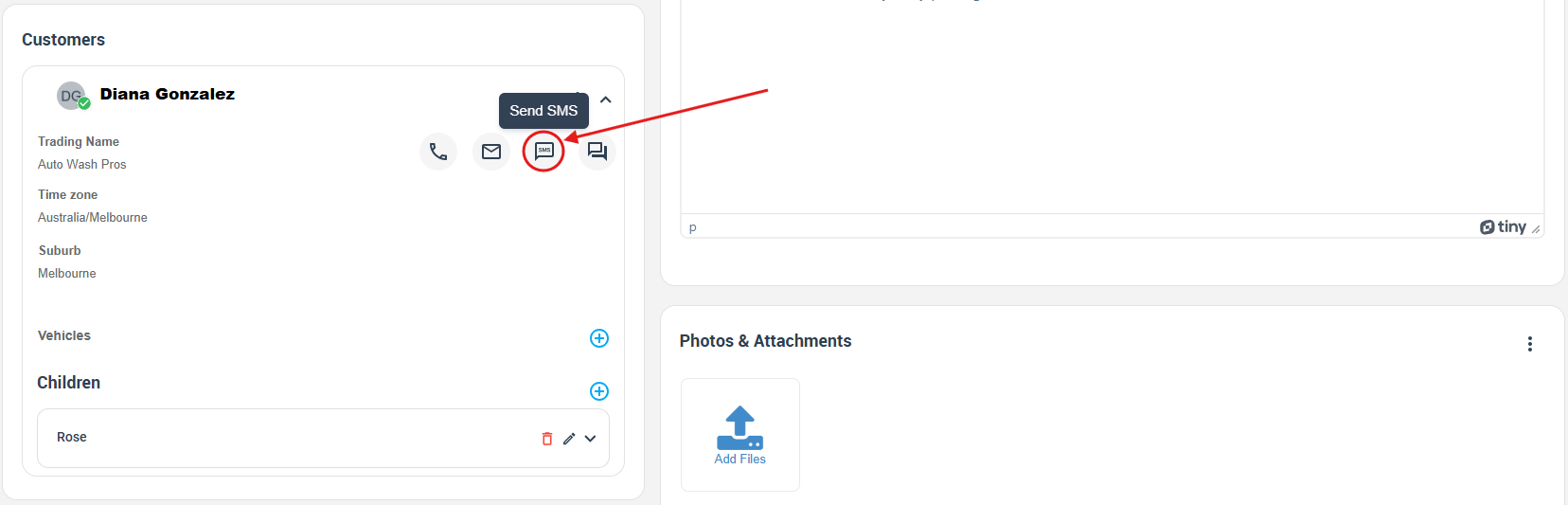
- From the inquiry’s Customer section, click the SMS icon and select Send SMS. Canned responses can also be used for SMS.
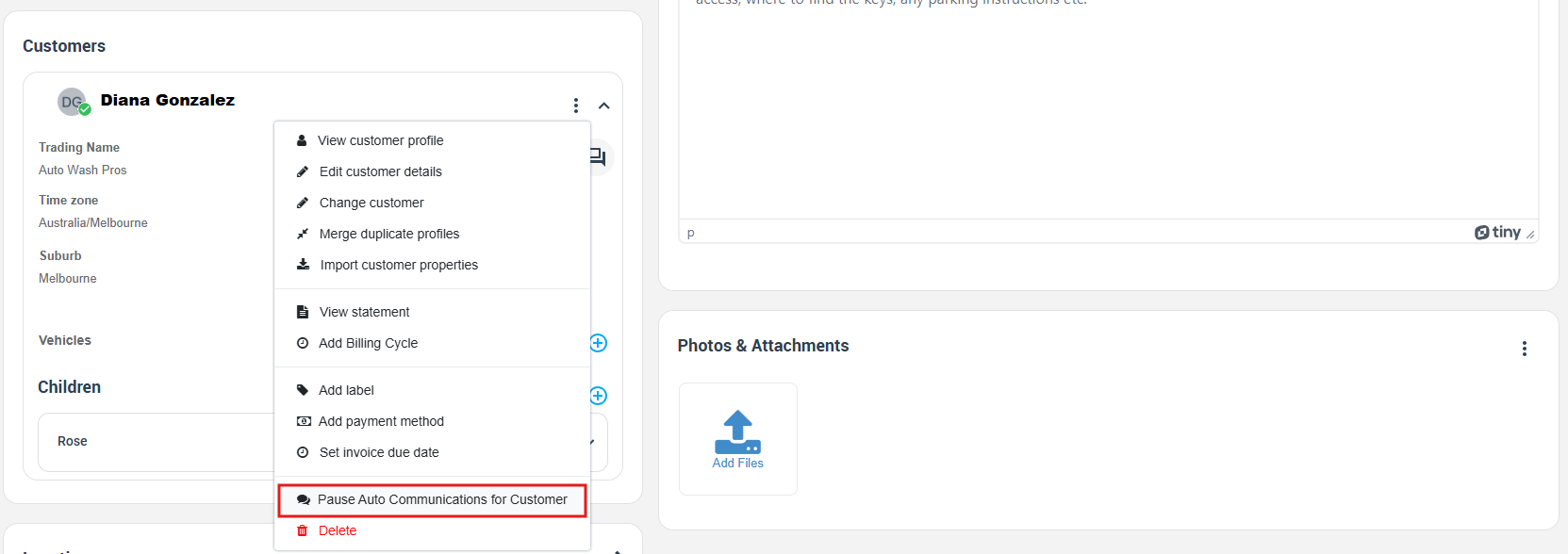
- Pause/Resume automated SMS (per customer): In the inquiry’s Customer section, open Actions and choose Pause Auto Communication for customer. Repeat the same action to resume when needed.
Note: For two-way SMS through OctopusPro (and in-app/browser calling), set up the Digital Phone System (Twilio).
Learn more: Set Up a Digital Phone System (Twilio Integration)
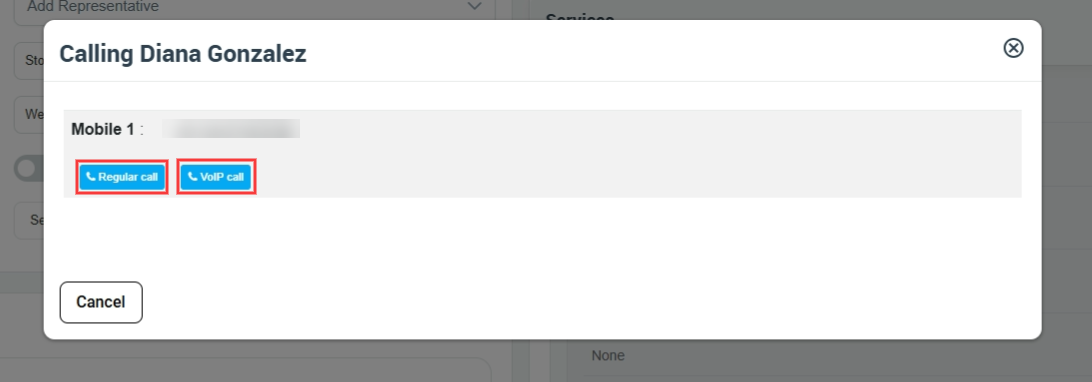
Call the customer from the inquiry (regular calls or VoIP)
Calling is ideal for complex inquiries, urgent jobs, and higher-value leads where a quick conversation improves close rates.
- OctopusPro supports integrated calling options, including VoIP (where enabled) for faster, more personal responses.
- When using the Digital Phone System, calls and messages can be logged back to the customer and related records for a complete audit trail.
Use the Inquiry Discussion Board (internal collaboration + customer-visible updates)
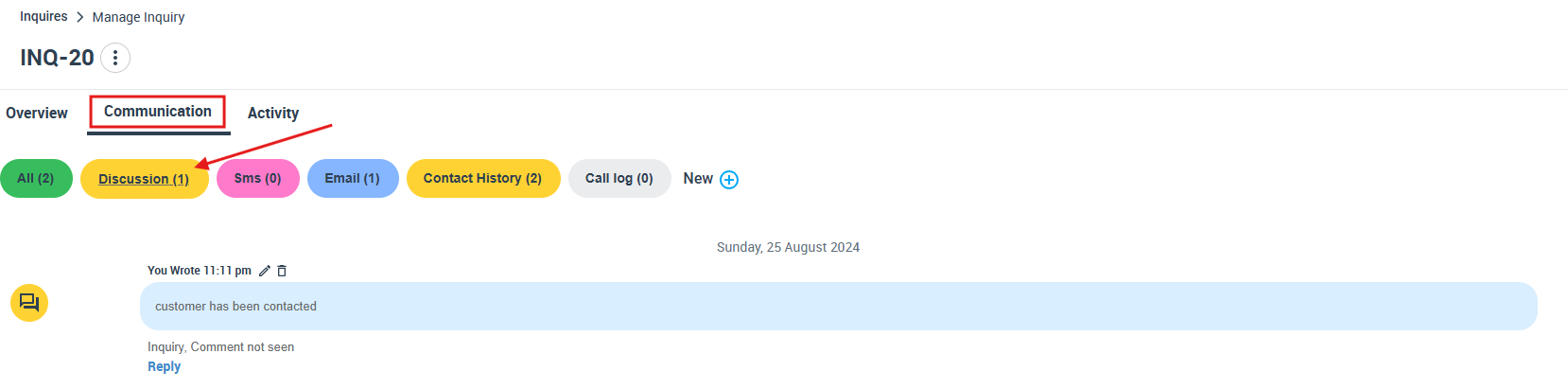
The Inquiry Discussion Board keeps all inquiry-related notes, files, and updates in one thread—so your office team can collaborate without losing context.
- Add comments, upload files/images, and manage who can see each message using visibility settings (e.g., Office only vs Everyone).
- Notify the customer from the discussion board. Email notifications may require custom email configuration; SMS notifications require the Digital Phone System (Twilio).
- Permissions note: This discussion feature is typically intended for admin/office use (depending on your role permissions).
Learn more: Inquiry Discussion Management
Attach files to an inquiry (photos, documents, and supporting info)
Request and store images and documents on the inquiry to speed up quoting and reduce back-and-forth (e.g., job photos, compliance docs, measurements, product specs).
- You can attach files from the inquiry and keep them tied to the lead record.
- Important: Fieldworkers can access inquiry attachments after the inquiry is converted to a booking/quote and assigned to them (depending on your setup).
Learn more: Attach a File to an Inquiry
Track contact attempts and automate reminders for uncontacted leads
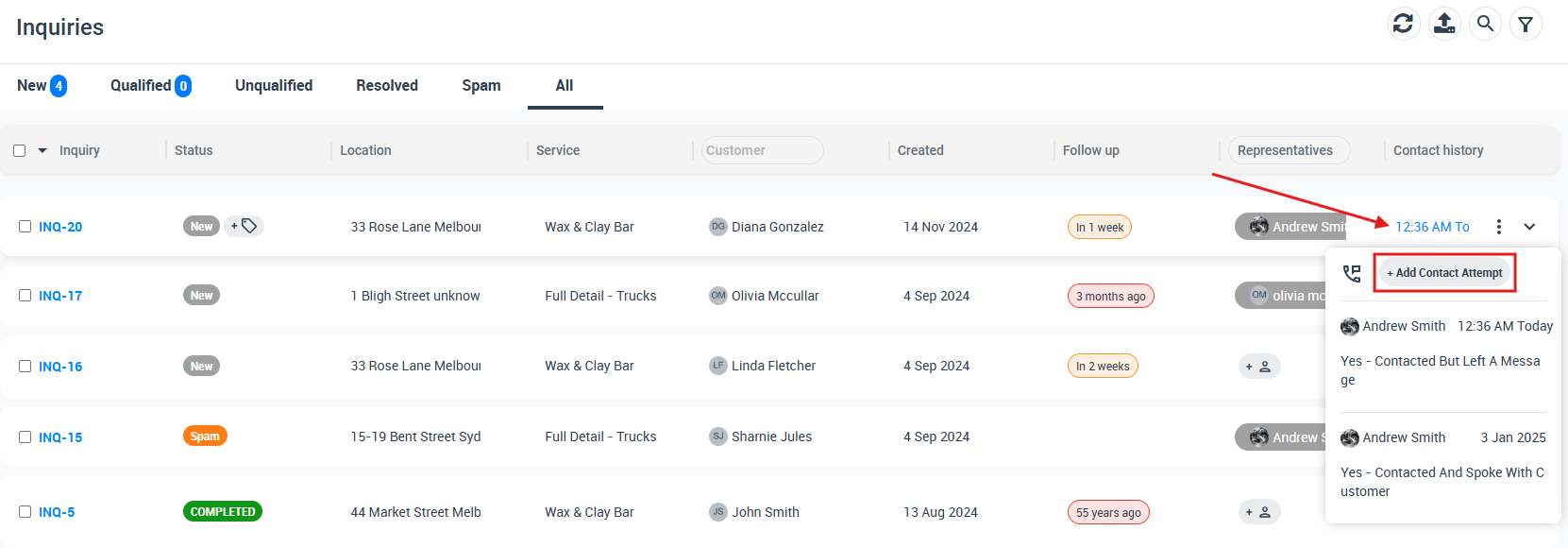
OctopusPro can help you track contact attempts and keep customers informed if your team hasn’t reached them yet (ideal for missed calls, unanswered messages, or busy periods).
- Use automations to send reminders such as inquiry contact attempt notifications and photo request reminders to reduce drop-offs.
- Automations can run on schedules and can be enabled/disabled as needed.
Learn more: Automations (Automated Reminders & Confirmations)
Don’t forget follow-up (Follow-Up Reminders for inquiries/leads)
Follow-up reminders help ensure no lead is missed. You can schedule, view, edit, and remove follow-ups for inquiries/leads, and you can tie reminders into automations for consistent nurturing.
Learn more: Follow-Up Reminders for Inquiries/Leads
Next steps: convert the inquiry to a booking or a quote
Once you’ve contacted the customer and confirmed requirements, move the lead forward:
- Convert inquiry to booking when the customer is ready to schedule.
- Convert inquiry to quote/estimate when you need to price first (then convert to a booking after approval).
Convert Inquiry to Booking
Convert Inquiry to Quote/Estimate
Organize and qualify inquiries
- Add labels/tags to categorize leads (e.g., “High Value”, “Needs Photos”, “Urgent”, “Commercial”). Add a Label to an Inquiry
- Mark spam inquiries to keep your pipeline clean. Mark an Inquiry as Spam
Reporting and audit trail
- Inquiries statistics: Monitor inquiry activity and performance from reporting dashboards.
- Customer communication history: View a single timeline of outbound email, SMS, calls, and discussions with filters to quickly find what happened.
Inquiries Statistics
Customer Communication History
Real-world examples (how businesses use this)
- Electrician: Customer submits an inquiry about a switchboard upgrade → request photos via SMS → send a quote → schedule the booking after approval.
- Plumber: Missed call inquiry after-hours → automation sends “we received your inquiry” + ETA for callback → office calls next morning and logs notes in the discussion board.
- Vet clinic: Inquiry about urgent appointment availability → quick call to triage → send confirmation SMS with instructions and FAQs.
- Towing/mobile mechanic: Customer sends location and photos → office confirms details by SMS → dispatch after converting inquiry to booking.
FAQs
What are canned responses?
Canned responses are pre-written email/SMS templates that help you reply faster and stay consistent, while still personalizing with placeholders (merge fields).
Can I customize canned responses for email and SMS?
Yes. Create and manage them in Settings → Communications → Templates & Canned Responses.
How do I enable two-way SMS and calling from OctopusPro?
Set up the Digital Phone System (Twilio Integration) to enable business-grade voice calling, SMS, and optional WhatsApp (where supported).
What other automations help with inquiries and engagement?
OctopusPro supports a range of automations related to customer engagement, including inquiry follow-ups, contact attempt notifications, photo/document requests, and customer FAQs, plus many others for quotes, bookings, invoices, and fieldworkers.
Can I automatically include FAQs in inquiry communications?
Yes. If you use Service FAQs Management, you can insert FAQs into email templates using a placeholder such as {faq} (where configured).
Optional: Best-practice checklist
- Respond within 5–15 minutes when possible (best conversion window for most service industries).
- Ask for photos early to speed up quoting and reduce site visits.
- Log outcomes after each call/message so anyone on the team can continue the conversation.
- Use follow-up reminders for leads that didn’t reply within 24 hours.
- Convert to quote or booking as soon as requirements are confirmed to keep the pipeline moving.
To stay updated, please subscribe to our YouTube channel.