
Starting Numbers for Bookings, Quotes (Estimates), Invoices & Inquiries
OctopusPro lets you set a starting number for your Bookings, Quotes/Estimates, Invoices, and Inquiries. This controls the next reference number the system assigns to newly created records (e.g., BOK-400, EST-400, INV-400, INQ-400), helping you keep numbering consistent—especially when migrating from another platform or when you don’t want early records to show low numbers like “1”.

On this page
- What this is for
- Key benefits
- Important notes (read before you set it)
- How to set starting numbers
- What happens after you save
- Examples & best-practice
- Troubleshooting
- Frequently asked questions
- Related guides
What this is for
Starting numbers help you control how record IDs appear across your account (Admin Portal, Customer Portal, emails, PDFs, exports, and internal logs). Common use cases include:
- Migration / cutover: Continue numbering from your previous system (e.g., your last invoice was INV-5820, so you start from 5821+).
- Professional presentation: Avoid showing customers very low numbers (e.g., BOK-1) if you’re new or launching a new brand/branch.
- Internal consistency: Align reference numbers with your accounting, filing, or reporting workflows.
Key benefits
- Cleaner customer communication: Reference numbers look consistent on confirmations, reminders, and invoices.
- Faster support & dispatch: Staff can reference higher, unique IDs that are easy to search and quote over the phone.
- Reduced risk of duplicates during migration: Starting above existing ranges helps prevent numbering conflicts.
- Better auditability: A consistent numbering range makes tracking and reconciliation easier.
Important notes (read before you set it)
- One-time setting: Your company can typically specify the starting numbers once to prevent future number duplication.
- Choose carefully: Pick a starting number that won’t overlap with any existing IDs you already use in OctopusPro or in external systems.
- Existing records: Setting starting numbers impacts new records going forward. It does not “re-number” your historical bookings/invoices/quotes/inquiries.
- Accounting sync consideration (invoices): If you sync invoices to Xero or QuickBooks, keep invoice numbers unique and consistent to avoid confusion during reconciliation.
Tip: If you’re migrating, start your numbering slightly above your last number in the old system (e.g., last invoice INV-5820 → start invoices at 5900 or 6000 for a clean “new chapter”).
How to set starting numbers
To set your starting numbers:
- Go to Settings in your OctopusPro Admin Portal.
- Open General Settings and select Booking Settings (menu naming may vary slightly by account configuration).
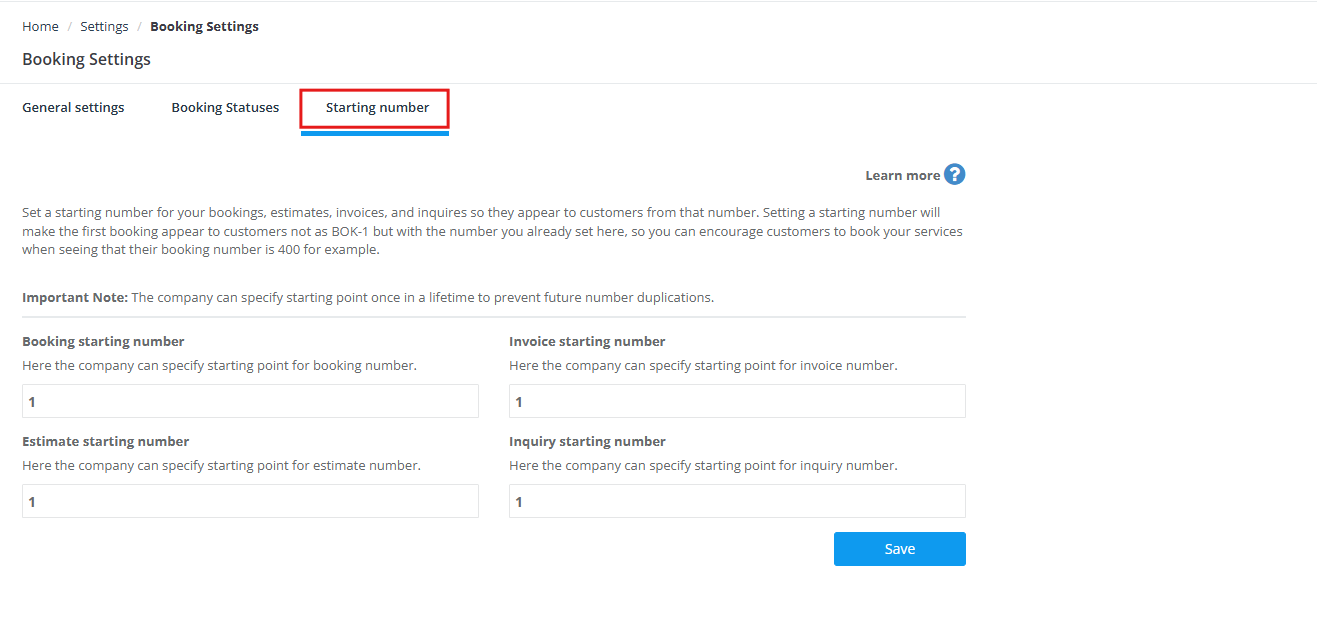
- Click the Starting number tab/page.
- Enter the starting number you want for each record type:
- Booking starting number
- Estimate (Quote) starting number
- Invoice starting number
- Inquiry starting number
- Click Save.
What happens after you save
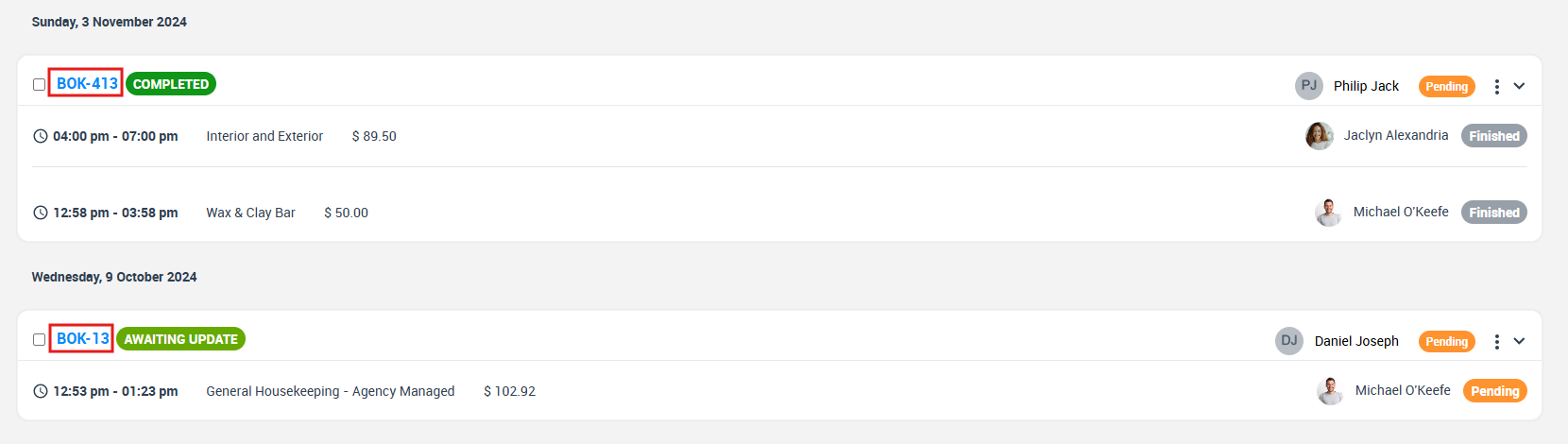
- New records use the new sequence: If you set bookings to 400, the next booking will start from that range (e.g., BOK-400), then increment sequentially for each new booking.
- If you already have existing records: OctopusPro will account for the number of existing records to avoid duplication. For example, if you set the booking starting number to 400 and you already have 13 bookings, the next booking number will be 400 + 13 = BOK-413.
- Where you’ll see it: Reference numbers appear in list views, record headers, PDFs, email templates (where applicable), and the Customer Portal (depending on what you display to customers).
Examples & best-practice
Example 1: Make your first bookings look established
Set your booking starting number to 400. Your first customer-facing booking will appear as BOK-400 instead of BOK-1.
Example 2: Continue from a legacy system
If your previous system ended at INV-5820, set your invoice starting number to a value above that (e.g., 5900 or 6000) so invoices created in OctopusPro don’t overlap and are easy to distinguish.
Example 3: Separate ranges by workflow
Some businesses choose different starting ranges for different record types to reduce confusion (e.g., Inquiries start at 1000, Quotes at 3000, Bookings at 5000, Invoices at 7000).
- Keep numbers unique: Avoid using starting numbers that may overlap with already issued numbers.
- Document your numbering policy: Write down the ranges you chose and why (useful for onboarding new staff).
- Think about printed references: If customers reference invoice numbers on bank transfers, keep invoice IDs clear and consistent.
Troubleshooting
- I can’t see the “Starting number” tab: Make sure you’re logged in as an Admin (or a user role with permission to access Booking Settings).
- The number didn’t change for an existing record: Starting numbers only affect new records. Existing bookings/quotes/invoices/inquiries keep their original reference numbers.
- I already saved and need to change it: Starting numbers are typically a one-time configuration. If you need help due to a migration issue, contact your account admin/team and OctopusPro support for guidance.
Frequently asked questions
Can I change the booking number or quote number after it’s created?
In most cases, booking and quote numbers are system-controlled to prevent duplicates. If you need to reference an external/legacy number, consider capturing it in a custom field, internal note, or a reference field used by your team.
Can I change invoice numbers after creation?
Yes—invoice numbers can typically be edited from the invoice’s Actions menu. If you sync invoices to accounting software (Xero/QuickBooks), changes will appear after the next sync.
Does this change the prefix (BOK-, INV-, EST-, INQ-)?
Starting numbers control the numeric sequence. Prefix behavior depends on your account configuration and document/reference numbering settings.
Related guides
- Booking Settings, Flags and Permissions
- Create a New Booking
- Convert Inquiry to Booking
- Convert Inquiry to Quote / Estimate
- Change / Edit Invoice Number
- Change a Quote Number (EST / Estimate ID)
To stay updated, please subscribe to our YouTube channel.