
Quote Follow-Up Reminders & Automation (Email, SMS & WhatsApp)
Sending a quote (estimate) is only the first step. To convert more quotes into confirmed bookings, you need a follow-up process that’s consistent, trackable, and easy to manage.

OctopusPro’s quote follow-up workflow helps you:
- Set a follow-up date on each quote (so nothing slips through the cracks)
- See all quotes due for follow-up in one place
- Automate quote reminders via Email and SMS (and WhatsApp where enabled)
- Track manual follow-ups (email, SMS, phone calls) with full logging
- Let customers Accept or Decline quotes online (email link + customer portal)
On this page
- How quote follow-up reminders work
- Set (or remove) a follow-up date on a quote
- View quotes due for follow-up
- Accepting & declining quotes (and what happens next)
- Activate & configure automated quote reminders
- Customize reminder templates (Email/SMS)
- When reminders stop (and reminder caps)
- Follow up by Email, SMS & phone calls
- Tracking & logs (Message Center, automation log, email/SMS logs)
- Limitations & best practices
- Troubleshooting
How quote follow-up reminders work
Quote follow-up reminders are driven by two things:
- Follow-up reminder toggle (enabled/disabled per quote)
- To follow date (the follow-up date stored on the quote)
Once a quote has a follow-up date and follow-up reminders are enabled, your team can:
- Manually follow up from the quote (Email/SMS/Call)
- Let automation send reminders based on your configured timing
- Stop reminders automatically when the quote is actioned (accepted/declined/converted)

Tip: You can also automate other communications from the Automation settings. See Automated Reminders & Confirmations (Workflow Automations).

Set (or remove) a follow-up date on a quote
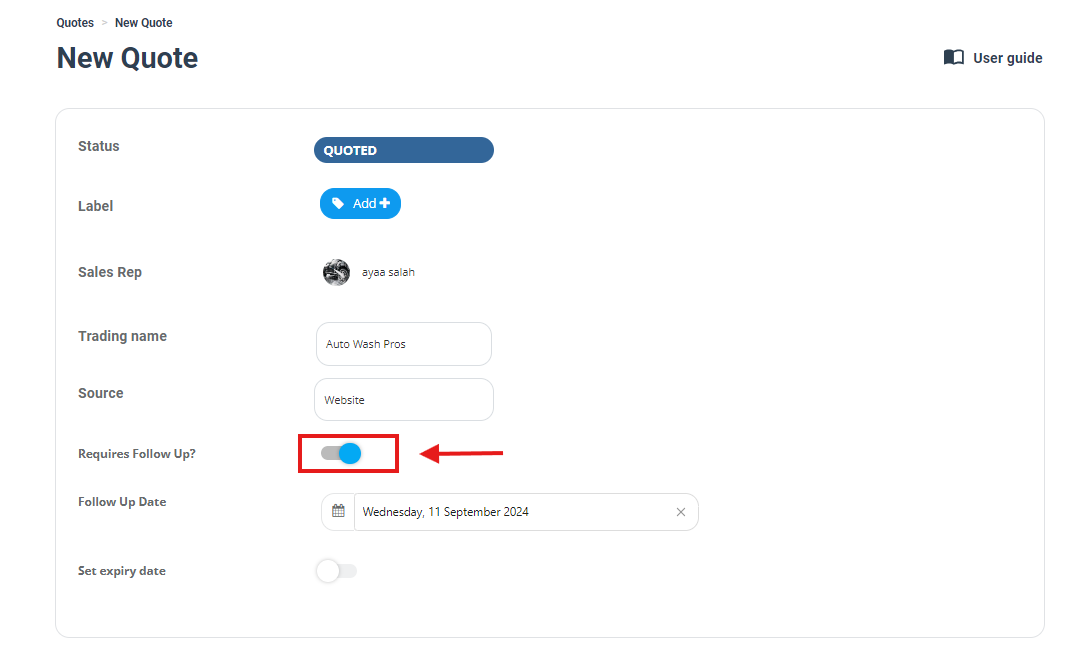
Option 1: Set the follow-up date while creating or editing a quote
- Open a quote (new or existing).
- Switch Follow-up reminder ON.
- Select the follow-up date (To follow date).
- To stop follow-ups for this quote, switch Follow-up reminder OFF (this clears the follow-up date and excludes the quote from follow-up lists/automations).
Option 2: Update the follow-up date from the Quotes list
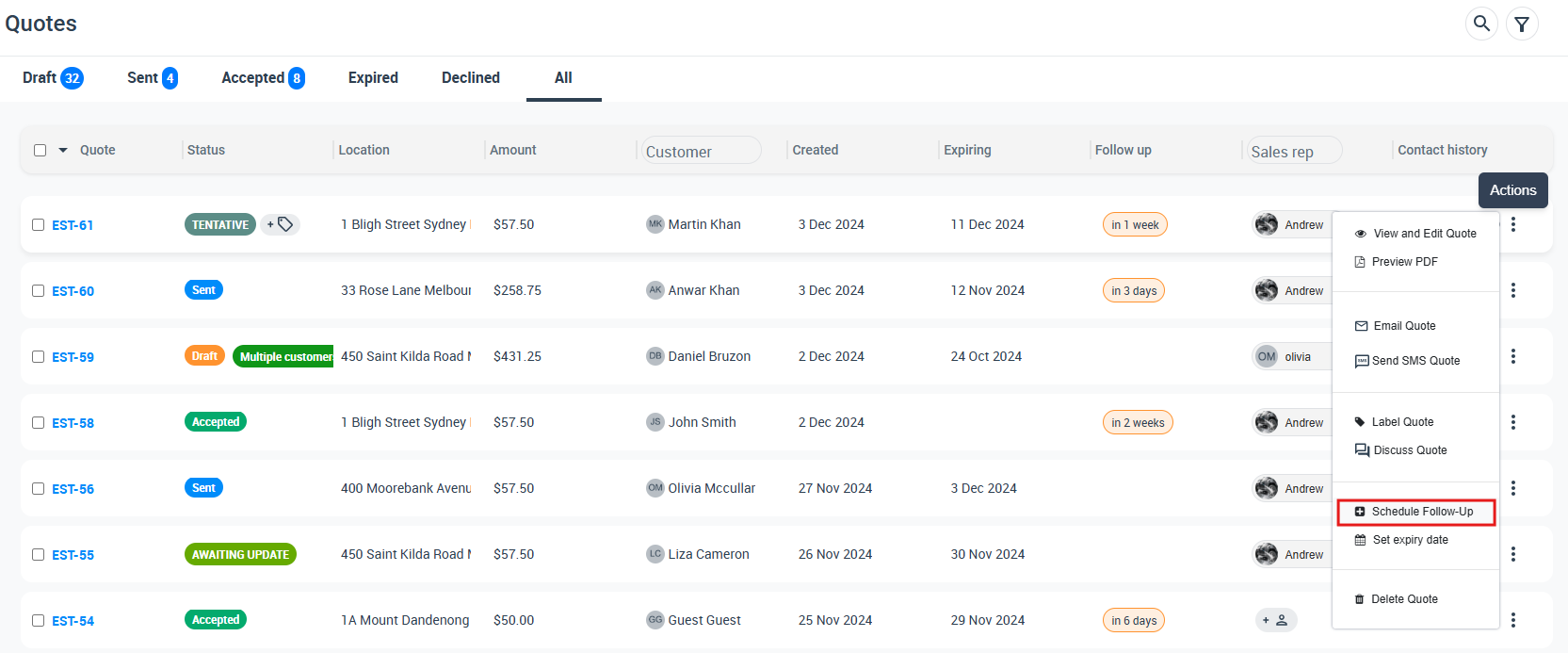
- Go to Quotes > All quotes.
- Find the quote you want to update.
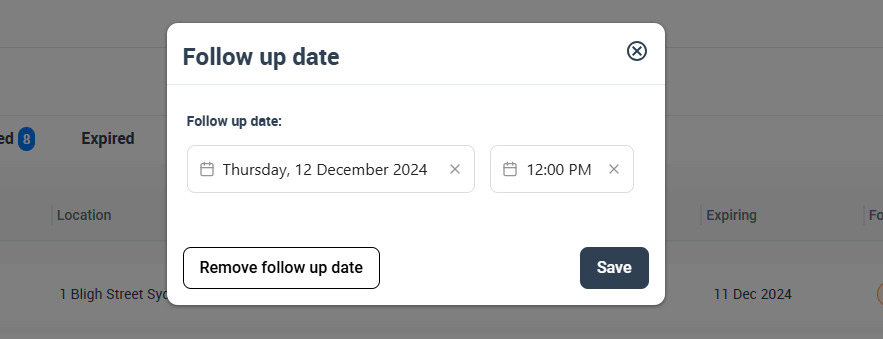
- Either click the follow-up date in the list, or click Actions and choose Schedule follow-up.
- Update the follow-up date/time (or disable follow-up reminders for that quote).
Important: If the quote status changes (for example, converted to a booking or declined), or if the follow-up reminder is switched off, the quote will no longer be treated as “due for follow-up” and will be excluded from automated reminders and follow-up lists.
View quotes due for follow-up
If you prefer a manual workflow, you can work from a central list of quotes that require attention:
- Go to Quotes > All quotes.
- Use the Follow-up filters/section to view quotes with follow-up dates that are due or overdue.
- From this list you can:
- Open the quote record
- Email or SMS the customer
- Call the customer
- Update the follow-up date or disable the follow-up reminder
Why this matters: It keeps your pipeline organised and ensures no quote is forgotten—even without automation.

Accepting & declining quotes (and what happens next)
Customers can accept or decline quotes directly from their quote email (via buttons/links) or through the customer portal. This creates cleaner reporting and automatically controls follow-up reminders.

Declining a quote
For customers (email or customer portal):
- Customer clicks Decline Quote and confirms.
- The quote status becomes Declined.
- Follow-up reminders stop and the quote is removed from follow-up lists.
For admins (declining on the customer’s behalf):
- From Quotes > All quotes, use Actions to decline the quote.
- Best practice: Capture a decline reason (where configured) to improve reporting and understand why quotes are lost.
Accepting a quote
For customers (email / customer portal):
- Customer clicks Accept Quote from the email.
- The customer portal opens to review the quote and proceed.
- Self-schedule (if enabled): customer selects a date/time from live availability and confirms.
- If self-booking is not enabled: customer can accept, and your team schedules the booking manually.
For admins (converting accepted quotes):
- Go to Quotes > All quotes and locate the accepted quote.
- Click Actions > Convert to booking.
- Confirm scheduling details (date/time, fieldworker assignment, etc.) and save.

Learn more:
Activate & configure automated quote reminders
Automated quote reminders send scheduled follow-ups based on each quote’s To follow date.
1) Open automation settings
- Go to Settings > Communications > Automation.
2) Enable the “Quote reminder” automation job
- Find the Quote reminder automated job.
- Switch it ON to enable automated reminders linked to the quote follow-up date.

3) Configure reminder timing (cadence)
Set when reminders should be sent after the follow-up date:
- Example: send a reminder 7 days after the To follow date if the quote is still pending.
- You can configure multiple intervals (days/weeks/months) depending on your workflow.

Example follow-up schedules
- Fast turnaround services: +1 day, +3 days, +7 days
- Mid-value quotes: +3 days, +7 days, +14 days
- High-value projects: +7 days, +14 days, +30 days (plus a phone call task)
Customize reminder templates (Email/SMS)
Reminder content is controlled by your communication templates. To edit them:
- Go to Settings > Communications > Templates.
- Edit the Email and SMS templates used by the quote reminder automation.
- Use placeholders to automatically insert quote/customer details (name, quote link, totals, etc.).


Template resources:
- Email Templates
- SMS Templates
- Canned Responses (Quick Replies)
- Template Placeholders (Email, SMS & WhatsApp)
Note for SMS/WhatsApp: To send SMS (and WhatsApp where enabled), your account may need messaging enabled and configured. If you use OctopusPro’s built-in messaging/VoIP, see Set Up Digital Phone System.
When reminders stop (and reminder caps)
Reminder cap (maximum number of reminders)
To avoid over-messaging customers, you can set a maximum number of reminders per quote. If you want reminders to continue until the quote is actioned, you can leave the cap blank (until a stop condition is met).
Automated reminders stop when:
- The quote is converted to a booking
- The quote is declined (by the customer or by an admin)
- An admin switches Follow-up reminder off or removes the follow-up date
- The customer opts out/unsubscribes using the links provided in your communications
Optional control: You can pause/resume automatic notifications for quotes/bookings/invoices without changing your overall automation setup: Pause / Resume Notifications.
Follow up by Email, SMS & phone calls
Follow up via Email
- Manual emails: Best for personalised outreach (high-value quotes). Use templates/canned responses to speed up sending.
- Automated emails: Use the quote reminder automation to send scheduled follow-ups after the follow-up date.
Follow up via SMS
- Manual SMS: Great for quick, direct contact. Use templates + placeholders for consistency.
- Automated SMS: Use the quote reminder automation with SMS templates to send reminders automatically. Messages are visible in your message history for full context.
Phone call follow-ups (VoIP & direct calling)
For many service businesses, phone calls are the fastest way to close quotes:
- Integrated VoIP calling (e.g., Twilio): Call from inside OctopusPro with call logging and (if enabled) recording.
- Direct device calls: Make calls as usual—OctopusPro can still help you track follow-up activity depending on your setup.
Learn more: Twilio Digital Phone System in OctopusPro
Tracking & logs (Message Center, automation log, email/SMS logs)
To keep your team aligned and accountable, OctopusPro logs quote communications and automation activity:
- Automations / Scheduled Tasks Log (see when reminders ran and what was sent)
- Customer Communication History (full conversation and outbound history per customer)
- Outbound Email Log (delivery/audit trail for emails)
- SMS History Log (incoming/outgoing SMS tracking)
Limitations & best practices
- The follow-up date is for quote management only. It does not affect booking schedules, invoice due dates, or other time-based workflows.
- Don’t spam customers: Use a reminder cap and sensible intervals (and switch to a phone call for high-value quotes).
- Respect opt-outs: If customers unsubscribe/opt out, avoid contacting them through that channel. If you customise unsubscribe reasons, review: Unsubscribe Reasons Feedback.
- Use decline reasons: Capturing structured decline reasons improves sales reporting and helps you fix recurring objections.
Troubleshooting
If automated quote reminders are not sending, check the following:
- Automation is enabled: Settings > Communications > Automation > “Quote reminder” is ON.
- Follow-up reminder is enabled on the quote: the quote has Follow-up reminder ON and a To follow date set.
- Quote status is still pending: reminders stop once the quote is accepted, declined, or converted.
- Reminder cap not reached: if you set a maximum number of reminders, confirm it hasn’t been hit.
- Customer can receive messages: valid email/phone exists and customer hasn’t unsubscribed/opted out.
- SMS sending configured: if you’re using SMS automation, confirm messaging settings/phone system are configured (if required).
- Check logs: review the Automations Log and Email/SMS logs to confirm what happened.
To stay updated, please subscribe to our YouTube channel.