
Quote & Estimate Management (Quotes, Estimates & Proposals)
OctopusPro’s Quote & Estimate Management module helps you run a clean, trackable sales pipeline—from drafting an estimate to sending it to the customer, following up, and converting approved quotes into confirmed bookings (and then invoices). It’s built for field service and appointment-based businesses that need faster turnaround, better visibility, and fewer admin tasks.

Table of contents
- Overview: what you can do with Quotes in OctopusPro
- Quote pipeline: statuses, lists & filters
- Create quotes & estimates (web, mobile, portal)
- Edit quote details, numbering, and ownership
- Send quotes by email/SMS and track activity
- Quote approval workflow: Accept, Decline, or Sign & Approve (eSignature)
- Follow-ups & reminder automation
- Attachments & labels (internal organisation)
- Collaboration: discussion board, issues & communication controls
- Scheduling tools inside quotes (availability & proximity)
- Convert a quote to a booking (quote-to-cash)
- Export / download quote PDFs
- Delete, restore, or permanently remove quotes
- Related quote guides
Overview: what you can do with Quotes in OctopusPro
Quotes (also called estimates, proposals, or cost estimates) are used to present pricing and scope to a customer before work is scheduled or invoiced. In OctopusPro, quotes are first-class records—meaning they support:
- Centralised quote management across your team (office users and approved field staff)
- Customer acceptance/decline workflows (via quote email and/or portal, depending on your setup)
- Follow-up dates and automation so quotes don’t go cold
- Operational handover by converting approved quotes into bookings without re-typing
- Auditability through logged activity and history on quote records
If you want a high-level overview of quoting and estimating features (and how they fit into a field-service workflow), start here: Service quote management overview.
Quote pipeline: statuses, lists & filters
To keep your quoting pipeline organised, OctopusPro provides pipeline tabs, real-time counters/badges, and filters so you can instantly find what needs action (send, follow up, schedule a site visit, convert to booking, or clean up old quotes).

Pipeline tabs (what each view means + what to do next)
| Tab / pipeline view | What it shows | Typical next action |
|---|---|---|
| All Quotes | Portfolio-wide view (admin/manager) | Review pipeline volume, conversion, and workload |
| My Quotes | Quotes you own/created (sales accountability) | Work your personal follow-ups and updates |
| Draft | Quotes still being prepared (not sent yet) | Finalise scope/pricing, then send to customer |
| Sent | Quotes that have been delivered to the customer | Set/adjust follow-up date, send reminder, or call |
| To Follow | Work queue generated from the quote’s To follow (follow-up) date (due/overdue) | Follow up manually or let reminders run; update/disable follow-up if needed |
| Site Visit | Quotes requiring an on-site assessment / inspection slot | Let customer self-schedule (if enabled) or schedule internally |
| Accepted | Customer approved the quote | Convert to booking and schedule the job |
| Signed | E-signature captured (where enabled) | Proceed to scheduling / booking conversion |
| Declined | Customer rejected the quote (or admin marked declined) | Log outcome (optional reason), stop chasing, report on losses |
| Expired | Validity date passed | Re-quote, extend validity, or close out |
| Deleted | Soft-deleted quotes (recycle bin / audit control) | Restore or permanently delete |
Note: “To Follow” is best described as a follow-up work queue, not a “quote lifecycle status” like Draft/Sent/Accepted—because it’s driven by the quote’s follow-up date/flag and is removed automatically when the quote is no longer pending.
Filters (find what needs action fast)
From any quote list, you can quickly segment and prioritise work using filters such as: status, labels, owner/sales rep, follow-up due/overdue, date ranges, and quote number/customer search—so you can surface the right quotes in seconds (e.g., “Sent quotes due for follow-up”).
Learn more about managing quote lists and tracking quotes: Quote & estimate management.

Create quotes & estimates (web, mobile, portal)
1) Create a quote from the back office (web)
Office users can create a quote from the Quotes area and complete details such as the customer, service, address, pricing line items, expiry date, and follow-up date. This supports a structured sales workflow and ensures quotes are consistent.
Step-by-step guide: Create a new quote / estimate.
2) Create & send quotes from the field (mobile)
With the right permissions, fieldworkers can send quotes while on-site (using your predefined templates), which helps businesses close work faster and reduce office bottlenecks.
How it works: Send quotes from the fieldworker app.
3) Customer-generated quotes via the customer portal
If you enable customer portal quoting/booking workflows, customers can initiate services and generate a quote through a self-service flow. This is ideal for businesses that want to reduce inbound calls and speed up conversions outside business hours.
Portal workflow details: Customer-generated quotes via the self-service portal.
Edit quote details, numbering, and ownership
Edit quote details (scope, pricing, dates, and fields)
Quotes often evolve during negotiation. OctopusPro lets you update key details (including customer details, schedule-related fields, expiry and follow-up dates, and quote metadata) directly from the quote record.
Guide: Edit quote details.
Keep professional quote numbering
You can set starting numbers (useful when migrating from another system) and, when needed, manually update a specific quote number.
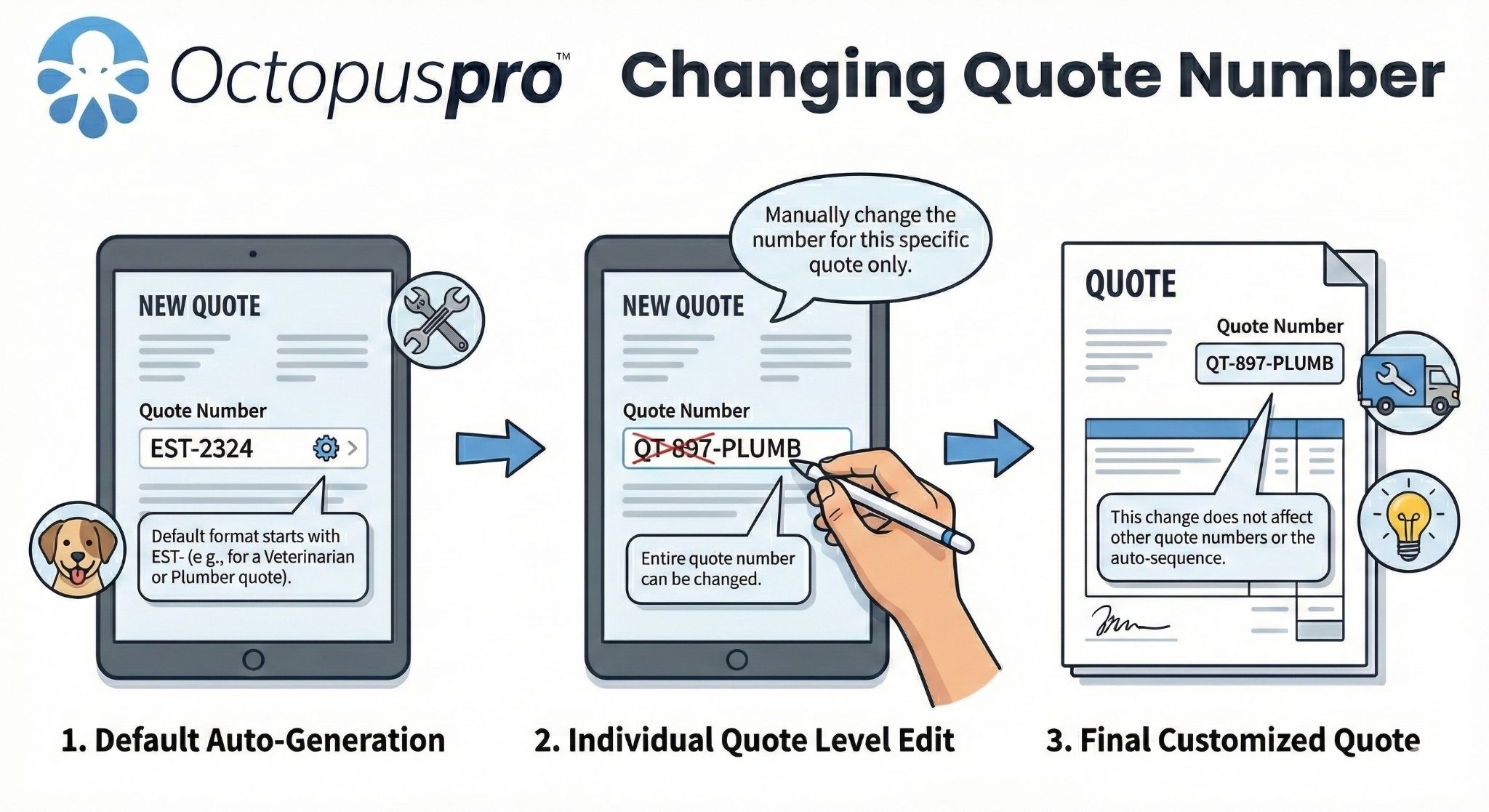
Guide: Change quote numbers / set a starting number.
Assign/transfer quote ownership (Sales Rep / owner)
Each quote has an “owner” (often a sales rep or accountable office user). Ownership supports accountability, reporting, and handover when staff change roles. You can update the owner during creation/editing or from the quote view.

Guide: Claim or transfer quote ownership.
Send quotes by email/SMS and track activity
OctopusPro can send quotes by email or SMS using your templates, with optional attachments (such as a PDF copy of the quote). You can send immediately, or schedule delivery depending on your workflow. Quote activity is logged so your team can see what was sent and when.
Full guide (including sending from quote list/quote view, fieldworker app, and portal): Send, track & automate quotes.
Tip: Use a clear expiry date and a follow-up date on every sent quote so your pipeline remains measurable and your team always knows what to do next.
Quote approval workflow: Accept, Decline, or Sign & Approve (eSignature)
OctopusPro supports an end-to-end quote approval (quote-to-job) workflow. You can: mark quotes as Accepted/Declined internally (when approval happens by phone or in person), or send the quote to the customer so they can Accept, Decline, or Sign & approve (when eSignature is enabled). Every action is recorded against the quote so your team can track approvals, follow-ups, and outcomes in one place.

1) Send a quote to the customer for approval (email / SMS)
The most common workflow is to send the quote from the quote record. The customer receives a secure link with action buttons to approve or decline. If you require a signature, ensure your email/SMS template includes the {customer_signature_url} token so OctopusPro can generate a secure signing link.
- Where to send from: Open the quote (View/Manage Quote) → Email (Email Estimate/Quote) or send via your enabled messaging channels.
- What happens next: When the customer clicks an action (Accept / Decline / Sign & approve), the quote status updates automatically based on their selection.
Important: If customers can’t see the Accept/Decline buttons, confirm you sent the quote via OctopusPro (not forwarded as “PDF only”) and that your template includes the action buttons (and signature link token if required).
2) What customers can do (customer-facing approval options)
When customers open the quote, they can review the full estimate (scope, line items, pricing, dates, attachments, and any included terms) and choose one of the following actions:
A) Accept (approve the quote)
- Outcome: Quote status updates to Accepted.
- Best next step: Convert the accepted quote to a booking and schedule the job (quote lines carry through, reducing re-typing).
- Optional conversion booster: If enabled, customers can self-schedule their booking directly after acceptance via the Customer Portal (reduces drop-off and speeds up confirmation).
B) Decline (reject the quote)
- Outcome: Quote status updates to Declined.
- Decline reason capture (recommended): Customers can be prompted to enter a short reason (e.g., price, timing, scope, competitor, no longer needed).
- Why it matters: Decline reasons are valuable “objection data” that your sales team can use for targeted win-back messages, revised scope options, or follow-up timing.
Where the decline reason is stored: It’s saved on the quote and visible to your team in the quote’s Communication area (and/or discussion thread), alongside message and email history.
C) Sign & approve (eSignature + approval)
For higher-risk or higher-value work, you can require customers to sign before approving. This adds a clear audit trail and helps reduce disputes. When enabled, “Sign & approve” captures a digital signature and confirms agreement to your terms before final approval.

- How customers sign: The customer opens the secure signing link (email/SMS) or signs inside the customer portal using a touch-friendly signature pad.
- Template requirement: Include {customer_signature_url} in your email/SMS template to generate the secure, one-time signing URL.
- Status behaviour: Your quote pipeline may show Signed once an eSignature is captured (where enabled). Depending on configuration, the quote may also update to Accepted after signing.
- Where the signature is stored: Embedded on the quote view page, included in the generated PDF, and recorded in the quote history/activity trail (with signer and time metadata, plus audit markers such as device/IP where available).
3) Admin approval actions (mark Accepted / Declined internally)
If the customer approves by phone, onsite, or via another channel, admins can update the quote status manually so your pipeline stays accurate. You can also reverse a decision later (e.g., customer initially declines then proceeds).
- Go to Quotes → All Quotes (or My Quotes) and open the quote.
- In Manage Quote, open the ⋮ actions menu near the quote number.
- Select Mark as accepted or Mark as declined (the menu shows the relevant action based on current state).
Any manual status change is recorded in the quote’s history so you can see who changed it and when.
4) Track approvals, history & accountability (where to monitor everything)
Quote pipeline status tabs
Use the tabs at the top of the Quotes list to manage your pipeline: Draft, Sent, Accepted, Expired, Declined, and All. The list also highlights key operational signals like Expiring indicators and Follow up flags.
Notifications
When a customer accepts or declines a quote, OctopusPro records the event and notifies admin users via the Notifications area, so your team can act quickly (book the job, follow up, or update the pipeline).
Communication vs Activity (quote-level audit trail)
- Communication tab: Customer messages, decline reasons, and system email records (what was sent and when).
- Activity tab: Audit trail of key actions such as sent timestamps, acceptance/decline changes, reminder sends, edits, and other status changes.
5) Best practices to improve close rate (and reduce disputes)
- Always set an expiry date: Creates urgency and keeps your pipeline clean.
- Use follow-up tracking: Turn on Requires Follow Up? for quotes that need callbacks or reminders.
- Automate reminders: Use quote follow-up automation to re-engage customers who haven’t responded.
- Capture decline reasons: Use objections to refine packaging, pricing, messaging, and win-back scripts.
- Standardise Terms & Conditions: If using “Sign & approve,” keep Ts&Cs current and clearly presented near the signature step.
- Reduce post-acceptance drop-off: Enable customer self-scheduling (optional) so customers can book immediately after approving.
Learn more: Accept or Decline Quotes (Customer Approval) | Collect legally-binding customer signatures
Follow-ups & reminder automation
Consistent follow-up is one of the biggest drivers of quote conversion. OctopusPro helps you stay on top of every open quote with both manual follow-up workflows and automated quote reminders.

With OctopusPro, you can:
- Set a follow-up date (the “To follow” date) on each quote, with optional configurable follow-up intervals (e.g., follow up in X days).
- View and prioritise quotes due for follow-up in a central list (including overdue follow-ups), so nothing falls through the cracks.
- Automate quote reminders using email and SMS (and WhatsApp where enabled in your account configuration) based on your follow-up rules and templates.
- Use an expiry date to drive urgency and keep your pipeline clean—expired quotes can be treated differently to avoid chasing stale opportunities and to reduce “old price” disputes.
- Automatically stop reminders when the quote is accepted, declined, cancelled, deleted, or converted into a booking, so customers don’t receive irrelevant messages.
- Track follow-up activity with communication logs (so admins and sales reps can see what was sent, when it was sent, and what’s still pending).
- Support ownership and accountability by ensuring each quote has an owner/sales rep responsible for follow-up (ideal for teams).

Guide: Quote follow-up reminders & automation.

Pause/resume automated communications when needed
During negotiations—or when a customer asks you to pause reminders—you can temporarily disable automated communications for a specific quote (or customer, depending on your workflow), then resume later without changing your templates or rebuilding automations.
Guide: Pause / resume job auto communications.
Attachments & labels (internal organisation)

Add attachments to quotes (photos, PDFs, specifications, terms)
Attach documents and images to help the customer understand scope and help your team deliver the job accurately. Attachments are also useful for site photos, measurements, compliance documents, or supplier specs.
Guide: Add file attachments to quotes / estimates.

Use colour-coded labels to organise quotes
Labels act like internal tags (e.g. “Hot Lead”, “Site Visit Required”, “Needs Deposit”, “VIP Customer”). They improve triage, handover, and reporting without exposing internal notes to customers.
Guide: Booking & quote labels.
Collaboration: discussion board, issues & communication controls

Discussion board (central communication thread)
Each quote can have a discussion thread to keep key conversation, updates, and internal notes in one place. This reduces “lost context” across phone calls, emails, and staff changes.
Guide: Field service discussion board.

Log issues against a quote (disputes, complaints, internal follow-ups)
If a quote needs escalation—such as pricing disputes, scope concerns, or special approvals—you can log an issue against the quote record and track it through your internal workflow for better accountability.
Guide: Handle issues for bookings, quotes & invoices.
Scheduling tools inside quotes (availability & proximity)

Find the best available fieldworker
When a quote requires a site visit or when the customer is ready to proceed, your team can use the availability tools to quickly identify suitable fieldworkers and reduce back-and-forth scheduling.
Guide: Fieldworker availability finder.

View nearby bookings for proximity scheduling
For route efficiency and capacity planning, you can view nearby bookings while working on a quote—helpful when proposing time windows, minimising travel time, or bundling jobs in the same area.
Guide: Nearby bookings (proximity scheduling).

Convert a quote to a booking (quote-to-cash)
When a customer approves a quote, you can convert it into a booking without re-entering details. This preserves pricing line items, notes, attachments, and operational context—so the delivery team has everything needed.
Guide: Convert a quote to a booking.
Once the job is scheduled, you can move into invoicing and payment collection (depending on your billing workflow and payment gateway setup). Learn more about billing features here: Invoicing & billing software.

Export / download quote PDFs
Need to share a quote as a PDF (for procurement, record keeping, or forwarding)? Export a PDF version directly from the quote view.
Guide: Export a quote as PDF.

Delete, restore, or permanently remove quotes
If a quote was created in error or is no longer relevant, you can delete it. Deleted quotes are typically moved into a dedicated area so you can keep your pipeline clean while still retaining recoverability and audit control. If required, quotes can also be permanently deleted.
Guide: Delete quotes.
Related quote guides
- Service quote management overview
- Create a new quote / estimate
- Edit quote details
- Change quote number / starting number
- Transfer quote ownership
- Add attachments to quotes
- Booking & quote labels
- Export quote PDF
- Send quotes to customers
- Quote follow-up reminders
- Discussion board
- Pause/resume auto communications
- Handle issues for quotes
- Availability finder
- Nearby bookings
- Convert quote to booking
- Delete quotes
To stay updated please subscribe to our Youtube channel.