
View & Manage Payments for a Booking

OctopusPro makes it easy to track every payment linked to a booking—deposits, partial payments, tips, adjustments, and refunds—without leaving the booking page. This gives your team a single source of truth for invoice status and payment history, improves cash-flow visibility, and supports accurate reconciliation.
On this page
- What this is (and who it’s for)
- Before you start
- Invoice & Payment card: what you can see
- View payments directly from the booking
- View Invoice modal: payment details, refunds & receipts
- Payment approvals (pending vs approved)
- Payments Reconciliation: review and fix payments at scale
- Common scenarios
- Best practices
- Troubleshooting & FAQs
- Related articles
What this is (and who it’s for)
Booking payment tracking lets admins and office staff confirm exactly what has been paid (and what is still owing) for a specific booking, using the booking’s Invoice & Payment card and the invoice payment history.
Typical users include:
- Admins / owners: monitor cash-flow, reduce disputes, and control refunds.
- Accounts / finance: verify balances, approve payments, and reconcile imports.
- Dispatch / operations: confirm deposits and payment status before scheduling work.
- Field teams (permission-based): view invoice balance and payment status when needed.
Examples
- A customer paid a deposit online and wants to confirm it was received.
- A job is completed and you need to check if the balance is overdue before sending a reminder.
- Bank transfers were imported and need approval or assignment to the correct invoice.
- A customer requests a refund and you need to confirm the payment method and reference.
Before you start
- Make sure your payment methods are configured (cash, card, bank transfer, etc.).
- Confirm the user viewing payments has the required permissions (view invoices/payments, add payments, refunds, reconciliation access).
- For “pending approval” workflows, check your payment approval settings.
Invoice & Payment card: what you can see
The Invoice & Payment card appears on the booking page and summarizes the invoice status and balance at a glance.
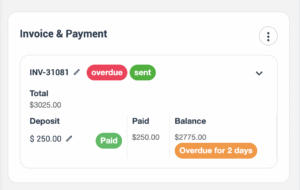
Common elements include:
- Invoice ID: opens the invoice record.
- Status labels: e.g. Sent, Overdue, Paid, Closed (varies by workflow).
- Totals snapshot: Total, Deposit, Paid, Balance.
- Balance indicator: often shows overdue days when applicable.
- Actions menu (⋯): quick options such as View Invoice, Add Payment, Add Refund, Email/SMS, etc. (available options depend on permissions and invoice state).
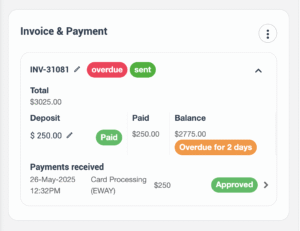
View payments directly from the booking
- Go to Bookings and open the booking you want to review.
- Scroll to the Invoice & Payment card.
- Expand the payment summary to view the payment entry/entries (date, method, amount, and approval state, where applicable).
- Use the Actions menu (⋯) to open additional options (based on your role and invoice status).
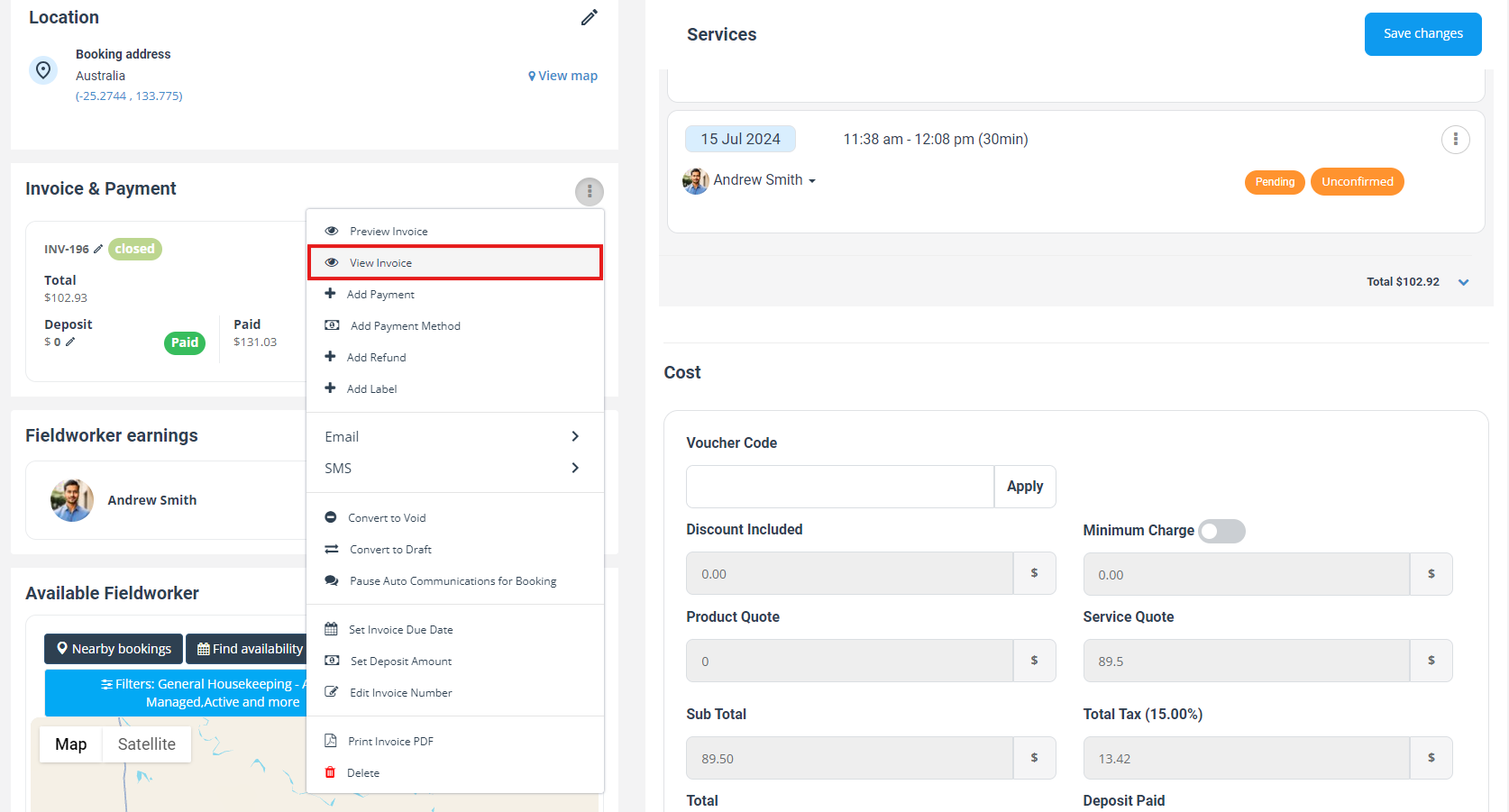
Why this helps: Your team can immediately answer “Has this been paid?” and decide what to do next—send a reminder, take a card payment, record an offline payment, or process a refund.
View Invoice modal: payment details, refunds & receipts
From the booking’s Invoice & Payment card, select View Invoice to open the invoice modal. This is the fastest way to inspect payment details for the booking’s invoice without navigating away.
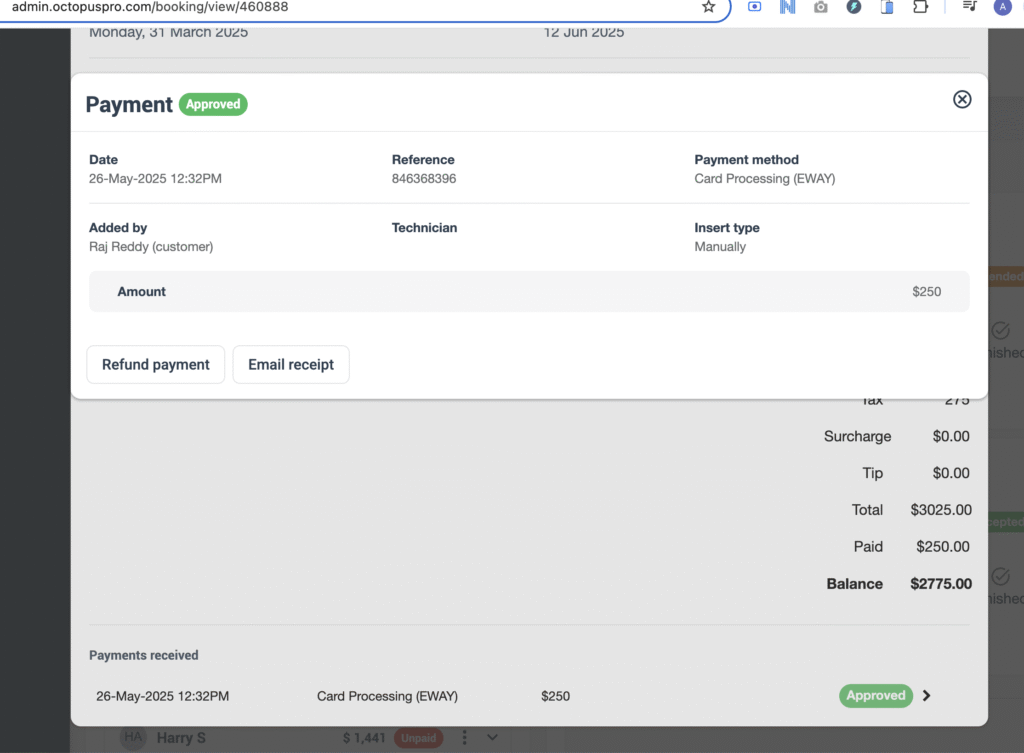
What you’ll typically see in the payment details:
- Date & time: when the payment was recorded.
- Reference: gateway reference, transaction ID, or entered reference.
- Payment method: e.g. card, bank transfer, cash, external terminal.
- Added by: who recorded the payment (admin, fieldworker, or customer—depending on the channel).
- Technician/fieldworker: if captured in your workflow.
- Insert type: how the record was created (e.g. manual entry vs system/gateway/import workflow, depending on your account configuration).
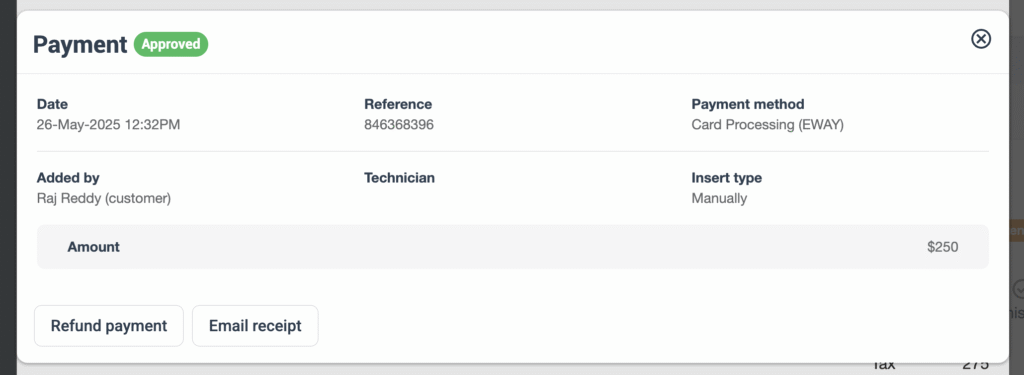
From this modal you can:
- Email receipt: send a payment receipt/confirmation to the customer (useful for disputes and proof of payment).
- Refund payment: start a refund flow (availability depends on payment method and permissions).
Payment approvals (pending vs approved)
Some businesses prefer an approval step before a payment affects invoice status (common when importing bank transfers, accepting offline payments, or controlling who can finalize payments).
- Approved payments typically count toward the invoice’s Paid amount and reduce the Balance.
- Pending / unapproved payments may appear in reconciliation queues until an authorized user approves or rejects them.
If your business uses a payment approval workflow, see: Keep Payments Pending Until Reconciled (Payment Approval Workflow).
Payments Reconciliation: review and fix payments at scale
If you manage many payments (especially imports and bank transfers), use Payments Reconciliation to review entries in bulk, approve/reject, correct mistakes, and link payments to the right invoices.
Where to find it
- Go to Invoices > Payment Reconciliation (menu names may vary depending on your plan and configuration).
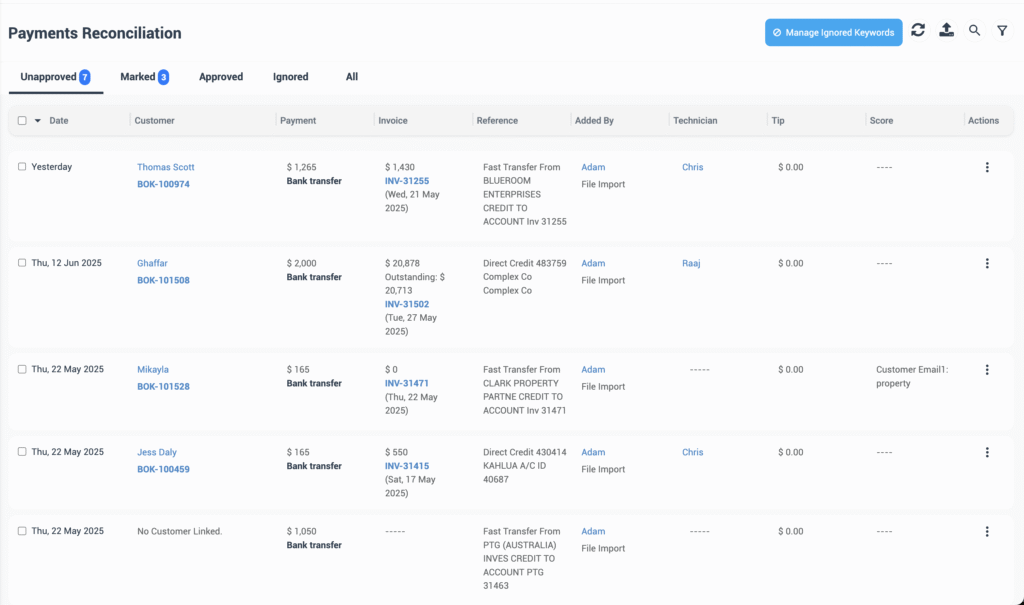
Common tabs you may see (varies by workflow):
- Unapproved: payments awaiting approval.
- Approved: payments that are finalized.
- Ignored: transactions you intentionally excluded.
- All: a complete view across states.
Actions you can take from the row menu (⋯)
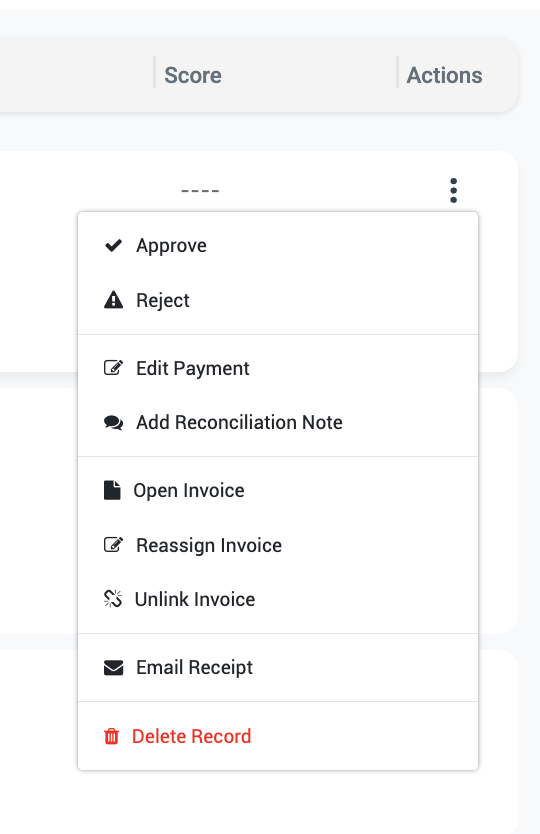
- Approve / Reject: finalize or decline a payment (permission-based).
- Edit payment: correct payment details when allowed.
- Add reconciliation note: leave an internal audit note explaining decisions or context.
- Open invoice: jump into the invoice record.
- Reassign invoice / Unlink invoice: fix payments attached to the wrong invoice or detach them for reassignment.
- Email receipt: resend proof of payment to the customer.
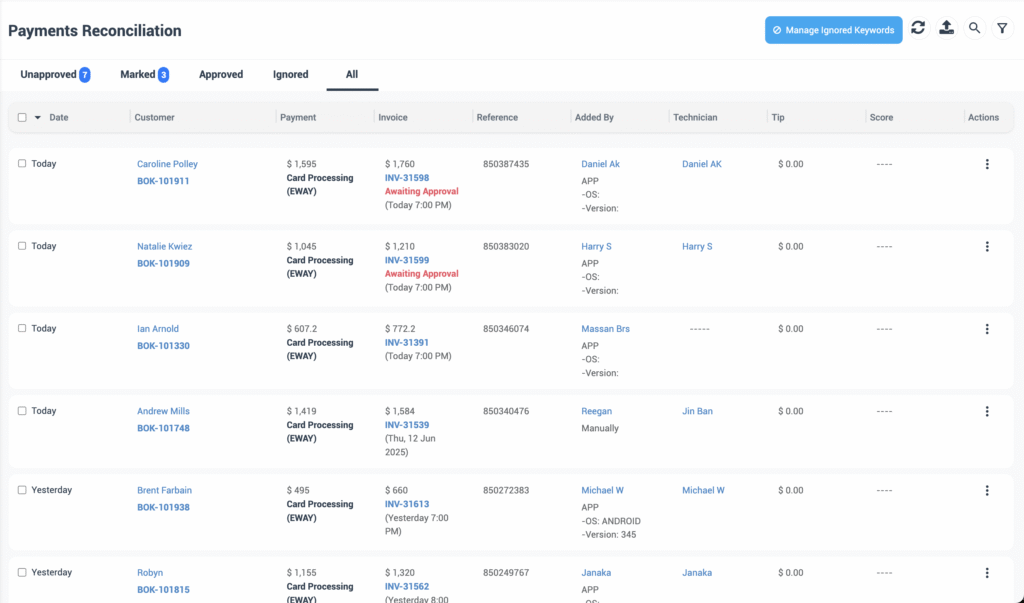
Tip: Reconciliation is especially useful for imported bank transfers and “unknown” payments that need to be matched to the correct invoice.
Common scenarios
- Customer paid a deposit, balance still outstanding: confirm the deposit entry on the booking, then check the invoice balance before scheduling or dispatching.
- Payment recorded on the wrong invoice: use reconciliation actions (Reassign/Unlink) to correct it, then re-check the booking balance.
- Bank transfer imported but not finalized: review in Unapproved and approve/reject according to your policy.
- Customer requests proof of payment: open the payment in the invoice modal and use Email receipt.
- Refund request: confirm the original payment method and reference, then initiate the refund (permission-based) from the payment details modal.
Best practices
- Standardize payment methods: keep payment method names consistent so reporting and reconciliation remain clean.
- Use approvals for high-risk channels: bank transfers and offline payments often benefit from an approval step to prevent misallocation.
- Always capture references: transaction IDs and bank references reduce disputes and speed up matching.
- Send receipts when requested: quick receipts lower chargeback risk and improve customer trust.
- Reconcile regularly: a daily/weekly reconciliation habit prevents a backlog of unapproved or mislinked payments.
Troubleshooting & FAQs
I can’t see the Invoice & Payment card on the booking.
- Ensure an invoice exists for the booking (some setups generate invoices automatically; others require manual generation).
- Check the user’s permissions for viewing invoices/payments.
The invoice balance doesn’t match what the customer says they paid.
- Check if the payment is pending/unapproved (it may not be counted yet).
- Confirm the payment was applied to the correct invoice (use reconciliation actions if needed).
- Check for partial payments, tips, or refunds that change the net paid amount.
Can I resend a payment receipt?
- Yes—open the payment details (via View Invoice or reconciliation) and select Email receipt.
How do I handle an “unknown” payment that isn’t linked to the right invoice/customer?
- Use the reconciliation workflow to find, link, reassign, or unlink payments as needed. See: Unknown Payments & Reconciliation Actions.
Related articles
- Managing Payment Methods
- Service Payment Terms
- Fieldworker Permissions
- Refund Management
- Payment Import & Reconciliation
- Managing and Viewing Invoice Payments
- Adding and Processing Payments to Invoices
- Online & Offline Invoice Payments for Field Service Businesses
- Keep Payments Pending Until Reconciled (Payment Approval Workflow)
- Unknown Payments & Reconciliation Actions
To stay updated, please subscribe to our YouTube channel.