
Fieldworker App Communication Guide (Office & Customers)

Effective communication is essential for smooth field operations and a great customer experience. The OctopusPro Fieldworker App provides multiple communication methods so fieldworkers, office staff, and customers can stay aligned—with message history, transparency, and oversight when needed.
Table of contents
- Overview: communication options in the app
- Benefits of using the app for communication
- Communicating with office staff
- Communicating with customers
- Office monitoring of fieldworker-customer communication
- Optional admin controls (restrictions + notifications)
- Practical communication tips
Overview: communication options in the app
Within the Fieldworker App, fieldworkers can:
- Use Live Chat to message the office for general questions or quick updates.
- Message the office inside a booking to keep job-related communication tied to the correct booking context.
- Send photos in chat when visual evidence or site context is needed.
- Send voice clips when typing is inconvenient.
- Call the office for urgent issues.
- Call customers from the booking and send quick automated customer SMS updates such as I’M ON MY WAY and I HAVE ARRIVED.
Benefits of using the app for communication
Benefits for fieldworkers and office staff
- Enhanced communication: live chat, booking-specific messaging, direct calls, and voice messages support fast collaboration.
- Real-time updates: instant notifications help fieldworkers stay informed about booking changes, new assignments, and important announcements.
- Easy access to message history: quickly refer back to previous conversations for context and clarity.
- Secure storage and backup: discussions and shared items (e.g., photos) are stored safely to protect important information.
- Quick response times: office staff can address queries promptly to avoid delays or miscommunication.
- Transparent communication: fieldworkers can update the office about completions, delays, or challenges.
- Swift clarification and timely assistance: resolve misunderstandings quickly and request help during emergencies or unexpected situations.
- Improved productivity and customer satisfaction: smoother coordination reduces friction for the team and customers.
Benefits for customers
- Clear expectations: customers receive arrival-time updates and know what to expect.
- Higher trust: proactive communication improves the customer experience.
- Automated SMS updates: fieldworkers can send quick pre-written updates (e.g., on the way, arrived) with minimal effort.
Communicating with office staff
Accessing Live Chat (general messages + photos)
For general questions or issues, use Live Chat to contact the office instantly.
- Tap the Messages tab at the bottom of the page.
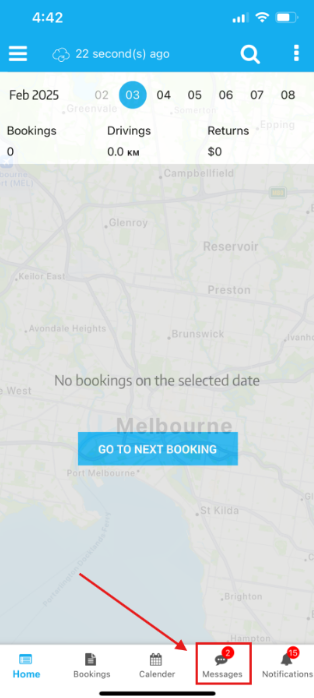
- Select the conversation below Office to contact the office directly.
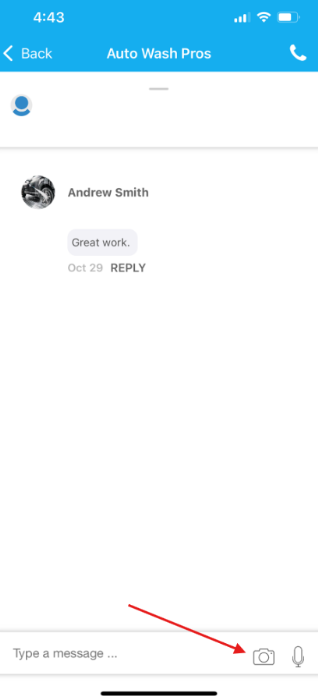
- Type your message and press Send.
- To add a photo, click the camera icon and choose to take a new photo or upload one from your library.
Communicating about a specific booking
For booking-specific updates (job progress, site issues, customer notes, delays, clarifications), message the office within the booking so the conversation stays tied to the correct job.
- Open the booking.
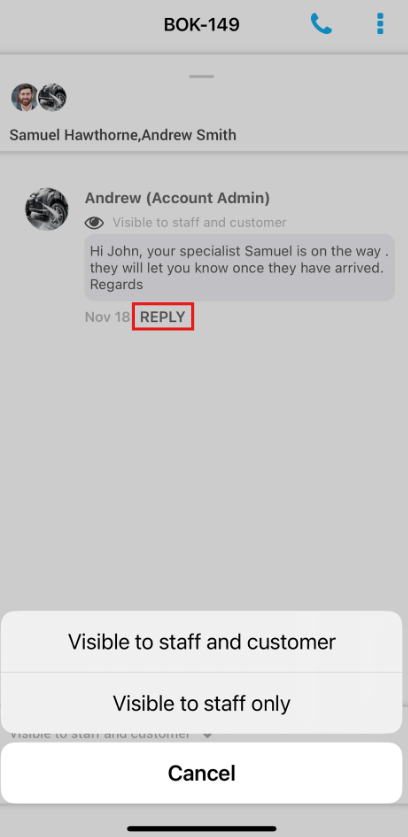
- Tap REPLY TO OFFICE below the original booking notes left by the office team.
- Choose who you want the message to be visible to.
- Enter your message and press Send.
Leaving a voice message for the office
When you’re busy on-site and typing is inconvenient, you can send a voice clip via Live Chat. The office can listen to it at any time.
- Tap the Messages tab at the bottom of the screen.
- Select the conversation with the Office about the booking to contact the office directly.
- Hold down the microphone icon to record a voice clip and press Send.
Calling the office directly from the app
For urgent issues that require immediate attention, fieldworkers can call the office directly from the app.
- Tap the Messages tab at the bottom of the screen.
- Select the conversation below Office to contact the office directly.
- Tap the telephone icon at the top right of the conversation.
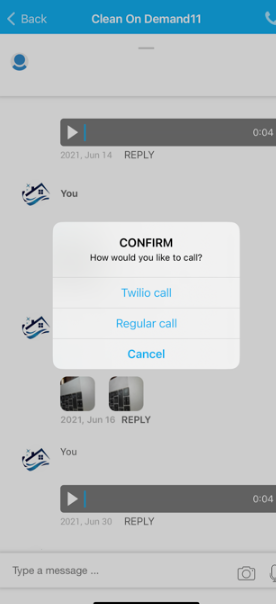
- If multiple contact numbers are available, select the one you wish to call.
Communicating with customers
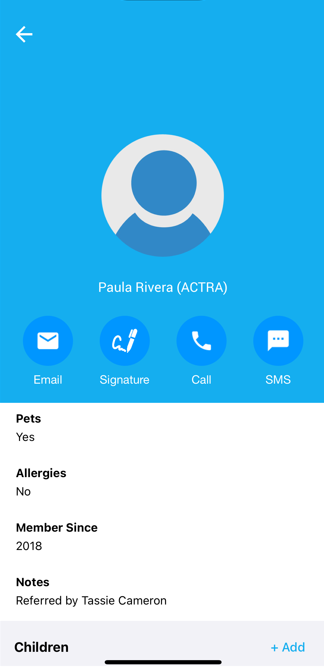
Calling a customer regarding their booking
Customers can be contacted directly from the booking, so fieldworkers can quickly reach the right person for the right job.
- Open the booking.
- Click on the customer you want to call.
- Tap the Call icon.
Note: Some businesses choose to restrict direct customer contact before the booking start time. See Optional admin controls below.
Updating customers about your arrival time (I’M ON MY WAY)
It’s crucial to inform customers about your estimated arrival time, whether you’re on schedule or running late. This sends an automated SMS message to the customer.
- Open the booking.
- Tap I’M ON MY WAY.
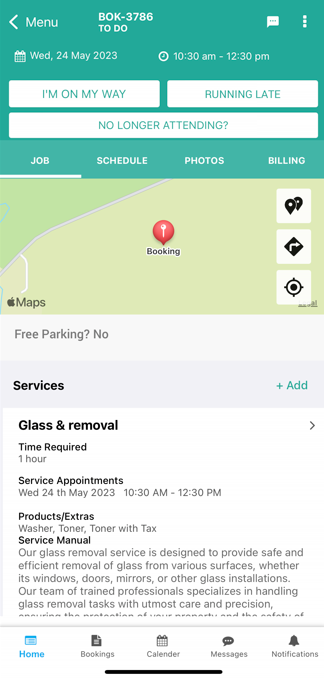
- Enter your estimated time of arrival.
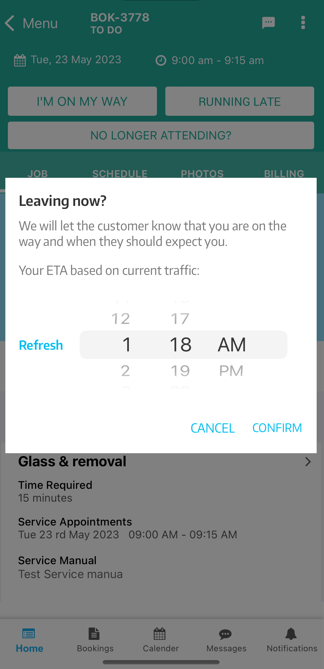
- Click Ok to send an automated SMS message to the customer.
Informing customers when you’ve arrived (I HAVE ARRIVED)
Keeping customers updated helps build trust and positive relationships. This sends an automated SMS message to the customer.
- Open the booking.
- Tap I HAVE ARRIVED.

- Confirm to send an automated SMS message to the customer, letting them know you’ve arrived.
Office monitoring of fieldworker-customer communication
OctopusPro enables office staff to monitor communication between fieldworkers and customers, supporting transparency and quality control. Office staff can also receive notifications each time a fieldworker contacts a customer via phone, SMS, or chat (when enabled in notification settings).
Common monitoring scenarios include:
- Job Clarification: Office staff can review conversations to ensure accurate details are exchanged and customer expectations are met (with real-time oversight via notifications).
- Rescheduling: Office staff can confirm schedule changes align with customer and company availability.
- Customer Complaints: Office staff can review communication and step in quickly to resolve issues.
- Service Quality: Office staff can ensure fieldworkers maintain professionalism and protect the company’s reputation.
- Feedback and Reviews: Office staff can use customer feedback from communication for coaching, training, and improvement.
Optional admin controls (restrictions + notifications)
Some companies choose to limit fieldworker communication with customers before the booking start time to improve control and reduce risk (for example, preventing rescheduling without confirming availability with the office).
Restrict communication prior to booking start time
- Open the admin settings and go to General Settings > Fieldworker Permissions.
- Scroll down and enable/disable the flag: Restrict Fieldworker Communication with Customers Prior to Booking Start Time.
What happens when enabled:
- Fieldworkers won’t be able to email or SMS the customer before the booking starts.
- If they attempt to do so, access is denied and they can communicate through the booking discussion board instead, allowing admin users to view the interaction.
Notes and exceptions (high level):
- This restriction does not control whether customer contact details are visible to the fieldworker (that is controlled via another flag).
- Fieldworkers may still be able to contact the customer before pressing “ON THE WAY” in urgent cases, and there are additional exceptions depending on booking circumstances (e.g., open invoice / unresolved complaint).
Learn more: Restrict Fieldworker Communication with Customers Prior to Booking Start Time
Notify admins when a fieldworker attempts to contact a customer
- While logged in as an admin, open your Notifications Center (top-right).
- Enable: Notify admin when fieldworker tries to contact customer.
Practical communication tips
- Use booking-specific messages for anything that impacts job delivery (access issues, delays, photos, scope clarifications).
- Send “I’M ON MY WAY” and “I HAVE ARRIVED” consistently to reduce missed appointments and improve customer confidence.
- Share photos with a short explanation so the office can act quickly (e.g., “cracked tile near entry”, “no access code provided”, “before/after”).
- Escalate urgent issues by calling, then follow up with a short written note so there’s a record in the job context.
To stay updated, please subscribe to our YouTube channel.