
Automations Log – Scheduled Tasks Execution History
In OctopusPro, workflow automations (also called automated procedures or scheduled tasks) run routine operations in the background—sending reminders, chasing follow-ups, updating statuses, and triggering internal notifications.

The Automations Log is your “mission control” for automation monitoring. It provides a time-stamped execution history of every scheduled run, so you can quickly confirm:
- What ran (which automation)
- When it ran (server time + your local business time)
- What it did (emails sent, SMS sent, records updated)
On this page
- What the Automations Log is (and what it isn’t)
- Before you start (recommended setup)
- How to open the Automations Log
- Columns explained
- Filter, search, export & print
- Troubleshooting (missing reminders, zero counts, unexpected spikes)
- Typical use cases & examples
- Best-practice tips
- FAQ
- Related guides & logs
What the Automations Log is (and what it isn’t)
What it is: a real-time monitoring report that records every automation run (scheduled execution), including the message counts and the number of records updated. It’s the fastest way to confirm whether an automation executed at the expected time.
What it isn’t: a full delivery report. The Automations Log shows counts per run, but message-level outcomes (delivered/bounced/failed/replies) live in the dedicated Email and SMS logs.
Before you start (recommended setup)
To get accurate results from automations (and avoid “it didn’t send” scenarios), confirm these basics:
- Automations are enabled and configured: Automated Reminders & Confirmations (Workflow Automations)
- Your business time zone is correct: this affects the Start Time (Local) column and when reminders send: Date & Time Configuration
- Email sending is authenticated: improves deliverability: Business Email Authentication
- SMS provider is connected (if using SMS): Set Up Digital Phone System (Twilio)
How to open the Automations Log
- Go to Reports → History Log → Recent Automations.
- The grid loads with the newest run at the top.
- Use the Dashboard switcher (All Dashboard / My Dashboard) to view company-wide activity or your own automation runs (depending on permissions).
Note: Older/legacy paths that used to appear on the Dashboard may be retired. The Reports menu is the most reliable path.
Columns explained
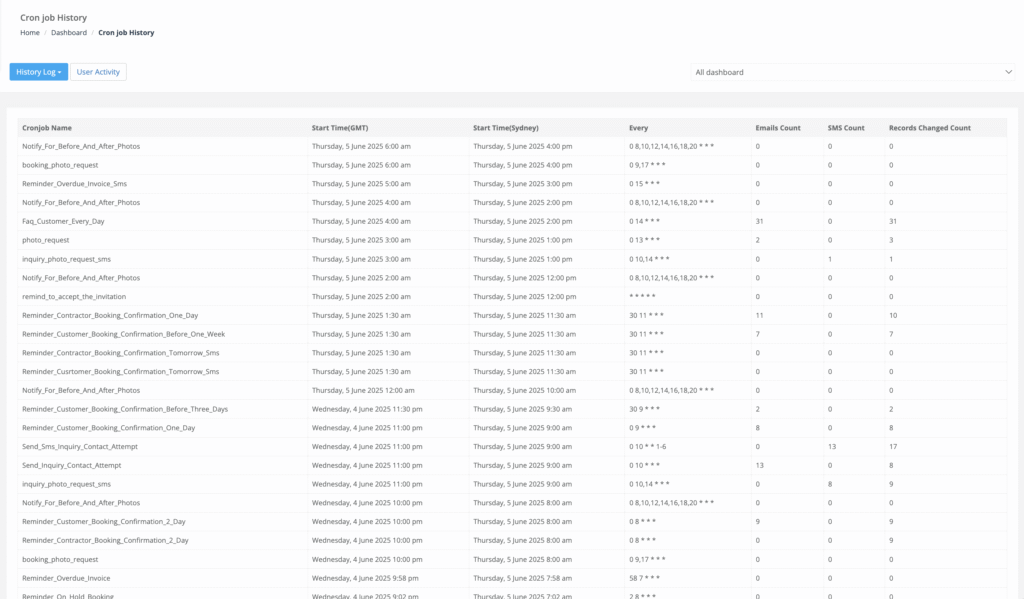
Each row represents a single automation run. Column labels may vary slightly by account/version, but commonly include:
| Column | What it means | How teams use it |
|---|---|---|
| Cronjob Name (Automation Name) | The friendly automation label set in your automation settings. | Filter to the exact workflow (e.g., “Booking Reminder (24h)”). |
| Start Time (GMT) | Server execution time in GMT. | Useful for support/audits and global teams. |
| Start Time (Local) | The same run time converted to your business time zone. | Day-to-day troubleshooting (“did it run during business hours?”). |
| Every (Frequency) | The schedule/frequency definition (often displayed as a cron expression). | Confirm timing and detect misconfigured schedules. |
| Emails Count (Emails Sent) | How many emails were generated/sent in that run. | Proof the automation triggered email (then verify delivery in the Email Log). |
| SMS Count (SMS Sent) | How many SMS messages were generated/sent in that run. | Proof the automation triggered SMS (then verify delivery/replies in the SMS Log). |
| Records Changed (Records Updated) | How many records were updated by the automation (bookings/quotes/invoices, depending on the automation). | Spot mis-targeting or loops (sudden spikes are a red flag). |
Tip: Hover over a row to view additional details/tooltips (where available). In many setups you can click the automation name to open its configuration (permissions permitting).
Filter, search, export & print
- Filter by Name or Frequency: use the filter dropdown, then type into the search box to narrow results quickly.
- Search by automation name: easiest way to locate a specific workflow (e.g., “Overdue Invoice Reminder”).
- Export CSV / Print: use the toolbar actions (if enabled for your role) to share logs with management, auditors, or support. Exports respect your current filters.
History loading note: for performance, the report commonly loads a recent window first (for example, the last 30 days). Use search/filters to locate older runs.
Troubleshooting (missing reminders, zero counts, unexpected spikes)
1) “The reminder didn’t send”
- First, confirm the automation ran at the expected time (find it by Cronjob Name).
- Check Emails Count / SMS Count.
- If counts are 0, the automation likely ran successfully but found no eligible records (nothing matched the rules at that moment).
2) Counts look correct, but the customer/fieldworker says they didn’t receive it
- Verify message-level outcomes in:
- If emails land in spam or don’t arrive, configure: Business Email Authentication.
- If SMS fails, confirm your SMS/VoIP setup: Digital Phone System (Twilio).
3) The automation is updating too many records (spikes in Records Changed)
- Large or sudden spikes often indicate misconfigured criteria or unintended targeting.
- Review the automation rules and schedule: Workflow Automations Setup.
- If you need to stop reminders for a specific booking/quote/invoice without disabling the entire automation, use: Pause / Resume Automated Notifications.
4) Times look “off”
- Compare Start Time (GMT) vs Start Time (Local).
- Confirm your account time zone settings: Date & Time Configuration.
5) Re-run an automation (Run Now)
If an automation was temporarily affected by settings or a provider outage, admins can open the automation configuration and click Run Now. The rerun appears in the Automations Log as a new entry.
Typical use cases & examples
| Use case | How to use the Automations Log | Outcome |
|---|---|---|
| Verify a reminder series | Filter by Cronjob Name (e.g., “Booking Reminder (24h)”) and confirm Emails/SMS counts at the expected time. | Confidence that reminders are executing reliably. |
| Troubleshoot “missing SMS” | Locate the run and check SMS Count. If 0, review criteria/templates/provider setup; rerun if needed. | Faster resolution without guesswork. |
| Detect workflow loops | Monitor Records Changed for unusual spikes on status-update/follow-up tasks. | Protects data integrity and prevents over-messaging. |
| Measure automation ROI | Export 30 days of runs and compare automation volume vs conversions (bookings/paid invoices). | Data-driven optimisation of cadence and templates. |
| Capacity planning | Identify peak send windows and stagger heavy jobs to reduce provider throttling. | Faster delivery and fewer failures. |
Best-practice tips
- Name automations clearly: use descriptive names (e.g., Reminder_Booking_Confirmation_24h) so filtering is effortless.
- Test with a small cohort: validate criteria/templates before enabling high-volume runs.
- Monitor after changes: check the log daily for the first week after launching or editing an automation.
- Watch Records Changed: sudden spikes usually mean mis-targeted criteria.
- Separate execution vs delivery: Automations Log confirms the run; Email/SMS logs confirm recipient-level delivery and failures.
FAQ
Can I replay a failed automation?
Yes. Open the automation configuration, adjust settings if needed, then click Run Now (admin permissions required). The rerun will appear in the Automations Log as a new entry.
How long are automation logs kept?
Logs are typically retained long term. For performance, the report may load a recent window first (for example, the last 30 days), but you can use search/filters to locate older runs.
Are partial failures visible here?
This log shows counts per run. If individual recipients fail (bounces/rejections), those recipient-level outcomes appear in the Email/SMS logs.
Can I disable an automation from this screen?
In many setups, you can click the automation name to open its configuration and toggle it off (permissions permitting).
Related guides & logs
- Automated Reminders & Confirmations (Workflow Automations)
- Pause / Resume Automated Notifications (Bookings, Quotes & Invoices)
- Outbound Email Log (Audit Trail)
- SMS History Log & Notifications
- Call History Log
- Discussions History Log
- User Activity Log
- Booking History Log
- Quotes & Estimates History Log
- Invoice History Log
- Business Email Authentication
- Set Up Digital Phone System (Twilio)
- Role-Based Access Control (RBAC) & Permissions
To stay updated, please subscribe to our YouTube channel.