
Blocking & Unblocking Fieldworker Accounts
Why block a fieldworker?
Blocking removes a user from all new-job workflows and denies them app access while keeping their historical data, ratings, invoices, and messages intact. It is ideal for disciplinary suspensions or contract disputes where you may later reactivate the worker. Only administrators (roles with Manage Users) can toggle the block switch.
Ways to block / unblock a fieldworker
| Where you are | Exact clicks | When to use |
|---|---|---|
| Fieldworker list | Hover row → Block toggle under the name. Toggle again to unblock.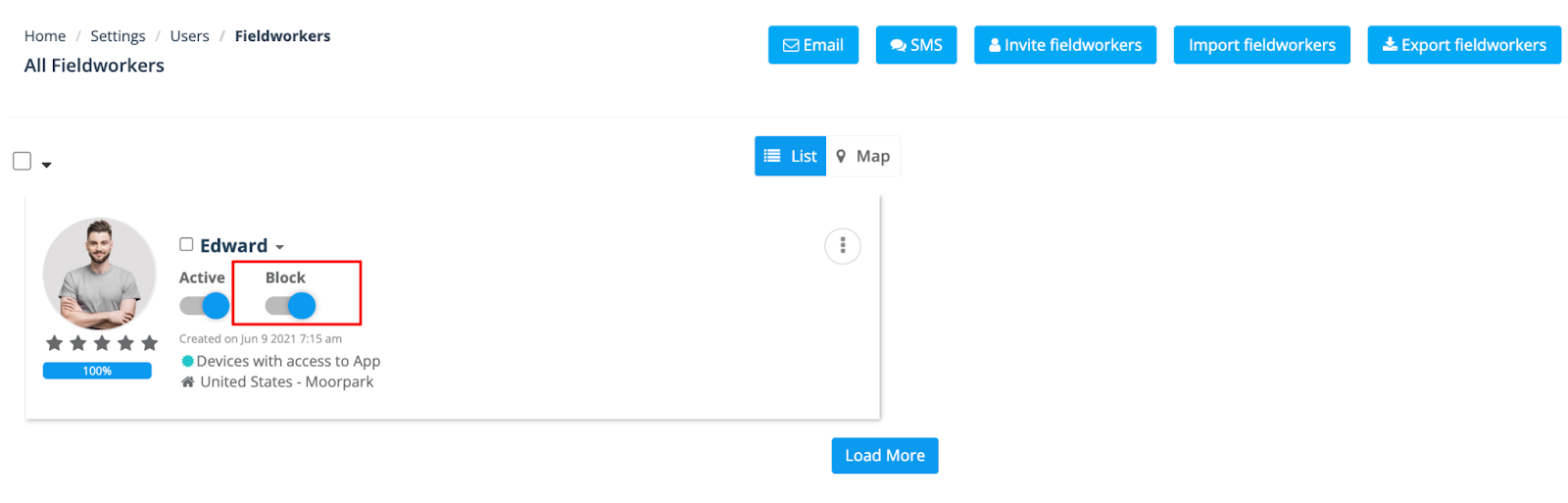 |
Fastest path when you’re cleaning the roster. |
| Fieldworker profile | Fieldworkers ▸ ⋮ Actions ▸ View Profile → header Block toggle.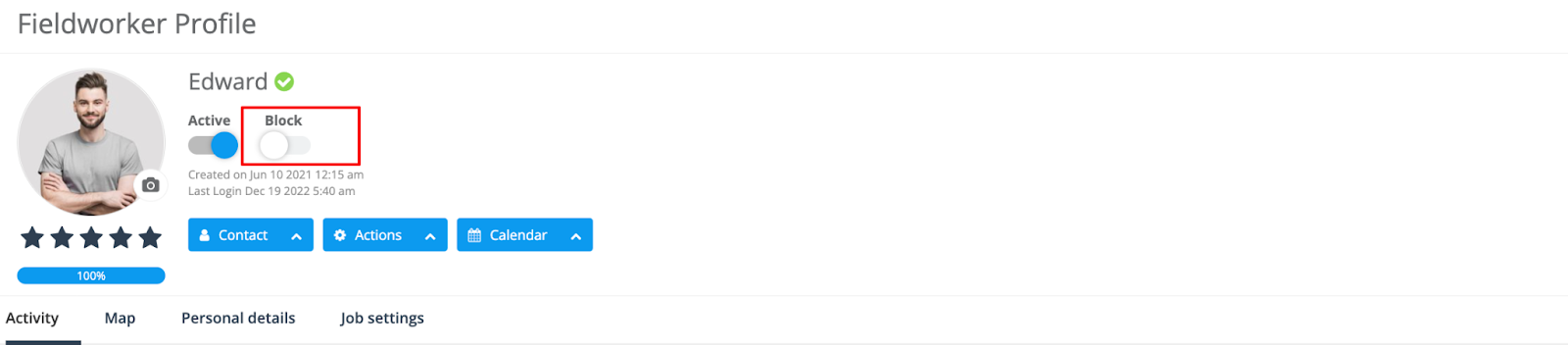 |
You’re already reviewing KPIs or notes and decide to suspend. |
| Company Settings | Settings ▸ Company Settings ▸ Users → search/filter → ⋮ Actions ▸ Block / Unblock or use the inline toggle. |
HR bulk updates or if you need to edit access rights for multiple roles in one grid. |
Tip: You cannot block the built-in General Fieldworker or any Admin account—this prevents accidently locking out the system owners.
What blocking does behind the scenes
- Login denial – The worker sees “Your account is blocked” if they try to sign in; no further app access.
- Job assignment – Blocked users disappear from Find Availability, Calendar filters, and cannot be selected in Booking / Quote drop-downs.
- History retention – All past bookings, invoices, chats, and reports remain intact and searchable for audits.
- Reversal – Unblock at any time; their profile re-appears in availability checks immediately.
Blocking vs. Deactivating vs. Deleting
| Action | Access | Appears in dispatch | Counts toward per-user billing† | Data retained |
|---|---|---|---|---|
| Block | ❌ cannot log in | ❌ | ✔ | ✔ |
| Deactivate | ✔ read-only login | ❌ | ✔ | ✔ |
| Delete | ❌ | ❌ | ❌ | ✔ (records remain, user seat removed) |
† On Established (per-user) plans blocked or deactivated users still consume a seat; delete them to stop billing. Unlimited users plans are unaffected.
Filtering blocked users in other screens
Calendar
Open Calendar ▸ Filter ▸ Status = Blocked to view historical bookings only.
Reports
Reports ▸ Fieldworker Booking Summary > Status filter includes Blocked so finance and QA teams can audit completed work even after access removal.
Example scenarios
- Safety breach suspension – Block immediately; review incident; unblock or delete after resolution.
- Payment dispute – Block until outstanding paperwork is supplied; history stays visible to legal/finance.
- Seasonal lay-off – Prefer Deactivate so worker can still download tax docs, then Activate next season.
To stay updated, please subscribe to our YouTube channel.