
Fieldworker Guide: Set Up Your Address & Service Areas

This page is for fieldworkers—not admins. It walks you, the person on the road, through adding a full street-level address and drawing (or adjusting) the service-area polygon that tells OctopusPro exactly where you accept work. Until both items are saved, OctopusPro suspends dispatch to avoid mis-routing.
Why it matters to you:
- A precise street address gives the system a “home-base” pin so travel time and distance can be calculated accurately.
- Your custom polygon replaces the blanket company radius and matches requests to the suburbs or postcodes you actually cover.
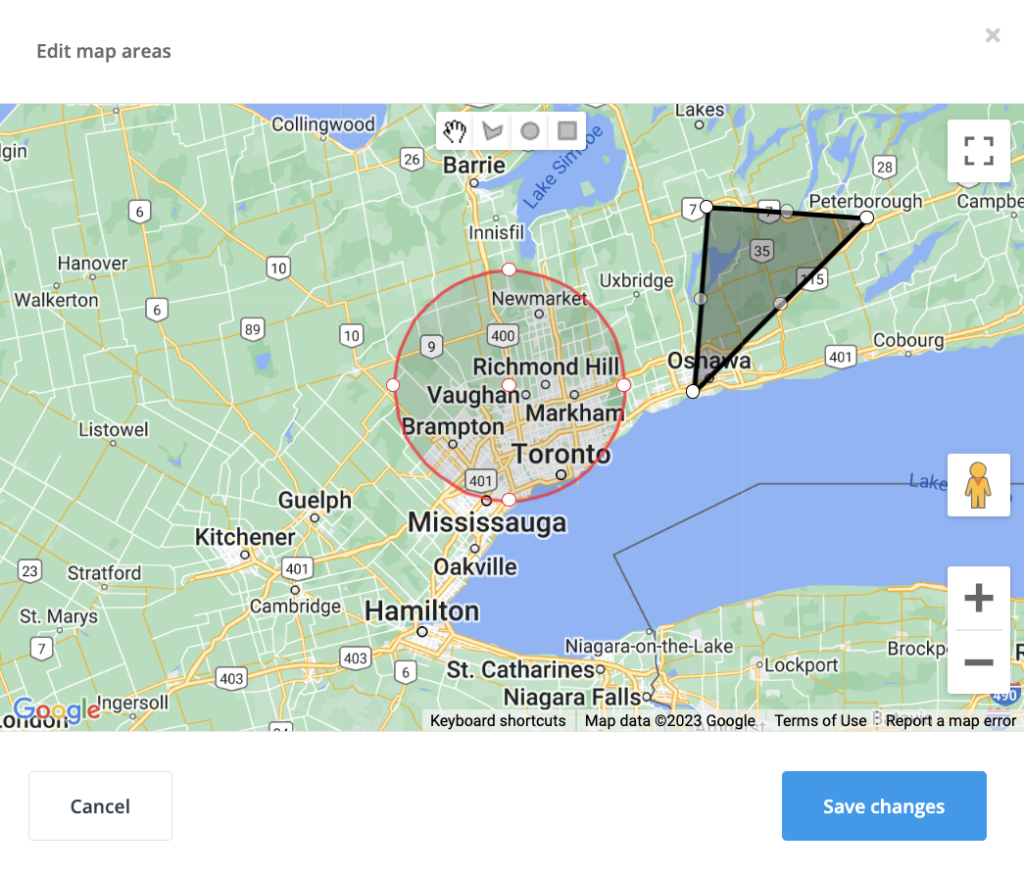
Follow the quick steps below and you’ll start receiving only the jobs that land inside your chosen territory—no more random gigs too far away or outside your service area.
Why Your Street Address & Polygon Matter
OctopusPro geocodes both every work order and every fieldworker before they even think about matching the two. Geocoding converts your street address into latitude/longitude, allowing dispatch engines to calculate drive time down to the minute.
How OctopusPro Uses Your Location Data
- Rooftop-level pin – Your complete street address drops a precise “home-base” marker on the map, enabling metre-accurate distance and ETA checks.
- Service-area polygon – The shape you draw tells the algorithm which suburbs, areas, or satellite towns you accept.
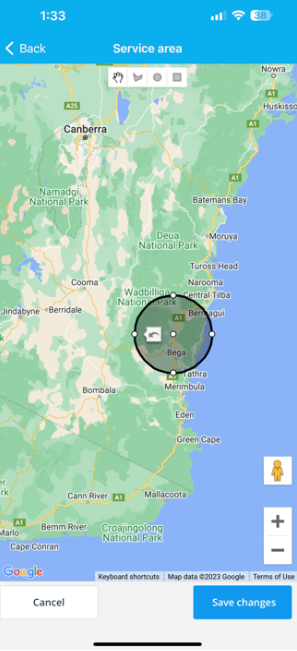
- Dynamic matching – OctopusPro cross-references job coordinates with your polygon; only overlaps turn into offers, keeping both technicians and customers on-time.
What Happens Without a Precise Address
- No address = no jobs. With no pin to start from, OctopusPro blocks dispatch entirely to avoid mis-routing.
Default-radius fallback
Even after you enter a full street address, OctopusPro still relies on the company-wide default travel radius until you draw at least one service-area polygon. That means the system will offer you any job whose start point falls within a default company radius circle around your home pin—even if it’s a suburb you never want to visit.
Why Drawing a Polygon Beats the Default Company Radius
- Overrides the blanket radius. Even a small custom shape replaces the company-wide default, ensuring “just-right” coverage instead of one-size-fits-all.
Bottom line:
Address ≠ territory.
Your address lets the algorithm measure from the right starting point, but only a polygon tells it where to stop. Add the polygon to replace the blanket radius and confine offers to your true patch.
Key Benefits at a Glance
| Benefit | How It Helps (Fieldworker View) |
|---|---|
| Laser-targeted jobs | Only requests inside your polygon reach your phone, boosting first-time-fix rates and utilisation. |
| Less admin noise | Geofencing blocks distant or off-route jobs, so you spend zero time declining them. |
Real-World Fieldworker Examples
- Urban HVAC tech
Draws a tight polygon around inner-city postcodes; trims out the congested CBD. Result: accepts six close-range jobs daily instead of four spread-out ones. - Storm-response plumber
Temporarily enlarges the polygon after a regional flood, capturing surge demand, then shrinks it back once the backlog clears.
Bottom Line
Add your street-level address first, then draw a service-area polygon. Together they unlock the algorithm’s full power—targeted work, lower mileage, and happier customers—while keeping unwanted jobs off your phone.
Set-Up Checklist (≈ 60 Seconds)
| # | Action | Where (app) | Result |
|---|---|---|---|
| 1 | Add / confirm full street address | Menu › Profile › My Account › Address & Contact Details | Drops your home-base pin; unlocks dispatch. |
| 2 | Draw service-area polygon(s) — expand, trim or split zones to match real coverage
|
Menu › Profile › My Account › Service Area › Edit | Replaces company default travel radius, targets jobs precisely. |
| 3 | Save | Top-right | Starts matching jobs instantly. |
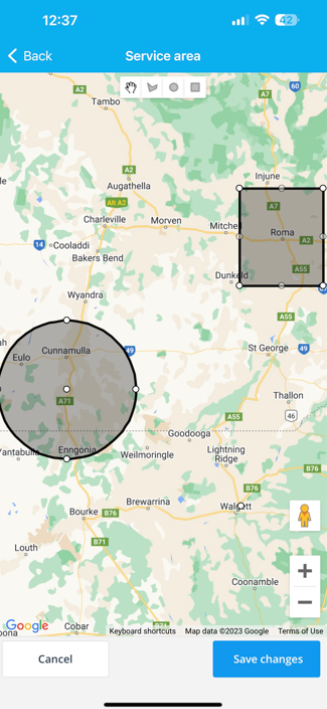
Tip: Need to cover two non-contiguous regions (e.g., city + coastal town)? Tap “+ Add Zone” to draw a second polygon.
Day-to-Day Tasks
Edit or resize your area
Drag polygon vertices or edges; hit Save. Useful when you start covering a new suburb on Tuesdays.
Move house
Update your address first; then open Service Area and nudge the polygon to keep it centred on the new pin.
Real-World Use Cases
| Scenario | How to handle | Benefit |
|---|---|---|
| City tech adding monthly regional run | Add second polygon 200 km away; mark it Active only on the first Monday | Keeps main diary clean; captures rural demand once a month. |
| Franchisee shrinking territory after buying competitor | Trim south-side boundary via vertex drag | Stops overlapping with colleague’s zone; avoids double-dispatch. |
| Storm-damage surge | Temporarily expand polygon to full 30 km radius | Catch extra emergency jobs while demand peaks. |
Troubleshooting FAQ
| Symptom | Likely cause | Fix |
|---|---|---|
| No job offers | Address missing | Enter full street address, save. |
| Jobs far away | No polygon set | Draw/trim service area. |
| Address “not found” | New subdivision | Drop nearest valid pin; add lot number in Address 2. |
Activate Your Fixed Business Locations (Fieldworkers)
The address & service-area steps above tell OctopusPro where you start your day and which neighbourhoods you’ll travel to.
Fixed Business Locations, by contrast, cover the places customers travel to you—branch offices, clinics, studios, depots, or showrooms that the company owns. When your admin enables this feature, each branch appears as a toggle in your profile so you can let OctopusPro know which sites you actually work from. Turning a location on makes you eligible for jobs booked at that branch; leaving it off keeps your schedule free from appointments there.
(Think of it this way: your address pin + polygon define your roaming territory, while fixed business locations mark the on-prem spots where you’re stationed.)
When do “Business Locations” show up?
- You’ll only see the Business Locations list if your company has enabled the setting “I have a business address and customers visit my business address where I provide my services.” Once that flag is on, admins add one or more fixed sites—branches, studios, depots, clinics, etc.—in Settings › Company Settings › Locations.
- Each fixed site then appears in your My Account › Business Locations tab with an on/off toggle.
How to activate a location (30 seconds)
| Step | Mobile path | What happens behind the scenes |
|---|---|---|
| 1 | ☰ Menu › Profile › My Account › Service Area › Business Locations
|
Opens the list of all branch sites your company has configured. |
| 2 | Switch ON the branches you physically work from | Your profile is now match-eligible for jobs booked at that site. |
| 3 | Tap Save | Your choice syncs instantly with dispatch, calendars, and availability searches. |

Tip: Work at two clinics on different days? Toggle one OFF when you’re not rostered there to prevent double-booking.
Why switch on only the branches you cover?
| Benefit | How it helps you |
|---|---|
| Branch-level job matches | OctopusPro filters requests to fieldworkers checked in at that site, so you’re never invited to jobs at a branch you don’t visit. |
| Cleaner schedules | Branch filter cuts “admin noise” (irrelevant notifications). |
| Better customer experience | Customers see only staff actually rostered at their chosen branch, reducing reschedules. |
Real-world use cases
- Salon stylist – works three days at the CBD salon and two at a suburban branch; toggles locations accordingly so only the correct chair is booked.
- Auto-mechanic – rotates through four garages; keeps only day-of-week location active to avoid booking clashes.
- Training instructor – teaches at HQ classroom but also runs monthly courses at a regional campus; adds the regional site as a second fixed location and activates it only during those weeks.
Troubleshooting
| Symptom | Cause | Fix |
|---|---|---|
| No branch list visible | Company hasn’t enabled fixed locations | Ask admin to tick “…customers visit my business address…” in Locations Settings. |
| Booked at wrong branch | Wrong toggle is ON | Open Business Locations, disable that site, and inform admin to reassign. |
| Can’t save changes | Weak connection | Switch to Wi-Fi or retry; data sync uses small payload. |
To stay updated, please subscribe to our YouTube channel.