
Fieldworker Call Log & Recordings (Admin Portal)
The Fieldworker Call Log provides a time-stamped history of calls made and received by a specific fieldworker through OctopusPro’s supported phone system. It helps you keep an accurate communication audit trail, improve service quality, and quickly resolve “who said what” disputes using call details and (where enabled) call recordings.

On this page
- What this is for
- What gets logged (and what doesn’t)
- Where to find a fieldworker’s Call Log
- How to review calls and recordings
- Understand the Call Log fields
- Search, filter, and export (where available)
- Common use cases
- Permissions, privacy, and best practices
- Troubleshooting
- Related guides
What this is for
Use the Fieldworker Call Log to strengthen accountability and customer service:
- Quality assurance (QA) & coaching: review real customer calls to improve scripts, tone, and accuracy.
- Dispute resolution: confirm what was discussed about pricing, access, arrival times, scope, or approvals.
- Operational follow-up: identify short/failed calls and ensure customers receive a timely call-back.
- Audit trail: keep a central record of call activity for each team member.
What gets logged (and what doesn’t)
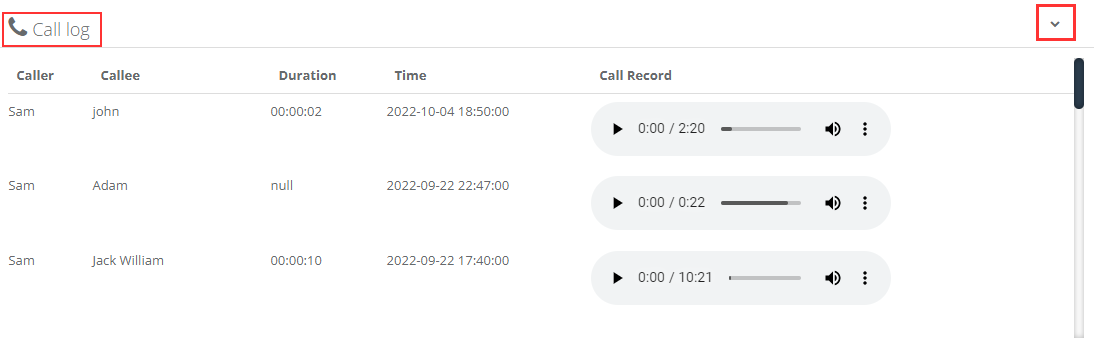
The Call Log is designed to track calls made through OctopusPro’s supported phone workflow (for example, via a connected digital phone system). Depending on your configuration, each entry can include the caller/callee, timestamp, duration, and an audio player for the call recording.
- Logged calls: calls initiated/received through OctopusPro’s supported calling setup.
- Not logged: calls made from a personal phone dialer outside the OctopusPro calling workflow.
- Recordings are optional: recordings appear only when call recording is enabled and supported in your phone system setup.
To set up calling, SMS, and recording options, see: Digital Phone System (Twilio): Set Up Calling, SMS & MMS in OctopusPro.
Where to find a fieldworker’s Call Log
To access the Call Log for a specific fieldworker:
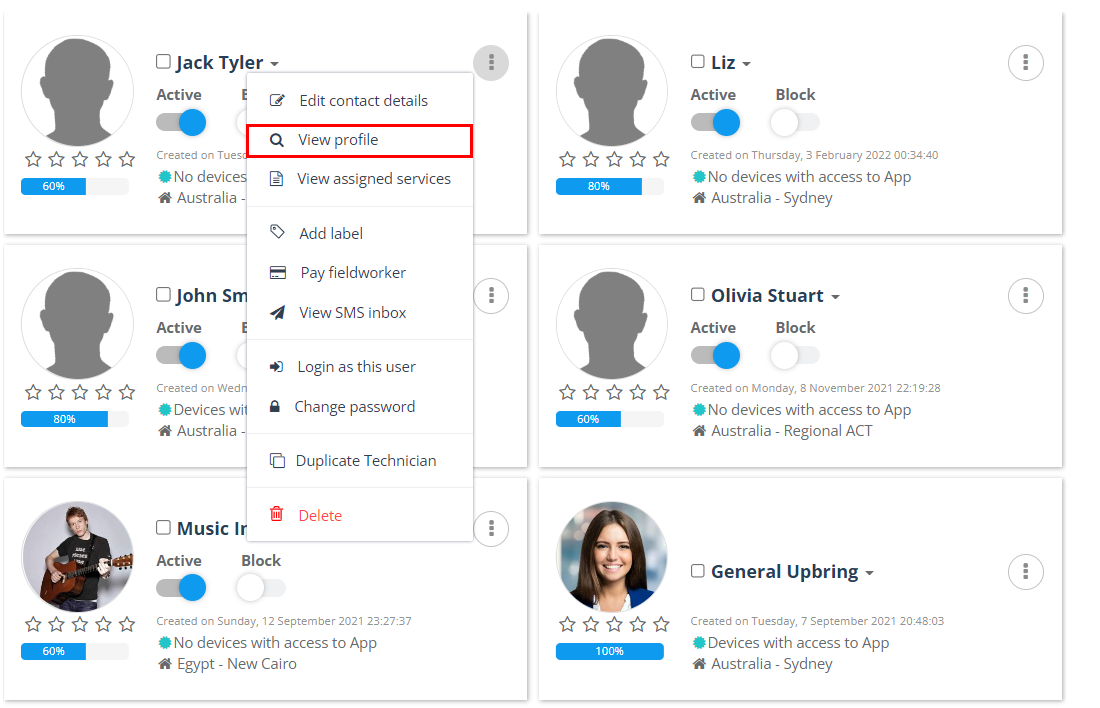
- In the Admin Portal, go to Fieldworkers.
- Find the fieldworker, open the Actions menu (⋯), then select View profile.
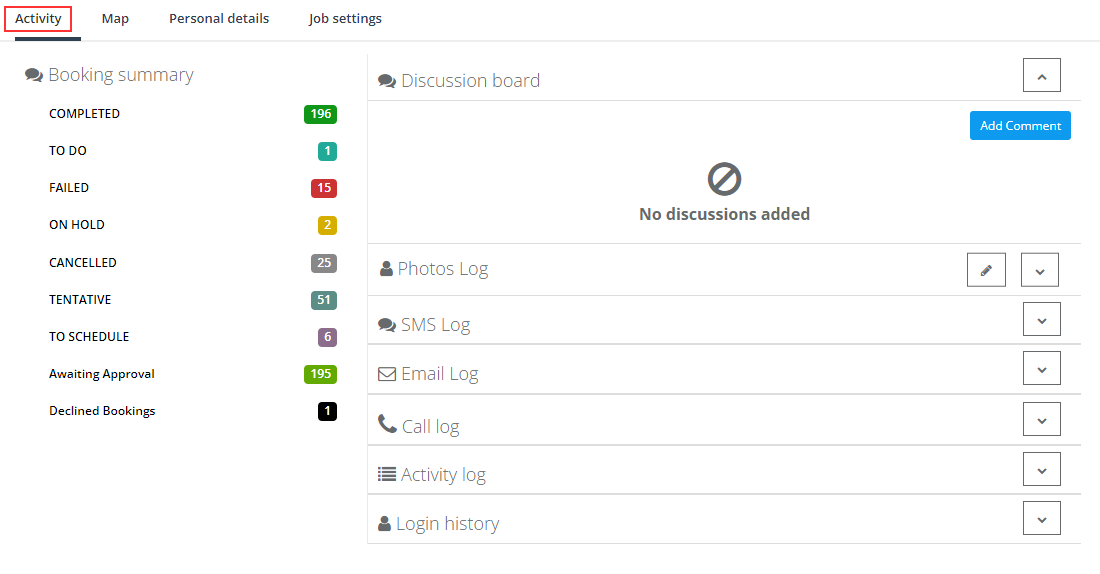
- Open the Activity tab.
- Expand Call log in the right-side panel.
How to review calls and recordings
Inside the Call Log panel, each row represents a call. If a recording is available, you’ll see an audio player in the Call Record column.
- Play a recording: click the play button (▶) to review the call.
- Scrub and adjust volume: use the timeline and speaker controls in the player.
- Download (where available): some players include a menu (⋮) that lets authorised users download the recording.
Tip: If a call shows null duration (or very short duration), it may indicate the call did not connect, was missed, or ended immediately.
Understand the Call Log fields
The exact columns can vary by configuration, but typically include:
| Field | What it means | How it’s used |
|---|---|---|
| Caller | The person/line placing the call (often the fieldworker). | Confirm which team member initiated the call. |
| Callee | The recipient (customer/contact). | Verify the correct customer/contact was called. |
| Duration | Connected talk time (may be blank/null if not connected). | QA, call-back tracking, and performance monitoring. |
| Time | Date/time of the call (based on your account/business timezone). | Cross-check against booking timelines and events. |
| Call Record | Audio playback controls when recording is available. | Review conversations, resolve disputes, and coach staff. |
Depending on your phone setup, you may also see additional details such as call direction (inbound/outbound), call status (answered/missed), call notes, or transcription indicators.
Search, filter, and export (where available)
Many call log views support tools to help you find the right call quickly. If available in your interface, you can:
- Search by customer name/number.
- Filter by date range to review a specific period (for example, “last 7 days” or a custom range).
- Export to CSV for reporting or deeper analysis.
If you want an account-wide view of recent calls across all users (with reporting filters), use: Recent Calls – History Log Report.

Common use cases
| Scenario | How the Call Log helps |
|---|---|
| Customer disputes what was agreed | Review the call details and recording (if available) to confirm what was discussed. |
| Missed calls and call-backs | Identify short/failed calls and ensure customers are contacted promptly. |
| Training and onboarding | Use real calls to coach best practices, compliance language, and customer handling. |
| Service quality and process improvements | Spot recurring call topics (access issues, ETA questions, pricing clarifications) and update scripts, templates, or workflows. |
Permissions, privacy, and best practices
Call logs and recordings can contain sensitive personal information. For best practice:
- Restrict access by role: only authorised roles should view call logs/recordings.
- Get consent where required: call recording laws vary by country/state—use appropriate consent language and follow local requirements.
- Keep data secure: treat downloaded recordings as confidential, store them safely, and share internally only when necessary.
- Define a retention policy: keep recordings only as long as you need for operations, training, or compliance.
Useful permission references:
- Configuring User Roles, Permissions & Access Control (RBAC)
- Fieldworker Permissions & Access Control
Troubleshooting
- No calls appear in the Call Log: confirm calls are being placed/received through OctopusPro’s supported phone workflow (not external/personal dialers). Also confirm your phone system is connected. See: Digital Phone System setup.
- No recordings appear: confirm recording is enabled in your phone system settings and supported in your configuration.
- You can’t see the Call Log panel: your user role may not have access. Review your permissions in: RBAC permissions.
- You need a full communication audit trail: pair Call Logs with SMS/Email history and customer communication logs. See: Customer Communication History.

Related guides
- How to View & Edit Fieldworker Profiles
- Fieldworker SMS Log (SMS History & Audit Trail)
- Fieldworker Email Log & Audit Trail
- Fieldworker Activity Log (Audit Trail)
- Recent Calls – History Log Report (Account-wide)
- Contact Customers & Fieldworkers from Bookings (Email, SMS, Call & Chat)
- How to Contact Fieldworkers by Email, SMS, Chat or Call
- Customer Communication History (Email & SMS Log)
- Digital Phone System (Twilio) Setup
To stay updated, please subscribe to our YouTube channel.