
[vc_row][vc_column width=”1/4″][vc_widget_sidebar sidebar_id=”sidebar-1″][/vc_column][vc_column width=”3/4″][vc_column_text]
Contact Customers & Fieldworkers from Bookings (Email, SMS, Calls & Chat)
OctopusPro lets your office team (and permitted staff) communicate with customers and fieldworkers/technicians/contractors directly from a booking—so every message, call, and discussion stays linked to the job. This improves response times, reduces no-shows, and provides a clear audit trail of what was sent, when, and by whom.

What you can do from a booking
- Send emails (manual or template-based) to customers and fieldworkers
- Send booking emails such as confirmations, reminders, next service reminders, invoices, deposit requests, and booking photos
- Send SMS (requires a connected Digital Phone System number)
- Place calls (regular call or VoIP, depending on your setup)
- Start a booking discussion/chat thread and share attachments
- View communication history per booking (Email / SMS / Discussions / Call log)
Key benefits
- Everything is tied to the booking: no more searching inboxes, phone logs, or notes to understand what happened.
- Fewer no-shows: send confirmations and reminders instantly (or automate them).
- Faster approvals & payments: request deposits, send invoices, and share job photos/attachments from the job record.
- Better teamwork: use booking discussions to keep decisions, updates, and files in one place.
- Full audit trail: quickly review what was communicated if a dispute arises.
Table of contents
- Before you start
- Where you can contact customers from
- View contact details & contact menu
- Email a customer from a booking
- Call a customer from a booking
- Start a discussion/chat thread (with attachments)
- Send an SMS from a booking
- Send emails from the booking list
- Send emails from the calendar
- Templates, canned responses & placeholders
- Common booking email actions (examples)
- Email booking photos & attachments
- Request photos (by Email or SMS)
- Email invoices & request deposits
- Email a fieldworker from a booking
- View communication history (per booking)
- Send a new email from Customer / Fieldworker lists
- Troubleshooting
- Best practices
Before you start
- Customer details: confirm the customer has a valid email address (for email) and a valid mobile number (for SMS/calls).
- Email deliverability: verify your sender email/domain so booking emails deliver reliably (and avoid spam).
Business Email Authentication

- SMS & VoIP calling: to send SMS (and place VoIP calls where available), connect a Digital Phone System number (Twilio).
Twilio Digital Phone System (Calls, SMS & MMS) - Permissions: ensure user roles/permissions allow staff to access booking communications and send emails/SMS where required.
Where you can contact customers from
You can contact a customer from multiple places in OctopusPro:
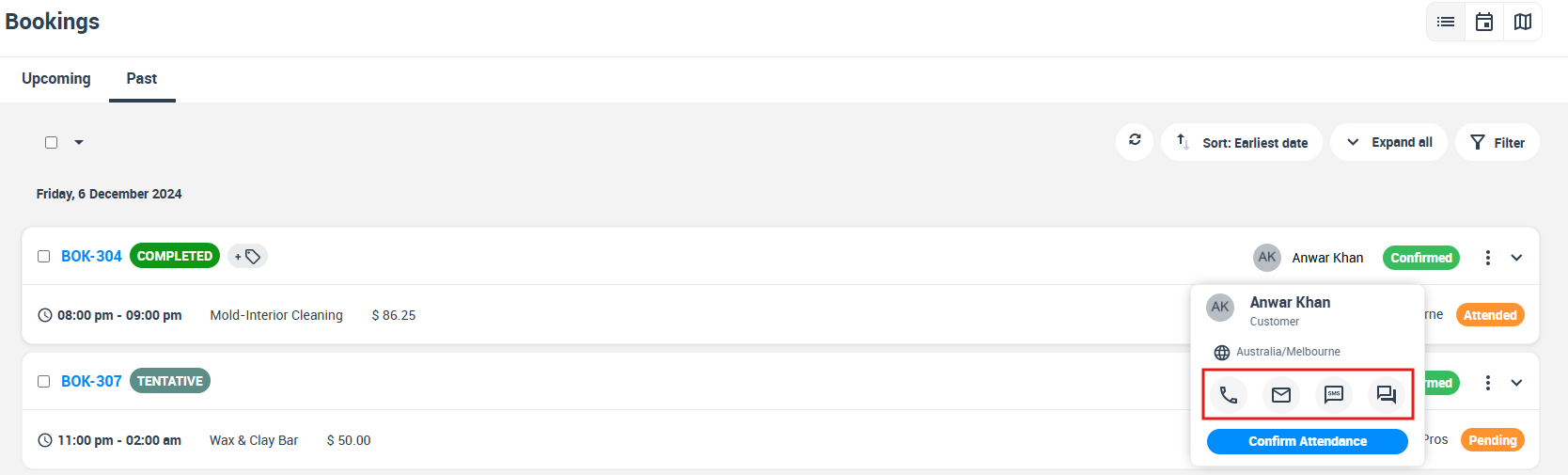
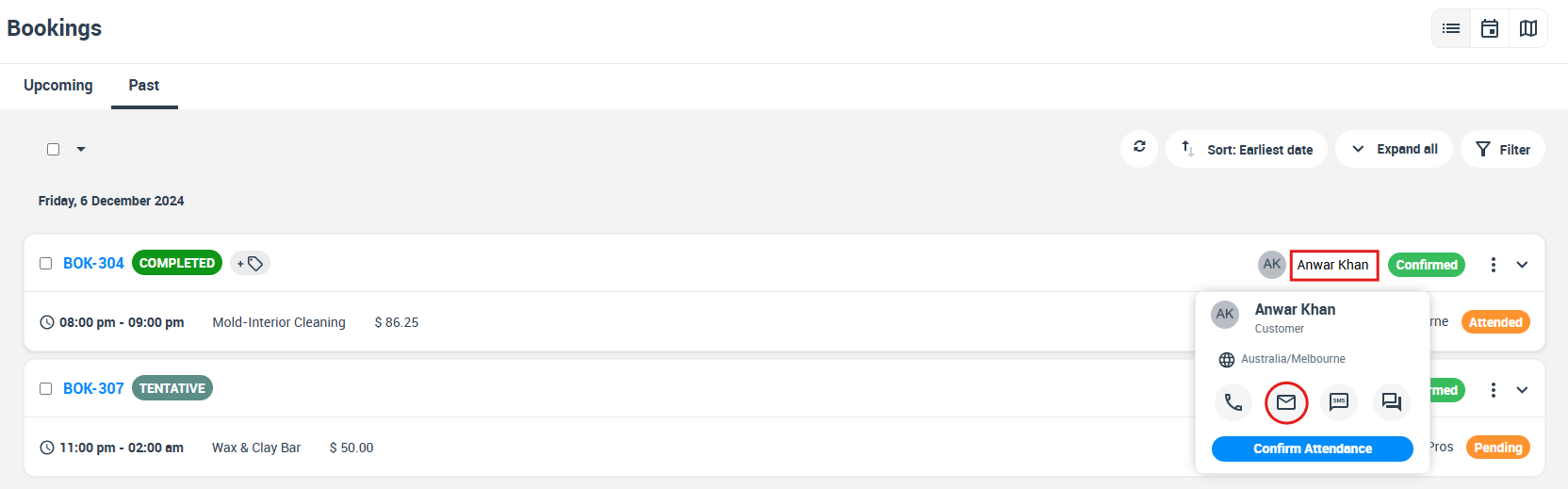
- Bookings list: hover over the customer name to reveal the quick contact menu.
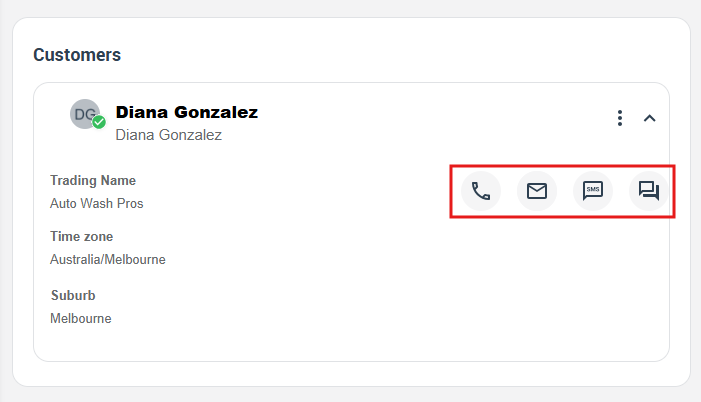
- Booking details page: use the contact icons in the Customer section.
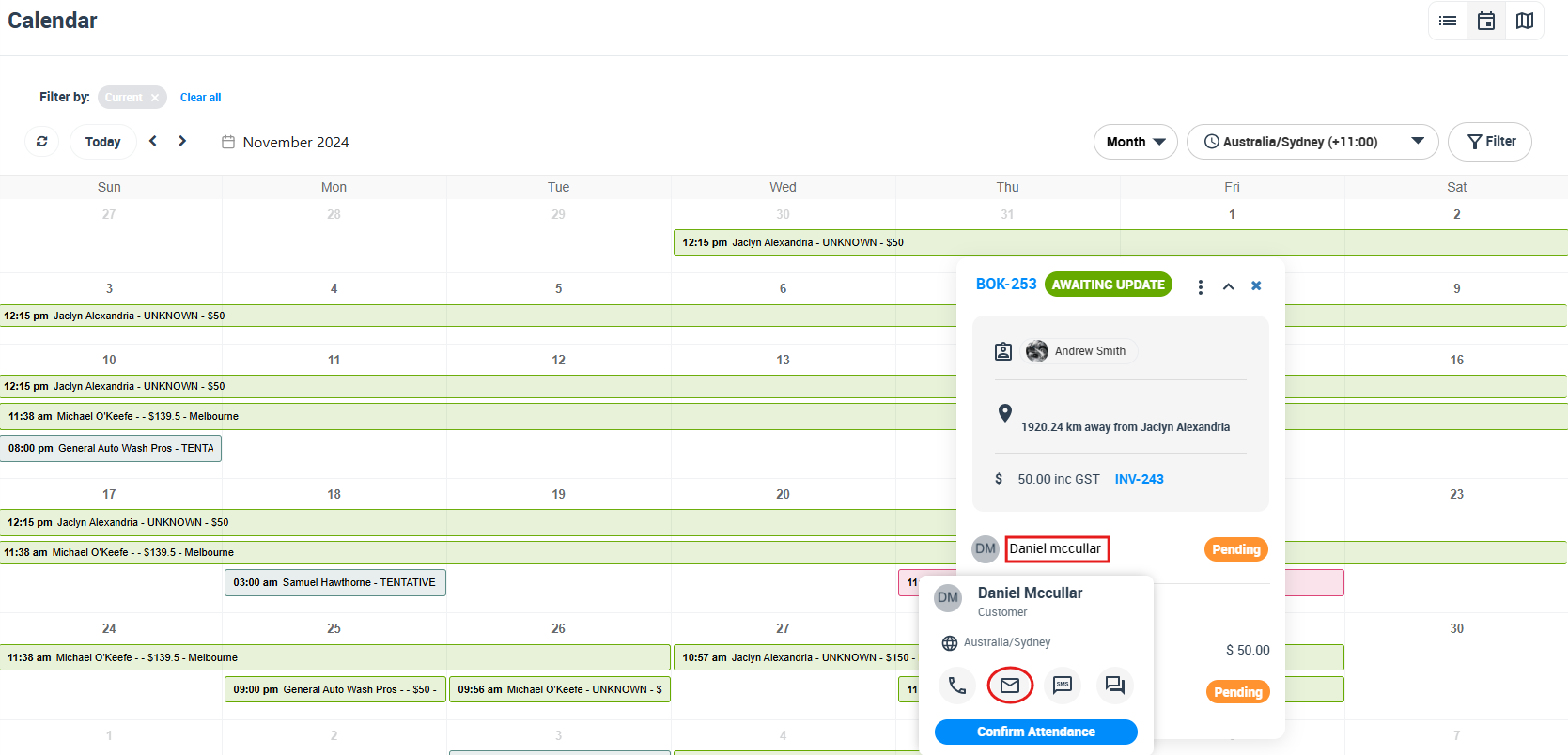
- Calendar view: open the booking pop-up and use contact icons for the customer and assigned fieldworker.
- Customer list / profile: start a new email from the customer list/contact menu.
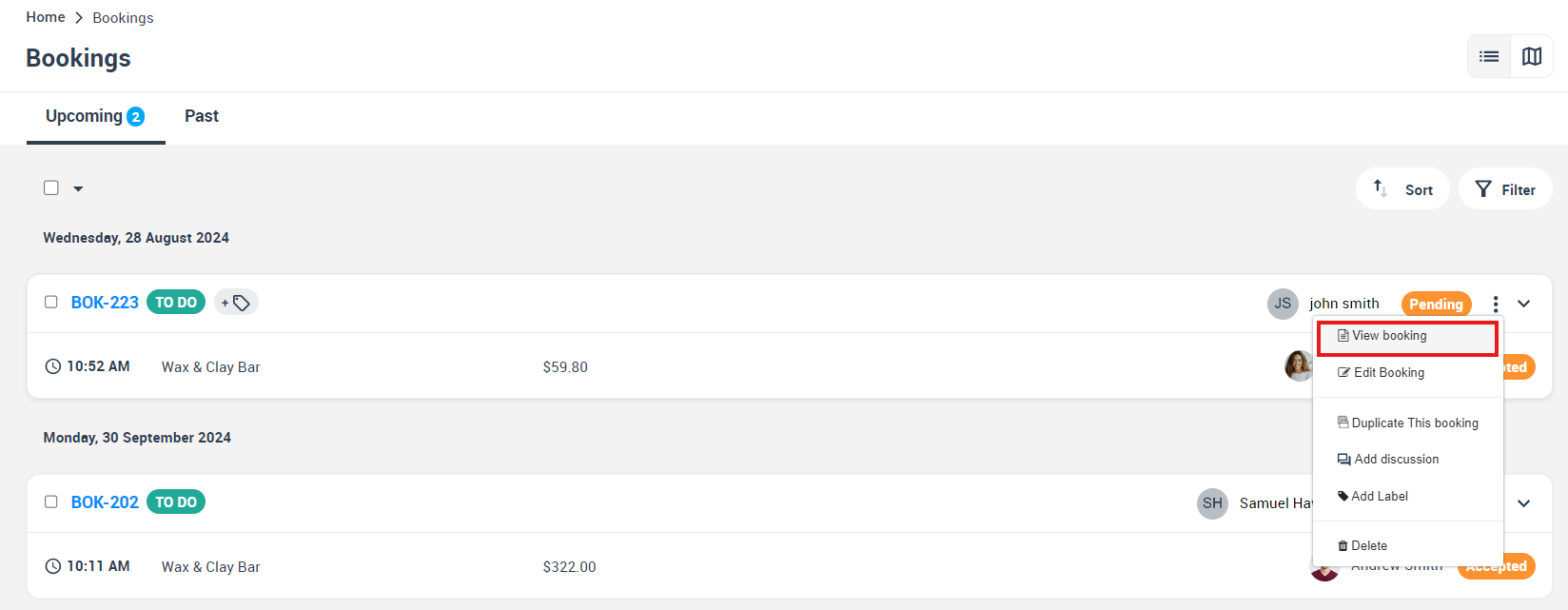
Open the booking first (from the bookings list)
- Go to Bookings (Upcoming / Past / All).
- Click Actions next to the booking.
- Select View booking.
View contact details & contact menu
OctopusPro provides a quick contact menu (icons) so you can email, call, SMS, or start a discussion without leaving the job.
From the bookings list (hover over the customer name)
From the booking details page (Customer section)
Email a customer from a booking
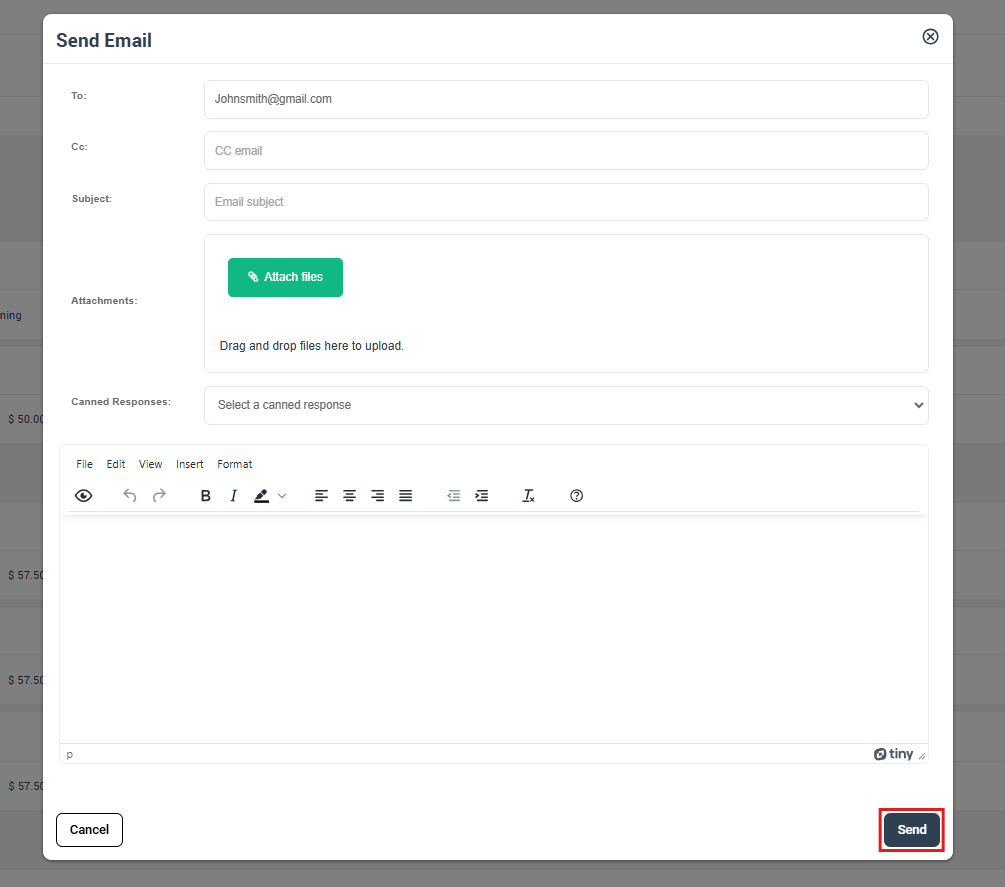
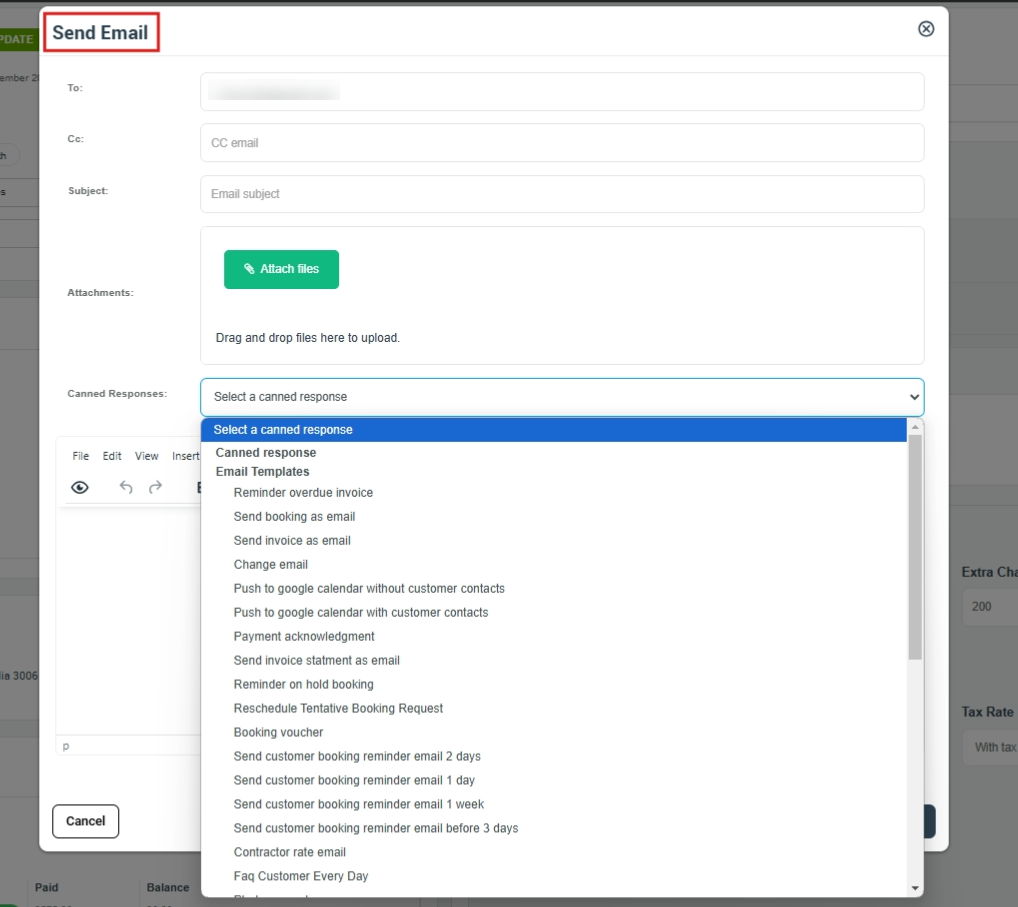
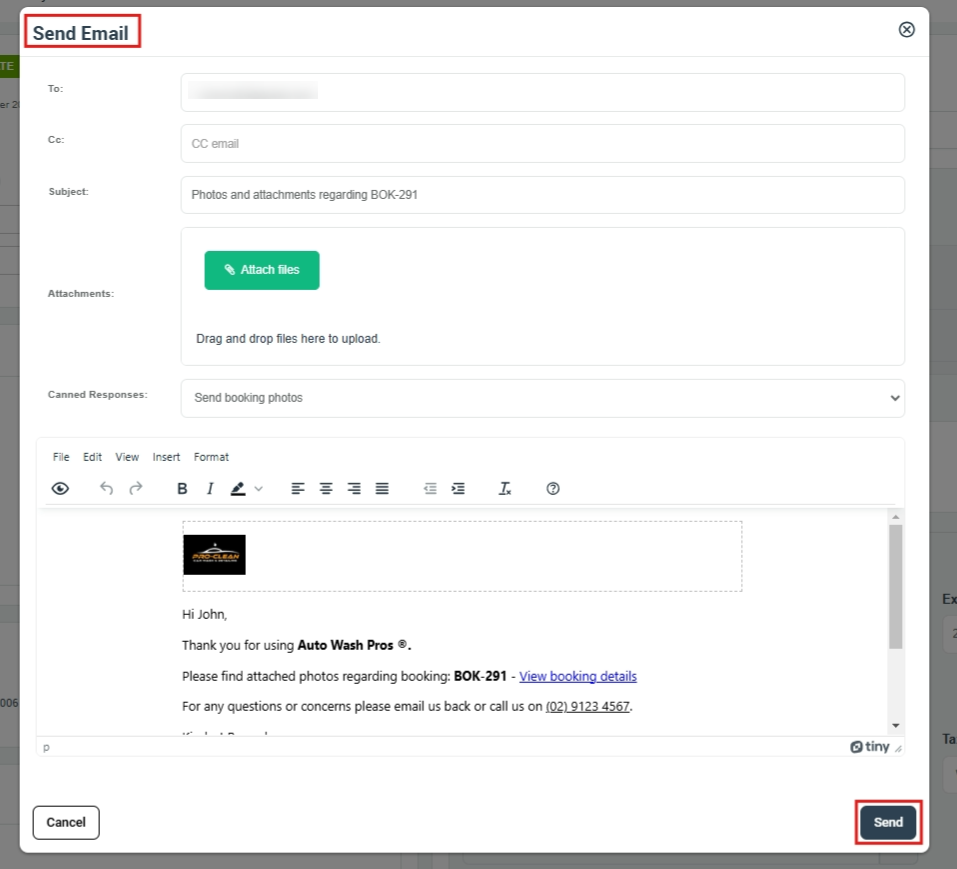
You can send a fully custom email or select a template/canned response to prefill the subject and content. Emails can include attachments such as job photos, PDFs, and documents.
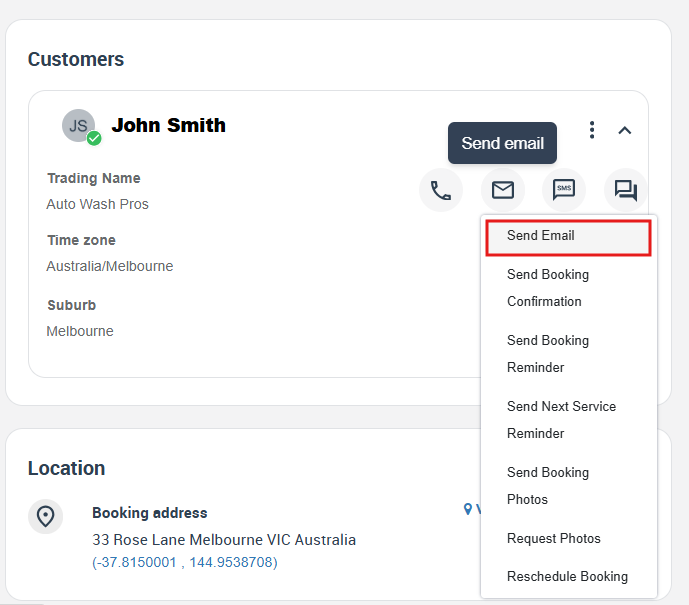
Send an email (from the booking’s Customer section)
- Open the booking.
- In the Customer section, click the Email icon.
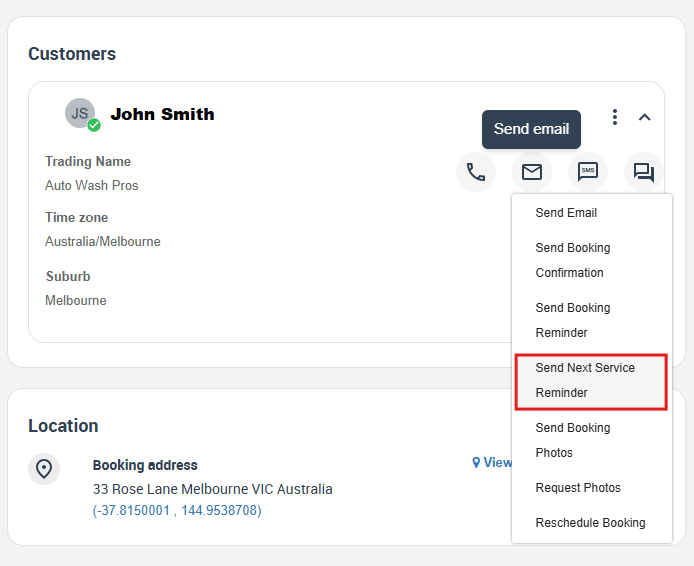
- Select the email action you want (for example: Send Email, Send Booking Confirmation, Send Booking Reminder, Send Next Service Reminder, Send Booking Photos, Request Photos, Reschedule Booking, etc.).
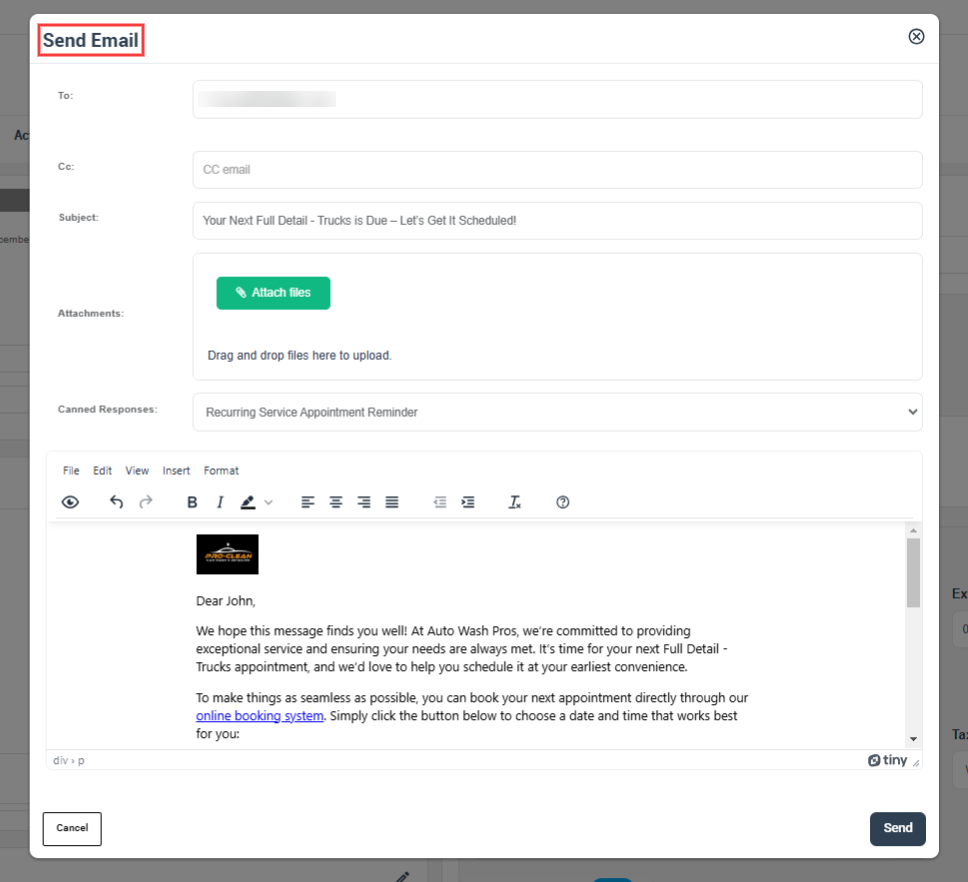
Email form (compose & send)
- To/Cc/Bcc: confirm recipients (especially if the customer has multiple emails).
- Subject: edit as needed.
- Attachments: upload files (and booking PDFs may be attached automatically for certain templates).
- Canned Responses/Templates: choose one to prefill the email, then personalize it.
- Send: click Send to deliver the email.
Call a customer from a booking
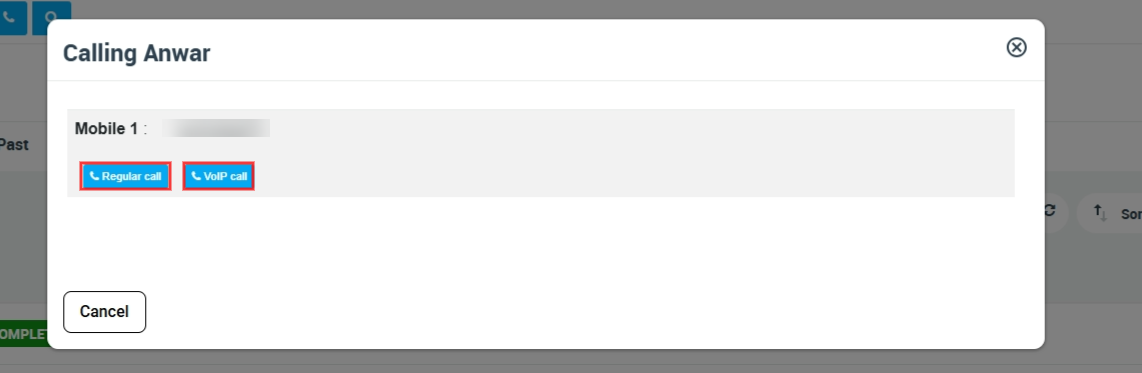
Calling from the booking keeps the conversation tied to the job. Depending on your setup, you may see options for a Regular call (your device dialer) and/or a VoIP call (Digital Phone System).
- Regular call: places a standard call using your device/provider.
- VoIP call (Digital Phone System): places the call through your connected business number (when enabled).
For account-wide call reporting, see: Call History Log.

Start a discussion/chat thread (with attachments)
Booking discussions are ideal for traceable, job-linked conversations—especially when you need internal notes, customer-visible updates, or file sharing. You can control visibility (for example: internal only vs customer-visible) and attach files/photos.
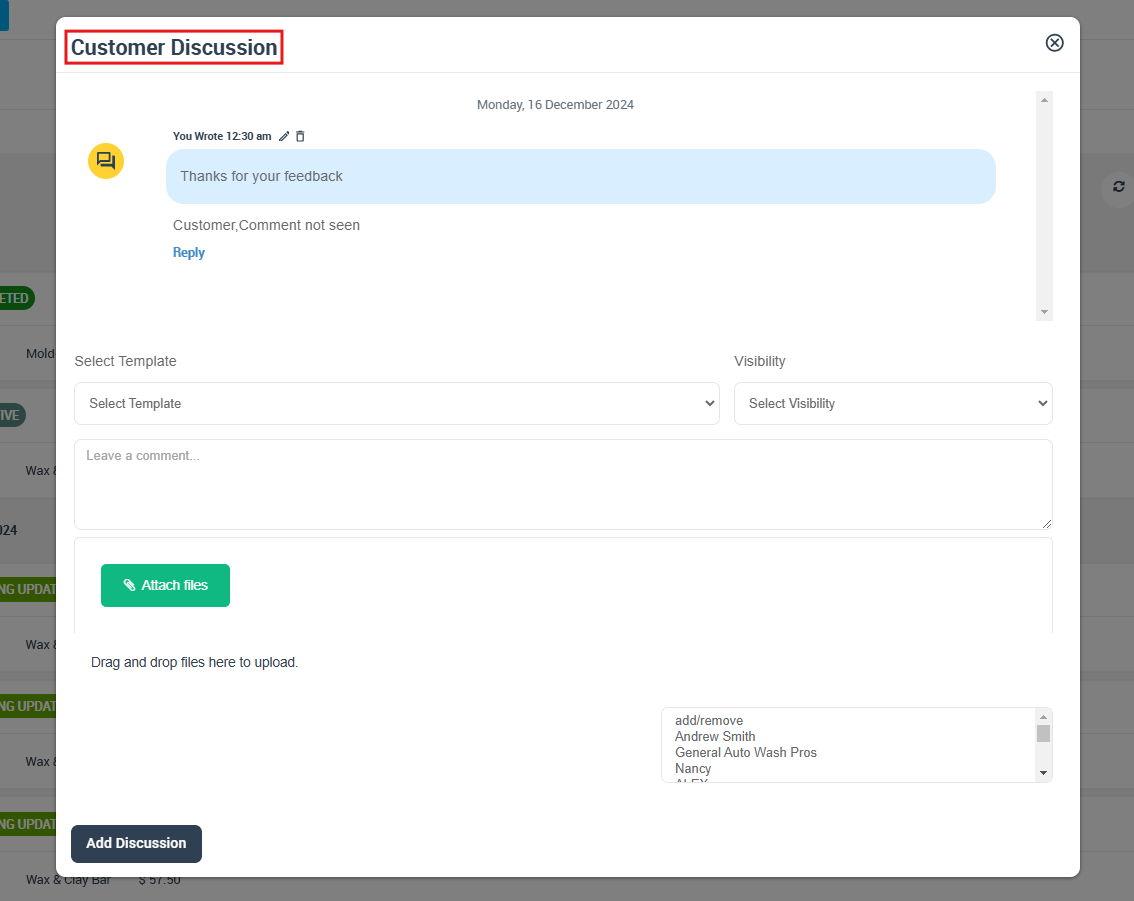
Where customers see discussion updates
Customers can view and respond to discussions through your Customer Portal (and may receive notifications based on your settings). If you need your Customer Portal link, see: Customer Portal URL.
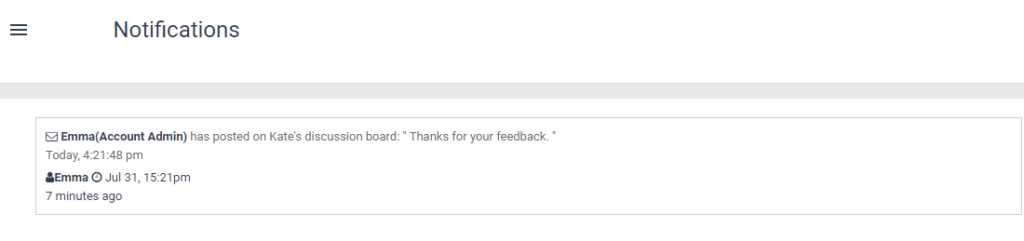
For a full guide to discussions across bookings/quotes/invoices/inquiries/issues, see: Real-Time Discussion Board.

Send an SMS from a booking
SMS is ideal for fast updates like ETA notices, gate code requests, quick confirmations, or last-minute changes.
Important: To send SMS (and receive replies/logs where enabled), you must connect a Digital Phone System number first.
Twilio Digital Phone System (Calls, SMS & MMS).
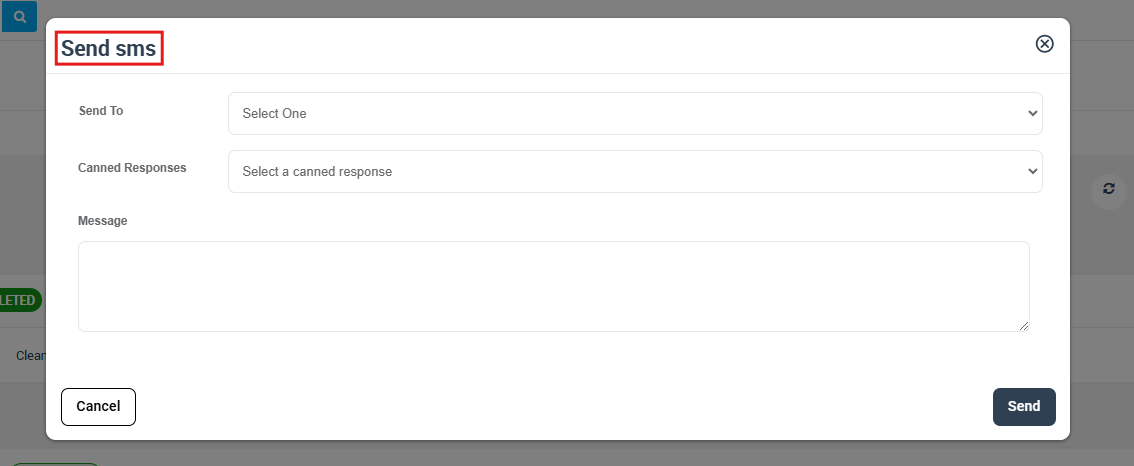
How to send an SMS from a booking
- Open the booking.
- In the Customer area (or by hovering the customer name in the bookings list), click the SMS icon.
- Select the recipient number (if multiple), optionally choose a Canned Response, then type your message.
- Click Send.
Send emails from the booking list
- Go to Bookings (Upcoming / Past / All).
- Hover over the customer name to open the quick menu.
- Click the Email icon and choose what to send.
Send emails from the calendar
From the calendar view, open the booking pop-up and use the contact icons for both the assigned fieldworker and the customer.

Templates, canned responses & placeholders
To save time and keep messaging consistent, OctopusPro supports reusable content for email and SMS (and other channels where enabled on your account):
- Canned Responses: reusable scripts for manual emails/SMS you can personalize before sending.
Canned Responses & Templates

- Email Templates: view and edit the system’s default email templates (confirmations, reminders, invoices, etc.).
Email Templates - Template Placeholders: automatically insert booking/customer details (name, booking number, date/time, address, etc.).
Template Placeholders

- Automations: automate confirmations, reminders, follow-ups, and other workflows to reduce manual work.
Automated Reminders & Confirmations

Common booking email actions (examples)
Depending on your workflow, you may commonly send:
- Manual/custom email: any subject/body, attachments as needed.
- Booking confirmation: appointment details + any attached PDFs (can also be automated).
Send Booking Confirmations

- Booking reminder: reduce no-shows and keep customers prepared.
- Next service reminder: prompt repeat bookings and scheduled maintenance.
- Reschedule/update emails: confirm changes in writing and keep the booking record complete.
- Booking photos: before/after photos, proof-of-work, site condition photos, or approvals.
Example: “Next Service / Next Booking Reminder”
Email booking photos & attachments
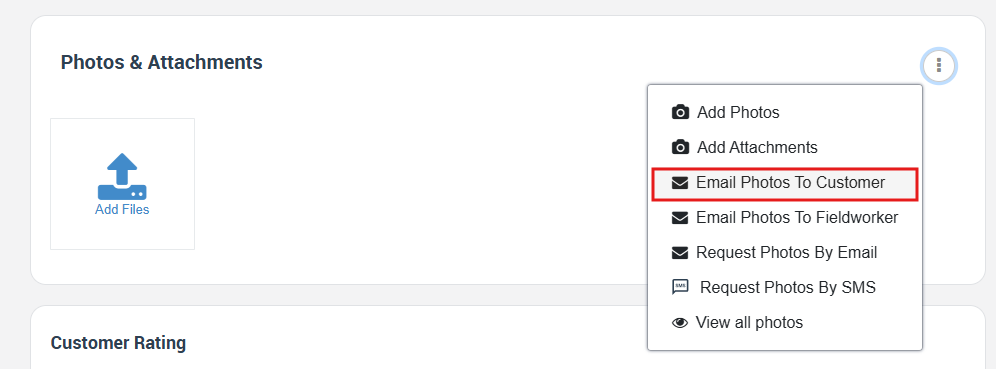
You can email photos and attachments from the booking—ideal for before/after proof, job clarifications, site conditions, receipts, or approvals. For a full attachments guide, see: Upload Images, PDFs & Docs to Bookings, Quotes & Inquiries.

Option A: Email photos to the customer (from Photos & Attachments)
Option B: Email booking photos to the customer (from Customer email menu)
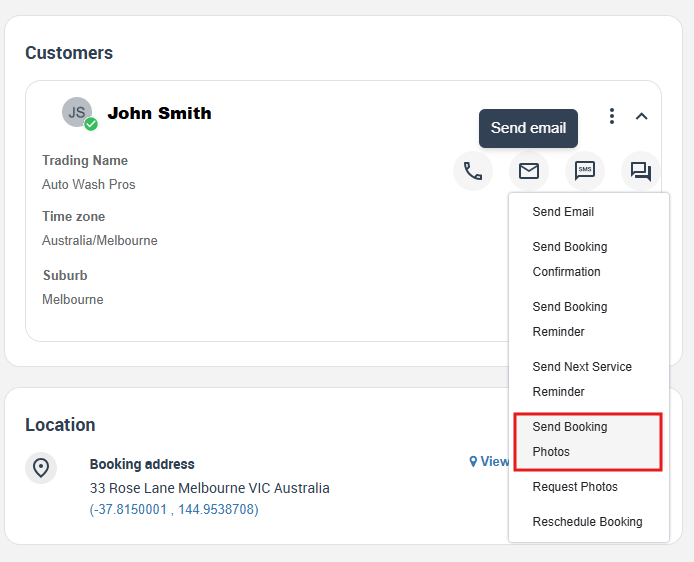
Booking photos email form (example)
Request photos (by Email or SMS)
If you need the customer (or fieldworker) to provide additional images (for example: before photos, access images, damage evidence, measurements, or proof-of-work), you can request photos directly from the booking. This reduces back-and-forth and keeps everything linked to the job.
- Request Photos (Customer Email menu): open the customer’s Email menu and choose Request Photos (shown in the customer email actions menu).
- Request Photos (Photos & Attachments menu): choose Request Photos By Email or Request Photos By SMS.
Tip: In your message, be specific about what you need (e.g., “Please send 3 close-up photos + 1 wide photo + a photo of the access point/entry”).
Email invoices & request deposits
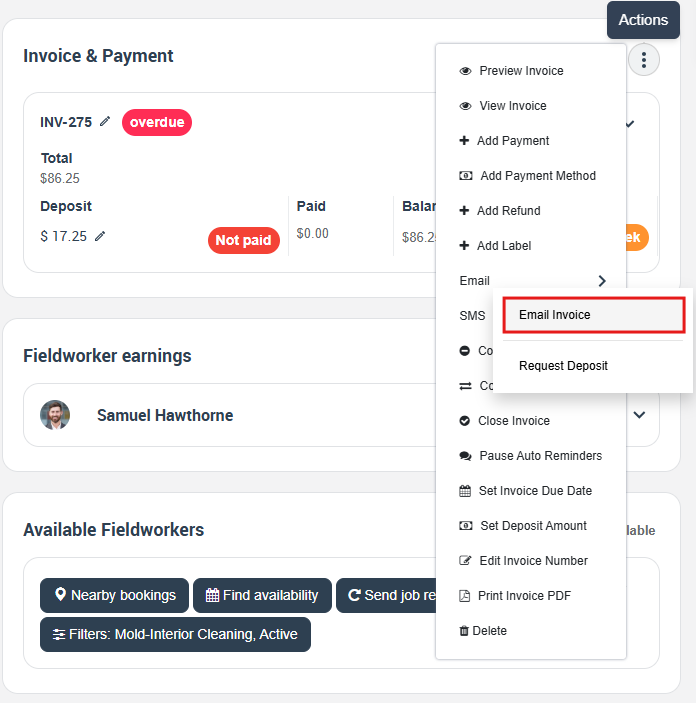
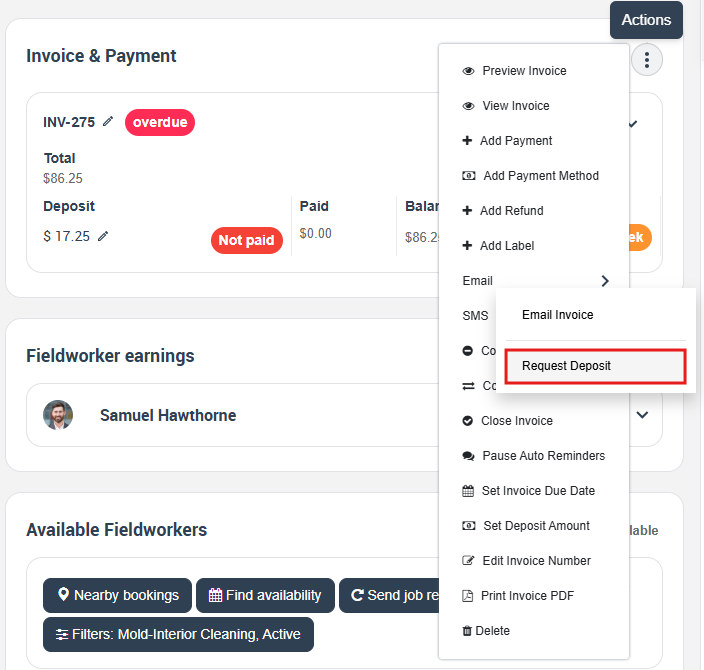
From the booking’s Invoice & Payment area, you can email invoices and request deposits—keeping billing and communications tied to the job. (If SMS is enabled, you may also see SMS options from the same Actions menu.)
Email invoice
Request deposit
Email a fieldworker from a booking
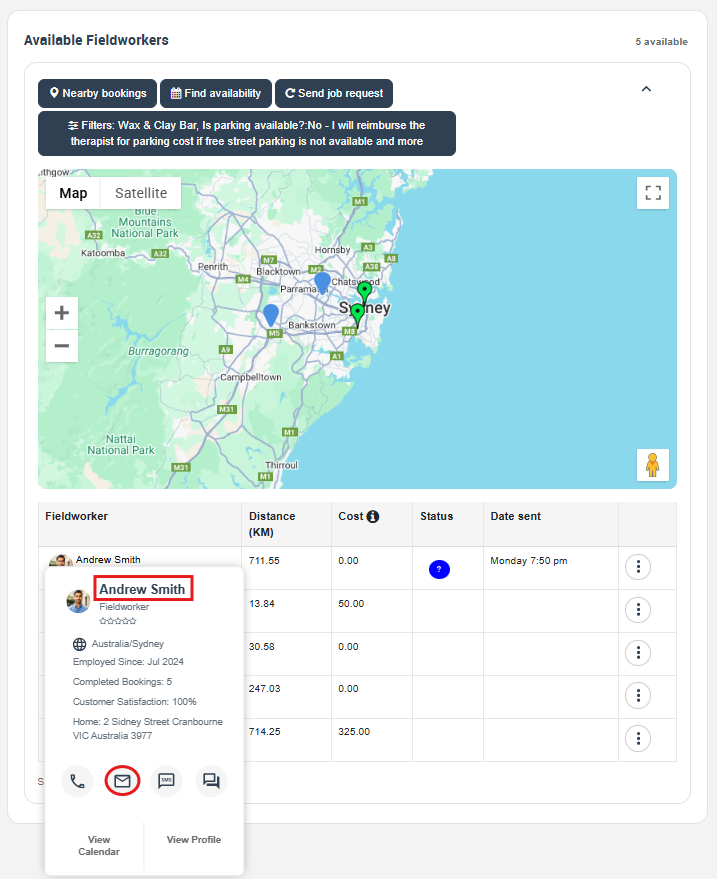
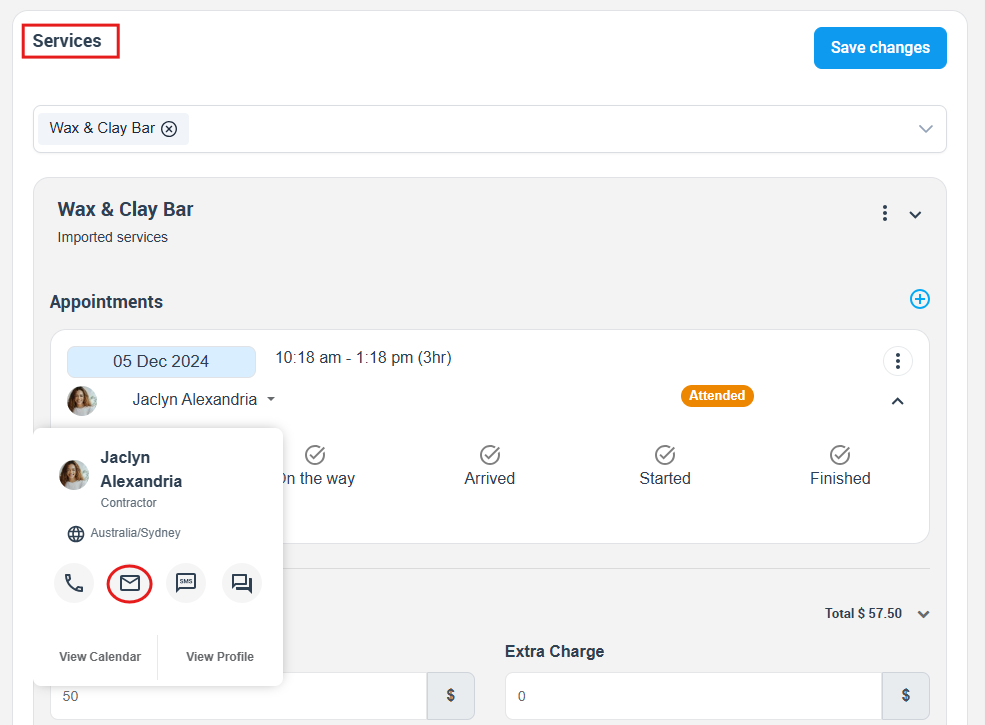
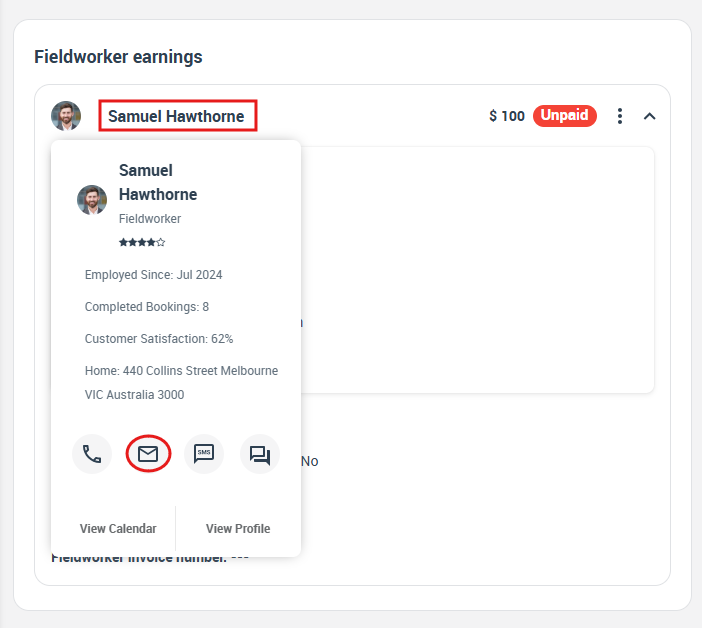
You can email the assigned or available fieldworker directly from the booking—useful for contractors who rely on email rather than the app, or when you need to attach documents/photos.
Option A: From “Available Fieldworkers”
Option B: From the Services/Appointments section
Option C: From Fieldworker earnings (hover menu)
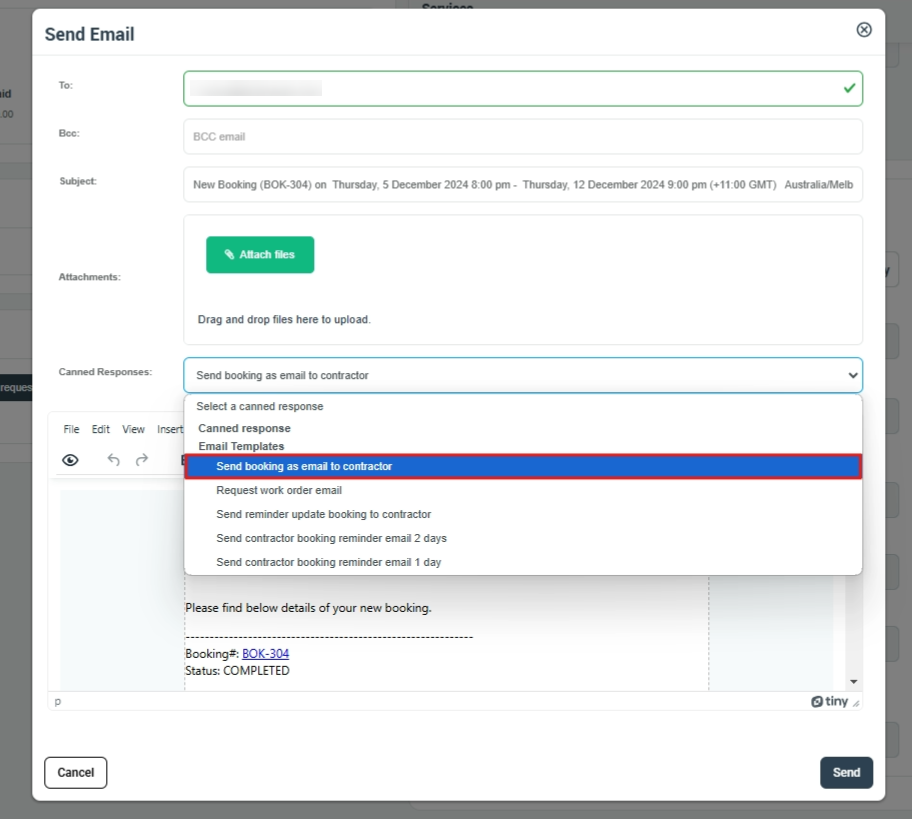
Email booking details to the assigned fieldworker (work-order style email)
- Open the booking overview page.
- Open the fieldworker contact menu (for example in Fieldworker earnings).
- Click the Email icon.
- Select a template such as Send booking as email to contractor.
- Review the subject/content, add attachments if needed, then click Send.
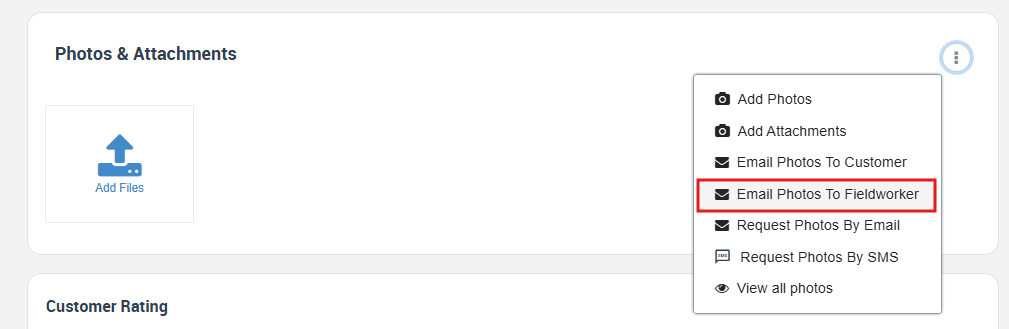
Email photos to the fieldworker
From Photos & Attachments, you can also choose Email Photos To Fieldworker:
For a dedicated fieldworker communication guide, see: Contact Fieldworkers from Bookings & Quotes.

View communication history (per booking)
Every booking includes a Communication area where you can review emails, SMS messages, discussion threads, and call logs—giving you a complete audit trail per job. This is useful for handovers, customer disputes, QA checks, and internal accountability.
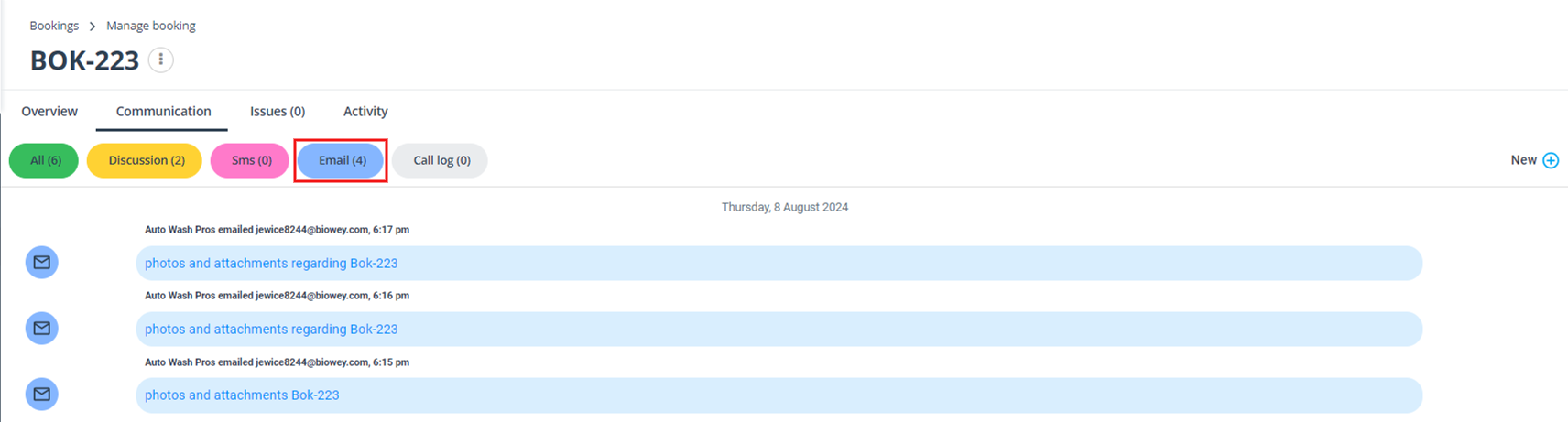
You can also review customer-wide communication history from the customer profile:
Customer Communication History.

Send a new email from Customer / Fieldworker lists
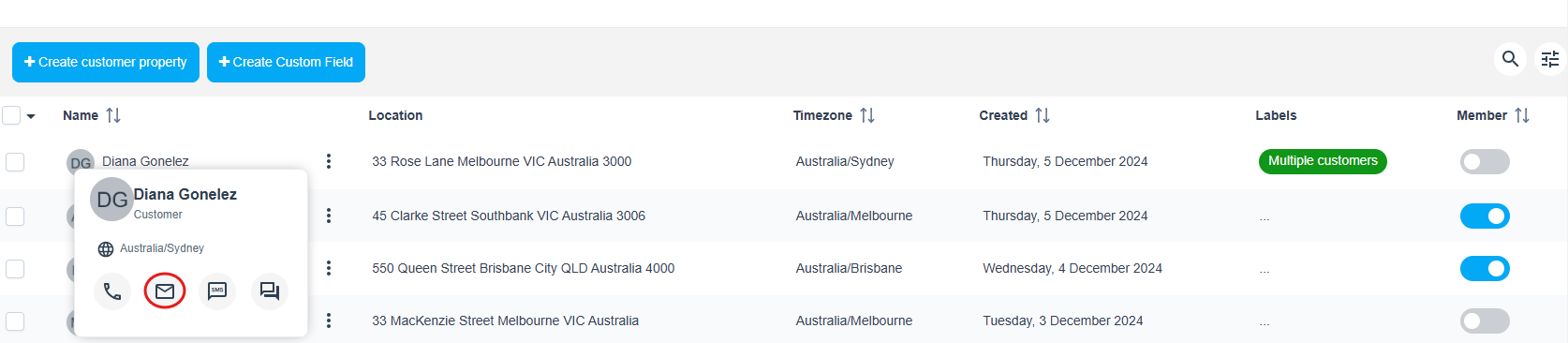
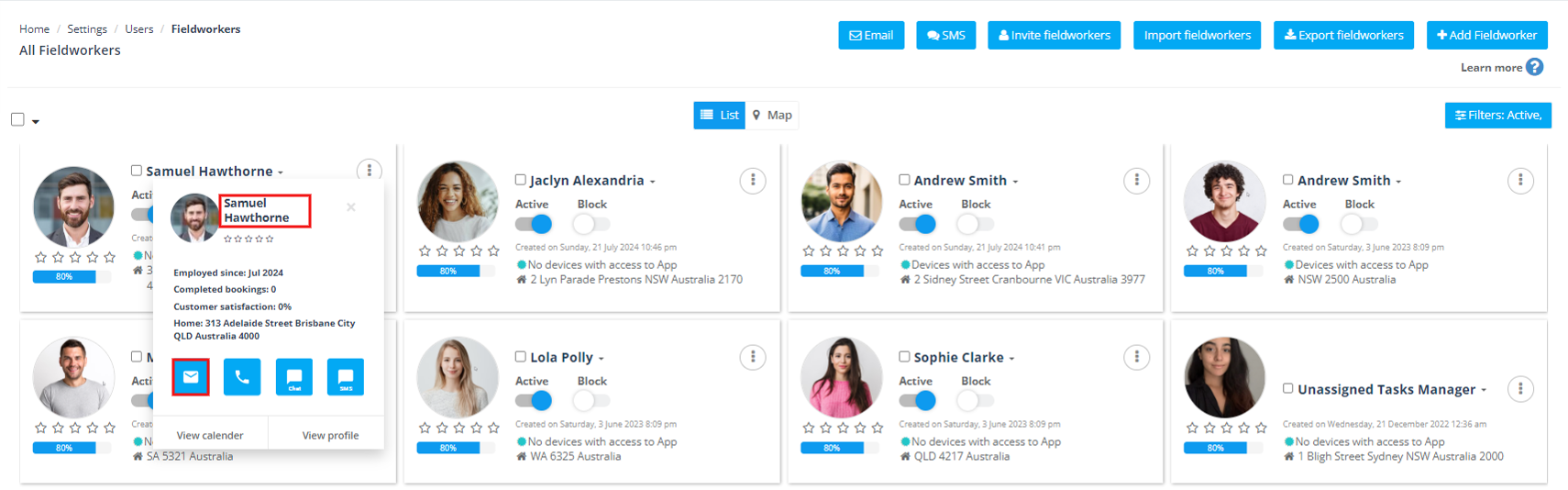
You can start a brand-new email outside a booking by using the contact menu in the customer list or fieldworker list.
Email from Customers list
Email from Fieldworkers list
Troubleshooting
- Email won’t send / goes to spam: configure your sender email/authenticated domain: Business Email Authentication.
- SMS option missing: connect your Digital Phone System (Twilio): Set Up Digital Phone System.
- Icons not visible / staff can’t access communications: review user roles/permissions for booking communications and sending privileges.
- Need to pause automated reminders for a specific job: Pause & Resume Booking/Quote/Invoice Notifications.
- Limit fieldworker-to-customer contact before the booking start time (optional policy): Restrict Fieldworker Communication Before Booking Start.
Best practices
- Standardize your messaging: build canned responses for common scenarios (ETA, access instructions, payment reminders) and personalize before sending.
- Use placeholders: reduce errors and save time (customer name, booking number, appointment window, address).
- Use discussions for ongoing collaboration: keep updates and attachments inside the booking thread instead of scattered emails.
- Be specific when requesting photos: list exactly what images you need and why.
- Train your team to work “from the booking”: when communication is job-linked, handovers and audits become painless.
- Monitor fieldworker ↔ customer communication when needed: see Fieldworker App Communication Guide (Office & Customers).
To stay updated, please subscribe to our YouTube channel.
[/vc_column_text][/vc_column][/vc_row]