
Discount Voucher Code Management (Promo Codes & Coupons)
OctopusPro’s Discount Vouchers feature lets you create and manage voucher codes (also known as promo codes, coupon codes, or discount codes) that customers can enter during booking or checkout to receive a discount.

Use voucher codes to run seasonal promotions, reward loyalty, support referral and influencer campaigns, win back inactive customers, or provide targeted offers for specific services, locations, or customer groups—while maintaining full control through eligibility rules, redemption limits, and validity windows.
Table of contents
- What are voucher codes?
- Benefits of using voucher codes
- Ideal audience & use cases
- Enhancing brand image with voucher codes
- User permissions for voucher management
- Create a voucher code
- Voucher fields explained (settings & rules)
- Finalize & distribute your voucher
- How customers redeem voucher codes (Customer Portal)
- Redeeming voucher codes (Admin users & Fieldworkers)
- FAQs & troubleshooting
What are voucher codes?
Voucher codes are unique strings of letters and/or numbers that customers enter during booking to unlock a discount or promotional benefit. In OctopusPro, voucher codes can be used across customer-facing booking flows (web/mobile Customer Portal) and can also be applied by admin users and fieldworkers when creating or managing bookings.

Common voucher code types used in service businesses include:
- Single-use codes for VIPs or goodwill gestures (e.g., complaint recovery).
- Referral / influencer codes to track campaign performance.
- Limited-time offers for seasonal promotions.
- Targeted offers limited by customer label, city, or specific service.
Benefits of using voucher codes
- Boost conversions: Reduce hesitation and increase completed bookings.
- Increase repeat business: Reward loyal customers and encourage rebooking.
- Lift average order value: Use minimum booking values and targeted offers to drive larger jobs.
- Run measurable campaigns: Track usage via unique codes per channel or partner.
- Stay in control: Limit who can redeem, how often, and when the voucher is valid.
Example: Offer 15% off to “Returning Customers” only, capped at 100 total redemptions, valid weekdays 9am–5pm, and only for a specific service such as “Deep Cleaning”.
Ideal audience & use cases
Discount vouchers are especially useful for businesses that:
- Provide repeatable services (cleaning, maintenance, beauty, wellness, trades, mobile services).
- Want to target specific customer segments (VIPs, repeat customers, inactive customers).
- Run seasonal campaigns, limited-time promotions, or partner/referral programs.
- Need to control eligibility by city, service, or customer label.
Enhancing brand image with voucher codes
Voucher codes can strengthen brand perception when used strategically:
- Professional promotions: Clear terms, caps, and validity windows reduce confusion.
- Personalized offers: Targeted vouchers feel exclusive and improve loyalty.
- Consistent experience: Customers see the voucher description during redemption, which helps set expectations.
User permissions for voucher management
Admin users can create vouchers by default. If you want other user roles to create/manage vouchers, grant them permission:
- Go to Settings > Company Settings > Users, then open the Roles tab.
- Click Assign Credentials.
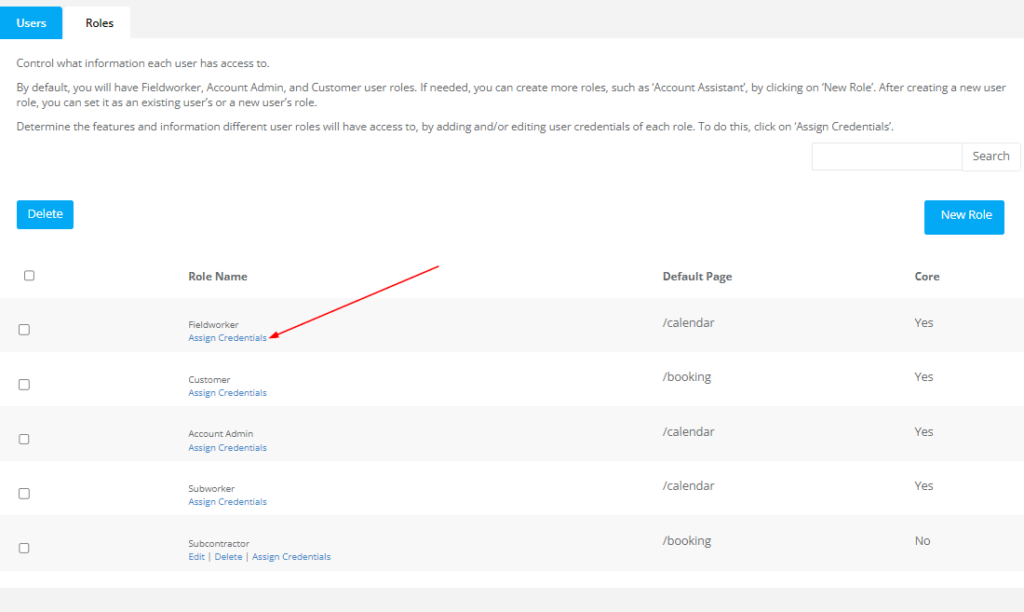
- Open Permission For Settings.
- Use Ctrl + F and search for Settings Voucher.
- Enable the permission checkbox, then click Save.

Create a voucher code
- Go to Settings > Financial Settings > Discount Vouchers.
- Click + Create New Voucher.
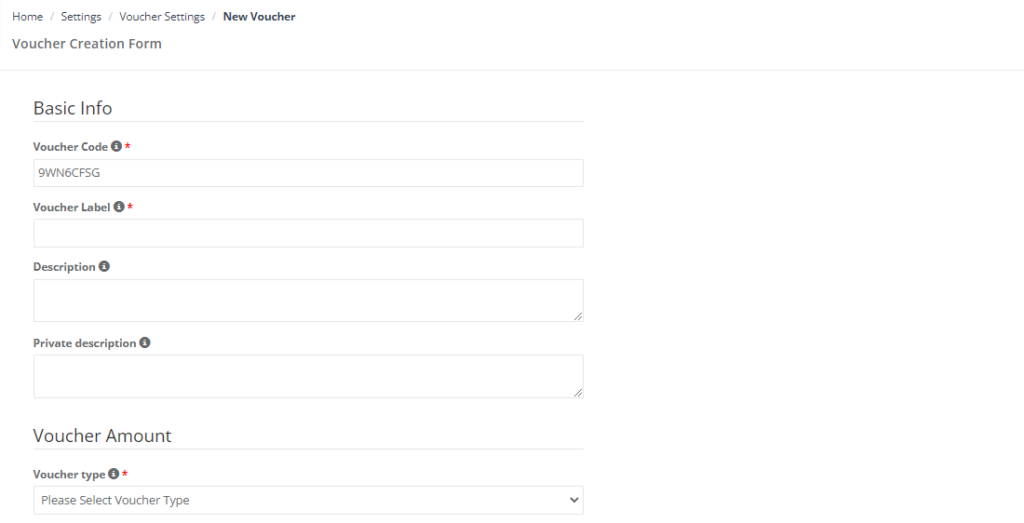
- The system generates a code automatically. You can keep it or replace it with your own custom code.
Tip: If entering a manual code, ensure it is at least 8 characters.
Voucher fields explained (settings & rules)
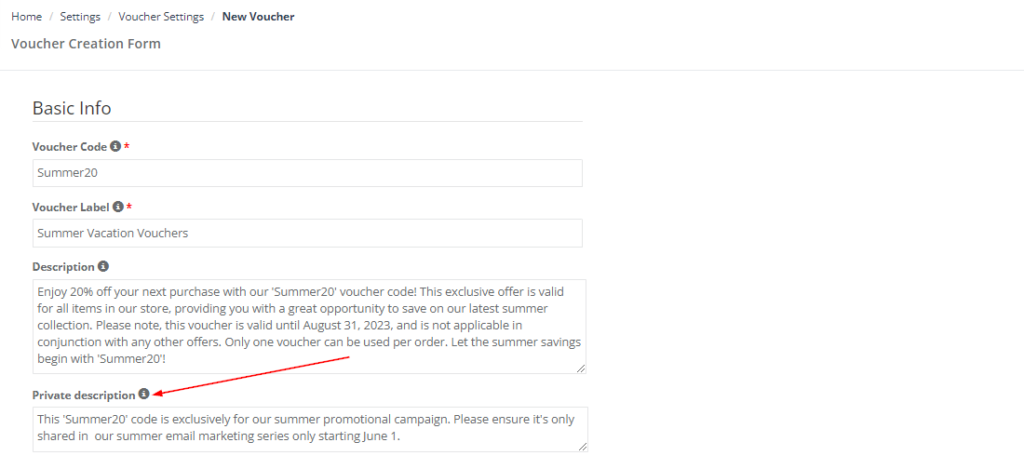
1) Voucher code
This is what customers will enter when redeeming the discount. Use short, readable codes that match your campaign (e.g., SUMMER20, WELCOME15).
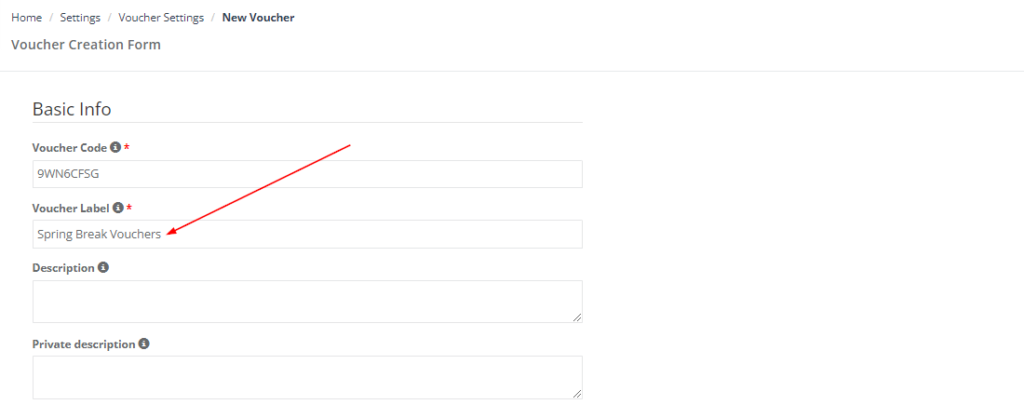
2) Voucher label (internal name)
The label helps staff quickly identify vouchers in your admin settings and lists (e.g., “Spring Campaign”, “VIP Recovery”, “Influencer – Sara”).
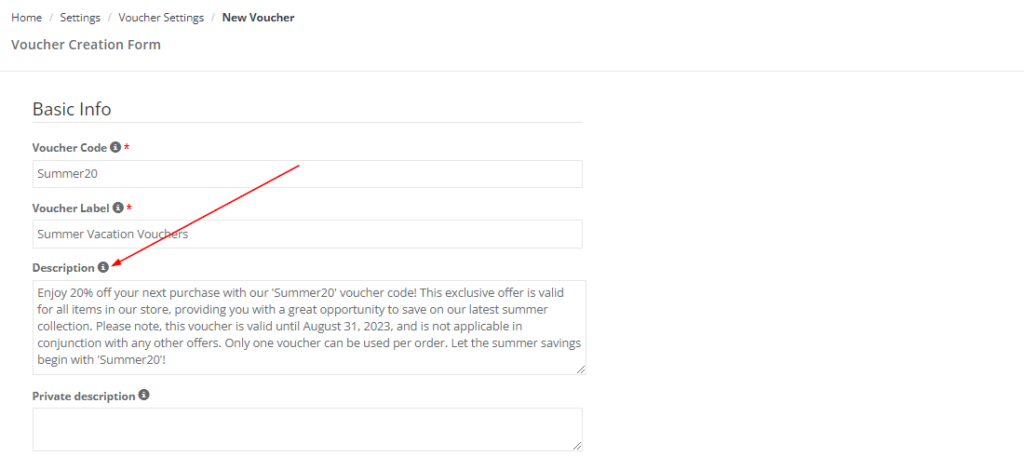
3) Description (customer-facing)
This description is visible to customers and users when the voucher is used, so write it like a short offer message plus key terms (what it applies to, expiry, any restrictions).
4) Private description (internal notes)
Internal-only notes for staff (e.g., who the voucher is for, where it was distributed, special handling instructions).
Voucher amount
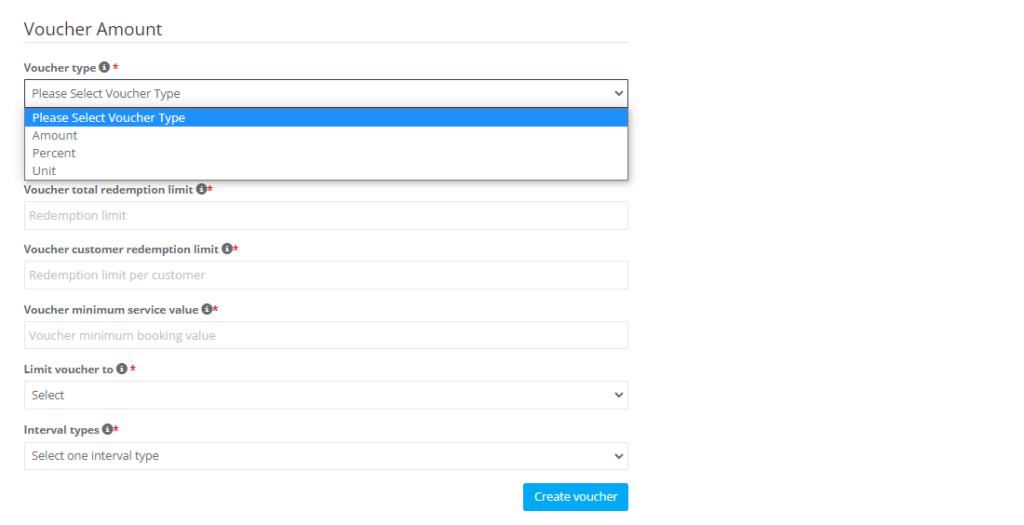
5) Voucher type
Select how the discount should be calculated:
- Amount: Fixed value off the total (e.g., $20 off).
- Percent: Percentage off the total (e.g., 15% off).
- Unit: Discount per unit (useful when services are priced per unit/quantity).
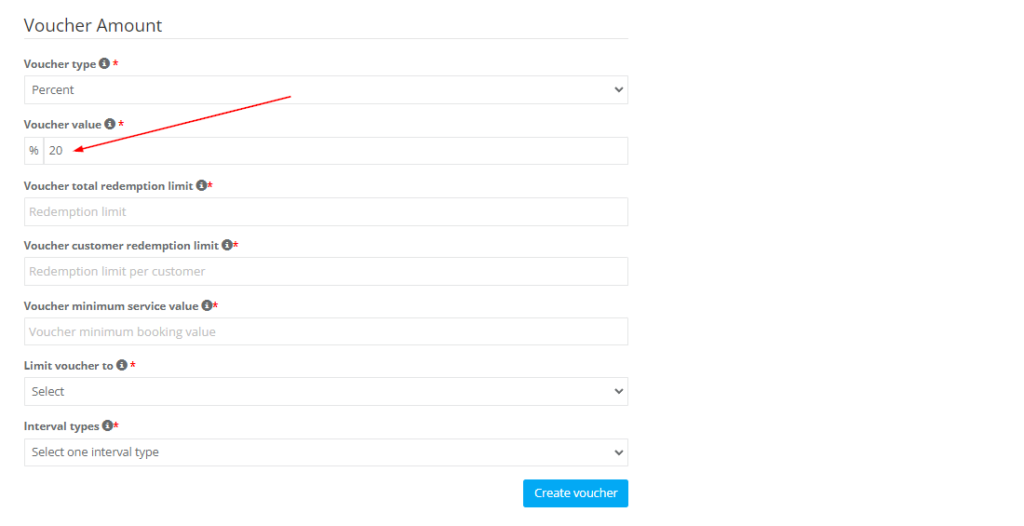
6) Voucher value
Enter the numeric value based on the type selected (e.g., 20 = 20% when using Percent, or $20 when using Amount).
Redemption limits
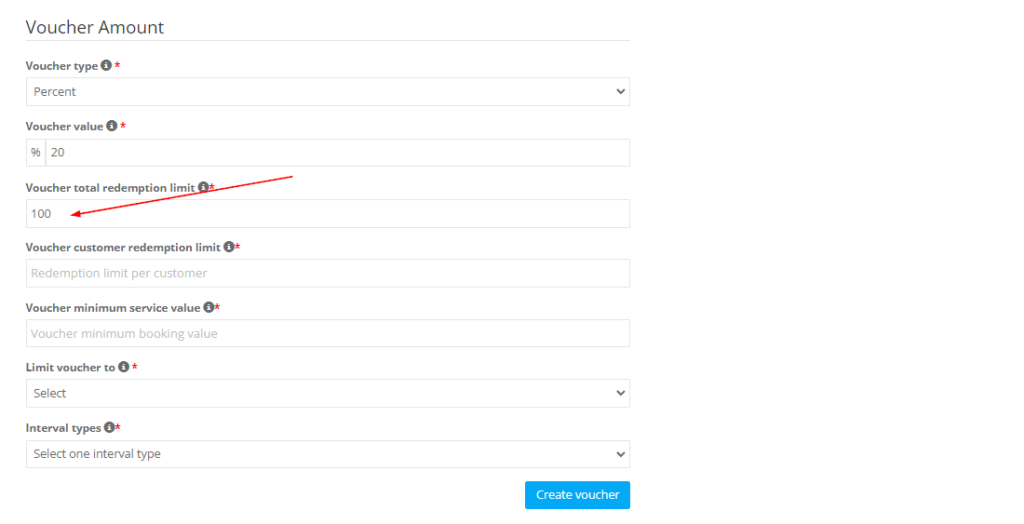
7) Total redemption limit
Sets the maximum number of times the voucher can be redeemed across all customers.
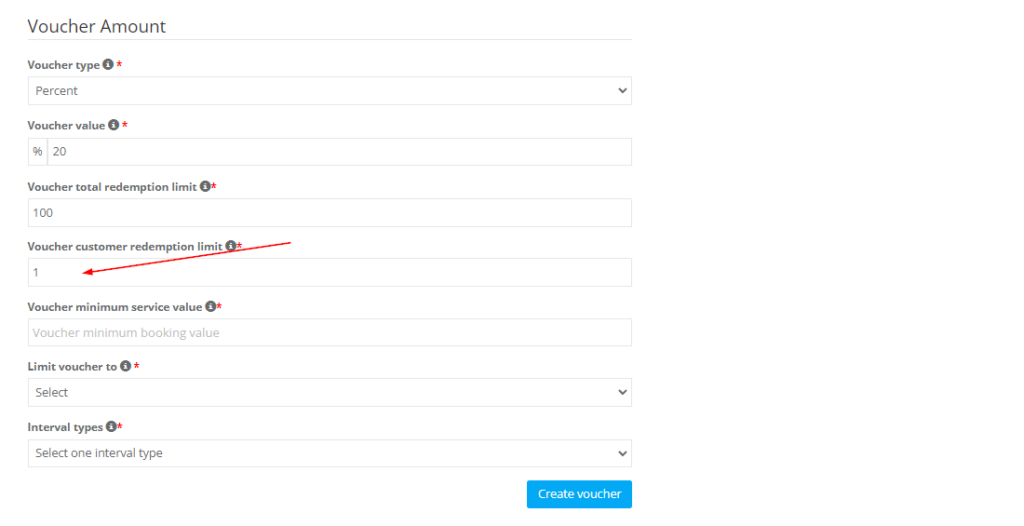
8) Customer redemption limit
Sets how many times each customer can redeem the voucher (e.g., 1 per customer).
Minimum booking value
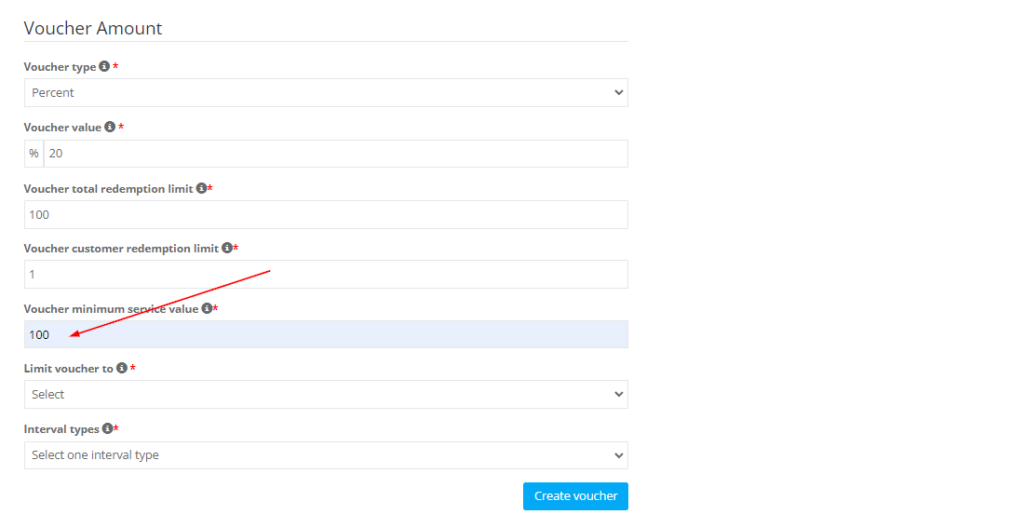
9) Minimum service value
Require a minimum booking/service total before the voucher can be applied (helps protect margins and increase average order value).
Targeting & eligibility
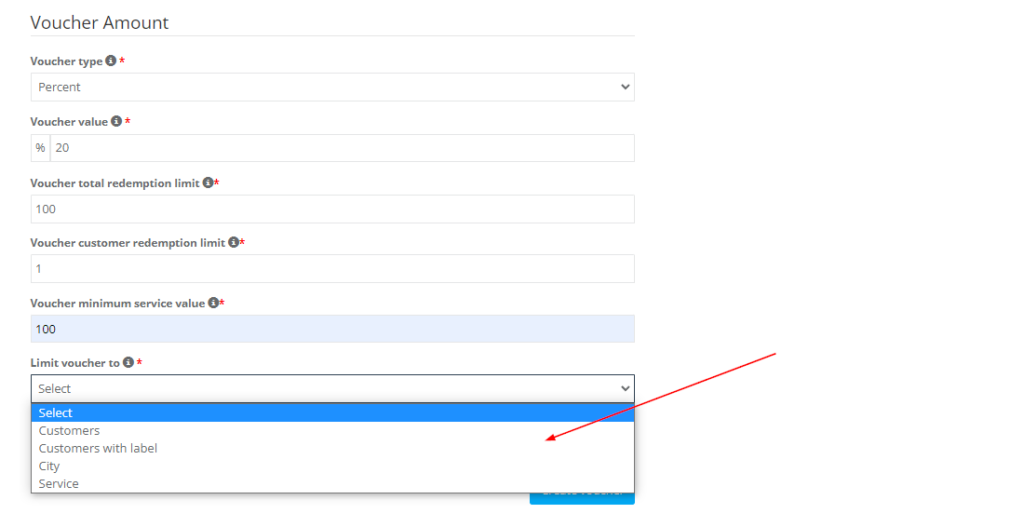
10) Limit voucher to
Restrict who can use the voucher. You can limit vouchers to:
- Customers (selected customer accounts)
- Customers with label (e.g., VIP, Returning, High Value)
- City (location-based promotions)
- Service (apply only to specific services)
Note: When limiting vouchers to specific customers, you can add up to 50 customers.
Validity windows (interval types)
Control exactly when the voucher is valid. Choose one of the following interval types:
11) Date range
Voucher is valid between a start and end date.

12) Time range
Voucher is valid within specific hours (e.g., off-peak discounts).

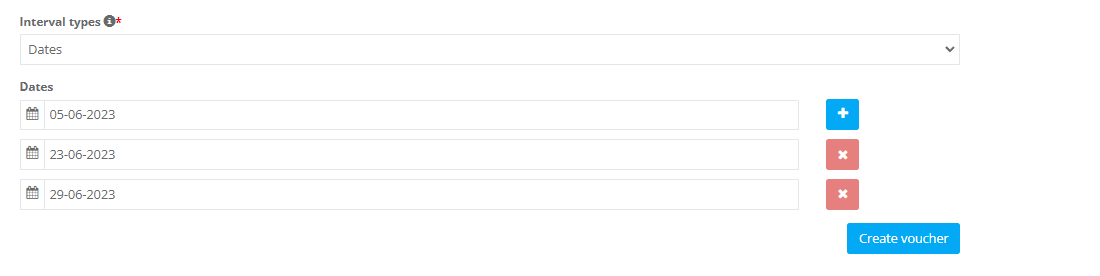
13) Specific dates
Voucher is valid only on selected dates.
14) Days of the week
Voucher is valid on selected days (e.g., Monday–Thursday only).

Finalize & distribute your voucher
After you’ve configured all voucher settings (type, value, limits, eligibility, and validity windows), click Create voucher. Before you share it, do a quick “sanity check” to avoid customer confusion and margin surprises:
- Confirm eligibility rules: If you limited the voucher to a service, city, specific customers, or customer labels, make sure your offer message clearly states this (e.g., “Valid for Deep Clean services only”).
- Confirm limits: If it’s a public campaign, set a Total redemption limit and a Customer redemption limit (e.g., 1 per customer) to prevent overuse.
- Confirm the validity window: Double-check date range / time range / specific dates / days of the week—especially if you’re running off-peak promotions.
- Confirm the minimum spend: If you set a Minimum service value, include it in your promotional text (e.g., “Min spend $150”).
Recommended: Test the voucher yourself by creating a booking in your Customer Portal and applying the code at checkout. This confirms the discount applies exactly as expected before customers see it.
Once your voucher is created and verified, distribute it using one of the following methods:
Option A: Manual distribution
Use manual distribution for broad promotions or one-off goodwill offers.
- Email campaigns: Share the code in newsletters or targeted customer segments (e.g., “VIP” label).
- SMS / WhatsApp: Great for short, time-sensitive offers. Keep the message simple and include key terms (expiry + min spend).
- Social media / ads: Use a unique code per channel (e.g., “INSTA10”, “FB10”) so you can measure performance.
- Invoices / printed flyers: Useful for local businesses; include an expiry date to drive urgency.
- Support / retention: Use private codes for complaint recovery or win-back offers (e.g., “SORRY15”).
Option B: Automated distribution (optional)
Use automations to send vouchers to the right customers at the right time—then follow up automatically (for example, before the voucher expires).
- Voucher distribution: Automatically email eligible customers when a voucher is created (ideal for label-based campaigns like “Returning Customers”).
- Reminder follow-ups: Send a reminder 24–48 hours before expiry to increase redemption.
- Win-back campaigns: Trigger offers for inactive customers (e.g., no bookings in 60–90 days), depending on your automation setup.
Automations are managed from Settings > Communications > Automation. Learn more here: Automated Procedures (Automations).
Pro tip: For reliable tracking, create different voucher codes per campaign/channel (email vs SMS vs partner). This makes it easy to identify what’s working when reviewing redemptions.
How customers redeem voucher codes (Customer Portal)
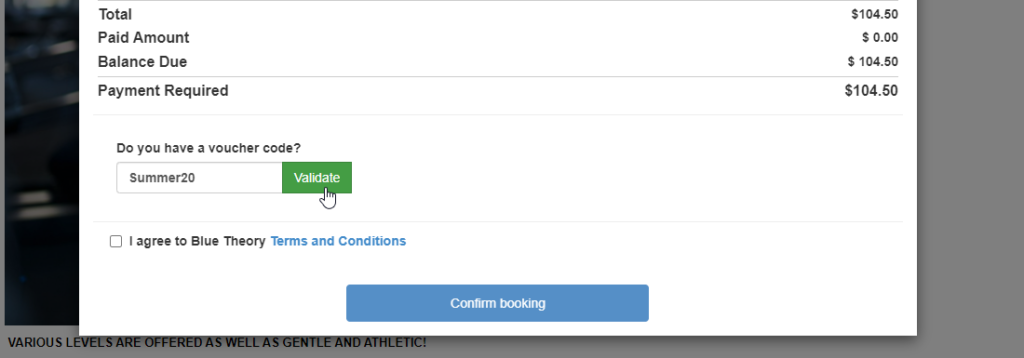
Customers can redeem voucher codes while booking through your Customer Portal (web/mobile). They enter the code and click Validate.
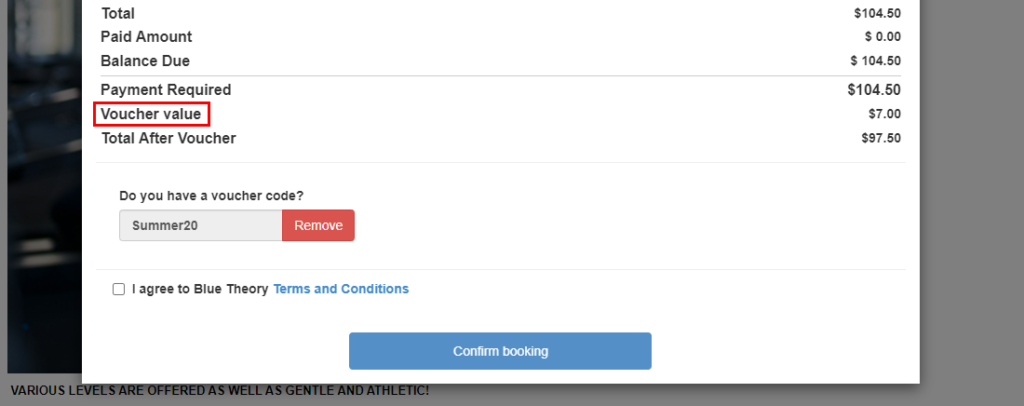
Once validated successfully, the discount is applied to the booking total. Customers can also remove the voucher if needed.
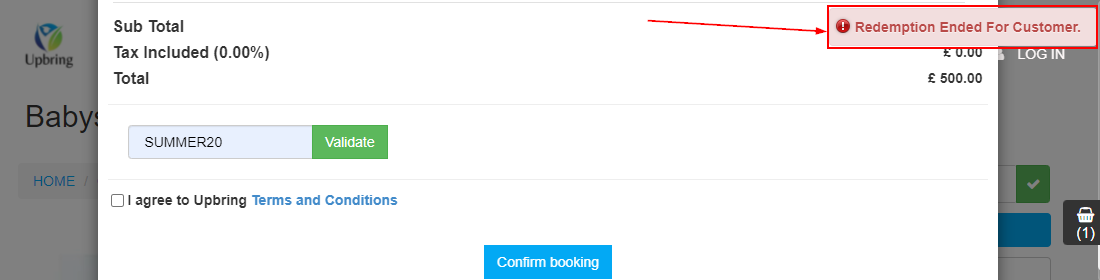
If a customer tries to use a voucher beyond their allowed limit, they’ll see an error message such as:
Redeeming voucher codes (Admin users & Fieldworkers)
Admin users and fieldworkers can apply voucher codes when creating or editing bookings (for example, when taking a booking over the phone or assisting a customer).
In the Fieldworker / Admin mobile app, enter the code and tap Validate:
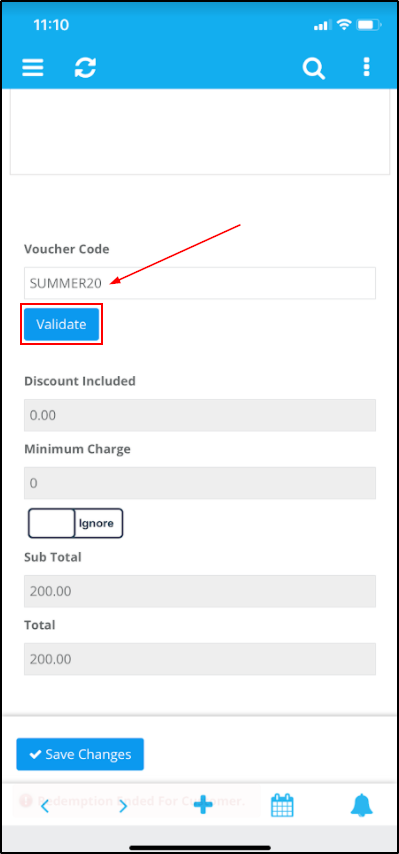
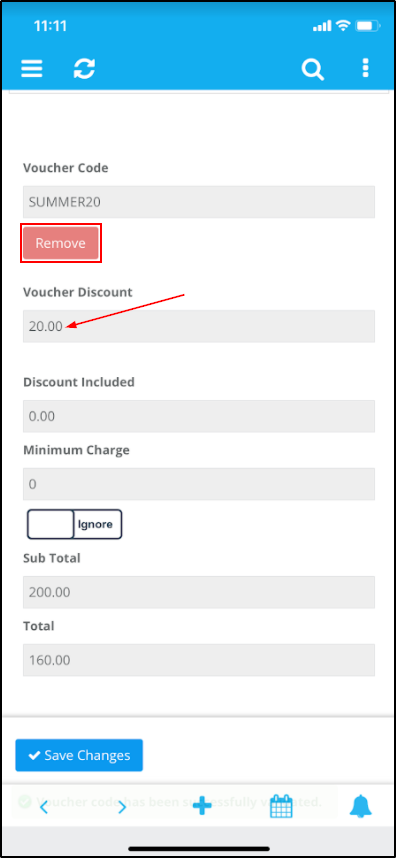
After validation, the discount is applied and can be removed if needed:
FAQs & troubleshooting
If a voucher code won’t apply, check the most common causes:
- Code is incorrect: Confirm spelling and formatting (no extra spaces).
- Expired / not in valid window: Review interval type (date/time/days/specific dates).
- Redemption limit reached: Check total redemption limit and per-customer limit.
- Minimum booking value not met: Ensure the booking total meets the minimum service value.
- Not eligible: Confirm “Limit voucher to” rules (customer, label, city, service).
Best practices:
- Use clear labels and customer-facing descriptions (include expiry and key terms).
- Always set redemption caps for public campaigns.
- Use minimum booking values to protect margins.
- Use targeted vouchers (labels/cities/services) to keep offers relevant and reduce misuse.
To stay updated, please subscribe to our YouTube channel.