
Managing Account Currency Preferences (Default Currency)
Your default account currency (also known as your base currency) is the main currency used across OctopusPro for billing and financial activity—such as invoices, payments, refunds, and financial reporting.
Important: Your default currency is automatically set during signup based on the country selected during registration. It cannot be changed from within your account settings.
On this page
- What is the default currency?
- How OctopusPro sets your currency
- How to view your current currency
- How to request a currency change
- Before you request a change (recommended checklist)
- Common examples
- Related financial settings
- FAQ
What is the default currency?
Your default currency determines how OctopusPro records and displays monetary values across key areas, including:
- Invoices & quotes: totals, taxes, discounts, and balances.
- Payments & refunds: payment amounts recorded against invoices and booking payments.
- Reporting: revenue totals, outstanding balances, and financial summaries.
- Payment processing context: currency reference shown in your payment integration settings (and may impact how you reconcile transactions externally).
How OctopusPro sets your currency
When you create a new OctopusPro account, the system automatically assigns a default currency based on the country selected during registration. This helps align your account with your operating region and keeps financial settings consistent.
How to view your current currency
To view the currency currently set on your account:
- Go to Settings
- Open Financial Settings
- Select Payment Integration
- Check the Currency section (Currency name, acronym/code, and symbol)
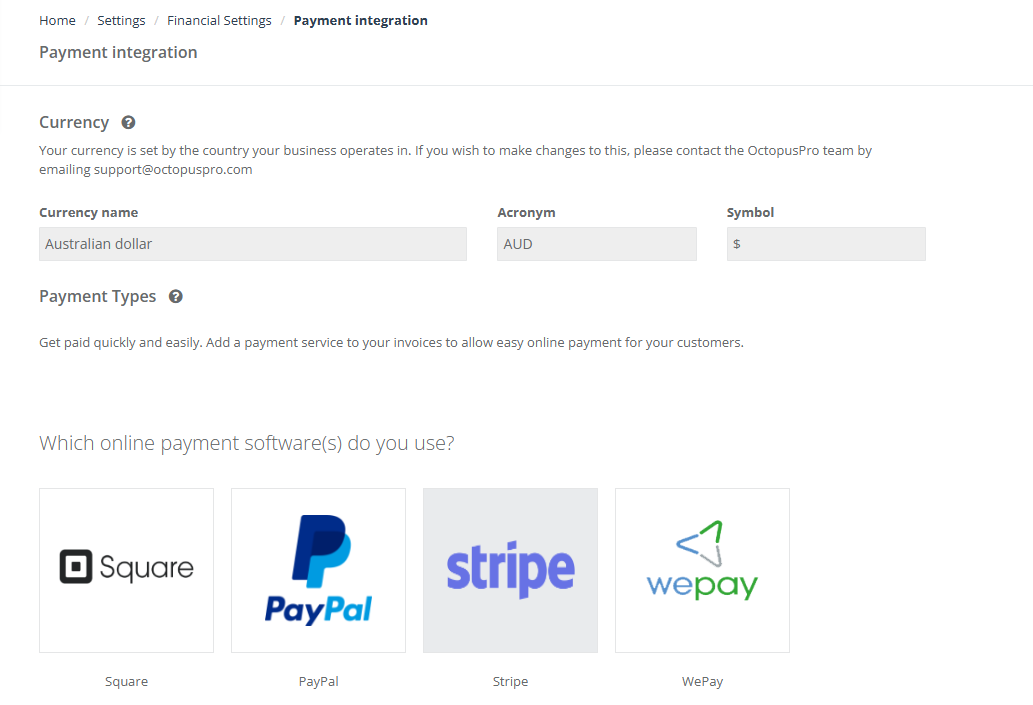
Tip: Click the image to open it in a new tab.
How to request a currency change
If you need to change your default currency (for example, due to relocation), this cannot be done inside your account settings. You’ll need to contact OctopusPro Support so they can review your request and guide you through the next steps.
- Email our Support Team.
- Include the details listed below to help us process your request faster.
- Our team will review your request and advise on next steps and any impacts.
What to include in your request:
- Your company name (as shown in OctopusPro)
- Your OctopusPro admin email (login email)
- Your current currency and the new currency you want
- The reason for the change (e.g., relocation)
- Your preferred effective date (if relevant)
Processing time: Currency change requests may take a few days to complete, and can affect current and future transactions.
Before you request a change (recommended checklist)
Because your base currency affects how financial transactions are recorded and displayed, it’s recommended to review the following before requesting a change:
- Open invoices and balances: identify any outstanding invoices or partially-paid invoices that may be impacted.
- Recent payments and refunds: consider completing any time-sensitive reconciliation first.
- Accounting/export workflows: if you sync/export to accounting tools, consider how reporting continuity will be handled after the change.
- Payment gateway setup: confirm your gateway/account configuration aligns with the currency you intend to use.
Support will confirm any account-specific considerations during the review.
Common examples
- Business relocation: you now trade primarily in a different currency.
- New entity / restructure: you moved operations to a different region and need the account currency updated.
- Initial setup correction: the wrong country/currency was selected during signup and you want to correct it before scaling billing.
Related financial settings
These guides may also help (all links open in a new tab):
- Payment Methods Configuration (Activating and Managing Payment Options and Types)
- Service Payment Terms (Deposits, upfront payments, and payment rules)
- Credit Card Payments Surcharge (Add card processing fees)
- Activate Payment Methods for Customer Portal Checkout
FAQ
Can I change my default currency myself?
No. The default currency is set automatically during signup and is not editable in account settings. To request a change, contact Support.
Where do I see my currency in OctopusPro?
Go to Settings → Financial Settings → Payment Integration, then review the Currency section.
Why does OctopusPro restrict currency changes?
Your base currency is a core financial setting and can affect how current and future transactions are recorded and displayed. Changes may require review to protect financial consistency.
I can’t see “Payment Integration” under Financial Settings—what should I do?
Make sure you’re logged in as an Admin (or a user role with access to Financial Settings). If the menu is still missing, ask your account owner/admin to update permissions.
To stay updated, please subscribe to our YouTube channel.