
Manage Tax Rates (VAT/GST/Sales Tax)
Accurate tax setup is essential for compliant, transparent invoices and quotes. In OctopusPro, you can create multiple tax rates (e.g., GST, VAT, Sales Tax, Zero-Rated, Exempt), set a default tax rate, and decide whether your prices are tax-inclusive or tax-exclusive. You can also apply different tax rates per service, product, and even per individual booking/quote when needed.

Jump to:
- Where to find tax settings
- Choose tax-inclusive vs tax-exclusive pricing
- Create and manage multiple tax rates
- Set your default tax rate
- Compound taxes and tax calculation location
- Assign tax rates to services
- Assign tax rates to products
- Override tax rates on bookings and quotes
- Where tax appears in invoice/quote PDFs
- Fieldworkers selecting tax rates in the Fieldworker App
- Fieldworker VAT/GST registration (for contractors)
- Where customers can view tax
- Best practices and examples
Where to find tax settings
To manage tax rates, go to:
- Settings → Financial Settings → Tax & Fees
From this area, you can:
- Create and manage multiple tax rates
- Select your tax calculation method (tax-inclusive or tax-exclusive)
- Set the default tax rate that applies automatically to new records
Tip: Only users with the appropriate financial/settings permissions can edit tax configuration.
Choose tax-inclusive vs tax-exclusive pricing
Before creating rates, decide how you want taxes to be calculated from your listed prices:
Tax-Exclusive (tax added on top)
Your listed service/product prices do not include tax. OctopusPro calculates tax and adds it at checkout / invoice time.
- Example: Price = $100, Tax rate = 10% → Total = $110
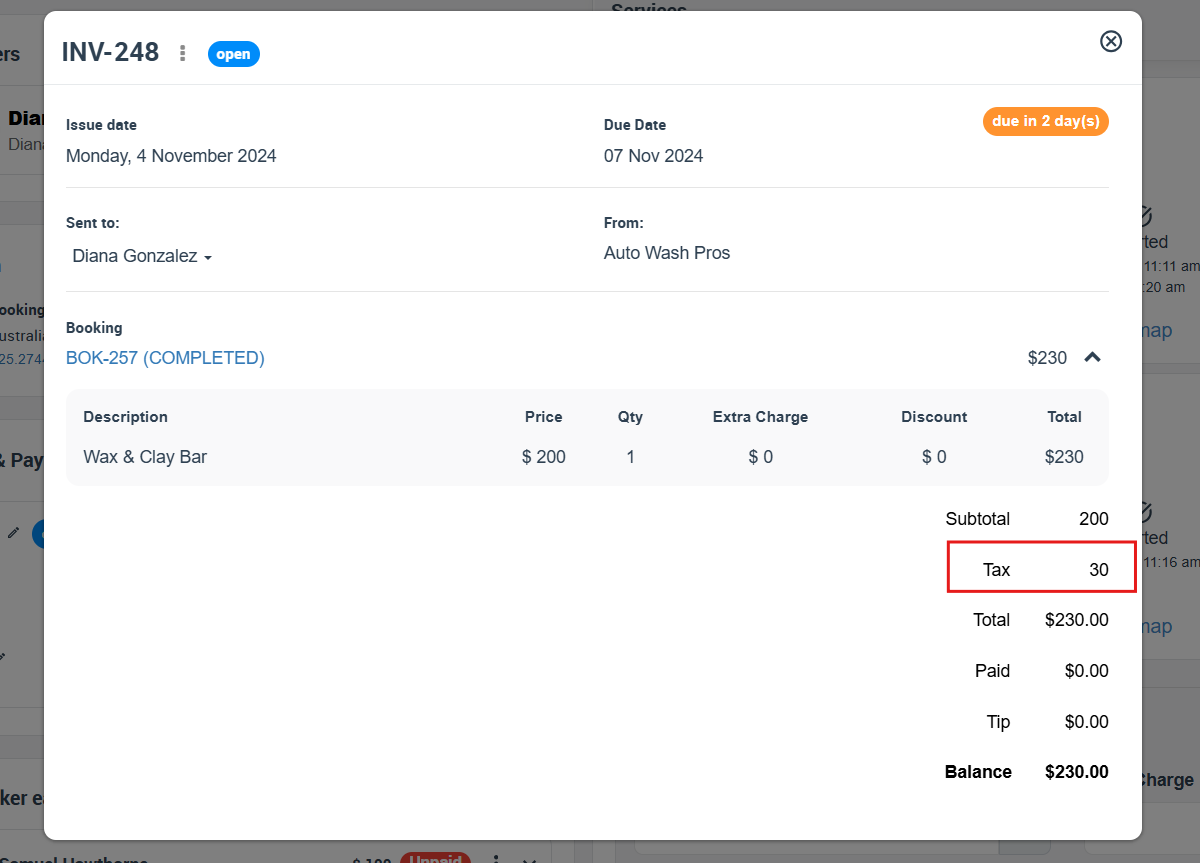
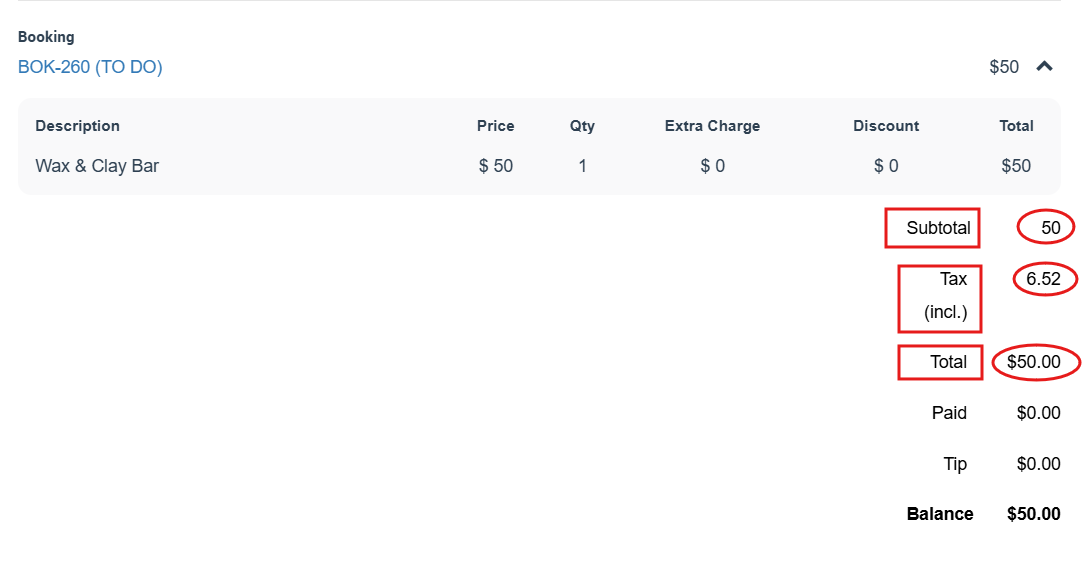
Tax-Inclusive (tax included in the price)
Your listed prices already include tax. OctopusPro will show the included tax portion and the net amount as needed.
- Example: Listed price = $110 (includes 10% tax) → Tax portion = $10, Net = $100
Create and manage multiple tax rates
OctopusPro supports multiple tax rates so you can handle different regions, item types, and exemptions (for example: GST 10%, VAT 20%, Sales Tax 8.25%, Zero-Rated 0%).
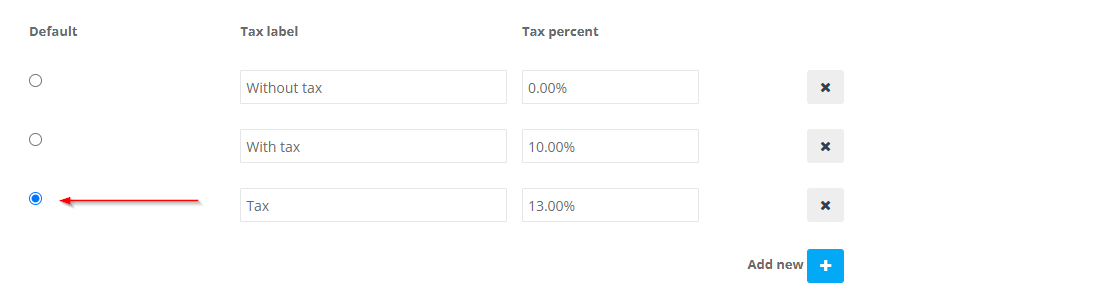
Tax rates table fields
- Default: Marks which rate is automatically applied to new quotes, bookings, and invoices (unless overridden).
- Tax Rate Name: Use clear labels customers and staff will understand (e.g., “GST (AU)”, “VAT (UK)”, “Exempt / 0%”).
- Tax Rate (%): Enter the percentage (e.g., 10.00, 20.00, 0.00).
Add a new tax rate
- Go to Settings → Financial Settings → Tax & Fees.
- Click Add New Tax Rate.
- Enter a Name and Percentage, then save.
When should you create more than one rate?
- Different regions: different percentages by state/country
- Taxable vs exempt items: create a 0% or “Exempt” rate for non-taxable work
- Reduced rates: special categories with a lower rate
Set your default tax rate
Your default tax rate is the rate applied automatically to new quotes, bookings, and invoices (unless an item or record uses a different rate).
Important: Changing your default tax rate affects future records, but does not automatically change existing invoices/quotes that were already created. This helps preserve historical accuracy.
Compound taxes and tax calculation location
Depending on your region and your OctopusPro configuration, you may also be able to:
- Enable compound (stacked) taxes when more than one tax must be applied in sequence (common in some jurisdictions).
- Select a tax calculation location (e.g., based on company address vs customer/service address) if your taxation rules depend on where the service is delivered.
Tip: If your business needs location-based or compound tax rules, confirm the correct setup with your accountant and local tax authority requirements before applying changes.
Assign tax rates to services
You can override the default tax rate at the service level. This is useful when certain services are exempt or taxed differently.
- Go to Settings → Service Settings → Services.
- Find the service and click Edit.
- Open the Cost & Payrate tab and select the appropriate Tax rate.
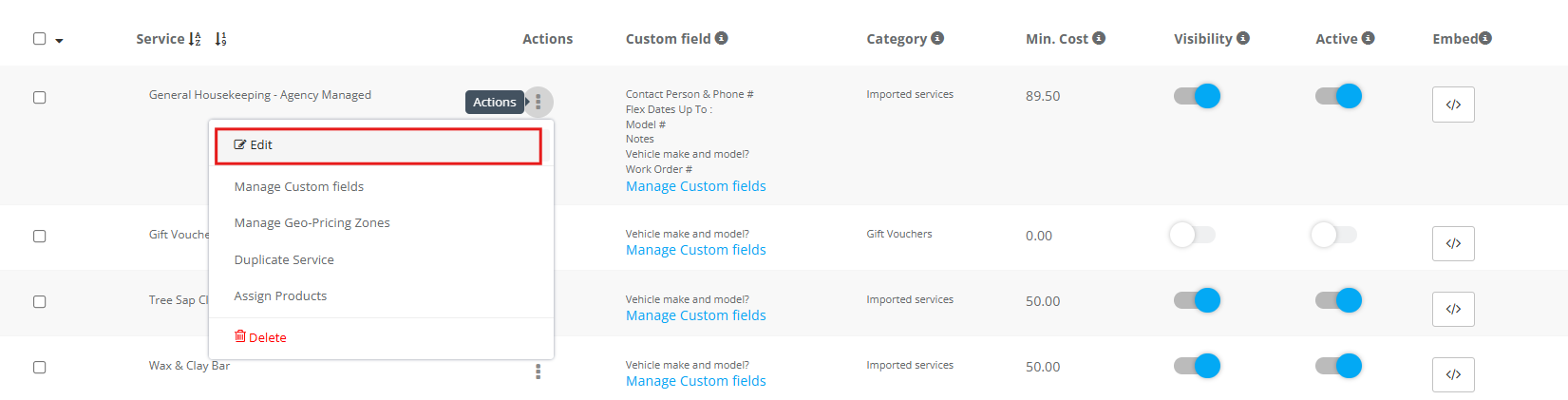
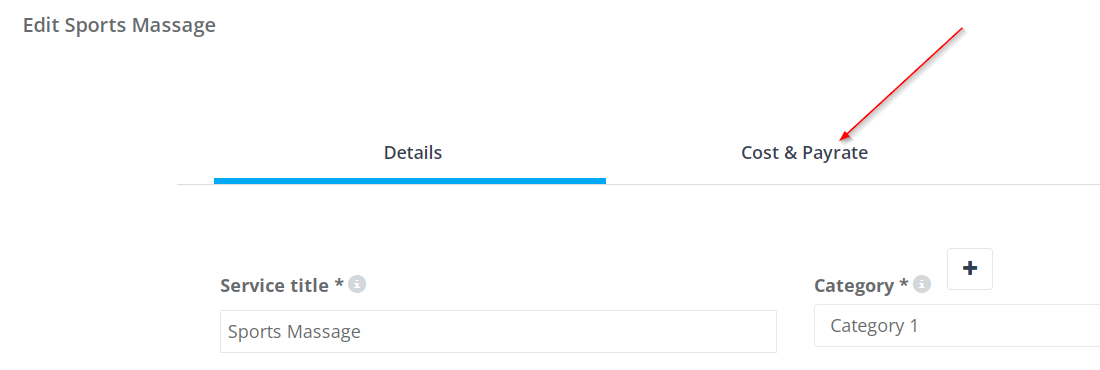

Note: Once applied, the service’s tax rate will be used when that service is added to quotes/bookings/invoices, unless the record is manually overridden.
Assign tax rates to products
If you sell products (materials, parts, retail items, add-ons), you can set a tax rate per product—useful when products are taxed differently from services.
- Go to Settings → Service Settings → Products.
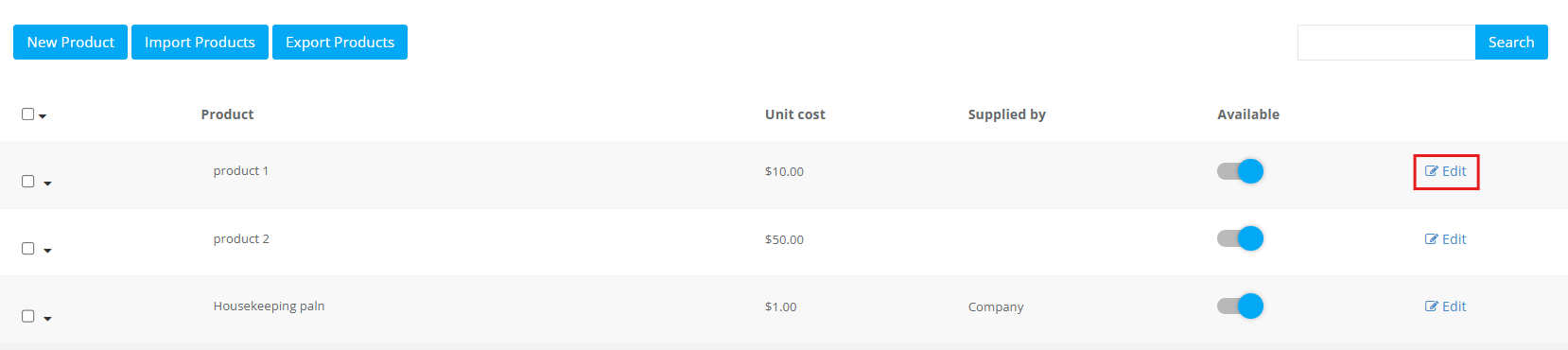
- Click Edit next to the product.
- Select the tax rate from the Tax rate dropdown (or add a new rate).
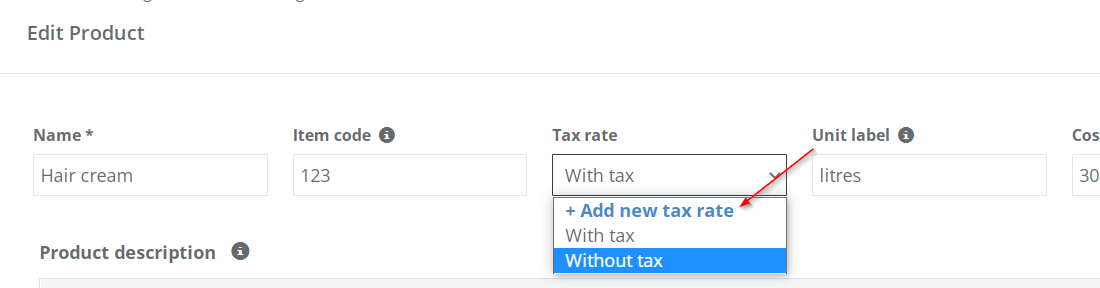
Tip: If a product is added as its own line item, it will typically use its product tax rate. If it’s bundled inside a service, the service tax rules may apply depending on how your pricing is configured.
Override tax rates on individual bookings and quotes
If you need a one-off change (for example, a special exemption, a different local tax rule, or a corrected rate), you can change the tax rate on a specific booking or quote without changing your default settings.
Override tax rate on a booking
- Go to Bookings and open the relevant booking.
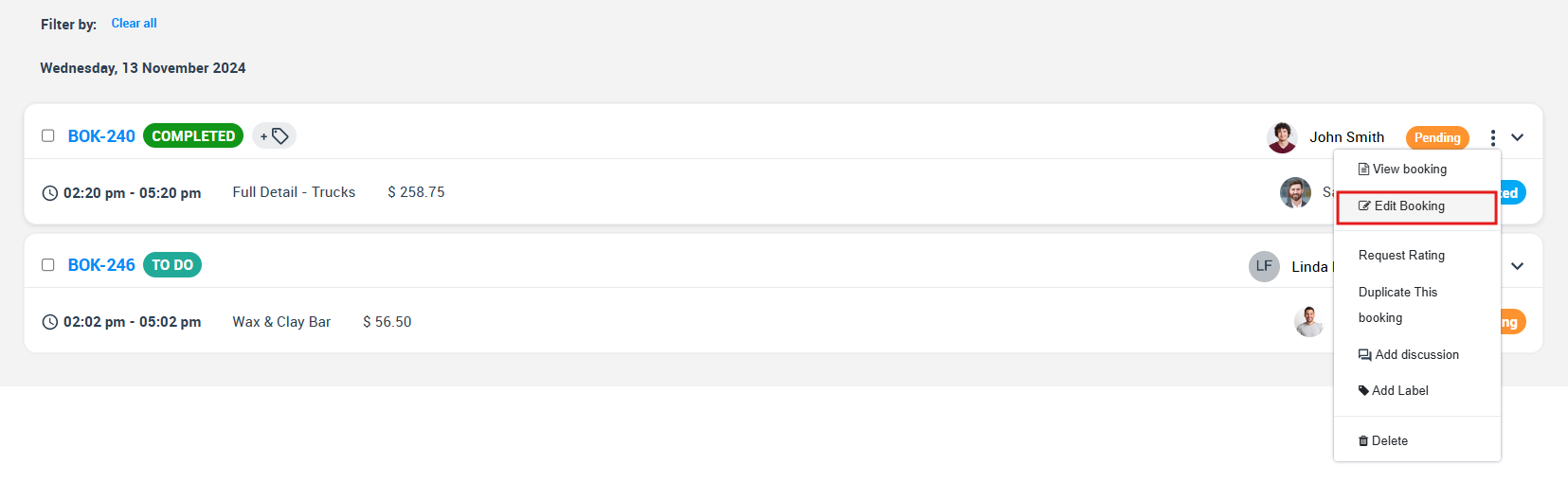
- Select Edit Booking.
- In the pricing area, choose a different Tax Rate (or add a new one).
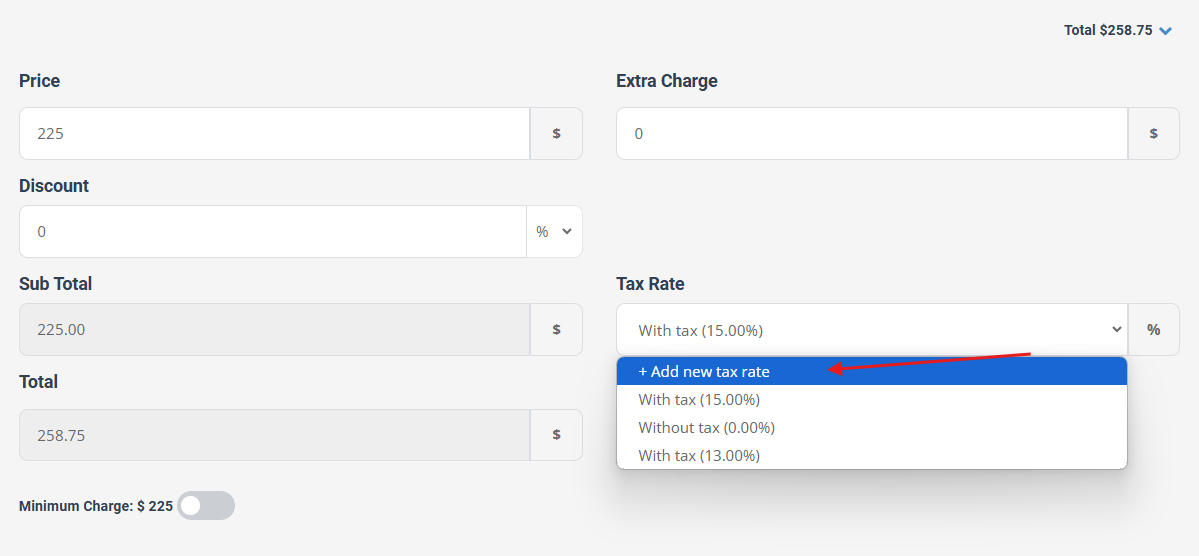
Override tax rate on a quote
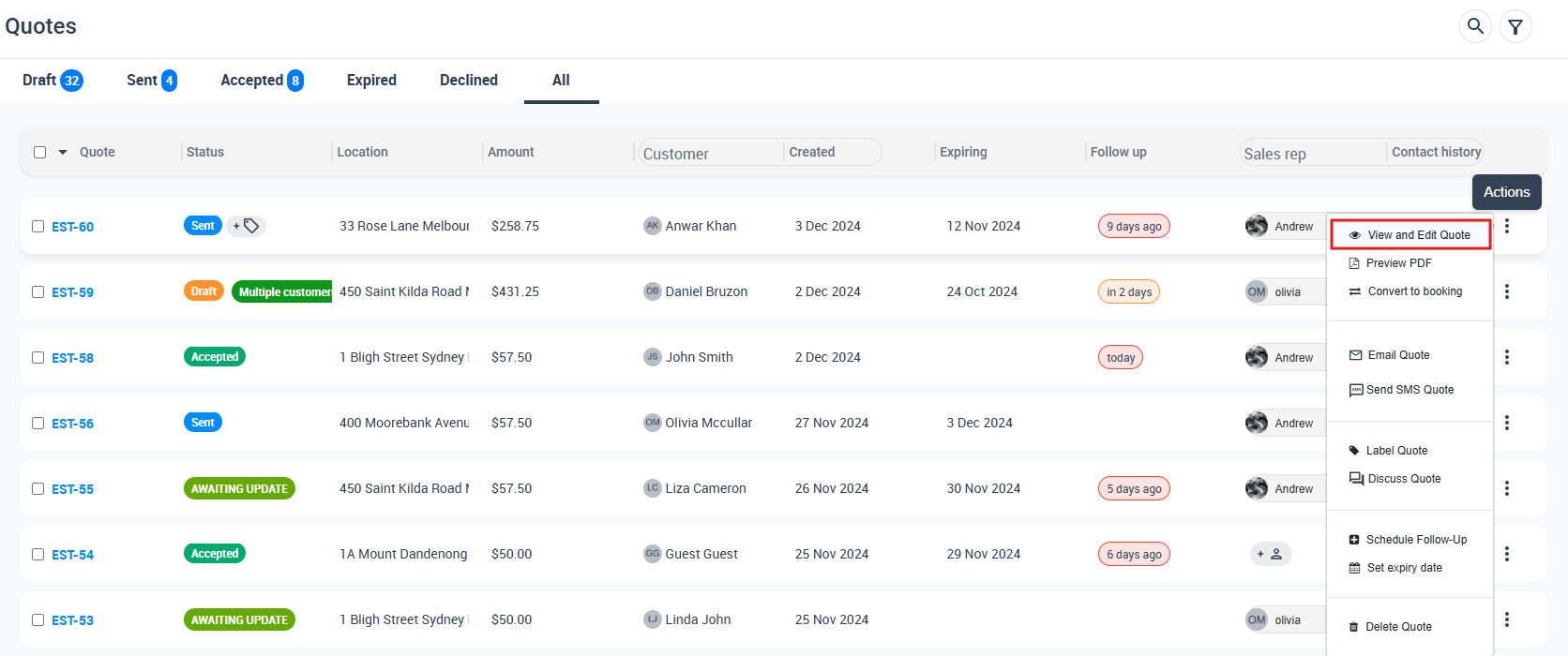
- Go to Quotes and open the relevant quote.
- Select View and Edit Quote.
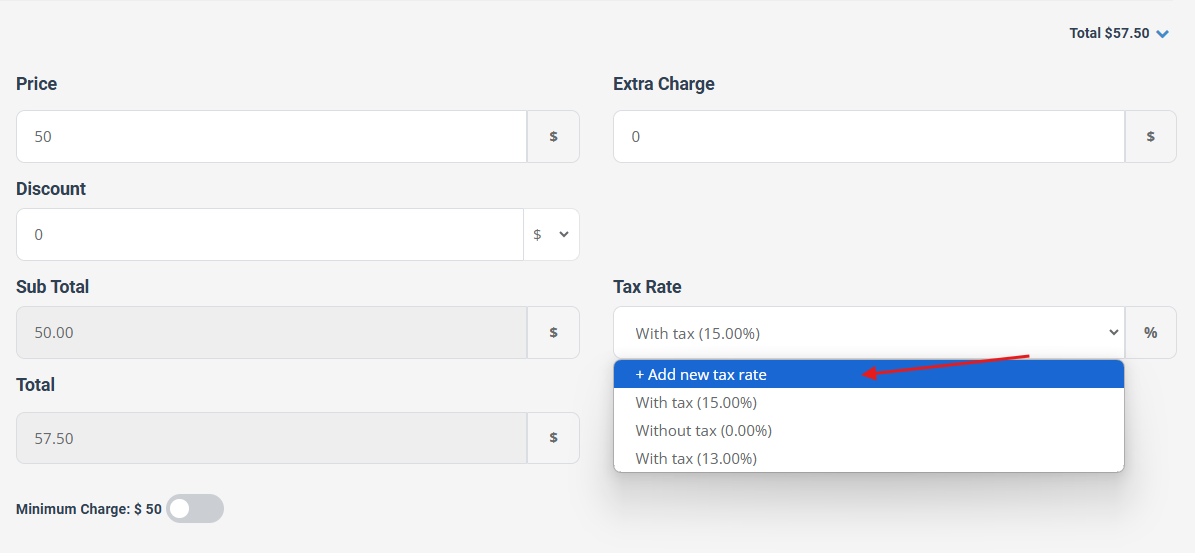
- In pricing, choose a different Tax Rate or Add new tax rate.
Where tax appears in invoice and quote PDFs
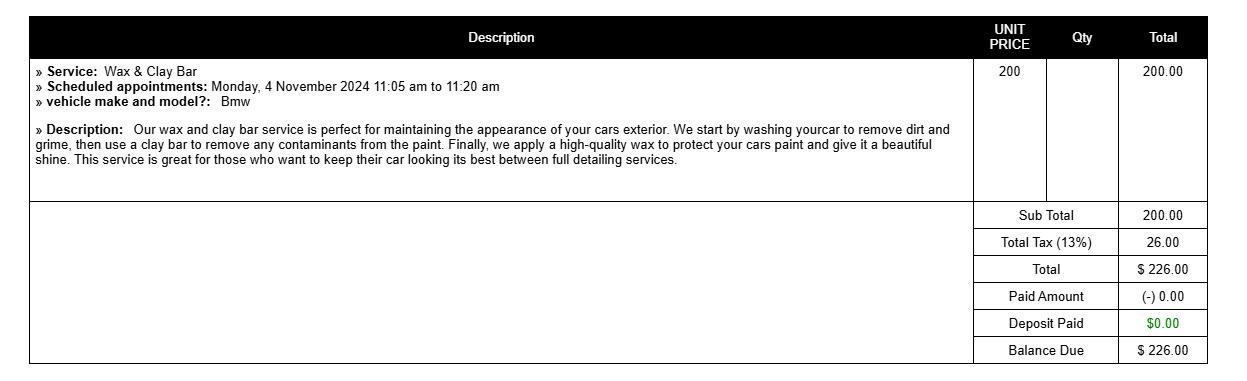
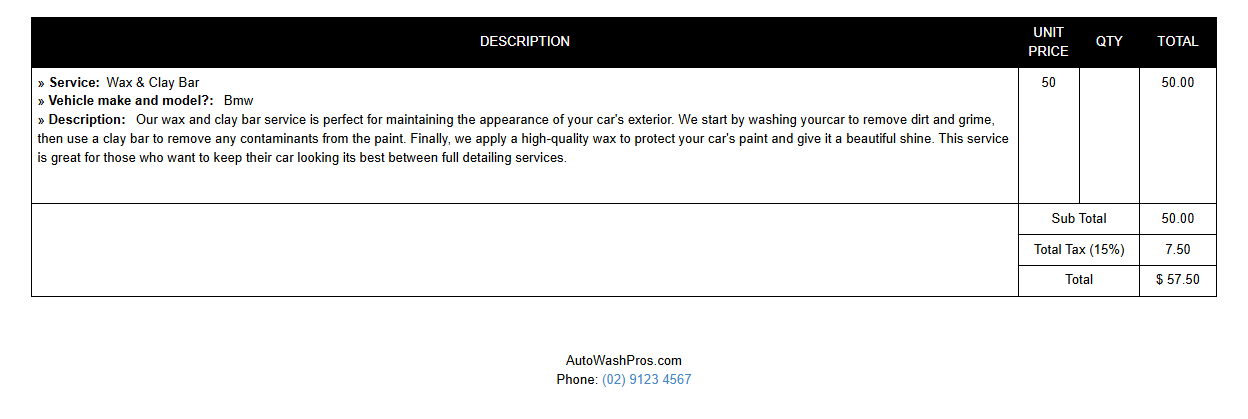
Tax details can be displayed in your invoice/quote PDFs so customers can clearly see the subtotal, tax amount(s), and total.
Preview an invoice PDF
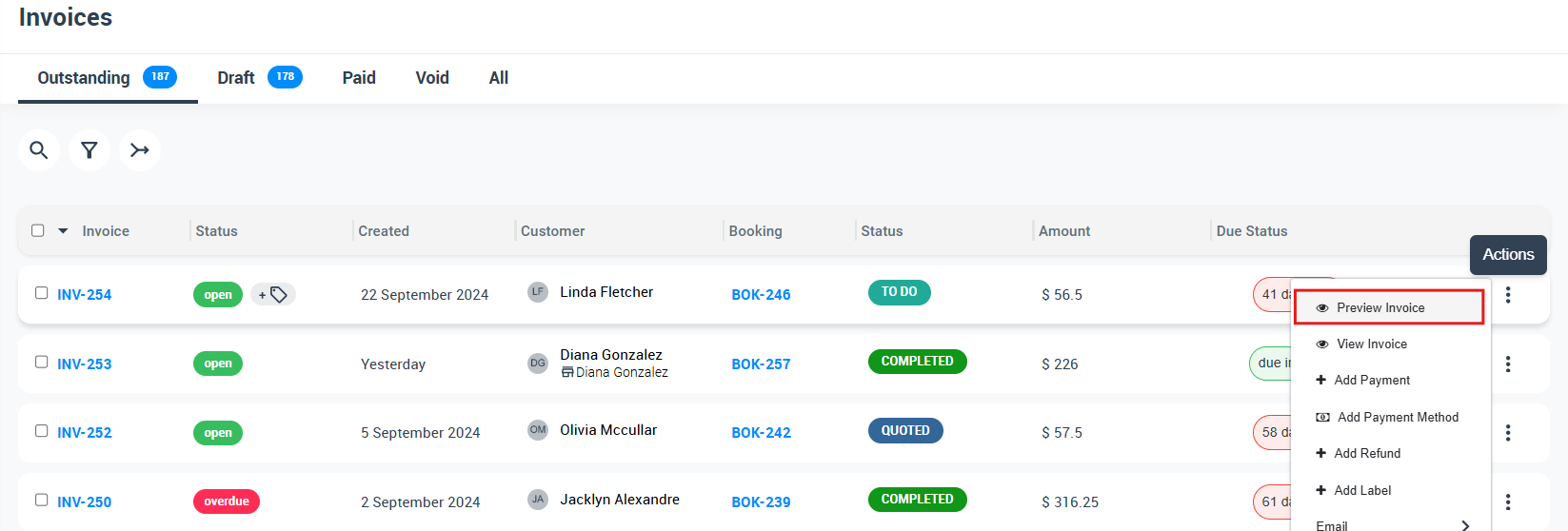
- Go to Invoices.
- Open the invoice Actions menu.
- Select Preview Invoice.
Preview a quote PDF
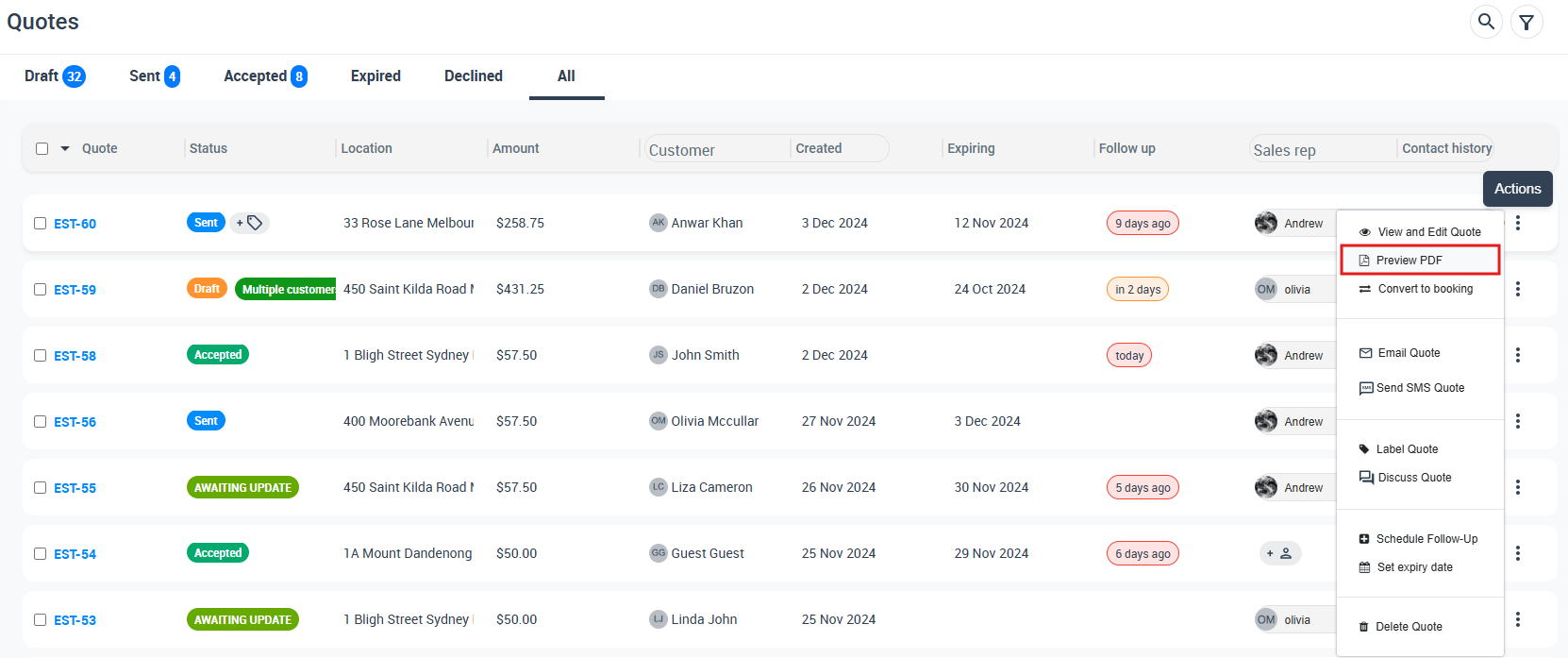
- Go to Quotes.
- Open the quote Actions menu.
- Select Preview PDF.
Example: how tax appears in the PDF breakdown
Fieldworkers selecting tax rates in the Fieldworker App
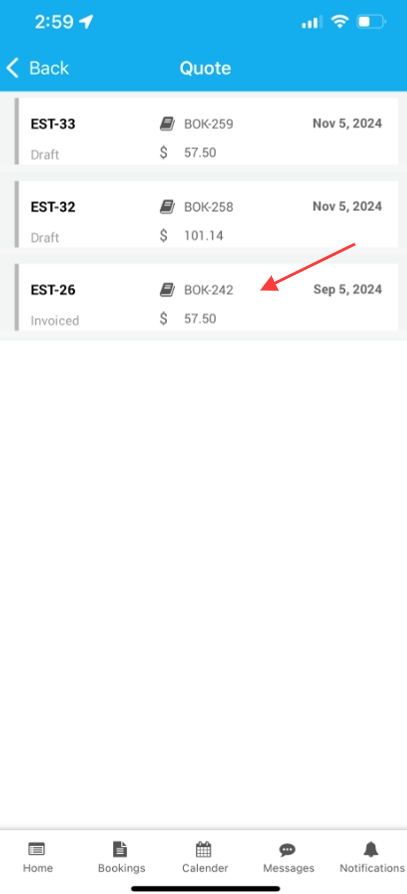
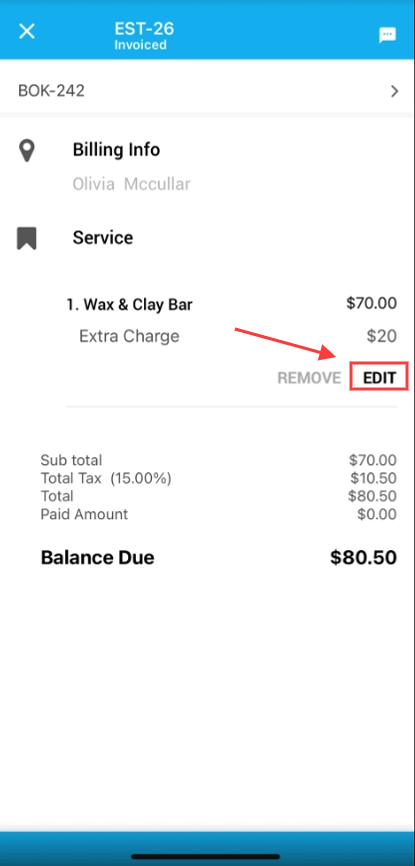
Fieldworkers can adjust tax rates on assigned quotes/bookings/invoices if they have the required permissions. This is useful when changes happen on-site and pricing/tax needs to be corrected immediately.
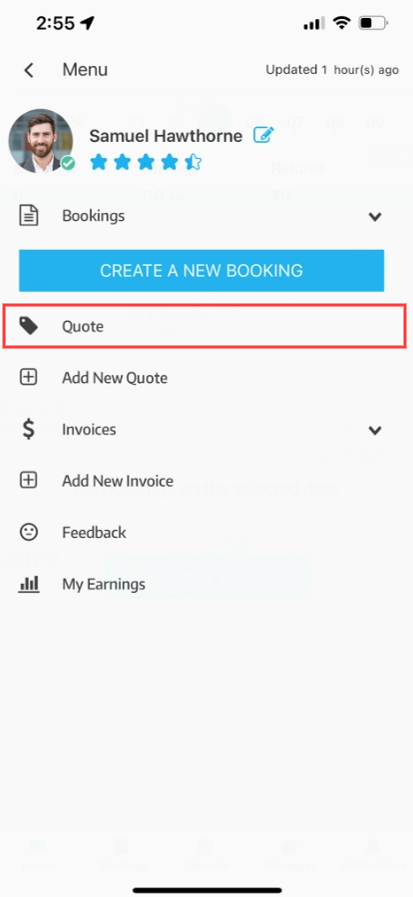
- Open the Fieldworker App and go to Quotes (or the relevant record type).
- Select the quote/booking/invoice you want to update.
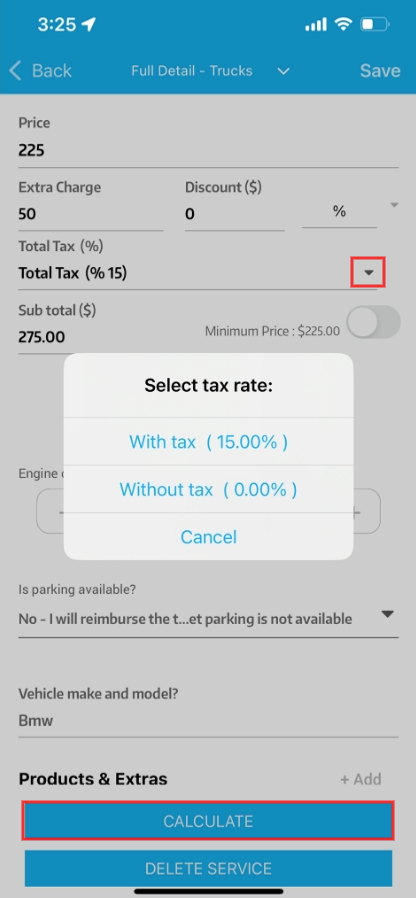
- Tap Edit in the pricing/services area.
- Select the correct tax rate, then recalculate/save.
Fieldworker VAT/GST registration (for contractors)
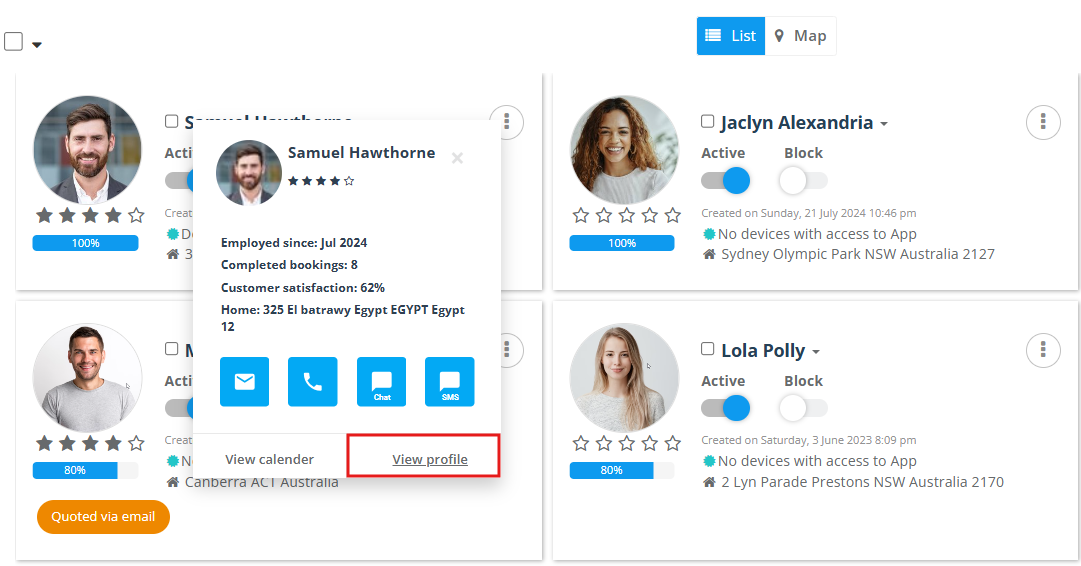
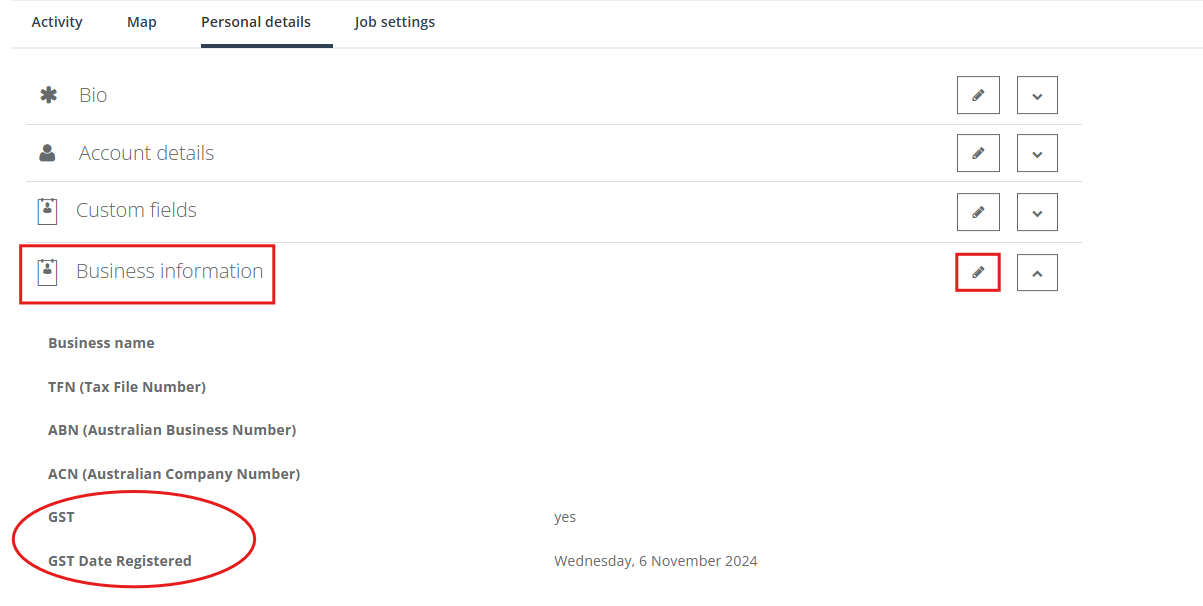
If your fieldworkers are independent contractors and some are VAT/GST registered, you may need to record that information in their profile. This helps your business manage compliant records and contractor reporting based on your workflow.
- Open the fieldworker profile from your fieldworker list.
- Go to Business information.
- Set whether the fieldworker is Registered for GST/VAT, and save.

Where customers can view tax
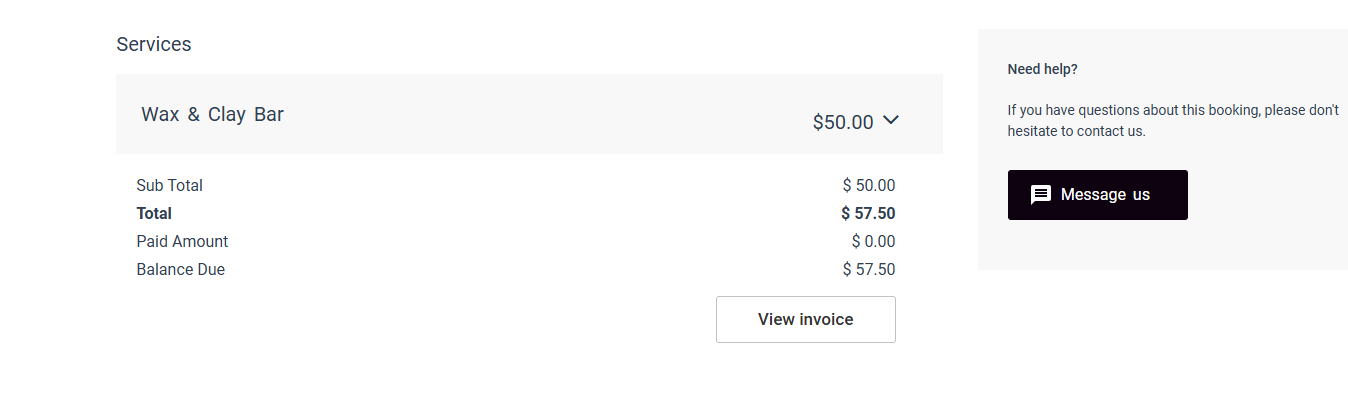
Depending on your portal/document settings, customers can see tax totals and breakdowns in:
- The customer portal (booking/invoice screens)
- Invoice and quote PDFs (previewed and emailed documents)
- Checkout/booking flows (when charges are itemized)
Best practices and examples
Use customer-friendly tax names
- Good: “GST (AU) 10%”, “VAT (UK) 20%”, “Sales Tax (CA) 8.25%”, “Exempt (0%)”
- Avoid: vague names like “Tax1” or “Default” (customers may see these labels on documents)
Keep a 0% rate for exemptions
If you offer non-taxable services/products, create a 0% tax rate (e.g., “Exempt / 0%”) rather than removing tax completely. This keeps reporting consistent and avoids confusion.
Changing default tax rate does not rewrite history
When you update your default rate, it applies to new quotes/bookings/invoices going forward. Existing records keep the rate they were created with unless you edit them individually.
Multiple tax rates on the same invoice
If an invoice contains items with different tax rates, OctopusPro calculates each line item using its assigned rate and totals them accordingly (helpful when services and products have different tax rules).
Related guides
To stay updated, please subscribe to our YouTube channel.