
Managing Fieldworker Bank Details & Payment Exports
Keeping each fieldworker’s bank details current in OctopusPro does far more than ensure the next EFT lands in the right account—it drives every downstream finance workflow. The data feed straight into single-payment screens, bulk batch exports (ABA 🇦🇺, NACHA 🇺🇸, BACS 🇬🇧), and—when you run a marketplace model—can even populate the fieldworker’s own name and tax ID on the customer’s invoice. This guide shows where those details appear, who can update them, and why accurate information is essential for payroll, compliance and tax transparency.
Where fieldworker bank details are used
| Workflow | How the data surface | Why it matters |
|---|---|---|
| Single “Pay Fieldworker” screen | Fields auto-fill so finance can pay each completed job in one click. | Eliminates copy-paste errors and speeds fortnightly payouts. |
| Batch payments | Selected jobs export to .ABA (Australia), NACHA/ACH (US) or BACS (UK/EU) files for upload to online banking. | Compliance with national banking formats; supports hundreds of payments at once. |
| Invoice to customer (only when Settings ▸ Financial Settings ▸ Invoice Template ▸ Invoice Entity = Individual) | Fieldworker’s legal name, bank details and tax identifiers print on the PDF invoice instead of the main business details. | Ideal for marketplaces where each contractor invoices in their own name, meeting UK, EU and AU tax-authority requirements. |
How to update bank details
1. Fieldworker app (self-service)
- Menu ☰ → Profile → ✏ Edit.
- Tap My Account → scroll to Bank Account Details.
- Enter Bank Name, Account Name, BSB/Bank Code, Account No., Branch Address → Save.
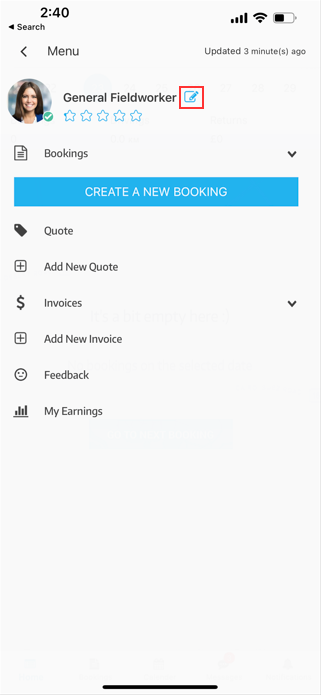


Tip: Completing these fields boosts the profile-completion meter shown under the worker’s avatar; green badges reassure schedulers the worker is ready for paid jobs.
2. Admin portal
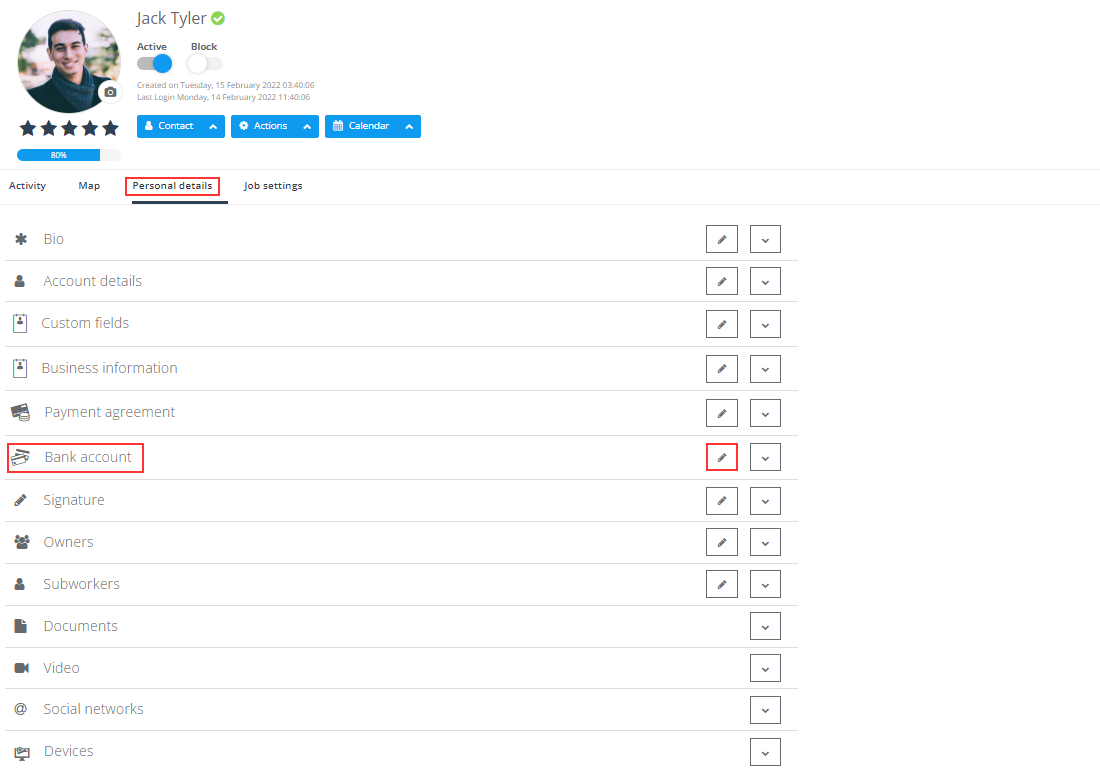
- Fieldworkers → ⋮ Actions ▸ View Profile.
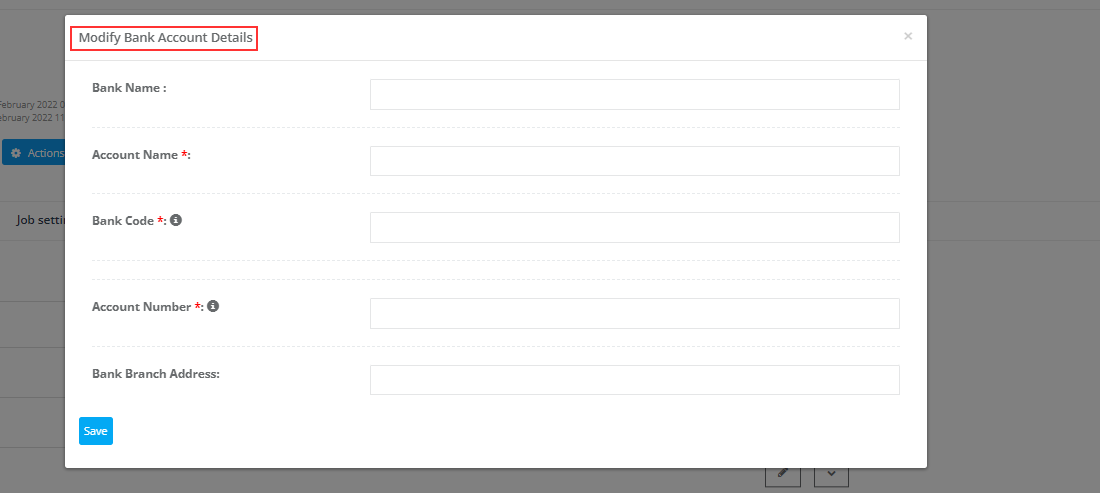
- In Personal Details ▸ Bank Account, click ✏ Edit.
- Fill or correct Bank Name, Account Name, Code, Account No., Branch → Save.
- Changes write to the Profile Activity Log for audit.
Batch-payment exports (ABA · NACHA/ACH · BACS)
Once you have marked each job as “Paid” in Reports ▸ Fieldworker Reports ▸ Fieldworker Booking Summary, those records flow automatically into the batch-payment table below. (If a booking hasn’t been set to Paid, it will not appear—see the Fieldworker Payroll Management guide for the full pay-mark workflow.)
| Step | What you do | Behind the scenes |
|---|---|---|
| 1. Open the pay run | Reports ▸ Payment Reports ▸ Payment to Fieldworkers → choose the payroll period (e.g., week ending 30 Jun). | The grid lists only bookings that are saved as Paid in the Booking Summary report—no double-pay risk. |
| 2. Pick export format | Click Export → select ABA (AU), NACHA/ACH (US), or BACS Std-18 (UK/EU). | OctopusPro maps each worker’s Bank Name, Account Name, BSB/Sort/ABA Code, Account Number into the correct positions for the chosen banking spec. |
| 3. Download & upload to bank | Save the generated file, log in to your online banking or treasury portal, and upload it. | Your bank processes hundreds of transfers in one go; each line carries a unique reference tying back to the booking ID for traceability. |
| 4. Confirm batch | Back in OctopusPro, mark the batch as Processed. | The booking timeline gets a Payment Exported stamp, and finance can pull an audit report any time. |
Why use batch files?
- Speed – hundreds of payments in seconds versus individual EFT entry.
- Accuracy – banking formats validate BSB/ABA codes and account lengths, cutting reject fees.
- Audit trail – every exported line stores the file name and bank reference number alongside the booking, meeting ISO/SOX requirements.
If you need a refresher on marking jobs as Paid before they reach this screen, open Reports ▸ Fieldworker Reports ▸ Fieldworker Booking Summary and follow the “Save as Paid” steps detailed in the payroll-management guide.
Invoice Entity Display: Business vs Individual
- What it is – A toggle in Settings ▸ Financial Settings ▸ Invoice Template that decides whose legal name, tax ID and bank account appear on every invoice PDF.
| Option | Shows on invoice | When to use |
|---|---|---|
| Business (default) | Your company’s registered name, tax number (ABN/VAT/EIN), and head-office bank details. | Your firm is the legal seller and collects payment before paying fieldworkers (e.g., direct-billing service companies). |
| Individual | The assigned fieldworker’s trading name, tax ID, and the same bank details you store on their profile. | Marketplace / agency models where each contractor invoices the customer directly; enables ABA/NACHA/BACS exports to pay the fieldworker and keeps tax responsibility with them. |
- Why it matters – The choice drives:
- Customer-facing branding & tax compliance on the invoice.
- Which bank account populates, when Individual option is selected, customers pay fieldworkers directly.
Keeping bank details current ensures the right information flowing to the invoice, preventing payout failures and meeting regulatory requirements.
Best-practice checklist
- Mandatory fields – Bank Code & Account No. are required for fieldworker payment; leave blanks blocked to avoid file-validation errors.
- Secure access – only roles with Edit Fieldworker permission can change bank data; all edits are timestamped for SOX/ISO audits.
- Train workers – a 2-minute video in the app onboarding flow cuts admin queries about where to enter details.
To stay updated, subscribe to our Youtube channel.