
[vc_row][vc_row][vc_column width=”1/4″][vc_widget_sidebar sidebar_id=”sidebar-1″][/vc_column][vc_column width=”3/4″][vc_column_text]
Delete, Restore, and Permanently Remove Customers

OctopusPro gives you full control over your customer database, including the ability to: delete (archive / soft delete) customers, view deleted customers, restore (recover / undelete) customer profiles, and permanently delete (hard delete) customers when required.
Table of contents
- Soft delete vs permanent delete
- Delete (archive) a customer
- Delete related items (bookings, invoices, quotes, inquiries)
- Delete multiple customers
- Delete all customers (eligible customers only)
- View deleted customers
- Restore (recover / undelete) deleted customers
- Permanently delete customers (Delete Forever)
- What gets removed after permanent deletion
- Impact on accounting sync (QuickBooks/Xero)
- Permissions & access control
- FAQ & troubleshooting
Soft delete vs permanent delete
- Soft delete (Archive): Removes the customer from All Customers and search results, but keeps their data in your system under Deleted Customers. This is ideal when you may need to reference history or restore the customer later.
- Permanent delete (Hard delete): Completely removes the customer and associated data. This action is irreversible.
Delete (archive) a customer
You can soft delete (archive) a customer from either the customer profile or the customer list.
Option A: Delete from the customer profile
- Go to Customers > All Customers.
- Open the customer and click View customer profile.
- Click Actions (top-right) and select Delete.
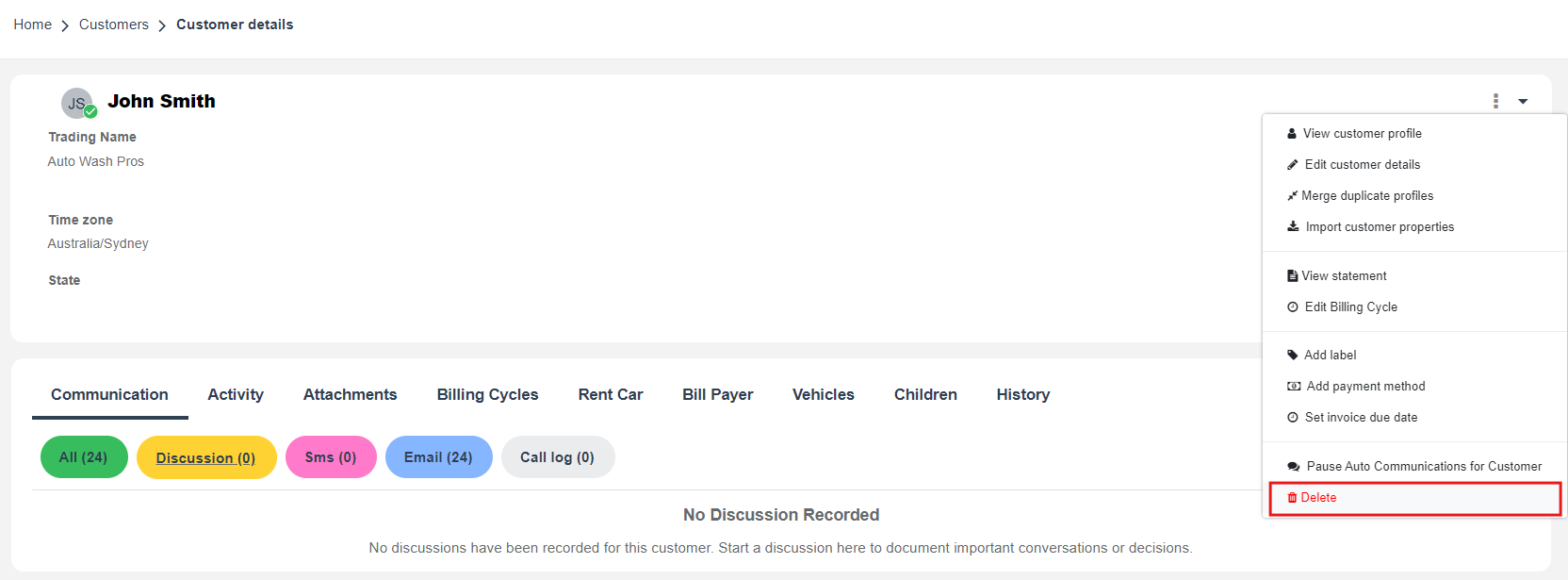
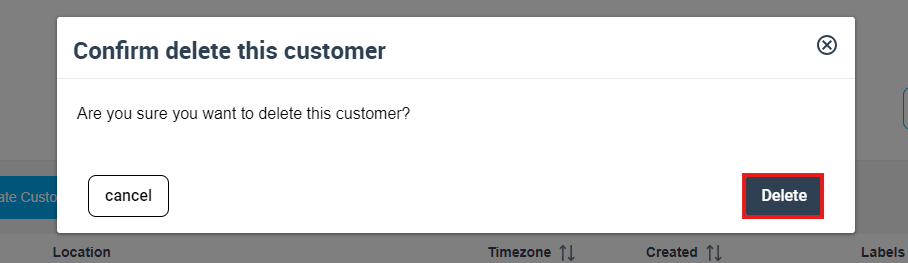
- Confirm by clicking Delete.
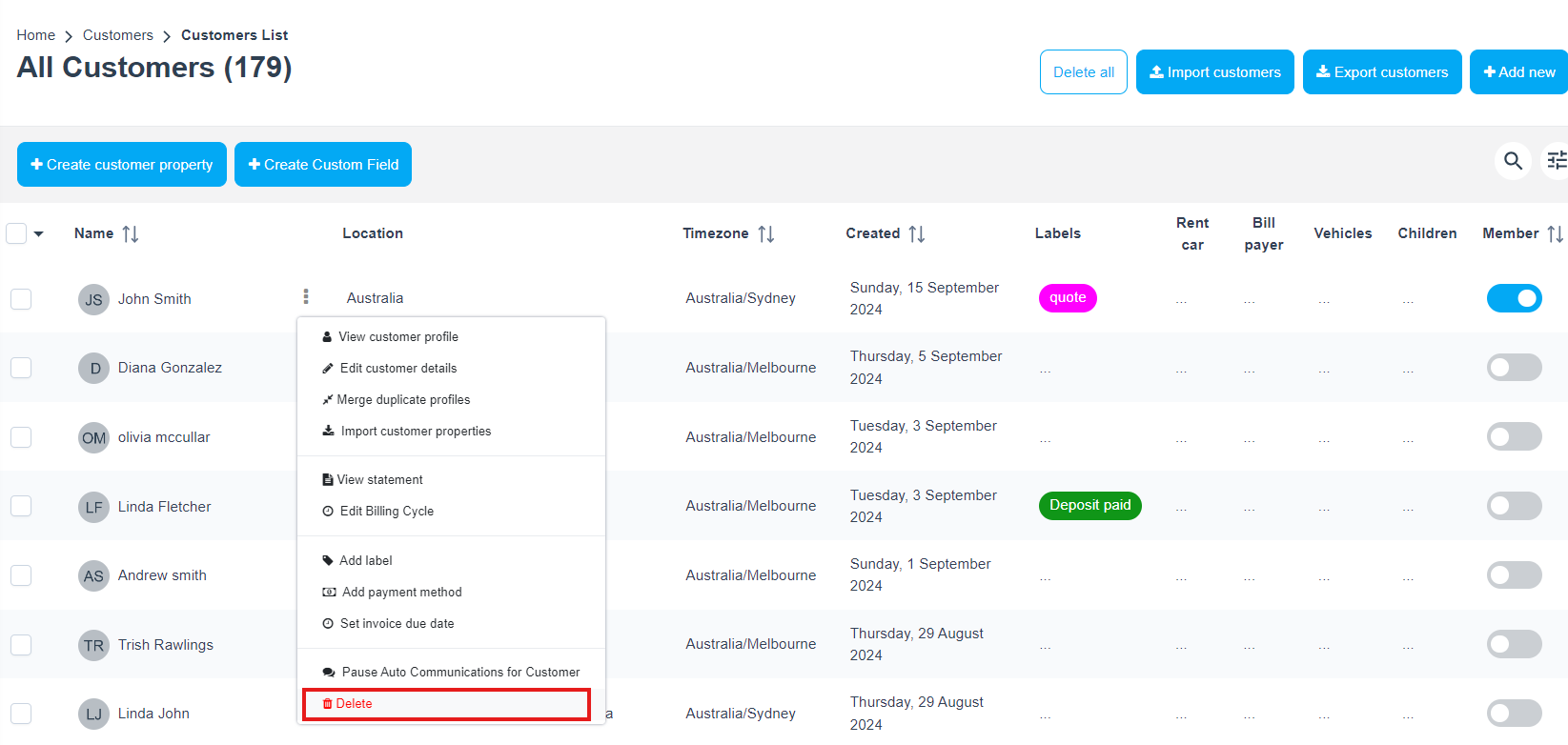
Option B: Delete from the customer list
- Go to Customers > All Customers.
- Find the customer row, click Actions, then select Delete.
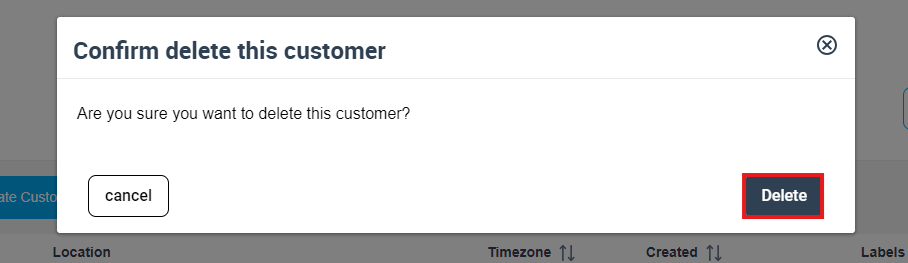
- Confirm by clicking Delete.
Delete related items (bookings, invoices, quotes, inquiries)
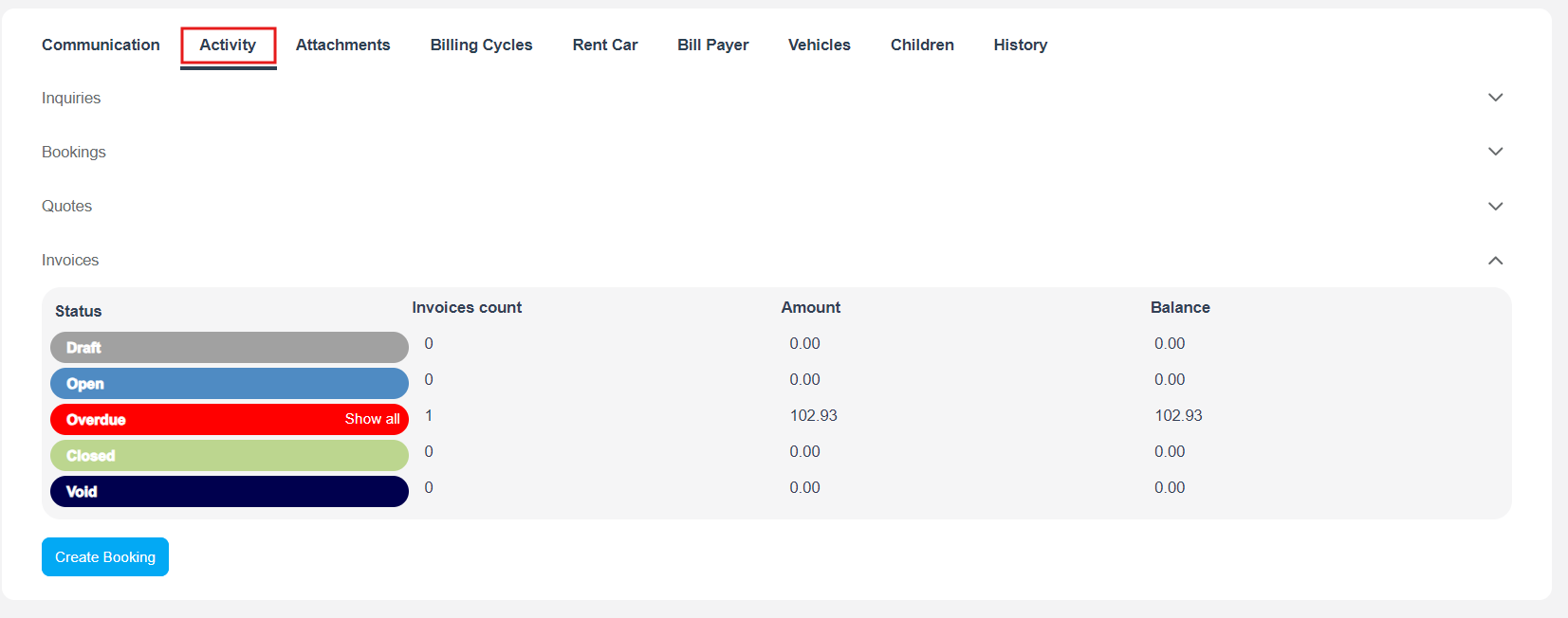
If OctopusPro won’t let you delete a customer, it usually means there are linked records still attached to the profile. Remove those records first.
- Open the customer profile.
- Go to the Activity section/tabs.
- Open each linked section (e.g., Bookings, Invoices, Quotes, Inquiries).
- Click Show all and delete the items listed.
Delete multiple customers
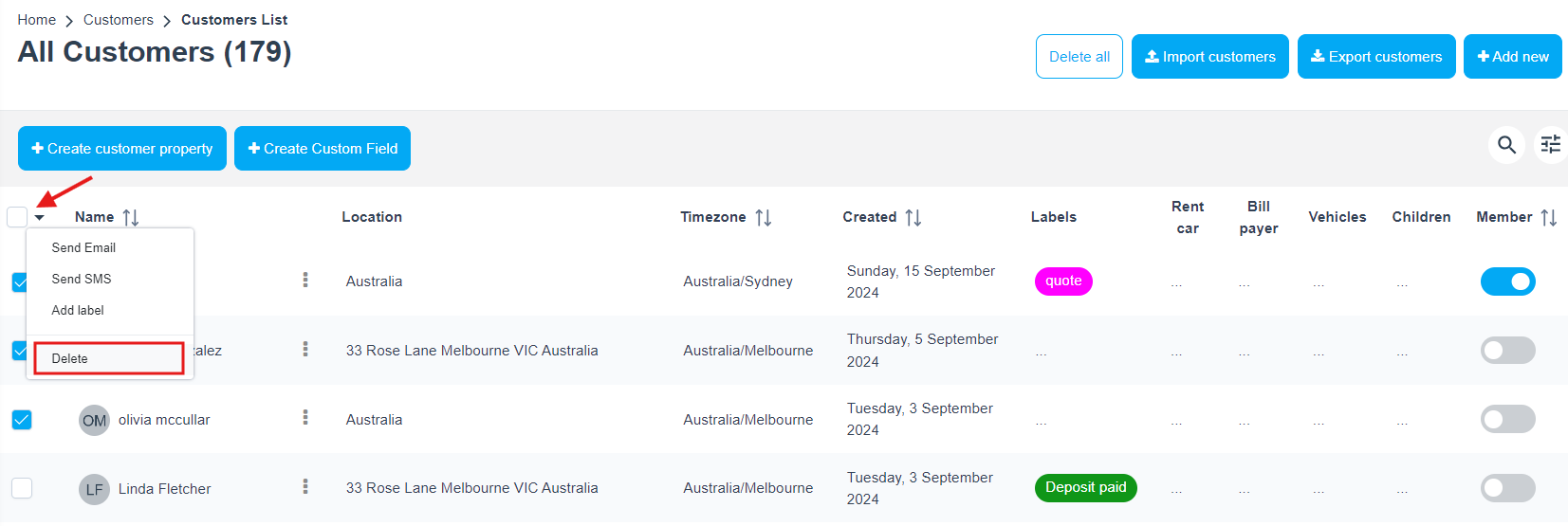
- Go to Customers > All Customers.
- Select customers using the checkboxes.
- Open the bulk actions dropdown (top-left) and choose Delete.
- Confirm the action (button label may appear as Delete all forever in the popup).
Delete all customers (eligible customers only)
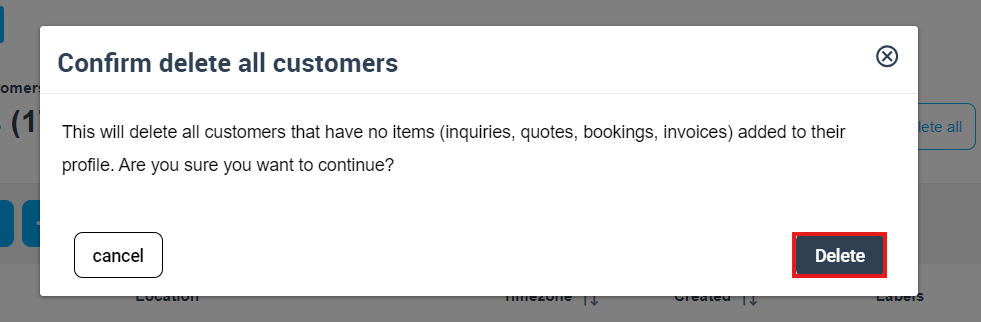
The Delete all button on the All Customers page is designed to remove customers that have no linked items (such as inquiries, quotes, bookings, or invoices).
- Go to Customers > All Customers.
- Click Delete all (top-right).
- Confirm the popup.

View deleted customers
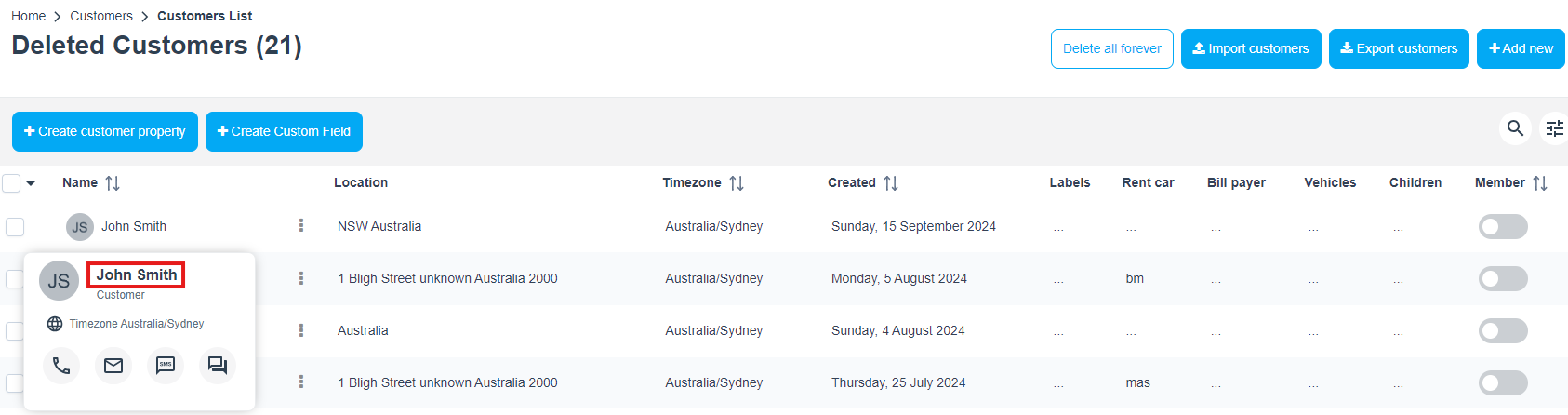
When a customer is deleted (soft deleted), they move to Customers > Deleted Customers. This keeps your active list clean while allowing access to historical records.
- Go to Customers > Deleted Customers.
- Use the search bar if needed.
- Click the customer name (or use Actions > View customer profile) to review details.

Restore (recover / undelete) deleted customers
Restoring a customer returns their profile to its previous state, including stored data. Once restored, the customer moves back to All Customers.
Restore a single customer
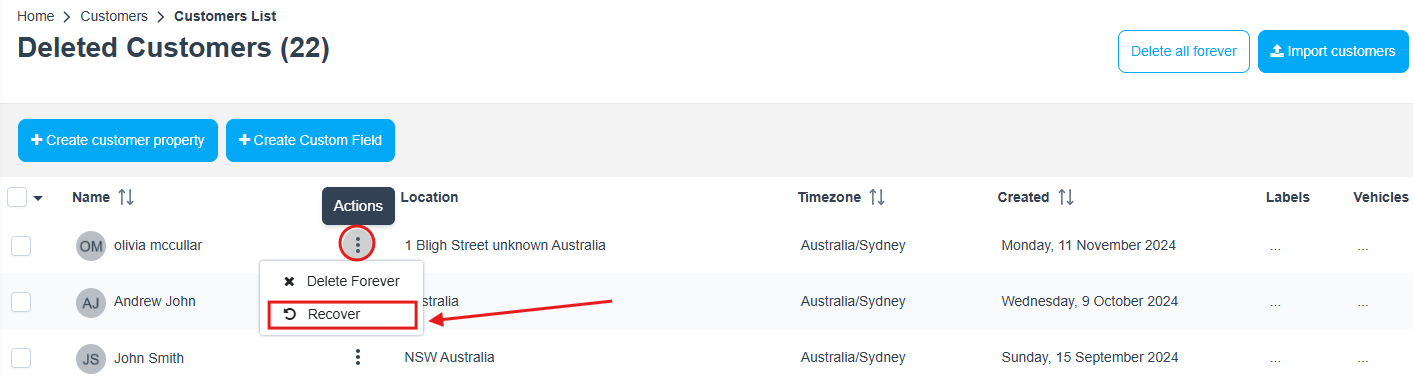
- Go to Customers > Deleted Customers.
- Find the customer (or search).
- Click Actions and choose Recover.
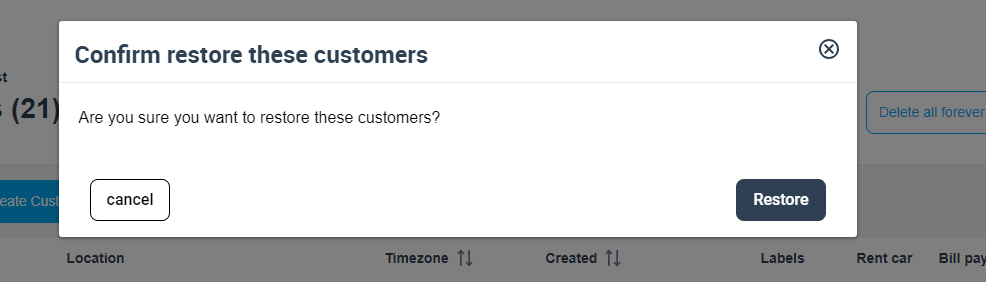
- Confirm by clicking Restore.
Restore multiple customers (bulk) from the Deleted Customers archive
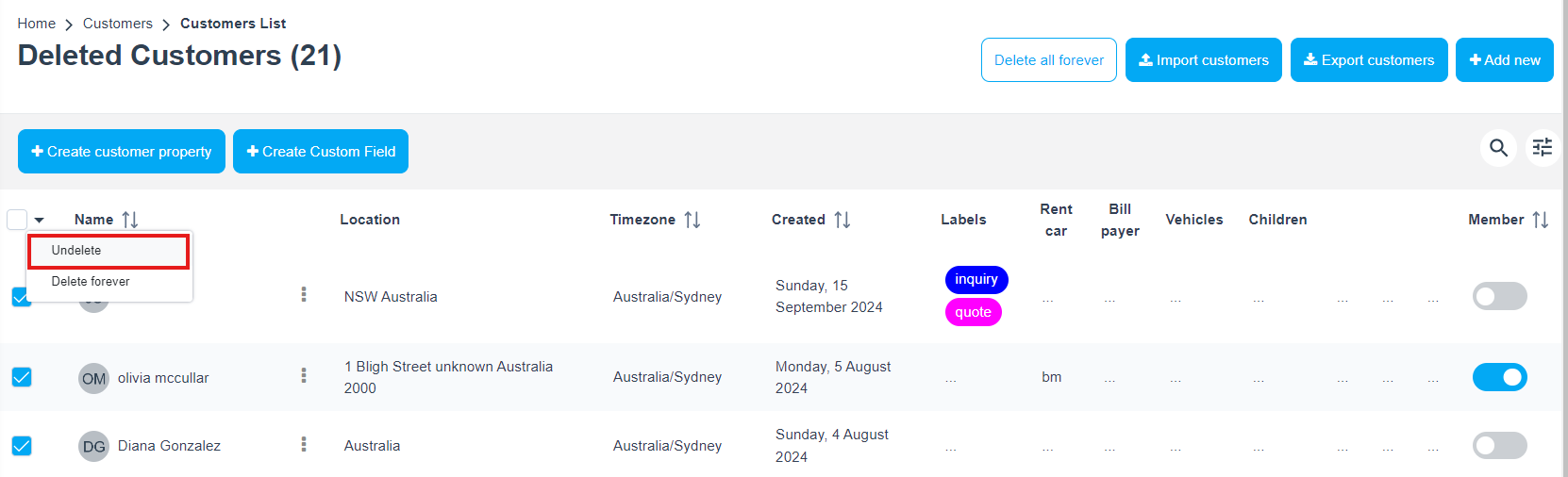
- Go to Customers > Deleted Customers.
- Select multiple customers using the checkboxes.
- Use the master checkbox in the table header (top-left), click the dropdown arrow, then choose Undelete.
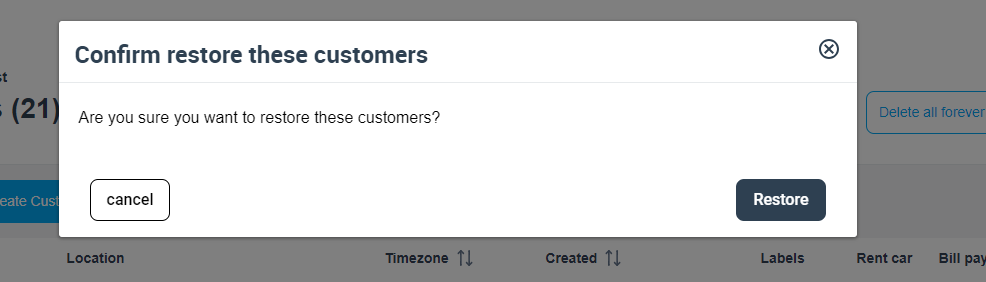
- Confirm by clicking Restore.
Permanently delete customers (Delete Forever)
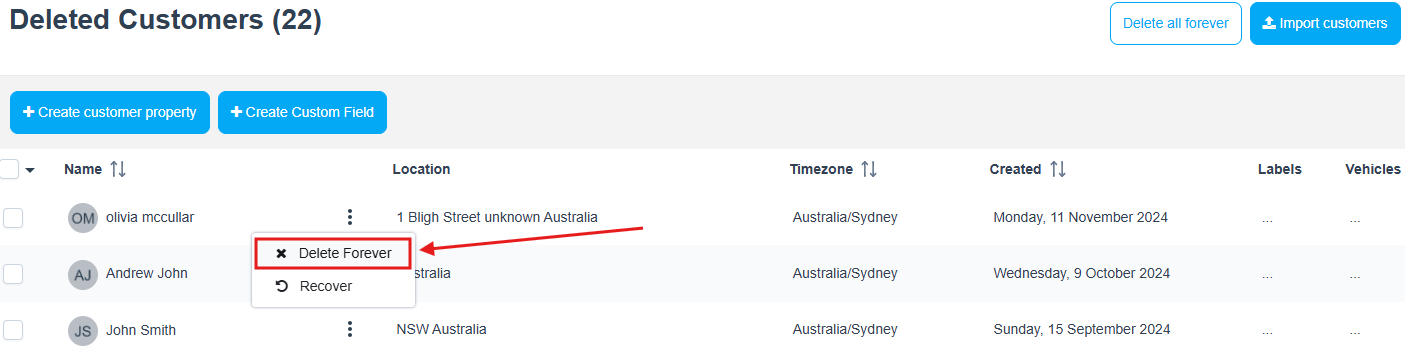
Permanently delete a single customer
- Go to Customers > Deleted Customers.
- Find the customer and click Actions.
- Select Delete Forever.
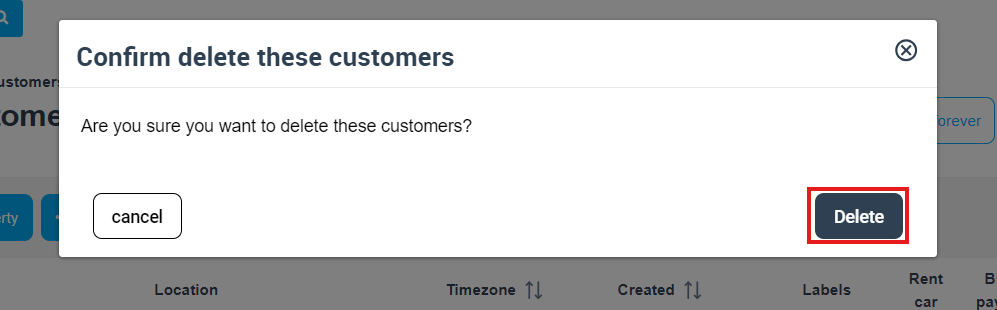
- Confirm the popup.
Permanently delete multiple customers (bulk delete forever)
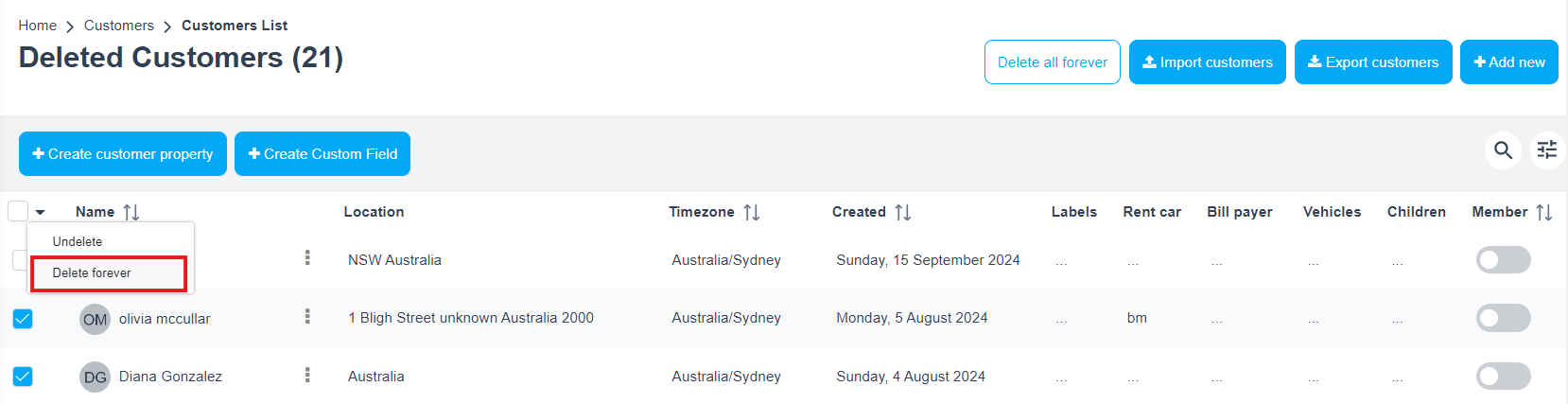
- Go to Customers > Deleted Customers.
- Select multiple customers using the checkboxes.
- Use the master checkbox in the table header (top-left), click the dropdown arrow, then choose Delete Permanently (or Delete Forever depending on your account).
- Confirm the popup to permanently delete the selected customers.
Permanently delete all customers in Deleted Customers
If you need to permanently remove all customers currently in the deleted list, click Delete all forever on the Deleted Customers page and confirm.
What gets removed after permanent deletion
When a customer is permanently deleted, OctopusPro typically removes:
- Customer profile details (name, contact info, and custom fields)
- Saved addresses / locations
- Saved payment methods
- Customer dependents/assets/properties (e.g., children, pets, vehicles)
- Profile photos
- History log and interaction records
- Documents and attachments stored on the customer profile
- Communication logs (SMS, emails, and discussions/messages)
- Billing cycle-related details (where applicable)
Impact on accounting sync (QuickBooks/Xero)
If you permanently delete a customer in OctopusPro, that customer will no longer sync with accounting integrations. Any future changes or transactions won’t update for that deleted customer. Review your accounting platform’s retention rules before performing irreversible deletions.
Permissions & access control
The ability to delete or permanently delete customers is controlled by role-based permissions. Only users with the appropriate permissions can perform these actions.
Review your role settings under Settings > Company Settings > Users > Roles and enable/disable deletion permissions as needed.
FAQ & troubleshooting
Why can’t I delete a customer?
Most commonly, the customer has linked records (e.g., bookings, invoices, quotes, inquiries). Remove linked items first from the customer’s Activity section, then try again.
Can I schedule new appointments for a deleted customer?
No — deleted/archived customers are removed from All Customers and search results, which prevents booking new appointments. Restore the customer first if you need to schedule new work.
Can I restore a permanently deleted customer?
No — permanent deletion is irreversible. If you may need the customer later, use soft delete (archive) instead.
Should I delete or merge duplicates?
If the issue is duplicate customer profiles, merging duplicates is usually safer than deleting, because it preserves history and linked records.
To stay updated, please subscribe to our YouTube channel.
[/vc_column_text][/vc_column][/vc_row]