
Date Picker (Calendar) Custom Field
The Date Picker (Calendar) custom field lets users select a date from a calendar popup (instead of typing it manually). It helps you collect clean, consistent dates for scheduling preferences, deadlines, renewals, and any workflow where free-text dates can cause confusion (for example, 04/05/2026 can be read differently depending on locale).

Important: The Date Picker custom field captures information only. It does not automatically change the booking’s scheduled appointment date/time, service duration, or pricing.
Quick navigation
- Where you can use the Date Picker
- What the Date Picker does
- Step-by-step setup
- Assign the field to services
- How admins, fieldworkers, and customers see it
- Examples & benefits
- Reporting, search & automations
- Pricing & duration impact
- Best practices
- Troubleshooting
- Related guides
Where you can use the Date Picker
You can add a Date Picker custom field in multiple areas of OctopusPro, depending on your workflow:
- Services → Inquiries, Quotes & Bookings: e.g., “Preferred service start date”.
- Embedded Lead Capture / Inquiry Widget: website visitors can suggest a preferred date before you call them back.
- Customer profile (CRM): store ongoing dates like “Contract renewal date”, “Birthday”, or “Next service due”.
- Fieldworker profile: store internal dates like “Licence expiry” or “Certification renewal”.
- Forms & Checklists: record operational dates like “Inspection completed on”.

For a full overview of custom fields across booking flows, lead capture, and CRM, see: Custom Fields (Booking, Lead Capture & CRM).

What the Date Picker does
A Date Picker provides a calendar-style input that:
- Reduces errors: no typos like “32/13/2026”.
- Removes ambiguity: clearer than free-text date formats.
- Improves user experience: faster selection on desktop and mobile.
- Supports validation: depending on your settings, you may be able to restrict past dates or limit date ranges.
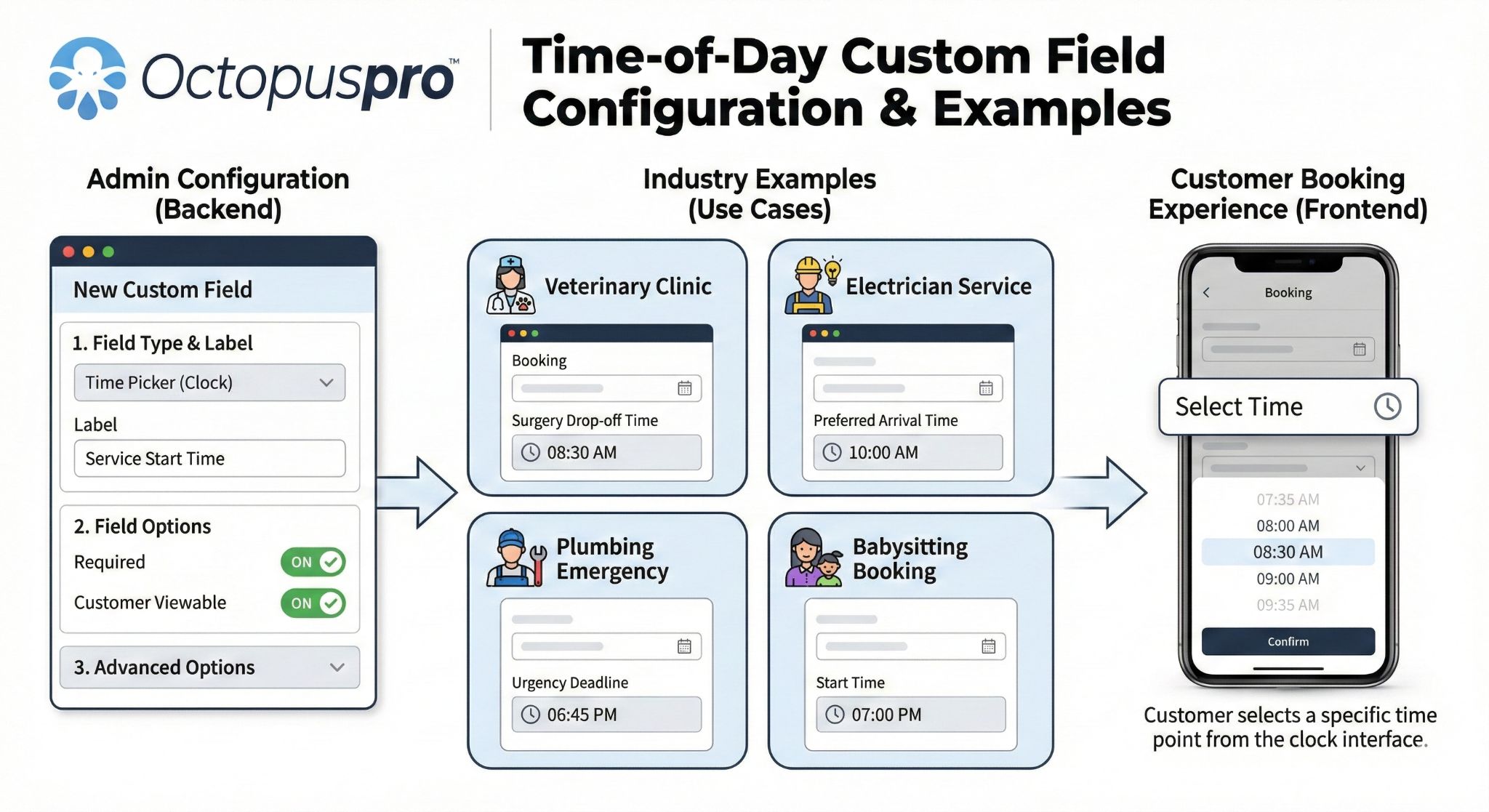
If you also need a time: add a separate time field using Time Picker (Clock) Custom Field.
Step-by-step setup
To create a Date Picker custom field:
- Go to Settings → Service Settings → Custom Fields.
- Click Create New.
- Set a clear Field label, e.g., “Preferred service start date”.
- (Optional) Add Helper text, e.g., “Choose your preferred date. We’ll confirm the final schedule after review.”
- Set a logical Field ID (internal reference), especially if you use exports or integrations.
- Confirm the field is Active.
- Select Field Type: Date picker.
- (Optional, where available) Configure rules such as Required and min/max date range (useful for preventing past dates or limiting how far ahead customers can request).
- Enable any visibility settings you need (for example, Customer Portal / Lead Capture / search/export visibility).
- Click Save.
Assign the field to services
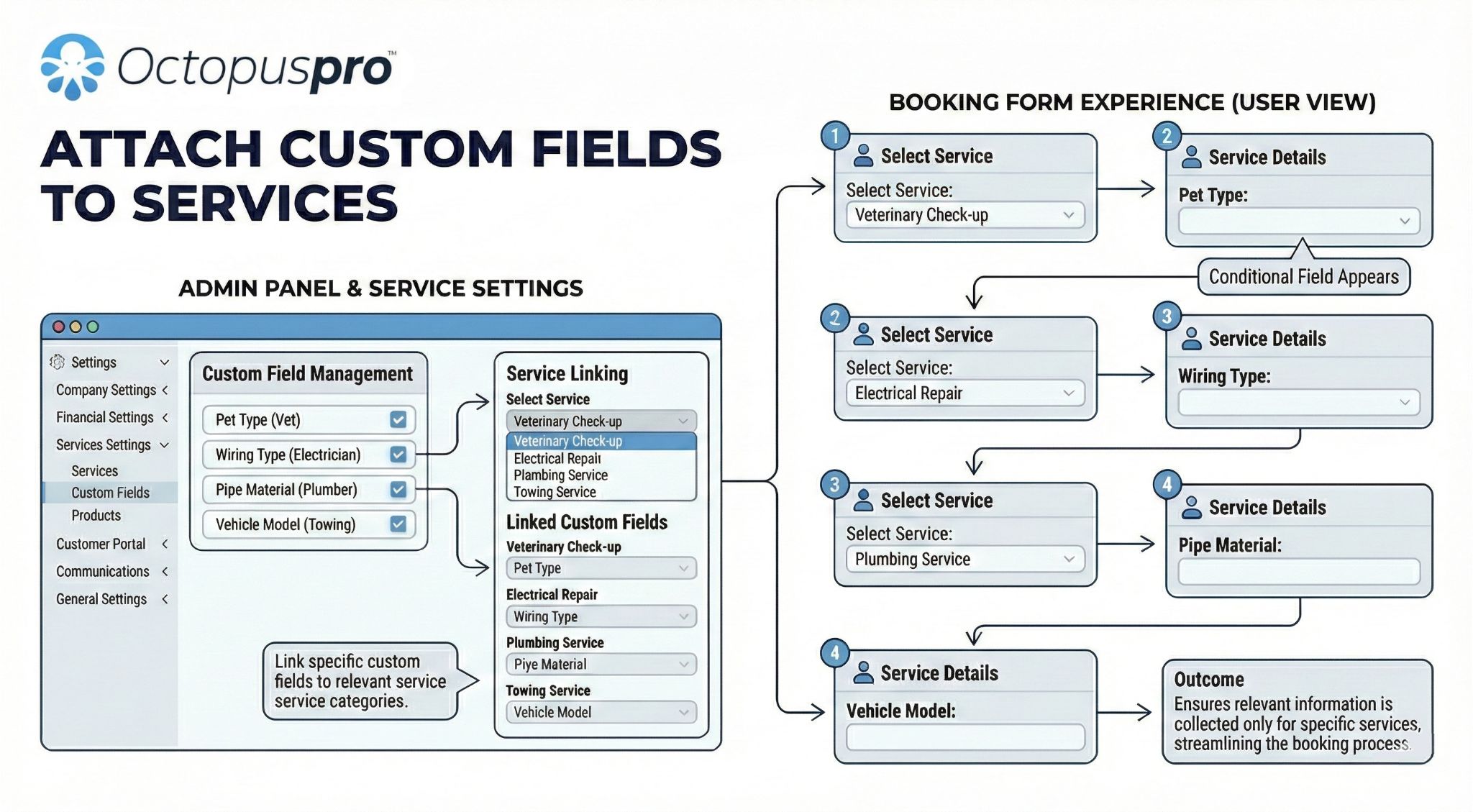
Creating the Date Picker field is step one. To make it appear during inquiry, quote, or booking creation for a specific service, you must assign (attach) it to that service.
Follow this guide: Attach Custom Fields to Services.
How admins, fieldworkers, and customers see it
Admin (Web Dashboard)
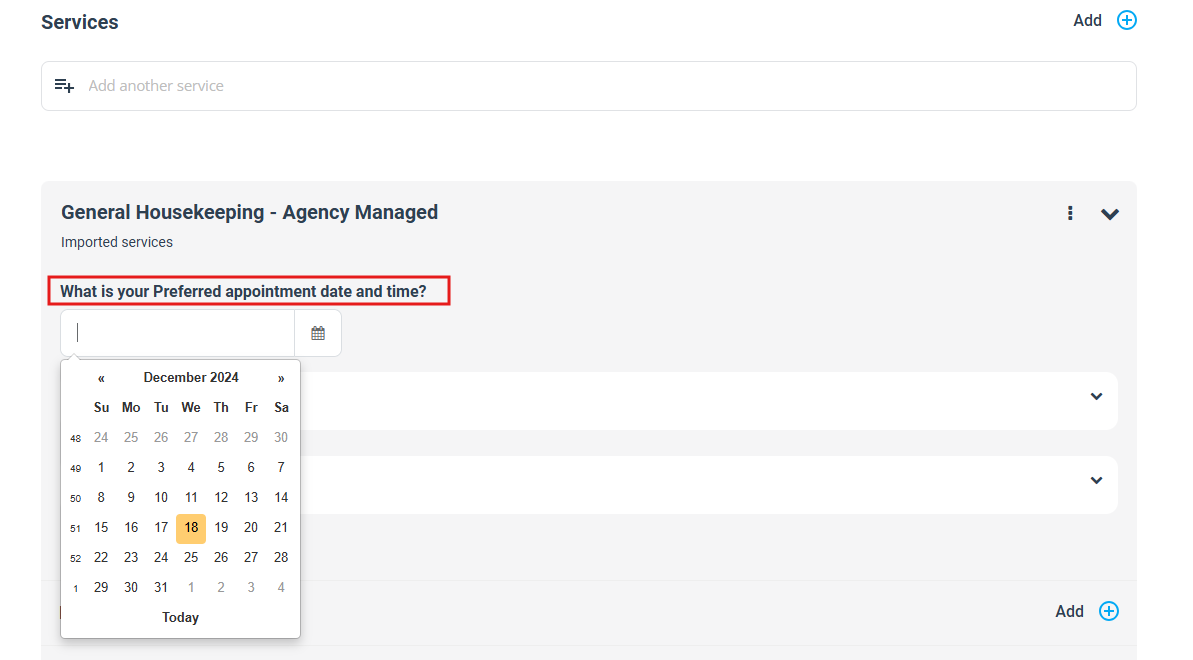
Admins can select a date while creating a booking (or editing service details on a booking/quote/inquiry, depending on where the field is used).
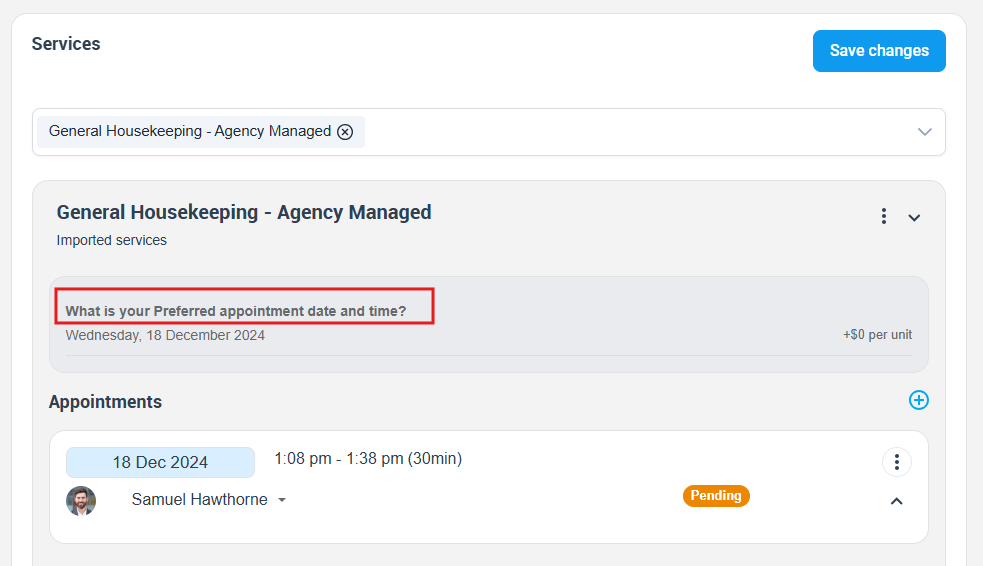
After saving, the captured date is stored and can be reviewed on the booking details screen.
Customer (Customer Portal / Online Booking)
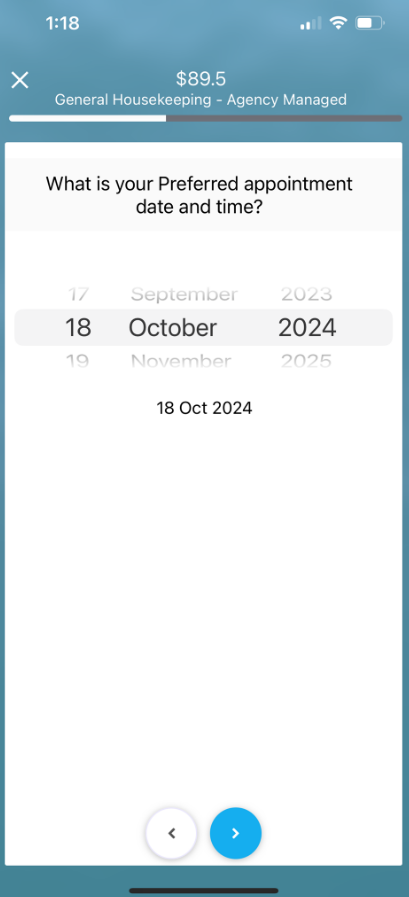
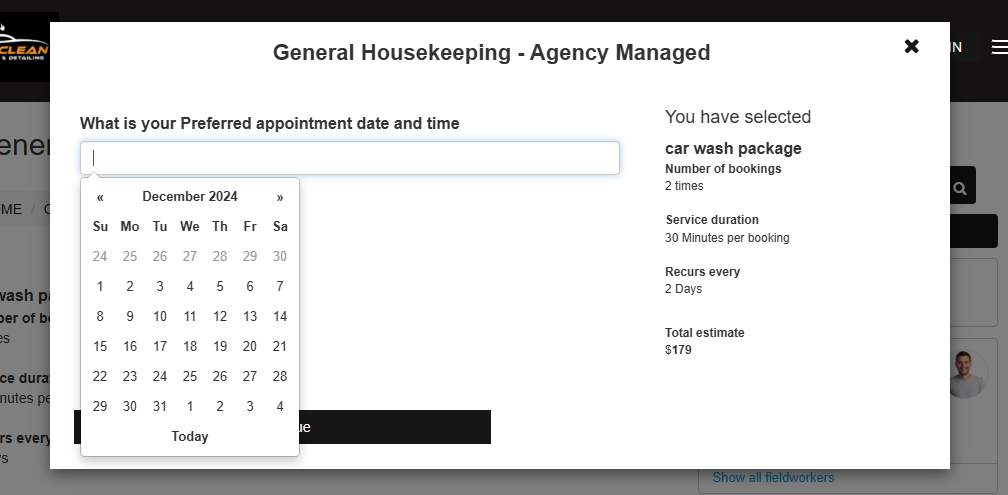
When enabled in customer-facing flows, customers can select a date during online booking/checkout. The UI may vary by device (calendar popup vs mobile selector), while still saving the same date value.
Mobile view:
Desktop view:
Fieldworker note: Fieldworkers can typically view date-based custom field values in job details, and may be able to edit them if you enable the required permissions.
Examples & benefits
Common use cases:
| Industry | Example field label | Why it helps |
|---|---|---|
| Home services / cleaning | First clean date | Helps office batch new clients into the next available window. |
| Construction / projects | Target completion date | Avoids format ambiguity and supports deadline planning. |
| Beauty / wellness | Voucher valid from | Supports date-based eligibility and follow-up reminders. |
| Property management | Lease end date | Useful for renewal workflows and scheduled notifications. |
Key benefits: fewer back-and-forth messages, fewer scheduling misunderstandings, and cleaner data for search, reporting, and automations.
Reporting, search & automations
Date values are stored in a consistent format (commonly ISO-style YYYY-MM-DD), which makes them easier to use for operational workflows such as:
- Searching & filtering: for example, listing bookings between two dates (where supported in your account/tools).
- Exports: exporting date values to CSV for reporting and analysis.
- Automations: triggering reminders (e.g., a follow-up X days before an expiry/renewal date), depending on your automation setup.
Pricing & duration impact
Date Picker fields are informational only and never add cost or time. If you need inputs that affect price (e.g., number of days/units), use a pricing-capable field such as Number Stepper (Quantity) Custom Field or an option-based field like Toggle Switch (Yes/No) Custom Field.
Best practices
- Use explicit labels: “Preferred service start date” is clearer than “Date”.
- Set expectations in helper text: clarify whether the date is a request vs a confirmed schedule.
- Capture ranges with two fields: “Start date” + “End date” for date windows.
- Use conditional logic when relevant: show date fields only when needed (e.g., only if “Urgent” is enabled). See: Dependent Custom Fields (Conditional Logic).
- Use groups for cleaner forms: organize related questions into sections/steps. See: Custom Field Groups.
- Respect locale formats: Date Picker helps reduce DD/MM vs MM/DD confusion. If needed, review: Date & Time Configuration.
Troubleshooting
The Date Picker doesn’t appear on bookings/quotes/inquiries
- Confirm the field is Active.
- Confirm it is assigned to the service: Attach Custom Fields to Services.
- If you use groups, confirm the group is enabled and visible: Custom Field Groups.
The Date Picker doesn’t show in the Customer Portal / Online Booking
- Check the field’s visibility setting (ensure it’s not hidden from customer-facing flows).
- Confirm you’re testing a service where the field is assigned and visible to customers.
- If using a website inquiry form, review: Lead Capture Form.
Customers assume the chosen date is confirmed
- Update your label/helper text to state it’s a preferred/requested date and that your team will confirm the final schedule.
Related guides
- Custom Fields (Booking, Lead Capture & CRM)
- Attach Custom Fields to Services
- Time Picker (Clock) Custom Field
- Lead Capture Form (Website Inquiry Form)
- Customer Profile Custom Fields
- Fieldworker Profile Custom Fields
- Forms & Checklists (Overview)
- Forms & Checklists Field Types
- Dependent Custom Fields (Conditional Logic)
- Custom Field Groups
- Date & Time Configuration
- Number Stepper (Quantity) Custom Field
- Toggle Switch (Yes/No) Custom Field
To stay updated, please subscribe to our YouTube channel.