
Service Payment Terms & Deposit Settings
Service payment terms control when and how much a customer must pay to confirm a booking (e.g., no upfront payment, deposit, full payment, or a pre-authorization hold). A clear payment policy helps you reduce no-shows, improve cash flow, and minimize time spent chasing payments.

Quick navigation
- Before you start
- Configure default (company-wide) payment terms
- Payment options explained (when to use each)
- Set service-level payment terms (overrides)
- How payment terms are applied (priority order)
- Automate deposit reminders & overdue follow-ups
- Best practices & real-world examples
- Add your business Terms & Conditions (T&Cs)
- FAQs
Before you start
Payment terms define the required payment timing/amount (deposit vs full vs pay later). Payment methods define how customers can pay (card, bank transfer, cash, etc.).
- Set up and enable your payment options: Activating and Managing Payment Options and Types

- Control what customers can use at checkout: Payment Methods for Customer Checkouts during Online Bookings

Important: Online charging (deposits, full payments, and pre-authorizations) typically requires an enabled payment gateway and card payments. If staff create bookings internally, payment collection may be manual depending on your workflow.
Configure default (company-wide) payment terms
Company payment terms are the global default applied to all services unless you override them at the service level.
- Go to Settings > Financial Settings > Payment Terms.
- Select the default payment rule you want customers to follow when booking online.
- Save your changes.
Tip: If certain services require different rules (e.g., emergency call-outs), use service-level overrides.
Payment options explained (when to use each)
1) No Payment (No Card on File)
Customers can complete their booking without entering any payment details.
Best for: free services, inspections/quotes, trust-based “pay on site”, or invoice-later customers.
Key notes:
- No automatic payment enforcement (you collect payment later).
- You can still invoice and send reminders once an invoice is generated.
2) No Payment (Card on File)
Customers book without paying upfront, but must enter valid card details which are stored securely for future charging if needed.
Best for: businesses that charge after service completion, or when you want to reduce no-shows without requiring an upfront payment.
Key notes:
- No immediate charge at checkout.
- Your team can charge later (for the final invoice, cancellation fees, add-ons, etc.) depending on your payment setup and workflow.
3) Deposit (Fixed Amount or Percentage)
Require an upfront deposit to confirm a booking. Deposits can be:
- Fixed amount (e.g., $50), or
- Percentage (e.g., 20% of the booking total)
When is the deposit charged? (Customer Portal bookings)
- On booking creation – charge immediately when the customer confirms the booking.
- On booking acceptance – customer enters card details at checkout, but the deposit is only charged after an admin/fieldworker accepts/approves the booking.
Bookings created by admins/fieldworkers: deposits are not automatically charged. The deposit can be shown on the invoice, but staff will typically collect/confirm payment manually (or send an invoice link for payment).

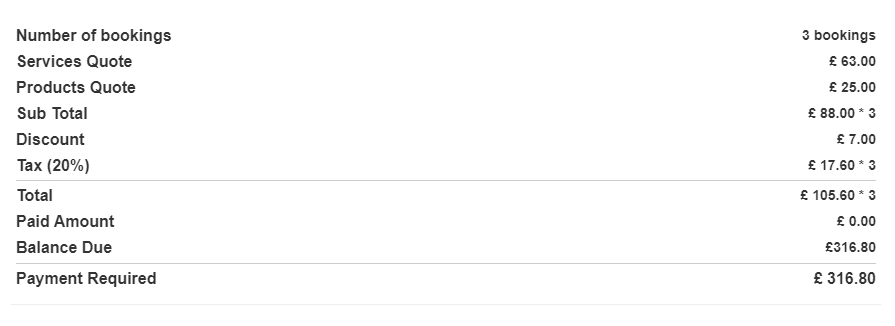
Customer Portal checkout example (deposit/payment requirement):
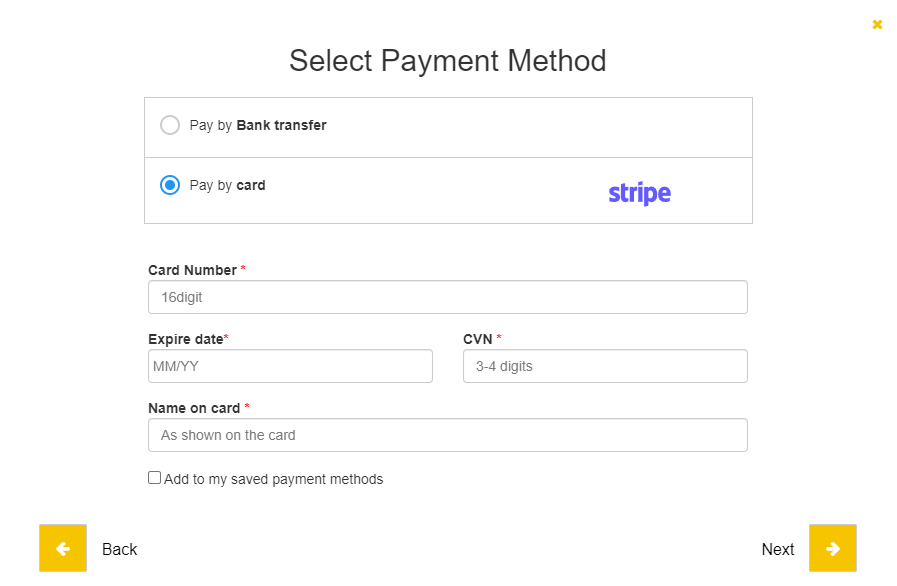
Example: customer selects a payment method at checkout:
Partial payments & adjustments: deposits are typically recorded as a partial payment against the total. If you need to adjust or refund a deposit, use refund tools and keep the invoice balance accurate: Refund Management (Bookings & Invoices).

More deposit workflows: Effective Deposit Payment Management for Service Bookings.
4) Full Payment
Charge the full booking amount (100%) based on your selected timing.
Timing options (Customer Portal bookings):
- On booking creation – charge immediately at checkout.
- On booking acceptance – charge only after an admin/fieldworker approves/accepts the booking.
- Full payment after X days – delay charging for a set grace period after booking creation.
Bookings created by admins/fieldworkers: full payment is not automatically charged; staff usually collect/record payment manually or send an invoice for payment.
Best for: virtual/remote services, limited-capacity bookings (classes), or any service where you require firm commitment.
5) Pre-Authorization (Card Pre-Auth)
Pre-authorization places a temporary hold on the customer’s card for a specified amount without capturing funds immediately. This is ideal when final pricing may change after work is completed.
Best for: variable-cost jobs, security/damage deposits, rentals, and high-value bookings.
How it typically works:
- A hold is placed for an agreed amount (e.g., $100 or a % of the estimate).
- After completion, you can capture the final amount (full/partial) or release/void the hold.
- Holds may expire automatically depending on gateway/card rules.
6) Payment on invoice & milestone/progress payments (recommended workflow)
If you need staged payments (e.g., 30% upfront, 40% mid-job, 30% on completion), the most common approach is invoices + partial payments:
- Send an invoice at each milestone (deposit/progress/final).
- Record partial payments against the invoice/booking.
- Use due dates and reminders for the remaining balance.

Learn more:
- Online & Offline Invoice Payments
- Track Booking Payments & Reconcile Transactions
- Invoice Due Dates & Payment Terms


Set service-level payment terms (overrides)
Service-level payment terms override your company default for customer portal bookings, allowing different requirements per service (e.g., “Emergency call-out = full payment”, “Standard service = deposit”).
Option A: Set payment terms while creating a new service
- Go to Settings > Services Settings > Services.
- Click Create New and complete your service details.
- Open the Cost & Payrate tab.
- Select Paid service, then choose Set up different payment requirements for this service.
- Select the desired payment term and save.
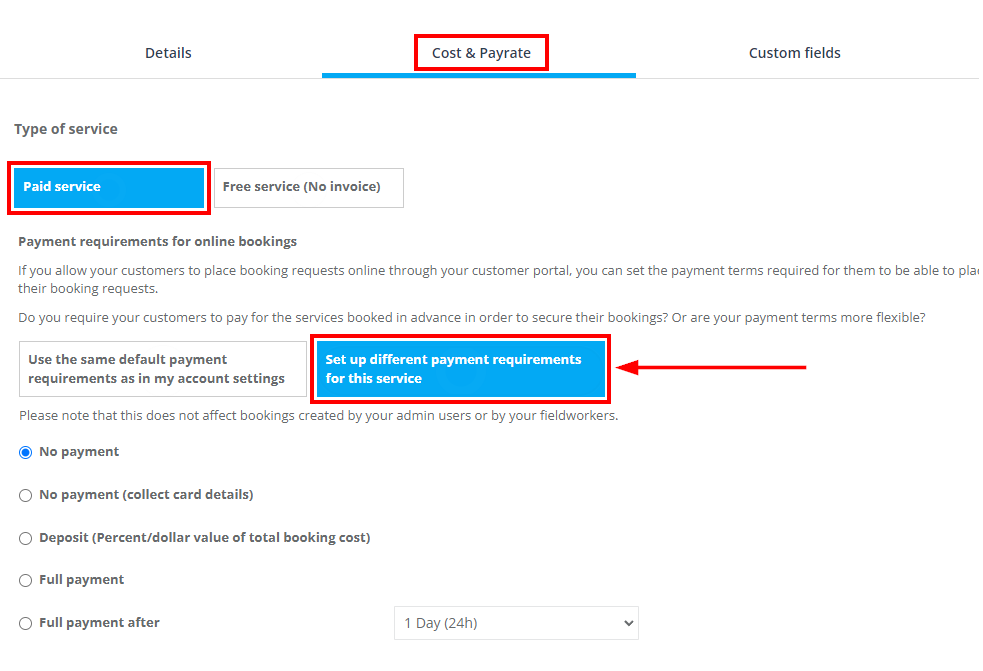
Note: As shown above, service-level online payment requirements generally apply to customer portal bookings and do not automatically charge customers for bookings created internally by admins/fieldworkers.
Option B: Edit payment terms for an existing service
- Go to Settings > Services Settings > Services.
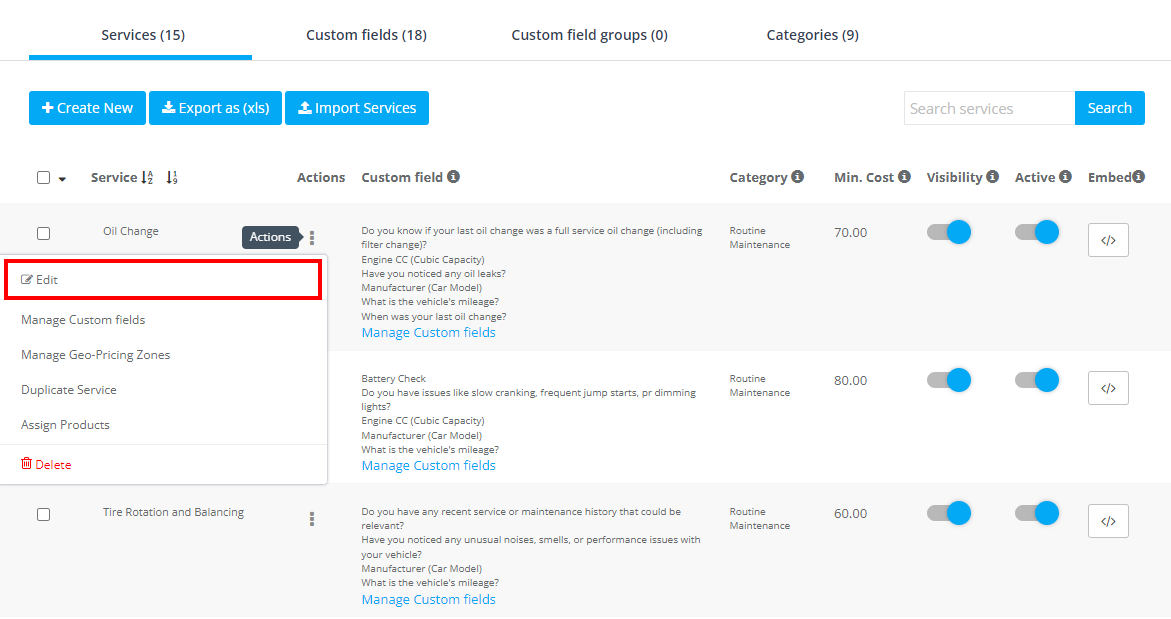
- Find the service, click Actions, then select Edit.
- Update the service payment requirement and save.
How payment terms are applied (priority order)
OctopusPro applies payment terms using this priority order:
- Service-level payment terms (highest priority)
- Customer-level payment terms (applied if no service override exists)
- Company-level default payment terms (fallback default)
Impact on bookings/invoices: payment terms affect what appears in the Invoice & Payment section (deposit required, paid-to-date, balance, due status, etc.).

Gift cards / gift vouchers: gift card purchases require full payment at checkout and are not affected by service payment terms.
Automate deposit reminders & overdue follow-ups
If you require deposits or invoice payments, use automations to reduce manual follow-ups:
- Deposit payment reminder for upcoming bookings: send an email/SMS reminder to customers who haven’t paid their deposit before the appointment date.
- Overdue invoice reminders: automatically follow up when invoices are past due.
To configure: go to Settings > Communications > Automations. For a full overview, see: Automated Reminders & Confirmations (Email, SMS & WhatsApp).

Tip: If there’s a dispute or special arrangement, pause notifications for a specific booking/quote/invoice: Pause & Resume Automated Notifications.
Best practices & real-world examples
- Use deposits to reduce no-shows: many businesses start with 10–30% to secure commitment while keeping conversion high.
- Use “charge on acceptance” if you need to confirm availability before taking payment.
- Pair card-on-file with cancellation/no-show policies to protect your schedule.
- Optional card surcharges: if permitted in your region, add processing fees: Add Credit Card Surcharges to Payments.
- Align with your fee rules:


Example workflows:
- Residential cleaning: 20% deposit on booking creation, remainder paid on completion.
- Emergency call-outs: full payment on booking creation.
- Renovations/long jobs: deposit + progress invoices (milestones) + final invoice on completion.
- Equipment rentals: pre-authorization hold as a security deposit, final capture after return/inspection.
Add your business Terms & Conditions (T&Cs)
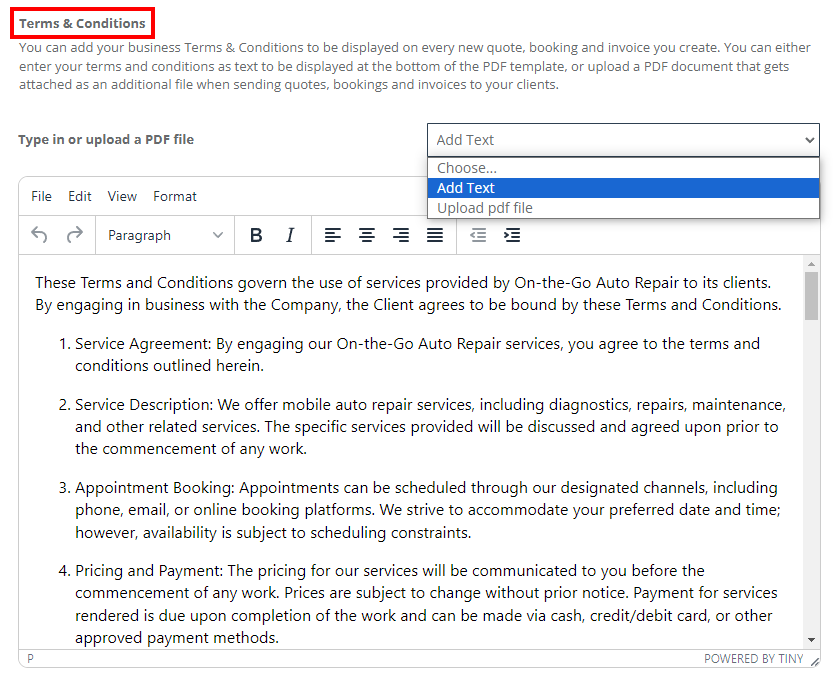
Add your business Terms & Conditions so they appear consistently across quotes, bookings, and invoices. This helps set expectations, reduces disputes, and supports enforceable policies (deposits, cancellations, payment deadlines, etc.).
- Go to Settings > Financial Settings > Payment Terms.
- Under Terms & Conditions, choose one:
- Add Text (type/paste your T&Cs), or
- Upload PDF file (attach a document instead of inline text).
- Save your changes. Your T&Cs will be appended to new quotes, bookings, and invoices automatically.
FAQs
Can I set different payment terms for each service?
Yes. Use service-level payment terms to override your company default (see service-level overrides).
Do service-level terms override company defaults?
Yes. Service terms take priority over customer/company terms for customer portal bookings.
Are there any options that collect card details without charging upfront?
Yes. No Payment (Card on File) captures card details at checkout without charging immediately.
Do payment terms apply to gift cards?
No. Gift card purchases require full payment at checkout and aren’t affected by service payment terms.
Can I collect a deposit for bookings created by admins/fieldworkers?
Yes—commonly by generating/sending an invoice and collecting/recording the payment. See Online & Offline Invoice Payments.
How do I track deposits, partial payments, and balances?
Use booking payment tracking to view paid amounts, balances, and payment history: Track Booking Payments.
Can I set due dates (Net 7 / Net 14 / etc.) separately from deposits?
Yes. Due dates can be applied at company, customer, or invoice level: Invoice Due Dates & Payment Terms.
To stay updated, please subscribe to our YouTube channel.