
Inquiries & Lead Management (Capture, Track, Follow Up & Convert Leads)
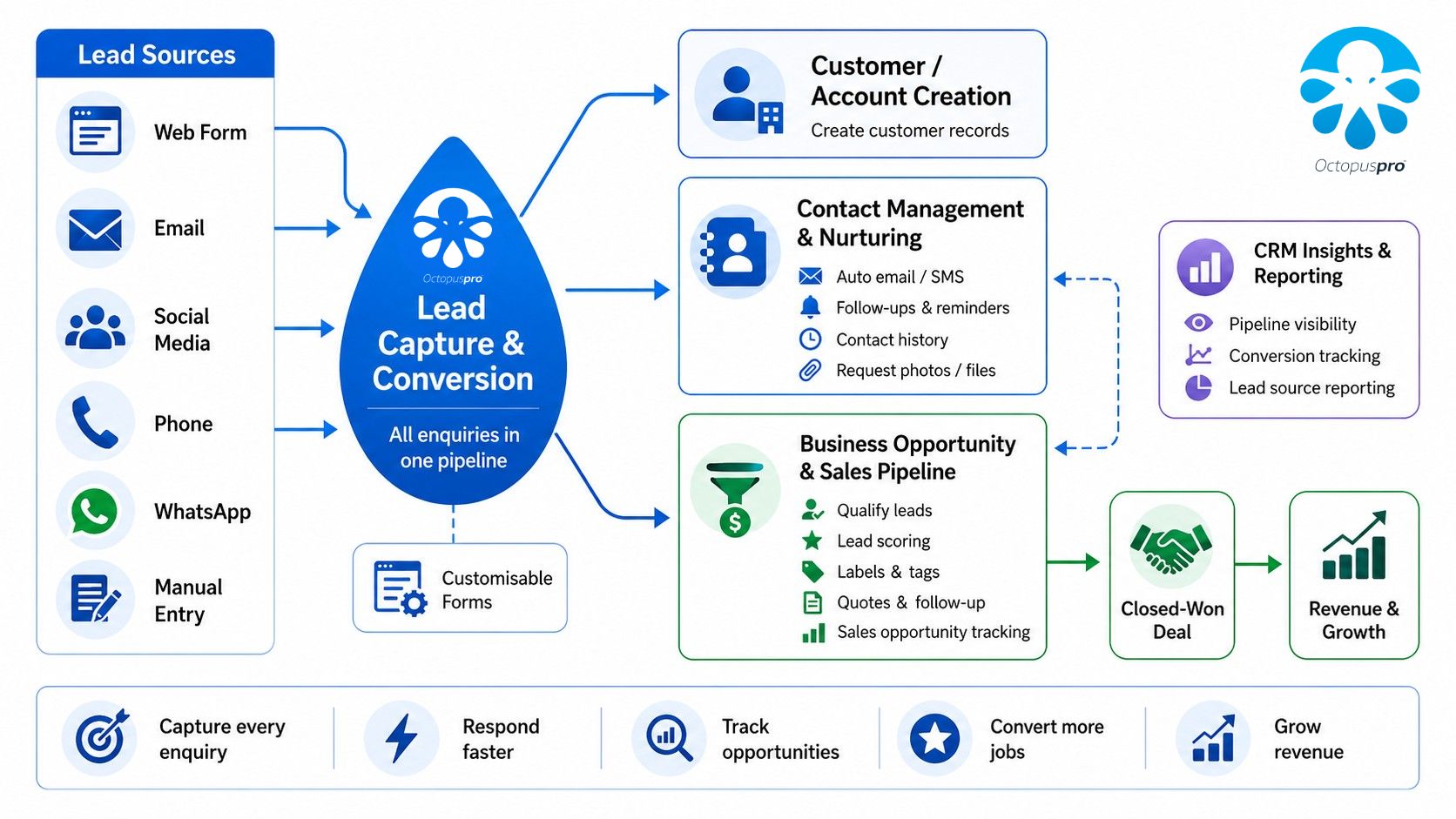
OctopusPro’s Inquiries module is your built-in lead and inquiry management hub (lightweight CRM) for capturing new leads, qualifying them, tracking follow-ups, managing communications, and converting inquiries into Quotes/Estimates or Bookings.
Use it to keep every potential customer request organized in one place—whether it comes from your website lead capture form, customer portal “Contact Us” form, phone calls, or manual entry by office staff.

Table of Contents
- What are Inquiries?
- Feature summary
- How inquiries are captured (lead capture)
- Navigating the Inquiries list (statuses, categories, tabs)
- Creating a new inquiry (manual entry)
- Customer Portal “Contact Us” (lead capture)
- Viewing inquiry details (what’s inside an inquiry)
- Editing an inquiry
- Contacting customers & tracking contact history
- Inquiry discussion management (internal collaboration)
- Attachments (files & photos)
- Labels (tags) & filtering
- Follow-up reminders (lead nurturing)
- Convert an inquiry to a booking or quote
- Spam control (mark spam + ban IP addresses)
- Inquiries statistics dashboard (reporting & insights)
- Best practices & examples
- Related guides
What are Inquiries?
An Inquiry is any customer request that comes in before a job is confirmed—such as “How much does this cost?”, “Are you available next week?”, or “Can you call me back?”. In OctopusPro, inquiries act as the first stage in your sales pipeline (lead pipeline).

You can:
- Capture leads from multiple channels (website forms, customer portal forms, phone calls, manual entry)
- Qualify and segment inquiries (status, labels, representative)
- Nurture leads with follow-ups and structured communication
- Convert inquiries into quotes/estimates or bookings
- Protect your pipeline from spam and low-quality leads
- Measure lead sources and conversions via reporting dashboards

Feature summary
Below is a complete, practical summary of everything you can do with inquiries and lead management in OctopusPro:
- Centralized inquiry inbox: view, filter, and manage all leads in one place.
- Inquiry statuses (pipeline stages): move leads through stages such as New, Qualified, Unqualified, Resolved, and Spam.
- Assignment: assign inquiries to a Representative (sales rep / staff member) for ownership and accountability.
- Lead source tracking: record where the lead came from (e.g., Website, Phone, Google Ads, Referral).
- Labels (tags): add custom labels for segmentation and lead nurturing (e.g., “High Value”, “Needs Photos”, “Commercial”).
- Follow-up reminders: set a follow-up date/time, view “To Follow” lists, and quickly reschedule follow-ups.
- Contact history: track outbound contact attempts and customer communication history.
- Inquiry discussions: collaborate internally with comments and notes tied to the inquiry.
- Attachments: upload and store files/photos needed to quote or schedule the job.
- Conversion: convert an inquiry to a Booking or to a Quote/Estimate (and keep links between records).
- Spam controls: mark inquiries as spam and optionally block IPs that generate spam inquiries.
- Reporting: use the Inquiries Statistics Dashboard to measure lead volume, lead sources, conversions, and performance trends.

How inquiries are captured (lead capture)
Inquiries can be created instantly through multiple channels, ensuring you never miss a lead:
- Manual entry (office staff create an inquiry from the admin portal)
- Website Lead Capture Form (embed a customizable inquiry form on your website)
- Customer Portal “Contact Us” (customers submit inquiries from their portal)
- Phone call handling (staff can capture inquiry details after calls)

Navigating the Inquiries list (statuses, categories, tabs)
The Inquiries area is designed as a simple lead pipeline so you can prioritize and progress leads quickly.
Common inquiry tabs (pipeline stages):
- New: newly received inquiries that need review.
- Qualified: leads that match your target customer and are likely to convert.
- Unqualified: leads that aren’t a fit (wrong location, budget, availability, etc.).
- Resolved: inquiries that are completed/closed (converted, handled, or finalized).
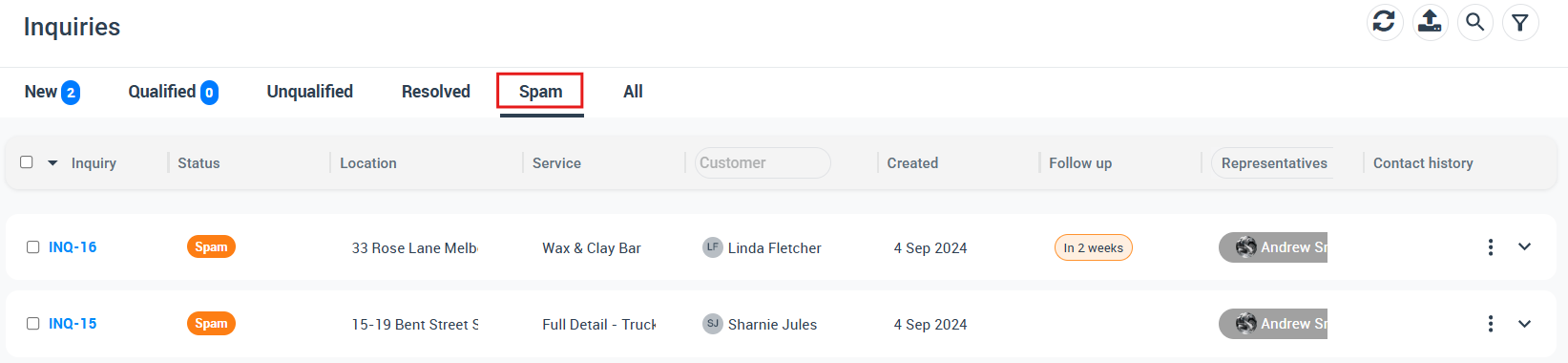
- Spam: inquiries flagged as spam.
- All: your master list.
Additional inquiry categories you may see:
- My Inquiries: inquiries created by you or assigned to you.
- To Follow: inquiries with follow-up reminders due or scheduled.
- Deleted Inquiries: deleted items kept until permanently removed (based on your permissions/settings).
- Unlabeled: inquiries that do not have labels yet (useful for keeping your pipeline organized).
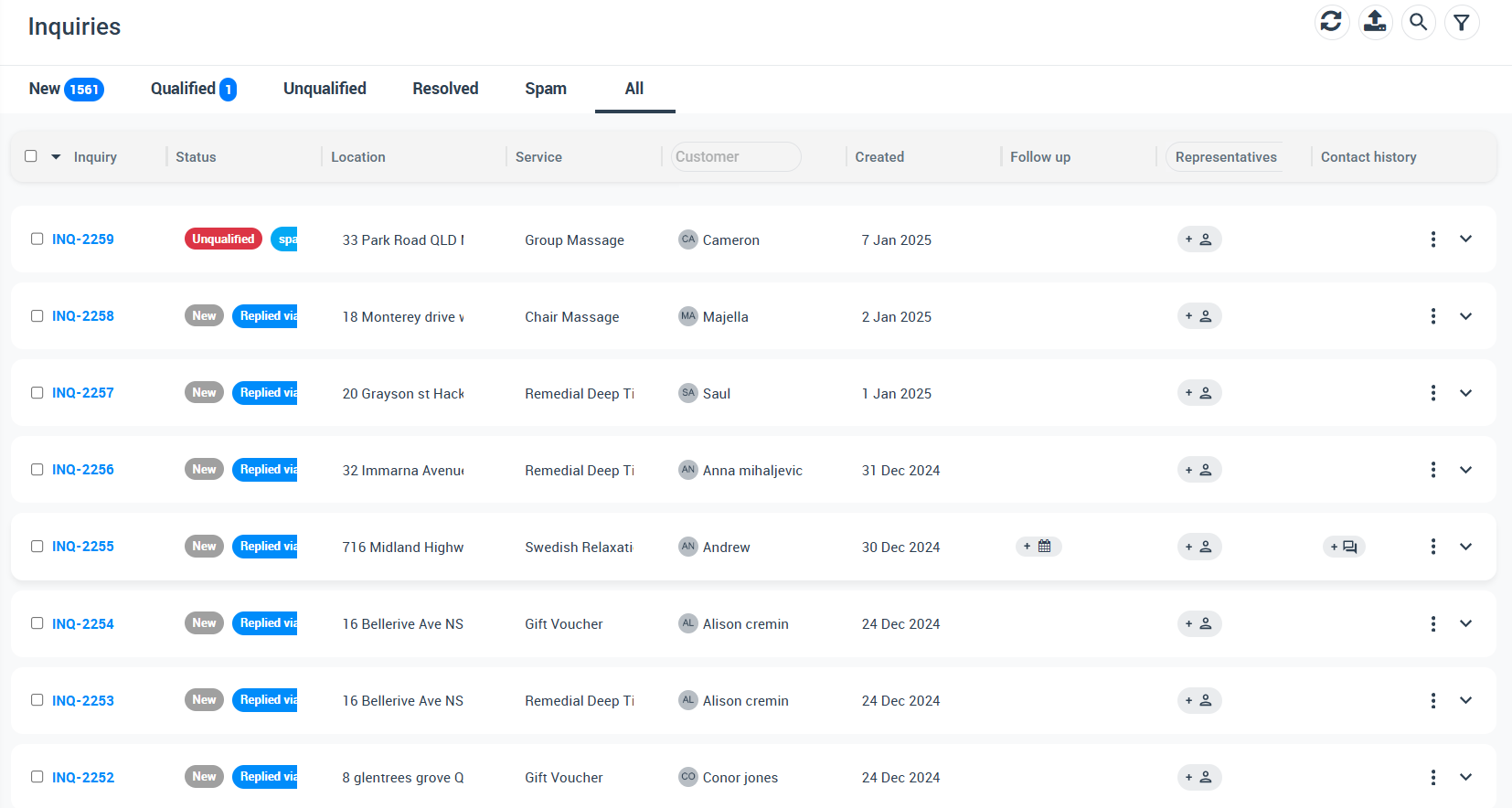
Common columns you can use to manage the pipeline faster:
- Status (pipeline stage)
- Location (service area)
- Service (requested service type)
- Customer (lead/customer name)
- Created (lead age)
- Follow up (follow-up reminders and due dates)
- Representatives (assigned rep/owner)
- Contact history (visibility into customer communication activity)
Creating a new inquiry (manual entry)
Manual inquiry creation is ideal when your team receives leads by phone, walk-ins, email, or social messages and wants to log them in a consistent format.
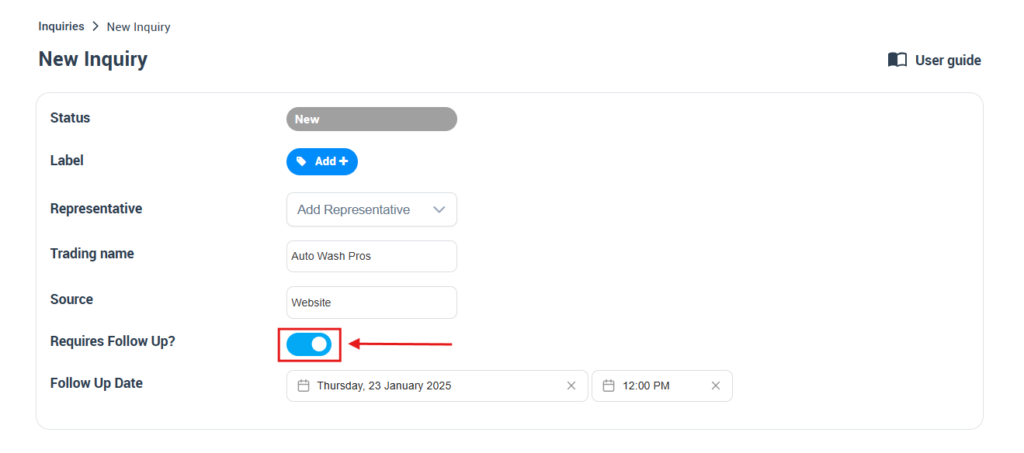
Typical workflow:
- Go to Inquiries in the left menu.
- Click Create New.
- Enter the customer details, service request, and location.
- (Optional) Assign a Representative, add a Source, and apply Labels.
- (Optional) Enable and schedule a Follow-Up.
- Save the inquiry.
Why this matters: consistent inquiry records improve response times, allow proper follow-up, and make conversions (to quote/booking) faster and more accurate.
Learn more: Creating a new inquiry
Customer Portal “Contact Us” (lead capture)
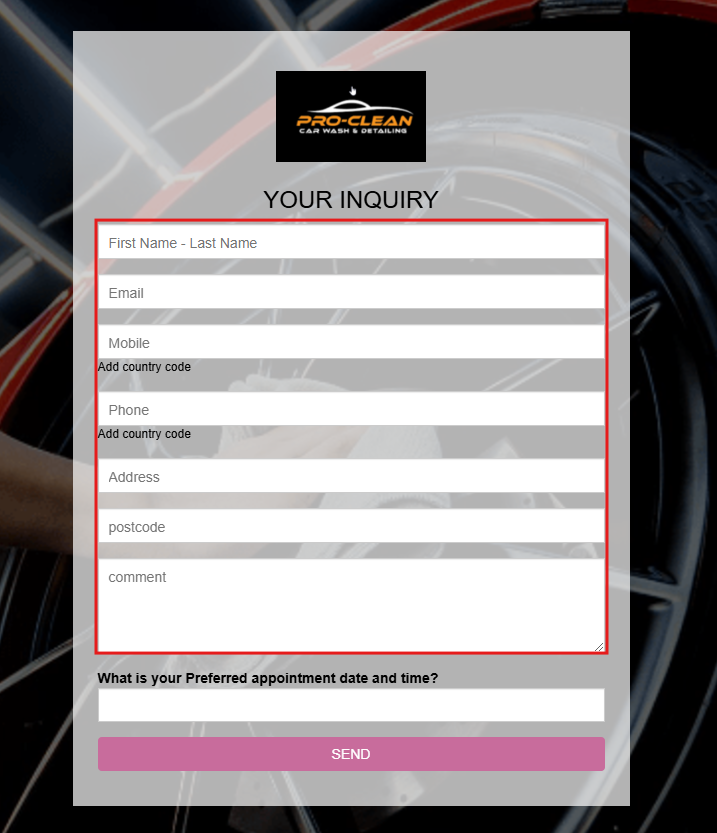
If you enable the Customer Portal “Contact Us” form, customers can submit inquiries directly from their portal. This is especially useful when customers already have portal access and want a quick way to request help, ask questions, or request pricing.

What happens when a customer submits the form?
- A new inquiry is created automatically in your Inquiries list.
- Your team can review it, assign a representative, label it, and schedule follow-up.
- You can then convert it to a quote or booking when ready.

Learn more: Customer Portal Contact Us (Lead Capture)
Viewing inquiry details (what’s inside an inquiry)
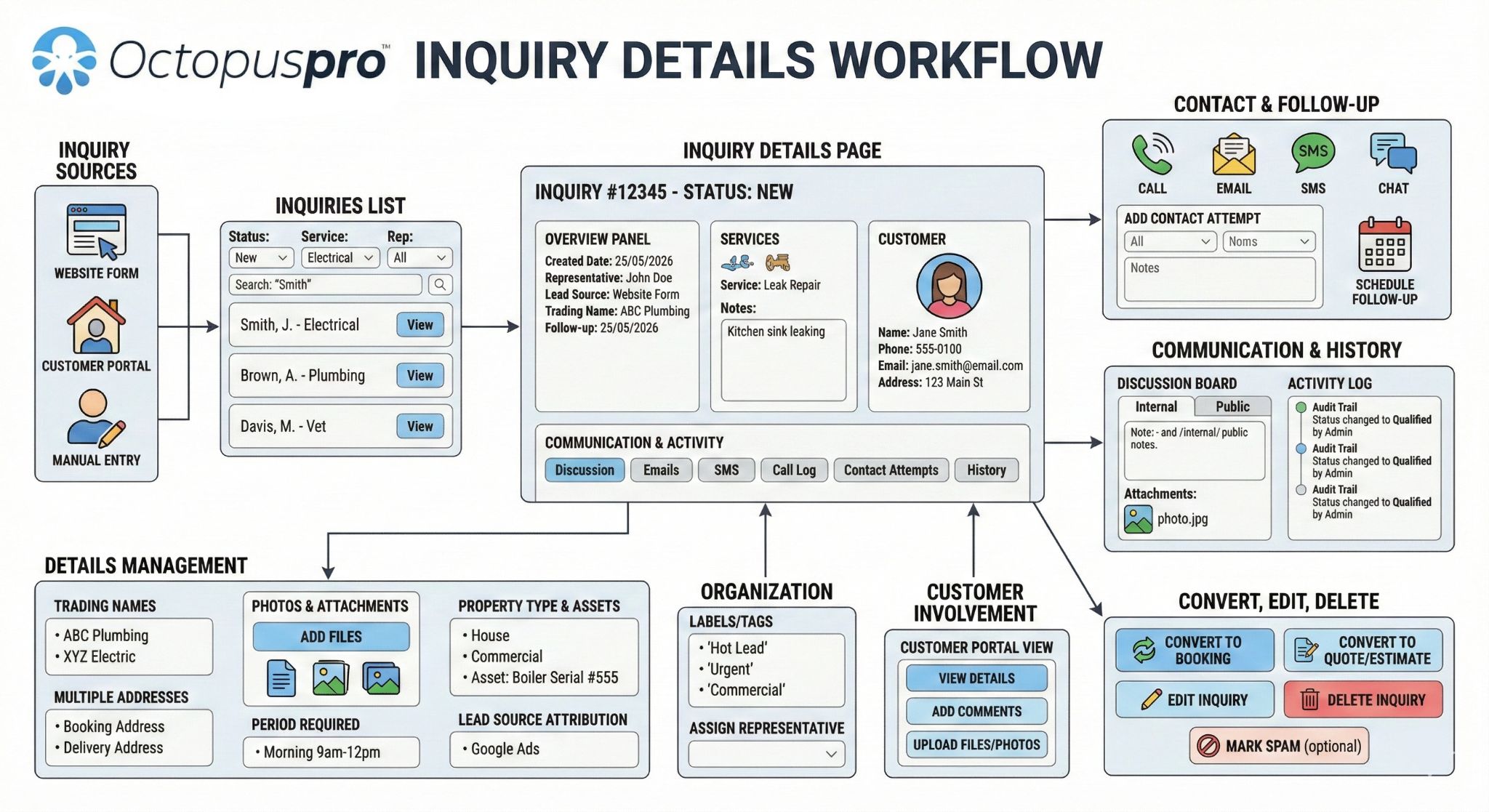
Each inquiry record is designed to hold everything needed to progress a lead from first contact to conversion:
- Customer details (name, contact info)
- Service request (what they need, notes, job details)
- Location (service address or area)
- Status (pipeline stage)
- Representative (owner/assignee)
- Lead source (where it came from)
- Labels (segmentation)
- Follow-up reminder (date/time and “To Follow” workflow)
- Contact history (tracking outreach and communication activity)
- Discussions (internal notes and collaboration)
- Attachments (photos/files needed for quoting or scoping)
- Conversion links (linked quote/booking once converted)
Learn more: View inquiry details
Editing an inquiry
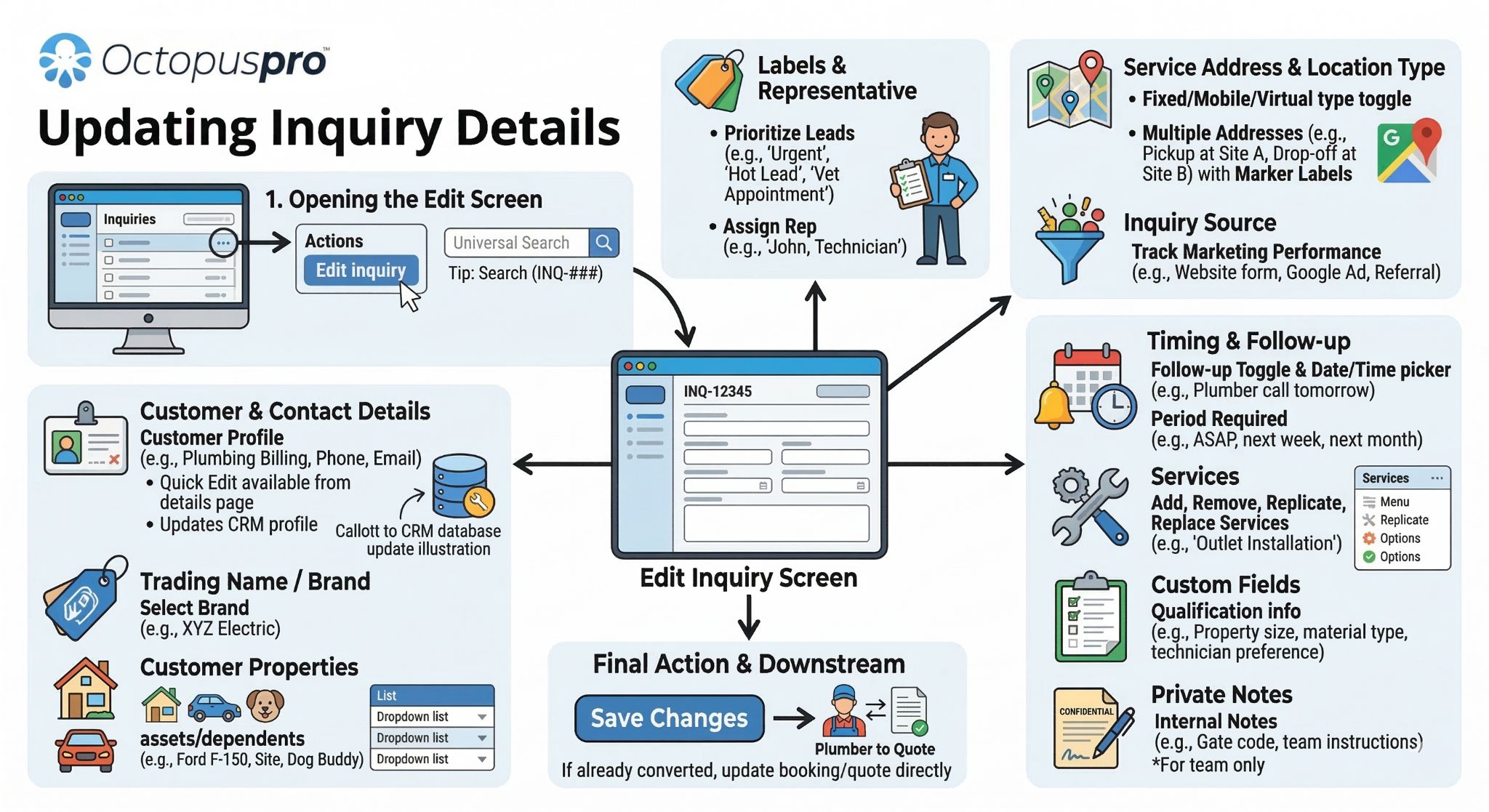
Edit inquiries anytime to update the lead’s details as you learn more—this keeps quoting and scheduling accurate.
Common updates include:
- Correcting customer contact information
- Updating service request notes
- Changing location details
- Assigning/changing a representative
- Setting/updating lead source
- Adding labels for segmentation
- Scheduling a follow-up reminder
- Updating status based on qualification or outcome
Learn more: Edit inquiry details

Contacting customers & tracking contact history
Use inquiries as your lead communication workspace—contact leads quickly and keep a clear record of communication activity.
Typical actions:
- Send an email or SMS to the lead
- Log contact attempts and outcomes
- Track how recently the lead was contacted (to avoid duplicate outreach)
- Continue the lead conversation while keeping context attached to the inquiry
Learn more: Contact customers from inquiries
Inquiry discussion management (internal collaboration)
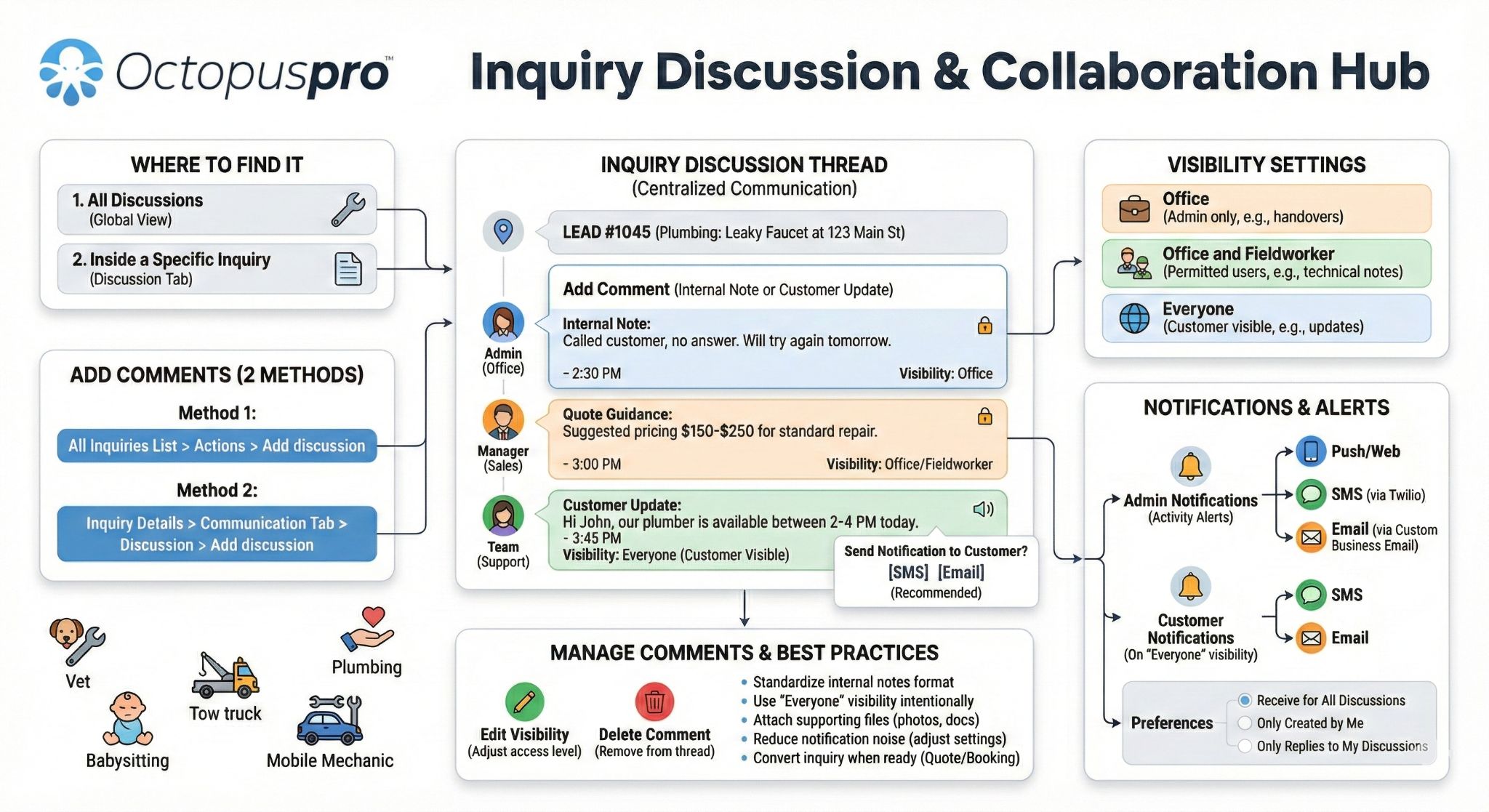
Inquiry discussions help your team collaborate and document internal notes, updates, and decisions related to a lead—especially when multiple staff members handle sales, scheduling, and operations.
Use discussions to:
- Leave internal notes for teammates (handover, pricing notes, special requests)
- Record important customer context (preferences, restrictions, urgency)
- Keep your team aligned before converting to a quote/booking
Learn more: Inquiry discussion management

Attachments (files & photos)
Attach photos and files directly to an inquiry to speed up qualification and quoting—especially when customers need to share site photos, documents, measurements, or reference images.
Common attachment examples:
- Photos of the job/site
- Floor plans or documents
- Product references
- Customer requirements or supporting files
Learn more: Attach files to inquiries

Labels (tags) & filtering
Labels are custom tags that help you segment leads and run a more organized pipeline. Labels are not the same as status:
- Status = where the lead is in the pipeline (New / Qualified / etc.).
- Labels = flexible categories for segmentation (e.g., “High Priority”, “Commercial”, “Needs Call Back”).
Learn more: Add labels to inquiries

Follow-up reminders (lead nurturing)
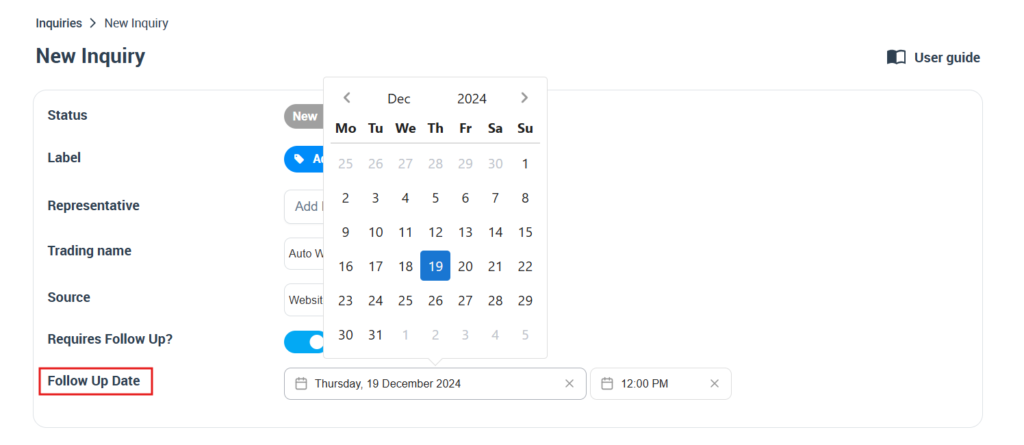
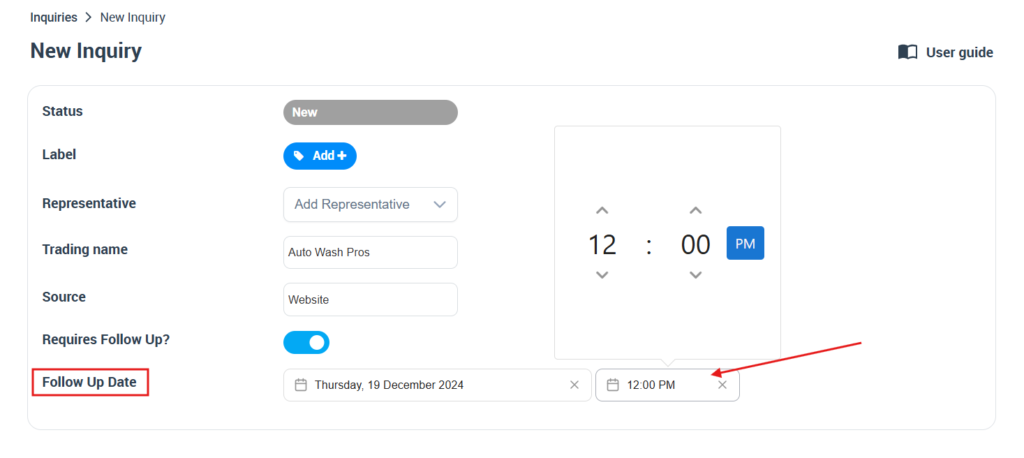
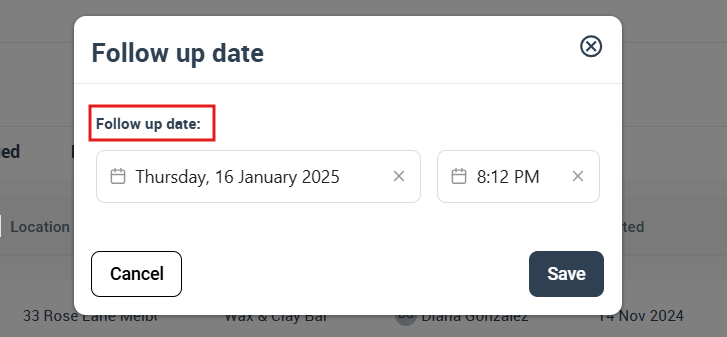
Follow-ups ensure leads don’t fall through the cracks. You can set a follow-up date/time per inquiry, view follow-up queues, and quickly reschedule follow-ups from the list view.

How follow-ups work:
- Enable follow-up on the inquiry (a “Requires Follow Up?” toggle may appear depending on your workflow).
- Select a follow-up date and time.
- Use “To Follow” / follow-up views to focus daily outreach.
- Edit follow-up dates quickly without opening every inquiry.

Learn more: Lead management follow-up reminders
Convert an inquiry to a booking or quote
Once an inquiry is qualified, you can convert it into the next operational step:
- Convert to Booking: when the customer is ready to schedule.

- Convert to Quote/Estimate: when you need to propose pricing before scheduling.

This keeps inquiry context (customer details, service needs, attachments, notes) connected to the job pipeline and reduces duplicate data entry.
Learn more:
Spam control (mark spam + ban IP addresses)
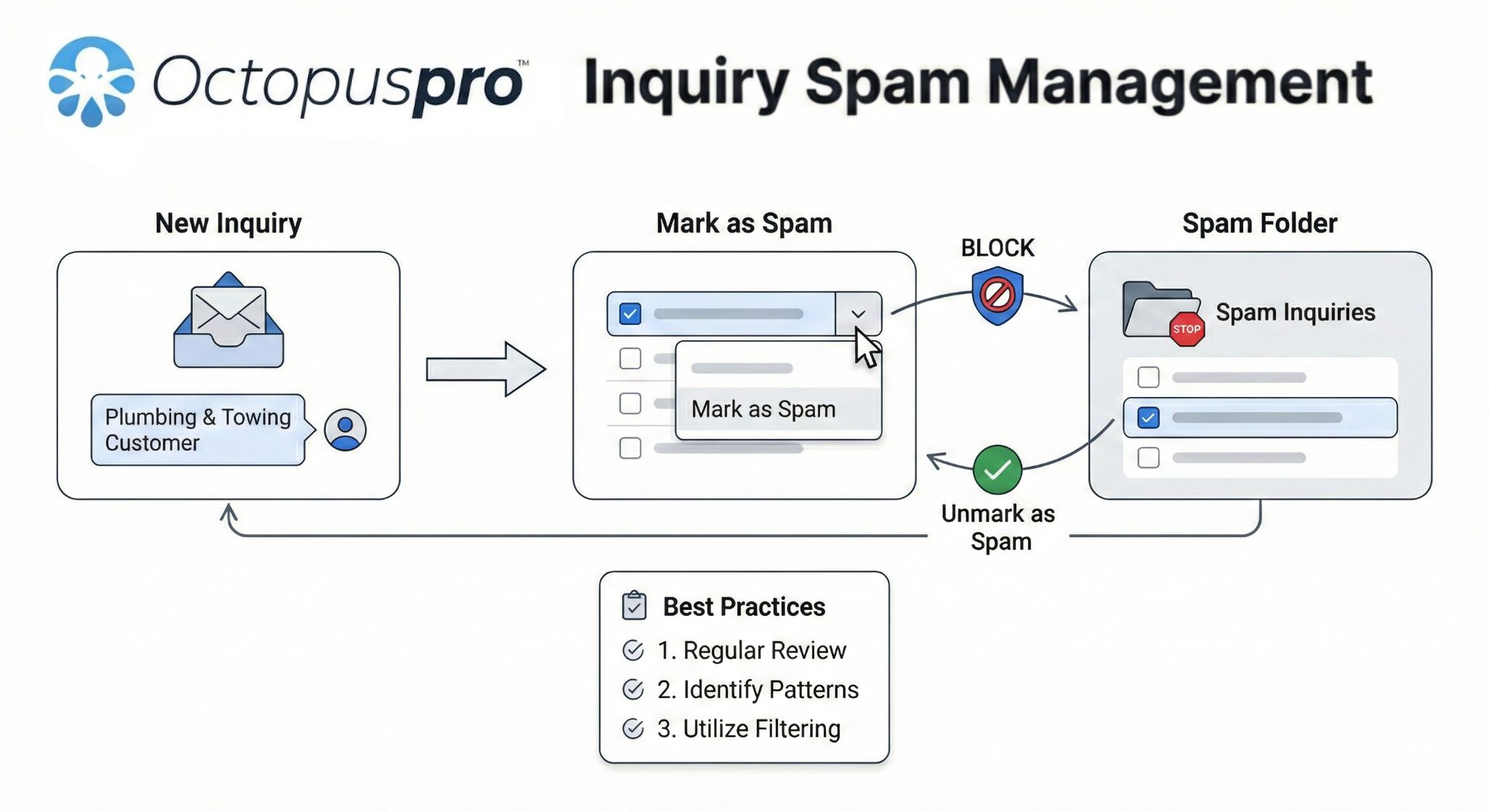
Spam inquiries can clutter your pipeline and impact deliverability. OctopusPro provides multiple controls:
- Mark an inquiry as spam: moves the record into Spam and keeps your pipeline clean.
- Ban IP addresses: block repeated spam sources at the IP level (useful for persistent spam).

Learn more: Mark an inquiry as spam
Inquiries statistics dashboard (reporting & insights)
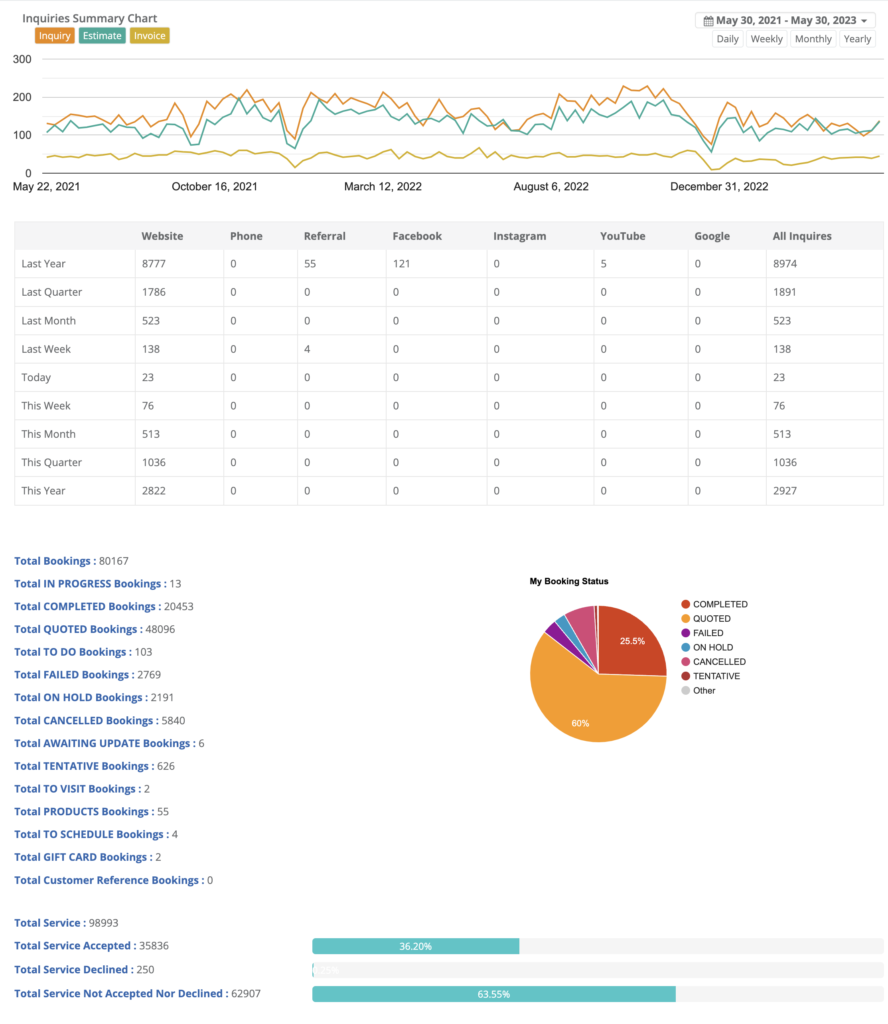
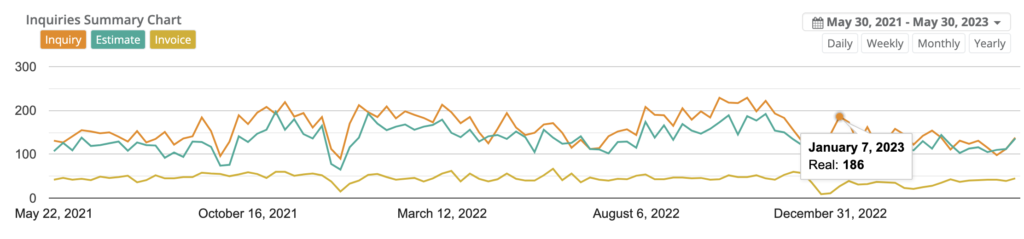
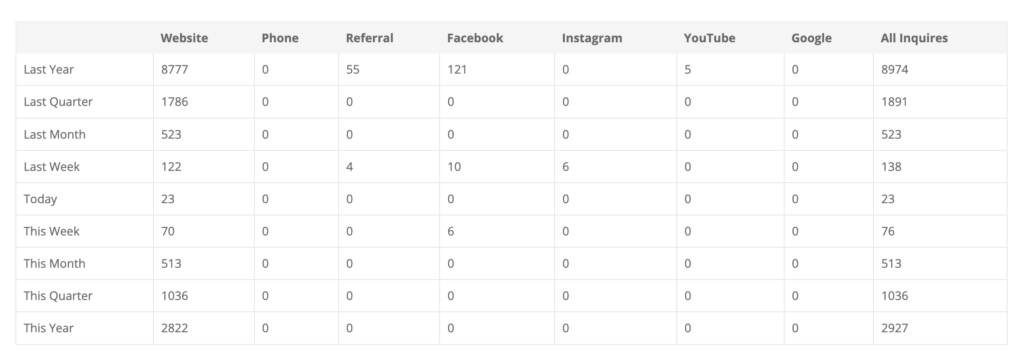
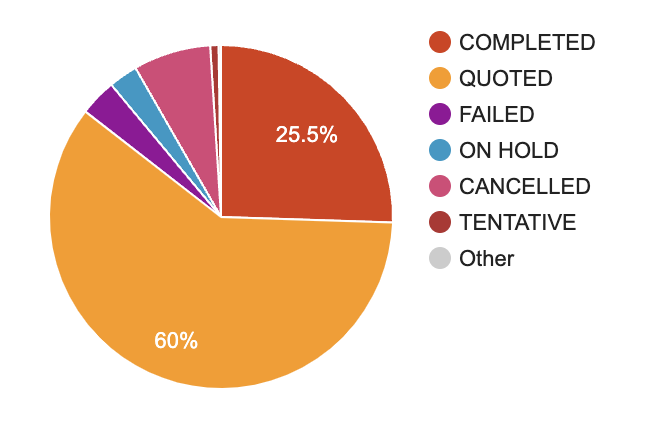
The Inquiries Statistics Dashboard provides visibility into inquiry volume, lead sources, and conversion performance, helping you optimize your marketing and sales pipeline.
Common insights you can review:
- Inquiry trends over time (daily/weekly/monthly/yearly views)
- Leads by source (e.g., Website, Phone, Referral, Campaigns)
- Booking and conversion indicators (how inquiries are progressing into confirmed work)
- Service acceptance/decline breakdowns (where applicable)

Learn more: Inquiries statistics dashboard
Best practices & examples
- Assign every inquiry to a representative so ownership is clear and follow-ups don’t get missed.
- Use statuses to keep the pipeline clean (New → Qualified/Unqualified → Resolved).
- Use labels for segmentation and quick prioritization (e.g., “Hot Lead”, “Commercial”, “Needs Photos”, “Budget Confirmed”).
- Schedule follow-ups immediately after first review (even if it’s just a short reminder).
- Attach photos/files early to speed up quoting and reduce back-and-forth.
- Convert quickly once qualified—convert to quote for pricing approval, and convert to booking when scheduling is confirmed.
- Protect deliverability by marking spam and banning repeat spam sources (IP blocking) when needed.
- Review analytics monthly to identify your strongest lead sources and adjust marketing spend accordingly.
Related guides
- Creating a new inquiry
- Website lead capture (inquiry form)
- Customer Portal Contact Us (lead capture)
- View inquiry details
- Edit inquiry details
- Delete an inquiry
- Contact customers from inquiries
- Inquiry discussion management
- Attach files to inquiries
- Add labels to inquiries
- Convert inquiry to booking
- Convert inquiry to quote/estimate
- Follow-up reminders
- Mark inquiry as spam
- View banned IP addresses
- Inquiries statistics dashboard
To stay updated, please subscribe to our YouTube channel.