
Automated Reminders & Confirmations (Workflow Automations)
OctopusPro includes a powerful workflow automation engine (also called automated procedures or scheduled tasks) that helps you run your operations on autopilot.
Instead of manually chasing customers and fieldworkers, automations can automatically send notifications and perform system actions based on rules and schedules—such as:
- Email, SMS, and (where enabled) WhatsApp reminders
- Push / in-app alerts for your team (where enabled)
- Follow-ups for leads/inquiries and quotes
- Fieldworker prompts (e.g., booking update reminders, compliance reminders)
- Administrative & internal process automations (e.g., cleanup tasks, invoice locking rules)
Why this matters: automation improves response times, reduces no-shows, speeds up payments, keeps your team accountable, and ensures consistent communication at scale.

On this page
- Examples of automations available
- Before you start (requirements)
- Send automation messages to sub-customers (customer properties)
- Manage customer automations
- Manage fieldworker automations
- Edit frequency & scheduling (how automation timing works)
- Run an automation immediately (Run Now)
- Edit email/SMS templates used by automations
- Audit & troubleshoot automation runs
- Best practices
- FAQs
Examples of automations available
OctopusPro includes many ready-to-use automation rules. Your available automations may vary depending on your enabled modules and plan, but below are common examples grouped by category.
Administrative & internal processes
- Twilio Old Call Recording Cleanup – Automatically delete older call recordings to free up storage and manage costs.
- Billing Cycle Invoice Locking – Enforce invoice locking once billing cycles end, preventing late edits and protecting accounting integrity.
Customer-focused automations
- Overdue Invoice Reminder – Remind customers about unpaid invoices to encourage prompt payment.
- Deposit Payment Reminder for Upcoming Bookings – Prompt customers to pay deposits before their scheduled service.
- Upcoming Booking Reminders – Automated reminders (e.g., 1 day, 2 days, 3 days, or 1 week before the appointment) to reduce no-shows.
- On-Hold Booking Follow-Up – Remind customers to confirm, approve, or reschedule bookings that were placed on hold.
- Pending Quote Follow-Up – Remind customers who received a quote but haven’t confirmed yet.
- Quote Reminder – Additional nudges for pending quotes (often a separate schedule/sequence from quote follow-ups).
- Inquiry Contact Attempt Notification – Notify/alert customers when an inquiry hasn’t been contacted yet, prompting engagement and reducing lead drop-off.
- Abandoned Cart Follow-Up – Re-engage customers who started a booking/checkout flow but didn’t complete it.
- Welcome Follow-Up for New Customers – Send a welcome message to new customers with helpful onboarding info and next steps.
- Daily Customer FAQ Email – Automatically send relevant FAQs to customers who recently inquired or booked to reduce back-and-forth and set expectations.
- Discount Voucher Distribution & Follow-Up – Send promo codes and follow up to encourage redemption.
- Promo for Recent Customers – Send special offers to new/recent customers to drive repeat business and loyalty.
- Photo Request Reminder for New Inquiries / Upcoming Bookings – Request photos that help you scope work accurately and reduce quoting surprises.
- Service Due Reminders for Recurring Appointments – Notify customers when repeat/regular services are approaching to increase retention.
- Customer Booking Feedback Request – Request feedback after the job is completed.
- Rate Your Service – Request ratings/reviews post-service to measure satisfaction and improve your online reputation.
Fieldworker-focused automations
- Fieldworker Invitation Acceptance Reminder – Prompt newly invited fieldworkers to accept the invite and complete setup.
- Invitation to Join Team Reminder – Nudge prospective or unresponsive fieldworkers to finalize sign-up and start receiving work.
- Fieldworker Booking Reminders – Notify fieldworkers about upcoming jobs (e.g., 1 day, 2 days, 3 days, 1 week, or next-day reminders).
- On-Hold Booking Follow-Up (Fieldworker) – Inform fieldworkers when a job is placed on hold and may require attention or rescheduling.
- Fieldworker Complaint Follow-Up – Remind fieldworkers to address unresolved customer complaints or issues linked to jobs.
- Fieldworker Compliance & Operational Checklist Reminder – Prompt fieldworkers to follow your SOPs/protocols to reduce errors and complaints.
- Customer Complaint Prevention Checklist – Send tips/checklists to fieldworkers to prevent common customer complaints.
- Before & After Photo Reminder for Completed Bookings – Ensure fieldworkers capture proof-of-work photos for quality assurance and dispute protection.
- Fieldworker Profile Completion Prompt – Encourage fieldworkers to complete profiles for better job matching and professionalism.
- Fieldworker Address Completion Request – Prompt fieldworkers to complete missing address/location details when required.
- Fieldworker Working Hours Review Reminder – Ask fieldworkers to review and keep working hours accurate to prevent scheduling conflicts.
- Fieldworker Calendar Unavailability Prompt – Prompt fieldworkers to block out unavailable times so dispatching remains accurate.
- Fieldworker Insurance Compliance Reminder – Alert fieldworkers before insurance coverage expires.
- Fieldworker License Expiry Reminder (14 Days Prior) – Provide a two-week notice for license renewal and compliance readiness.
- Fieldworker Re-Engagement Invitation – Invite inactive fieldworkers back to take on new jobs and increase workforce capacity.
If you need a tailored automation that isn’t listed in your account, contact our support.
Before you start (requirements)
- Paid subscription required: automated procedures are available on paid plans. See Selecting your ideal plan.
- Email sending setup (required for email automations): verify/authenticate your business sending email so messages are sent from your brand (recommended for deliverability). See Business Email Authentication.
- SMS/WhatsApp setup (required for SMS/WhatsApp automations): connect your Digital Phone System (Twilio) to send messages through OctopusPro. See Twilio Digital Phone System setup.
- Accurate contact details: customers must have valid email/phone numbers saved; fieldworkers must have correct contact details to receive prompts.
- Automation timing: automations run based on your configured schedule and your company timezone (see “Edit frequency & scheduling” below).

Send automation messages to sub-customers (customer properties)
If your business manages sub-customers (also known as dependents, properties, assets, tenants, or third-party contacts) you can control whether automation messages are sent to:
- The main customer + their sub-customers (copy all parties), or
- Sub-customers only (without notifying the referring/main customer)
This is useful for scenarios like: property managers with tenants, parents booking for children, organisations booking for multiple participants, or third-party bill payers.
To enable this setting:
- Go to Settings → Automations.
- Enable the toggle: Communicate with sub-customers added through customer properties.
- Select your preferred delivery option (copy main customer, or sub-customers only).
- Save your changes.

To learn more about setting up sub-customers/dependents, see Customer Properties (Dependents / Assets / Sub-customers).
Manage customer automations
Customer automations are scheduled rules that send reminders or notifications to customers based on invoice/booking/quote/inquiry conditions.
To access customer automations:
- Go to Settings → Automations.
- Use the Search box or filter by Recipient = Customer.
Understanding the automation list:
- Active: turns the automation on/off (master switch).
- Cronjob Name: the automation rule name (click to view details).
- Frequency: when the automation runs (daily/weekly/monthly/yearly).
- Run Now: triggers a one-time run immediately (useful for testing).
- Recipient: who receives the message (Customer / Fieldworker).
- Item type: what record the automation applies to (Invoice / Booking / Quote / Inquiry, etc.).
- Template type: channel (Email / SMS, and where enabled WhatsApp).
- Template: which message template is used (click to open/edit).

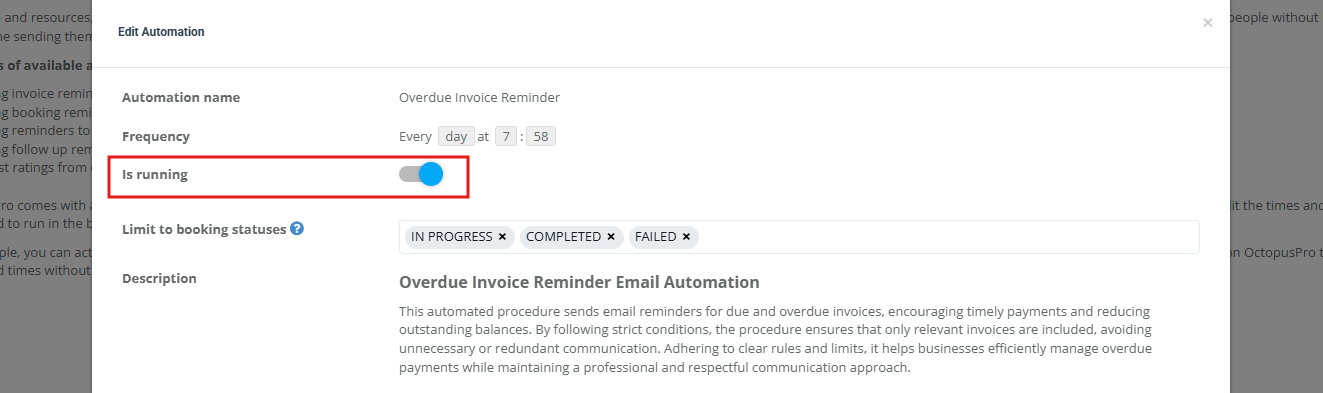
Important: inside each automation you may also see an Is running toggle. This indicates whether the automation job is currently enabled to run according to its schedule (in addition to the main Active toggle).
Manage fieldworker automations
Fieldworker automations help you keep your team responsive and compliant—by sending prompts, reminders, and notifications based on operational rules.
To access fieldworker automations:
- Go to Settings → Automations.
- Filter by Recipient = Fieldworker (or search for “fieldworker”).

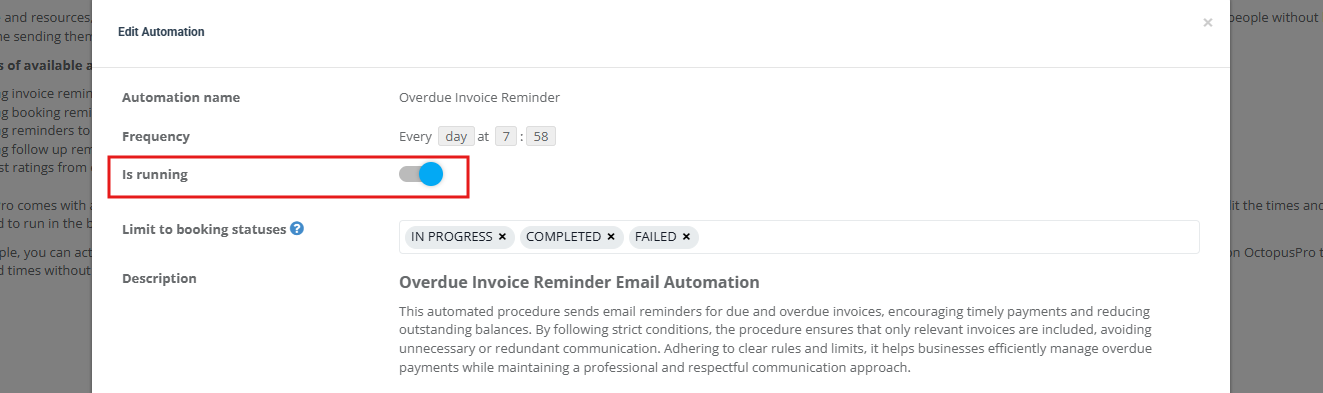
As with customer automations, each automation can include its own Is running toggle and scope filters (such as limiting runs to specific statuses).
Edit frequency & scheduling (how automation timing works)
How frequency works (very important): the frequency is the schedule of the automation job (when OctopusPro checks for eligible records and sends messages). It is not “one message per customer per day” by default. When the job runs, it sends messages to all records that match the rule criteria at that time.
To edit an automation schedule:
- In Settings → Automations, find the automation you want.
- Under Frequency, click Edit.
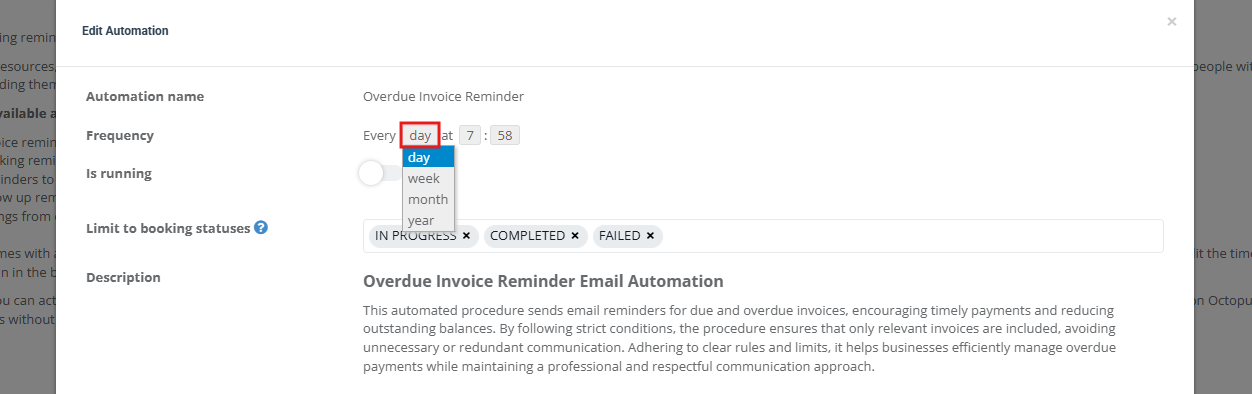
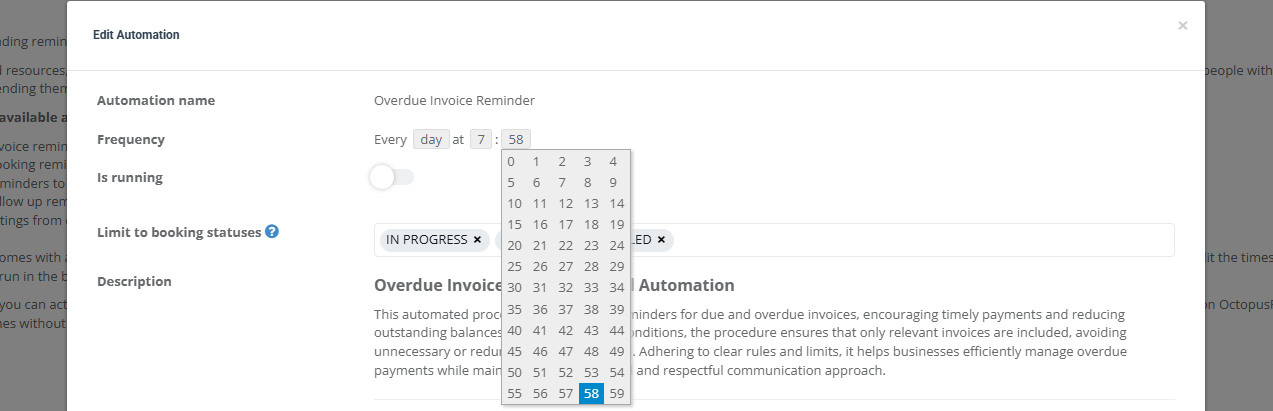
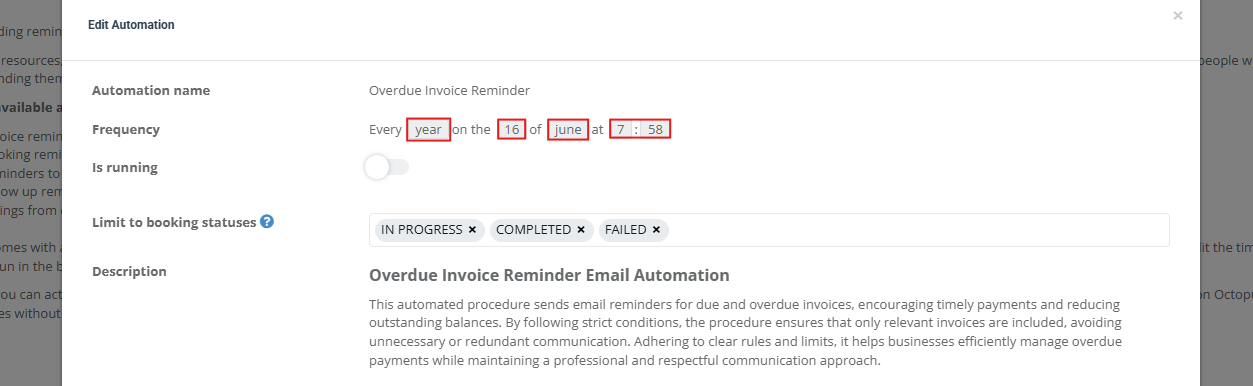
- Choose a frequency type (day, week, month, year), then choose the day/time.
- Save your changes.

Choose frequency type:
Select date/day rules (example):
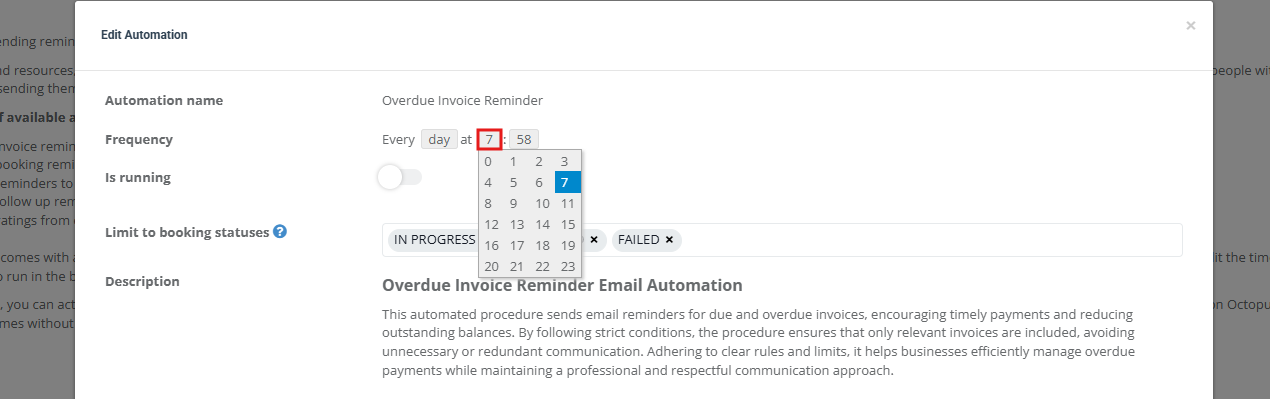
Select the time (example):
Yearly schedules (example):
Run an automation immediately (Run Now)
The Run Now option triggers a one-time immediate execution of the automation, which is useful for:
- Testing a newly configured automation
- Sending reminders immediately (when appropriate)
- Confirming the rule is matching the intended records
Note: Run Now still respects the automation’s criteria. If no records match at the time you run it, nothing will be sent.

Edit email/SMS templates used by automations
Automations use the same Templates & Canned Responses system as your manual communications. This means you can keep messaging consistent and on-brand across confirmations, reminders, follow-ups, and internal prompts.
You can edit templates in two ways:
- From the automation list: click the template name in the Template column.
- From settings: go to Settings → Communications → Templates & Canned Responses.
Email template example:

SMS template example:

Recommended related guides:
Audit & troubleshoot automation runs
OctopusPro logs automation runs so you can verify what happened, when it happened, who it targeted, and whether it succeeded.
- Automations execution log: See when a scheduled task ran and its outcome: Automations Log (Scheduled Tasks Execution History).
- Customer communication history: View every email/SMS/call logged against a customer: Customer Communication History.
- Pause/resume job notifications: Temporarily stop automated reminders for a specific booking/quote/invoice when required: Pause & Resume Notifications.
- Notifications & alerts: Review platform notifications and internal updates: Notifications, Discussions & SMS Alerts.
Tip: If an automation “didn’t send,” the most common causes are: inactive toggle, Is running disabled, status filters excluding the item, missing/invalid contact details, unverified email sending setup, or Twilio not connected for SMS/WhatsApp.
Best practices
- Use clear triggers: tie automations to meaningful states (e.g., “invoice overdue,” “quote not accepted,” “booking awaiting update”).
- Keep messages short and actionable: include a clear next step (pay link, reply prompt, confirm/reschedule instruction).
- Don’t over-message: spread reminders reasonably to avoid complaints and improve conversion.
- Personalize with placeholders: customer name, booking time, invoice amount, payment link, etc. (see Template Placeholders guide above).
- Audit routinely: use logs to confirm deliverability and fine-tune frequency and content.
FAQs
1) Why does the frequency say “Every day” if only some customers receive messages?
Because the automation runs on that schedule and sends messages only for records that match the rule conditions at that time (e.g., invoices that are actually overdue).
2) Can I stop reminders for one specific booking/quote/invoice?
Yes. Use Pause & Resume Notifications to pause automated communications for a specific job item without disabling the automation globally.
3) Emails are sending from a default OctopusPro address—how do I fix that?
Set up your branded sending domain/email in Business Email Authentication so automated emails are sent from your business identity and improve deliverability.
4) SMS automations aren’t sending—what’s required?
You typically need the Digital Phone System connected via Twilio. See Twilio Digital Phone System setup.
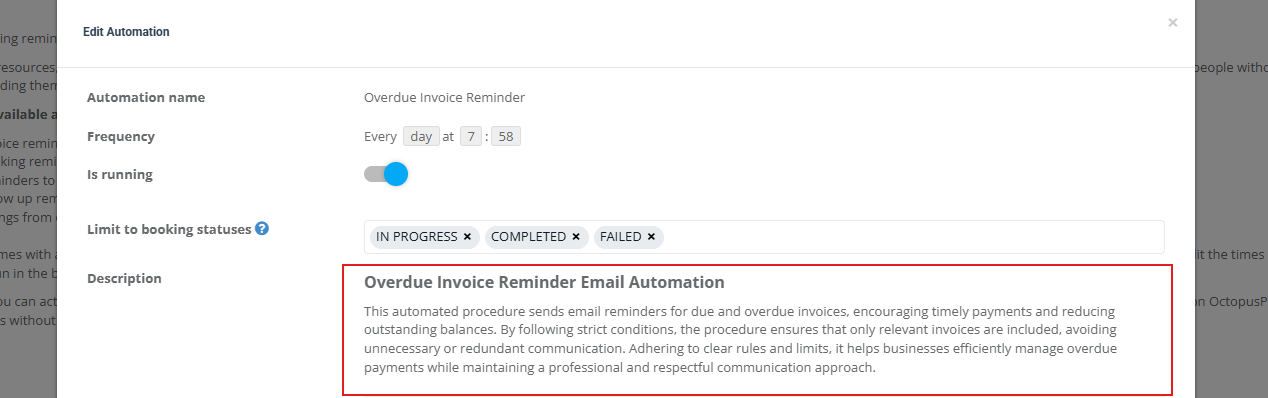
5) Where can I see exactly what an automation is designed to do?
Click the Cronjob Name (automation name) to open the automation details and read its description.

Related guides (popular):
- Send Booking Confirmations (Email, SMS, WhatsApp)
- Send Quotes to Customers
- Send Invoices by Email or SMS
- Automate Quote Follow-Up Reminders
- Lead / Inquiry Follow-Up Reminders
To stay updated, please subscribe to our YouTube channel.