
Fieldworker Job Check-In & Check-Out Tracking (Time, GPS & Timesheets)

OctopusPro’s Check-In / Check-Out workflow helps you track fieldworker (technician) attendance, job start, job completion, and (optionally) GPS movement during a visit. Each milestone is time-stamped and can be reviewed by admins (and customers in the Customer Portal, if enabled), giving you a clear operational audit trail.
Important: These timestamps also feed into the Fieldworker/Technician Timesheet Report (Admin only). If fieldworkers don’t use the check-in/out workflow, Actual (Attended) Hours in timesheets may appear as 0 or be incomplete.
Typical use cases
- Prove attendance: confirm when a fieldworker arrived on site and when work started/finished.
- Reduce “where is my technician?” calls: share progress updates (On the way / Arrived / Started / Finished).
- Improve dispatch accuracy: compare scheduled times vs actual start/finish and spot delays early.
- Support payroll reviews: use tracked times to review Actual (Attended) Hours and Break Hours in timesheets.
- Prevent missed check-outs: enable Auto Check-Out if a fieldworker leaves without finishing the job.
Quick navigation
- Overview
- How it works (statuses & tracking)
- Requirements & recommended settings
- Fieldworker App: step-by-step workflow
- Where to view check-in/out times (Admin + Customer)
- How this connects to the Timesheet Report (Admin)
- Auto Check-Out (optional)
- Advanced features (notifications, scheduling, reporting)
- Benefits
- Troubleshooting & FAQs
- Related guides
Overview
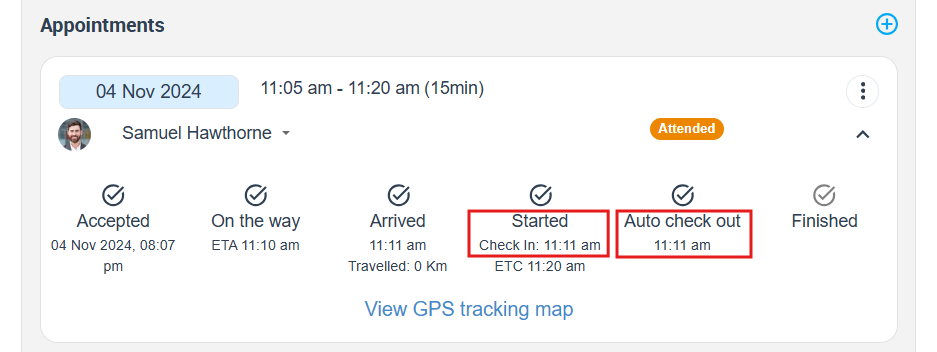
This feature records key job milestones (statuses) and their timestamps, including:
- Accepted (fieldworker confirms the booking, if required)
- On the way (travel started)
- Arrived (on site)
- Started (job started / checked in)
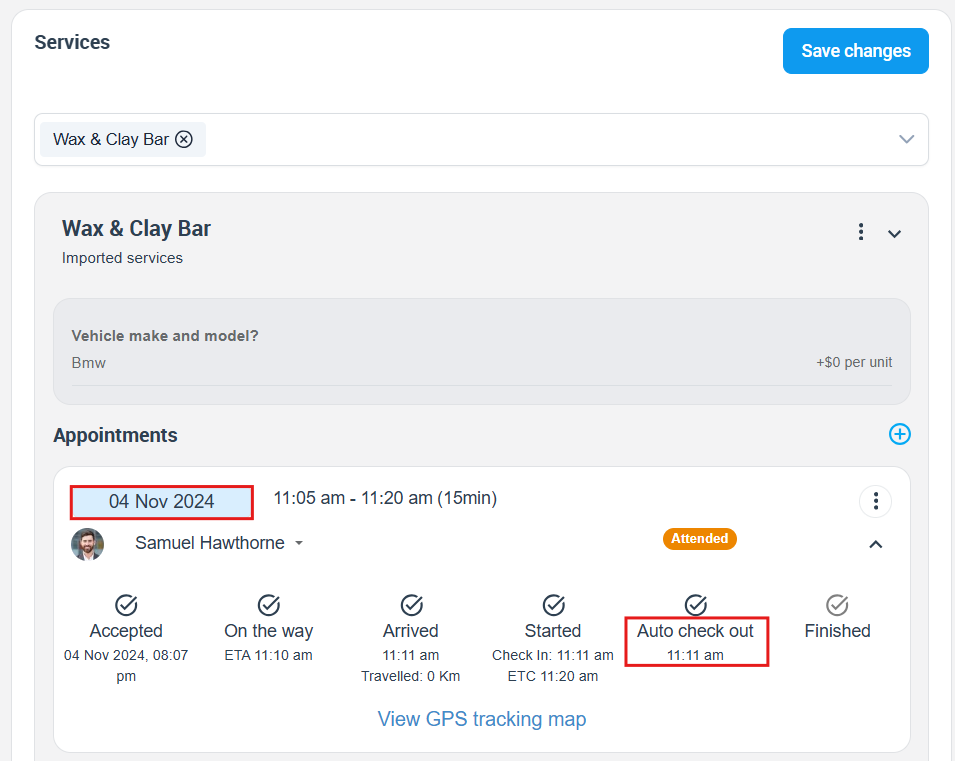
- Auto Check-Out (optional — detected away from site)
- Finished (job completed / checked out)
How it works (statuses & tracking)
As a fieldworker progresses through a visit (On the way → Arrived → Started → Finished), OctopusPro records timestamps and (when enabled) GPS context. Admins can also view a tracking map during or after the visit.
What can be recorded
- Time stamps: each milestone is captured (Arrived / Started / Finished, plus Auto Check-Out if enabled).
- GPS tracking (optional): admins can view route/activity on a tracking map (depends on app permissions and settings).
- Live status updates: office users (and customers, if enabled) can see job progress in near real time.
Requirements & recommended settings
Fieldworker requirements (recommended)
- Location Services enabled for the OctopusPro Fieldworker App (GPS tracking depends on this).
- Allow notifications so reminders and job prompts can be delivered.
- Stable connectivity: improves live updates (the app may sync when connectivity resumes if temporarily offline).
Admin settings (recommended)
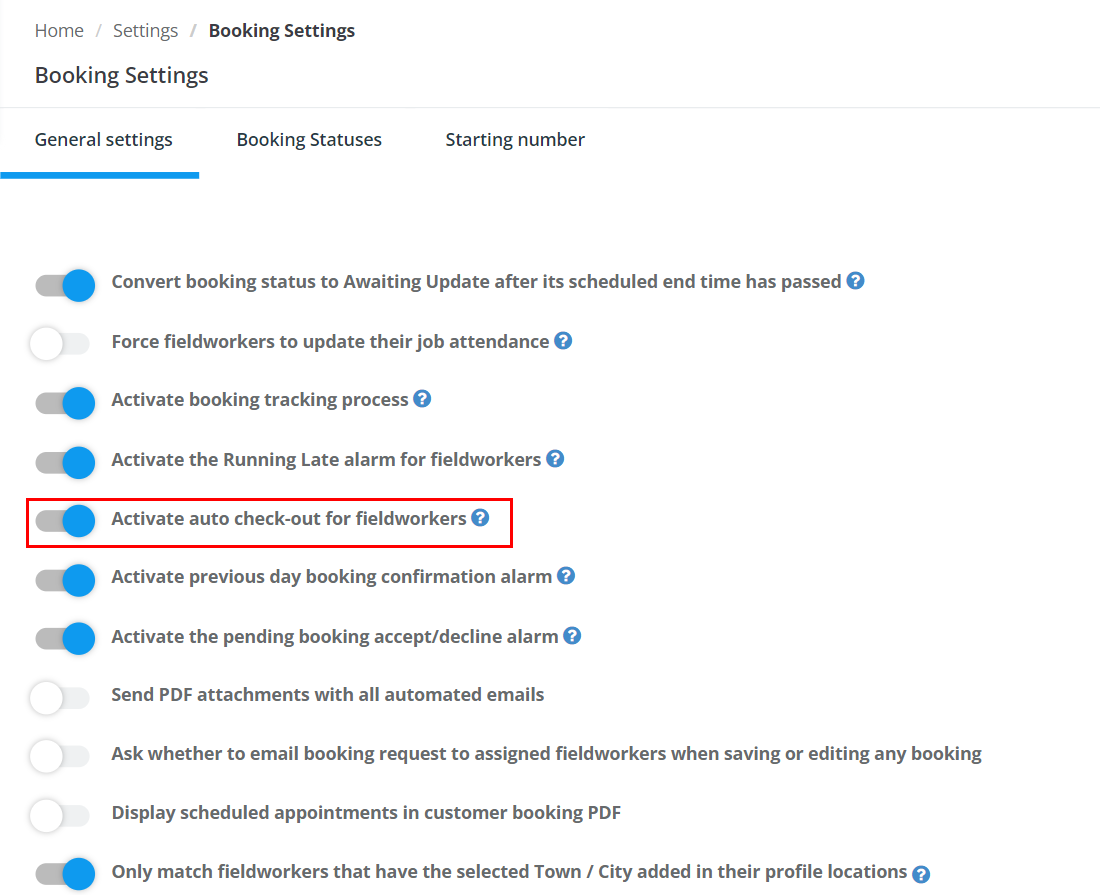
Go to Settings > General Settings > Booking Settings and review tracking-related options such as:
- Activate booking tracking process
- Force fieldworkers to update their job attendance (recommended for cleaner timesheets)
- Activate auto check-out for fieldworkers (optional)
Related setup guides (open in new tab):
Fieldworker App: step-by-step workflow
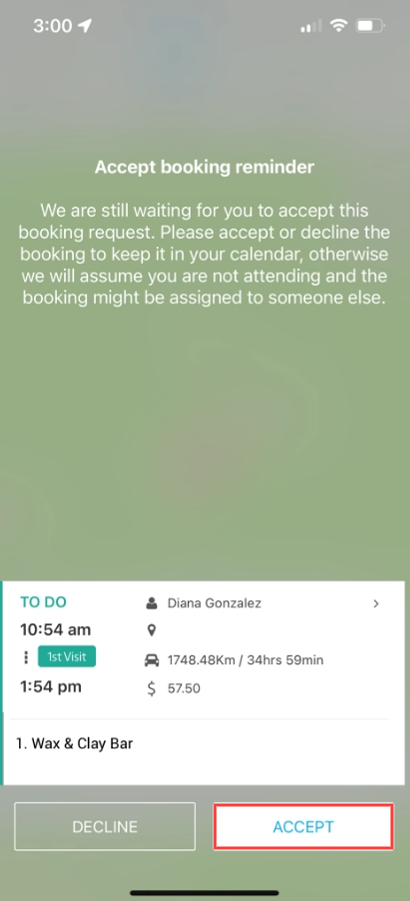
Step 1: Accept the booking (if required)
If booking acceptance is enabled, the fieldworker taps Accept to confirm they will attend.
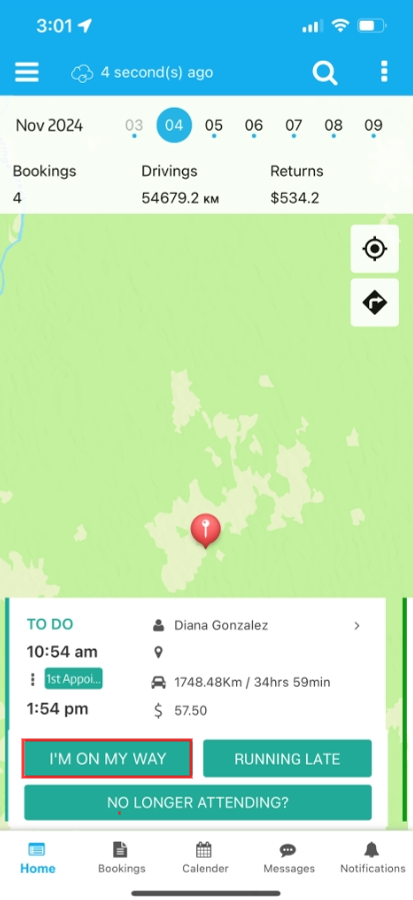
Step 2: Tap “I’M ON MY WAY” (optional)
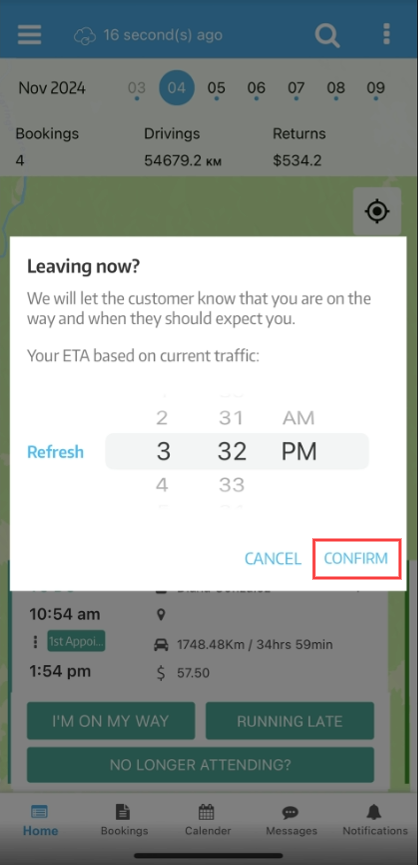
When departing, the fieldworker taps I’M ON MY WAY. This can update the booking status and start travel/ETA tracking (depending on your configuration).
The app may ask the fieldworker to confirm leaving time and/or ETA.
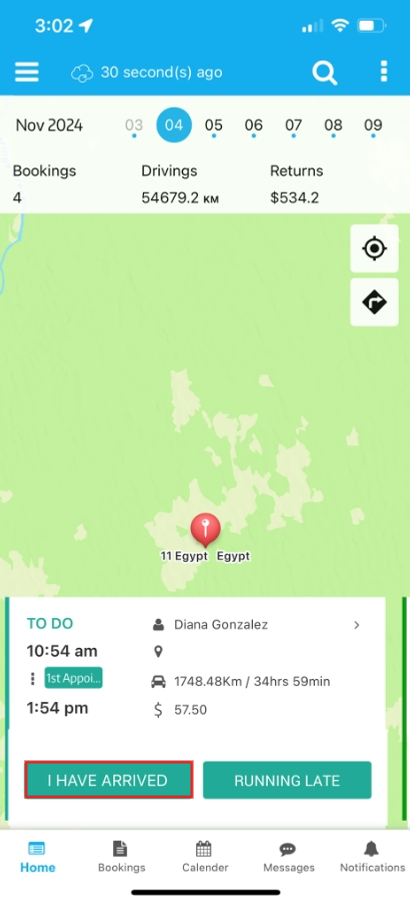
Step 3: Tap “I HAVE ARRIVED” (optional)
On arrival, the fieldworker taps I HAVE ARRIVED to record the arrival time (and support visibility for dispatch and customers).
Step 4: Start work (Check-In) & update job status
When work begins, the fieldworker starts the job (check-in). Depending on your workflow, they may also update job status, complete forms/checklists, and add photos/notes.
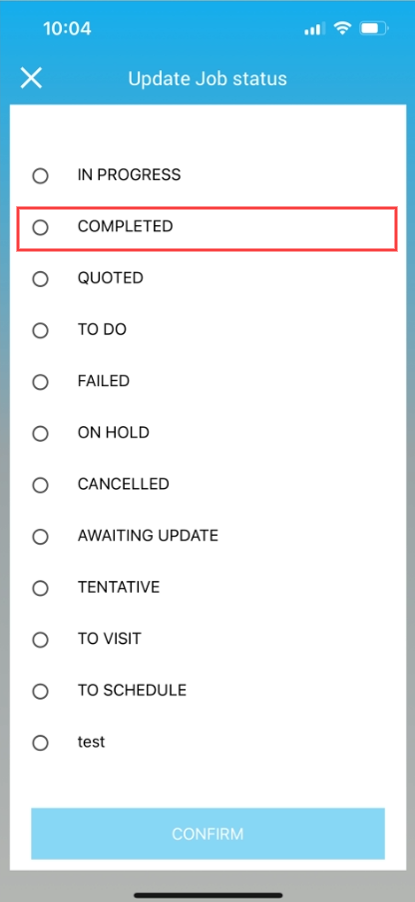
Step 5: Finish the job (Check-Out)
To complete the visit, the fieldworker taps FINISH JOB to record the finish time and close the workflow.
Job Completion Confirmation (optional but recommended)
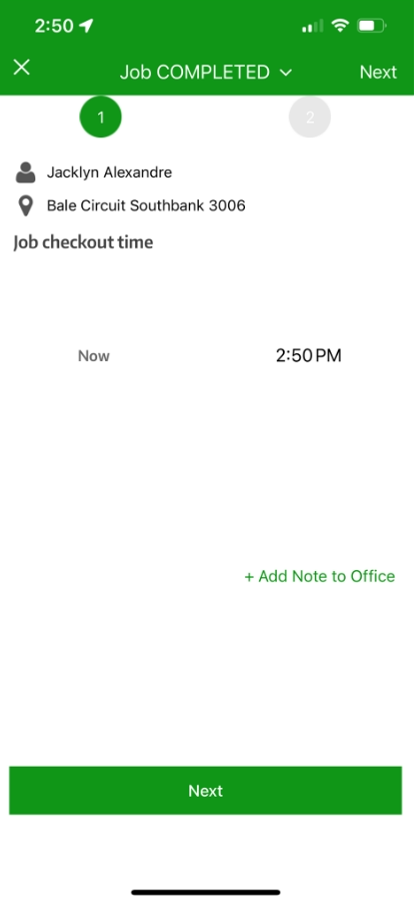
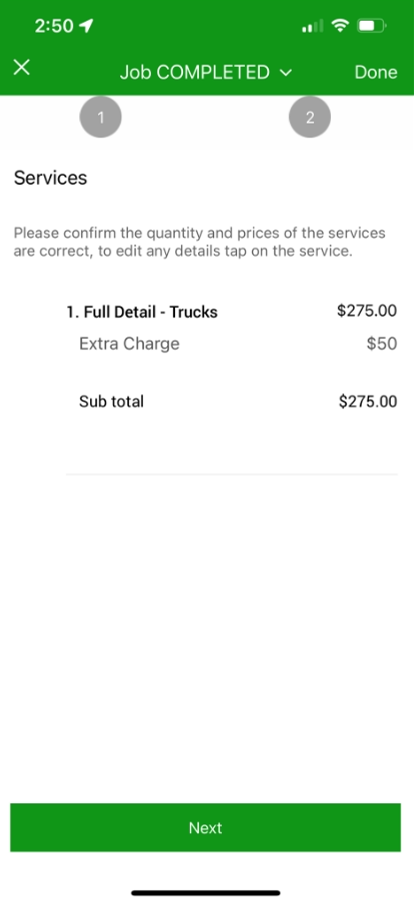
Depending on your settings, after the job is marked as completed, the app may guide the fieldworker through confirmation steps such as:
- Confirming the check-out time
- Adding completion notes
- Confirming service quantities and prices
Tip: Many teams also collect proof of service during completion (photos, forms/checklists, customer feedback, or signatures), depending on how your workflow is configured.
Where to view check-in/out times (Admin + Customer)
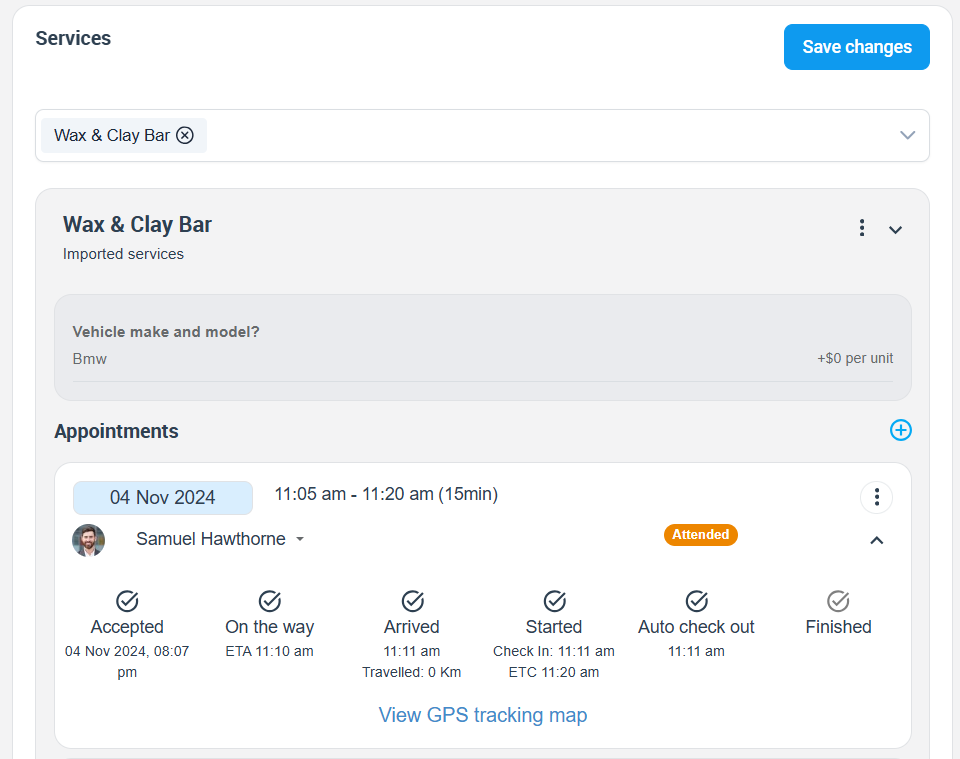
From the Booking Details page (Admin)
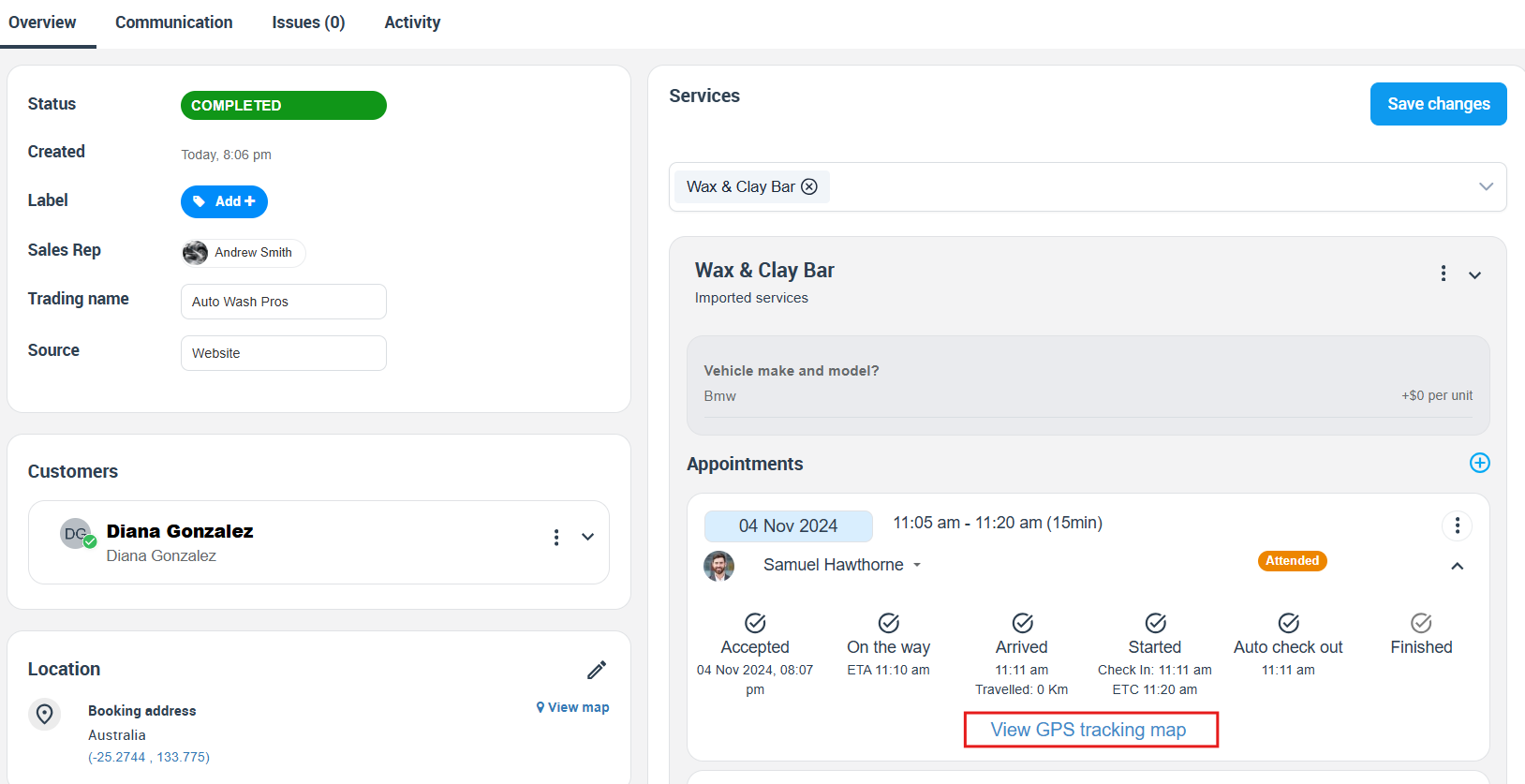
Admins (and authorised office users) can view check-in/out milestones inside a booking:
- Open the booking, then review the Appointments/Services timeline.
- Use View GPS tracking map (where enabled) to see location and milestone details.

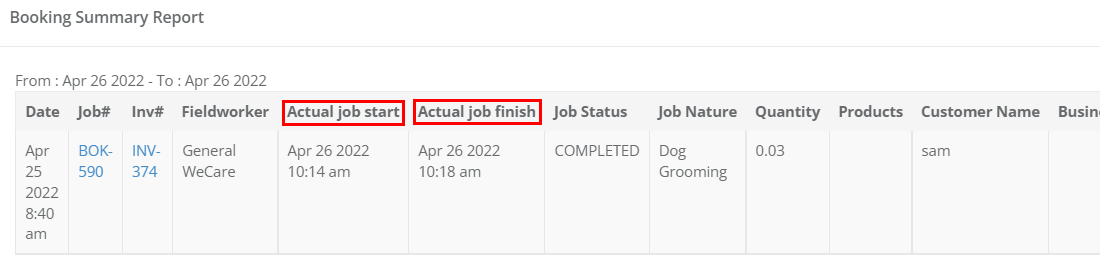
From Booking Reports (Admin)
Some booking reports can show Actual job start and Actual job finish times for completed work (where your report includes these fields).
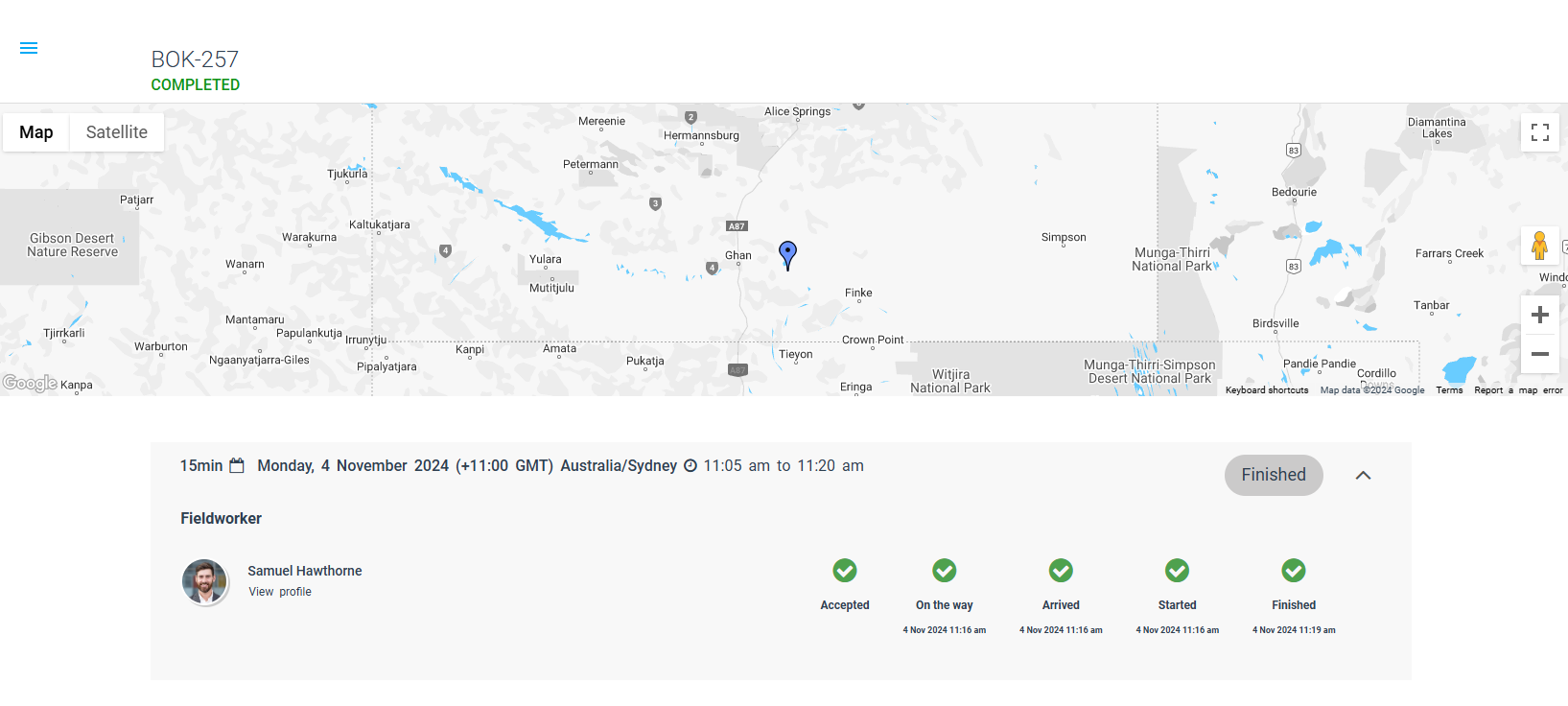
From the Customer Portal (Customer, optional)
If enabled, customers can view booking progress and timestamps in the Customer Portal (based on what you choose to display), improving transparency.
Customer Portal setup (open in new tab): Enable Online Bookings Through Your Website

How this connects to the Timesheet Report (Admin)
The check-in/out workflow is closely related to the Technician (Fieldworker) Timesheet Report, available to admins under:
- Reports > Technicians Reports > Timesheets

In Timesheet Summary (Technicians), admins can filter by Technicians, Labels, and a date range, then review totals including:
- No. of bookings in the selected period
- Scheduled Hours (based on scheduled booking/appointment time)
- Actual (Attended) Hours (based on attendance timestamps, e.g., Started → Finished)
- Break Hours (if your workflow records breaks)
- Approved Hours (if you use admin approval for payroll workflows)
Drill-down workflow (how admins investigate totals)
- Timesheet Summary (Technicians): click a technician name to open the detailed timesheet period.


- Technician Booking Details: review each booking’s status, start/end times, scheduled vs actual hours, and approvals. Use Search by booking to find a booking quickly.
- Booking Appointment Breakdown: drill further (where available) to see appointment-level details such as location, start/end time, and attended hours.

Timesheet actions available to admins
- Export Timesheet
- Print Timesheet
- Email Timesheet To Technician
Tip: If Actual (Attended) Hours shows as 0 or there’s a large gap between Scheduled Hours and Actual (Attended) Hours, it usually means the fieldworker didn’t complete the Start/Finish (check-in/out) steps, or OctopusPro couldn’t capture timestamps due to location/notification permissions, disabled tracking settings, or poor connectivity. See Troubleshooting & FAQs for the most common fixes.
Auto Check-Out (optional)
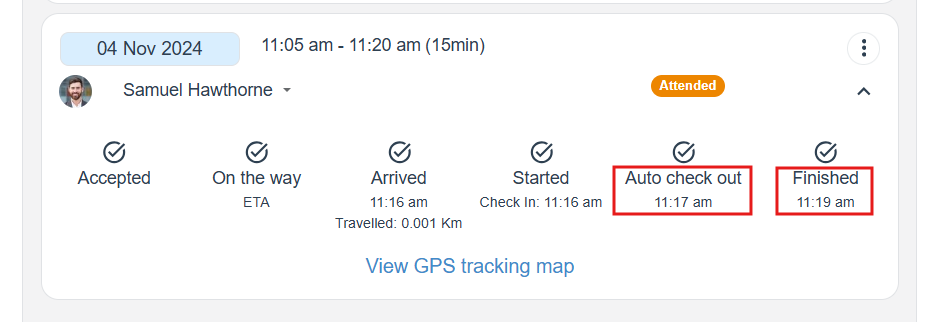
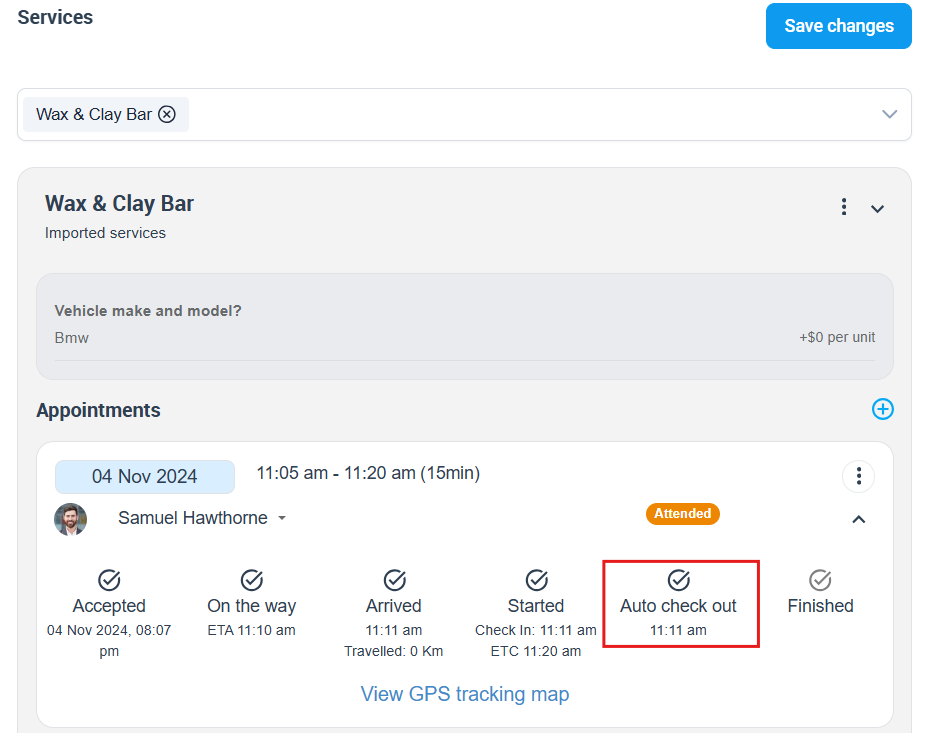
Auto Check-Out helps prevent missed check-outs. If a fieldworker leaves the job site without tapping FINISH JOB, OctopusPro can automatically check them out once they are detected away from the booking location (commonly shown as more than 500 meters in this workflow). The auto check-out timestamp is recorded and can appear in booking tracking views.
Enable auto check-out
- Go to Settings > General Settings > Booking Settings.
- Enable Activate auto check-out for fieldworkers.
View the Auto Check-Out timestamp
Advanced features (notifications, scheduling, reporting)
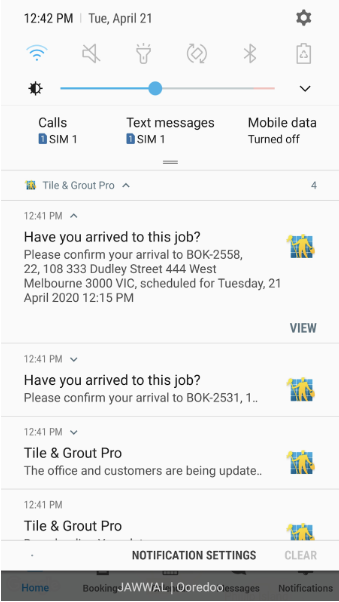
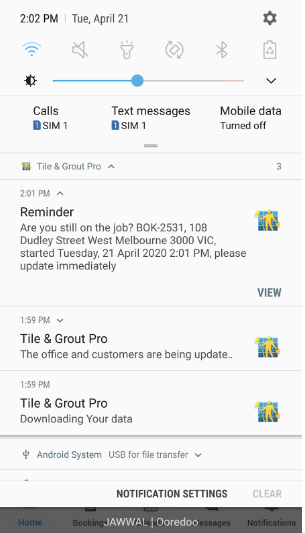
Real-Time Notifications
Check-in/out milestones can trigger notifications and reminders to help fieldworkers keep attendance and statuses up to date (and to keep office staff informed, depending on your settings).

Scheduling & Dispatching
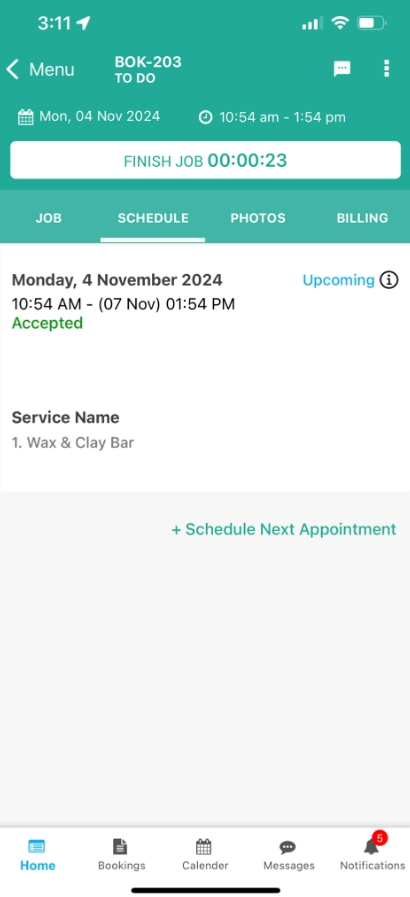
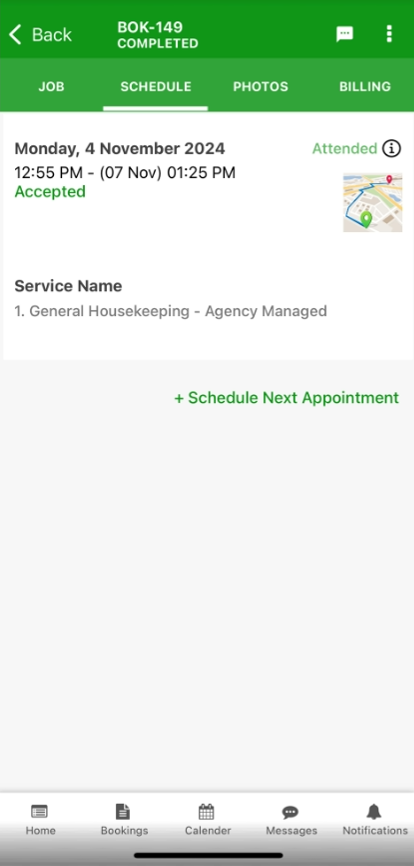
Fieldworkers can view their schedule, check upcoming/completed visits, and (if enabled) schedule a next visit directly from the Fieldworker App.
Reporting & Analytics
Use check-in/out data to measure performance (arrival punctuality, time on site, completion patterns) and validate attendance for internal reviews.
Related (open in new tab): Real-Time Fieldworker GPS Tracking & Geofencing and Live Reports & Analytics
Benefits
- Higher accountability: clear timestamps for on-the-way, arrival, start, and finish.
- Better customer experience: fewer surprises; customers can see progress updates (if enabled).
- Stronger dispatch visibility: live status + tracking map supports faster decisions.
- Cleaner timesheets: attended hours can be reviewed and approved for payroll workflows.
- Less admin follow-up: auto check-out reduces missed completion steps.
Troubleshooting & FAQs
Why are Actual (Attended) Hours showing as 0?
- The fieldworker didn’t complete Start (check-in) and/or Finish (check-out).
- Attendance updates are not enforced and the job was left To Do / In Progress.
- Location services/permissions or notifications are disabled on the device.
- Activate booking tracking process is not enabled in booking settings.
Why can’t I see GPS tracking?
- Location permissions are disabled or restricted for the Fieldworker App.
- GPS/Location Services is turned off on the device.
- The fieldworker didn’t use the workflow (e.g., never tapped I’M ON MY WAY / Started).
- Connectivity issues prevented live updates (data may sync later if the device reconnects).
Why can’t customers see the tracking timeline?
- The Customer Portal isn’t enabled, or the booking isn’t visible to the customer in the portal.
- Your portal settings may hide tracking/status progress from customers.
Auto check-out isn’t triggering—why?
- Auto check-out is not enabled in Booking Settings.
- Location permission is disabled/restricted (especially background location settings on mobile OS).
- The device didn’t move far enough away from the job address to trigger the rule (commonly ~500m).
Related guides
- Fieldworker Check-In, Start & Finish Jobs
- Live Job Updates, Status & Photo Proof (Fieldworker App)
- Real-Time Fieldworker GPS Tracking & Geofencing
- Manage Fieldworkers, Sub-workers & Payroll
- Booking Settings, Flags & Permissions
- Fieldworker Permissions & Access Control
To stay updated, please subscribe to our YouTube channel.