
Toggle Switch (Yes/No) Custom Field (On/Off)
A Toggle Switch custom field lets you capture a simple Yes/No or On/Off answer using a modern slider-style switch. It’s ideal for collecting binary choices (e.g., Pets on site?, After-hours service?, Wheelchair access required?) and can optionally drive pricing, service duration, filters, and conditional follow-up fields.

Quick navigation
- What is a Toggle Switch custom field?
- Where you can use toggle switches
- Why use a toggle instead of a checkbox?
- Common use cases (examples)
- How to set up a Toggle Switch custom field
- On/Off pricing & duration adjustments
- Conditional (dependent) fields
- How it looks for admins, fieldworkers & customers
- Filtering, reporting & segmentation
- Best practices
- Troubleshooting
- Related guides
What is a Toggle Switch custom field?
A Toggle Switch custom field stores a Boolean value (ON/OFF). Depending on where you place it, it can be used to:
- Collect key Yes/No details during inquiry, quoting, or booking (e.g., “Do you have pets?”).
- Apply on/off surcharges or discounts (only when the switch is ON).
- Add extra time to the service duration when ON (e.g., +15 minutes).
- Trigger dependent follow-up questions when ON (conditional logic).
- Filter and segment bookings, customers, or fieldworkers using an ON/OFF flag.
Where you can use toggle switches
You can add a toggle switch custom field in multiple places, depending on what you’re trying to achieve:
- Service / booking questions: Add it to a service so it appears on inquiries, quotes, and bookings whenever that service is selected (perfect for add-ons and eligibility questions). Learn how to attach custom fields to services.
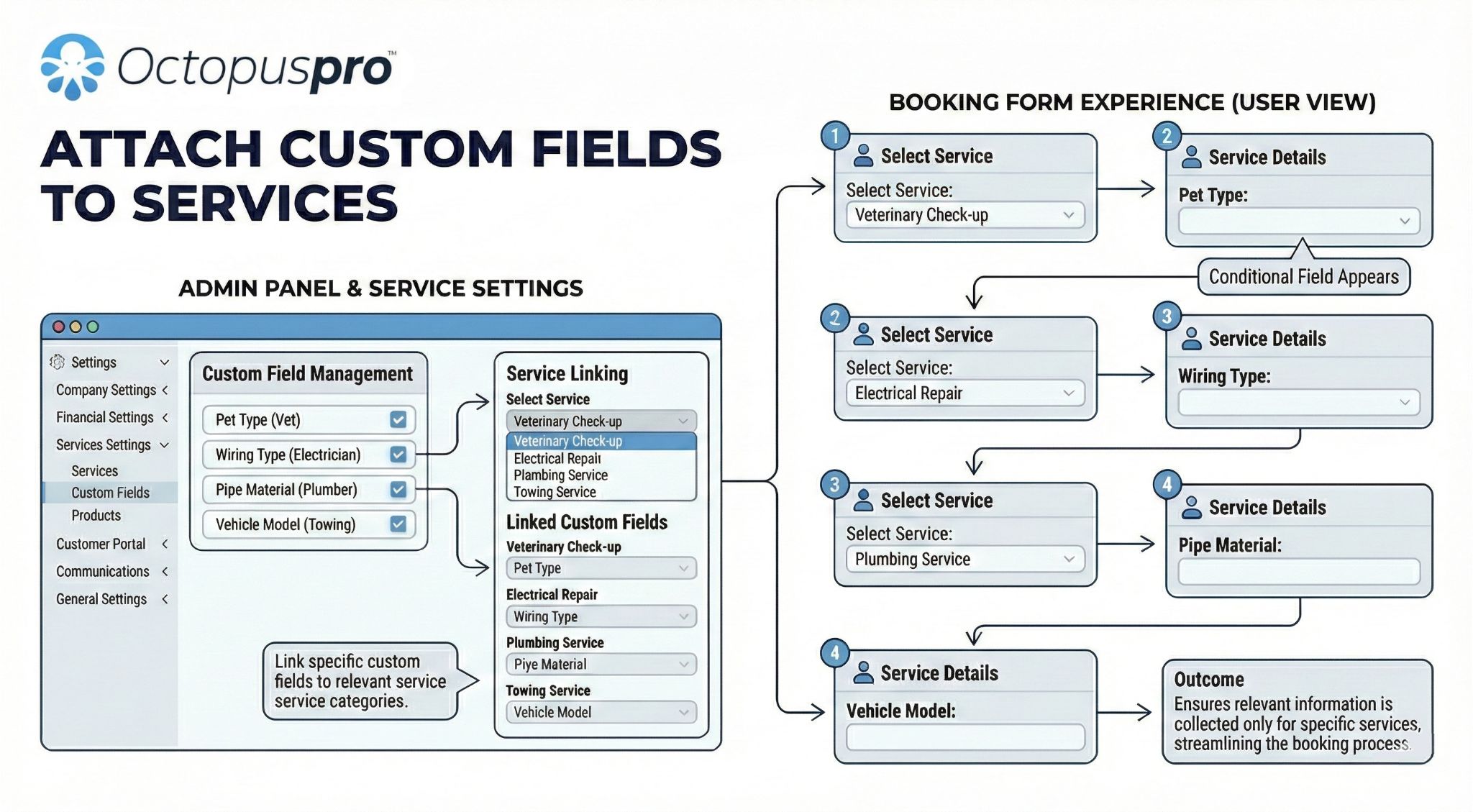
- Website lead capture form: Capture must-have details immediately when a website visitor submits an inquiry. Learn how to use the lead capture form.
- Customer profile (CRM): Store customer preferences and compliance flags (e.g., “Marketing opt-in”, “Allergy-friendly products required”). Customer profile custom fields guide.

- Fieldworker profile: Flag certifications, licenses, or allowances you want to filter by (e.g., “Working With Children Check”, “Confined space certified”, “Overnight shifts available”). Fieldworker profile custom fields guide.

Why use a toggle instead of a checkbox?
- Clear On/Off meaning: Toggles communicate an immediate state (enabled/disabled), which matches Yes/No decisions.
- Better mobile usability: Larger tap area and state feedback makes it easier for customers and fieldworkers.
- Great for “optional add-on” logic: When ON, apply price/time changes; when OFF, apply nothing.
Common use cases (examples)
| Industry | Toggle label | When ON (example impact) |
|---|---|---|
| Cleaning | Pets on site? | Add extra prep time (+15 min) and apply a surcharge if needed. |
| Beauty / wellness | Add sensitive-skin products | Add a fixed add-on fee and show a follow-up field for skin notes. |
| Landscaping | Green-waste removal | Apply a disposal surcharge (optionally tied to geo-pricing zones). |
| Childcare / NDIS | Allergy-friendly meal plan | Add daily add-on price and show “Specify allergies” as a dependent field. |
How to set up a Toggle Switch custom field
- Go to Custom Fields: Settings → Service Settings → Custom Fields → New Custom Field. (Menu names can vary slightly depending on your account configuration.)
- Select the field type: Choose Toggle switch (on/off).
- Set the label and helper text: Use a clear question (e.g., Do you have pets?) and add helper text if you need to explain what ON means.
- Optional: Enable Price & Duration Adjustments if the ON state should add an amount or extra time.
- Save the field.
- Attach it where needed:
- To services (so it appears in inquiries/quotes/bookings): Attach custom fields to services.
- To your lead capture form: Website lead capture form guide.
- To customer profiles: Customer profile custom fields.
- To fieldworker profiles: Fieldworker profile custom fields.

On/Off pricing & duration adjustments
If you enable Price & Duration Adjustments, the system will apply changes only when the switch is ON. This is commonly used for optional add-ons or conditions that require extra labor time.
- Price adjustment: Apply a surcharge (or discount) when ON.
- Extra duration: Add time when ON so scheduling stays accurate.
- Advanced pricing: You can combine toggle-based pricing with:


Conditional (dependent) fields
Toggle switches work extremely well as a parent field for conditional logic. For example:
- Switch ON: “Allergy-friendly products required” → show a follow-up text field: “List allergies”.
- Switch OFF: hide the follow-up field to keep forms short and clean.
Learn more: Dependent custom fields (conditional logic).

How it looks for admins, fieldworkers & customers
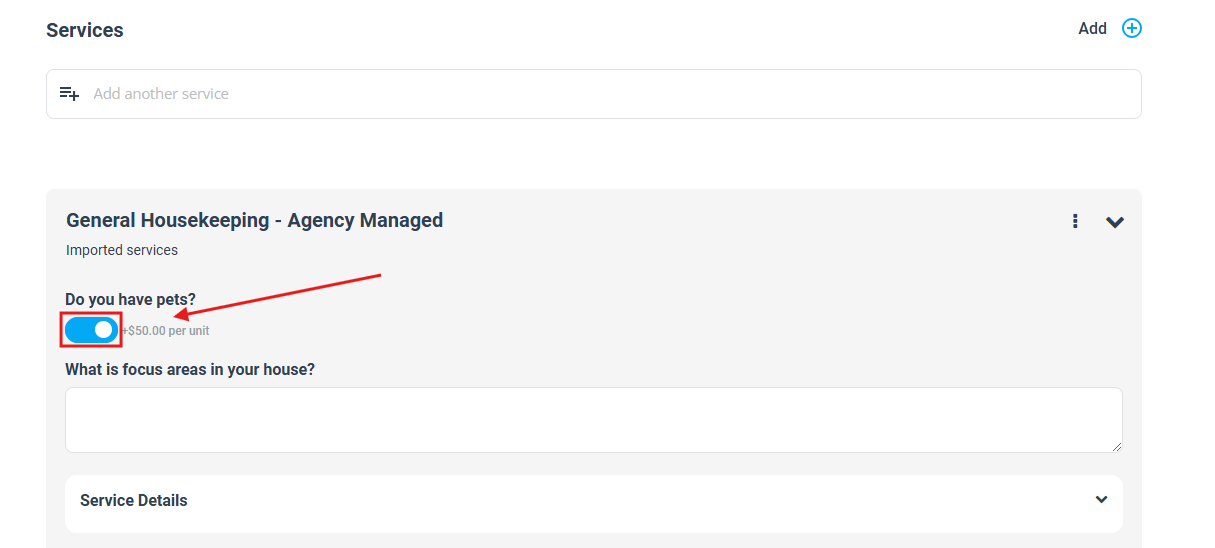
Admin (web app): Admins can toggle ON/OFF during booking creation or editing. If pricing is enabled, totals update immediately.
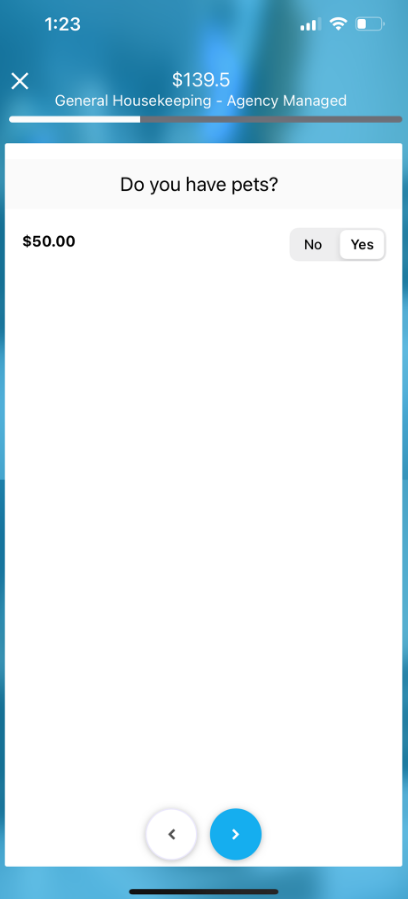
Fieldworker (mobile app): Fieldworkers can answer the toggle on-site when creating or editing a job (depending on their permissions).
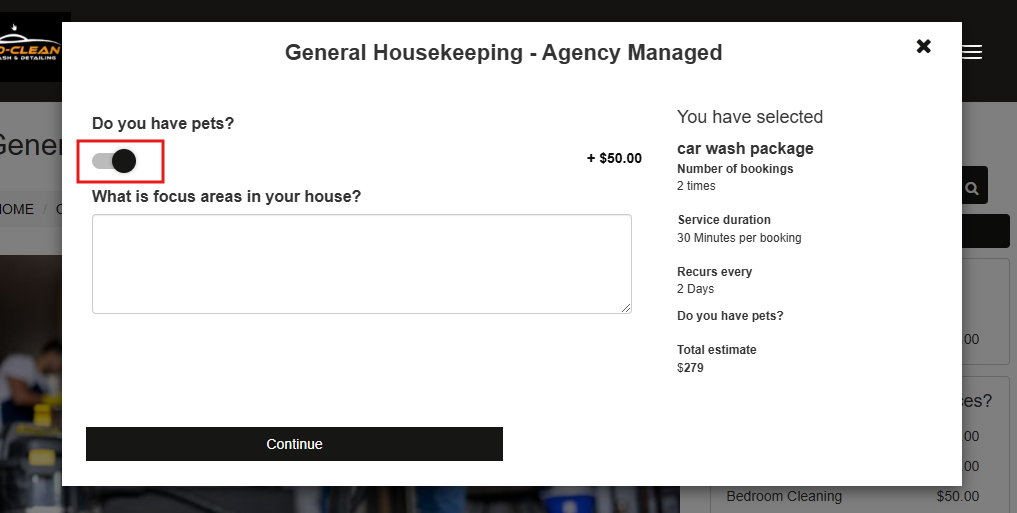
Customer (portal / widget): Customers can toggle the option during checkout. If pricing is enabled, they can see the cost impact instantly.
Filtering, reporting & segmentation
Because a toggle stores a true/false value, it’s ideal for filtering and segmentation. Common examples include:
- Filter bookings where “Pets on site” = ON (for planning and staffing).
- Create customer lists where “Marketing opt-in” = ON.
- Find fieldworkers where “Certified” = ON for dispatching and compliance.
Best practices
- Write labels as a question: “Do you have pets?” reads better than “Pets”.
- Use helper text when the ON meaning isn’t obvious (e.g., what’s included in an add-on).
- Keep toggles for true Yes/No decisions: If users must pick one option from many, use a selector field instead (for multi-select add-ons, see Checkbox multi-select custom fields).

- Group related questions: If you have many add-ons, organize them into steps using custom field groups.

- Keep scheduling accurate: If an ON option requires more work, set an extra duration so dispatch times don’t slip.
Troubleshooting
- The toggle doesn’t appear: Confirm the field is attached to the service (or added to the correct profile/form) and is set to active. For service-based questions, also confirm the customer selected the service that contains the field.
- Fieldworkers can’t see or edit it: This is usually permission-related. Review your fieldworker permissions and profile field visibility settings.
- Price doesn’t change when ON: Make sure Price & Duration Adjustments are enabled for the field and that a valid amount/type is configured.
- You want customers to see pricing clearly: Consider enabling price display options so customers understand add-on costs: Display custom field pricing.

Related guides
- Custom fields overview (booking, lead capture & CRM)
- Attach custom fields to services
- Website lead capture form
- Dependent custom fields (conditional logic)
- Custom field groups (multi-step booking forms)
- Quantity-based discount tiers
- Geo-pricing zones
- Checkbox multi-select custom fields
- Number stepper quantity custom field
To stay updated, please subscribe to our YouTube channel.