
How to Add Company & Fieldworker Bank Details in OctopusPro

Accurate bank details are a core part of your billing and payout workflow in OctopusPro. Once entered, OctopusPro can automatically display the correct bank account on invoices and in the customer-portal checkout (when Bank Transfer is enabled), so customers always know where to pay.
Bank details are also used to streamline payouts—OctopusPro can generate batch payment files (e.g., ABA in Australia, NACHA/ACH in the US, and BACS in the UK) so your finance team can process bulk transfers quickly and consistently.
You can store bank details at two levels:
- Company bank details (recommended for most businesses), or
- Fieldworker bank details (useful for contractor/marketplace models), controlled by your Invoice Entity Display setting (Business vs Individual) to ensure the correct seller of record appears on invoices.
For security and accountability, bank details are protected with role-based access and change tracking, so you can audit updates when needed.
Entering accurate bank details just once lets OctopusPro:
- Collect money – Customers see your bank information on every invoice and in the customer-portal checkout when Bank Transfer is enabled.
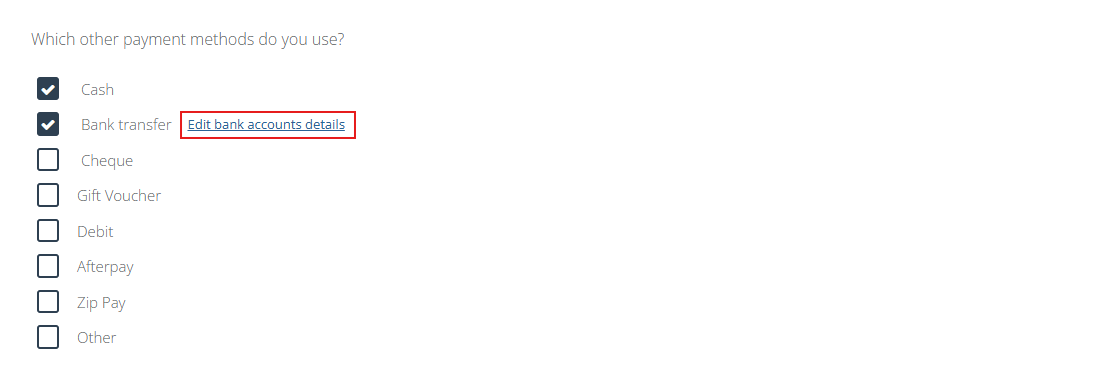
- Pay people – The same fields populate ABA (Australia), NACHA (US) and BACS (UK) files so finance can push hundreds of payouts in seconds.
- Stay compliant – Invoices always display the legal “seller of record.” If Invoice Entity Display = Business, the company’s bank account shows; if = Individual, each fieldworker’s account appears, a requirement for contractor marketplaces in many regions.
Why Store Bank Details?
| Benefit | How OctopusPro Uses It |
|---|---|
| Quicker customer payment | IBAN / BSB / Sort or Routing code printed on PDF invoices and customer-portal checkout. |
| Touch-free payouts | Fields merge into batch files:• ABA (AU des-rec + detail records) • NACHA CCD/PPD rows (US) • BACS Standard-18 (UK) |
| Audit & transparency | Ensures seller’s tax ID matches bank account—reducing fraud and retrieval issues |
Adding Company Bank Details (default “Business” mode)
- Navigate: Settings ▸ Financial Settings ▸ Payment Methods ▸ Edit Bank-Account Details
- Complete the form:
- Bank Name
- Account Name (legal entity)
- Bank Code (BSB / Sort / Routing)
- Account Number
- Branch Address (optional but useful for cross-border wires)
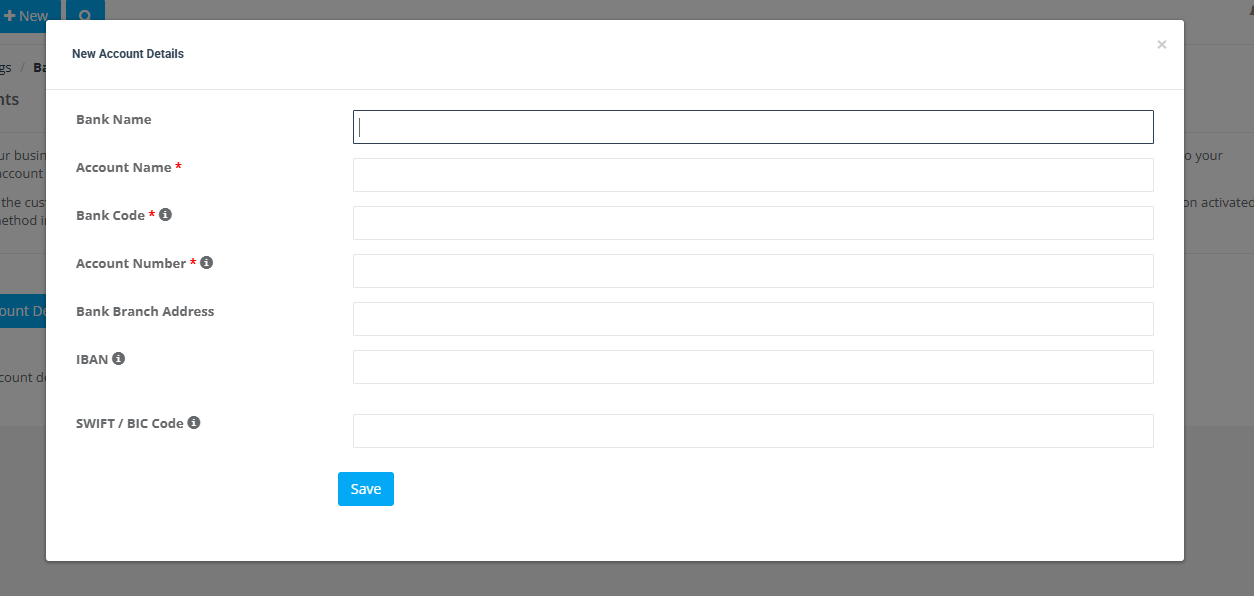
- Save. The information now:
- Prints on every customer invoice (PDF + email body)
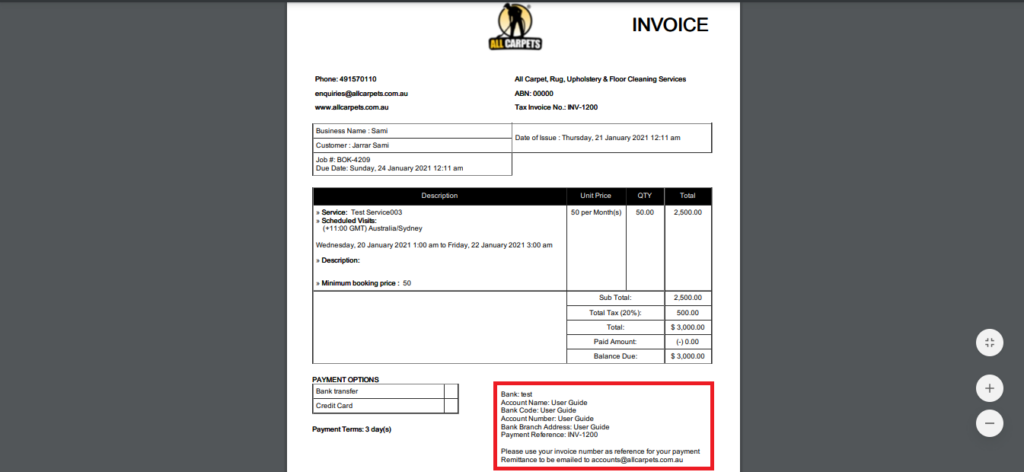
- Appears at checkout when Bank Transfer is an accepted method
- Feeds the Payment to Fieldworkers report for bulk supplier refunds or owner-draws
- Prints on every customer invoice (PDF + email body)
Tip: Test with a $1 transfer first— mis-typed sort/BSB codes can send money to the wrong recipient and are hard to claw back.
Showing Fieldworker Bank Details (marketplace “Individual” mode)
Switch to: Settings ▸ Financial Settings ▸ Invoice Template ▸ Invoice Entity Display ➜ Individual
Now each invoice pulls:
| Source | Field | Where it appears |
|---|---|---|
| Fieldworker profile → Personal Details → Bank Account | Bank Name, Account Name, Code, Number | Invoice footer + customer-portal checkout |
| Fieldworker profile → Business Information | Trading name, Tax/VAT ID | Invoice header (replaces company) |
Use-case: A home-cleaning platform pays contractors weekly via ABA. Customers receive invoices branded “Sarah’s Sparkle Services,” see Sarah’s bank on the PDF, and the ABA export lists Sarah’s BSB & account so finance can credit her directly.
Where the Data Appears
| Context | Bank Account Shown | Display Logic |
|---|---|---|
| Invoice PDF / Email | Company or Fieldworker | Controlled by Invoice Entity Display. |
| Customer Portal – Checkout | Same as above | Only when Bank Transfer payment option is enabled. |
| Reports ▸ Payment Reports ▸ Payment to Fieldworkers | Always the Fieldworker account | Generates ABA/NACHA/BACS/ISO 20022 exports. |
| Fieldworker App – Profile | Own account (editable) | Contractors can update routing details themselves. |
Batch-Payment Exports
- Finance path: Reports ▸ Payment Reports ▸ Payment to Fieldworkers
- Filter by cycle dates; click Export; choose:
- ABA – AU banks (descriptive + detail records)
- NACHA – US ACH CCD/PPD or ISO 20022 XML
- BACS Standard-18 – UK
- Upload the file to your online banking portal—thousands of payments, zero manual keystrokes.
Fieldworker Self-Service (keeping data fresh)
| Task | Mobile App Path |
|---|---|
| Update bank account | Menu ▸ Edit ▸ My Account ▸ Bank Account |
| Verify email (needed for payout alerts) | My Account ▸ Account Details ▸ Send Verification Link |
| Change pay-to bank after replacement card | Same screen; edits are logged in timeline. |
Security, Compliance & Best Practice
- Role-based access: Only Admins (and the fieldworker themselves) can view or edit bank fields.
- Timeline audit: Every change writes to Activity ▸ Bank-Account log with before/after values.
- Encrypt-at-rest: Bank numbers are stored with AES-256 and shown once saved; users see masked values.
- Avoid mistakes: Always double-check sort/BSB/routing codes—wrong digits may send funds astray and banks are not obliged to recover them.
- Review entity setting: If you swap from Business ➜ Individual mid-year, regenerate past invoices for consistency.
Troubleshooting FAQ
| Issue | Fix |
|---|---|
| Bank transfer option not visible at checkout | Enable Bank Transfer in Settings ▸ Customer Portal ▸ Payment Methods. |
| Fieldworker bank line missing on invoice | Confirm Invoice Entity Display = Individual and that the profile has a bank account saved. |
| ABA file rejected by bank | Check that BSB is six digits and account number ≤ 9 digits. |
| Customer paid wrong account | Use timeline to prove displayed details; escalate to bank with Payment Services Regulations guidance. |
Further Reading
Batch-payment exports – see Fieldworker Payroll Management guide.
Invoice template customization – see Customize Invoice Template help page.
With company and (optionally) fieldworker bank details stored in one secure place, OctopusPro automates everything from invoice generation to mass payouts—saving hours of admin work and giving both customers and contractors crystal-clear payment instructions.
To stay updated, please subscribe to our Youtube channel.