
Add & Manage Service Categories (Create, Edit & Reorder)
Service Categories let you organise your Service Catalog into clear, customer-friendly groups (and optional subcategories). This helps customers find the right service faster in the Customer Portal / inquiry form and helps your team quickly select services when creating quotes and bookings.

Table of contents
- What are service categories?
- Where categories show (customers, admin, fieldworkers)
- Create a new category
- Assign services to categories (including multi-category)
- Manage categories (edit, reorder, activate/deactivate)
- Delete a category safely
- Best practice (structure, naming, images)
- Real-world examples
- Related guides

What are service categories?
A Service Category is a grouping used to organise the services you offer (e.g., Carpet Cleaning, Tile & Grout, Repairs, Packages). Categories can be used purely for organisation, or to create a cleaner browsing experience for customers.
Categories can include:
- Category name (customer-facing label)
- Description (optional; useful in portals and service browsing)
- Parent category (optional; for subcategories)
- Category image (optional; improves visual browsing)
- Display order (controls which categories appear first)
Important: A single service can belong to multiple categories. This is helpful when customers might look for the same service in different places (e.g., “Tile Sealing” under both “Bathroom” and “Floors”).

Where categories show (customers, admin, fieldworkers)
1) Admin & fieldworker service selection (quotes & bookings)
Categories help keep large service lists organised so staff can choose the correct service faster and reduce mis-selection.
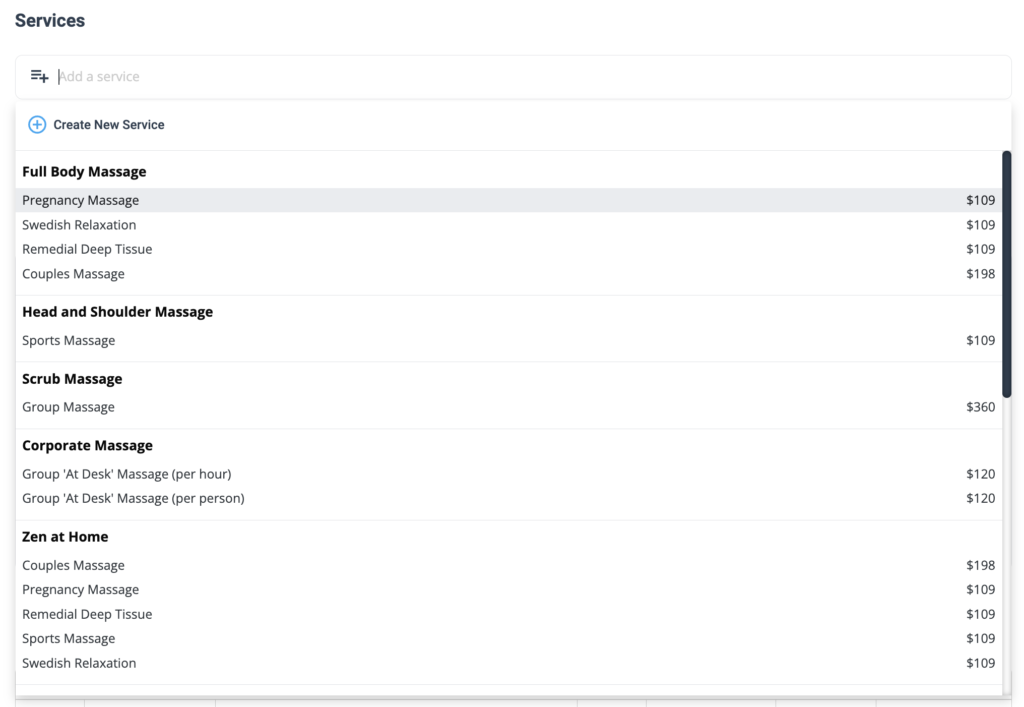
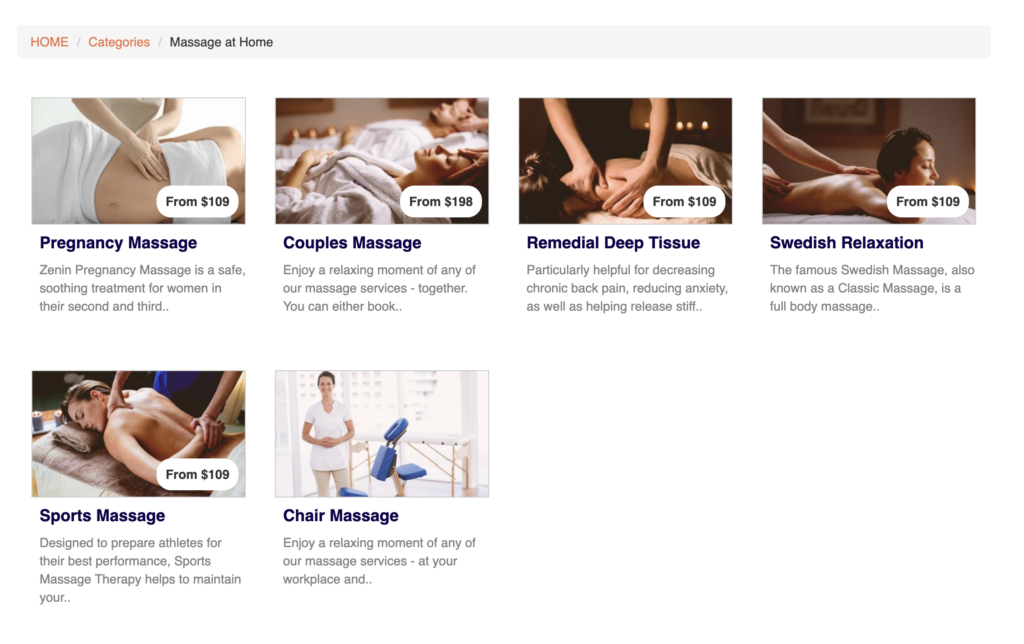
2) Customer Portal / inquiry form (customer browsing)
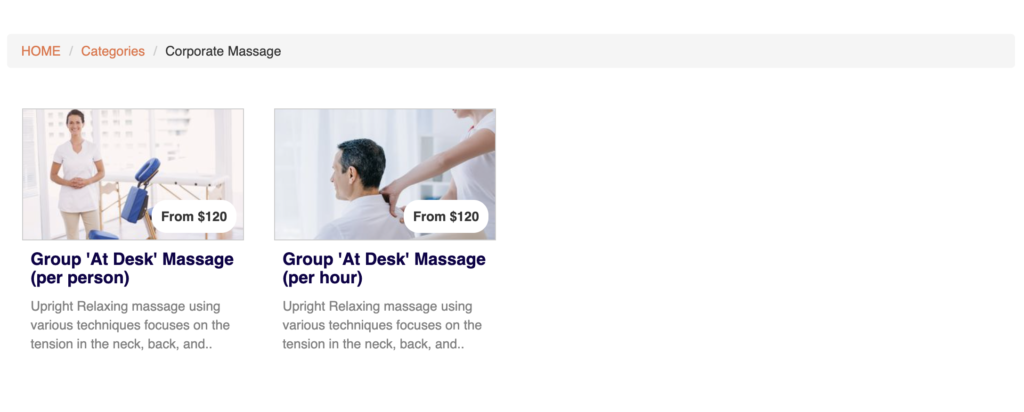
When categories are enabled for customer-facing selection, customers browse services by category instead of scrolling through a long list.

Example views after clicking a category:
Create a new category
Before you start: Make sure your services are already set up in your Service Catalog. Categories organise services (they don’t replace creating services).
Path: Settings › Service Settings › Services › Categories
- Click Create New.
- Enter a category name that customers will understand (e.g., “End of Lease Cleaning”, “Stone Sealing”, “Repairs”).
- Add a description (optional) to explain what customers can expect in this category.
- Select a parent category (optional) if you want to create a sub-category (e.g., “Cleaning” → “Deep Clean”).
- Upload a category image (optional) to make portal browsing more visual.
- Set the display order (optional) to control which categories appear first.
- Save.
Tip: Create your top-level categories first, then add subcategories only where it improves clarity (e.g., “Floor Care” → “Tile & Grout”, “Timber Floors”, “Carpet”).
Assign services to categories (including multi-category)
Once a category is created, assign services to it so it appears in staff selection lists and customer browsing (where enabled). You can assign services in different ways depending on your workflow:
Option A: Assign services from the Categories tab
- Open Settings › Service Settings › Services › Categories.
- Find your category and click Modify Services.
- Select the services to include, then Save.
Option B: Bulk-assign multiple services from the Services list
- Open the Services tab.
- Tick the checkbox next to each service you want to assign.
- Use the bulk action to Assign to Category, select the category, then Save.
Option C: Quickly update one service’s categories (fastest for small edits)
From the Services list, use the Manage Categories link in the category column to assign or remove categories for a single service without opening the full service edit screen.
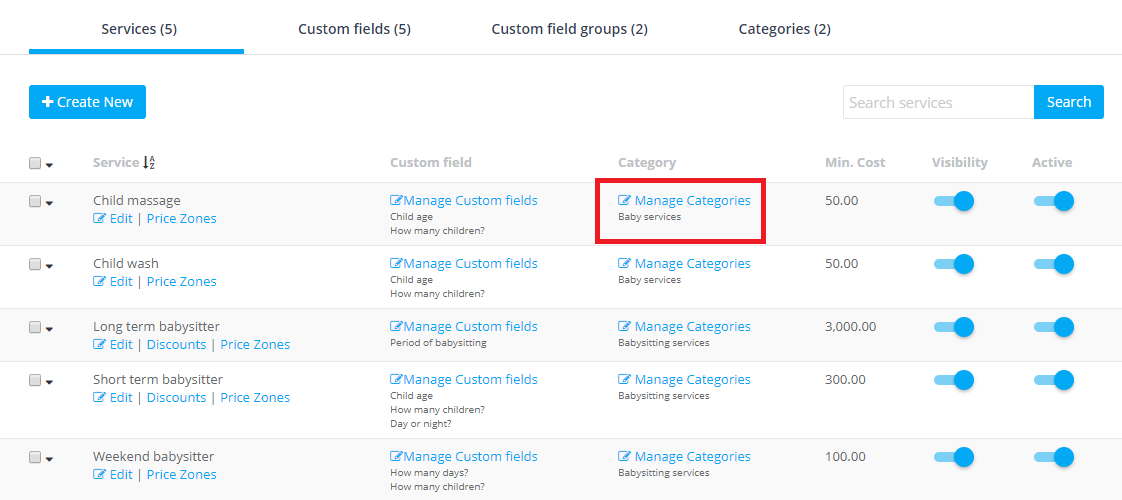
Multi-category assignment: You can assign a service to more than one category. Use this to improve discovery and cross-selling (e.g., “Pressure Washing” under both “Exterior Cleaning” and “Driveways”).
Manage categories (edit, reorder, activate/deactivate)
From the Categories tab, you can continuously maintain your catalog structure as your business grows:
- Edit category name, description, parent category, image, and display order.
- Reorder categories (drag-and-drop where available) to put your best-selling categories first.
- Add/remove services using Modify Services to keep categories accurate.
- Activate/deactivate categories using the Active toggle to hide categories you don’t want visible (e.g., seasonal offerings).
Practical use cases:
- Seasonal campaigns: Create “Winter Specials”, bulk-assign services, then deactivate when the season ends.
- Rebranding: Rename “General Cleaning” to “Standard House Clean” and update category images so the portal looks current.
- Cross-selling: Put “Tile Sealing” in both “Bathroom” and “Floor Care” so customers find it wherever they browse.
Delete a category safely
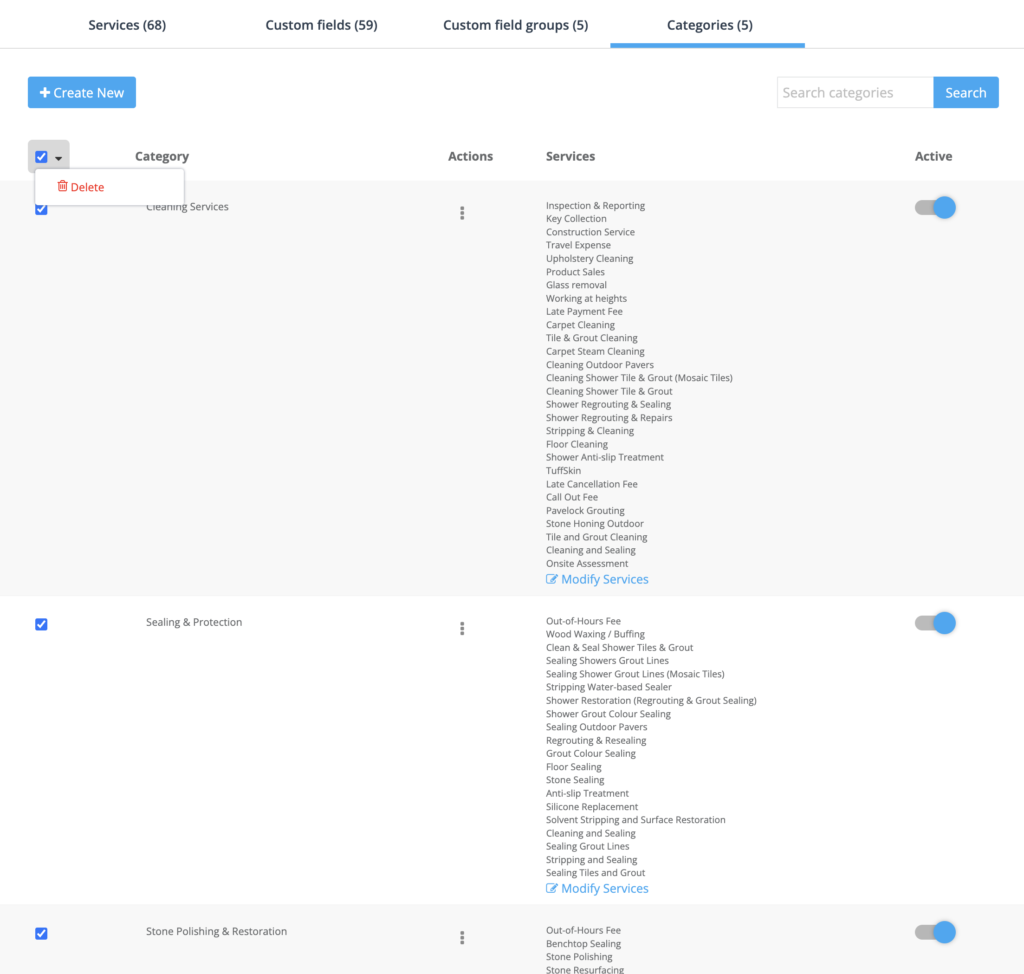
To avoid confusion and keep browsing clean, it’s best practice to unassign services first, then delete the category.
- In the Categories list, click Modify Services and remove all assigned services.
- Return to the Categories list, open the category Actions menu, then click Delete.
- Keep at least one fallback category (e.g., “Other” / “Miscellaneous”) so your catalog always stays organised.
Best practice (structure, naming, images)
- Use customer language: Name categories the way customers search (e.g., “End of Lease Cleaning”, not internal codes).
- Keep top-level categories simple: Use subcategories only when they reduce confusion.
- Use images for customer-facing browsing: Especially helpful in the Customer Portal and inquiry form.
- Put your best sellers first: Use Display Order (or drag-and-drop) so popular categories appear first.
- Review periodically: Merge or rename rarely used categories to reduce clutter and improve selection speed.
Real-world examples
Cleaning business
- House Cleaning (Standard, Deep Clean)
- Carpet Cleaning
- Tile & Grout
- End of Lease Cleaning
- Outdoor / Pressure Washing
Trades / maintenance
- Repairs
- Installations
- Preventative Maintenance
- Emergency / After-hours
- Compliance / Inspections
Beauty / wellness
- Massage (At Home, Corporate)
- Facials
- Nails
- Packages / Gift Vouchers
Related guides
To stay updated, please subscribe to our YouTube channel.