
Invoice History Log (Recent Invoices Report)
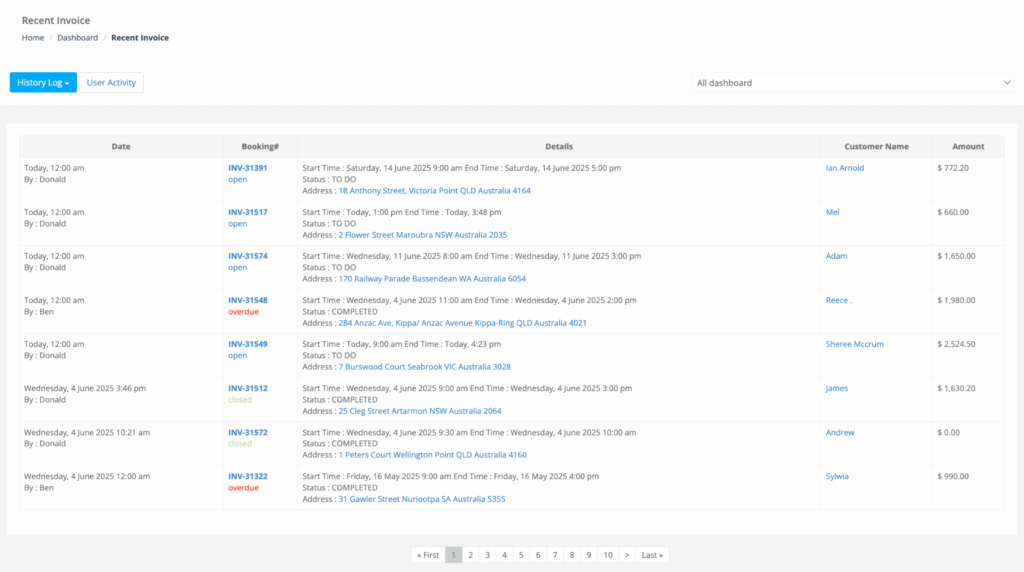
The Invoice History Log (also called Recent Invoices) is a real-time report that lists invoices that were created or modified in your OctopusPro account. It’s designed for admins, finance teams, and customer support teams who need instant visibility into billing activity—especially overdue invoices, high-value invoices, and recent edits that impact cash flow.

Use this report to:
- Monitor invoicing in real time (new invoices, edits, and status changes).
- Prioritise collections by focusing on Overdue and high-value invoices.
- Investigate disputes faster by drilling into the invoice, booking, and customer profile.
- Reduce mistakes by spotting $0 invoices, unusual totals, or frequent edits.
- Export and report (CSV/Print, where available) for accountants, compliance, and KPIs.
On this page
- What this report shows (and what it doesn’t)
- How to open the Invoice History Log
- Understanding the grid (columns & status labels)
- Filters, dashboards, sorting, search & export
- Everyday workflows (examples)
- Troubleshooting checklist
- Best-practice tips
- FAQ
- Related guides
What this report shows (and what it doesn’t)
What it shows: a live list of invoices created or edited recently, with key details such as the invoice number, status label, linked booking details, customer name, and invoice total.
What it doesn’t replace: the detailed invoice activity/audit trail inside an individual invoice record (INV-#####). If you need exact change history or actions taken on one invoice, open the invoice directly: How to View and Manage an Invoice.

How to open the Invoice History Log
Navigation (web/admin portal): Left Menu → Reports → History Log → Recent Invoices
The grid loads with the newest activity first. Refresh your browser (Cmd/Ctrl + R) to load the latest updates.
Mobile access (where available): in the Office/Fieldworker app, open Menu → Reports → History Log → Recent Invoices (labels may vary slightly by app version).
Understanding the grid (columns & status labels)
The report is designed for quick scanning. Common columns include:
| Column | What it shows | Why it matters |
|---|---|---|
| Date / By | Timestamp plus the user who created or last updated the invoice | Accountability (“who touched this last?”) and quick investigations |
| Invoice # | Clickable invoice reference (INV-#####) with a status label | Open the invoice instantly to send, record payment, refund, void, or review details |
| Details | Linked booking reference/date, booking status, and site address (where applicable) | Confirm job context quickly (helpful for disputes and service-location checks) |
| Customer Name | Clickable customer name | Jump to the customer profile for history, communication, and other invoices |
| Amount | Invoice total (tax display depends on your settings) | Sort to prioritise high-value follow-ups and spot unusual totals (including $0) |
Status labels help you prioritise work quickly. Statuses can vary by configuration, but commonly include:
- Open: issued and awaiting payment
- Overdue: past the due date
- Closed / Paid: settled
- Draft: not final/sent yet (if shown in your report)
- Voided: cancelled but retained for audit/reporting
- Credit: credit note/negative invoice value (where enabled)
Tip: In many setups, clicking the booking address opens Google Maps in a new tab for quick location checks (useful for travel/mileage validation).
Filters, dashboards, sorting, search & export
- All Dashboard vs My Dashboard: switch between team-wide activity and your own invoices (availability depends on permissions and account setup).
- Status quick-links: some accounts show shortcuts such as “Recent OVERDUE” or “Recent CLOSED” to focus collections work quickly.
- Sorting: click column headers (Date, Amount, Customer) to build a priority follow-up list.
- Search: locate invoices by invoice number (INV-#####) or customer name (where available).
- Pagination: move through older invoice activity without exporting.
- Export / Print: export filtered results to CSV or print (where available) for accountant handover, KPI reporting, and compliance archives.
Permissions note: if you can’t see All Dashboard or export options, your role may restrict reporting access. See: Role-Based Access Control & Permissions.
Everyday workflows (examples)
1) Daily cash-flow check
Open the report each morning, sort by Date, and review invoices created or edited since yesterday (including online payments and post-job adjustments).
2) Collections sprint (overdue invoices)
Filter to Overdue, open each invoice, and send a reminder or call the customer:
- Send Invoices by Email or SMS
- Outbound Email Log (Proof of sending)
- SMS History Log
- Call History Log
3) High-value invoice QA (margin protection)
Sort by Amount and review large invoices before sending to prevent missing line items, incorrect quantities, or incorrect tax settings.
4) “Customer says they didn’t get the invoice”
Open the invoice from the report, resend if needed, then confirm the email outcome in: Outbound Email Log.
5) Payments, refunds & adjustments
- Record a payment: Add a Payment to an Invoice
- Review payments/receipts/refunds: View Invoice Payments, Receipts & Refunds
- Manage refunds: Refund Management
- Void or delete invoices when required: Void an Invoice / Delete Invoices
Troubleshooting checklist
I can’t find an invoice I just created
- Refresh the page (Cmd/Ctrl + R).
- Switch to All Dashboard (you may be on My Dashboard).
- Search by invoice number (INV-#####) and check pagination.
Invoices are becoming overdue too soon (or too late)
Check your invoice due date rules and payment terms: Invoice Due Dates & Payment Terms.
The report shows reminders should have been sent, but nothing arrived
- If you use automations for overdue reminders, confirm the automation ran: Automations / Scheduled Tasks Log.
- Check message-level results in the delivery logs: Outbound Email Log / SMS History Log.
- If reminders should be paused for a specific invoice/job, use: Pause / Resume Automated Notifications.
Best-practice tips
- Make this report a daily habit: finance teams often check it at the start and end of day.
- Automate overdue reminders: combine the report with workflow automations to follow up consistently: Automated Reminders & Confirmations.
- Export weekly/monthly: keep a CSV archive for accountants and long-term record keeping.
- Investigate $0 invoices: these often indicate test records, missing items, or incorrect pricing rules.
- Prefer “Void” over “Delete” for issued invoices: voiding preserves an audit trail while removing the invoice from collections.
FAQ
Does this include credit notes?
Yes—credit notes can appear with negative values and a Credit status label (where enabled).
Can I see who edited an invoice?
The report shows the latest “Date / By”. For detailed history, open the invoice record: How to View and Manage an Invoice.
Is the report real time?
It updates as invoices are saved. Refresh your browser to pull the latest activity.
Why can’t I see All Dashboard or export options?
Your role may restrict reporting access. Ask an admin to update your permissions: Role-Based Access Control & Permissions.
Related guides
- How to View and Manage an Invoice
- Send Invoices by Email or SMS
- View Invoice Payments, Receipts & Refunds
- Add a Payment to an Invoice
- Refund Management
- Invoice Due Dates & Payment Terms
- Void an Invoice
- Delete Invoices
- Outbound Email Log (Audit Trail)
- SMS History Log & Notifications
- Call History Log
- Automations / Scheduled Tasks Log
- User Activity Log (Account-Wide Audit Trail)
- Recent & Modified Bookings History Log
- Booking History & Audit Log (Change Log)
- Quotes & Estimates History Log
To stay updated, please subscribe to our YouTube channel.