
Fieldworker Booking Edit Approval (Office Approval Workflow)
Fieldworkers (technicians/subcontractors) often need to adjust a booking while they’re on-site—adding an extra service, updating quantities, correcting customer details, or changing pricing based on what they discover. This setting lets you decide whether those edits should be held for office approval or applied immediately.

Table of contents
- What this setting controls
- When to enable it (and when not to)
- How to enable/disable the setting
- What fieldworkers can change
- How it works (two workflows)
- Where to find bookings pending approval
- Notifications and oversight
- Best practices
- FAQs
- Related guides
What this setting controls
This feature is controlled by the following flag (this flag was renamed in some accounts):
Fieldworker requests permission to edit booking (office approval needed)
This toggle controls whether booking edits made by fieldworkers require office approval before they take effect:
- Enabled (ON): Fieldworker edits are treated as an edit request. Changes are not applied immediately and remain Pending Approval until an authorized office/admin user reviews and approves them.
- Disabled (OFF): Fieldworker edits are applied immediately, without an office approval step.
Important: This toggle does not grant booking-edit permissions by itself. Fieldworkers must still have the relevant permissions to edit bookings. This setting only controls whether edits are held for approval or applied instantly.
Operational impact: When approval is required, totals, pricing changes, and other booking updates won’t take effect until the office approves the request—helping prevent disputes and accidental margin loss.
When to enable it (and when not to)
Enable it (approval required) if you need:
- Stronger control over pricing, scope, quantities, or customer information before changes become final.
- A clear office review step to prevent disputes, mistakes, or margin leakage.
- Stricter operations (franchises, regulated services, high-value jobs, strict SOPs).
Disable it (auto-apply) if you want:
- Faster on-site adjustments without waiting for office response.
- Less admin workload reviewing routine edits.
- More autonomy for trusted fieldworkers (with visibility via notifications/audit history).
Practical example: If a fieldworker discovers additional work on-site and adds an extra service, enabling this setting ensures the office can confirm the scope/pricing before the change is applied.
How to enable/disable the setting
- In the admin portal, go to: Settings → General Settings → Fieldworkers Permissions.
- Find: Fieldworker requests permission to edit booking (office approval needed).
- Choose your mode:
- ON = approval required (changes go to Pending Approval)
- OFF = auto-apply (changes are applied immediately)
- Click Save.
Tip: If you’re not sure which approach is best, start with approval enabled, then relax the workflow for trusted teams once your rules and training are solid.
What fieldworkers can change
What a fieldworker can edit depends on your permissions configuration. Common examples include:
- Adding services (upsells/add-ons)
- Updating service pricing/costs (if allowed)
- Updating booking details (date/time, notes, quantities, etc.) (if allowed)
- Updating customer information (if allowed)
Tip: If you allow fieldworkers to edit high-impact fields (like pricing), consider keeping this setting enabled so the office can approve those changes before they apply.

For the wider booking edit controls, see: Allow Fieldworkers to Edit Booking Details (Anytime) and Fieldworker Permissions & Access Control.

How it works (two workflows)
Workflow A: Approval required (setting enabled)
When Fieldworker requests permission to edit booking (office approval needed) is enabled:
- The fieldworker edits the booking.
- The edit becomes a request and is placed into Pending Approval.
- An authorized office/admin user reviews the changes and approves or declines.
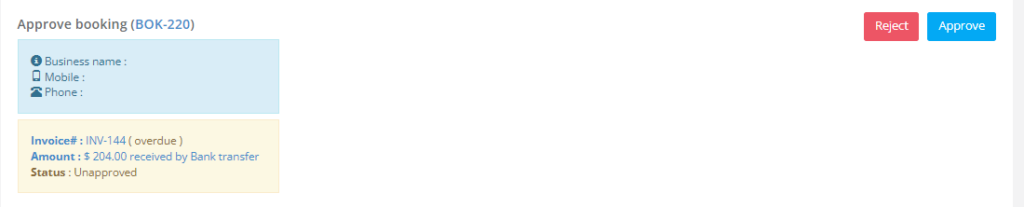
- If approved, the changes are applied. If declined, the booking remains unchanged (and the fieldworker can submit a corrected request if needed).
What to review before approving: scope changes, pricing/discounts, updated schedule, added services, and any notes/photos explaining why the change is needed.
Workflow B: Auto-apply (setting disabled)
When the setting is disabled:
- The fieldworker edits the booking.
- The changes are applied immediately (no approval step).
- Office users can still be informed via notifications (recommended) to maintain oversight.
For auditing and dispute resolution, you can review booking changes in the booking history log: Booking History & Audit Log (Change Log).

Where to find bookings pending approval
Admin/Office users
To review and process requests, go to: Bookings → Pending Approval. (In some accounts, this list may appear as Unapproved Bookings.)
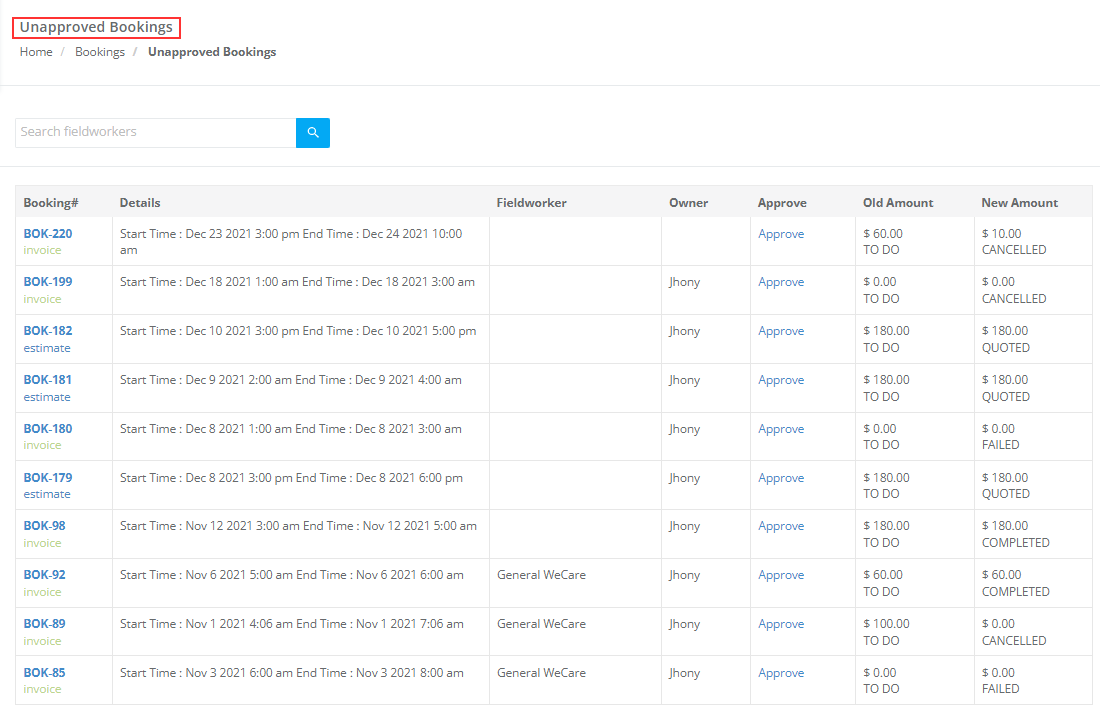
From the Pending Approval list, open each booking to review and approve/decline the requested changes.
Fieldworkers
Fieldworkers can monitor their requests from the app (path may vary by version), typically under:
- Bookings → Pending (or similar) and look for items marked Pending Approval / Awaiting Approval.
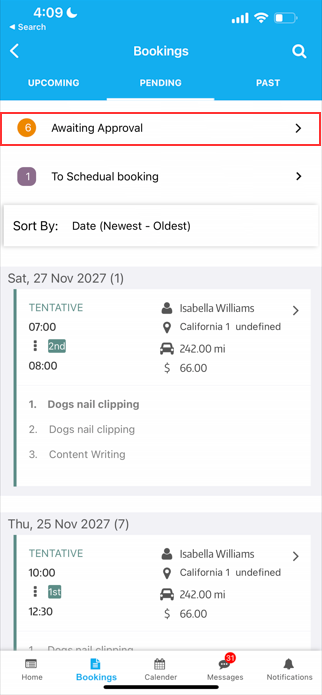
Notifications and oversight
To keep the office informed when fieldworkers submit edit requests (or apply edits instantly), configure notifications so the right people are alerted quickly.
- Receive alerts via email and/or the admin portal notification list.
- Use notifications to quickly open the related booking and review what changed (or what’s being requested).
Set up notifications
- Go to Settings → General Settings → Fieldworkers Permissions.
- Scroll to the Notification section.
- Select how you want to receive booking change/request notifications (email and/or admin portal).
- Click Save.
Tip: Even if you disable approval (auto-apply), keep notifications enabled so the office still has visibility into changes made in the field.
Best practices
- Use least-privilege permissions: only allow trusted roles to edit pricing, scope, or key customer details.
- Enable approval for high-impact edits: keep this setting ON if errors could create disputes or margin loss.
- Define internal rules: when are upsells allowed, when must customer consent be recorded, and when must the office be called?
- Train fieldworkers: what can be changed, what requires approval, and how to add clear notes explaining why a change is needed.
- Review patterns: repeated change requests might indicate quoting templates or service scopes need updating.
FAQs
What happens when the setting is enabled?
Fieldworker edits become a request and are not applied immediately. They go into Pending Approval until an authorized office/admin user approves them.
What happens when the setting is disabled?
Fieldworker edits are applied immediately without an office approval step.
Where do office users approve or decline requests?
Go to Bookings → Pending Approval, open the booking, then approve or decline the requested changes.
Does enabling this setting give fieldworkers permission to edit bookings?
No. Fieldworkers still need the relevant permissions to edit bookings. This setting only controls whether edits require approval before being applied.
What kinds of changes can fieldworkers request or apply?
It depends on your fieldworker permission setup. Common examples include adding services, updating pricing/costs, updating booking details, and updating customer information.
I can’t see “Pending Approval”. Why?
Your user role may not have access to that view. Ask an admin to review your role permissions and access: Role-Based Access Control (RBAC) & Permissions.

Related guides
- Allow Fieldworkers to Edit Booking Details (Anytime)
- Fieldworker Permissions & Access Control
- Service Booking Management
- Edit Booking Details (Admin Portal)
- Booking Settings, Flags and Permissions
- Booking History & Audit Log (Change Log)
- Request Booking Updates from Fieldworkers
To stay updated, please subscribe to our YouTube channel.