
Notifications, Discussions, Call & SMS Alert

OctopusPro keeps admins, fieldworkers, and customers in sync using multiple communication channels: push notifications, email, SMS, and (when enabled) voice calls via the Digital Phone System. Push notifications reach iOS/Android devices even when the app is closed, helping your team respond to time-critical updates faster.
Table of contents
- 1) Overview: delivery channels & who receives what
- 2) Notifications: view, filter, and customise
- 3) Call notifications: incoming calls, missed calls, transfers & voicemail
- 4) Discussions: threaded internal & customer chat
- 5) SMS: two-way texting for time-critical work
- 6) Admin best practices & edge cases
- 7) Quick-start examples
- 8) Key benefits
1) Overview: delivery channels & who receives what
Different users receive different channels depending on how they interact with your business (portal vs branded app) and which communication modules you’ve enabled.
| Role | Channel(s) | Common triggers |
|---|---|---|
| Admin users | Push (mobile) • In-app inbox (web/app) | New booking assigned, status changes, approvals, internal updates |
| Fieldworkers | Push (mobile) • In-app inbox (web/app) | Job requests, schedule changes, discussions, customer messages |
| Customers (portal-only) | Email • SMS | Booking confirmations, reminders, invoices, payment links |
| Customers (branded app) | Push • Email • SMS | ETA / arrival updates, job status changes, reminders |
| Admins & fieldworkers (Digital Phone System enabled) | Incoming call alerts (web/app) • Push (mobile) • Notifications feed | Incoming calls, missed calls, transferred calls, voicemail messages |
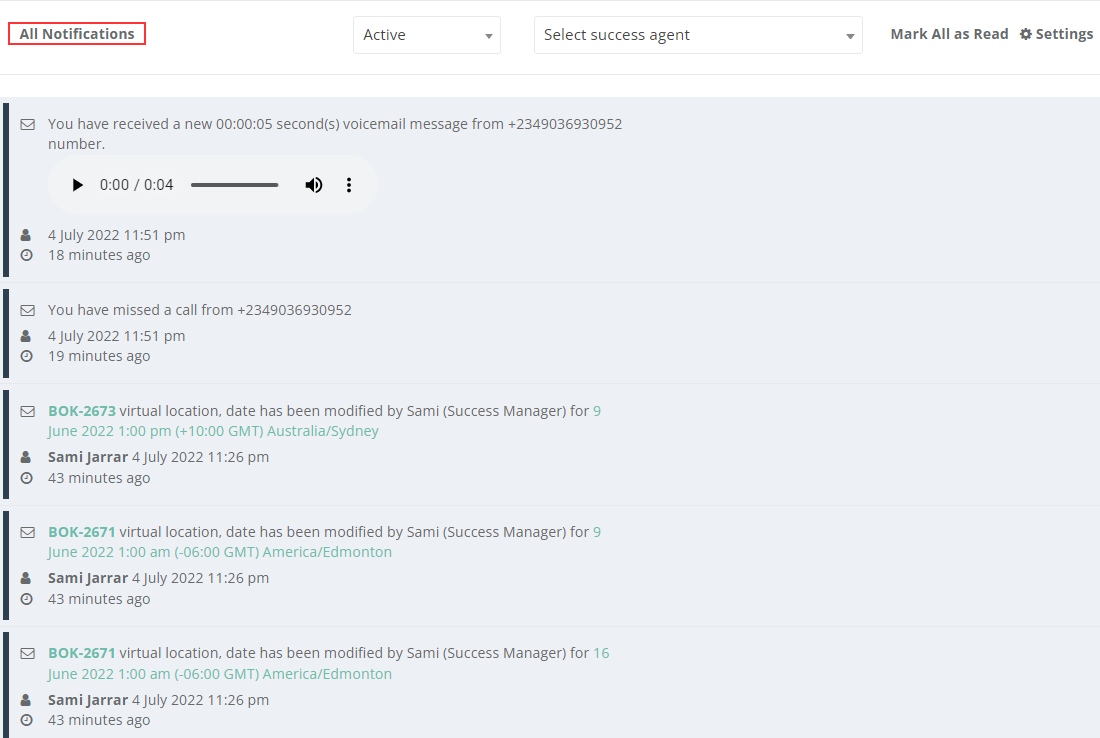
2) Notifications: view, filter, and customise
2.1 Viewing notifications
- Web: Click Notifications (bell icon) → All Notifications.
- Mobile: Open the in-app inbox (Notifications) and pull down to refresh.
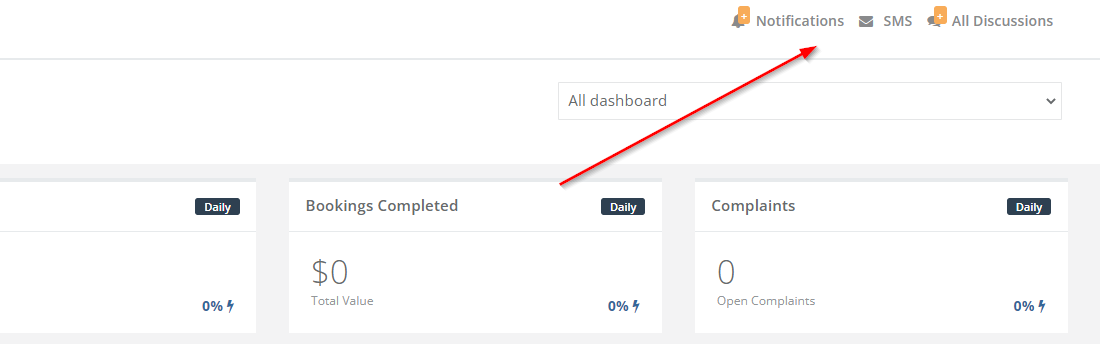
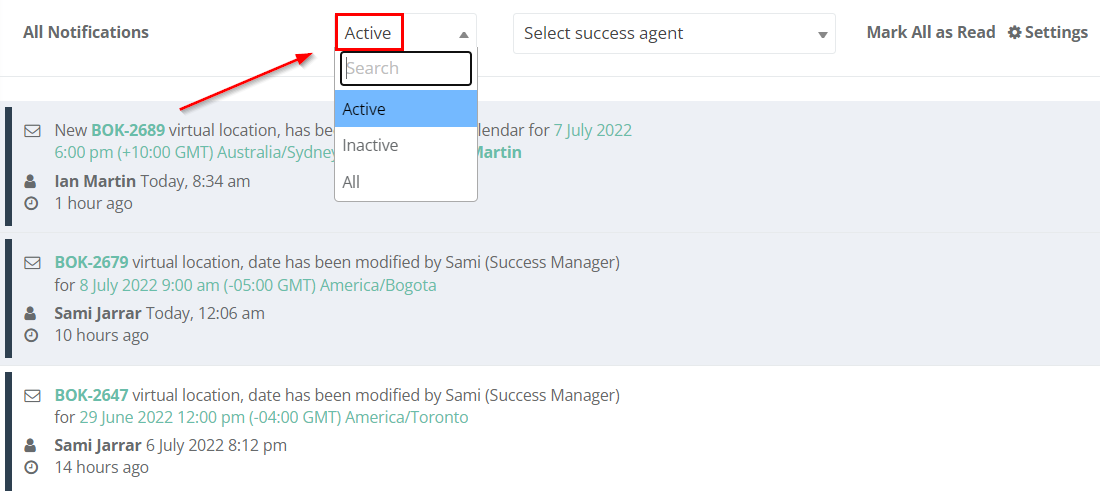
2.2 Filtering and finding what matters
Use filters to quickly isolate what needs action:
- Status: Active / Inactive
- User / Fieldworker
- Date range
- Tag / Module: e.g., Booking, Quote, Invoice, Complaint

2.3 Customising notification preferences
Path: Notifications › Settings
Enable/disable specific events and choose the channel mix (Push / Email / SMS) depending on role and workflow. For example, you can disable low-priority alerts (e.g., “Quote viewed”) for managers who prefer summaries, while keeping instant alerts enabled for sales reps.

3) Call notifications: incoming calls, missed calls, transfers & voicemail
When the Digital Phone System is enabled, OctopusPro can notify your team about incoming calls and voicemail activity while keeping every interaction logged against the relevant customer and job records.
3.1 What call notifications include
- Incoming call notifications: Incoming calls can ring in the desktop browser softphone and the mobile app, so staff can answer from anywhere.
- Answered calls: In “ring-all” setups, once someone answers, other eligible users see an “answered by …” notification to prevent duplicate pickups.
- Missed call alerts: If nobody answers within your configured ring timeout, the call is treated as missed and follows your fallback rules (e.g., voicemail or external forwarding). Staff can still see missed-call activity so they can call back quickly.
- Transferred calls: The browser softphone supports call controls such as transfer; transferred calls will ring/alert the receiving user like any other live call handoff.
- Voicemail messages: When voicemail is enabled, new voicemail alerts appear in the Notifications feed and can also trigger push notifications on mobile.
3.2 Where call notifications appear
- Incoming call screen/alert: Real-time ringing in app/browser when a call arrives.
- Notifications feed: Voicemail and call-related alerts can appear alongside other system notifications.
3.3 Where to review call history and outcomes
Use call logs to track every call event (inbound, outbound, missed, voicemail), including timestamps, duration, outcomes, and recordings (if enabled).
- Call History Log: Reports → History Log → Recent Calls
- Calls can be linked to related records (Customer / Booking / Quote / Invoice), so you always have context.
3.4 Voicemail notification settings checklist
- In OctopusPro, go to Settings → Notifications and ensure New Voicemail is enabled for the right users/roles.
- On staff devices, confirm OS-level notifications are allowed for the OctopusPro app (iOS/Android).
- Confirm your ring timeout and fallback rules are set (e.g., voicemail after 20–30 seconds, or forward to an external business number).
4) Discussions: threaded internal & customer chat
Discussions are context-rich comment threads attached to key records (Bookings, Quotes, Invoices, Inquiries, Complaints), so your team can collaborate without losing job context.
4.1 Delivery & access
- Mobile: Push notifications take you directly to the thread.
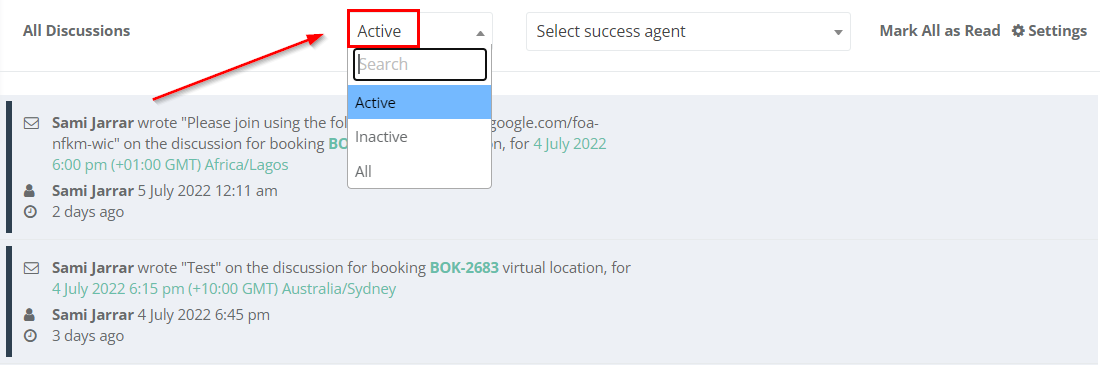
- Web: Go to All Discussions (chat icon) to browse threads.
- Mobile navigation: Menu → Discussions

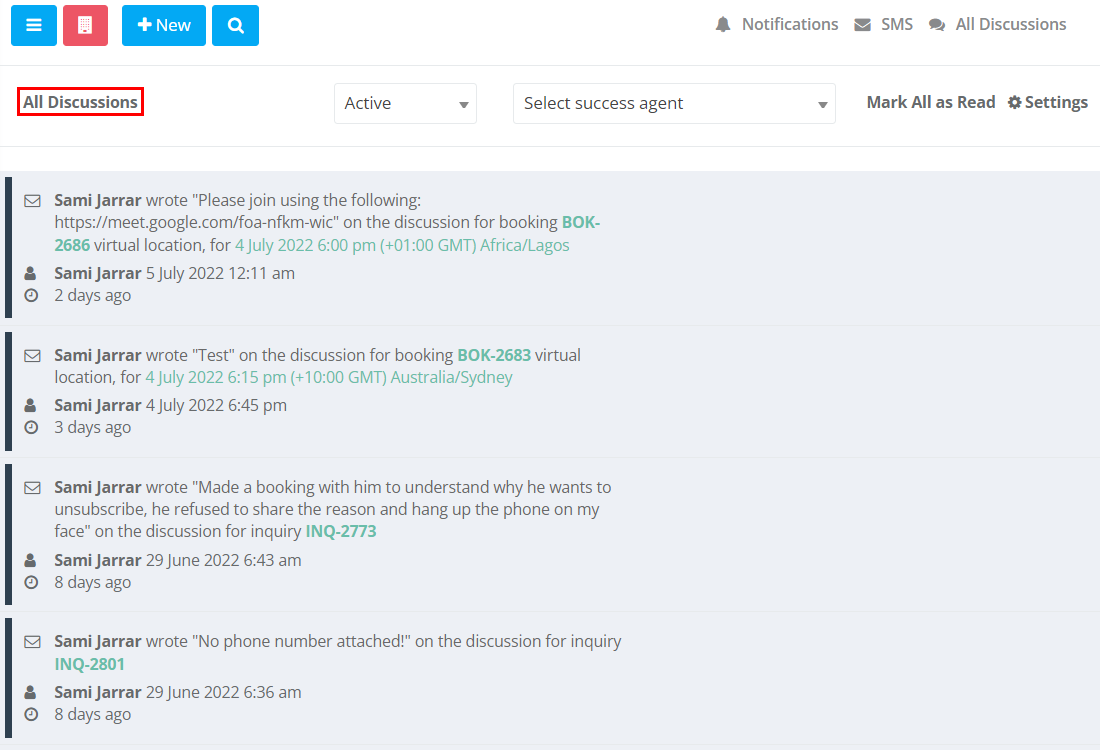
4.2 Settings & channels
Path: All Discussions → Settings
Enable/disable discussion alerts per module (Quote, Booking, Inquiry, Invoice, Complaint) and choose delivery method (Push, Email, SMS).

4.3 Filtering
Use filters such as status, object type, and user tags (e.g., Fieldworker, Success Agent) to surface the right threads quickly.
5) SMS: two-way texting for time-critical work
OctopusPro supports two-way SMS so you can send, receive, and log messages at scale—ideal for confirmations, reminders, ETAs, access instructions, and fast customer replies.
5.1 How SMS messages flow
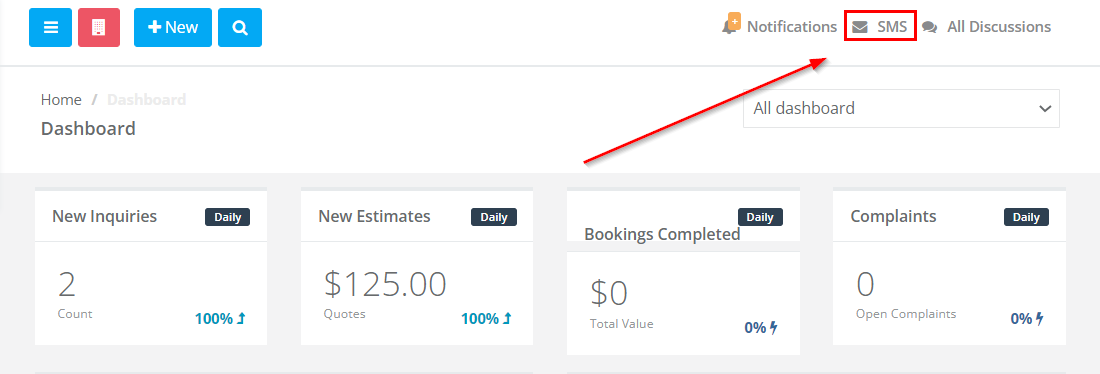
- Incoming SMS → Push notification → All SMS centre
- Outbound SMS can be sent automatically (e.g., reminders) or manually from a booking/quote/invoice/discussion.
5.2 Reply and full conversation view
- All SMS → View Conversation shows the complete audit trail.
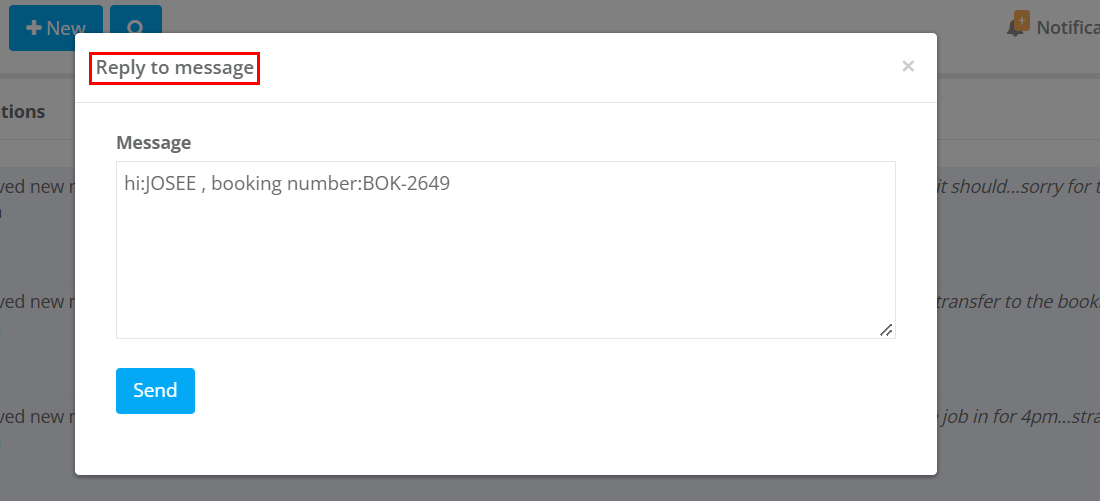
- Reply opens a quick-send window; the response is logged instantly.


5.3 Filters
SMS uses the same filter pattern as Notifications (Status, User, Date range, Tag) to keep the experience consistent for admins.
6) Admin best practices & edge cases
| Scenario | Recommended setup | Why it helps |
|---|---|---|
| After-hours urgent jobs | Keep internal push alerts on; use customer SMS selectively (or voicemail after-hours) | Reduces disruption while still keeping customers informed |
| Split shifts / lunch breaks | Configure working hours and break times; rely on alerts that respect availability | Prevents avoidable pings during non-working windows |
| Missed calls | Set a sensible ring timeout (e.g., 20–30s), then fallback to voicemail or external forwarding | Ensures callers always land somewhere, and your team can respond fast |
| Voicemail responsiveness | Enable “New Voicemail” notifications for the right roles + OS-level notifications | Stops urgent messages from getting buried |
7) Quick-start examples
Technician on-the-way
Trigger: Fieldworker starts travel / updates status.
Result: Customer receives proactive updates; admin/fieldworker stay aligned.
Quote discussion escalation
Trigger: Customer replies with extra requirements in a Quote thread.
Result: Your team can tag the right person and keep the entire conversation attached to the Quote record.
Missed call + voicemail follow-up
Trigger: Caller isn’t answered within ring timeout → voicemail is left.
Result: Admins/fieldworkers receive a voicemail alert, can listen to the message, and return the call—while maintaining a full audit trail.
8) Key benefits
- Faster response times: Real-time alerts for calls, messages, and job updates reduce missed communications.
- Better customer experience: Proactive SMS and clear job-status updates cut inbound “where are you?” calls.
- Accountability & compliance: Centralised logs for notifications, discussions, SMS, and calls improve traceability and internal QA.
- Less context switching: Conversations live inside the job record (Booking/Quote/Invoice/Inquiry), not scattered across devices.
To stay updated, please subscribe to our Youtube channel.