
Number Stepper (±) Quantity Custom Field
The Number Stepper (± buttons / quantity) custom field (also called a quantity selector) adds a simple “– / +” control so customers, admins, or fieldworkers can quickly set a whole-number quantity without typing.
It’s ideal for capturing counts such as number of pets, extra rooms, guests, items, or units. In OctopusPro, the Number Stepper can also automatically adjust pricing, labour time, or both as the value changes—so you get live per-unit quoting and accurate scheduling.

Quick links
- What is the Number Stepper field?
- Common use cases
- Benefits
- Where you can use it
- How to set it up
- Per-unit pricing & duration adjustments
- How it looks (Admin, Fieldworker App, Customer Portal)
- Reporting & analytics
- Troubleshooting
What is the Number Stepper field?
A Number Stepper is a controlled numeric input with “–” and “+” buttons. Users select a single quantity within the minimum/maximum limits you define. The field is designed for non-negative quantities (e.g., 0, 1, 2, 3…).
When to use it: choose a Number Stepper when you need one definitive numeric answer (e.g., “How many?”). If you need customers to choose multiple different add-ons in one question, consider a checkbox multi-select field instead: Checkbox (Multi-Select) Custom Field.

Common use cases
- Dog grooming: “How many dogs?” (+$35 per dog, +20 minutes each)
- House cleaning: “Extra bedrooms” (+$25 per room, +15 minutes each)
- Event services: “Number of guests” (use with quantity tiers/discount ranges where needed)
- Equipment hire: “Chairs required” (unit price × quantity)
- Transport/towing: “Vehicles to tow” (per-unit billing)
Best practice: If the add-on is optional, set Minimum = 0. If it must be selected, set Minimum = 1.
Benefits
- Fast, low-error input: users tap “– / +” instead of typing numbers.
- Live per-unit pricing: quotes update instantly as quantity changes.
- Accurate scheduling: automatically adds time per unit to prevent under-estimating job duration.
- Better reporting: values are stored as numeric data for filtering, exports, and forecasting.
Where you can use it
You can add the Number Stepper custom field in multiple places depending on your workflow:
- Services & bookings: capture quantities per job and automatically calculate totals and duration.
- Inquiry widget (Lead Capture): qualify leads by collecting quantities upfront (e.g., “How many windows?”). Lead Capture Form (Embed Inquiry Form on Website)
- Customer profile (CRM): store persistent metrics that can be referenced later. Customer Profile Custom Fields

- Fieldworker profile: record technician capacity/attributes for filtering and assignment. Fieldworker Profile Custom Fields

- Forms & Checklists (separate feature): best for on-site reports, inspections, QA checklists, and compliance steps. Checklist fields are operational and typically do not affect pricing/duration. Forms & Checklists Overview (Digital Job Checklists & Field Reports)

Learn more about creating and managing custom fields: Custom Fields (Booking, Lead Capture & CRM).

How to set it up
- Go to Settings ▸ Service Settings ▸ Custom Fields ▸ Create New.
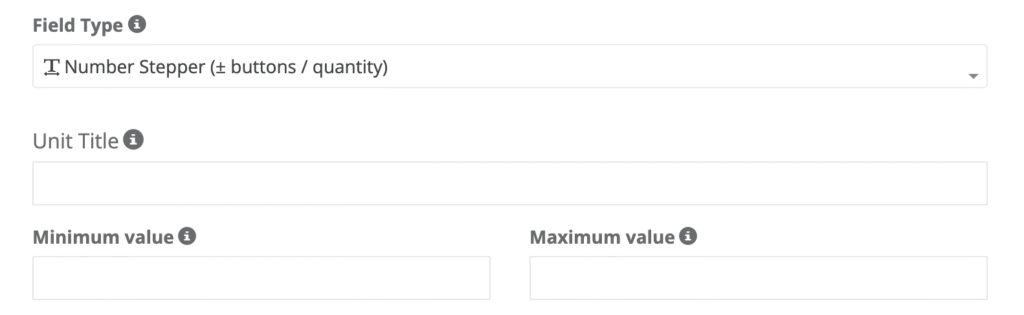
- Set Field Type to Number Stepper (± buttons / quantity).
- Enter a clear Field Label (e.g., Extra rooms).
- Enter a Unit Title (e.g., room(s), pet(s), item(s)).
- Set Minimum and Maximum values.
- Optional: leave Maximum blank if you don’t want a cap.
- Save.
Important: after creating the field, make sure you attach/connect it to the relevant service(s) so it appears during booking/quoting for that service.

For long forms, you can group questions into steps: Custom Field Groups (Multi-Step Booking Forms).
 For conditional questions, use: Dependent Custom Fields (Conditional Logic).
Per-unit pricing & duration adjustments
If each unit should add cost and/or time, enable Apply Price & Duration Adjustments. This makes OctopusPro recalculate totals and estimated duration automatically as the quantity changes.

- Price adjustment: apply a flat, per-unit, or percentage adjustment (depending on your configuration options).
- Extra duration: add extra minutes/hours per unit so schedules stay accurate.
- Quantity tiers (optional): add discount/price tiers for bulk quantities using the tier feature. Learn more: Quantity-Based & Bulk Discount Pricing.

Tip: You can also stack other pricing logic (where enabled), such as Geo-Pricing Zones, to apply location-based rates in addition to per-unit changes: Geo-Pricing Zones (Location-Based Rates).

How it looks (Admin, Fieldworker App, Customer Portal)
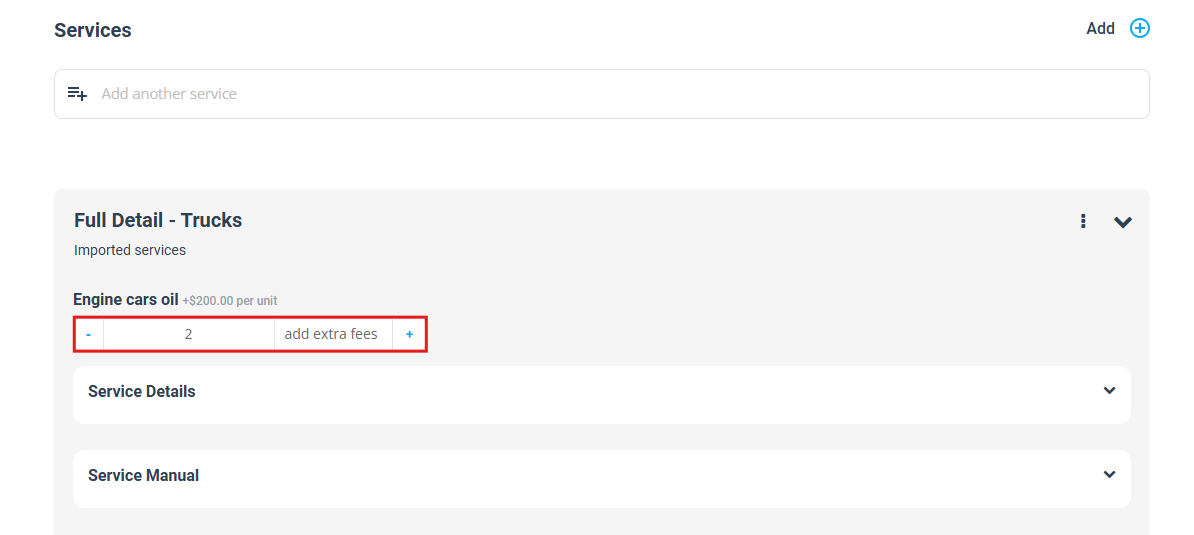
Admin (Web) – Create/Edit booking
The stepper appears under the service line. Adjusting the quantity updates totals instantly.
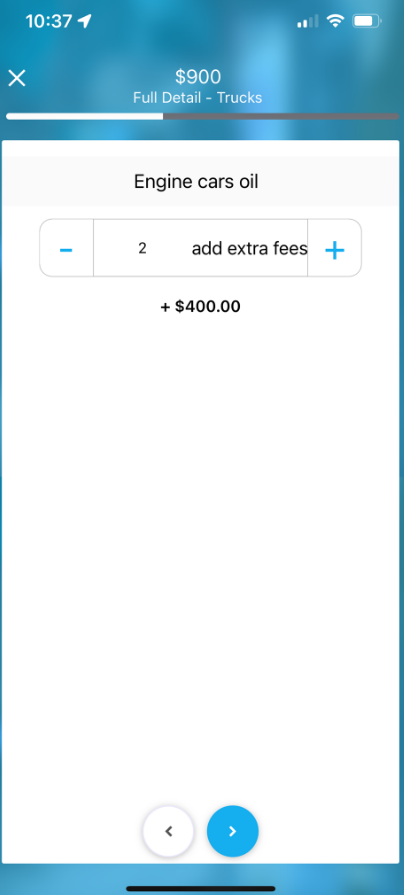
Fieldworker App
Fieldworkers can adjust quantities on-site (useful when scope changes), keeping pricing and timing accurate.
Customer Portal / Online booking widget
Customers can tap “– / +” during online booking and see the total update in real time.
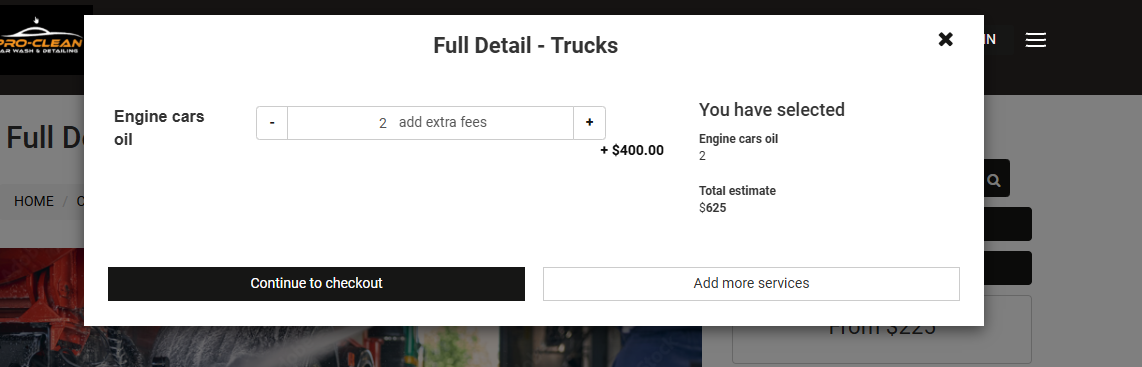
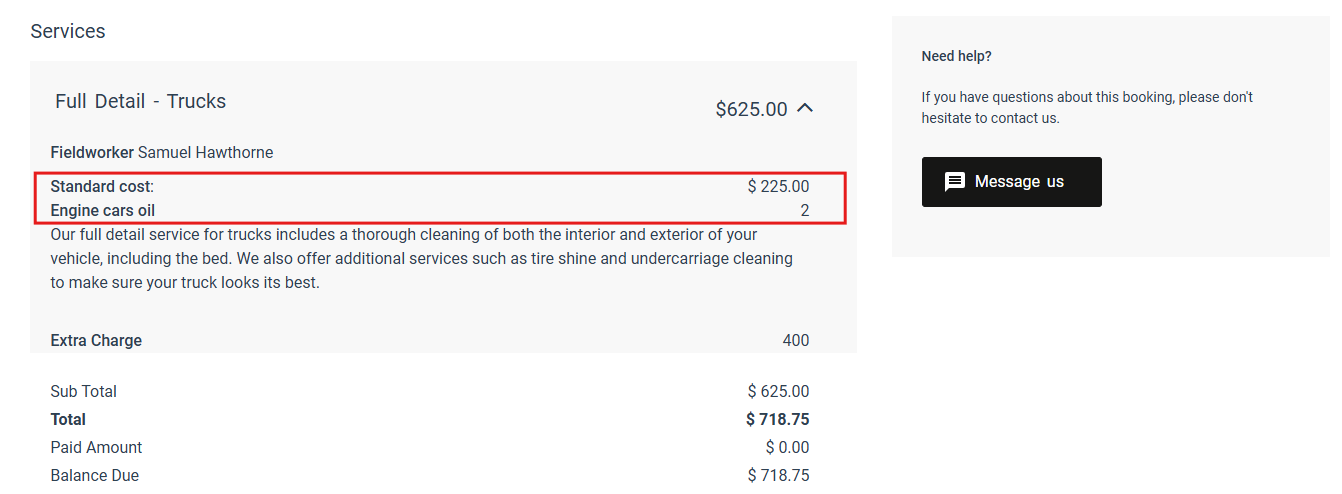
If enabled in your booking/portal display settings, the selected quantity can also appear in the booking view/summary.
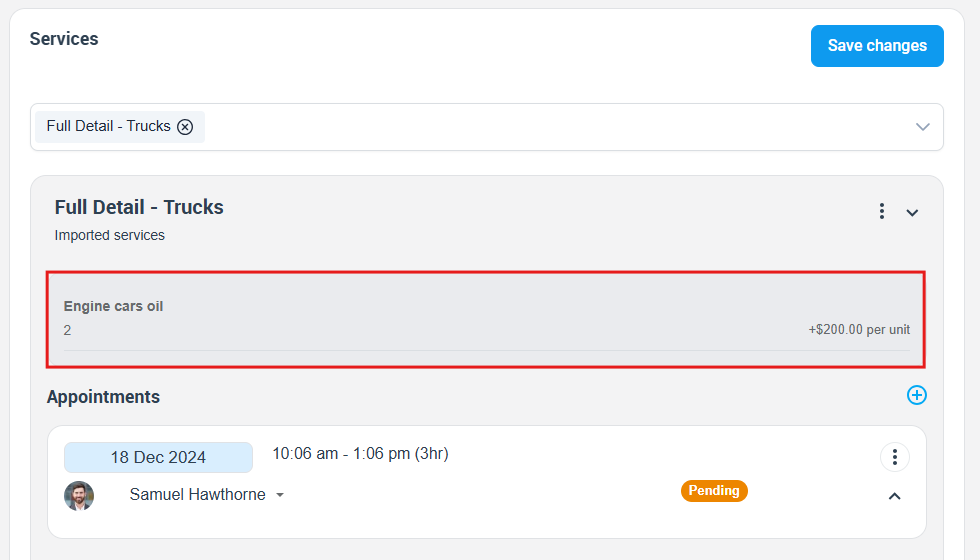
Booking details (Admin view)
In booking details, the quantity and per-unit pricing can display under the service.
Invoices & quotes: if your invoice/quote display settings are configured to show service line item details, the unit count (and any per-unit pricing) can be shown under the parent service line for clarity.
Reporting & analytics
Number Stepper values are stored as numeric fields, which makes them useful for reporting and forecasting. For example, you can:
- Filter bookings by quantity (e.g., jobs with > 3 units).
- Export data for revenue-by-quantity analysis (average units per job, upsell performance).
- Improve staffing estimates by analysing typical job scope and duration per unit.
Troubleshooting
- The stepper doesn’t show under the service: confirm the custom field is connected/assigned to that service.
- Customers can’t see it online: confirm it’s included in the relevant online booking/portal flow and that the service is available online.
- Price isn’t updating: ensure Apply Price & Duration Adjustments is enabled and a valid adjustment is entered.
- Quantity is capped unexpectedly: check the Maximum value (remember: leave it blank for no cap).
To stay updated, please subscribe to our YouTube channel.