
Delete, Restore & Permanently Delete Quotes (Estimates)
Quotes (also known as estimates or proposals) are often created quickly—especially when handling high inquiry volume. If a quote is duplicated, created under the wrong customer, or no longer relevant, OctopusPro lets you delete it to keep your pipeline clean, while still allowing you to restore it later if it was removed by mistake.
When you delete a quote, it is moved to the Deleted Quotes list (a safe “trash” area). From there, you can either restore the quote back to your active lists, or permanently delete it using Delete Forever (irreversible).

On this page:
- Delete a quote from the Quotes list / quote details
- Bulk delete multiple quotes
- Delete a quote from a customer profile
- Restore a deleted quote
- Permanently delete a quote (Delete Forever)
- Tips, permissions & troubleshooting
- Related user guide pages
Delete a quote from the Quotes list / quote details
You can delete a quote directly from the quote record (recommended when you’re already viewing the quote), or from the Quotes list using the Actions menu.
- From your OctopusPro dashboard, go to Quotes.
- Open the quote you want to delete (or locate it in All / other quote status tabs).
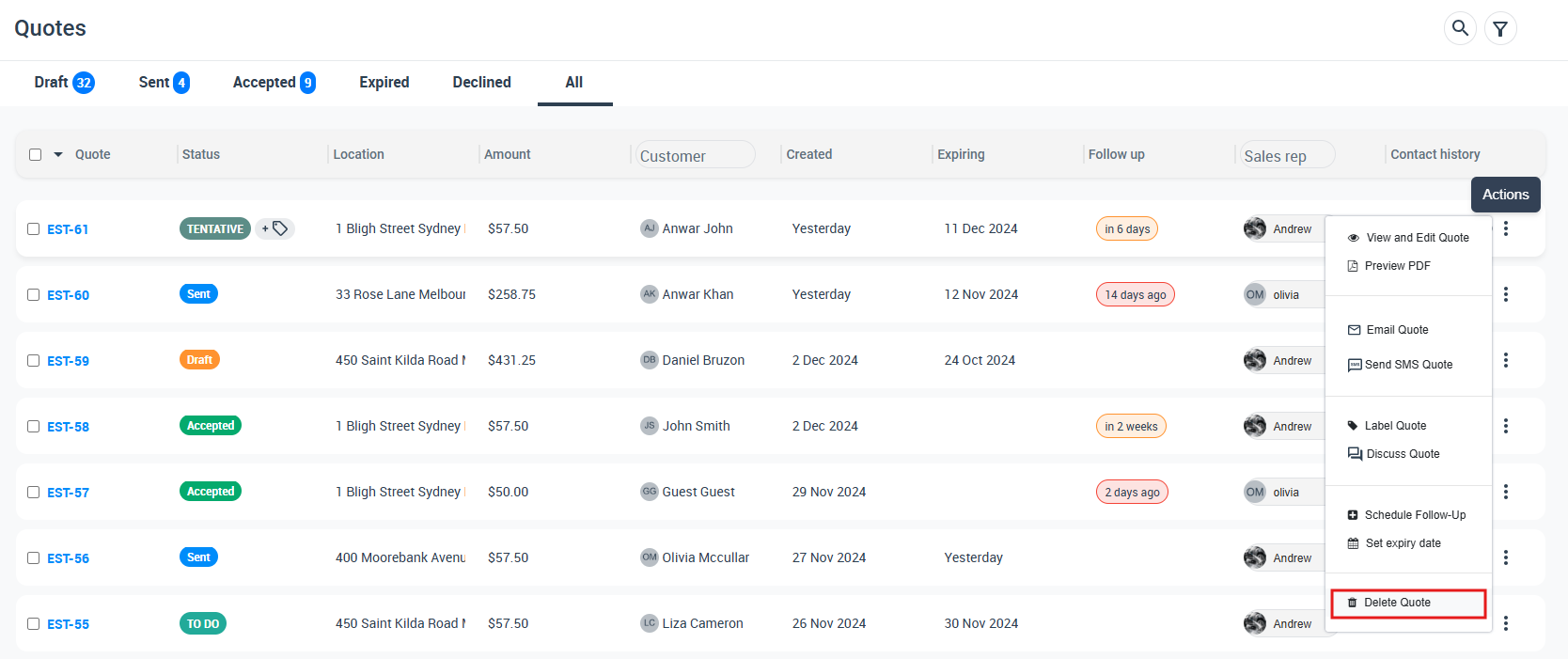
- Click Actions and select Delete Quote.
- Confirm deletion in the pop-up window.
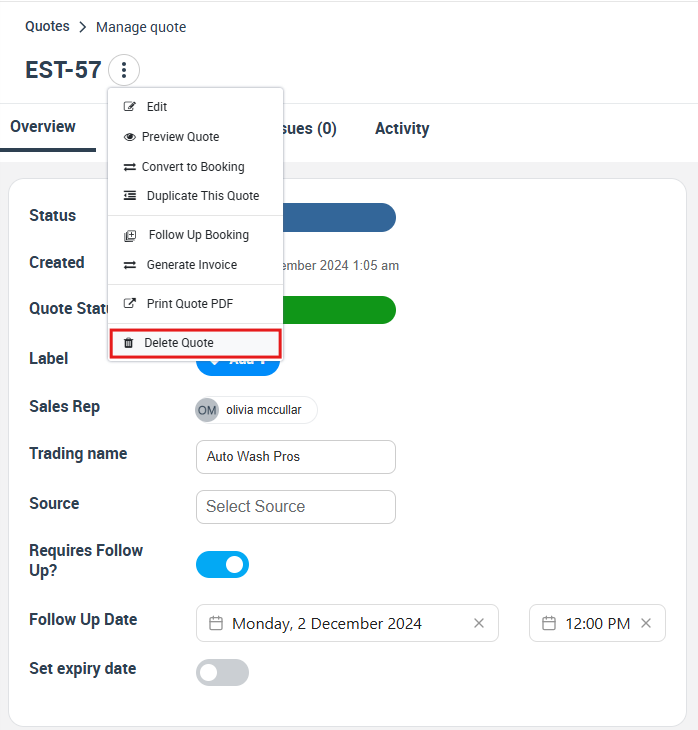
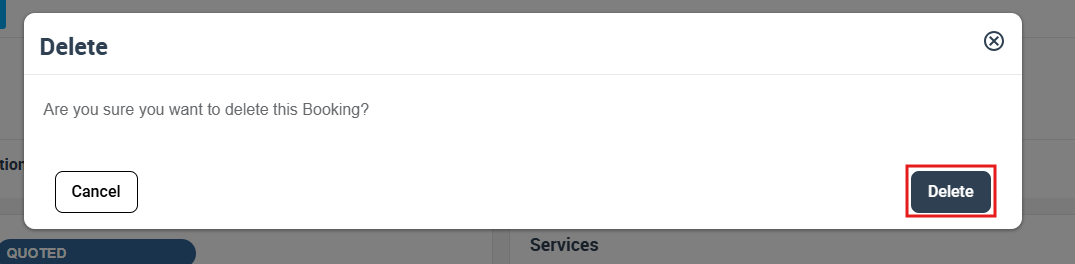
What happens next? The quote is moved to the Deleted Quotes tab, so it no longer appears in your active quote lists unless restored.
Tip: You can also delete from the Quotes list without opening the quote—find the quote row, click Actions, then select Delete Quote.
Bulk delete multiple quotes
If you need to clean up duplicates or test quotes, you can delete multiple quotes at once.
- Go to Quotes and open the relevant list (for example All).
- Select multiple quotes using the checkboxes next to each EST number.
- Click the Delete (trash) icon at the top of the list.
- Confirm deletion.
Result: The selected quotes are moved to the Deleted Quotes tab, where they can be restored or permanently deleted later.
Delete a quote from a customer profile
This is useful when you’re auditing a customer’s history and want to remove a quote without searching across all quotes.
- Go to Customers > All Customers.
- Open the customer profile.
- In the customer profile, go to Activity, then find the Quotes section and click Show all.
- Locate the quote, click Actions, then select Delete and confirm.
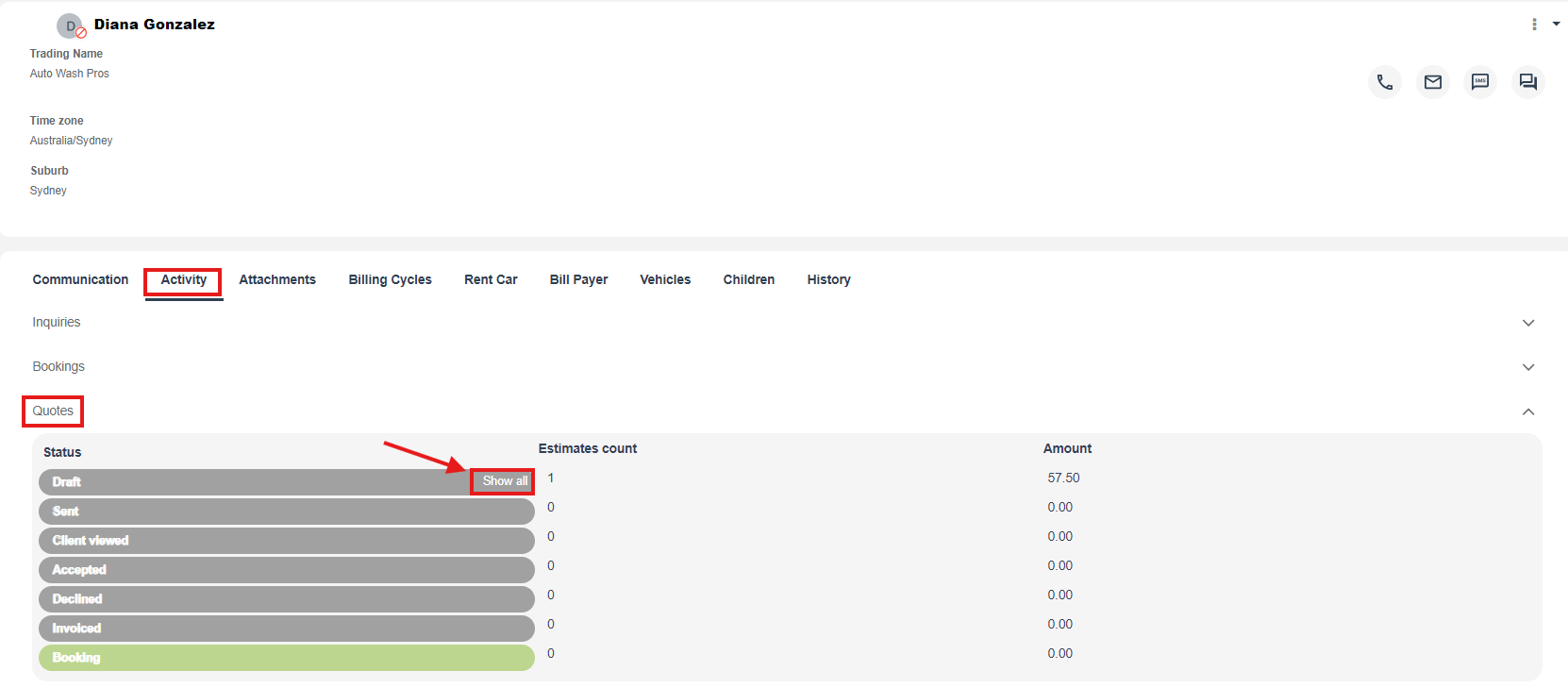
Note: After clicking Show all, you’ll be redirected to the Quotes list for that customer, where you can delete the quote via the Actions menu.
Restore a deleted quote
If a quote was deleted by mistake, you can restore it from the Deleted Quotes tab.
- Go to Quotes.
- Open the Deleted Quotes tab.
- Find the deleted quote.
- Click Actions and select Restore.
After restoring: The quote returns to your active quote lists and can be managed normally (edit, send, follow up, convert to booking, etc.).
Permanently delete a quote (Delete Forever)
Delete Forever permanently removes the quote and cannot be undone. Use this only when you are sure the quote is no longer needed for reporting, auditing, or future reference.
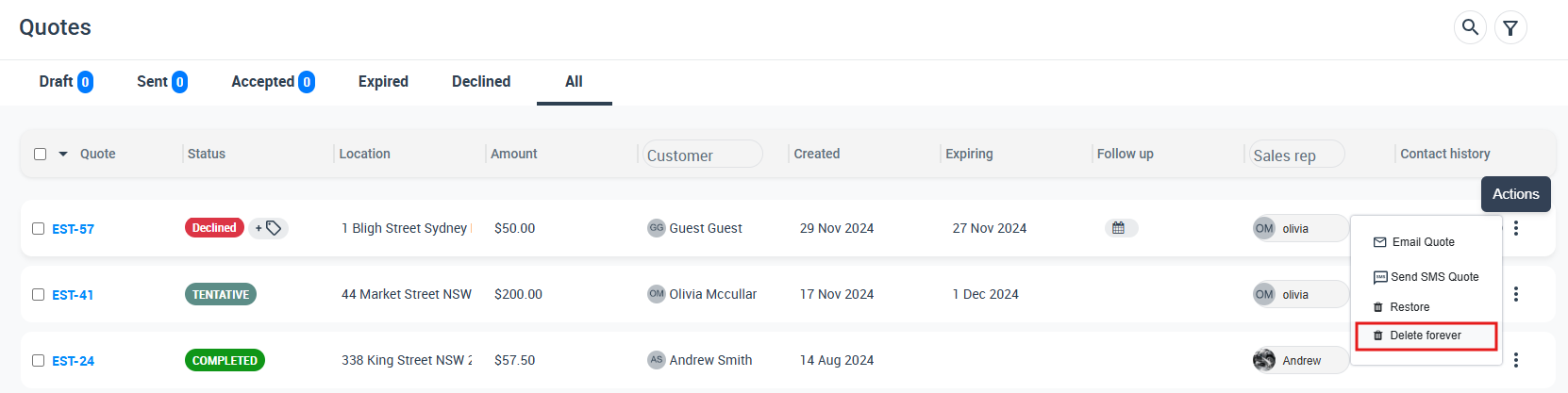
- Go to Quotes > Deleted Quotes.
- Find the quote you want to permanently remove.
- Click Actions and select Delete forever.
- Confirm the pop-up message.
Best practice: If you may need a record of the quote later, export it to PDF before permanently deleting it: Export Quote to PDF.
Tips, permissions & troubleshooting
- Can’t see Delete / Delete Forever? Your role may not have the required permissions. Review role permissions here: Role-Based Access Control & User Permissions.
- Quote already converted to a booking? If your account rules prevent deleting a quote after conversion, remove/revert the linked booking first (if applicable) or delete the booking, then try again: Delete a Booking.
- Need visibility and accountability? Use logs to track quote actions and history: Quotes & Estimates Log and User Activity Log.
- Don’t delete—mark it lost instead: If the customer declined and you want win-back insights, use decline reasons rather than deleting: Accept or Decline Quotes.
Related user guide pages
- Quotes & Estimates Overview
- View / Manage a Quote
- Create a New Quote
- Edit Quote Details
- Change Quote Number
- Add Quote Attachments
- Labels for Quotes & Bookings
- Send Quote to Customer
- Quote Follow-Up Reminders (Automation)
- Convert Quote to Booking
- Delete Invoices (Draft, Paid, Void & Bulk)
- Discussion Board (Quotes, Bookings, Invoices & Issues)
- Handle Quote Issues & Complaints
- Pause / Resume Quote Reminders & Notifications
To stay updated, please subscribe to our YouTube channel.