
Fieldworker Availability Finder (Find Availability)
OctopusPro’s Fieldworker Availability Finder (also shown as Find Availability or Availability) is a scheduling assistant that helps you quickly match each booking, quote, or inquiry to the best available fieldworker (technician/contractor) based on the job’s requirements and each fieldworker’s real-time availability.

It’s designed to eliminate manual calendar checks and reduce dispatch back-and-forth by showing you, in one place, who is:
- Eligible for the selected service(s)
- Available based on working hours, time off, and existing bookings
- Suitable based on job requirements (e.g., licences/certifications/equipment captured via custom fields or tags)
- Near the job (distance-based ranking to support faster and more efficient routing)
Table of contents
- What the Availability Finder does
- Key capabilities
- Best-practice setup checklist
- Available Fieldworkers panel (Map/List + actions)
- Use it while creating a new booking, quote, or inquiry
- Use it from an existing booking (fast replacements)
- Check & adjust availability from an open booking
- Edit an existing booking with the Availability Finder
- Troubleshooting (no matches / “not available”)
- Related guides
What the Availability Finder does
When you open Find Availability, OctopusPro evaluates your job details (service(s), address, custom field selections, and schedule requirements) and returns a ranked list of matching fieldworkers with a visual availability timeline for the selected day.
This helps you:
- Schedule faster by seeing available time slots at a glance
- Reduce double-bookings by showing busy vs free time blocks
- Assign confidently using distance and availability insights
- Send job requests to one or more candidates and let them accept/decline
- Reschedule or reassign quickly when someone becomes unavailable
Key capabilities
- Service & requirement matching: only shows fieldworkers who can deliver the selected service(s) and meet job requirements.
- Territory-aware dispatch: respects service areas/travel radius (with optional override via filters, depending on your setup).
- Real-time calendar scanning: highlights booked time vs available time for each fieldworker on the selected day.
- Distance & cost comparison: sortable columns help you choose the nearest or most cost-effective option.
- One-click actions: assign immediately or send job requests to one or many candidates.
- Map & list views: visualise locations on a map or dispatch from a sortable list.
Best-practice setup checklist
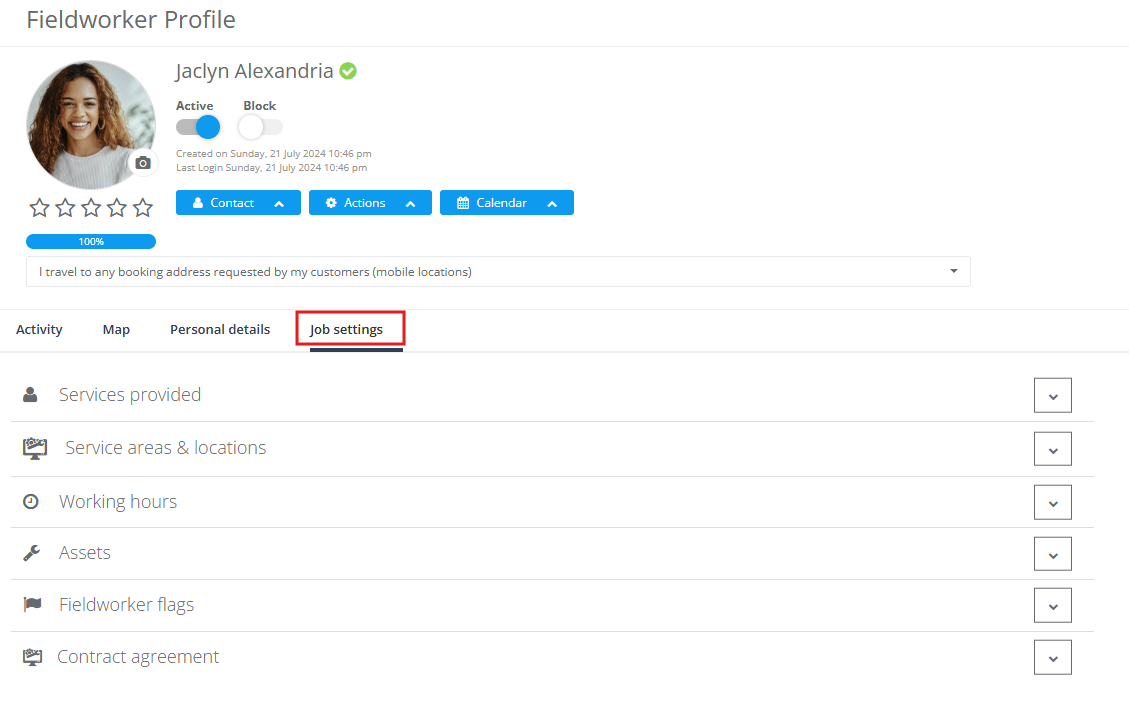
For accurate matching results, keep fieldworker profiles up to date:
- Services provided: ensure each fieldworker has the right services enabled.
- Service areas & locations: define territories and/or travel radius correctly.
- Working hours: set realistic rosters (including split shifts if needed).
- Time off: block leave, training, and unavailable periods.
- Calendar availability: ensure bookings and calendar sync (if used) are accurate.
- Job requirements: standardise skill/licence/equipment requirements using custom fields, tags, or profile settings.
Available Fieldworkers panel (Map/List + actions)
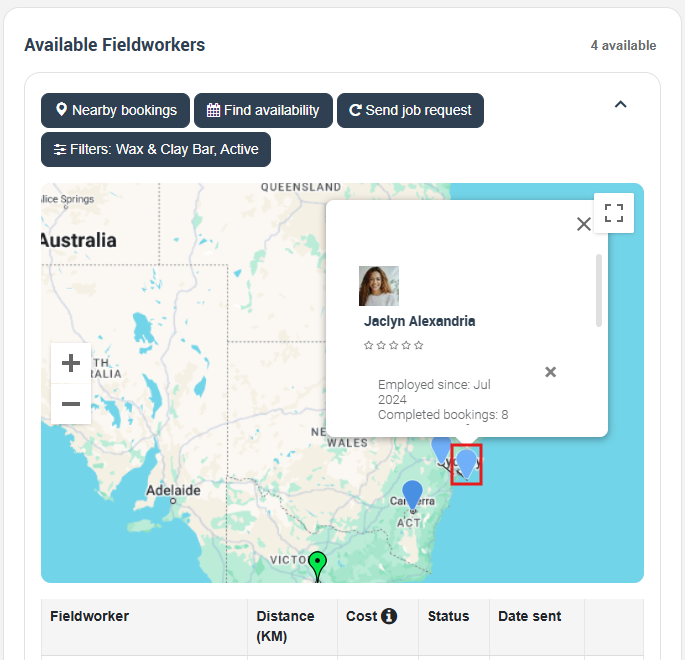
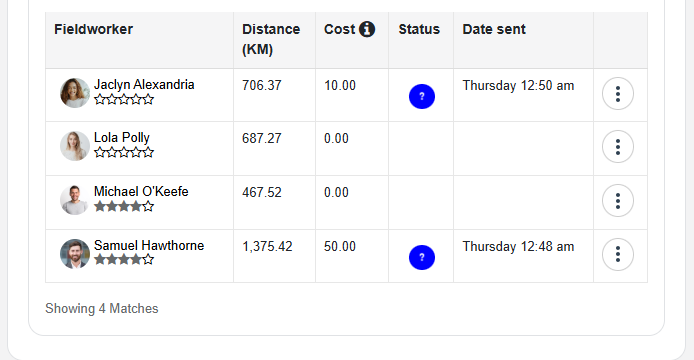
On bookings, quotes, and inquiries you’ll typically see an Available Fieldworkers panel. It’s a quick control centre for dispatch: compare candidates, open the full availability pop-up, view nearby jobs, and send job requests.
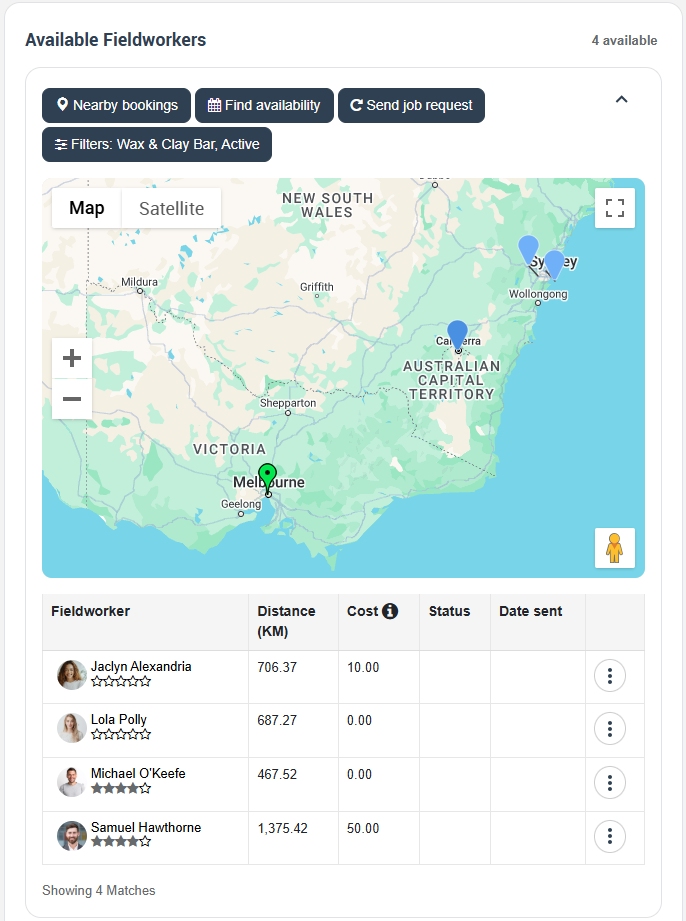
What you’ll see (typical columns & info)
- Fieldworker (name + rating)
- Distance (KM/Miles) to the booking address
- Cost (where configured)
- Status (e.g., pending/accepted/declined for job requests)
- Date sent (request audit trail)
Core actions in the panel
- Nearby bookings: quickly check other jobs close to the candidate (useful for job clustering and route efficiency).
- Find availability: opens the full availability pop-up with the daily timelines for each matched fieldworker.
- Send job request: send a job request to one or multiple candidates (they can accept/decline).
- Filters: narrow down candidates (commonly by service, requirements, labels/status, radius/territory rules, keyword, and other criteria based on your configuration).
Map vs List views
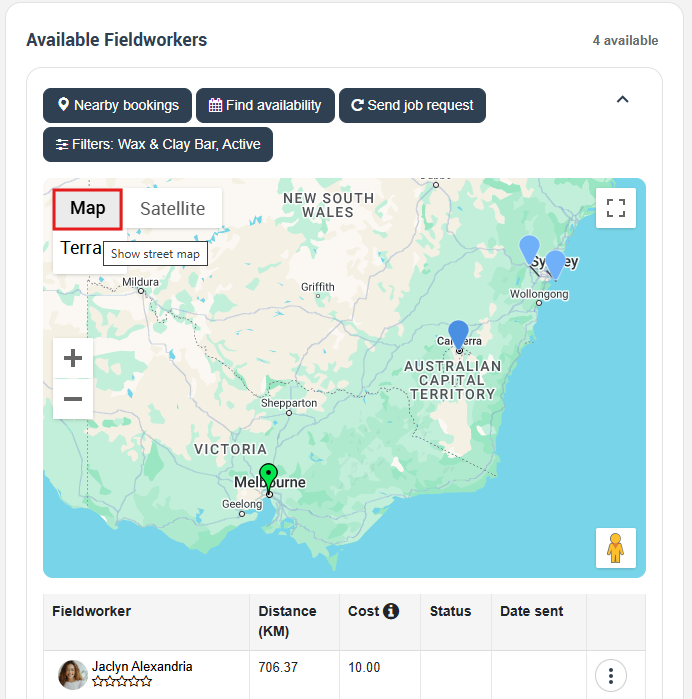
Map view helps visualise territories and travel impact, while List view is best for sorting, filtering, and dispatch actions.
Use it while creating a new booking, quote, or inquiry
- Create a new Booking, Quote, or Inquiry.
- Enter the customer, service(s), address, and any required custom field/job requirements.
- Click Availability (or Find Availability).

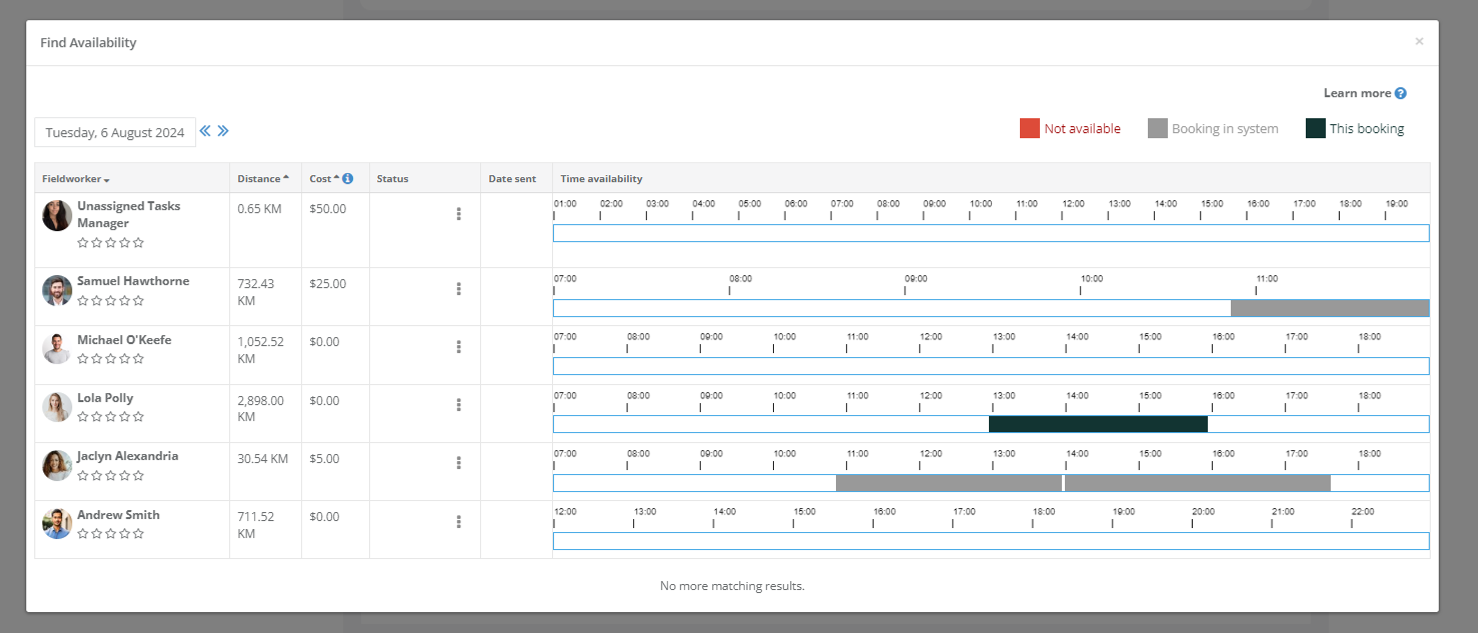
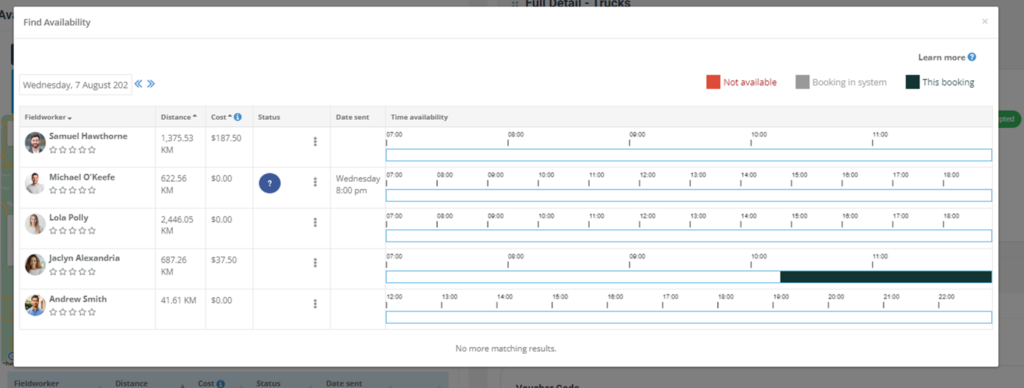
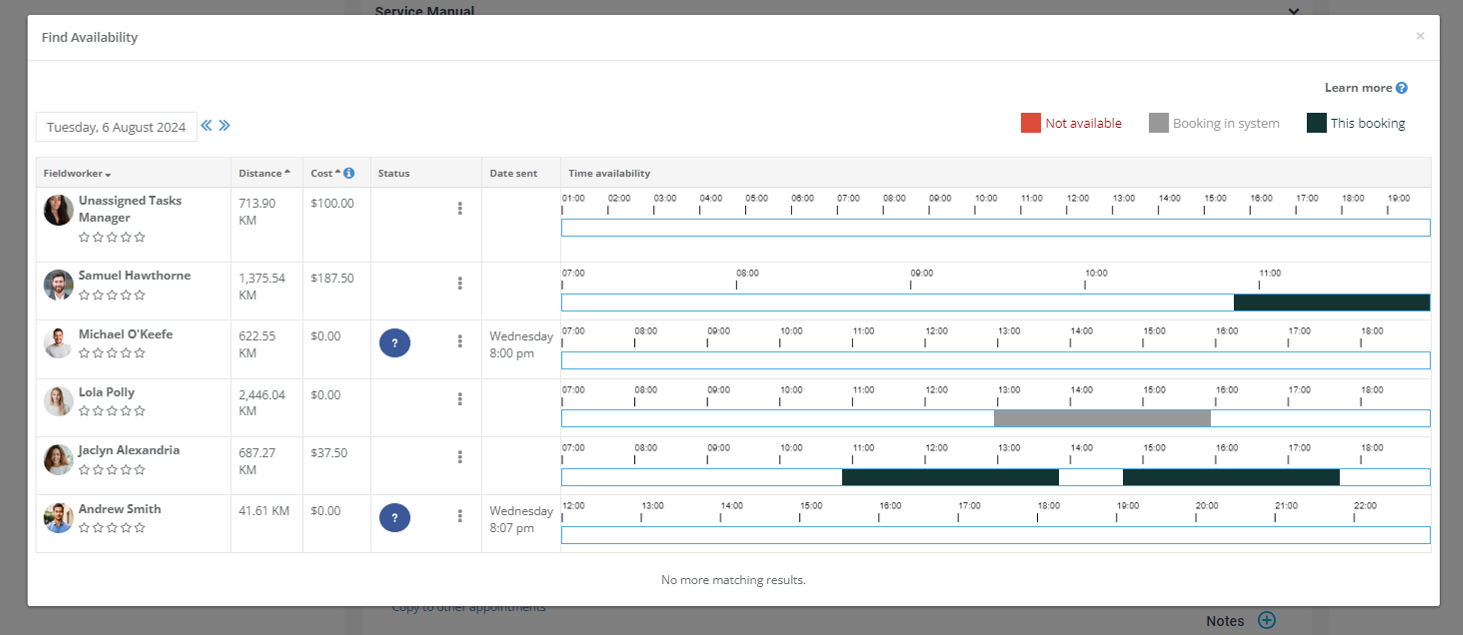
A pop-up opens and shows the matched fieldworkers and their availability timeline for the selected date.
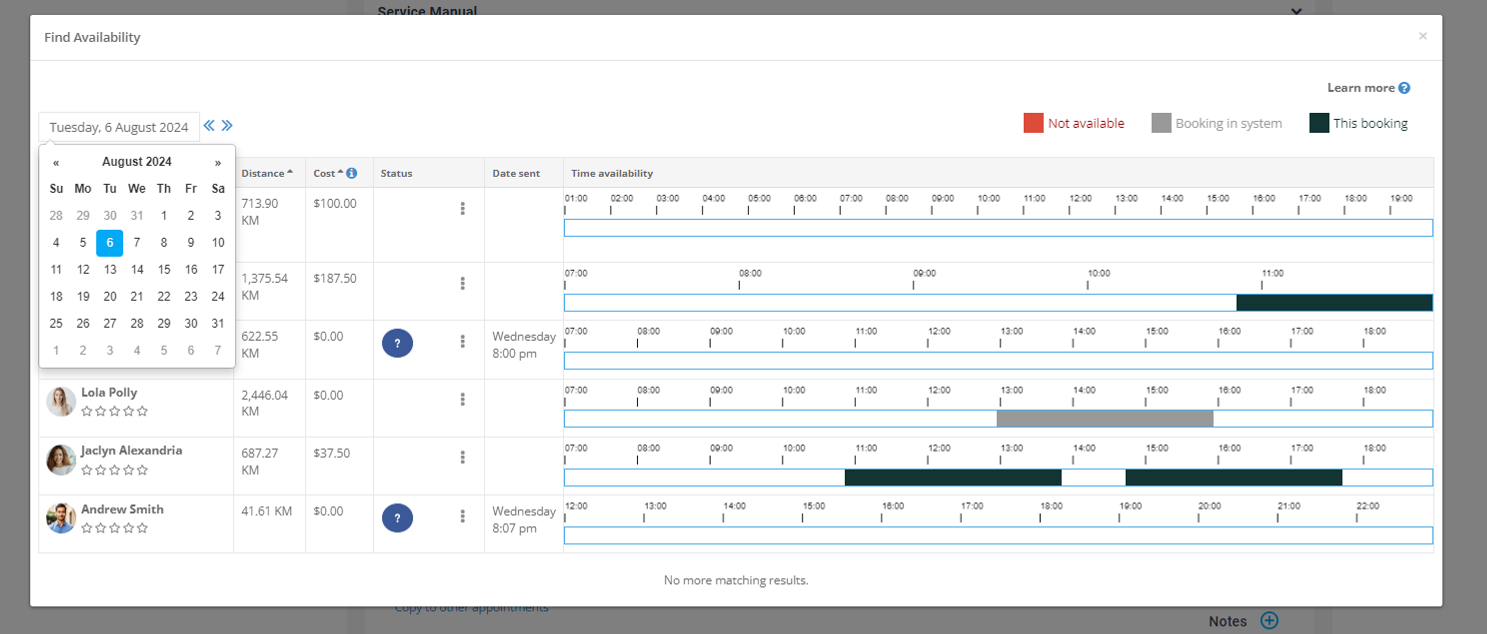
Choose a date
Use the date picker (or arrows) to scan forward/back across days.
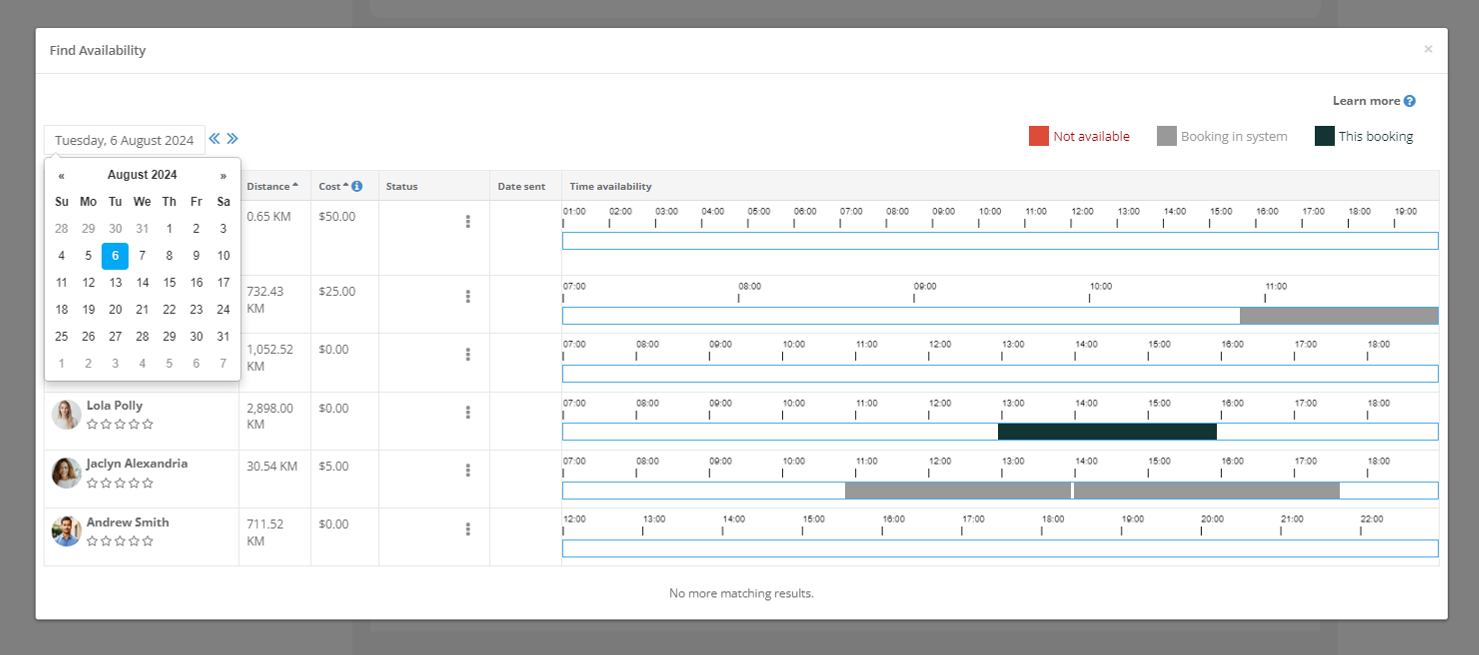
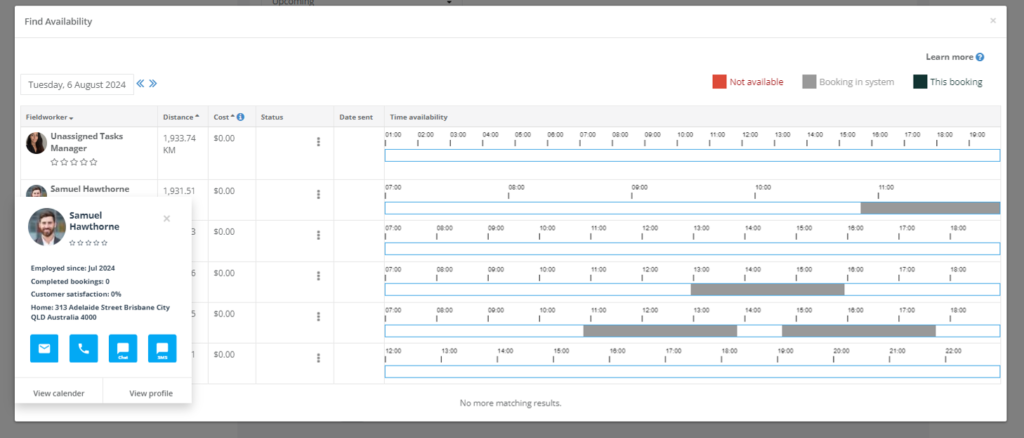
Read the availability timeline
- Red = off-duty / outside working hours
- Grey = already booked
- Black = the time slot selected for this job
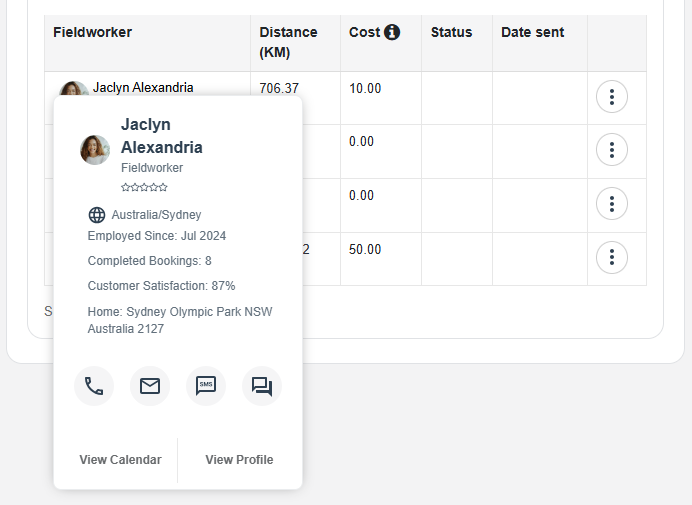
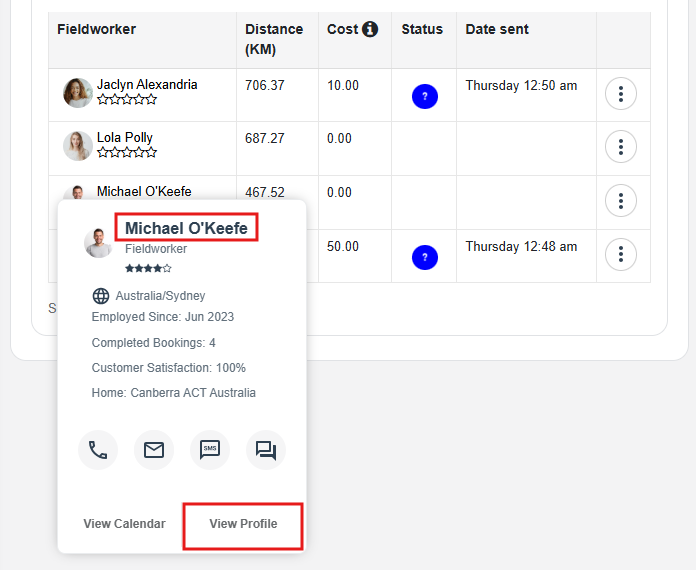
Hover over a fieldworker name to open quick actions (view profile, view calendar, and contact options depending on your setup).
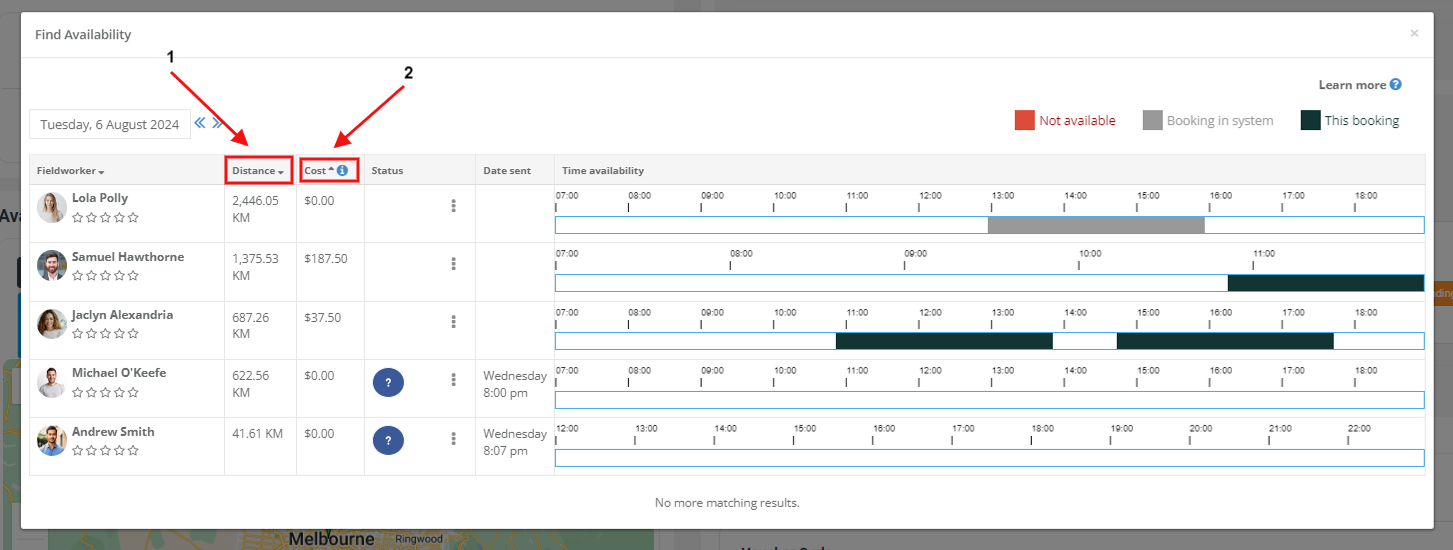
Sort by distance or cost
Click column headers to rank candidates (for example: nearest-first by Distance, or by Cost if configured).
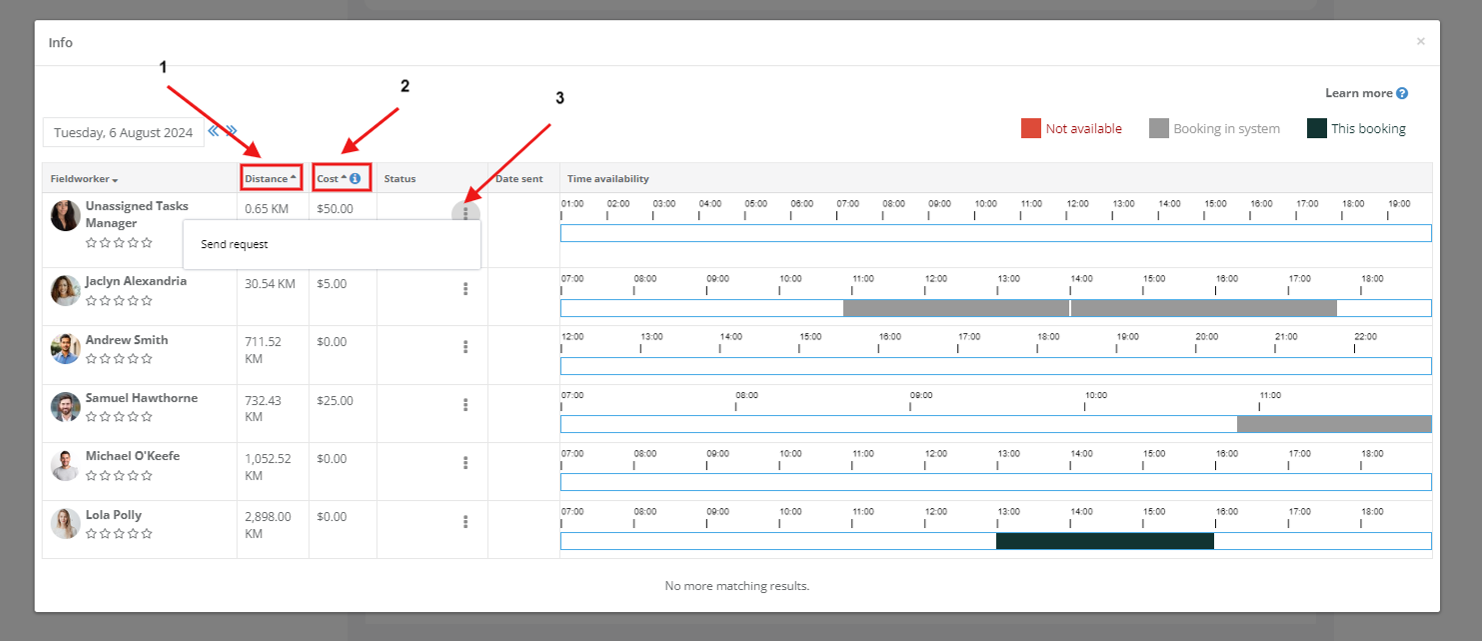
Assign vs Send Request
- Send Request: notify one or more candidates. Once a fieldworker accepts, the job can be assigned (depending on your workflow).
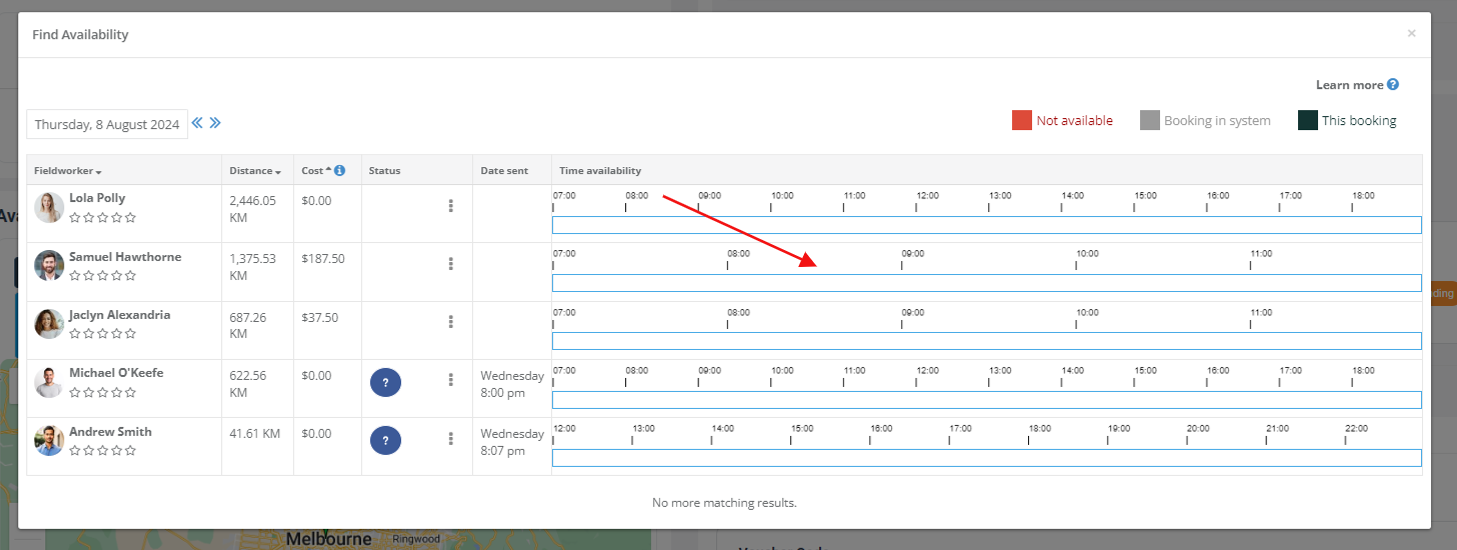
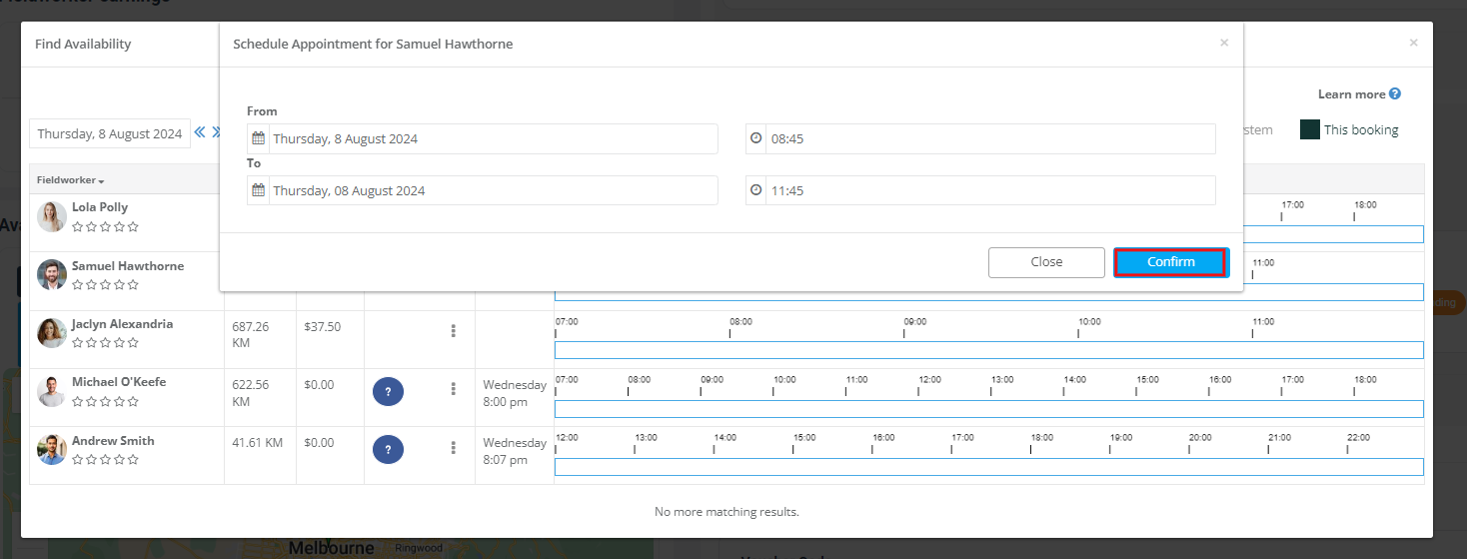
- Direct Assign: click an open time slot on the chosen fieldworker’s timeline.
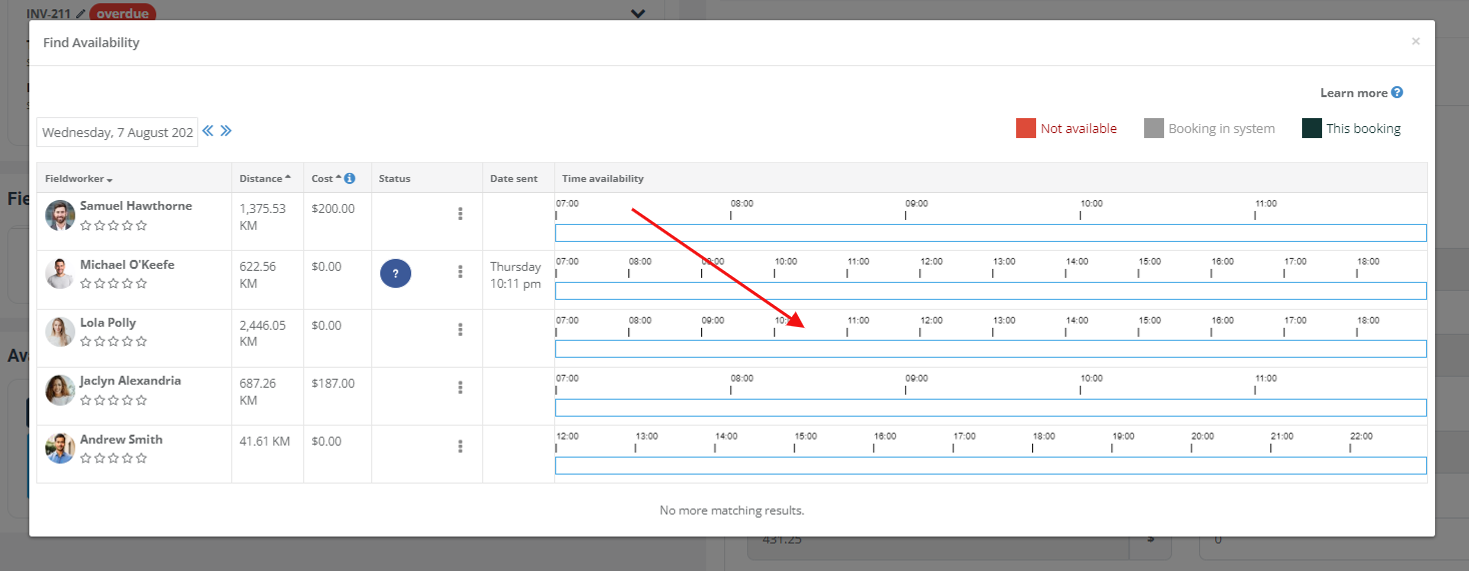
Enter the start and end time, then confirm.
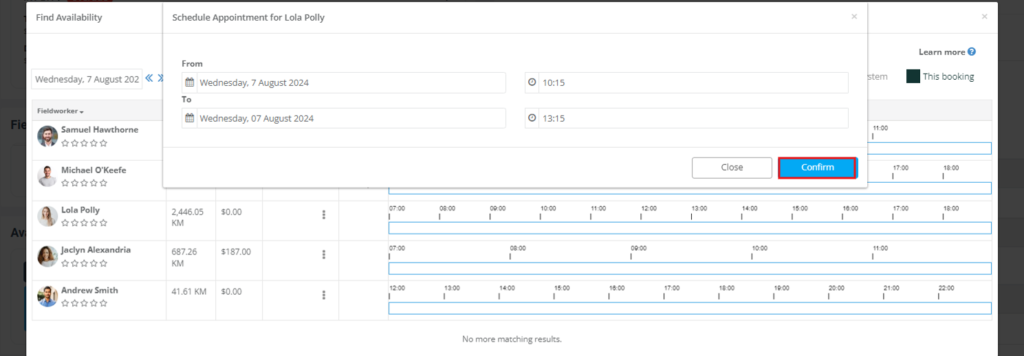
Important: Save the booking/quote/inquiry after assigning so notifications, activity logs, and schedules update correctly.
Use it from an existing booking (fast replacements)
If a fieldworker becomes unavailable, open the booking and use Find availability to quickly locate a replacement without leaving the record.
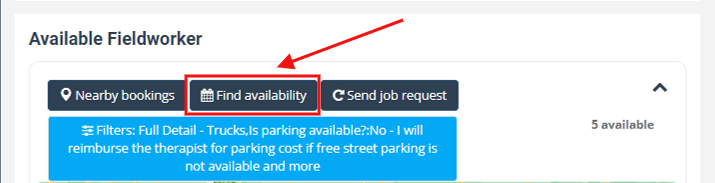
The availability pop-up lists candidates and their schedules for the selected day, so you can assign immediately or send job requests.
Check & adjust availability from an open booking
Once a job is already scheduled, you can still use the Availability Finder to verify calendars, reschedule, or swap fieldworkers—without leaving the booking.
1) Open the booking
- Go to Bookings and open the booking you want to adjust.
- Scroll to the Available Fieldworkers panel.
- Click Find availability to open the full matching pop-up.
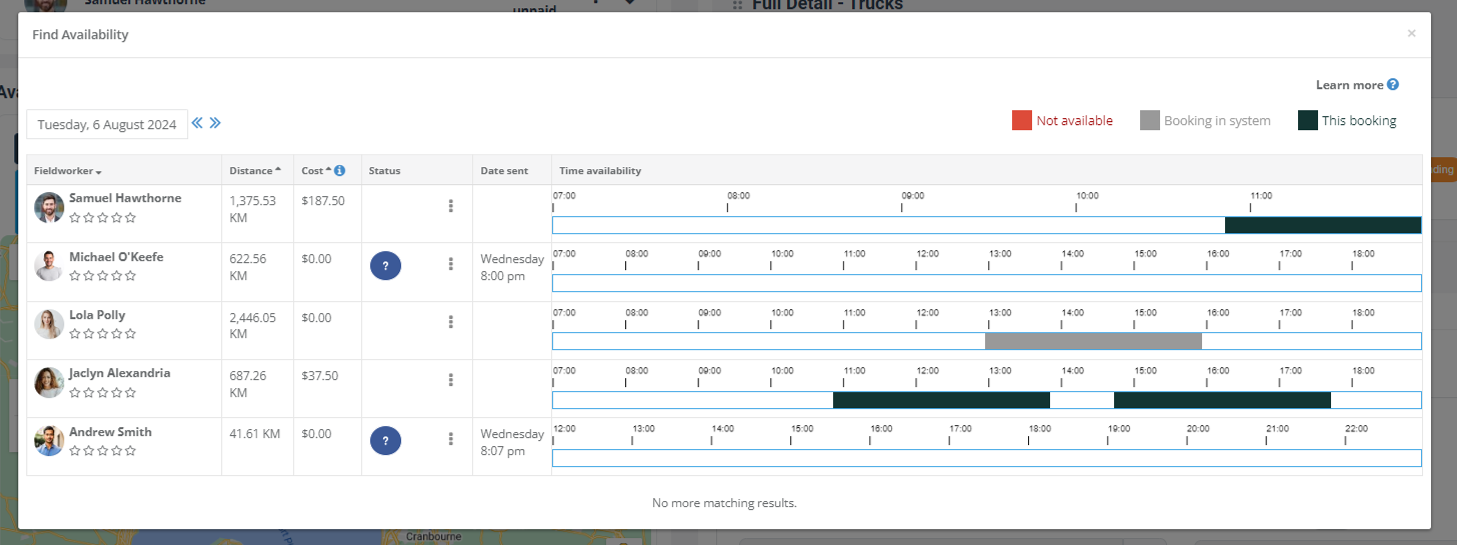
2) Reschedule or reassign (two common actions)
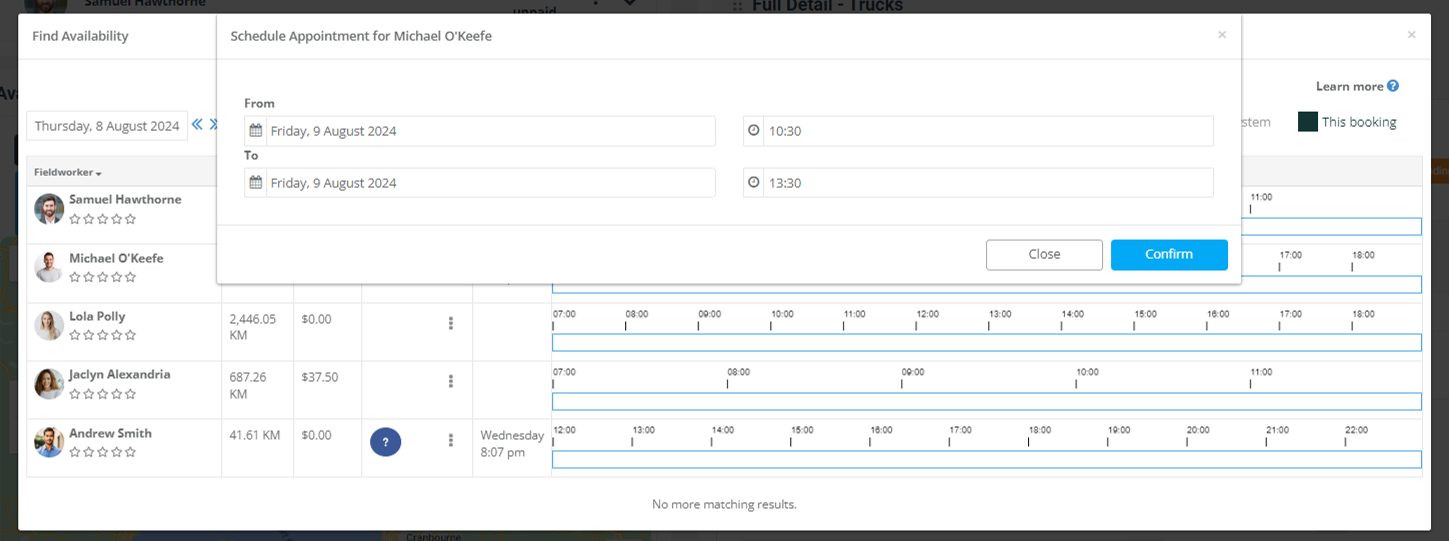
- Reschedule: click a free slot on the currently assigned fieldworker timeline, set the new start/end time, then confirm.
- Reassign: click a free slot next to a different fieldworker, set the time if prompted, then confirm.
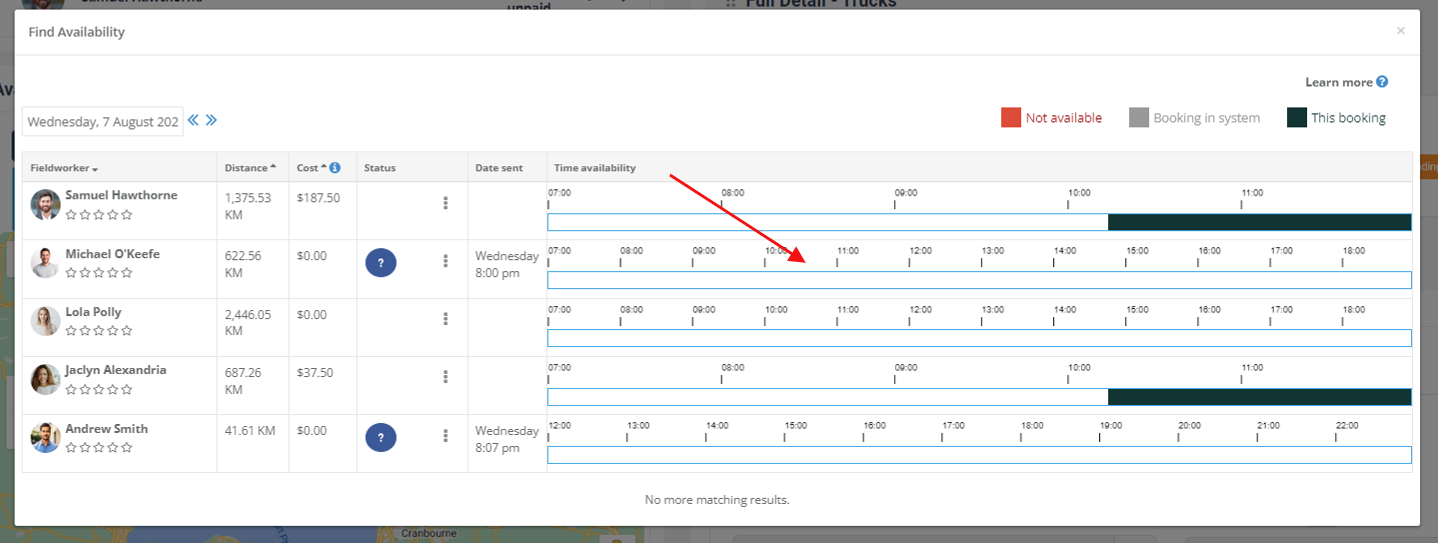
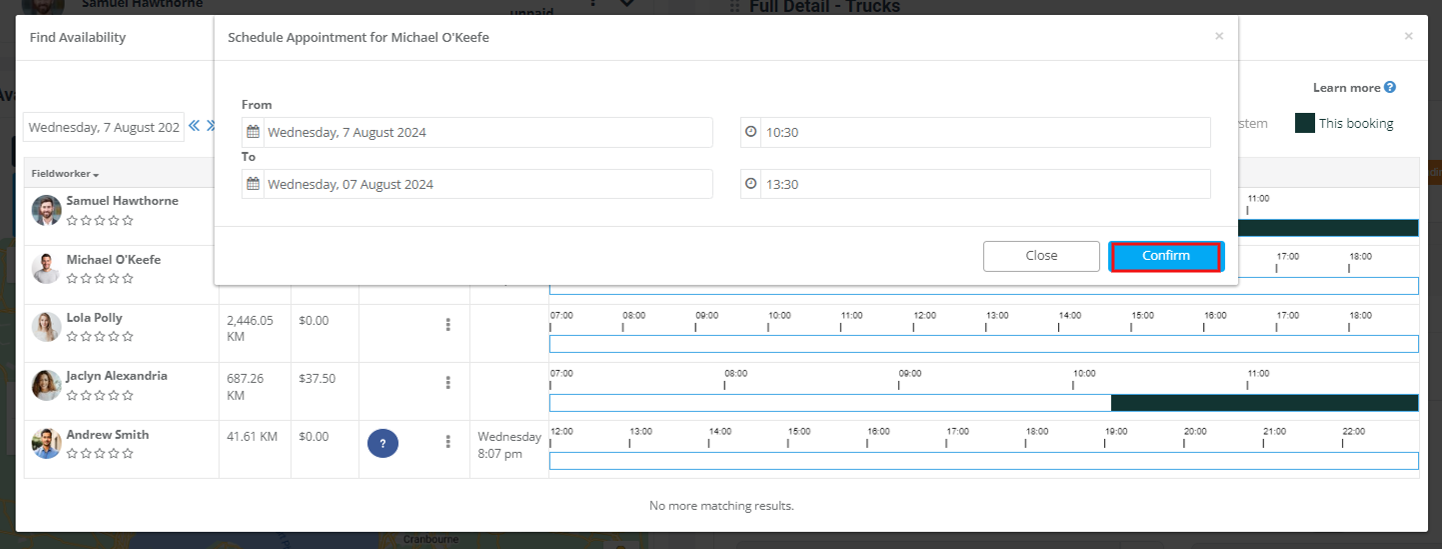
After confirming, the change is reflected in the schedule and recorded in the booking activity for visibility and audit tracking.
Edit an existing booking with the Availability Finder
You can also run the Availability Finder while editing a booking (or editing a quote/inquiry) to validate the best time and fieldworker before saving changes.
How to open it
- Open the booking and click Edit booking.
- In the scheduled appointment section, click Availability.
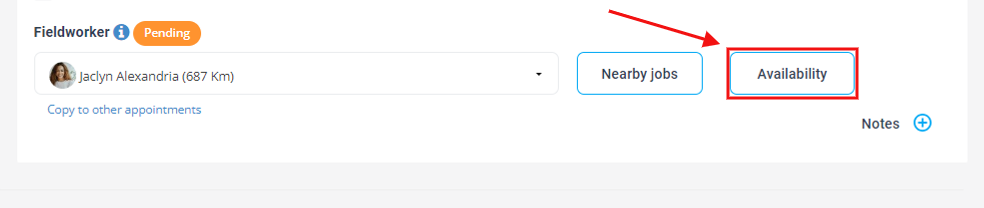
Sort and change date
Use the column headers to sort (e.g., distance/cost) and use the calendar to check different days.
Assign the updated slot
Click a free slot on the timeline to reschedule or reassign, then confirm.
Important: Click Save changes at the bottom of the edit form to apply updates and trigger notifications/activity logs.
Troubleshooting (no matches / “not available”)
No matching fieldworkers shown
If the list is empty, the most common causes are:
- No fieldworkers have the selected service enabled.
- The job location is outside fieldworker service areas/travel radius.
- Required skills/licences/equipment selections don’t match any available fieldworkers.
- All matching fieldworkers are inactive/blocked, off-duty, on leave, or already booked.
“Not available on this day”
- The fieldworker has no working hours rostered for that day, or the whole day is blocked.
- They have leave/time off or calendar blocks that make them unavailable.
Distance looks incorrect
- Confirm the booking address and fieldworker base address are correct.
- If you use GPS/live location, confirm the Fieldworker App has location services enabled (and the device is reporting location).
Related guides
- Assign Services to Fieldworkers (Skills-Based Scheduling)
- Fieldworker Service Areas (Territories) & Location-Based Booking Control
- Manage Fieldworker Working Hours & Availability
- Block Unavailable Dates & Times (Calendar)
- Fieldworker Calendar & Availability (Calendar Sync)
- Job Assignment & Dispatch (Manual vs Automated)
- Nearby Bookings (Proximity-Based Scheduling)
- Dynamic Real-time Fieldworker Availability Scheduling
- Assign Multiple Fieldworkers to a Booking
- Fieldworker Permissions & Access Control
To stay updated, please subscribe to our YouTube channel.