
Force Logout Users (End Active Sessions)
Force Logout lets you immediately sign a user out of OctopusPro by ending their active session(s). This is useful for security, account access changes, and planned maintenance. You can force logout:
- A specific user (targeted session termination)
- All users (bulk logout for maintenance or security incidents)
Important: Force Logout ends a user’s current session, but it does not permanently disable their account. If you need to prevent future access, you should also block the user and/or change/reset their password.
Quick Navigation
- When to use Force Logout
- Before you start
- How to force logout a specific user
- How to log out all users
- Best practices & FAQs
- Related articles
When to use Force Logout
- Staff changes / role changes: Immediately end access after a user is leaving the business, changing roles, or no longer needs access.
- Lost or shared device: End sessions if someone left their device logged in or a device is lost.
- Security incident response: Quickly sign a user out if you suspect unauthorized access.
- System maintenance: Log everyone out before a major update to reduce the risk of conflicts or interruptions while users are active.
Before you start
- Permissions: Only users with the appropriate user-management permissions can force logout other users. If you don’t see logout options, check your role permissions or ask your system administrator. (See Role Based Access Control.)
- Let users know: Forced logout can interrupt work. Tell the affected user(s) first—especially when logging out everyone.
- Unsaved changes: If a user is actively editing a record, they may lose unsaved changes when their session ends.
How to force logout a specific user
Use this method when you want to sign out one person without impacting the rest of your team.
- In the OctopusPro admin portal, go to Settings.
- Select User Settings.
- Find the user you want to log out.
- Click the Logout button (or the user’s action/logout option) next to that user.
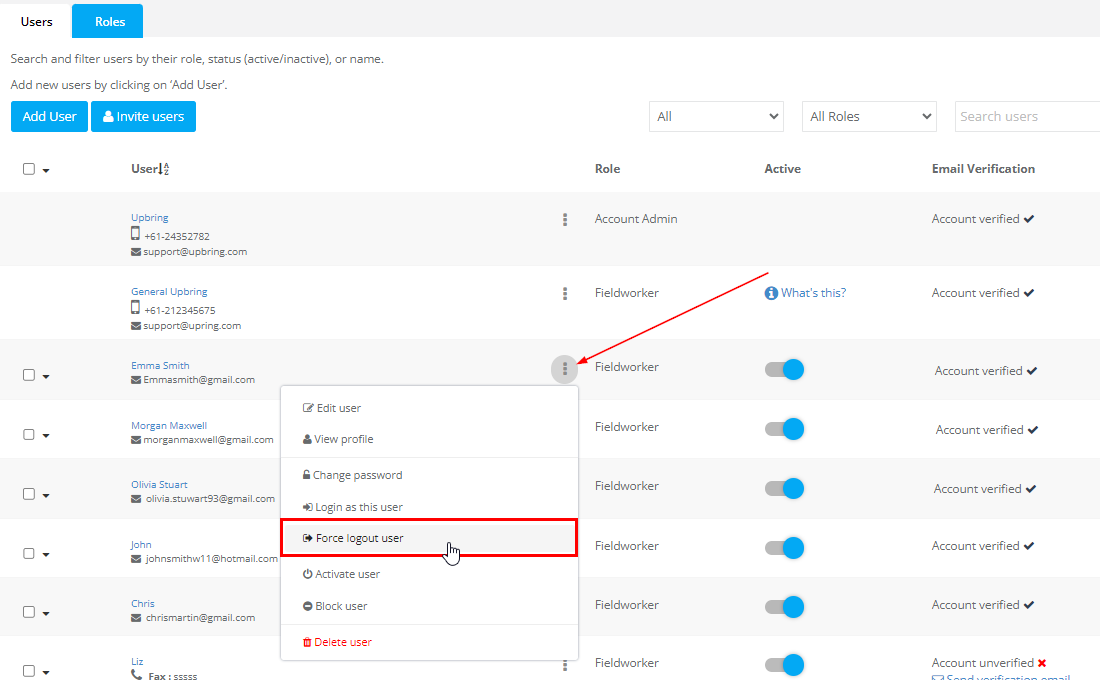
What happens next? The user is signed out and will need to log in again to continue using OctopusPro.
Tip: If you’re removing access entirely, combine Force Logout with Blocking the user (prevents future login) or Deactivating the user (stops assignment/usage depending on your setup), and consider resetting their password.
How to log out all users
Use this method when you want to sign everyone out at once (for example, prior to maintenance or after a security incident).
- Go to Settings in the OctopusPro admin portal.
- Select User Settings.
- At the top of the users list, click Logout All Users.
Result: This immediately logs out all users from both the web portal and the mobile app. Users will need to log in again to continue working.
Best practice: Notify your team ahead of time and choose a low-activity window to minimize disruption.
Best practices & FAQs
Does Force Logout block the user?
No. Force Logout only ends the current session. To prevent future logins, block the user.
Should I force logout after deactivating a user?
Yes—deactivation alone may not immediately end an active session. Force Logout ensures they’re signed out right away.
What should I do after a suspected security issue?
- Force logout the affected user (or log out all users if needed)
- Reset passwords as appropriate
- Review account activity using the User Activity Log
Can I log in as the user to verify what they see?
If enabled for your role, you can use Login as Another User (User Impersonation) for troubleshooting—then force logout again if needed.
Related Articles
Explore the following guides to manage users, permissions, and access more effectively:
User access & permissions
- User Management: Adding, Inviting, Importing Users
- Edit User & Fieldworker Profiles
- Role-Based Access Control (RBAC) & User Permissions
Security & account control
- Changing / Resetting User Passwords
- Activate / Deactivate Users
- Blocking a User (Prevent Login)
- Deleting Users
- User Activity Log
- Fieldworker Device Audit
- Login as Another User (User Impersonation)
To stay updated, please subscribe to our YouTube channel.