
Customer Account Statement (Statement of Account)
A Customer Account Statement (also called a Statement of Account or Account Statement) provides a clear, consolidated view of a customer’s account activity—showing their invoices, payments, credits (e.g., credit notes), due dates, and the current outstanding balance.

It’s especially useful for recurring customers, commercial/corporate accounts, and any customer who prefers a single summary instead of checking multiple invoices individually.
Jump to a section
- What the statement is for
- Key benefits
- What’s included in the statement
- How to view a customer statement
- Print or email the statement
- Branding & email template tips
- Best practices (recurring & corporate billing)
- Troubleshooting & FAQs
- Related guides
What the statement is for
Use a Customer Account Statement when you want to:
- Chase overdue balances with a clear summary of what’s outstanding.
- Support monthly/periodic billing by giving accounts teams one snapshot of the customer’s account.
- Reduce back-and-forth—customers can see invoices, payments, and remaining balance in one place.
- Provide proof of account history (useful for audits, corporate accounts, or property managers).
Key benefits
- Faster payments: customers see exactly what’s due and by when.
- Fewer disputes: a single statement reduces confusion across multiple invoices.
- Better cashflow control: you can quickly identify customers with outstanding balances.
- Cleaner reconciliation: ideal for customers who pay in batches or on billing cycles.
What’s included in the statement
The statement provides a structured summary of the customer’s account, typically including:
- Invoice details: invoice number, reference (e.g., booking reference), invoice amount.
- Payment activity: payments recorded against invoices (including partial payments).
- Due dates: to help customers understand when payments are expected.
- Balance tracking: a running balance and the current outstanding amount.
- Customer and business details: customer details plus your company branding/contact details.
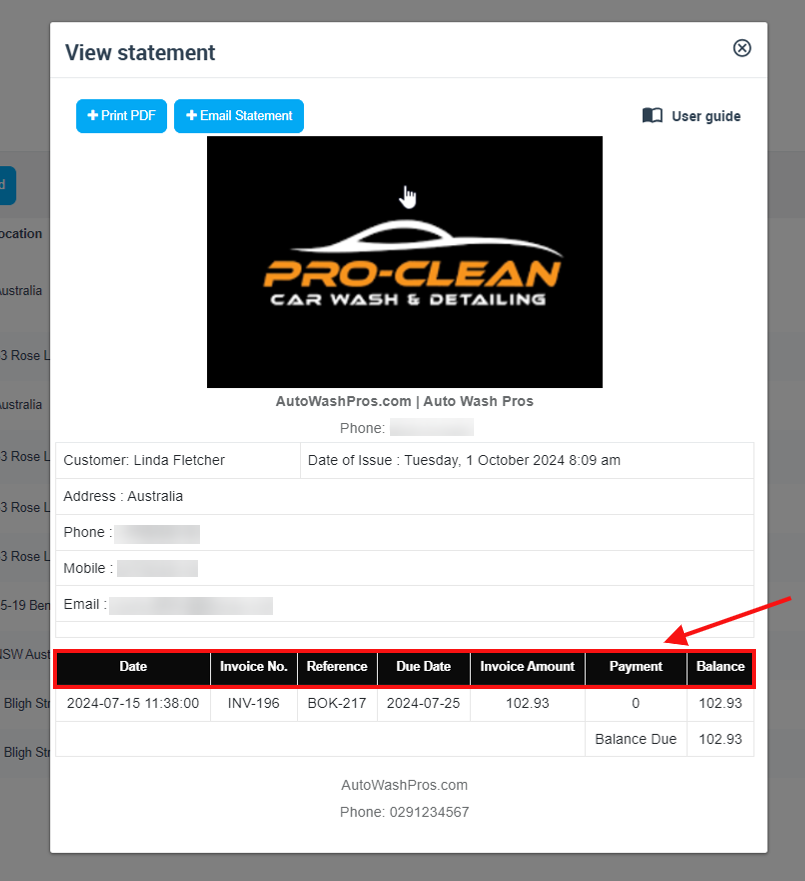
Note: The statement is a summary view. If something looks incorrect (e.g., a balance is higher than expected), check the underlying invoice(s) and payment record(s).
How to view a customer statement
You can open a Customer Account Statement in two common ways:
Option A: From the Customer details page
- Go to Customers.
- Open the customer’s profile (Customer details page).
- Open the Actions menu.
- Select View statement.
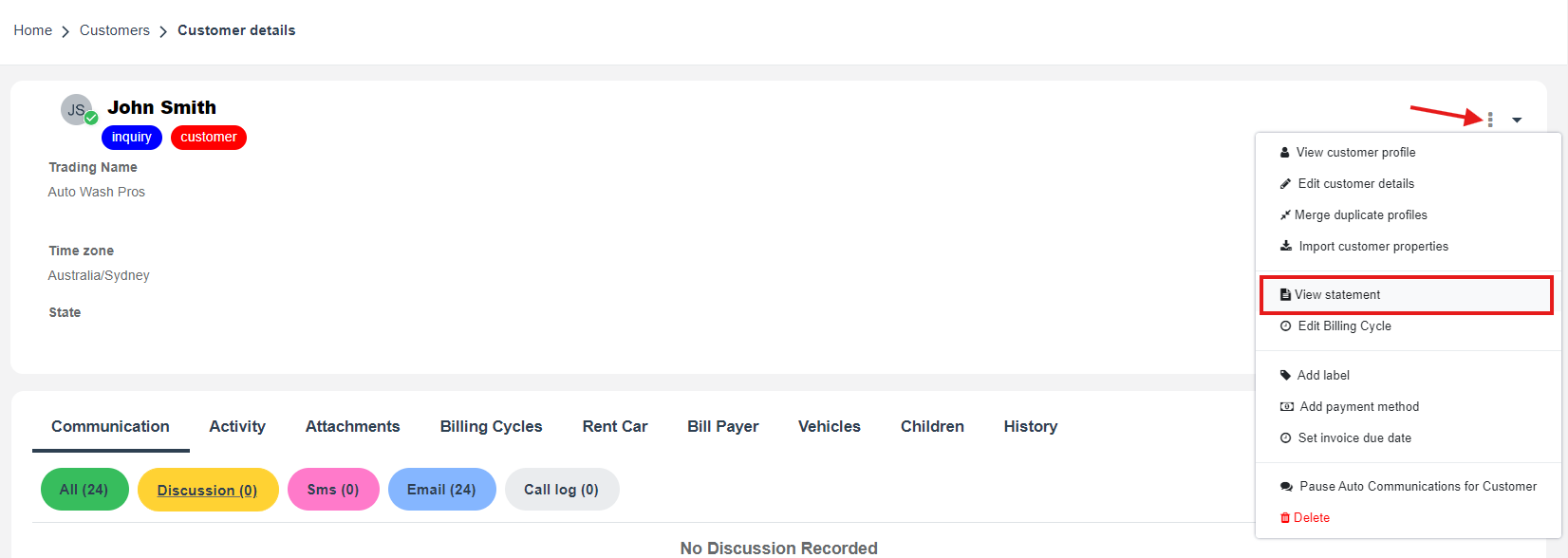
Option B: From the Customers list
- Go to Customers to open the Customers list.
- Find the customer.
- Open the row Actions menu.
- Select View statement.
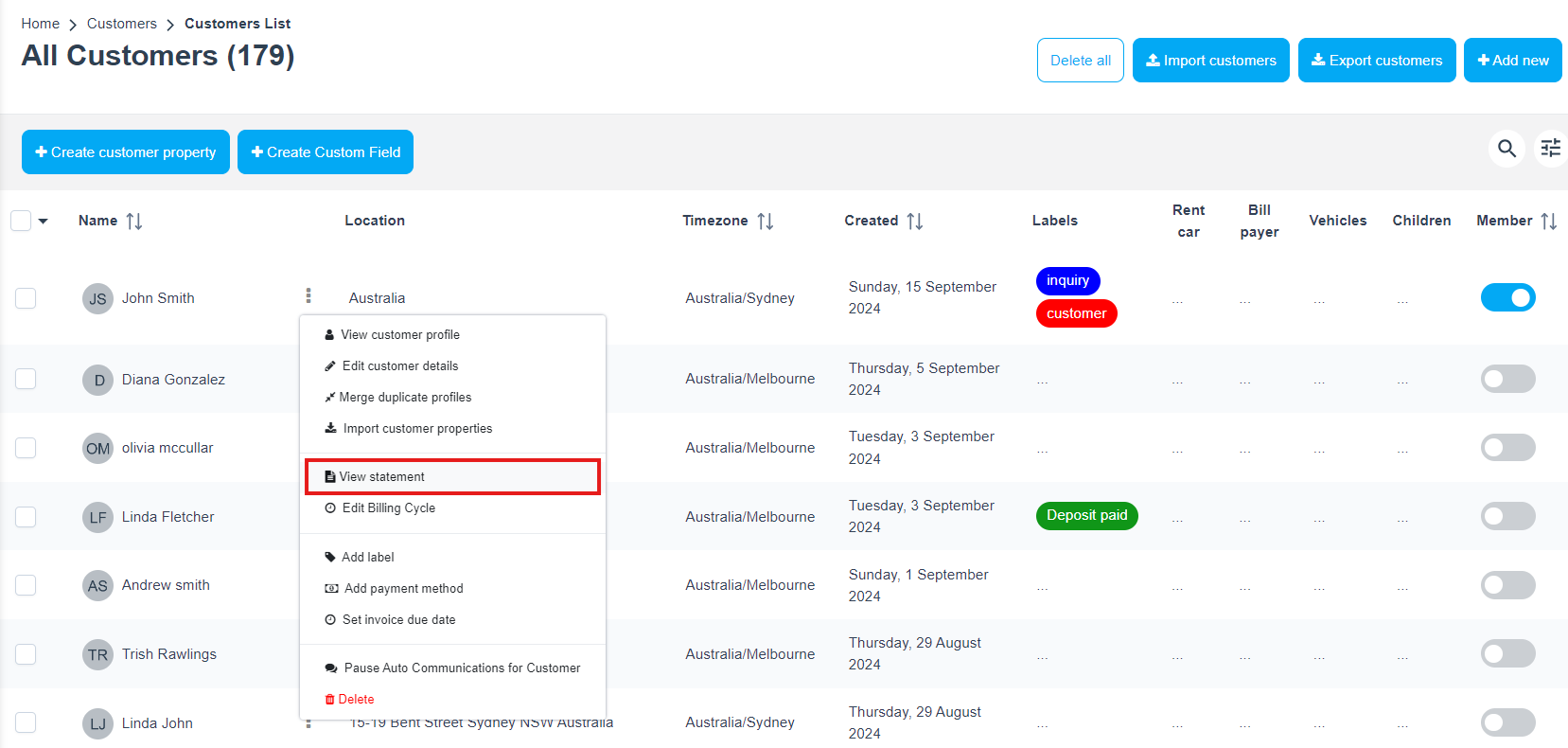
Print or email the statement
Once the statement is open, you can share it with the customer immediately:
- Print PDF to download/print a copy for records or to send externally.
- Email Statement to send it directly from OctopusPro to the customer.
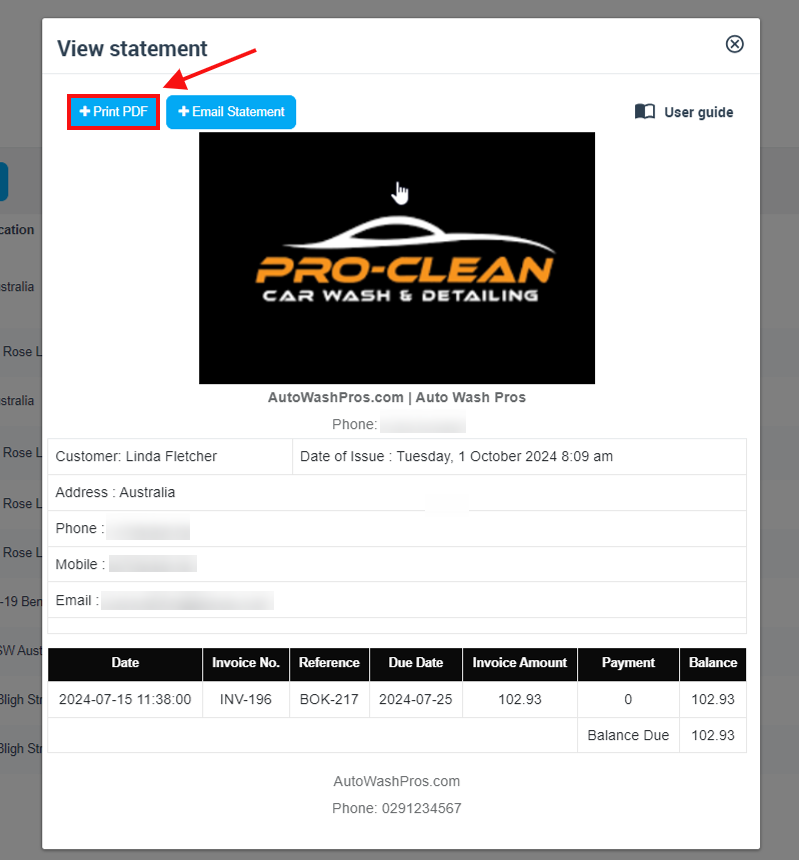
Tip: After emailing the statement, you can review communication history from the customer profile to confirm what was sent and when.
Branding & email template tips
To keep statements professional and consistent, make sure your business details and branding are set up correctly:
- Business contact details: verify your company name, website, and phone number in Business Details Settings.
- Branding/logo: upload the correct logo and brand assets in Branding and Logo Configuration.
- Multiple brands (trading names): if you operate multiple brands, set them up in Manage Trading Names so each statement can reflect the correct brand.
- Statement/invoice layout & payment advice: adjust terms and payment messaging in Customizing Invoice Template.
If you want to refine the message used when emailing statements (subject/body/placeholders), review your email templates and available placeholders:
Best practices (recurring & corporate billing)
If you regularly bill commercial customers, property managers, or repeat clients, these options can reduce admin time and improve payment turnaround:
- Use invoice due dates: set clear payment terms so due dates appear consistently on invoices (and help customers understand when balances are due). See Invoice Due Dates & Payment Terms.
- Set customer billing cycles: group billing into predictable periods (e.g., weekly, fortnightly, monthly) for customers who pay “on account.” See Customer Billing Cycle Management.
- Consolidate multiple invoices: if a customer prefers a single payable invoice for a period, merge invoices into a consolidated (group) invoice. See Consolidate & Merge Multiple Invoices.
Example: A property manager has multiple bookings across different sites during the month. You can issue separate job invoices for operational tracking, then provide a month-end statement to summarise activity—and optionally merge invoices if they require a single payable document.
Troubleshooting & FAQs
Why doesn’t the balance look right?
Balances depend on the underlying invoices and recorded payments/credits. If a customer claims they paid, confirm the payment has been recorded against the invoice(s). Helpful guides:
Can I confirm whether the statement email was sent?
Yes—check the customer’s communication log/history to review sent emails and SMS messages.
Who can access statements?
Access depends on your user role/permissions. If a user cannot see statements, confirm they have the required permissions to access Customers and Invoices.
Related guides
- Customer Management & CRM
- Customer Activity Timeline
- Invoice, Billing, Payment, and Refund Management
- Send Invoice to Customer
- Automations / Scheduled Tasks Log
To stay updated, please subscribe to our YouTube channel.