
Universal Search & Advanced Filters
Modern field service teams can’t afford to hunt for information while customers wait. OctopusPro solves this with two tightly integrated tools:
- Universal Search (Quick / Global Search) – a single keyword search that scans core modules.
- Advanced Filters (Advanced Search Pop-ups) – module-specific filter panels for deep, CRM-style queries.
Use Universal Search to jump to a record instantly, and Advanced Filters when you need to narrow results by multiple criteria such as date range, status, service, technician, totals, and region.
On this page
- What is Universal Search?
- How to use Universal Search (Quick Search)
- Typical use cases
- Advanced Search Pop-ups (Advanced Filters)
- Module filters & examples
- Mobile app search
- Best-practice tips
- Frequently asked questions
What is Universal Search?
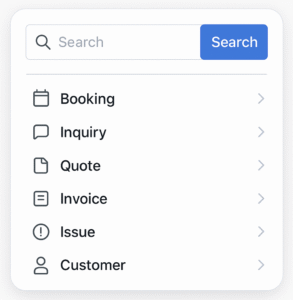
Universal Search (also known as Global Search or Quick Search) is the magnifying-glass search tool in OctopusPro. It lets you search using common identifiers (names, phone numbers, emails, addresses, postcodes, and record numbers) and quickly jump to the correct record.

From the same menu, you can also open Advanced Search panels (advanced filters) for deeper searches within each module.
How to use Universal Search (Quick Search)
Step-by-step (Admin & Office Portal)
- Click the magnifying-glass icon in the top toolbar.
- Type your keyword or identifier (examples below).
- Press Enter or click Go to view results.
What you can search for
- Customer identifiers: name, email, mobile/phone, business name
- Location details: suburb, postcode, street name
- Record numbers: booking/quote/invoice/inquiry/issue IDs (e.g., BOK-10458, EST-75064, INV-31353, CMP-847)
What happens next
- One exact match: OctopusPro opens the record directly.
- Multiple matches: results are grouped by module (Inquiry, Booking, Quote/Estimate, Invoice, Customer, Issue) so you can choose the correct record quickly.

Speed boosters
- Prefix recognition: start with BOK-, EST-, INV-, INQ-, CMP- to narrow results instantly.
- Partial matches: incomplete names or numbers can still match (useful when spelling varies).
Typical use cases
- Call-centre / office team: a customer asks “Where’s my technician?” — search their mobile number and open the booking in seconds.
- Accounts team: confirm a payment — paste the invoice number from the bank transfer memo and open the invoice.
- Dispatch / operations: check job status while on the phone — search a suburb/street to quickly find active jobs in that area.
Advanced Search Pop-ups (Advanced Filters)
Advanced Search panels are module-specific filter pop-ups designed for deeper searches. Each panel supports multiple combinable filters and date range filtering, so you can narrow large lists into a precise result set.
How to open Advanced Search
- Click the magnifying-glass icon.
- Select a module (Booking, Inquiry, Quote, Invoice, Issue, Customer).
- Set your filters and click Search.
Tip: Advanced Search panels typically remember your last-used filters during the session, making it faster to refine results.
Module filters & examples
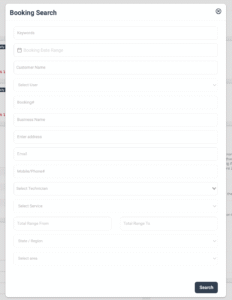
Booking Search (Advanced Filters)
Use Booking Search when you need to filter bookings by multiple criteria such as date range, customer details, technician/fieldworker, service, totals, and location (state/region/area).
- “All carpet-cleaning bookings over $300 this month in NSW”
- “Bookings assigned to John between 1–15 of the month”
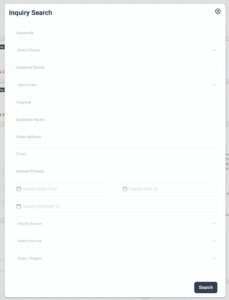
Inquiry (Lead) Search
Use Inquiry Search to manage your lead pipeline: filter by inquiry status, inquiry date range, deferred/follow-up dates, lead source, service, and customer/contact fields.
- “Open inquiries sourced from Facebook last week”
- “Inquiries deferred to today (follow-up list)”
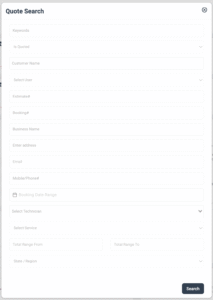
Quote / Estimate Search
Use Quote/Estimate Search to filter by quote/estimate number, whether it’s quoted, linked booking number, booking date, technician, service, totals range, and region.
- “Unsent estimates created today”
- “Quotes for a specific service in a region within a date range”
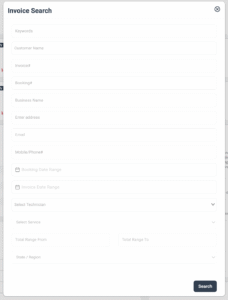
Invoice Search
Use Invoice Search to locate invoices by invoice number, booking date, invoice date, technician, service, totals range, and region—ideal for accounts, reconciliation, and reporting.
- “Invoices issued last quarter between $1,000–$5,000”
- “Invoices linked to bookings in a certain region this month”
Issue / Complaint Search
Use Issue/Complaint Search to locate issues by issue number, booking number, technician/user, and keywords in comments.

- “Complaints containing the word refund assigned to a staff member”
- “All issues linked to a specific booking number”
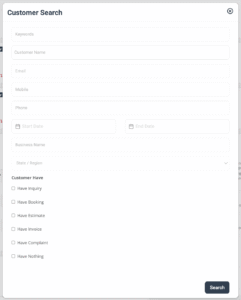
Customer Search (CRM segmentation)
Customer Search is ideal for CRM segmentation and follow-up lists. In addition to customer details, it includes Customer Has checkboxes to filter customers who have (or don’t have) inquiries, bookings, quotes/estimates, invoices, and complaints.
- “Customers with no bookings but at least one inquiry (target for follow-up)”
- “Customers created within a date range in a specific region”
Mobile app search
The same Universal Search and Advanced Filters are available in the OctopusPro mobile apps (Office and Fieldworker):
- Tap the search icon in the header.
- Use Quick Search for fast lookups.
- Switch to Advanced Search for precise filtering (same concept as desktop).
Best-practice tips
- Use system prefixes (BOK-, EST-, INV-) whenever possible to narrow results instantly.
- Bookmark common filtered views: after running a frequent search/filter workflow, save it as a browser bookmark for one-click access.
- Start every support call with search: use the customer’s phone/email first to reduce handling time.
- Use “Customer Has Nothing” / “No bookings” lists to build win-back and upsell campaigns quickly.
- Combine date + totals ranges for fast financial audits and anomaly checks.
- Permissions apply: users only see records they’re authorized to view (role-based access control).
Related guides (open in a new tab):
- Booking Management General Overview
- Quote & Estimate Management Overview
- Invoice, Billing, Payment & Refund Management
- Issue & Complaint Management
- Role-Based Access Control (RBAC) & User Permissions
Frequently asked questions
Does the search index update in real time?
Yes. Records are searchable as soon as they’re created or edited.
Can I export Advanced Search results?
Yes. After results load in the relevant module list page, use the available export option (for example Export CSV) to download the filtered list.
Why can’t I see some records in search?
- Permissions: users only see records they’re authorized to view.
- Try a different identifier: use record number, phone, or email if names are similar.
- Use Advanced Search: add a date range, status, totals range, or region to narrow results.
To stay updated, please subscribe to our YouTube channel.