
Spam Inquiry Management (Mark as Spam + Ban IP Addresses)
Even with strong lead-capture protections, occasional spam inquiries can still slip through. OctopusPro gives you two powerful tools to keep your pipeline clean:
- Mark as Spam (flags the inquiry as spam and blocks future communication from that sender address)
- Ban IP Address (blocks new inquiry submissions coming from a specific IP address)
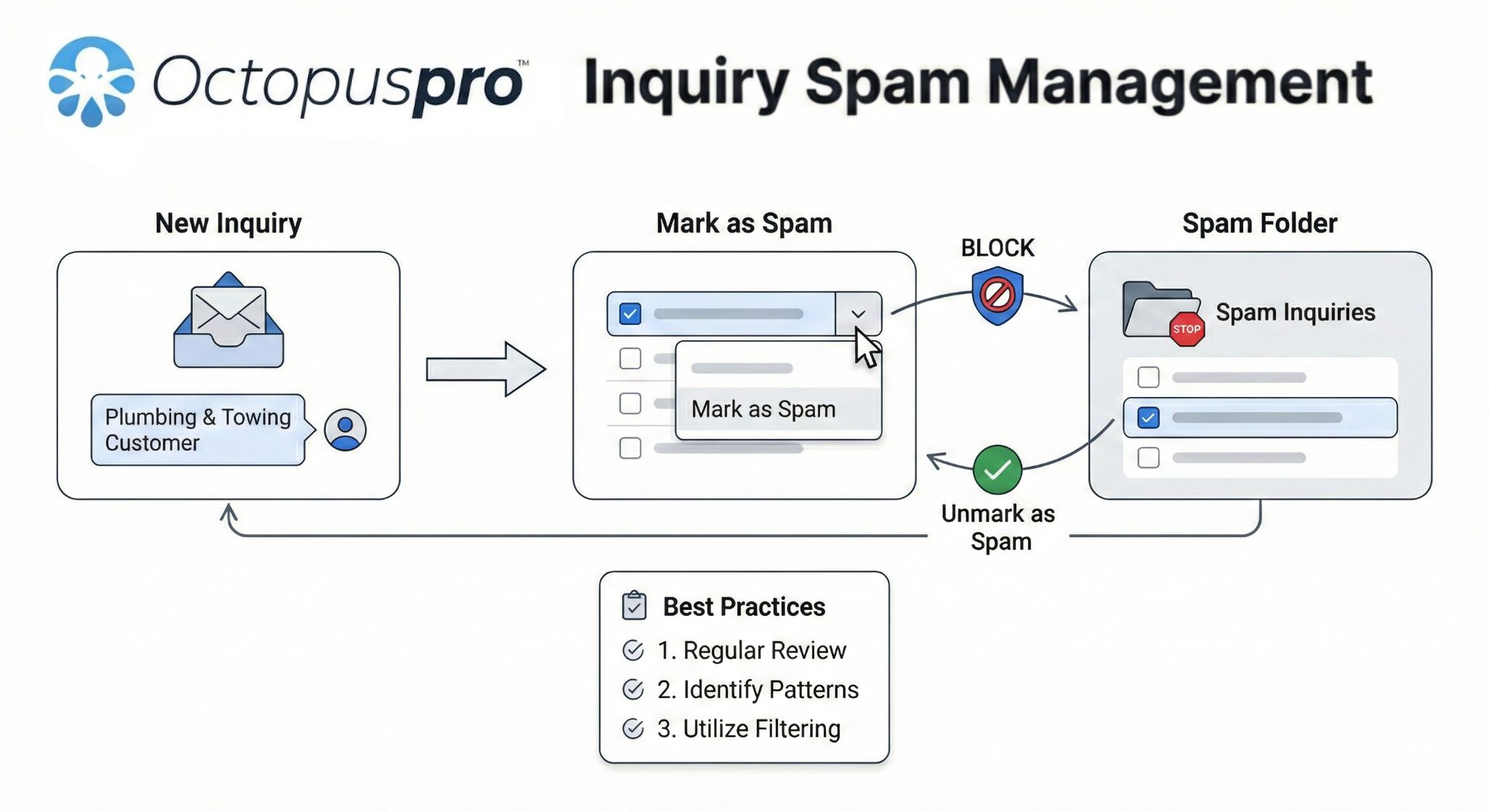
Table of contents
- Overview: When to mark as spam vs ban an IP
- Mark an inquiry as spam
- View spam inquiries
- Unmark (restore) a spam inquiry
- Ban an IP address (block repeat spam submissions)
- View banned IP addresses
- Unblock a banned IP address
- Why this matters (deliverability + security)
- Best practices
- Troubleshooting
- Related guides
Overview: When to mark as spam vs ban an IP
Use “Mark as Spam” when the inquiry itself is clearly junk (fake details, irrelevant content, bot-like message). This moves it to your spam area and blocks future communication from that sender address.
Use “Ban IP Address” when spam is repeatedly submitted from the same source. Banning an IP blocks new lead capture submissions from that IP address.
Tip: Start with Mark as Spam. If you see the same spam pattern repeating, then ban the IP.
Mark an inquiry as spam
To mark one or more inquiries as spam:
- Go to Inquiries.
- Open All Inquiries.
- Select the inquiry (or multiple inquiries) using the checkbox(es).
- Click the down arrow beside the checkbox controls (bulk actions menu).
- Select Mark as Spam.

Important: Marking an inquiry as spam is a powerful action. Use it only when you’re confident it isn’t a genuine lead, because it can block future communication from that sender address.
View spam inquiries
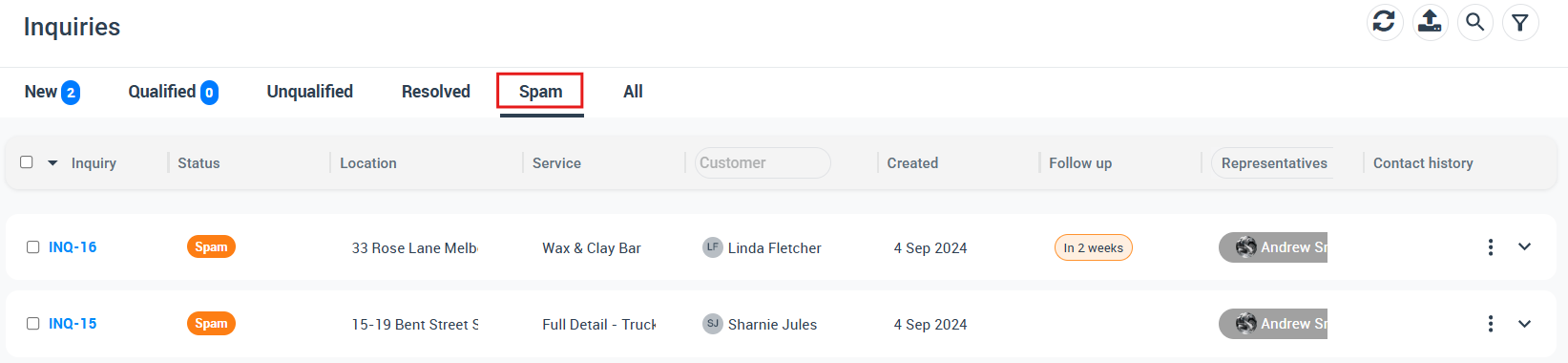
To review inquiries that have been marked as spam, you can access them from your inquiries area (for example via a Spam tab or a Spam Inquiries section in the menu, depending on your layout).
- Go to Inquiries.
- Open Spam / Spam Inquiries.
- Review the list to confirm spam inquiries are correctly classified.
Unmark (restore) a spam inquiry
If an inquiry was mistakenly flagged as spam, you can restore it:
- Go to Inquiries → Spam / Spam Inquiries.
- Select the inquiry you want to restore.
- Choose Unmark as Spam (from the available actions in your layout).
Once restored, the inquiry returns to your normal inquiries list and can be managed like any other lead.
Ban an IP address (block repeat spam submissions)
If you’re receiving repeated spam submissions from the same source, you can ban the sender’s IP address directly from an inquiry record:
- Go to Inquiries → All Inquiries.
- Open the inquiry you want to investigate.
- Scroll down to the sender details.
- Click Ban IP Address.
What this does: prevents new inquiry/lead-capture submissions coming from that IP address.
View banned IP addresses
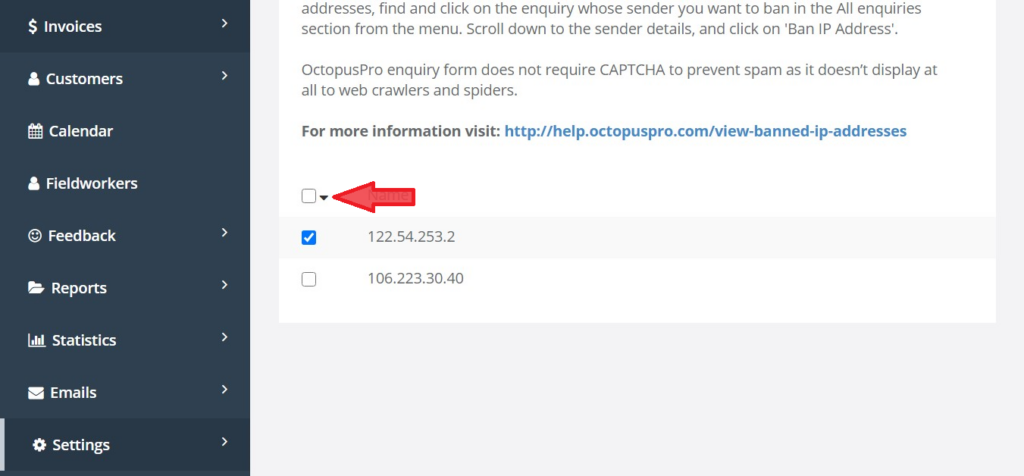
To view all IP addresses currently banned in your account:
- Go to Settings → Communications → Lead Capture.
- Open the Banned IPs tab.
- Scroll to the bottom to see the banned IP list.
Note: OctopusPro’s inquiry form is designed to help prevent spam without requiring a CAPTCHA, and is intended to be less accessible to automated crawlers and spiders.
Unblock a banned IP address
To remove an IP address from the banned list:
- Go to Settings → Communications → Lead Capture.
- Open the Banned IPs tab.
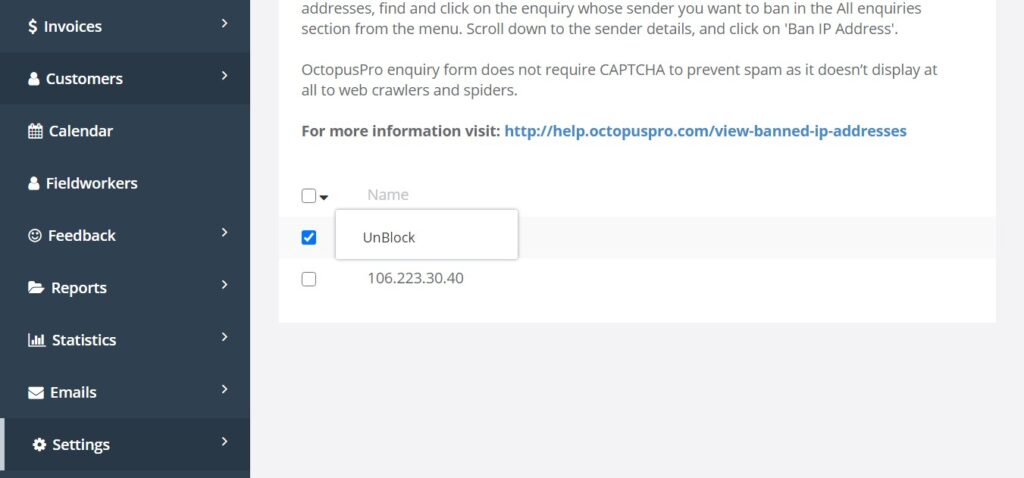
- Select the IP address using the checkbox.
- Click the actions arrow to reveal options.
- Click Unblock.
Why this matters (deliverability + security)
- Avoid clutter: keeps your inquiries list focused on real leads.
- Improve deliverability: reduces spam-like interactions that can negatively impact email reputation.
- Reduce admin time: spend less time deleting junk and more time converting leads.
- Improve security: blocks suspicious sources and repeat offenders.
Best practices
- Review before blocking: if a message seems odd but could be legitimate, verify first before marking as spam.
- Use IP bans carefully: some users may share an IP (office networks, shared Wi-Fi). If you accidentally block a real customer, simply unblock the IP.
- Check your spam list periodically: ensure genuine inquiries weren’t mistakenly flagged.
- Watch for patterns: repeated wording, fake names, same service selections, or unusual submission spikes are a sign you should ban the IP.
Troubleshooting
- I can’t find “Spam Inquiries”: look for a Spam tab within the Inquiries page, or a Spam Inquiries entry in the inquiries/lead management area (layout can vary).
- I don’t see “Ban IP Address”: open the inquiry and scroll to the sender details section (where IP information/actions are displayed).
- I blocked a legitimate lead: unmark the inquiry as spam and/or unblock the IP address from Settings → Communications → Lead Capture → Banned IPs.
Related guides
- Website Lead Capture Form (Inquiry Widget)
- Inquiries & Lead Management Overview
- Create a New Inquiry
- View Inquiry Details
- Edit Inquiry Details
- Follow-Up Reminders for Inquiries (Lead Follow-Up)
- Inquiries Statistics Dashboard
To stay updated, please subscribe to our YouTube channel.