
Booking History & Audit Log (Change Log)

OctopusPro’s Booking History provides a chronological, read-only audit trail (change log) for each booking—showing who made a change, what changed, and when it happened. It’s essential for accountability, dispute resolution, quality control, and operational oversight.
On this page
- What this is for
- Key concepts
- Where to find booking history
- What gets logged
- How to use booking history (step-by-step)
- Viewing history from a customer profile
- Examples: how admins use history to take action
- Best-practice tips
- Industry use-cases
- Related guides
What this is for
Use Booking History to:
- Resolve disputes faster by proving exactly what changed (and when).
- Prevent errors and revenue leakage by auditing changes to prices, services, time, and status.
- Improve accountability across admin staff, dispatchers, and fieldworkers.
- Support compliance and governance by keeping a reliable record of operational actions.
Common scenarios:
- A customer says, “I didn’t approve that time change” → confirm who changed the schedule and when.
- An invoice is overdue → verify whether the invoice was created/sent and if a payment was logged.
- A job was cancelled or rescheduled multiple times → review the sequence before applying a cancellation/no-show fee.
Key concepts
- Booking History (per booking): The detailed audit trail inside a booking record (Activity → History).
- Booking History Log (reports): A reporting view that helps you monitor newly created and modified bookings at a higher level (useful for daily review and management oversight).
- Booking Activity: Related booking activity views/logs that may also include booking lifecycle events and other booking-level actions.
What you’ll typically see per entry: date/time, user/actor, action/event, and in many cases the old value and new value (plus additional context depending on the action).
Where to find booking history
1) View history inside a booking (recommended for detailed audits)
- Go to Bookings and open the booking you want to review.
- Open the Activity section, then select History.
- Review the timeline of changes and actions recorded on that booking.
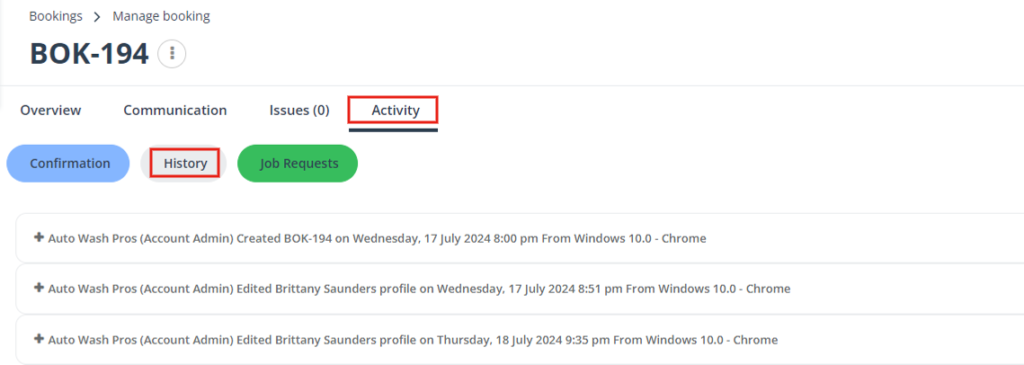
Tip: Use Booking History together with other booking tabs (like schedule, billing, and communications) to validate context—especially when reviewing changes to pricing, times, or status.
What gets logged
Booking History can record many “who did what” events throughout the booking lifecycle, such as:
- Booking lifecycle actions: created, scheduled/rescheduled, status changes, cancellations.
- Operational changes: assignment updates, internal notes, booking updates, and key details edits.
- Financial milestones: invoice created/sent, payment recorded, refunds (where applicable).
- Customer-related edits: changes tied to the customer record that relate to the booking context (when viewing from the customer profile).
Note: The exact events shown can vary depending on your enabled modules, user permissions, and workflow settings.
How to use booking history (step-by-step)
- Identify the timeframe you want to audit (e.g., when the customer claims something changed).
- Find key entries that relate to schedule, status, or pricing changes.
- Confirm the actor (admin/dispatcher/fieldworker) and validate whether the change aligns with policy.
- Take action (correct details, follow up with customer, re-send invoice, or adjust permissions if needed).
Viewing history from a customer profile
You can also review booking-related history and customer changes from the customer profile—useful when you want a consolidated view across multiple bookings for the same customer.
- Go to Customers and open your customer list.
- Click Actions for the customer, then select View customer profile.
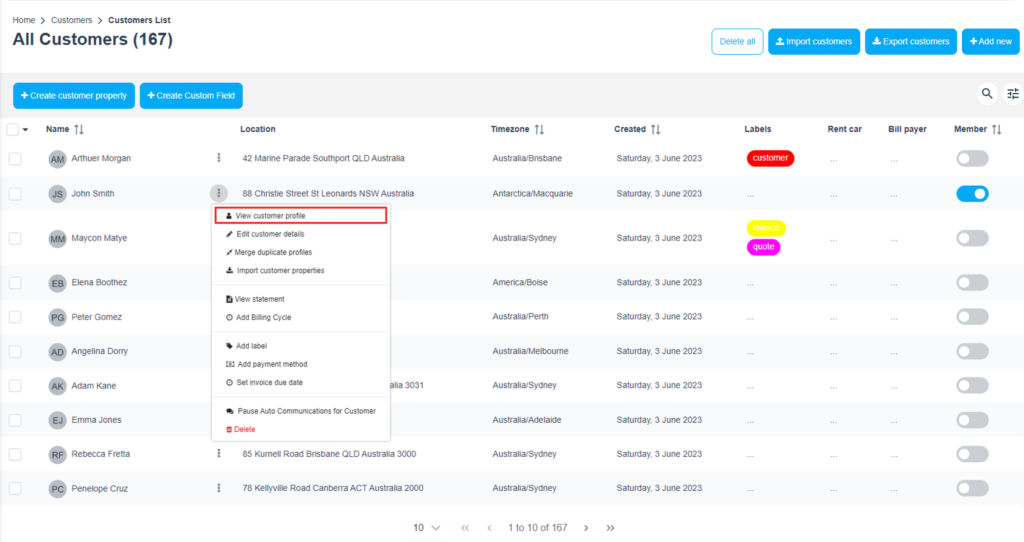
- In the customer profile, select the History tab to review logged changes linked to that customer.
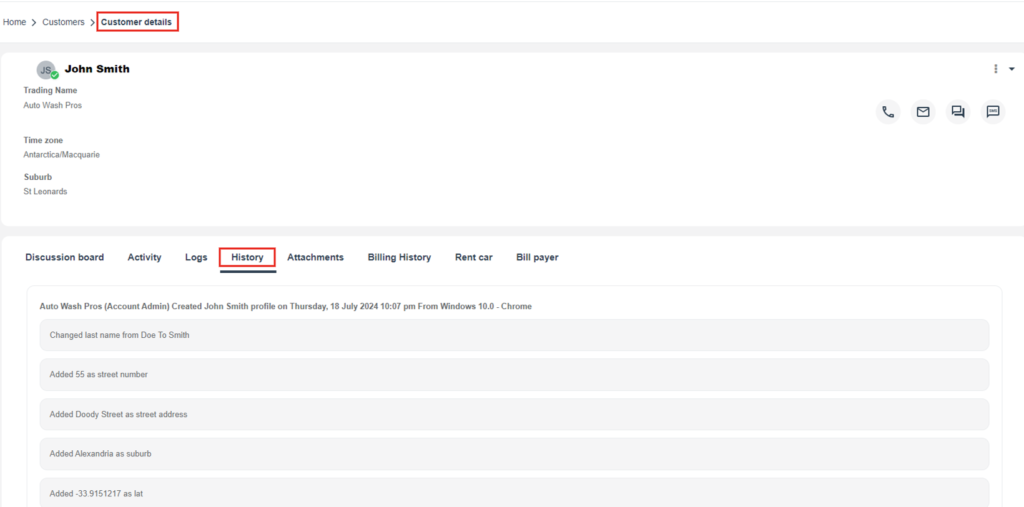
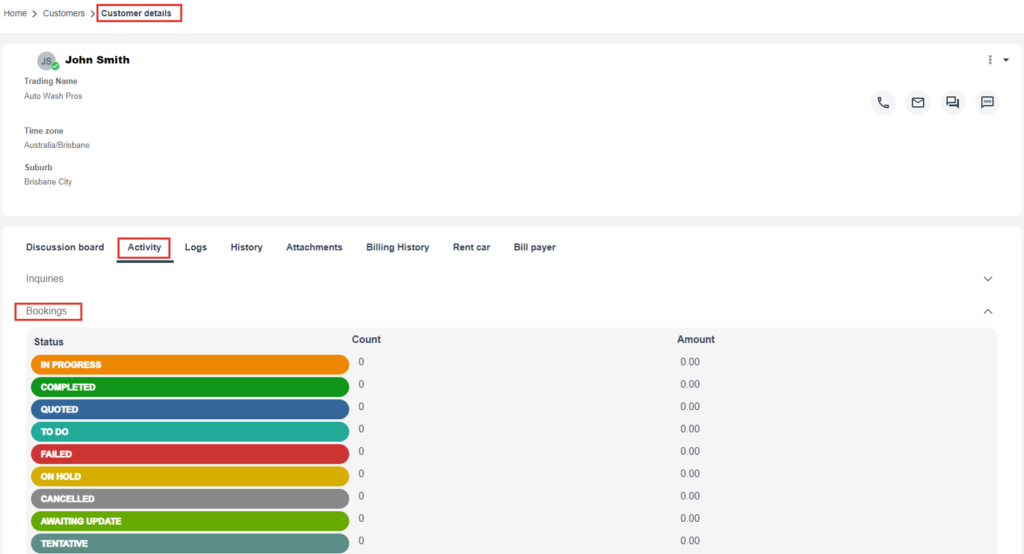
The customer profile’s Activity area can also help you review a consolidated summary of customer-related records (such as bookings) linked to that customer.
Examples: how admins use history to take action
Booking History becomes most valuable when you use it to drive the next action. Here are common examples:
| Scenario | What to do next | Benefit |
|---|---|---|
| Invoice appears unsent or customer claims they didn’t receive it | Confirm the invoice event in history, then resend the invoice and/or follow up with the customer | Reduces billing delays and improves cashflow |
| Payment is recorded but financial reporting still looks incorrect | Verify payment events in history and review payment records for accuracy | Cleaner reconciliation and fewer month-end surprises |
| Repeated reschedules/cancellations lead to policy enforcement | Use history entries as evidence before applying no-show/cancellation fees or escalating the issue | Transparent proof reduces disputes and supports fair enforcement |
| Someone changed price/time without approval | Identify the user and time of change, correct the booking, and tighten permissions if needed | Prevents revenue leakage and reduces internal errors |
Best-practice tips
- Limit who can edit critical fields (prices, status, schedule) using permissions to reduce avoidable changes.
- Review logs daily if you manage multiple dispatchers/admins to catch mistakes early.
- Use customer-profile history when investigating customer-wide issues across multiple bookings.
- Pair booking-level history with system-wide logs (User/Fieldworker Activity Logs) when you need broader oversight.
- Keep internal processes consistent: define who is allowed to reschedule, apply discounts, or mark bookings complete.
Industry use-cases
- HVAC & maintenance: confirm changes to appointment times, technician assignments, and service outcomes for warranty or contractor disputes.
- Home & healthcare visits: demonstrate compliance by showing a reliable record of job events and updates tied to each visit.
- Property management & facilities: provide owners/managers with an auditable maintenance history before approving additional work.
- Cleaning & restoration: track last-minute scope and pricing changes, and reduce “who changed what?” internal confusion.
Related guides
- Viewing and Managing Booking Details
- Edit Booking Details
- Booking History Log (Recent & Modified Bookings)
- Booking Activity & Audit Log
- Customer Activity Timeline
- Customer Communication History (Email/SMS Logs)
- User Activity Log
- Fieldworker Activity Log
- Fieldworker Permissions
- Role-Based Access Control (User Permissions)
To stay updated, please subscribe to our YouTube channel.