
Fieldworker Email Log & Audit Trail (Sent and Received Emails)
The Fieldworker Email Log gives you a clear, searchable audit trail of emails sent to and received from each fieldworker through OctopusPro. It helps you keep communication transparent, resolve disputes faster, and verify that important job instructions, updates, and documents were delivered.
Why the Fieldworker Email Log matters
- Communication audit trail: confirm what was sent/received and when.
- Faster issue resolution: quickly reference prior messages when jobs change or customers escalate.
- Quality control & training: review communication standards and coach your team.
- Accountability: reduce “I didn’t get it” scenarios by checking the message record and attachments.
On this page
- How to access the Fieldworker Email Log
- View sent vs received emails
- Open an email, download attachments, and add notes
- Improve deliverability (Business Email Authentication)
- Company-wide Outbound Email Log (all emails)
- Troubleshooting & best practices
- Related guides
How to access the Fieldworker Email Log
To view a fieldworker’s email history:
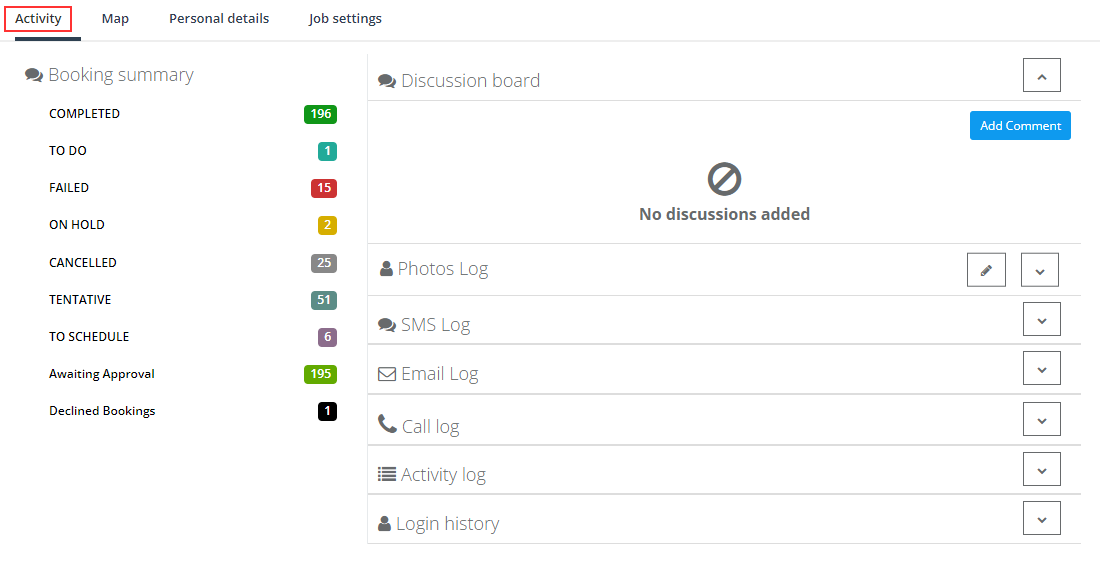
- Go to Fieldworkers from the main menu.
- Open the relevant fieldworker profile (learn more: Viewing Fieldworker Profile).
- Click the Activity tab.
- Select Email Log to view the communication history.

Tip: Email history is stored based on your account’s data retention rules and plan. If you need long-term audit history for compliance or reporting, consider the account level that matches your retention requirements.
View sent vs received emails
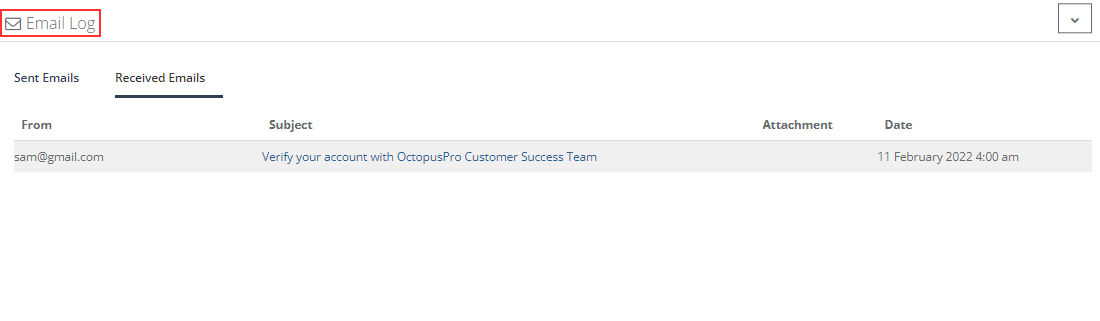
Inside the Email Log, you can switch between:
- Sent Emails – emails delivered to the fieldworker through OctopusPro (for example: job updates, roster changes, reminders, or internal instructions).
- Received Emails – emails OctopusPro captured as received from the fieldworker (for example: replies or inbound messages routed through the system).
Each list typically includes key fields such as To, From, Subject, Attachment, and Date, making it easy to confirm what was communicated and when.
What this is (and isn’t): This log tracks emails handled through OctopusPro. Emails sent outside the platform (e.g., personal Gmail/Outlook) won’t appear here.
Open an email, download attachments, and add notes
To view the full content of any email, click the email row in the log. A preview window will open where you can:
- Read the full email content (including subject and message body).
- Download attachments (if the email included files).
- Add an internal note for your team (useful for follow-ups, escalation notes, or context).

Improve deliverability (Business Email Authentication)
If your emails are going to spam, not arriving, or appear as “unverified sender,” configure Business Email Authentication. This helps improve deliverability and ensures emails sent from OctopusPro align with your domain’s sending rules (e.g., SPF/DKIM requirements).
Learn more: Business Email Authentication
Also check: the fieldworker has a valid email address and is verified/activated (see Fieldworker Email Verification).
Company-wide Outbound Email Log (all emails)
Need a broader audit trail beyond a single fieldworker? Use the Outbound Email Log to track emails sent from OctopusPro across your entire account (for example: invoices, quotes, confirmations, reminders, and automated messages).

View the guide: Outbound Email Log – Complete Audit Trail
Tip: If an email was triggered by an automation (scheduled reminders, follow-ups, status-change notifications), also review the Automations Log – Scheduled Tasks Execution History to confirm what ran and when.
Troubleshooting & best practices
An email is missing from the Fieldworker Email Log
- Confirm the email was sent through OctopusPro (emails sent externally won’t appear).
- Verify you’re viewing the correct tab (Sent Emails vs Received Emails).
- Check the fieldworker has a valid, verified email address: Fieldworker Email Verification.
- If the message was automated, review the automation execution history: Automations Log.
The fieldworker says they didn’t receive the email
- Open the email entry in the log to confirm it was generated and sent, and check whether it included attachments.
- Ask the fieldworker to check spam/junk and any quarantine rules used by their email provider.
- Enable/configure domain authentication for better deliverability: Business Email Authentication.
Limit access to sensitive communication
Use role-based permissions to control who can view fieldworker profiles and communication logs.
Learn more: Role-Based Access Control & Permissions
Standardise communication (recommended)
- Create consistent templates: Email Templates
- Use reusable replies: Canned Responses
- Personalise with dynamic fields: Template Placeholders
- Automate reminders and notifications: Automated Reminders & Confirmations
Related guides
- Contacting Fieldworkers
- Viewing Fieldworker Profile
- Fieldworker Email Verification
- Business Email Authentication
- Outbound Email Log – Complete Audit Trail
- Customer Communication History (Email & SMS)
- Fieldworker SMS Log
- Fieldworker Call Log & Recordings
- Fieldworker Activity Log
To stay updated, please subscribe to our YouTube channel.