
Calendar Month View
OctopusPro’s Calendar Month View gives you a high-level, month-at-a-glance view of your scheduled bookings—so you can plan capacity, spot busy days, and manage availability quickly. From this view, you can create bookings, block time for fieldworkers/technicians, add internal notes, reschedule bookings by dragging them to another date, and apply filters to focus on what matters.
Month View is ideal for:
- Capacity planning: see how full your month is at a glance.
- Dispatch visibility: quickly check who’s booked and when.
- Fast scheduling actions: add bookings, block time, and add notes from the calendar.
- Quick rescheduling: drag a booking to a new date.
- Focused views: filter by service, status, area/location, fieldworker, labels, and more (depending on your enabled features).
On this page
- Navigate Month View
- Add a new booking
- Mark a fieldworker/technician as unavailable
- Reschedule a booking (drag & drop)
- Add notes to calendar dates
- Filter the calendar
- FAQs
- Related articles
Navigate Month View
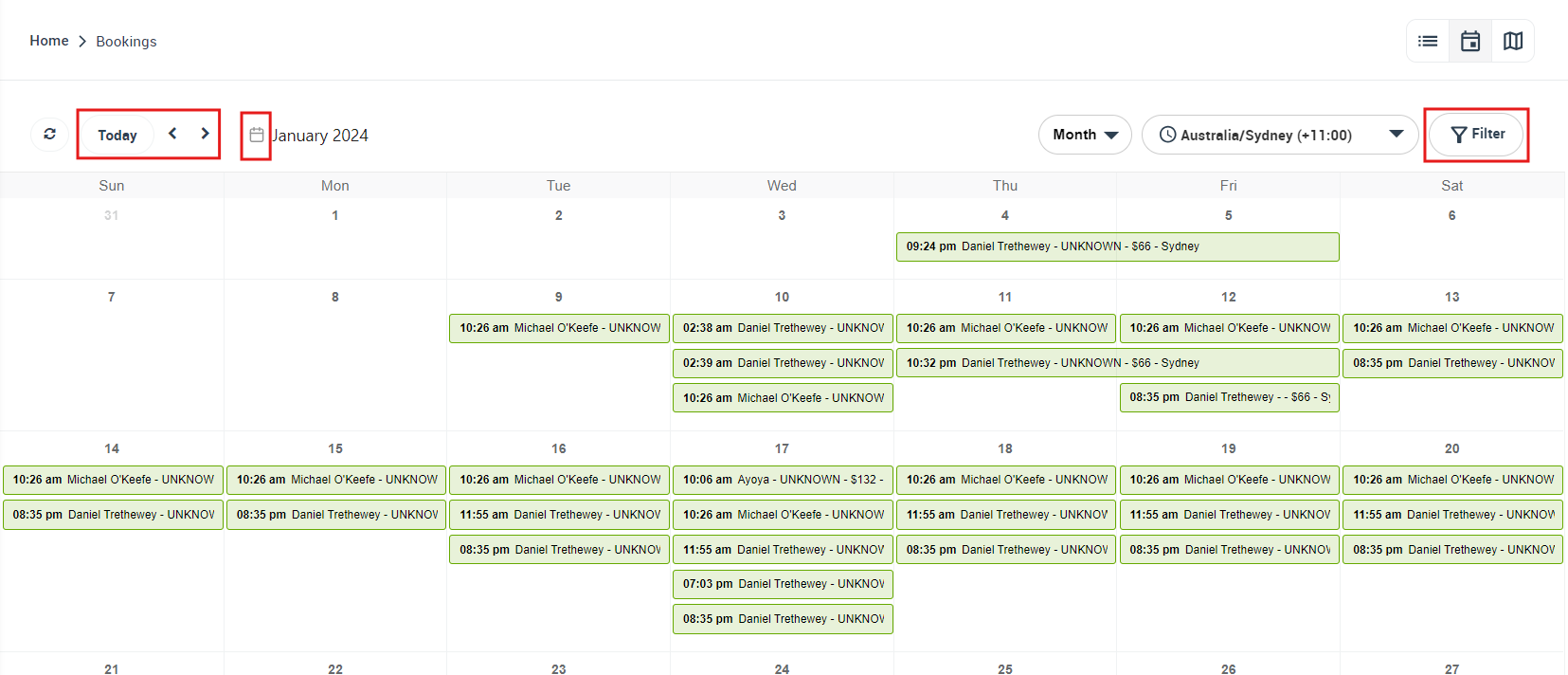
Month View is designed to give you a broad overview of all bookings scheduled for the month. Use it to quickly identify free days, busy periods, and gaps in your schedule.
- Go to Bookings > Calendar.
- Select Month from the view selector.
- Use the left/right arrows (top-left) to move between months.
- Use Today to jump back to the current date.
- If available, confirm the correct timezone (useful for teams across regions).
Tip: Month View is best for planning and date-level changes. If you need time-slot scheduling (moving a booking to a specific time), switch to Calendar Week View or Calendar Day View.
Add a new booking
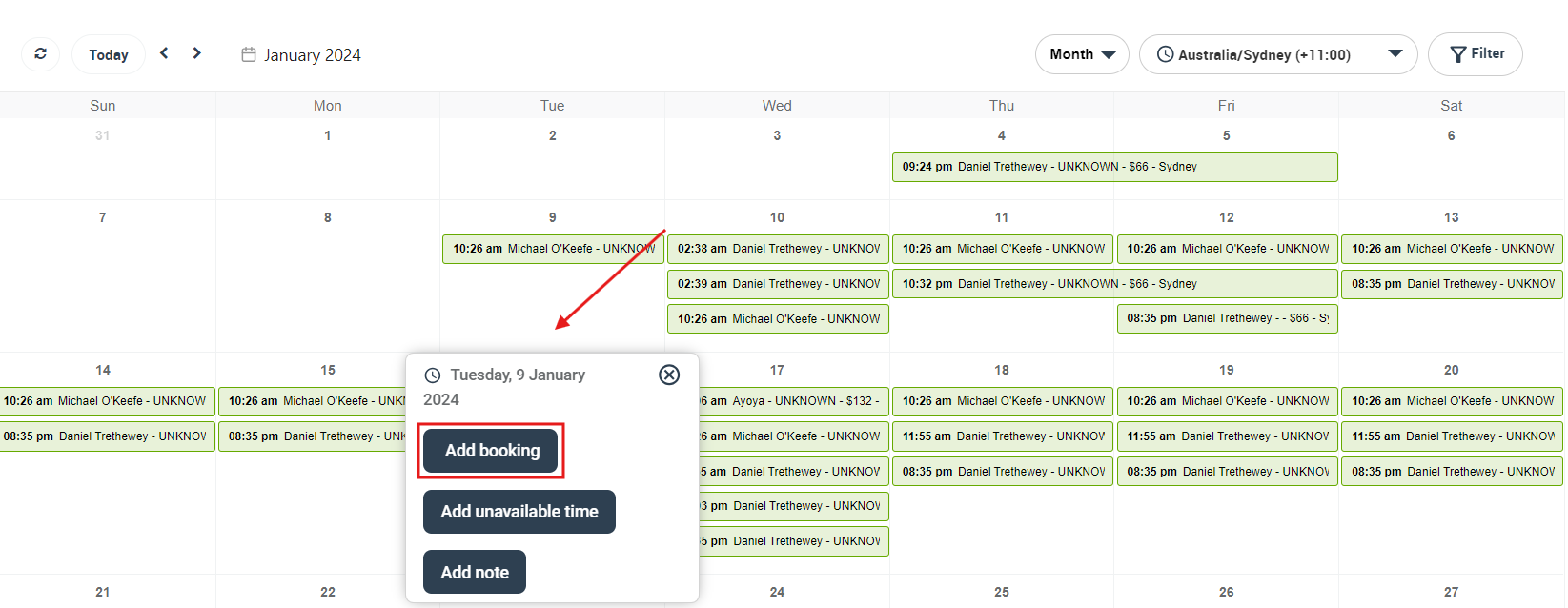
You can create a new booking directly from Month View. Click the date you want, then choose Add booking from the quick action menu.
- Click the desired date on the calendar.
- Select Add booking.
- Complete the booking details (customer, service, date/time, assigned fieldworker/technician, address/location details, etc.).
- Click Save. The booking will appear on the calendar.
Learn more: Add New Bookings from the Calendar.
Mark a fieldworker/technician as unavailable
Blocking unavailable time prevents bookings from being scheduled during specific hours or whole days. This is useful for leave, breaks, training, meetings, travel time, or any other blackout periods.
To add unavailable time from Month View:
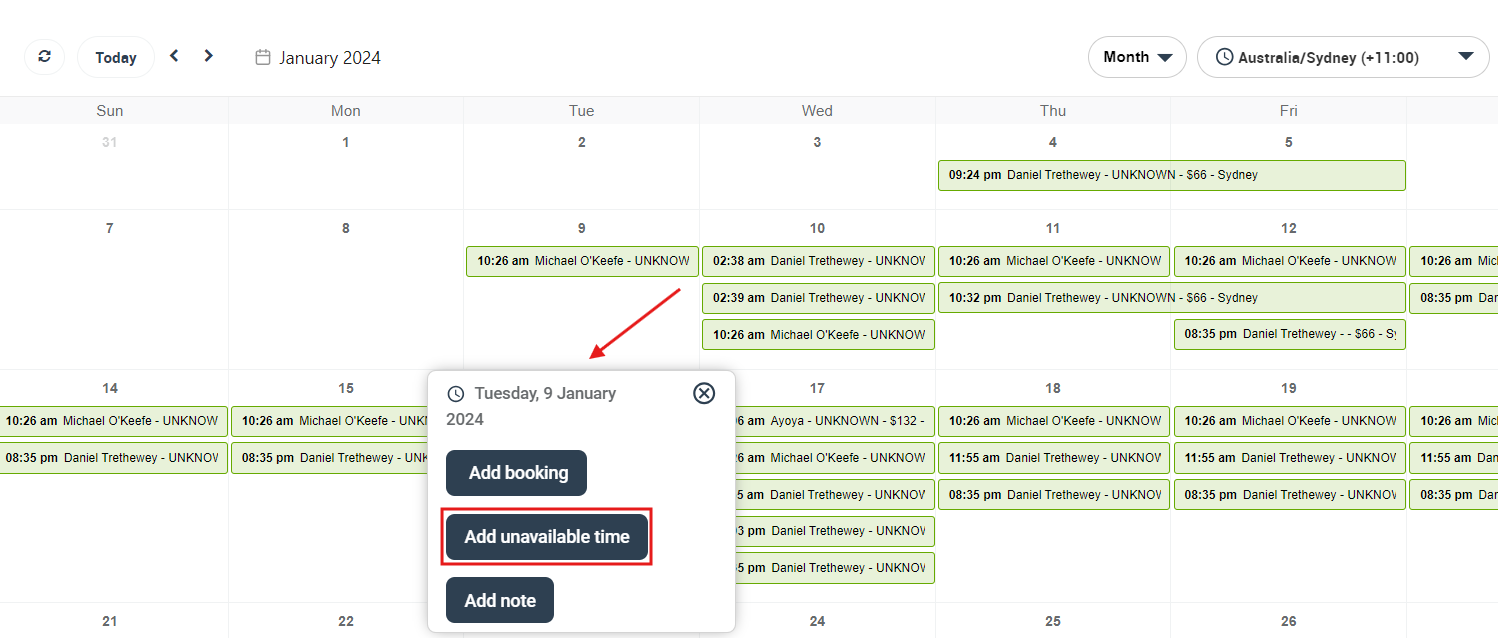
- Click the relevant date on the calendar.
- Select Add unavailable time.
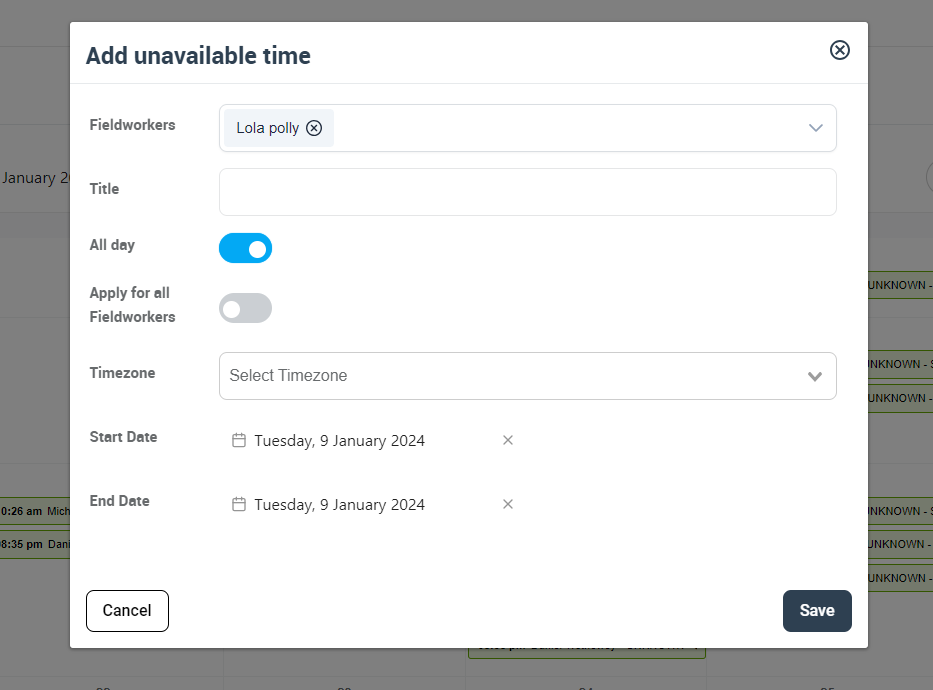
Option A: Block the entire day (All day)
- Select the relevant fieldworker/technician.
- Enable the All day toggle.
- Add an optional title (e.g., Annual leave, Training).
- Click Save.
Option B: Block specific hours
- Select the relevant fieldworker/technician.
- Leave All day disabled.
- Select the start and end date/time you want to block.
- Click Save.
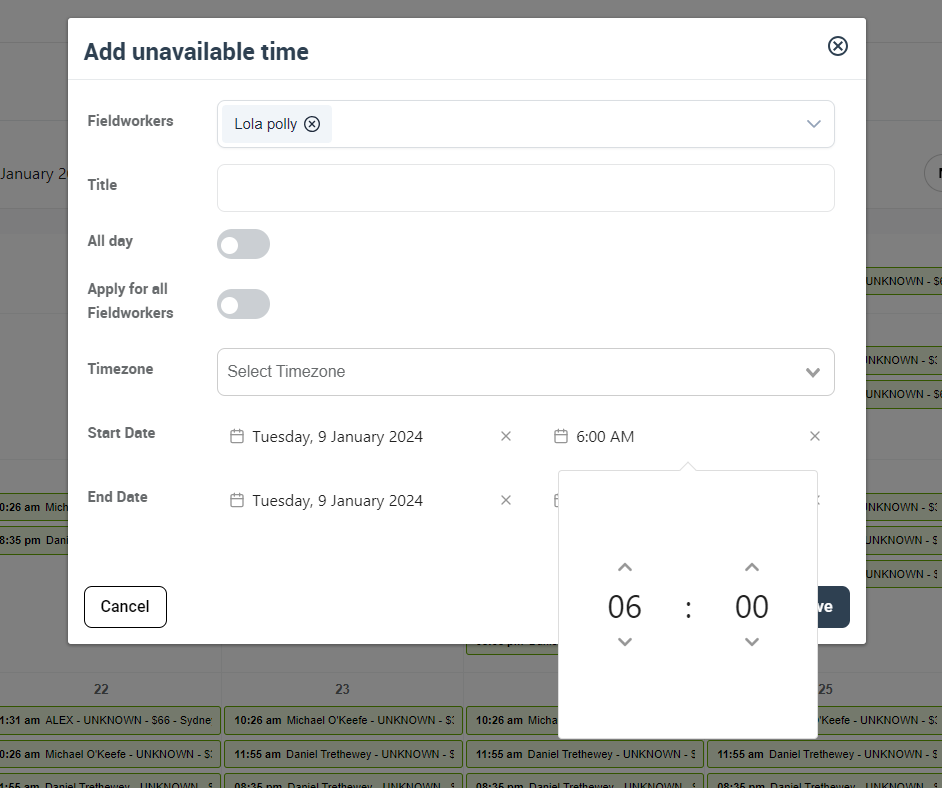
Important: Unavailable time blocks scheduling. If you only need an internal reminder that does not block bookings, use Calendar Notes instead.
Learn more: Block Unavailable Dates & Times.

Reschedule a booking (drag & drop)
Schedules change—Month View makes rescheduling quick. You can move a booking to another date using drag-and-drop.
- Click and hold the booking you want to reschedule.
- Drag it to the new date.
- Drop it to confirm the change.
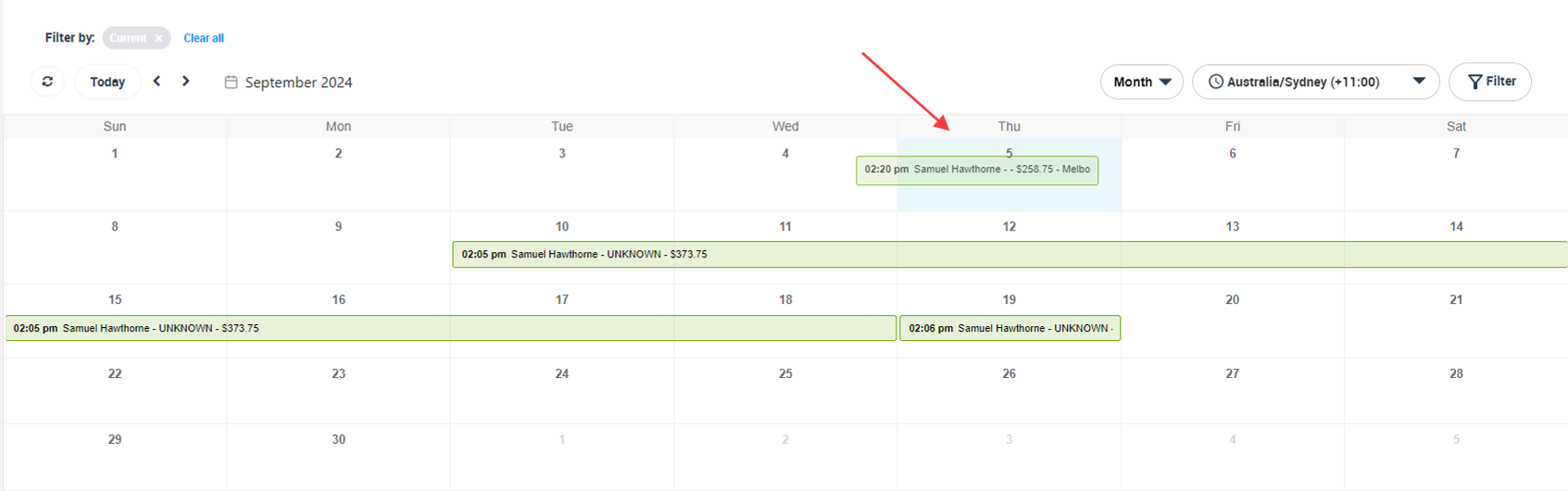
Tip: To change the time (not just the date), use Calendar Week View or Calendar Day View.
Add notes to calendar dates
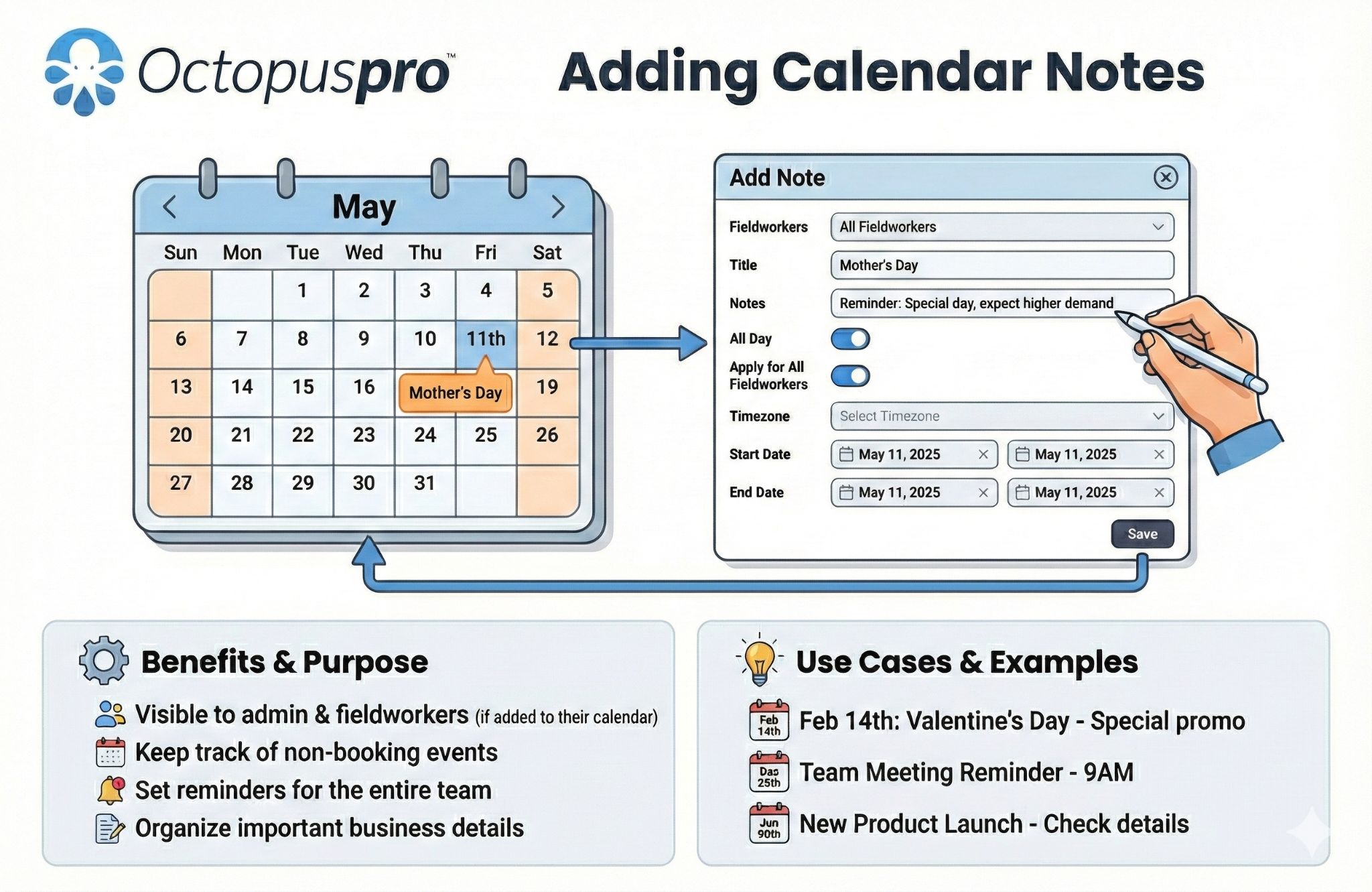
Calendar notes are internal reminders or annotations that help with planning (e.g., “Call supplier”, “Stocktake”, “Team meeting”). Notes do not block availability and won’t prevent bookings from being scheduled.
- Click the date you want to add the note to.
- Select Add note.
- Enter your note details, then click Save.
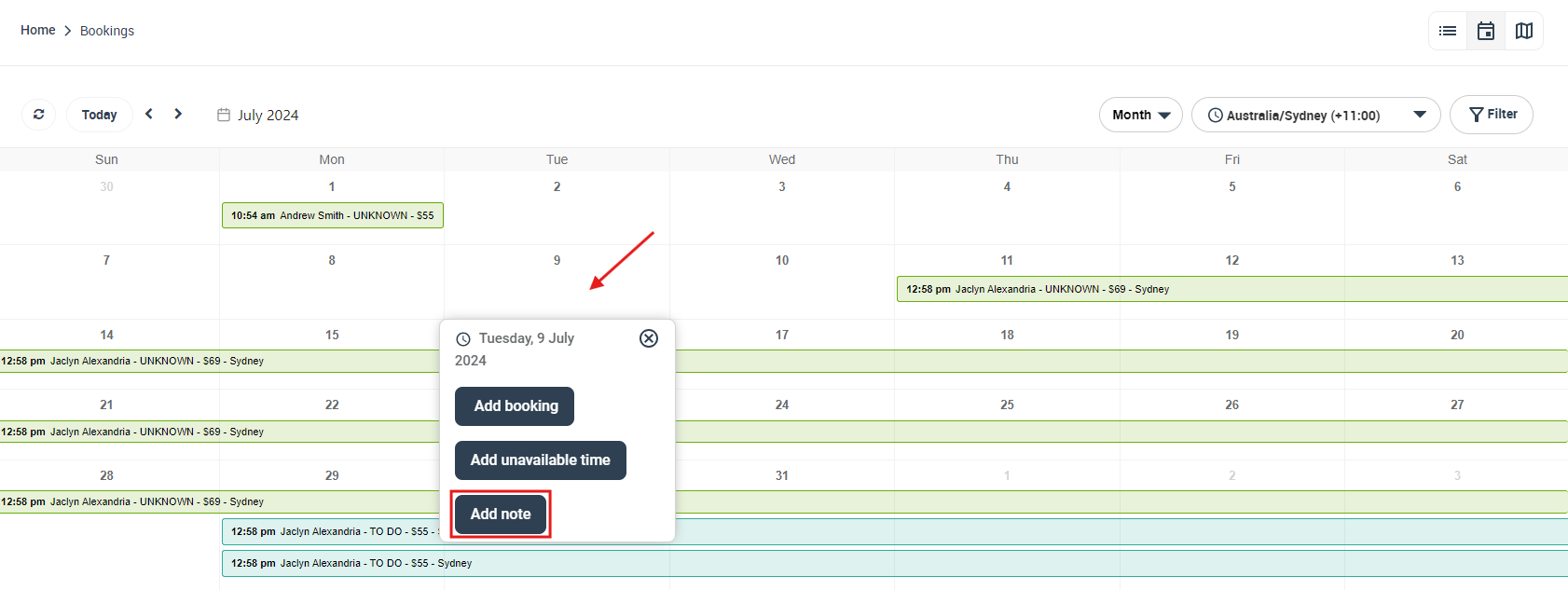
Learn more: Calendar Notes & Reminders.
Filter the calendar
Filtering helps you focus on a subset of bookings—such as a specific service, booking status (workflow stage), location/area, or assigned fieldworker. Filters reduce clutter and make it easier to plan, dispatch, and reschedule accurately.
Common filter options (depending on your enabled features) include:
- Service
- Booking status (e.g., To Do, In Progress, Completed)
- Location / Area (e.g., state/region, town/city)
- Fieldworker/Technician
- Customer labels and fieldworker labels
- Assignment status (where job requests/dispatch workflow is enabled)
- Payment status (where payments/invoicing filters are enabled)
How to apply filters:
- Click Filter (top-right).
- Select your filter criteria.
- Click Filter to apply.
- Use Clear all (if available) to reset and return to the full calendar view.
Learn more:
Viewing booking details: You can click any booking on the calendar to view a quick summary. From there, you can typically choose View to open the booking, or Edit to update its details.
FAQs
Can I view bookings for specific fieldworkers in Month View?
Yes. Use calendar filters to show bookings assigned to one (or multiple) fieldworkers/technicians.
How can I identify different types of bookings?
Bookings and events can be color-coded (based on your configuration), making it easier to differentiate booking types and spot patterns quickly.
What happens when I mark a fieldworker as unavailable?
That time period is blocked in the calendar, preventing new bookings from being scheduled during the unavailable window.
Can I mark an entire day as unavailable?
Yes. Enable the All day toggle when creating unavailable time.
Can I reschedule a booking directly from Month View?
Yes. Drag and drop the booking to a new date. For time changes, use Week/Day view.
Do calendar notes block availability?
No. Notes are reminders/annotations only and do not prevent bookings from being scheduled.
Related articles
- Calendar – Scheduling & Dispatch Overview
- Calendar Week View
- Calendar Day View
- Calendar List View
- Add New Bookings from the Calendar
- Block Unavailable Dates & Times
- Calendar Notes & Reminders
- Filter Calendar by Area
- Filter Calendar by Booking Status
- Filter Calendar by Fieldworker
- View Fieldworker Google Calendar
- Fieldworker Calendar & Availability (Google/Outlook Sync)
- Dynamic Real-time Fieldworker Availability Scheduling
- Fieldworker Reschedule Assist – Automated Alternate Slot Suggestions
- Managing Booking Statuses
To stay updated, please subscribe to our YouTube channel.